WordPress Site Slow After Migration? How to Find and Fix the Real Cause
Post-migration slowness can make a clean launch feel half-done. When the search in your head is WordPress site slow after migration, the fix is usually more specific than a normal speed checklist.
Before you compress another image or blame the migration tool, make sure the new site is actually running in the right place, with the right cache, server settings, URLs, and database setup.
Something changed during the move. Often it’s the cache or PHP. Sometimes it’s the database, DNS/CDN routing, a plugin, or a setting that made sense on the old host but slows everything down on the new one.
TL;DR: Measure first. If the first server response is slow, fix hosting, caching, PHP, the database, or WordPress settings before touching images. If those improvements still aren’t enough, use AirLift to optimize caching and reduce server response times. Before any fix, make a fresh WordPress backup with your backup plugin. That small pause can save you from turning a slow site into a broken one.
Start with the slowest layer
“Slow” isn’t a diagnosis. It only tells you the site feels worse than it did before. Run one fresh test in Chrome DevTools, PageSpeed Insights, WebPageTest, or GTmetrix. You don’t need five reports yet. You need to know where the delay starts.
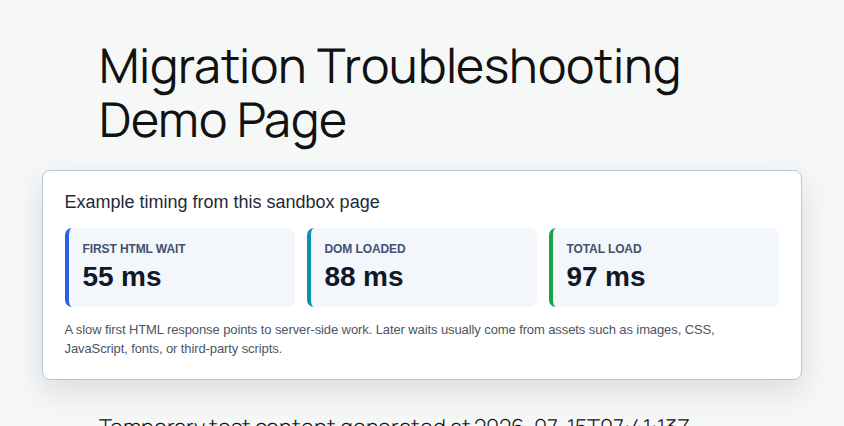
Check the first server response: If the browser waits a long time before any HTML arrives, the issue is usually hosting, PHP, database, cache, or WordPress code running on the server. If you see a major lag here, read our deep dive on fixing slow WordPress server response times .
Check the request list: If the HTML arrives fast but images, CSS, JavaScript, fonts, or outside scripts drag later, the issue is mostly page weight.
Check public pages and wp-admin separately: A cached homepage can be fast while the dashboard, checkout, search, or account pages are slow.
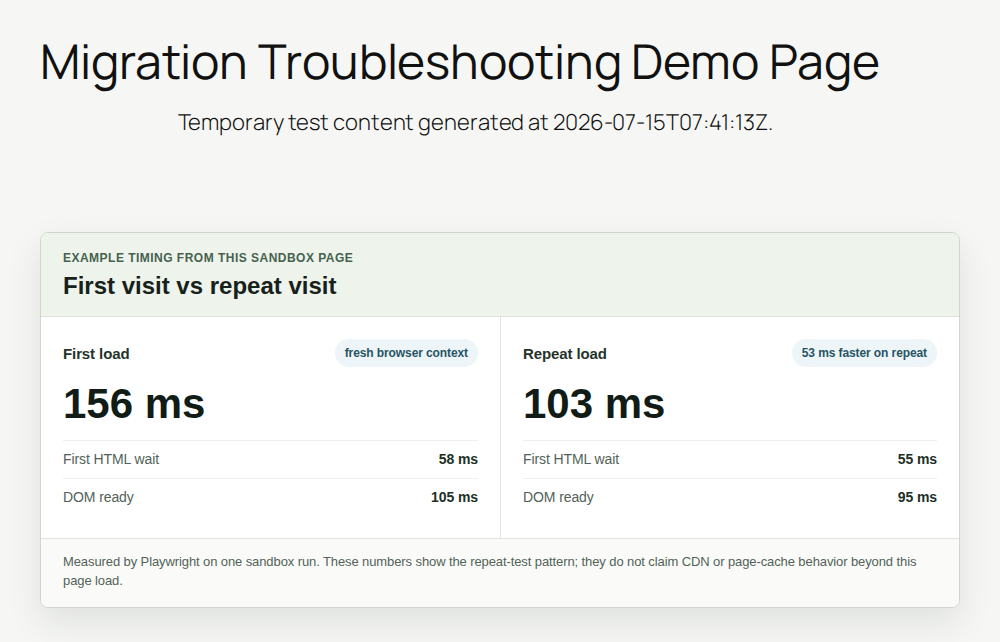
Check first load against repeat loads: If the first visit is slow and the second is much faster, your cache may only be cold. If every visit is slow, keep digging.
Note 🧭: If the first server response is three seconds, image compression won’t fix the real problem. The browser hasn’t even started asking for the images yet.
Give fresh cache a little time
Some slowness right after migration is normal. Full-page cache may be empty. The server may need to rebuild saved PHP files. WordPress CDN may be pulling fresh copies of images and scripts. WordPress may also be finishing plugin or database tasks after the first real traffic hits the new site.
I wouldn’t panic over one slow uncached visit five minutes after launch. I also wouldn’t ignore a site that stays slow after a few repeat tests.
Warm the important pages: Open the homepage, top landing pages, product pages, checkout, login, and any page that matters to revenue.
Retest after a few visits: If speed improves, you may be seeing normal cache warmup.
Act quickly on dynamic pages: wp-admin, checkout, carts, account pages, and search often don’t use normal page cache, so waiting rarely fixes them.
That last point matters for WooCommerce. A store can have a fast homepage and still have painful order search or checkout after migration. Page cache hides public pages. It won’t speed up the live database work behind those screens.For a clearer picture of what your setup actually needs, see our guide on page cache vs. object cache
Clear old cache and rebuild it
Clearing Cache is the first fix I try after a migration because it’s easy to carry over stale files. Old cached pages, old minified assets, CDN copies, and host-level cache rules can all survive the move in ways that make the new site behave strangely.
Clear each layer once, then test again.
Empty your caching plugin first: Clear your WordPress cache, object cache, minified files, and any “used CSS” or generated asset files.
Purge the host cache: Many managed hosts have their own cache outside WordPress.
Purge the CDN cache: Do this if traffic passes through Cloudflare, Bunny, QUIC.cloud, or a host-managed CDN.
Regenerate optimized files: If your old optimization plugin combined CSS or JavaScript, rebuild those files on the new server.
Use a private window for the next check: That keeps your browser from showing an old copy while the server serves the new one.
Note:If you want to understand how these browser rules dictate loading speeds before trying another tool, check out our breakdown on how to leverage browser caching in WordPress.
Verify migration settings
This is where a lot of “mystery” speed problems turn boring, which is good. A wrong URL, stale object cache file, or bad rewrite rule can make a migrated site feel broken without showing an obvious error.
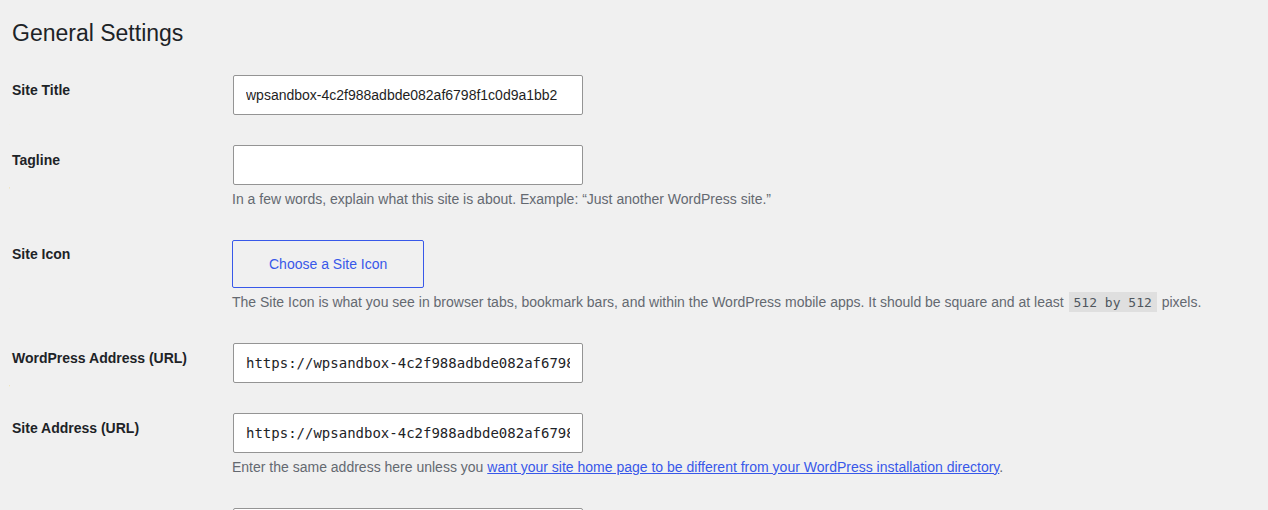
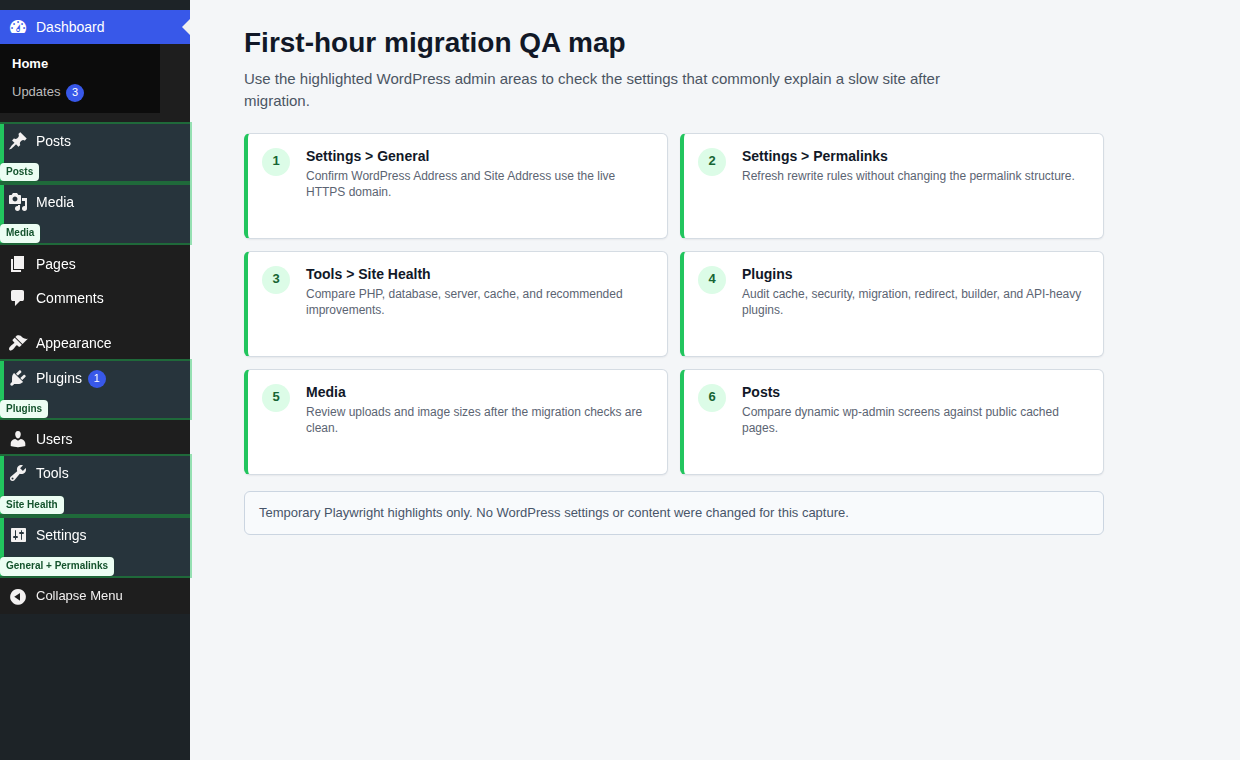
Confirm the site URLs: In the General settings screen, check WordPress Address and Site Address. Both should use the live domain and the correct HTTPS version.
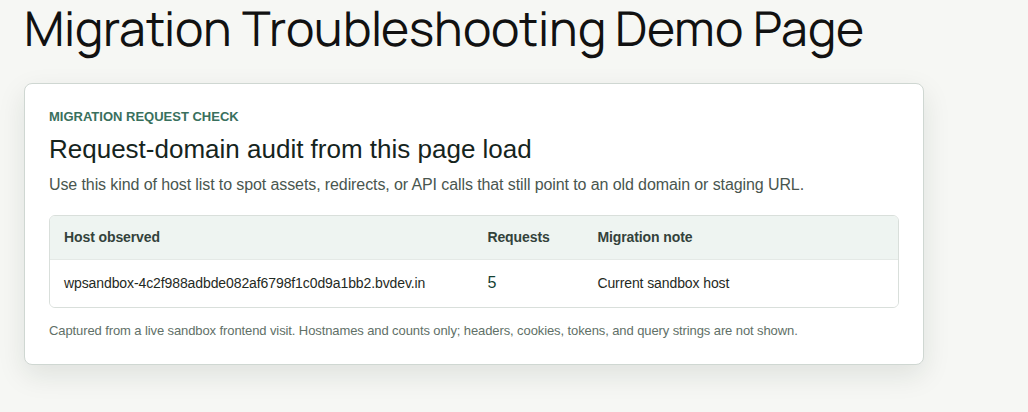
Inspect old-domain requests: Open the browser’s Network tab and look for images, scripts, redirects, or API calls still pointing to the old domain, staging URL, or temporary host URL.
Use a safe search-replace tool: WordPress stores some settings in a special packed format. A raw database replacement can damage those settings.
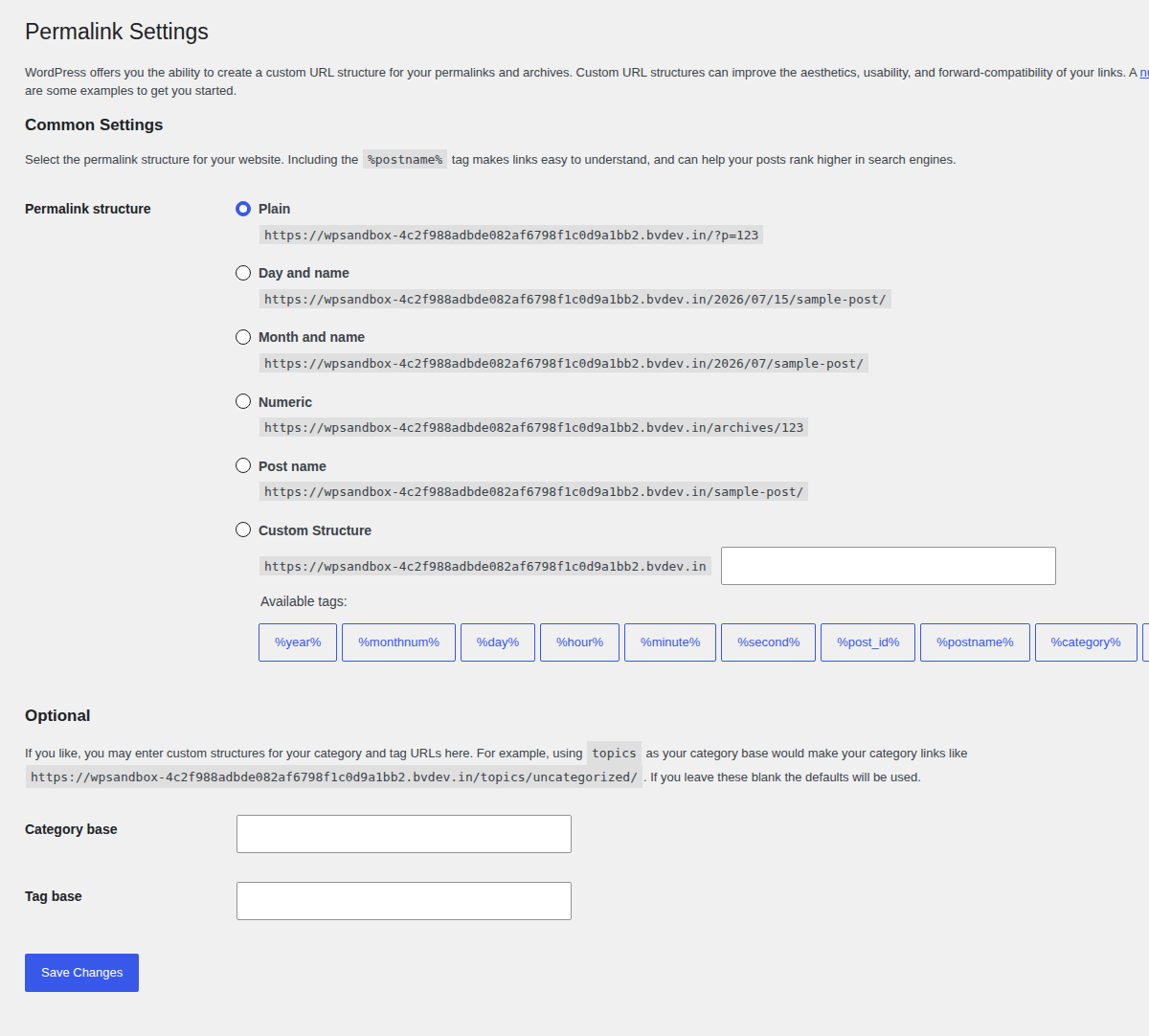
Refresh permalinks: Open the permalink settings screen, leave the structure alone, and save once. This rebuilds WordPress URL routing.
Check the object cache file: In wp-content, look for object-cache.php. If it came from an old Redis or Memcached setup and the new host doesn’t support that same service, it can cause long waits or admin delays.
Note 🛟: Don’t delete object-cache.php on a live store without a backup. Rename it on staging first, or ask the new host whether the file belongs there. The right object cache helps busy sites, but a file from the old server can slow the new one down.
Compare the new server with the old one
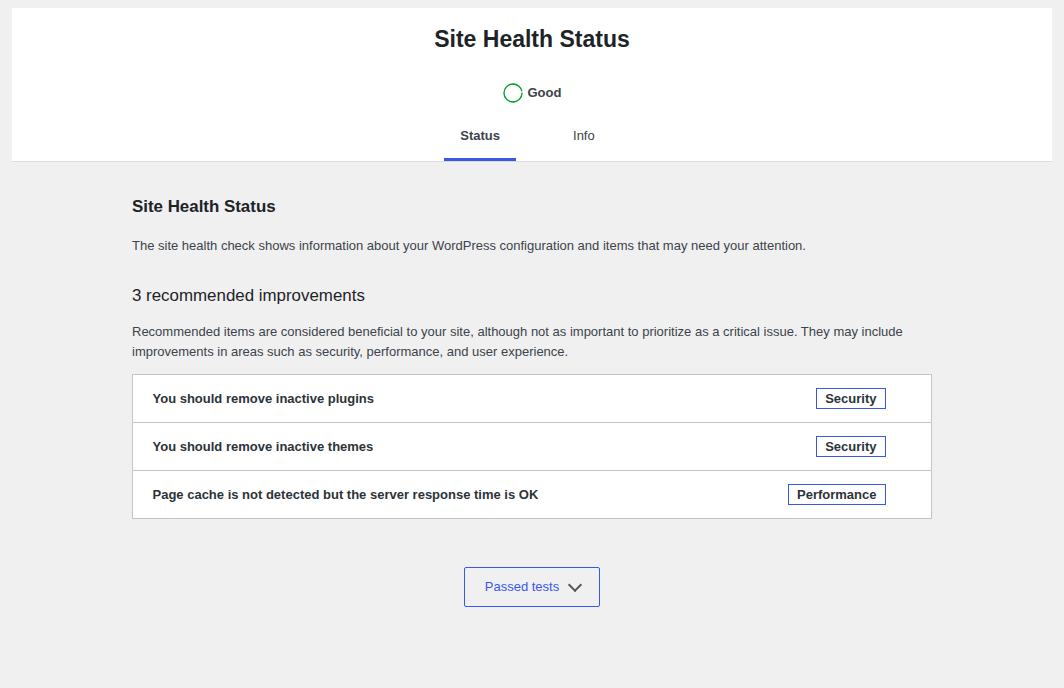
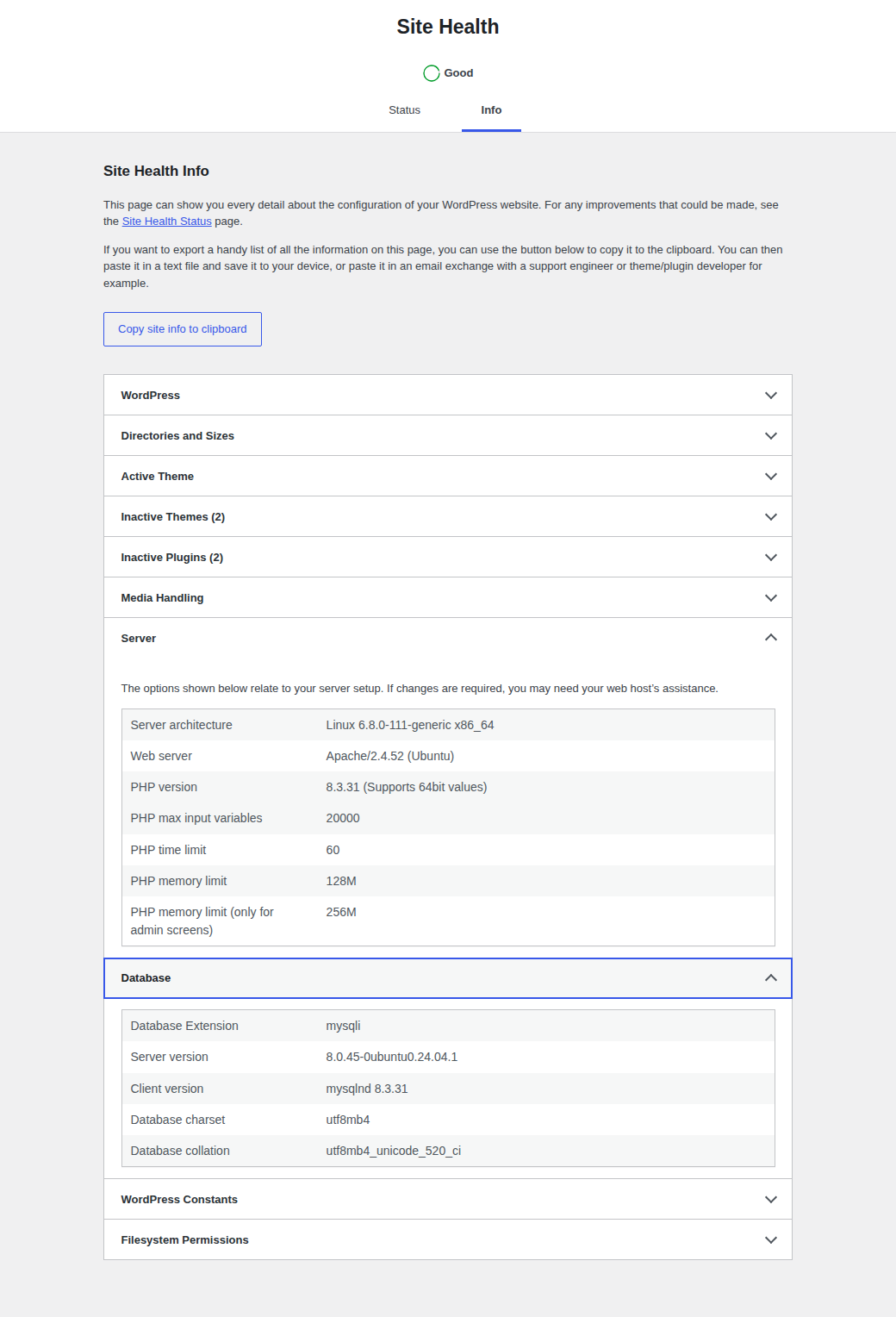
A migration is rarely a perfect copy. Even when both hosts say “WordPress optimized,” the real setup can be different. Check your host dashboard, then open Site Health for the WordPress-side view:
Compare the PHP version and memory limit: A newer PHP version is usually faster, but old plugins may behave badly on it.
Confirm OPcache is enabled: OPcache saves ready-to-run PHP code, so WordPress doesn’t have to prepare the same files again on every request.
Check the database version and location: A remote or underpowered database can make every uncached page slower.
Confirm server cache and persistent cache support: Your old host may have had tuned caching that the new host doesn’t match yet.
Review error logs and slow logs: Repeated warnings, timeouts, and slow database queries usually tell you where to look next.
Better hosting helps only when the old host was the limit. If the old host had strong caching and the new host starts clean, the new site can feel slower until you rebuild the performance setup.
Separate dashboard, store, and public-page issues
Don’t judge the whole migration by the homepage. Public pages can be saved and served quickly from cache. wp-admin, checkout, carts, account pages, search, and WooCommerce order screens usually have to run live work each time.
For dashboard or store slowness, including when your WordPress admin is slow, look at the parts that changed during the move:
Audit plugins on staging: Start with cache, security, backup, migration, redirect, WooCommerce, payment, page builder, search, and reporting plugins.
Check outside calls: License checks, payment gateways, analytics, webhooks, and API calls may wait if the new server blocks outbound requests.
Inspect admin requests: In DevTools, a slow admin-ajax.php request often points to background work started by a plugin.
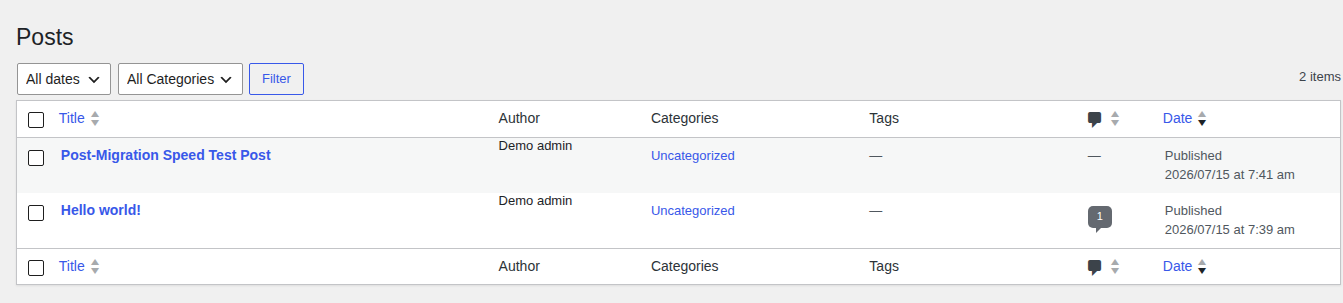
Review database load: Slow order search, product filters, post saves, and reports often mean the database needs tuning.
Keep error display off: Log errors privately. Public debug messages can expose paths, settings, or other sensitive details.
Note 🧪: “Disable all plugins” is clean advice on paper and risky advice on a live business site. Staging is the better place for that test. If you must test live, make one change at a time during a low-traffic window.
Check DNS and CDN routing
DNS changes don’t usually make a site slow for days, but they can make testing messy during and soon after migration. You may be seeing the new server while another person sees the old one. Your CDN may also be pulling from the wrong origin, which is the server it uses as the source.
Confirm the domain records: Check A, AAAA, and CNAME records for the root domain and www version.
Check the CDN origin: Make sure it points to the new server with the right protocol.
Review SSL and redirect rules:HTTP-to-HTTPS, www rules, and CDN redirects can stack up if both WordPress and the server try to handle them.
Test from more than one location: If one region is fast and another is slow, routing may be part of the problem.
If routing is inconsistent, fix that before changing WordPress settings again. Otherwise you’re testing a moving target.
Rebuild performance only after the site is clean
Once the migration settings are right, normal speed work matters again. This is the point where image optimization, page cache, script cleanup, and Core Web Vitals work can help. I would rebuild the performance layer in this order:
Turn on full-page cache for public pages: Exclude carts, checkout, account areas, and logged-in views when needed.
Set browser and CDN cache rules: Let repeat visitors and edge servers reuse safe static files.
Compress and resize images: Make sure thumbnails exist and large uploads aren’t being used where smaller images would do.
Use modern image formats: WebP or AVIF can reduce image size without changing the page design.
Clean up CSS and JavaScript carefully: Delay, minify, and optimize CSS only after testing menus, forms, sliders, checkout, and tracking.
Review fonts and outside scripts: Font subsetting, ads, chat widgets, and analytics can slow the page even when WordPress is healthy.
This is where AirLift fits. Once URLs, cache, server basics, database behavior, and plugins are in good shape, AirLift can help rebuild the optimization layer with caching, image optimization, CSS/JS optimization, CDN-style delivery where supported, and Core Web Vitals improvements. I wouldn’t use any performance tool as a cover for wrong URLs, stale cache files, weak hosting, or database trouble. Fix those first, then optimize the working site.
Use this first-hour checklist
If you want the shortest useful path, start here.
Measure the delay before changing settings: Write down the first server response and the slowest requests in the waterfall. If your initial backend latency is high, review how to troubleshoot a slow WordPress TTFB .If LCP is poor, check the largest visible page element, such as a hero image or heading block.
Compare public, logged-in, and admin pages: This tells you whether the issue is cache, WordPress work, or frontend assets.
Clear every cache layer once: Start inside WordPress, then clear the host, CDN, generated asset files, and your browser.
Verify URLs and redirects: Check WordPress Address, Site Address, old-domain requests, HTTPS rules, and www rules.
Refresh permalinks and check the object cache file: These are quick migration-specific checks that can remove strange delays.
Review server and database basics: Compare PHP, memory, OPcache, database location, and server caching against the old setup. Then check logs for warnings or slow queries.
Isolate risky plugins on staging: Start with plugins that handle cache, security, backups, redirects, WooCommerce, builders, search, and outside API calls.
Rebuild performance settings last: Turn optimization back on only after the migrated site behaves correctly. Consider navigation prefetching only for clean, cacheable pages after that.
Prevent this before the next migration
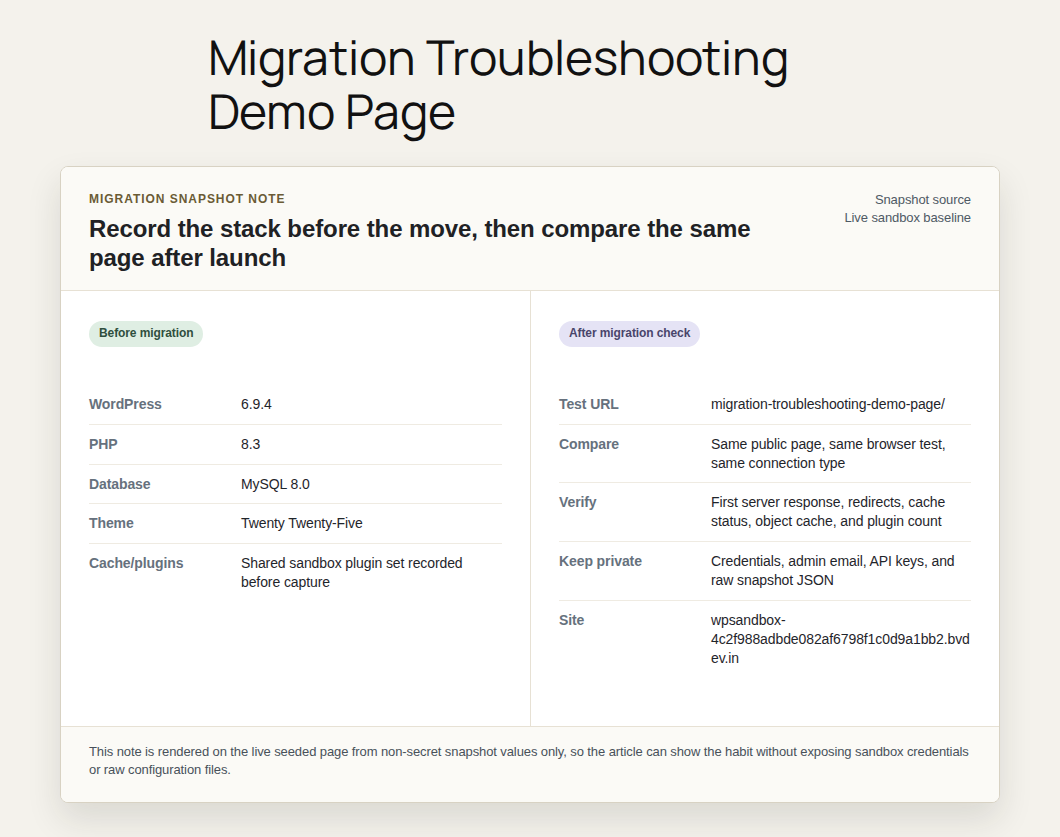
Before the next move, take a simple performance snapshot. Record the homepage, one important inner page, wp-admin, and checkout if the site sells anything. Note the first server response, Core Web Vitals, PHP version, database version, cache setup, CDN status, and object cache status.
After migration, test the same pages from the same kind of connection. That gives you a real before-and-after comparison instead of a vague feeling that the site used to be faster. A WordPress migration checklist makes that comparison easier to repeat. Also keep a small migration note with:
Cache setup before the move
CDN and DNS records
Persistent object cache status
PHP and database versions
Cron setup
Redirect rules
Hardcoded URLs
API keys and webhook endpoints
Plugins that need license or server access
It’s not about making migration paperwork perfect. It’s about knowing what changed when speed drops.
FAQs
What usually makes a migrated WordPress site slow?+
Usually, the new setup isn’t equal to the old setup. Cache may be missing or stale, PHP or database settings may have changed, old site URLs may remain, or a plugin may behave differently on the new server. If warnings or unfamiliar redirects appear too, scan for malware before treating it as ordinary slowness.
How do I know if the new host is the problem?+
Maybe. A slow first response, database delays, missing OPcache, or low memory points toward hosting or server setup. Slow images and scripts point more toward frontend optimization.
Can DNS changes make speed tests look inconsistent?+
It can make testing inconsistent. Some visitors may reach the old server while others reach the new one. Once DNS is stable and cache is warm, ongoing slowness needs a deeper check.
Should the old object cache file stay?+
Only if it belongs to the new host or the new host supports the same cache service. Rename it on staging first, test public pages and wp-admin, and keep a backup before touching the live site.
Will a performance plugin solve this?+
It can help after the migration is correct. It won’t fix wrong URLs, redirect loops, bad PHP or database settings, broken API keys, or stale server configuration.
Conclusion
A slow WordPress site after migration feels stressful because too many things changed at once. The fastest path is to narrow the problem: measure the delay, clear old cache, verify URLs and permalinks, compare the server setup, check database-heavy pages, and only then rebuild performance settings.
I wouldn’t start with random optimization. Start with migration QA. Once the site is stable and the new environment is clean, speed work becomes much simpler, and you’ll know whether you need a cache change, host help, plugin cleanup, database tuning, or AirLift support for the performance layer.