

WordPress CDN: What It Does and When You Need One
Sometimes a WordPress site is slow, but not for everyone. It loads fine for you. Then a customer in another country says the images take forever. A speed test from your city looks…
Read

You clicked Update, refreshed the page, and the live site still looks old. The image is unchanged. The menu is wrong. In some cases, a slow website can also point to an outdated cached copy rather than a hosting or server issue.
If you need to clear WordPress cache, the useful question is not “Where is the cache button?” It is: which saved copy am I still seeing?
The edit may already be published. WordPress may be fine. A browser, plugin, host, CDN, builder, store cache, or object cache may simply be handing you yesterday’s version with a straight face.
TL;DR: To clear WordPress cache, hard-refresh your browser first, then purge the cache layer that owns the stale copy: plugin, hosting, CDN, builder, WooCommerce, or object cache. Clearing cache will not delete posts, pages, images, products, orders, users, or settings; it removes temporary saved copies so WordPress can serve a fresh version.
The safest cache fix starts close to the symptom and moves outward. If one CSS file is stale, do not begin by flushing the database cache. If only your laptop shows the old page, do not purge the entire CDN. Use this as your route:
| What looks stale | Likely cache owner | Safest first action | Escalate when |
|---|---|---|---|
| Only you see the old version | Browser | Hard refresh or private window | Another device also sees it |
| Logged-out visitors see old page content | Cache plugin or host cache | Purge that URL or page cache | A targeted purge fails |
| Old image, CSS, JavaScript, or font remains | Browser, minify cache, builder cache, or CDN | Clear asset/minify cache or purge that file URL | HTML is fresh but files stay old |
| Different visitors see different versions | CDN, edge cache, or firewall cache | Purge the exact CDN URL | The stale layer is unclear |
| Product, cart, checkout, or account data looks wrong | WooCommerce rules, sessions, transients, or object cache | Treat as dynamic content and clear only the relevant cache | Customer-facing behavior is affected |
The pattern matters more than the button label. Purge one URL for one page. Purge everything only for sitewide changes or messy multi-layer troubleshooting.
WordPress cache is not one bucket. It is a nickname for several temporary copies that can sit in different places.
Browser cache lives on your device. Page cache stores a finished page so WordPress does not rebuild it for every visitor. Host cache does the same job at the server level. CDN cache stores files, and sometimes pages, closer to visitors. Object cache stores database query results, often through Redis or Memcached.
On a clean WordPress 6.9.4 test site with no caching plugin installed, there was no universal clear all page cache button in the dashboard. Cache controls usually appear because your host, CDN, firewall, performance plugin, page builder, or server setup added them.
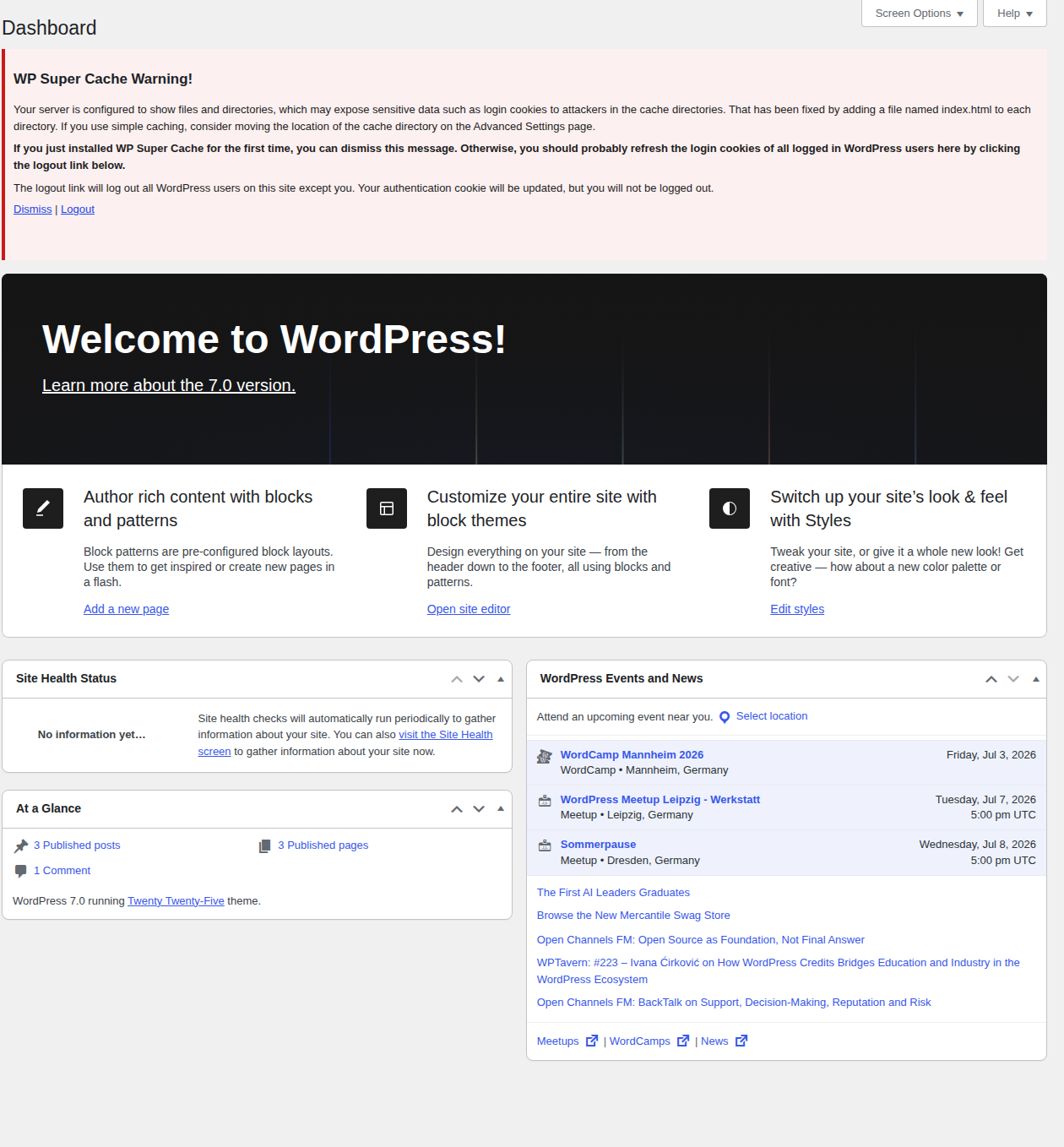
If the issue is that you do not have a clear cache layer yet, start by enabling caching in WordPress before adding more purge tools. Proper caching is one of the most effective ways to speed up WordPress because it reduces the work required to generate each page.
That is why installing a random cache plugin just to find a purge button often makes the problem worse. The new plugin cannot clear a cache it does not own.
Start here because it is fast and affects only you. Hard-refresh the stale page:
Then open the public page in a private or incognito window. If you can, check another browser or another device. The edit screen is the source of truth for the change you published; the stale public view may be a separate cached copy.
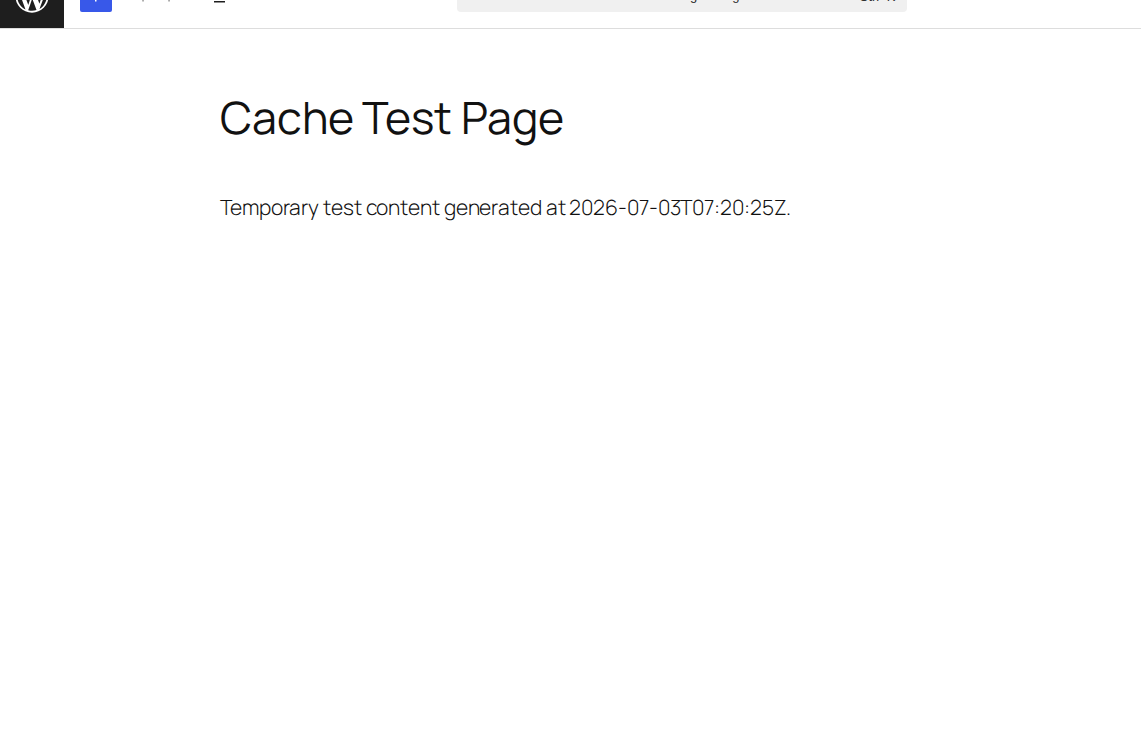
If the update appears in a private window but not your normal browser, WordPress is not the problem. Your browser kept an old copy.
You cannot directly clear every visitor’s browser cache from WordPress. For stale CSS, JavaScript, fonts, and images, the real fix is proper file versioning, changed filenames when needed, sensible cache headers, and purging the cache layer that serves those files.
A quick test: add a temporary query string such as ?test=1 to an image or CSS URL. If the fresh file appears, an asset cache is involved. Do not make that query string the permanent fix.
If logged-out visitors still see old content and your site uses a caching plugin, go there next.
Look in the admin bar, the plugin menu, or the plugin settings for labels such as Clear Cache, Purge Cache, Purge All, Delete Cache, Empty All Caches, or Clear All Cache. Confirm which plugin is active before you start clearing random layers.

Common plugin labels include:
For one edited page, use a targeted page or URL purge if the plugin offers it. Use a full purge after a theme change, menu update, header or footer edit, migration, global template change, or plugin-output change.
If the text is fresh but the design still looks old, clear the plugin’s minified CSS/JS, generated CSS, Critical CSS, or asset cache if those controls exist. Page HTML and generated assets are different saved copies.
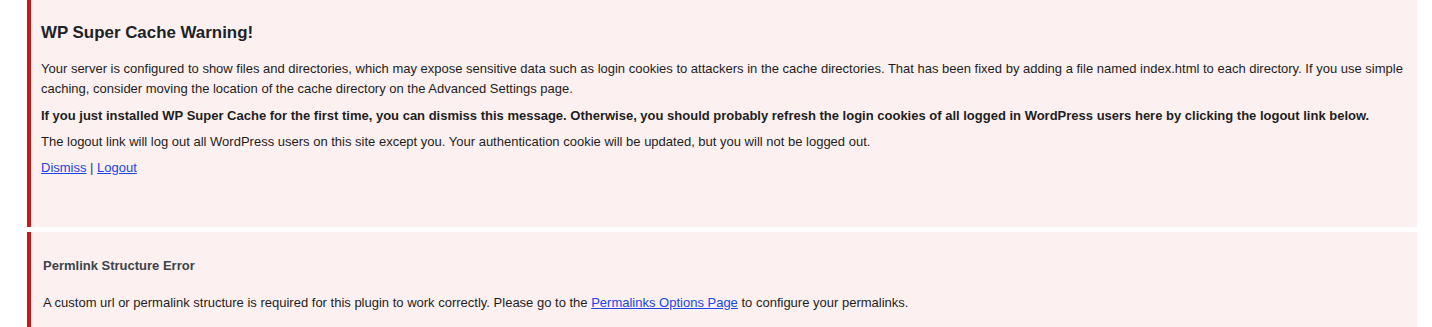
Some cache plugin screens also surface setup requirements before their normal purge controls are useful.
Where this goes wrong: people stack two page-cache plugins because “more caching” sounds faster. In practice, two tools may cache the same page and neither purge path is obvious. Use one main page-cache owner unless your host or developer has planned the setup.
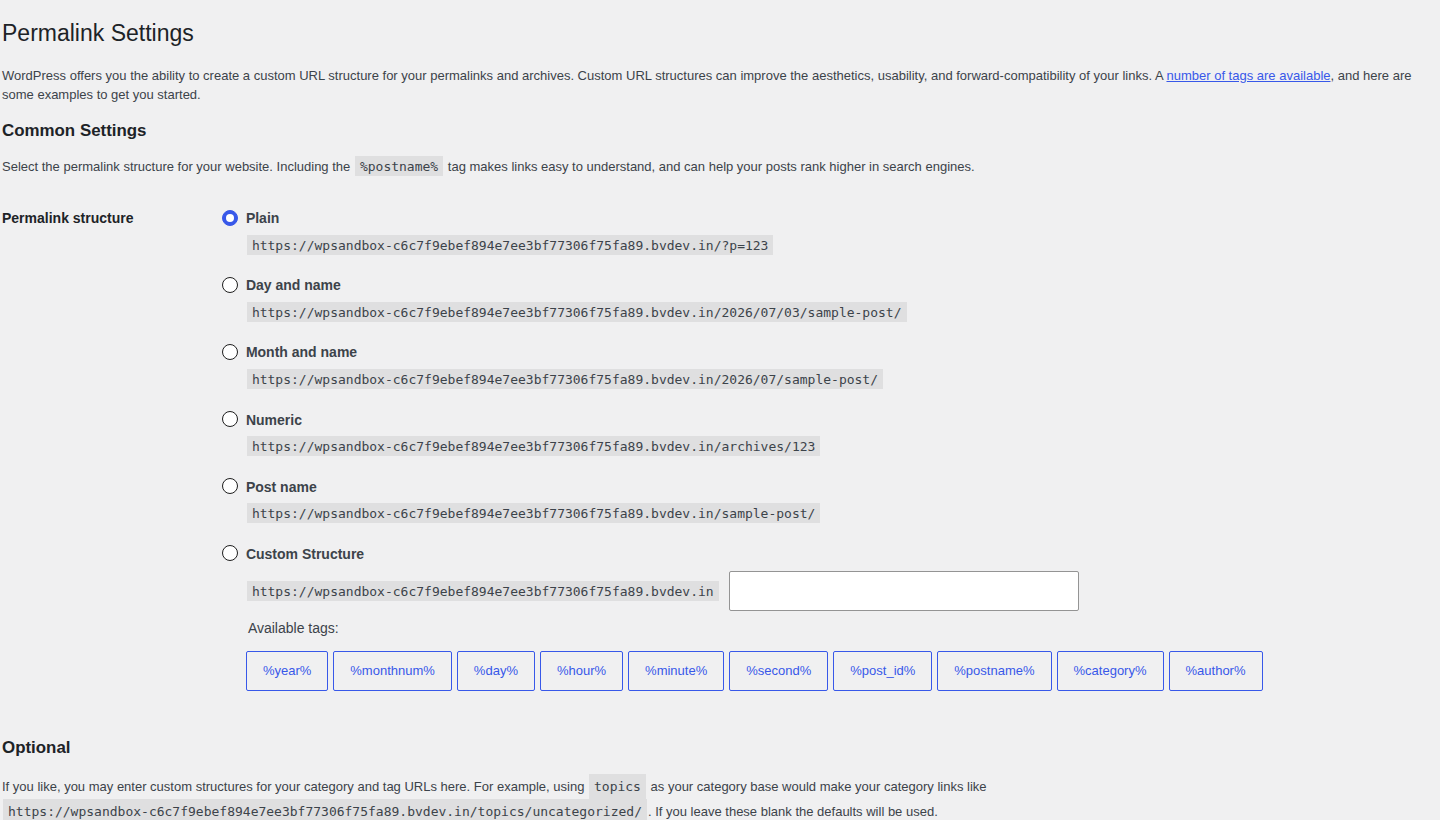
When a plugin points to a WordPress setting, fix that dependency before assuming the cache purge itself failed.
If you do not use a cache plugin, or the plugin purge did nothing, your host may be serving cached HTML outside WordPress. Managed WordPress hosts often add server-level cache. It may be called page cache, full-page cache, NGINX FastCGI cache, Varnish, LiteSpeed server cache, reverse-proxy cache, or simply performance cache.
Check your hosting dashboard, WordPress admin toolbar, or host performance panel for labels such as Purge Cache, Clear Cache, Flush Cache, Clear All Caches, or Purge Varnish.
If you cannot find a control and visitors still see old pages, ask your host where cache is managed for your plan. This is especially likely when the host discourages caching plugins because it already runs its own cache. Technical users can inspect response headers such as age, x-cache, or x-litespeed-cache. Those headers can hint that a server or edge cache answered the request. Beginners do not need this step to clear cache safely.
A CDN can keep serving old files after WordPress and the host are fresh. This is common with images, CSS, JavaScript, fonts, downloads, and sometimes full pages.
Use a targeted CDN purge when you know the stale URL. For example, purge the exact stylesheet, image, script, or page that changed. Use purge everything for a migration, redesign, sitewide template change, or a stale issue you cannot isolate.
Security and firewall services can also cache responses. If visitors in different locations see different versions, or if a file stays old even after plugin and host cache are clear, the edge cache is a strong suspect. A CDN purge clears the CDN copy. It does not clear your browser cache, host cache, plugin cache, or object cache unless those systems are connected.
Some stale problems are not fixed by a normal page-cache purge because the stale copy is more specific.
If a page builder controls the design, regenerate or clear its generated CSS/data files when the layout, spacing, fonts, or responsive behavior looks old. This is different from clearing the finished page HTML.
For WooCommerce, slow down. A stale product image may be a page, browser, or CDN cache issue. A wrong cart, checkout, account, stock, price, or session behavior can involve transients, lookup data, customer sessions, object cache, or page-cache exclusions. Do not casually clear customer sessions on a live store. Active carts and logged-in shopper behavior can be affected.
Dynamic pages usually need careful cache rules, not repeated purging. Treat carts, checkout, account pages, login pages, search results, forms, dashboards, memberships, LMS pages, and personalized views as special cases. Object cache is another separate layer. It stores database results so WordPress can avoid repeating the same queries. Flushing it can help with database-driven stale output, but it will not clear a visitor’s browser, a CDN file, or a cached HTML page from your host.
Plain version: page cache fixes old pages; asset cache fixes old files; object cache fixes saved database answers. Do not swap them randomly.
Dashboard, host, and CDN controls are safer for most site owners. Use command-line or file-manager cleanup when the dashboard is unavailable, a developer is handling it, or the plugin documents that method. If WP-CLI is available, this command clears the WordPress object cache:
wp cache flushThat is not a universal purge for every page-cache plugin, host cache, browser cache, or CDN cache. Some plugins provide their own WP-CLI purge commands; use those when your goal is to clear that plugin’s cache.
Manual file deletion is the last resort. Take a backup first. If you must use file manager or FTP, remove contents inside wp-content/cache only when you understand what created those files. Do not delete the cache folder itself, and do not delete unrelated WordPress folders. A purge button removes temporary copies. File deletion can remove the wrong thing if you are in the wrong directory.
Stop once the changed public page is fresh. Repeated purges can slow the first uncached visits while pages and assets rebuild, and they can hide the real cause. Check:
If the public URL shows the update in a private window and on a second device, the useful part is done.

If nothing changes, verify the boring things before clearing deeper systems: is the edit published, are you on the right URL, is there a redirect, are you looking at staging, or are logged-in editors bypassing page cache while visitors see cached HTML?
The best cache setup is not the one with the most purge buttons. It is the one where you know who owns the saved copy.
To clear WordPress cache safely, work from the symptom outward. Start with your browser. Then clear the plugin, host, or CDN layer that likely owns the stale copy. Move into builder, WooCommerce, object-cache, WP-CLI, or file-manager fixes only when the symptom points there.
The goal is not to clear the most cache. The goal is to make the correct version visible with the least risk.
Yes. Normal cache clearing removes temporary saved copies. It does not delete posts, pages, images, products, orders, users, themes, plugins, or settings. Use more care with manual file deletion, WooCommerce sessions, database cleanup, and object-cache flushes on busy sites.
Logged-in users often bypass page cache. Visitors may still receive cached HTML from a plugin, host, CDN, firewall, or server cache. Test the public URL while logged out or in a private window. If the old version appears there, purge the layer serving visitors.
Purge one URL when one page or file changed. Purge all caches after a redesign, migration, theme switch, menu update, global template change, or hard-to-trace stale issue. Targeted purges are cleaner. Full purges are useful when the change affects the whole site.
No. You can clear your own browser cache, but you cannot directly clear cached files on every visitor’s device. For future changes, use versioned CSS and JavaScript files, changed filenames when needed, sensible cache headers, and CDN or minify-cache purges.
Page cache stores the finished page visitors see. Object cache stores database results WordPress uses while building pages. If visitors see an old public page, start with page, host, or CDN cache. If database-driven output is stale, object cache may be relevant.
Sometimes a WordPress site is slow, but not for everyone. It loads fine for you. Then a customer in another country says the images take forever. A speed test from your city looks…
Read

Redis object cache sounds like one of those WordPress speed fixes you should just turn on and forget about. I get the appeal. When a site is slow, nobody wants a lecture about…
Read

Your homepage can feel fast while the parts that make money still feel slow. If you’re trying to speed up your website, it helps to understand that not every request behaves the…
Read
Airlift works out what each page needs and applies it. Free to try on your own site.