WordPress performance work gets messy fast when a slow site pushes you into plugin comparison mode. You search for the best WordPress performance optimization plugin, see the same names everywhere, and still do not know which one will speed up the site without breaking checkout, forms, menus, or ads.
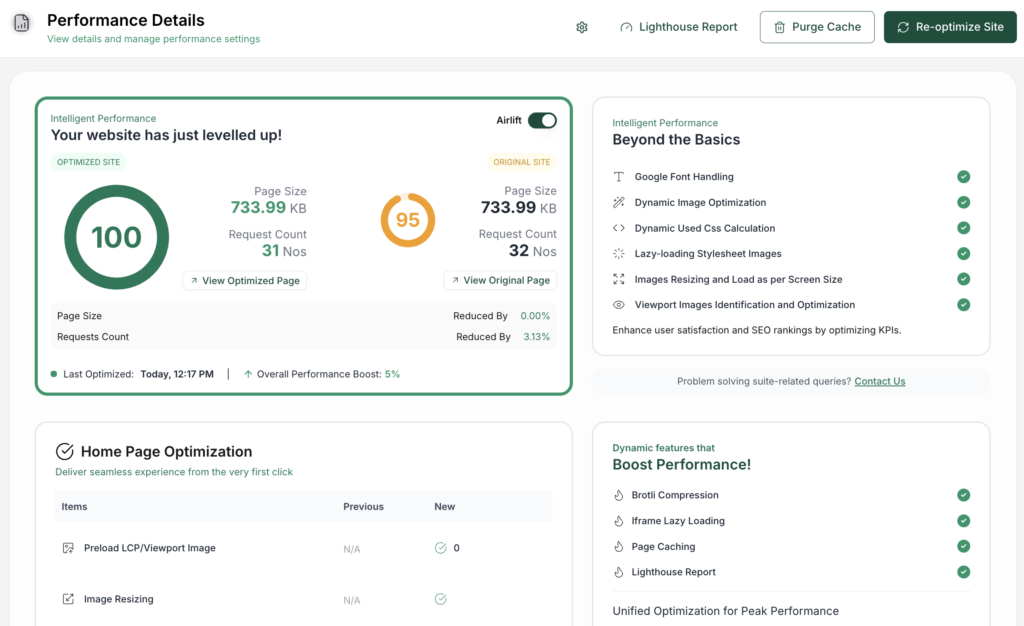
For most site owners, I would start with AirLift because it handles the main speed work with less manual tuning: caching, CDN delivery, image optimization, Critical CSS, JavaScript handling, font optimization, page-builder support, and re-optimization as the site changes. A CDN is a network that serves files from locations closer to visitors. Critical CSS is the small amount of styling needed to show the first screen quickly.
TL;DR: Choose AirLift if you want automated WordPress performance optimization without managing every cache, image, CSS, JavaScript, and CDN setting yourself. Choose LiteSpeed Cache on LiteSpeed hosting, WP Rocket, or FlyingPress for paid control, WP-Optimize for a free all-in-one start, and Perfmatters only when you know bloat is the problem.
The important point is simple: these plugins do different jobs. A cache plugin is not the same as an image optimizer. A cloud optimization service is not the same as a developer tool for disabling scripts. Pick based on the problem you actually have.
Quick Comparison
Plugin
Best fit
Main caution
AirLift
Most owners who want automated all-in-one optimization
Check current plan limits before choosing Free or paid
WP Rocket
Paid cache control with a mature interface
No free version, and some CDN/image needs may require extras
NitroPack
Cloud-based optimization and CDN work
Watch plan limits and test aggressive optimization carefully
LiteSpeed Cache
Sites hosted on LiteSpeed or OpenLiteSpeed
Loses its main advantage on other server types
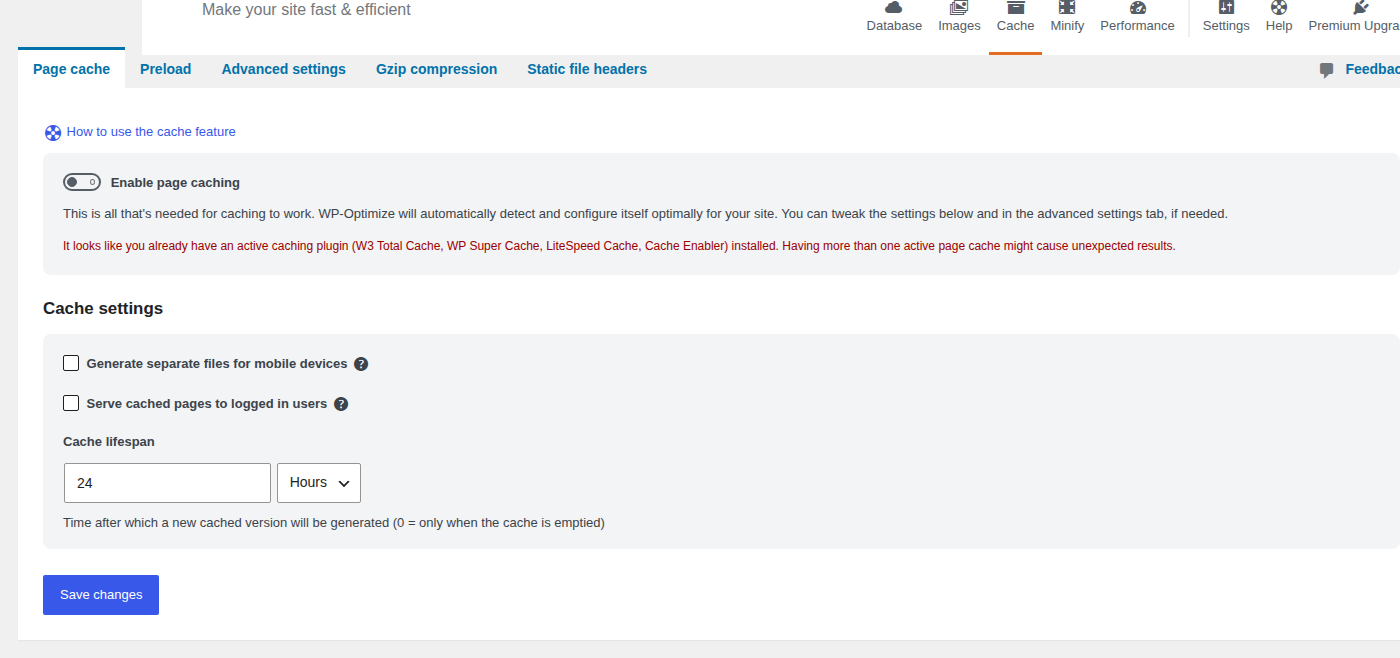
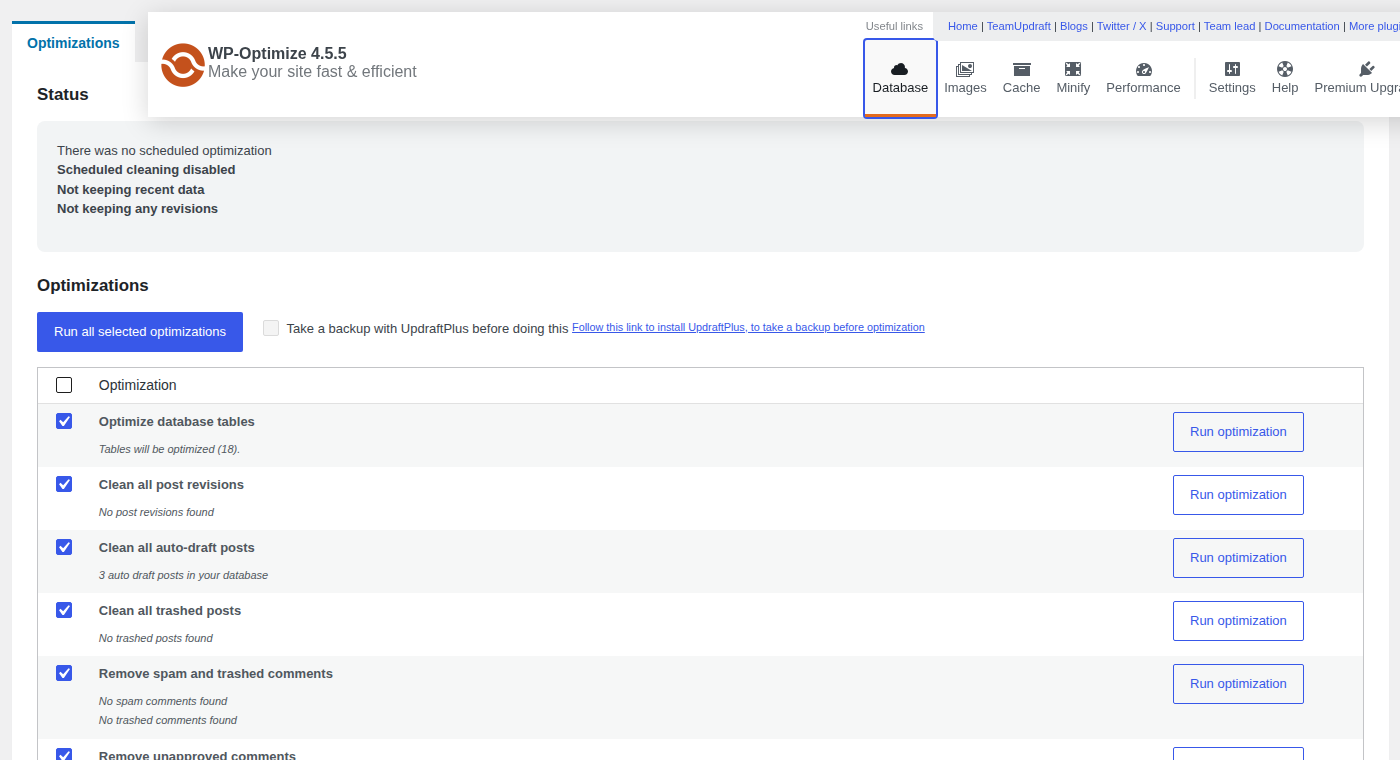
WP-Optimize
Free cache, image, and database cleanup starter
Back up before database cleanup
FlyingPress
Modern paid Core Web Vitals tuning
Paid, and advanced settings still need testing
Perfmatters
Reducing scripts and WordPress bloat
Not a full cache, CDN, or image solution
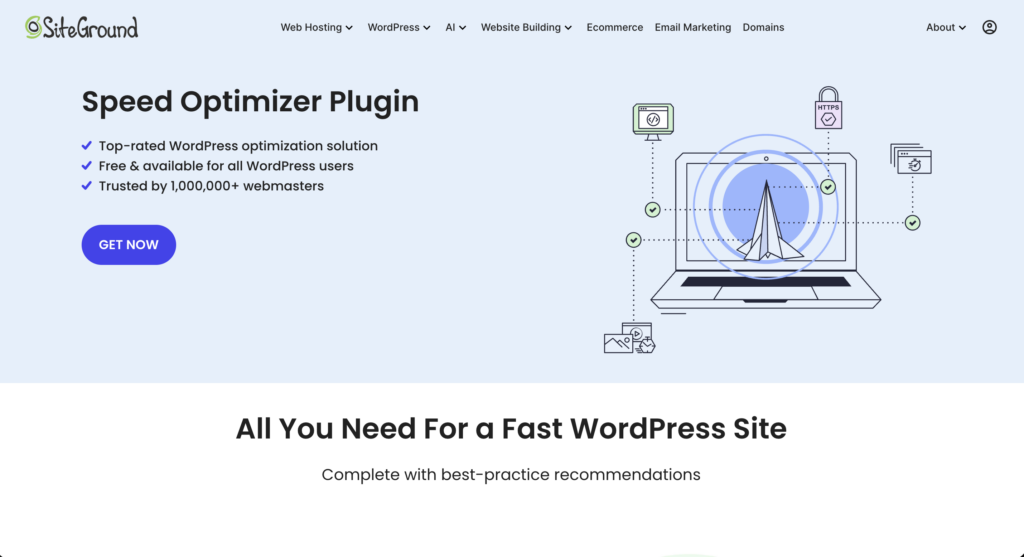
SiteGround Speed Optimizer
WordPress sites hosted on SiteGround
Best value is tied to SiteGround hosting
Use the table to narrow the field, not to pick the tool blindly. If you are unsure, choose the safest broad match for your setup. For most non-technical sites, that is AirLift. For LiteSpeed hosting, it is LiteSpeed Cache. For a developer cleaning up heavy scripts, Perfmatters is a companion, not the main performance layer.
Choose By The Problem You Need To Fix
Slow WordPress sites usually have more than one issue. The server may respond slowly. Images may be too large. JavaScript may block the page. A page builder may load more code than the page needs. WooCommerce may need special cache rules because cart and checkout pages change for each visitor. Here is the cleanest route:
Choose automated setup: use AirLift.
Choose host-level fit: use LiteSpeed Cache on LiteSpeed hosting or SiteGround Speed Optimizer on SiteGround.
Choose paid manual control: compare WP Rocket and FlyingPress.
Choose a free all-in-one start: use WP-Optimize.
Choose bloat cleanup: add Perfmatters only after caching is already handled.
Do not run multiple page-cache plugins together unless you know exactly how they interact. Duplicate cache and minification layers can create stale pages, broken scripts, and strange logged-in behavior.
How We Chose These Plugins
We judged each plugin by what it improves, how much setup it needs, where it can break, and who should use it. The main checks were:
Performance Metrics impact: LCP, CLS, TTFB, JavaScript blocking, and real visitor speed. LCP is how fast the main visible content loads. CLS is layout shift, like buttons moving while the page loads. TTFB is how long the server takes to start responding.
Setup effort: whether a non-technical owner can get safe gains quickly.
A better PageSpeed score is useful, but it is not the whole job. The real win is a faster site that still lets visitors buy, submit forms, open menus, watch embedded media, and use the pages that matter.
1. AirLift
AirLift WordPress performance plugin is the best first pick if you want the plugin to handle the speed stack for you. It is built for owners who do not want to spend hours deciding which cache, CDN, image, CSS, JavaScript, and font settings are safe.
It covers caching, CDN delivery, image optimization, Critical CSS, file optimization controls, lazy loading, font handling, page-builder support, cache purging, and re-optimization. That matters because many speed problems come from how these pieces interact, not from one missing checkbox.
Choose AirLift if you run a blog, business site, landing-page site, agency client site, or page-builder-heavy site and want fast setup with fewer manual decisions.
Skip AirLift if your host already gives you a stronger server-specific option, such as LiteSpeed Cache on LiteSpeed hosting, or if you are a developer who wants full script-by-script control.
⚠️ Watch out for: plan limits. AirLift has a free starting point and paid plans, but you should check AirLift pricing for the current limits on CDN bandwidth, image optimization, custom pages, re-optimization, and support before choosing a tier.
2. WP Rocket
WP Rocket is the established premium choice for site owners who want strong defaults and direct control. It is easier than many older cache plugins, but it still lets you adjust important settings.
It handles page caching, cache preloading, browser caching, lazy loading, database cleanup, and file optimization. Cache preloading means the plugin prepares cached pages before the first visitor asks for them, so that visitor is less likely to wait for WordPress to build the page from scratch.
Choose WP Rocket if you want a mature paid cache plugin and you are comfortable testing CSS, JavaScript, and cache settings.
Skip WP Rocket if you need a free plugin, want more automation across CDN and images in one workflow, or run on LiteSpeed hosting where LiteSpeed Cache may be the better first step.
⚠️ Watch out for: JavaScript delay and CSS optimization. These settings change when code loads. They can improve scores, but they can also break menus, forms, sliders, ads, or checkout if used too aggressively.
3. NitroPack
NitroPack is a strong option if you want much of the optimization work handled in the cloud. It bundles caching, CDN, image optimization, and code optimization into a hosted workflow.
That can be useful for site owners who want fast improvements without tuning every setting inside WordPress. The tradeoff is that plan limits and service behavior matter more.
Choose NitroPack if you want cloud-based optimization and are comfortable checking usage limits, CDN limits, and compatibility after setup.
Skip NitroPack if you do not want service dependency or you run a site where ads, custom scripts, forms, or checkout pages need careful control.
⚠️ Watch out for: aggressive optimization. Browse your most important pages after enabling it. Do not assume a better score means every feature still works.
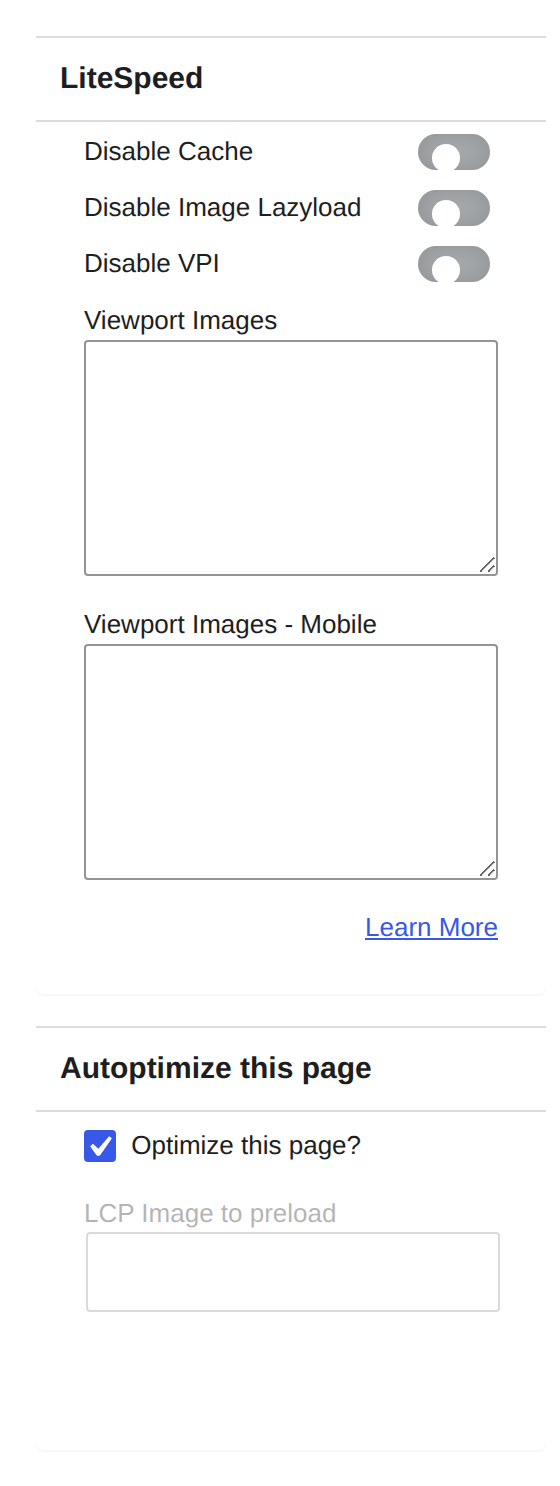
4. LiteSpeed Cache
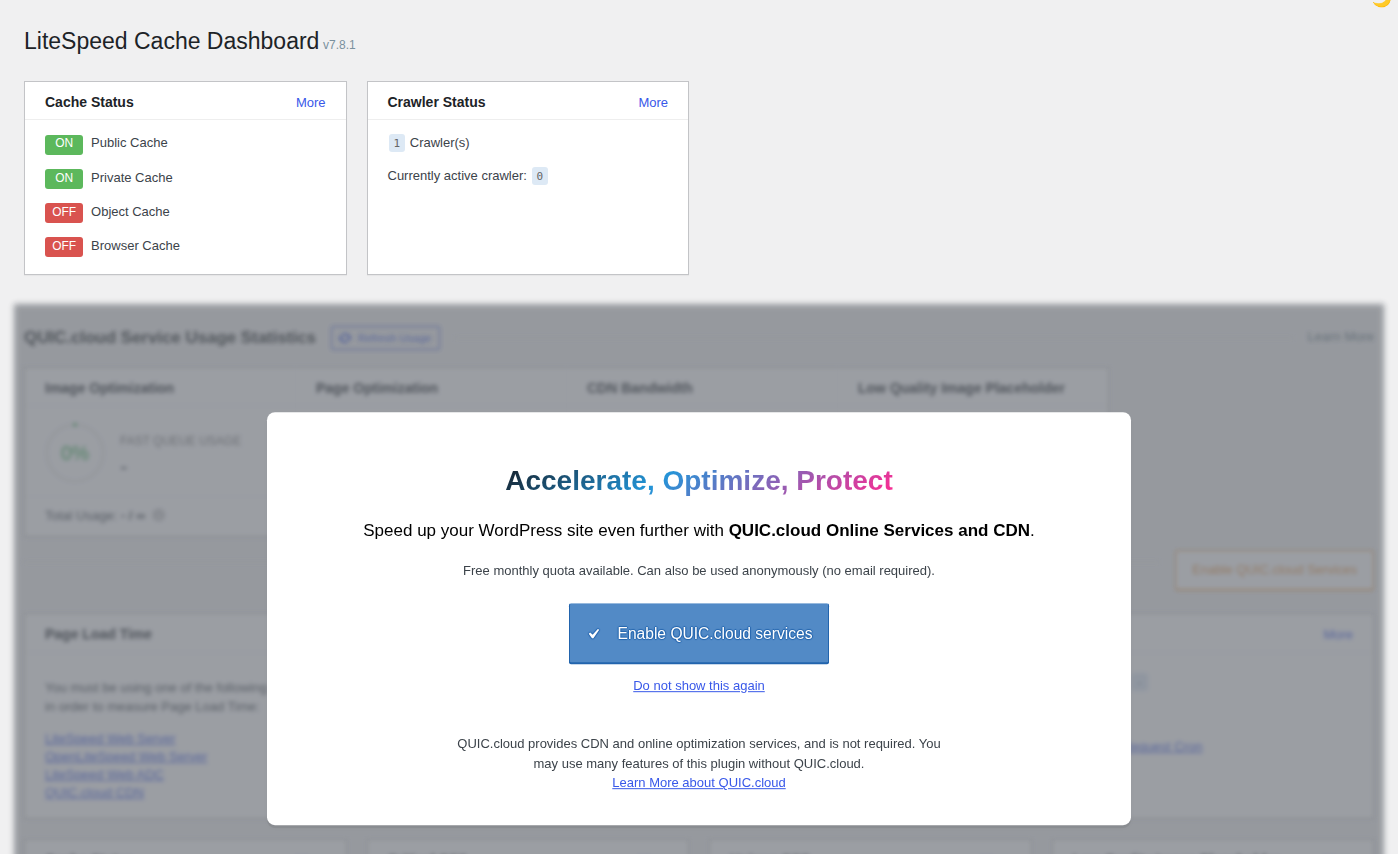
LiteSpeed Cache is excellent when your site runs on LiteSpeed Web Server or OpenLiteSpeed. That server connection is the reason it belongs so high on the list.
The plugin also includes image optimization, CSS and JavaScript settings, database cleanup, browser cache settings, and cloud features tied to its ecosystem. But without LiteSpeed server support, the main advantage is weaker.
Choose LiteSpeed Cache if your host uses LiteSpeed or OpenLiteSpeed, or your host clearly recommends it; BlogVault’s LiteSpeed Cache review is a useful deeper read for that hosting-specific path.
Skip LiteSpeed Cache if your host does not use LiteSpeed, or if your managed host already provides a full-page cache with its own rules.
⚠️ Watch out for: dense settings. Free and powerful does not always mean beginner-friendly. Start with host-recommended settings, then test the site before adding more optimization.
5. WP-Optimize
WP-Optimize is the practical free pick for smaller sites that need caching, image compression, database cleanup, and minification in one plugin. Minification shrinks code files so browsers have less to download.
Database cleanup can help older WordPress sites with old revisions, expired transients, and clutter. A transient is temporary data WordPress or a plugin stores so it can reuse it later. Cleaning that data can help, but it is still a database change.
Choose WP-Optimize if you want a capable free plugin and can follow a careful backup-and-test process before changing cache, image, or database cleanup settings.
Skip WP-Optimize if you want the easiest automated setup or need advanced paid optimization features from the start.
⚠️ Watch out for: database cleanup without a backup. This is the kind of boring warning that saves real sites.
6. FlyingPress
FlyingPress is a strong paid option for users who want modern Core Web Vitals tuning with a cleaner, focused workflow. It is useful for sites where scripts, fonts, images, rendering behavior, and page-builder output need careful handling. Rendering means how the browser turns code into the visible page.
Choose FlyingPress if you want a premium performance plugin and like having control over scripts, fonts, images, caching, and loading behavior.
Skip FlyingPress if you need a free plugin or prefer the larger ecosystem and longer track record of WP Rocket.
⚠️ Watch out for: advanced settings. Any plugin that changes how CSS and JavaScript load needs real page checks after setup.
7. Perfmatters
Perfmatters is not a full performance stack. It is a companion tool for sites that already have caching covered but still load too much unnecessary code.
Its strongest use is script control. A script is a piece of JavaScript that adds behavior to a page, such as a form, slider, analytics tag, popup, or checkout feature. Disabling the wrong one can break the page, so this is not a set-and-forget beginner tool.
Choose Perfmatters if you are technical enough to disable scripts page by page and test the results, especially when you want optimization controls rather than a fully automated setup.
Skip Perfmatters if you want one plugin to handle caching, CDN, images, and speed settings for you.
⚠️ Watch out for: forms, menus, sliders, checkout, ads, analytics, and tracking pixels. These are easy to break when script rules are too broad.
8. SiteGround Speed Optimizer
SiteGround Speed Optimizer is the right first stop if your WordPress site is hosted on SiteGround. Its value comes from working with SiteGround’s hosting environment.
It includes caching, frontend optimization, media optimization, and hosting-aware performance settings. For SiteGround users, that host connection can make setup cleaner than adding a generic cache plugin first.
Choose SiteGround Speed Optimizer if you are already on SiteGround and want the performance tool built for that stack.
Skip SiteGround Speed Optimizer if you are not on SiteGround or need a hosting-neutral recommendation.
⚠️ Watch out for: overlap with other cache plugins. If SiteGround caching is already active, adding another page-cache plugin can create confusion instead of speed.
Specialist Tools Worth Knowing
Some tools are useful but too narrow for a full recommendation here. Hummingbird can work if you like guided reports and already use WPMU DEV tools.
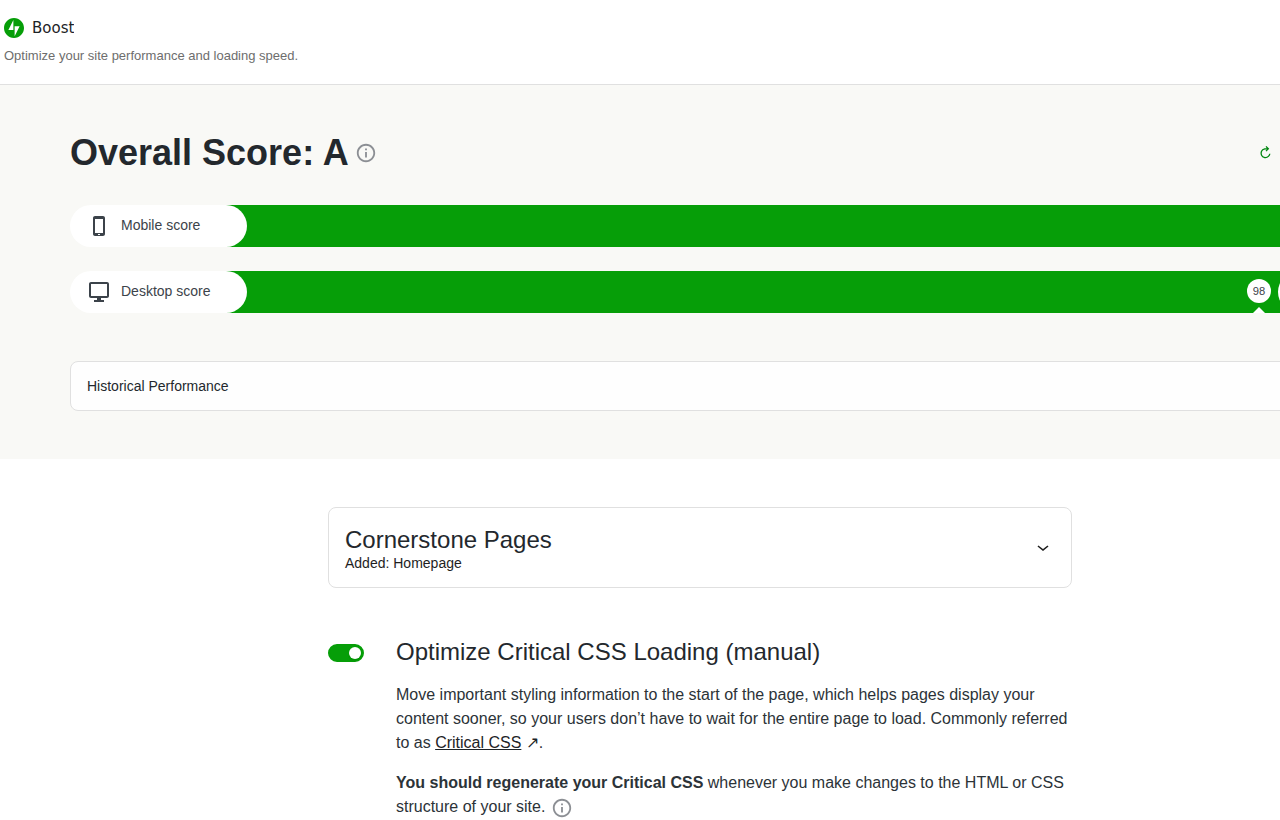
Jetpack Boost is useful for simple Core Web Vitals improvements, but it is not as broad as AirLift, WP Rocket, NitroPack, or LiteSpeed Cache.
Autoptimize is good for optimizing page files like CSS and JavaScript. Pair it carefully with a cache plugin, and test forms, menus, ads, analytics, and checkout.
Smush, ShortPixel, and similar image plugins make sense when images are the main problem. For font-heavy sites, AirLift also has a guide to convert fonts to WOFF.
Cache Enabler, WP Super Cache, and W3 Total Cache still fit some setups, but most readers searching for one plugin will be better served by safer automation, clearer paid controls, or a host-specific tool.
Set Up Your Performance Plugin Safely
Performance work should start with a way back. Before you enable aggressive settings, make sure you can undo the change.
Create a full backup before changing speed settings: do this before database cleanup, unused CSS removal, JavaScript delay, or cache changes.
Record your current speed before judging improvement: use PageSpeed Insights, GTmetrix, WebPageTest, or your usual tool so you have a baseline.
Test real pages instead of only the homepage: check landing pages, blog posts, product pages, forms, search, and any page that drives leads or sales.
Enable one main performance plugin at a time: avoid stacking page-cache plugins unless your host or developer has a clear reason.
Turn on risky settings in small batches: unused CSS, JavaScript delay, minification, and database cleanup should not all change at once.
Clear every cache after major changes: clear plugin cache, host cache, CDN cache, and browser cache when needed. MalCare’s guide to clearing WordPress cache is useful if you need the operational steps.
Browse the site like a visitor after each change: check mobile menu, popups, cookie banner, videos, maps, ads, analytics, cart, checkout, account pages, and login/logout.
💡 Tip: test logged-out and logged-in views if your site has accounts, memberships, courses, or WooCommerce. A page can look fine to visitors and still fail for users with a cart or account.
Common Mistakes To Avoid
Do not chase a perfect lab score if real pages suffer. A score is useful, but a working checkout, readable layout, and reliable form matter more.
Do not treat WooCommerce like a blog. Cart, checkout, account, and personalized pages need careful cache exclusions. An exclusion is a rule that tells the cache not to serve a saved copy where fresh content is required, which is why custom page handling matters when you compare plans.
Do not assume a plugin can fix weak hosting. A plugin can reduce work and serve cached pages faster. It cannot fully solve a poor server response time.
Do not clean the database without a backup. Database cleanup can help, but it changes stored site data.
Do not add specialist tools just because they exist. Add one only when you know the missing job: images, scripts, database cleanup, CDN, or host cache.
Which Plugin Should You Choose?
Choose AirLift if you want the simplest route: caching, CDN, images, Critical CSS, fonts, page-builder optimization, and re-optimization with minimal tuning.
Choose LiteSpeed Cache if your host runs LiteSpeed or OpenLiteSpeed.
Choose WP Rocket if you want the established paid cache plugin with strong defaults.
Choose FlyingPress if you want a modern paid performance plugin and are comfortable tuning.
Choose NitroPack if you want cloud optimization and can watch plan limits closely.
Choose WP-Optimize if you need a free all-in-one starting point.
Choose Perfmatters if caching is already handled and you need to reduce page bloat.
Choose SiteGround Speed Optimizer if your site is hosted on SiteGround.
The best choice is the one that reduces work without hiding risk. Use one main performance layer, then add narrow tools only when you know the job they are doing.
FAQs
What is the best WordPress performance optimization plugin?+
For most non-technical site owners, AirLift is the best first choice because it automates caching, CDN delivery, images, CSS, JavaScript, fonts, and page-builder optimization. If your site runs on LiteSpeed hosting, try LiteSpeed Cache first.
What is the best free WordPress performance optimization plugin?+
WP-Optimize is the safest broad free pick because it includes caching, image compression, database cleanup, and minification. LiteSpeed Cache is the better free choice when your host uses LiteSpeed.
Is WP Rocket better than AirLift?+
WP Rocket is better if you want a mature paid cache plugin with direct controls. AirLift is better if you want broader automation across caching, CDN, images, fonts, Critical CSS, and page-builder handling.
Can I use more than one WordPress cache plugin?+
Usually, no. Running multiple page-cache plugins can cause stale pages, broken scripts, cache purge problems, and confusing test results. Use one main cache layer unless your host or developer gives you a clear setup plan.
What should I test after enabling a performance plugin?+
Test your homepage, top landing pages, blog posts, product pages, cart, checkout, account pages, forms, search, mobile menu, popups, ads, analytics, videos, maps, and embedded content. Do not stop at the PageSpeed score.
Final Recommendation
If you want the fastest path with the least setup, choose AirLift. If your host gives you a strong server-level tool, consider that first. If you want paid control, compare WP Rocket and FlyingPress. If you need free, start with WP-Optimize or LiteSpeed Cache on the right host. If the cache is already working but the site still loads too much code, add Perfmatters carefully.
The wrong plugin often looks useful at first. The problem appears later as a cache conflict, broken form, missing analytics tag, or faster score on a page visitors do not care about. Choose the plugin that makes the site faster and keeps the important pages working.