Why Is My WordPress Website Slow? Diagnose the Real Cause
Your WordPress website is slow. That sounds like one problem, but the phrase “WordPress website slow” can actually encompass multiple issues.
The homepage may wait before anything appears. The admin dashboard may crawl. Checkout may feel risky. Mobile visitors may complain while PageSpeed Insights gives the homepage a decent score.
Those are different failures. If you treat them the same, you end up doing performance theater: installing another speed plugin, clearing cache, compressing images, and hoping the site decides to behave.
TL;DR: A WordPress website is usually slow because one layer is doing too much work or sending too much weight. That layer may be hosting, PHP workers, database queries, plugins, theme code, images, CSS, JavaScript, fonts, third-party scripts, WooCommerce dynamic pages, cache rules, traffic spikes, or distance from the server.
Find the slow layer first. Then fix that layer.
Start With The Symptom
The first question is not “Which optimization setting should I turn on?” It is “Where is the visitor waiting?”
The table hides the most important point: “slow WordPress” is not a diagnosis. It is a surface complaint.
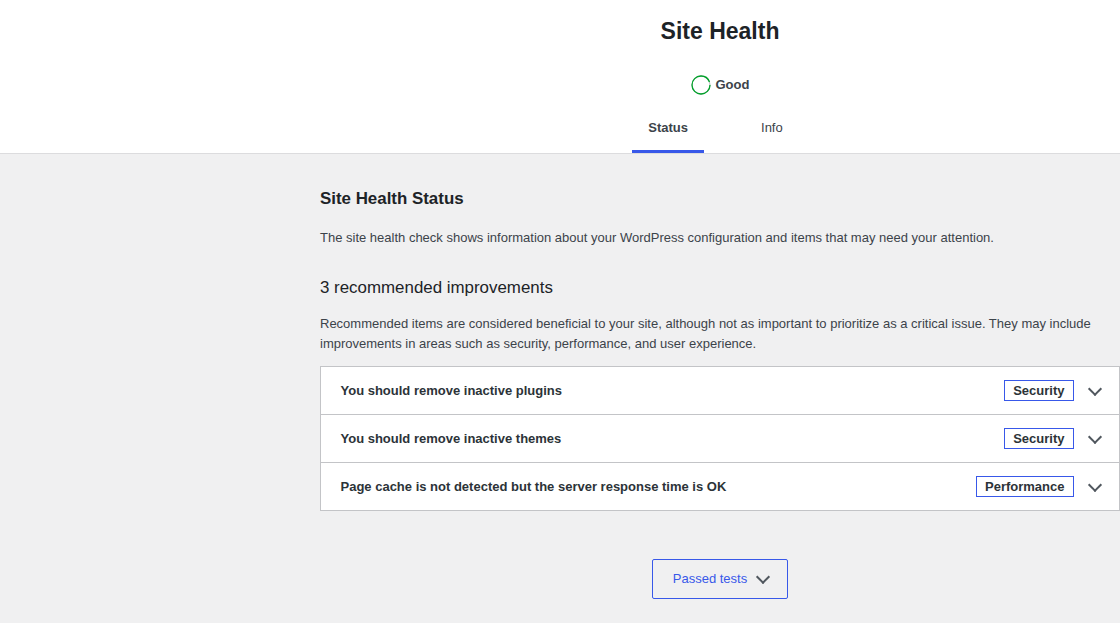
WordPress Site Health is a useful first stop because it shows baseline configuration and performance checks before you start changing optimization settings.
Find What Is Slowing Down WordPress
Use this order before changing settings:
Measure server response time. In DevTools, reload the exact slow page and check the main document request. High TTFB points to hosting, redirects, cache misses, PHP workers, slow queries, or plugin code.
Check Core Web Vitals. PageSpeed Insights can show LCP, INP, and CLS: main content load, interaction delay, and layout movement.
Inspect the waterfall. Look for large files, render-blocking CSS or JavaScript, late hero images, font delays, and third-party domains.
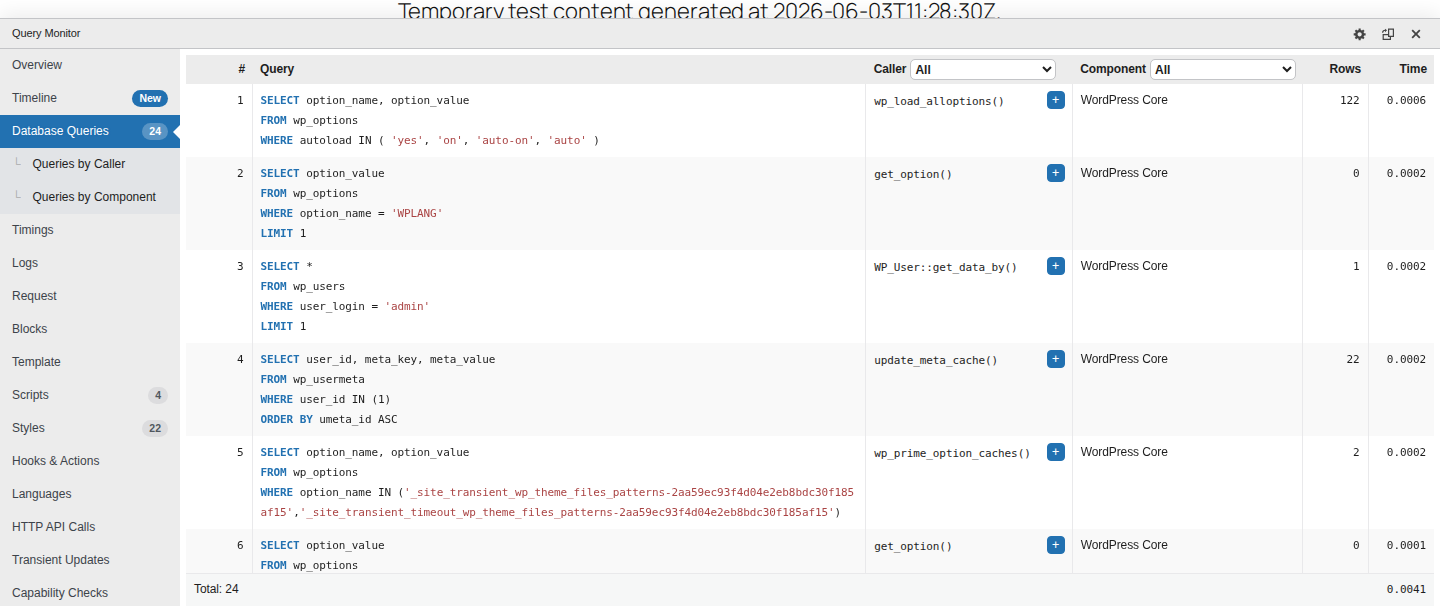
Use Query Monitor. Check slow queries, HTTP API calls, PHP errors, loaded assets, hooks, and plugin/theme attribution.
Check cache behavior by page type. A blog post, wp-admin, cart, checkout, account page, search page, and logged-in page do not behave the same way.
Review hosting limits. Ask for CPU, RAM, PHP worker, database, error-log, and slow-query data.
Change one thing and retest. If you change five settings at once, you will not know what helped.
AirLift fits when the evidence points to cacheable public pages, CDN delivery, image weight, CSS, JavaScript, fonts, or performance reporting. It is not a replacement for more PHP workers, database repair, custom code work, or WooCommerce checkout diagnosis.
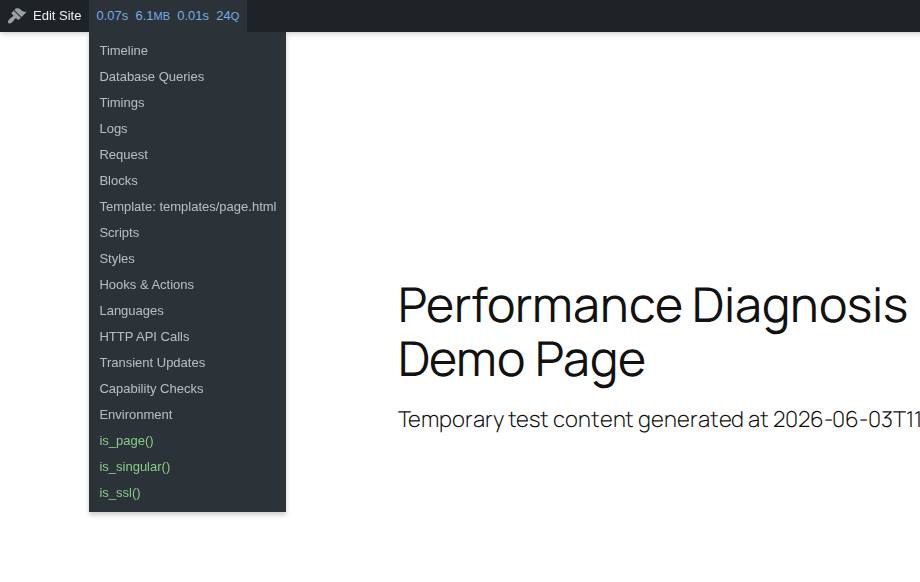
Query Monitor helps turn a vague slow-site complaint into concrete server-side clues like timing, memory, and query count.
Read The Metrics
PageSpeed scores are useful, but the score is not the cause.
How responsive the page feels after a click or tap
Heavy JavaScript, page builders, long tasks, third-party scripts
CLS
How much the page shifts while loading
Images without dimensions, ads, embeds, banners, font swaps
Field data and lab data can disagree. Field data shows what real users saw over time. Lab data helps you reproduce one controlled test.
If the numbers disagree, ask what each test measured. A green homepage score does not prove that checkout, wp-admin, logged-in pages, mobile visitors, or users in another region are fine.
TTFB Is High
High TTFB means the visitor is waiting before WordPress sends the page.
Check whether the page is cached. Compare a cache hit with a cache miss. Remove redirect waste. Test a simple public page against a dynamic page like checkout, search, or an admin screen. Look for slow queries, remote API calls, PHP warnings, and full PHP workers.
Each uncached PHP request needs a worker. When all workers are busy, new requests wait in line. To the visitor, that queue looks like a slow website.
Possible fixes include better page cache, fewer redirects, server-level cache, persistent object cache, more worker capacity, query optimization, plugin replacement, or development work. If TTFB is high only on filtered product pages, admin reports, or checkout, diagnose the dynamic work behind that page.
LCP Or Mobile Speed Is Poor
If TTFB is acceptable but the page still feels slow, the browser may be doing too much.
Start with the LCP element in PageSpeed Insights. If it is an image, inspect file size, displayed size, format, responsive behavior, lazy-loading, and discovery timing.
Common fixes:
Resize images to match the layout instead of only shrinking them visually in the editor.
Use sensible compression and modern formats such as WebP or AVIF where appropriate.
Do not lazy-load the above-the-fold image.
Reduce render-blocking CSS and JavaScript from themes, page builders, and plugins.
Remove mobile-hidden waste that still loads images, scripts, fonts, or embeds.
AirLift is relevant here when image delivery, CSS, JavaScript behavior, font handling, CDN delivery, or cacheable page performance is the bottleneck.
After any JavaScript change, test menus, forms, sliders, search, cart actions, and checkout. Do not chase a faster report by breaking the thing the page exists to do.
wp-admin Is Slow
wp-admin is logged-in, dynamic, and often plugin-heavy. Public page caching usually does not touch it.
Start with the exact admin screen that feels slow: dashboard, product list, orders, editor, media library, or a plugin settings page. Use Query Monitor inside wp-admin and look for:
slow or repeated database queries
external HTTP API calls
PHP warnings and errors
scripts and styles loaded on that admin page
hooks taking too long
plugin or theme attribution
host memory and worker pressure
If one dashboard widget waits on an outside API every time the admin loads, public page cache cannot help. Update it, disable it, replace it, or scope that behavior. For WooCommerce stores, do not disable payment, tax, shipping, inventory, security, or checkout-related plugins on production without staging and rollback.
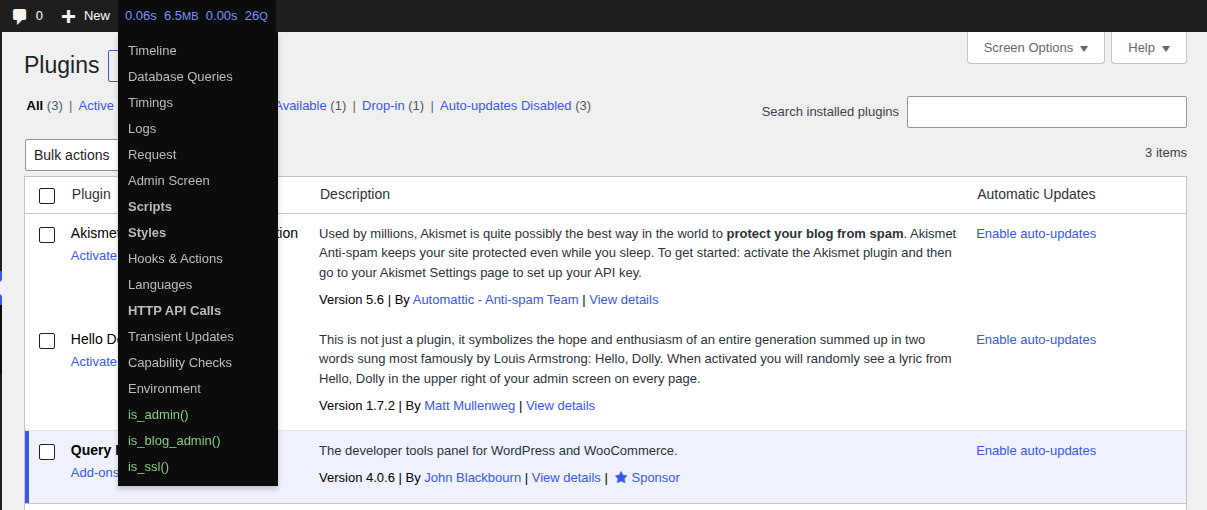
On admin screens, the useful evidence is often in loaded assets and external HTTP calls, not the public page cache status.
WooCommerce Is Slow
WooCommerce is harder because the most valuable pages are often the least cacheable.
Cart, checkout, account, and logged-in flows should not be full-page cached like normal public pages. Product and category pages may be cacheable, but filters, stock status, pricing rules, search, and logged-in behavior can change the rules.
Check cache exclusions first. Then inspect checkout requests, payment APIs, shipping APIs, tax calls, fraud tools, product queries, order queries, variations, filters, object cache, PHP workers, and marketing scripts.
Faster checkout is not a win if payment, shipping, tax, cart updates, or privacy behavior breaks. Optimize public product delivery where it is safe, and treat checkout as a dynamic system.
The safest path is simple: write down the change window, reproduce on staging when possible, reverse the likely change, retest, and use Query Monitor before blaming the most visible plugin.
If optimization changes broke images, menus, forms, or checkout, roll back first. Do not stack more fixes on top of a broken state.
Fix Plugin, Theme, And Database Problems
“Too many plugins” is an easy answer. It is often the wrong one.
A site with many small, well-built plugins can be faster than a site with one plugin that runs heavy queries, loads scripts everywhere, or calls an outside API on every request.
Look for behavior:
slow database queries
repeated queries
remote API calls
scripts and styles loaded on pages that do not need them
admin work that runs too often
PHP warnings or memory pressure
page-builder CSS, JavaScript, and DOM weight
Use staging for isolation. Disable noncritical plugins, confirm a baseline, then reactivate in groups until the slowdown returns. If you cannot name the slow plugin behavior, you have not diagnosed the plugin problem yet.
Database evidence is more useful than plugin count because it shows what WordPress actually did during the request.
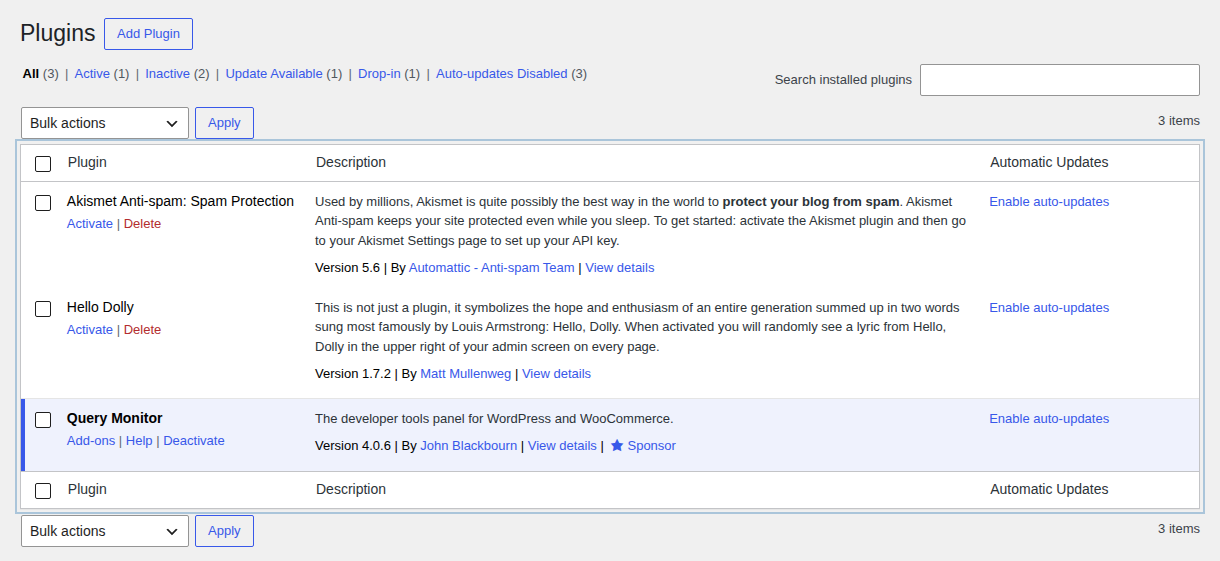
When query or asset evidence points toward plugins, use staging isolation deliberately instead of changing production plugin state on instinct.
What Caching And CDN Can Fix
Caching helps when the same work can be reused. It does not make every slow request fast.
Dynamic origin slowness unless the response can be cached
Object cache
Repeated WordPress/database lookups
Large images, heavy JavaScript, low worker capacity
Server cache
Fast origin-side caching from the host
Requests that must stay dynamic
The mistake is assuming “cache detected” means the site is fixed. Cache misses, admin screens, logged-in pages, and WooCommerce checkout can still be slow.
AirLift makes sense when the problem is cacheable page delivery, CDN delivery, image weight, frontend assets, fonts, or performance tracking. If the bottleneck is exhausted PHP workers, slow SQL, broken plugin code, or dynamic WooCommerce work, fix that layer too.
Stop Losing Time To Bad Assumptions
Most slow-site fixes fail because the assumption was wrong.
Misconception
What to check instead
More plugins always make WordPress slow
Plugin behavior: queries, scripts, API calls, hooks, admin work
Every useful fix has a matching symptom. If you cannot name the symptom, you are guessing.
Make Changes Safely
Performance work should be easy to reverse.
Before you change settings, create a backup or snapshot. Use staging for risky work. Record the baseline URL, device, location, logged-in state, TTFB, LCP, INP, CLS, transfer size, request count, cache status, and visible errors.
Then change one thing and retest the same page or flow. Check forms, menus, sliders, login, cart, checkout, payment, tax, shipping, and account pages after speed changes.
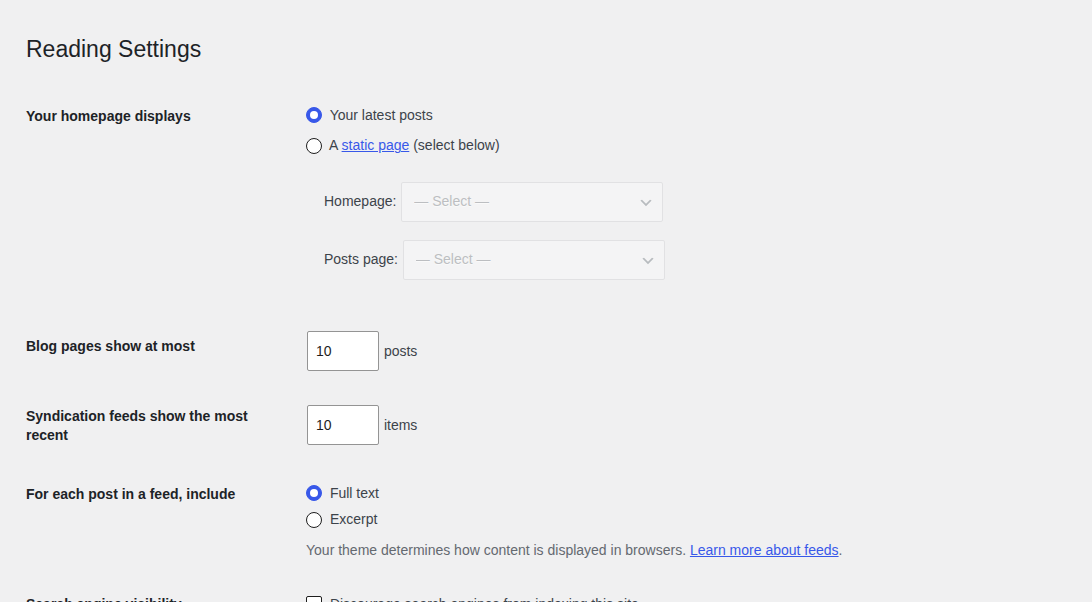
Even native WordPress settings can affect page weight or crawlable output, so treat settings changes as measured performance work.
For agencies, this turns “the site is slow” into a measured issue with a cause, a change, and a result.
Final Decision Tree
Use this when you know what feels slow but not what to check next.
Cache hit rate, PHP workers, CPU/RAM, database load
Improve caching and add capacity
Good score but users complain
Exact flow, field data, device, region, logged-in state
Test the real user experience
If the evidence points to cacheable public pages, images, CDN delivery, frontend assets, fonts, or ongoing performance tracking, AirLift is a practical next step. If it points to hosting capacity, PHP workers, slow queries, plugin conflicts, or WooCommerce dynamic flows, take the evidence to your host or developer.
FAQs
Why is my WordPress website slow?
A WordPress website is usually slow because of a bottleneck in hosting, database queries, plugins, images, render-blocking assets, third-party scripts, caching, WooCommerce dynamic pages, or geographic delivery. Start by measuring TTFB, Core Web Vitals, request waterfall, plugin/query behavior, and hosting limits.
What should I check first before installing a speed plugin?
Check the exact slow page, TTFB, LCP, INP, CLS, request waterfall, cache status, Query Monitor findings, hosting limits, and recent changes. Then choose the fix that matches the bottleneck.
How do I know if hosting is making WordPress slow?
Hosting is likely involved when TTFB is high across many pages, PHP workers are full, CPU or RAM is maxed, database requests wait, or uncached pages slow down during traffic spikes. Ask your host for worker, CPU, memory, database, error-log, and slow-query data.
Why is my WordPress admin dashboard slow?
The admin dashboard is usually slow because of plugin admin work, database queries, cron jobs, external API calls, WooCommerce admin tasks, PHP memory limits, object-cache gaps, or exhausted workers. Public page cache rarely fixes wp-admin.
Can too many plugins slow down WordPress?
Yes, but plugin count is not the best measure. A single heavy plugin can be worse than many small plugins. Check queries, scripts, styles, remote calls, background jobs, and admin hooks.
Can a CDN fix a slow WordPress site?
A CDN helps with distance, static assets, and sometimes cacheable HTML. It does not fix slow uncached admin, checkout, logged-in, or personalized requests. If the origin is slow before anything can be cached, fix the origin too.
Why is my site slow despite a good PageSpeed score?
The score may be testing the wrong page, device, region, or user state. Admin pages, checkout, logged-in flows, mobile users, and specific locations can still be slow when the homepage score looks good.