

Why Your Website Feels Slow Despite 90+ PageSpeed Score
One of the strange things about Google PageSpeed is that your site can get a 90+ score and still feel slow when you open it. Every performance plugin struggles to solve this. But…
Read

There is a very specific irritation in opening WordPress to make one small edit and then waiting on the dashboard like it’s thinking about whether you deserve access today.
The public site may be fine. Your homepage might pass a speed test. Visitors may not be complaining. But inside WordPress, every click feels sticky.
If your WordPress dashboard slow issue looks like that, don’t start by clearing every cache or installing another performance plugin. Start by proving where the delay is happening. wp-admin does a different job from the public site, and treating both as the same problem is how people lose an afternoon changing settings that were never involved.
TL;DR: Time the exact wp-admin screen that’s slow, then check whether the wait happens before the page arrives or after it starts loading. Most slow dashboards come from plugin work, database drag, hosting limits, browser-side editor load, or scheduled jobs running at the wrong time.
A cached public page can hide a lot. For a logged-out visitor, WordPress may serve a stored version of the page. PHP does less work. The database may barely be touched. A CDN or cache layer may answer the request before your server has much to do.
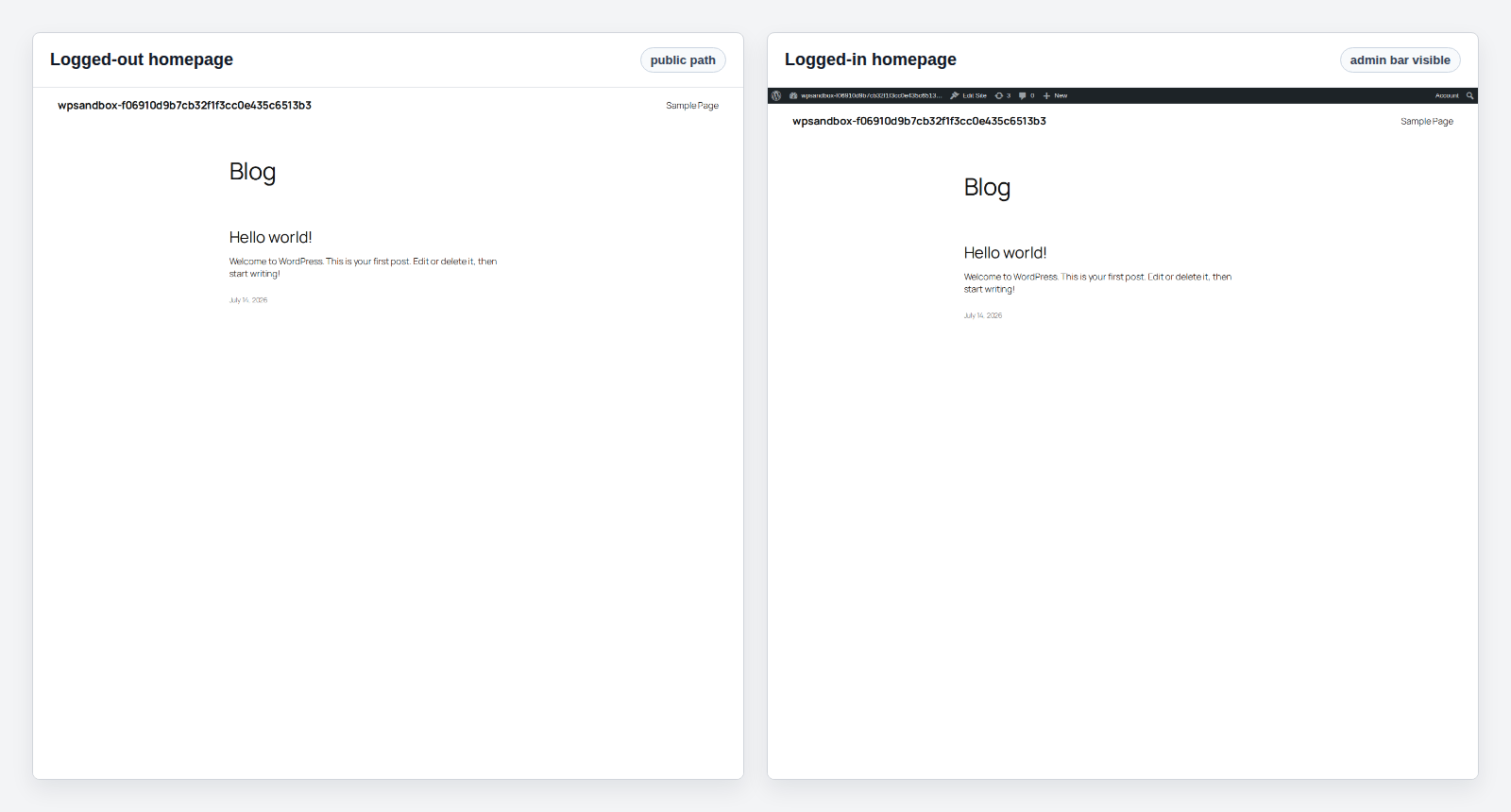
The dashboard doesn’t get that shortcut. It has to verify that you’re allowed in, then build a private screen for your account. After that, plugins can pile on menus, notices, admin columns, update checks, and calls to outside services. On editor screens, your browser also has to load WordPress’s editor scripts or your page builder after the server sends the page.
So “my website is fast, but my dashboard is slow” isn’t strange. It usually means one of these things is true:
💡 Note: A public speed score has its place, but it doesn’t test the thing you’re complaining about. If the dashboard is slow, measure dashboard requests. Otherwise, you’re using the wrong thermometer and wondering why the fever isn’t showing up.
That’s why the first fix is diagnosis. Image compression won’t speed up a slow Plugins screen. Full-page cache usually won’t cache private admin pages, and it shouldn’t. Bigger hosting may help, but it’s an expensive way to discover that one plugin was waiting on a remote API.
The same caution applies to public-page wins like font subsetting and WOFF conversion. They can make visitor pages lighter, but they won’t explain a slow private dashboard by themselves. Navigation prefetching belongs in that same bucket: useful for frontend browsing, not a first-line fix for a sticky Plugins screen or WooCommerce Orders page.
You don’t need a lab setup. You need a few rough timings that make the next move less fuzzy. Open the same screen three times and write down the load time. Do this for:
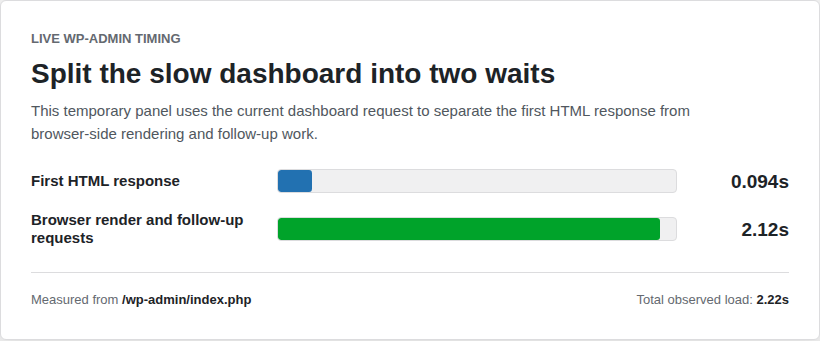
Then open your browser’s Network tab and reload the slow wp-admin page. Find the first document request, the one that returns the HTML.
If that first request takes most of the time, WordPress is slow before your browser has much to render. Start with the server side. Check PHP workers and database response first, then look for expensive plugin hooks, remote HTTP calls, WP-Cron, or maintenance jobs.
If the HTML arrives reasonably quickly but the screen freezes afterward, look at the browser side: builder scripts, block editor load, REST requests, browser extensions, device memory, and the size of the page you’re editing. That split matters. A server wait and a browser freeze feel the same when you’re staring at a blank admin screen. They don’t get fixed the same way.
⚠️ Note: I wouldn’t purge every cache as step one. A full purge can trigger rebuilds, preloads, critical CSS jobs, or other background work. On a strained site, that can make the next few minutes worse and blur the evidence you were trying to collect.
Once you’ve timed a few screens, the pattern usually starts talking.
| What you see | Start here |
|---|---|
| Everything is slow, including uncached public pages | Hosting resources, PHP, database response, plugin load |
| Only wp-admin is slow | Admin-heavy plugins, dashboard widgets, update checks, Query Monitor findings |
| Only the editor is slow | Block editor, Elementor or builder add-ons, REST requests, browser memory |
| WooCommerce screens are worst | Orders, reports, scheduled actions, store extensions, list-table row counts |
| Only one person has the issue | Browser extensions, VPN, local network, device memory, account-specific widgets |
| It happens on a daily pattern | Backups, malware scans, imports, cache warming, WP-Cron |
Don’t treat the table as the answer. Use it to choose the next test.
A store owner shouldn’t disable half of WooCommerce because the dashboard feels slow. An agency shouldn’t ask a client to upgrade hosting because one editor screen hangs in Chrome with a dozen extensions running. Pick the smallest test that could prove something, then move.
Plugins are often involved, but “too many plugins” is lazy advice. Ten quiet plugins can behave better than one plugin that adds slow admin queries, license checks, remote requests, notices, and extra columns to every list screen. Start with plugins that naturally do admin work:
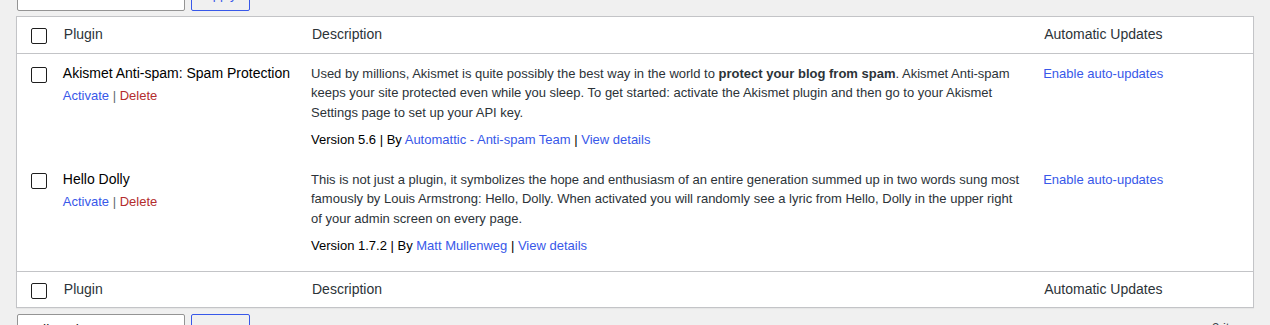
Staging is the cleanest place to test, especially when plugin updates and maintenance tasks can affect checkout, forms, or client workflows. Disable non-essential plugins in small groups, retest the exact same slow screen with the same account, and narrow the group when the timing changes. Then re-enable anything you don’t need to keep disabled.
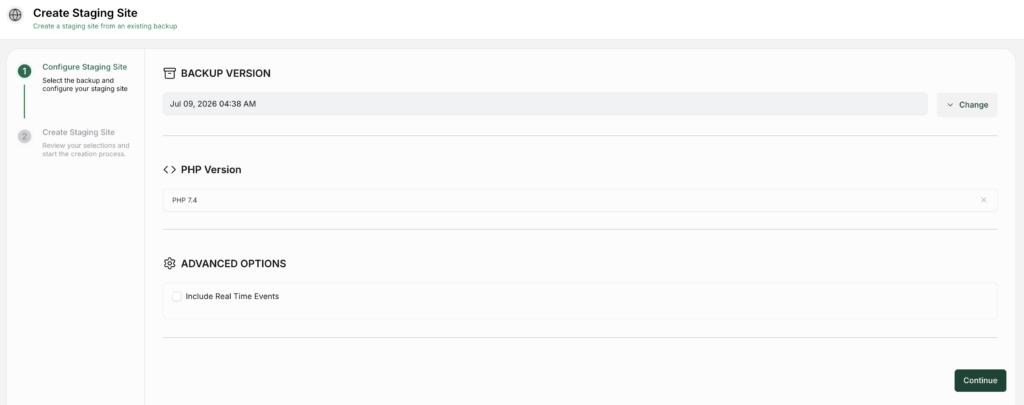
The timing matters more than the feeling. “It seems faster” is a weak note. “Plugins screen went from 11 seconds to 3 seconds after disabling this reporting plugin group” is something you can act on.
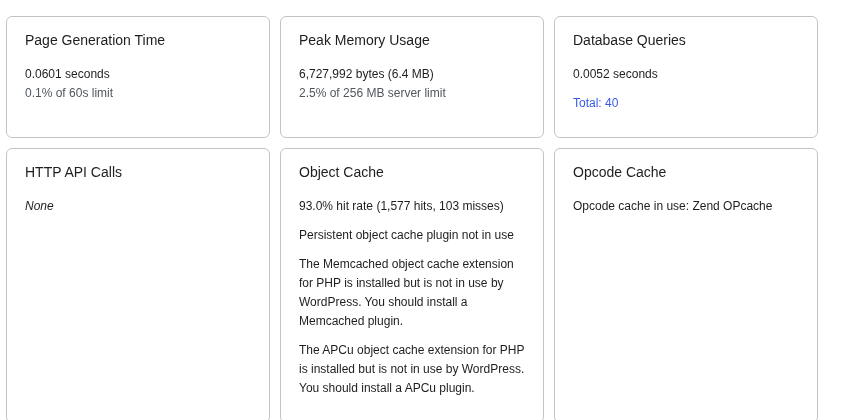
🔎 Note: Query Monitor is one of the first plugins I’d reach for if wp-admin still loads. It can show slow database queries, HTTP API calls, memory use, hooks, and the component involved in the current request. It won’t explain every editor freeze, but it can quickly tell you when the server-side request is the problem.
When production is the only place you can test, keep the blast radius small. Take a backup and confirm the restore path before you touch anything. Avoid busy hours. Don’t turn off checkout or security code casually, and be even more careful with payments, memberships, and forms. Learn what you need, then undo the test.
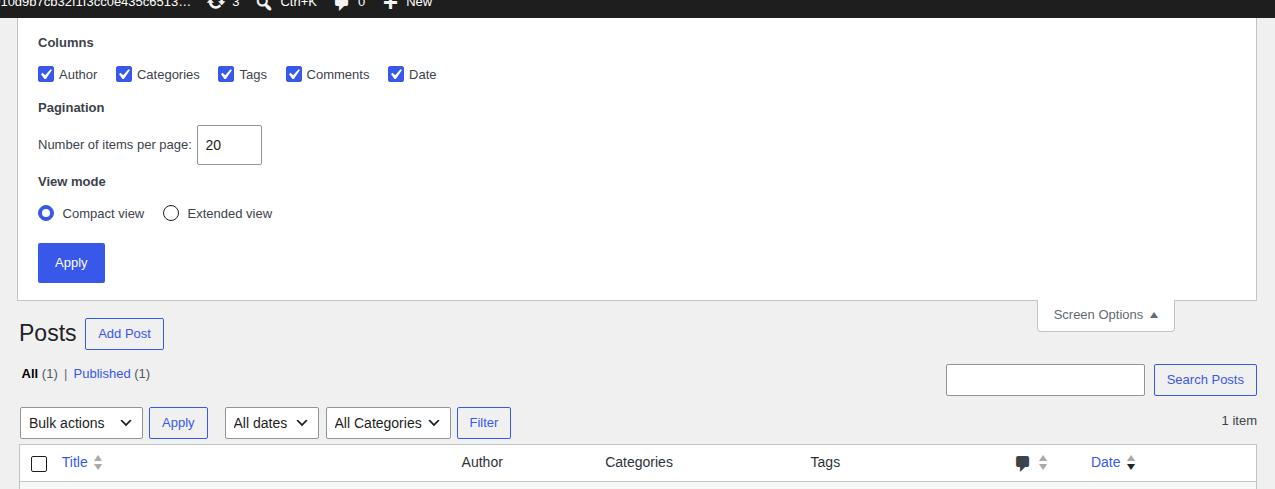
WooCommerce and page builders deserve their own pass because they change what admin screens have to calculate. For WooCommerce, start where the pain is:
That row-count setting can look too small to matter. Then you watch an Orders screen load 20 rows instead of 200 and suddenly it makes sense. Each row can pull customer details, payment state, extension data, and action buttons.
🧾 Note: If the Orders screen is the only slow screen, don’t start with site-wide performance tuning. Start with order volume, custom order columns, reporting extensions, and Action Scheduler. WooCommerce admin slowness is often very local.
For Elementor, the block editor, or another builder, compare a simple post with the painful page. If a blank post opens quickly, the whole dashboard probably isn’t broken. If one landing page hangs, the page may be overloaded, a builder add-on may be misbehaving, or REST requests may be failing in the background.
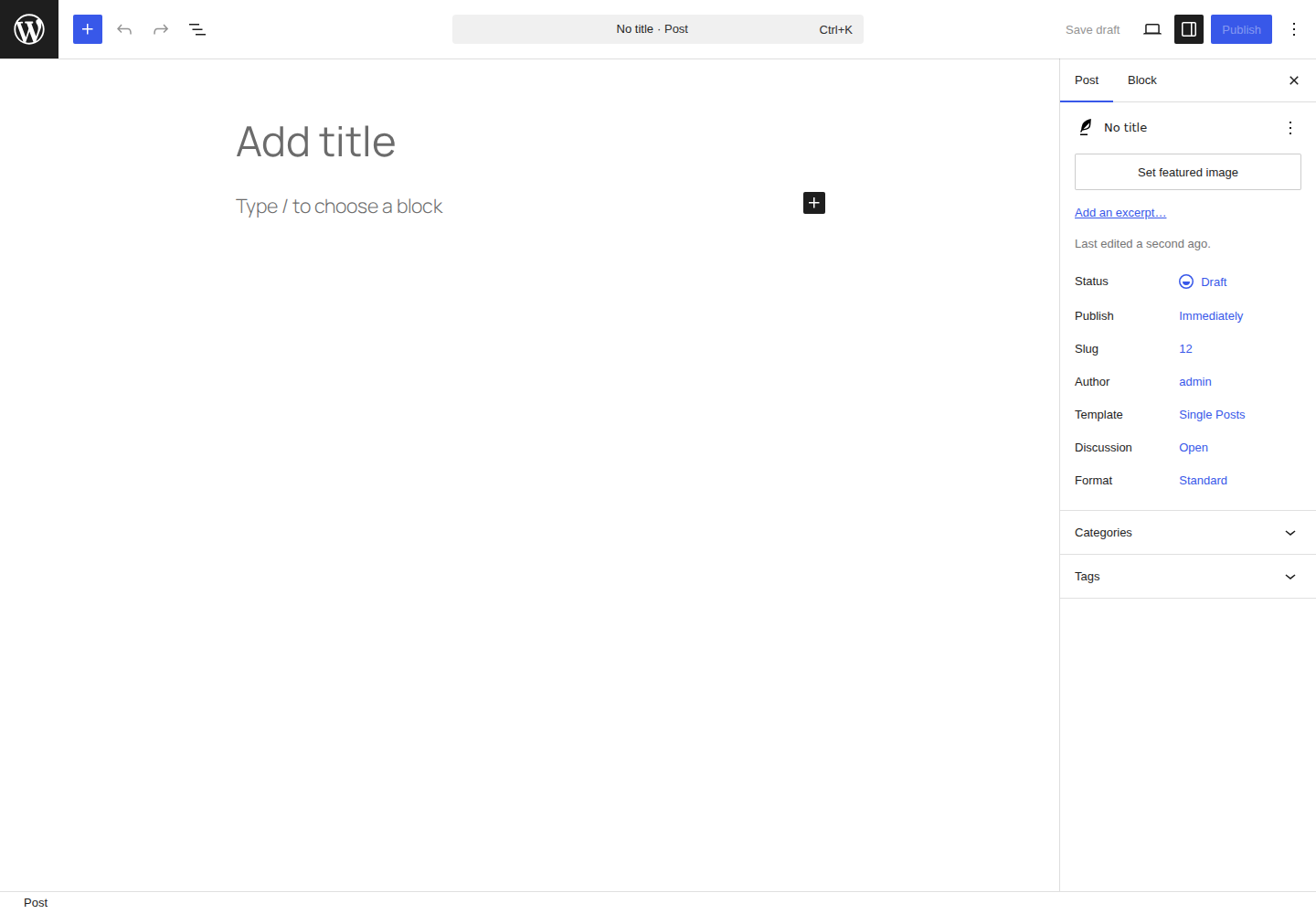
A clean browser profile is a useful test here. If the same editor behaves well without extensions, VPNs, password-manager overlays, or old cached scripts, you’ve learned something before touching WordPress at all. I wouldn’t rebuild a page until these checks point there. Rebuilding is the expensive fix. Prove you need it first.
Admin screens feel database weight more than cached public pages do. The usual mess is old revisions and spam, plus transient data, plugin logs, and scheduled-action records that never got cleaned up. Safer cleanup targets are usually:
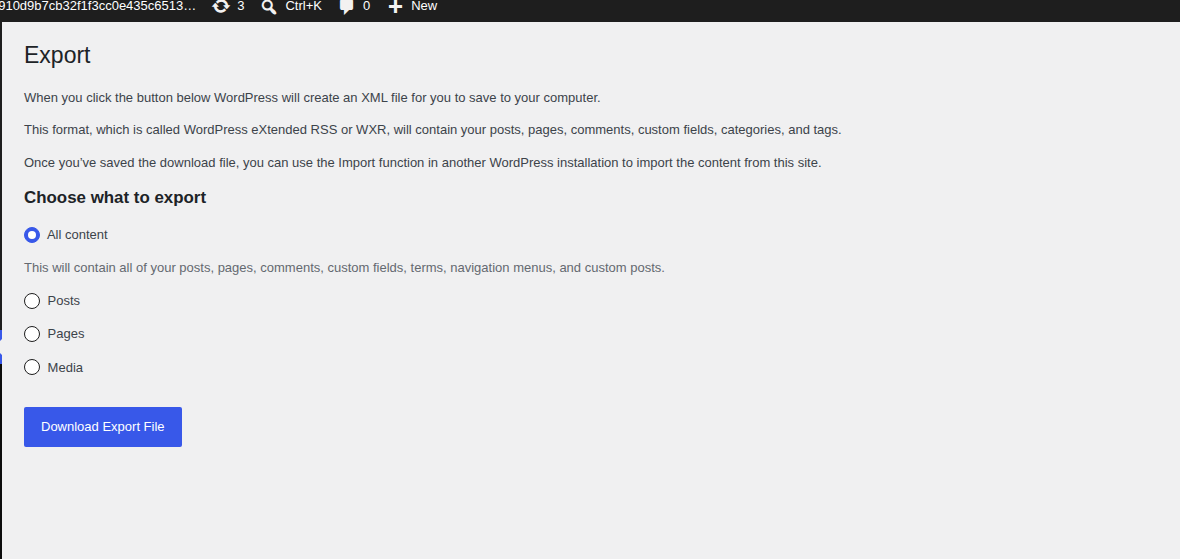
Be more cautious with autoloaded options you don’t recognize, unknown plugin tables, orphaned metadata, and anything tied to store, membership, LMS, form, or subscription data.
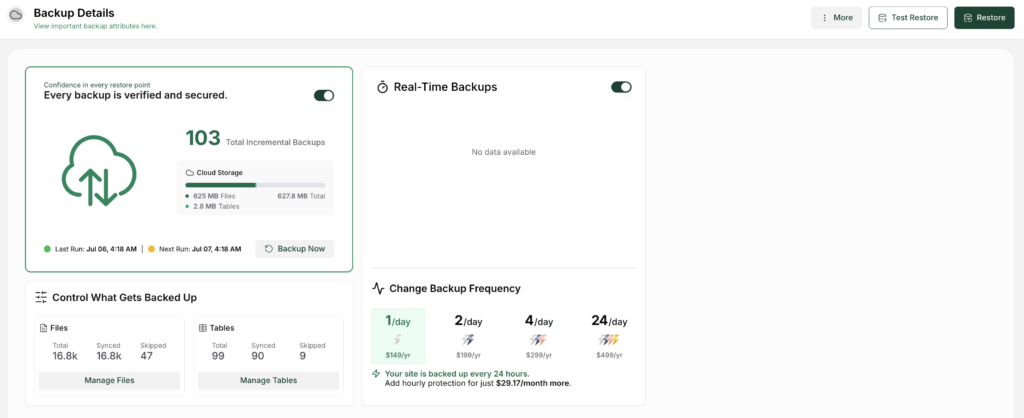
🧯 Note: Backup before touching the database. On a revenue site, test cleanup on a duplicate first. I know that’s the boring answer. It’s still faster than trying to reconstruct missing order or membership data after a “quick optimization.”
If you’re looking at autoloaded options, don’t delete by name because a blog post told you the prefix looked suspicious. Find the owning plugin, check whether it’s still active, and understand what the option stores. Some useless-looking rows are useless. Some are the settings that keep a business workflow alive.
Sometimes the screen you’re opening isn’t the real problem. WordPress is slow because another job is using the same pool of resources. Look for jobs that overlap with admin work:

Don’t turn useful maintenance off after one bad overlap. Move it. Run backups and scans during quiet hours. Put imports on a schedule. Ask your host about running WordPress cron from the server instead of letting normal page visits trigger scheduled tasks.
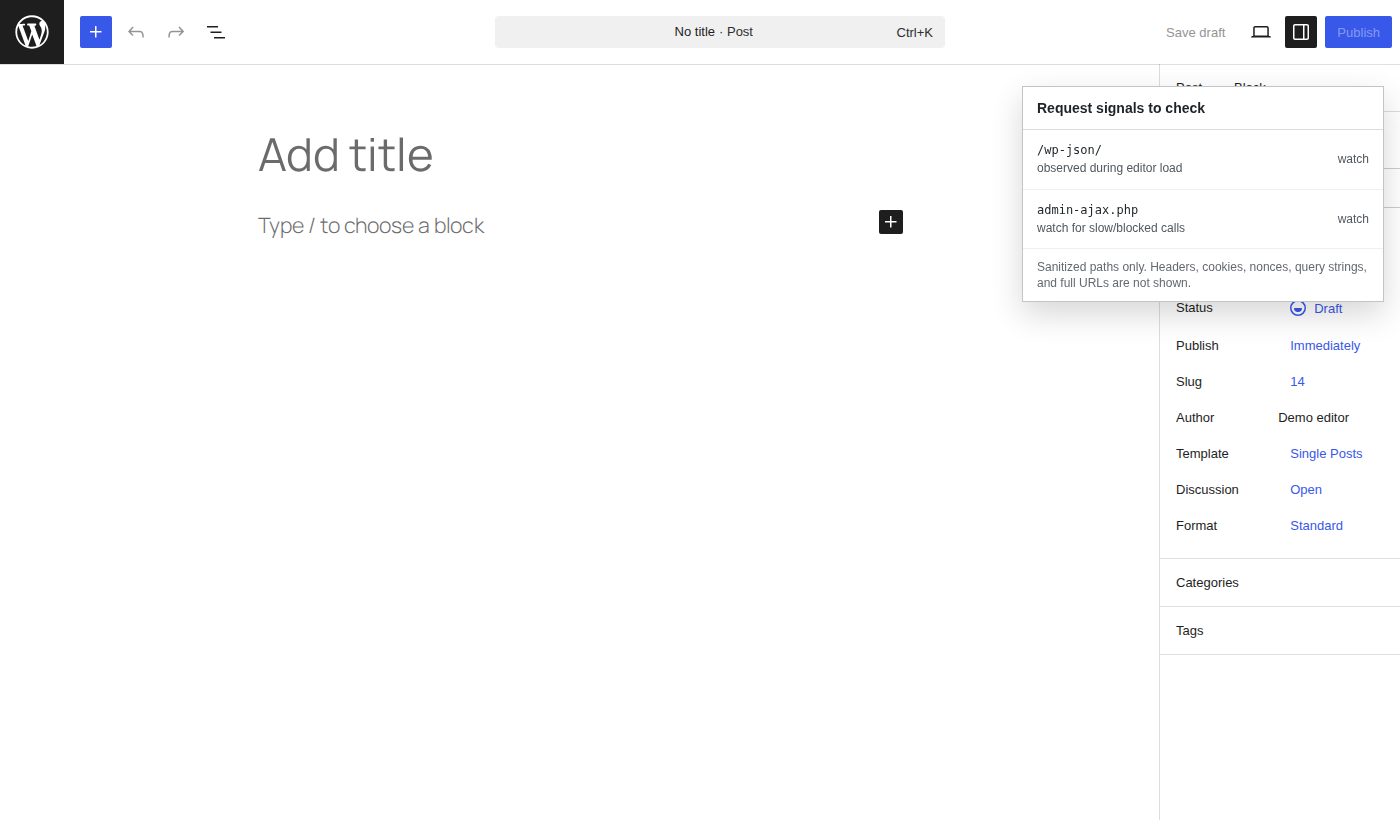
Heartbeat deserves the same care. It can create admin-ajax.php traffic, especially in editors and multi-user sites, but it also handles autosave, post locks, and session behavior. Tune it if it’s noisy. Don’t disable it everywhere unless you understand what you’re giving up.
🕒 Note: If logs keep showing admin-ajax.php, treat that as a clue, not the diagnosis. Core uses it. Plugins use it. WooCommerce uses it. The useful question is: what action is calling it, how often, and from which screen?
Caching advice gets sloppy because people use one word for several different layers.
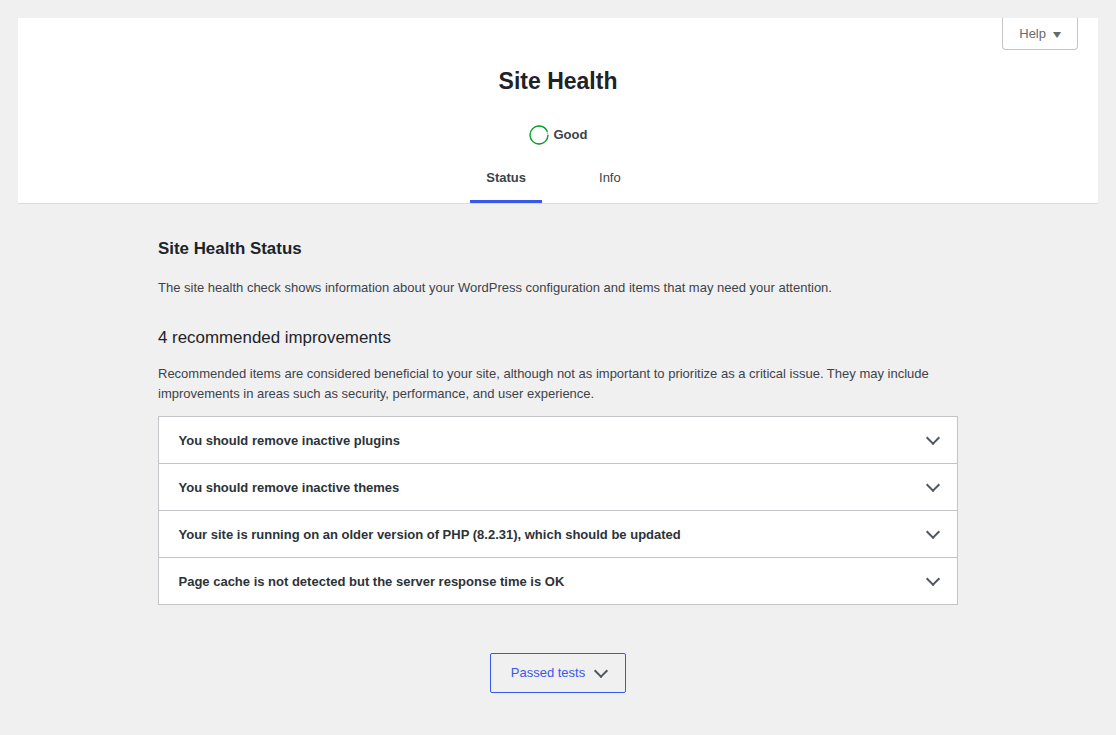
This is where AirLift can fit, but only in the right way. AirLift can improve public WordPress performance and reduce origin load from cacheable visitor traffic. That may leave more room for logged-in admin work on a busy site. It still won’t repair a slow admin query, a broken editor request, noisy Heartbeat traffic, or an overloaded WooCommerce action queue. If you’re already using AirLift and need help separating product behavior from host or admin issues, contact AirLift support.
I put these later because they’re easy to blame too early. They still matter.
Check security and CDN rules when login, REST, admin-ajax.php, or editor actions are slow or blocked. The same applies if the site behaves differently behind a proxy. Recent SSL or redirect changes are worth checking too. So are new firewall, bot-protection, and CDN rules.
Check the browser when the first HTML request is reasonable but the screen still feels awful. This is especially likely when only one person has the problem, the editor is the main slow screen, another device is faster, or a clean browser profile behaves better.
Check hosting when uncached public pages and wp-admin are both slow. Resource charts matter here. Look at CPU, memory, I/O, and database load. Then check PHP workers and request queues. If those are maxed out during the slow window, the hosting plan’s marketing name doesn’t mean much.
🧠 Note: Better hosting helps when the site has outgrown the plan. It’s a waste when the delay comes from a plugin waiting on a remote API or one builder page overwhelming one laptop.
If I had an hour with your slow dashboard, I wouldn’t spend it changing random performance settings. I’d spend most of it proving the bottleneck.
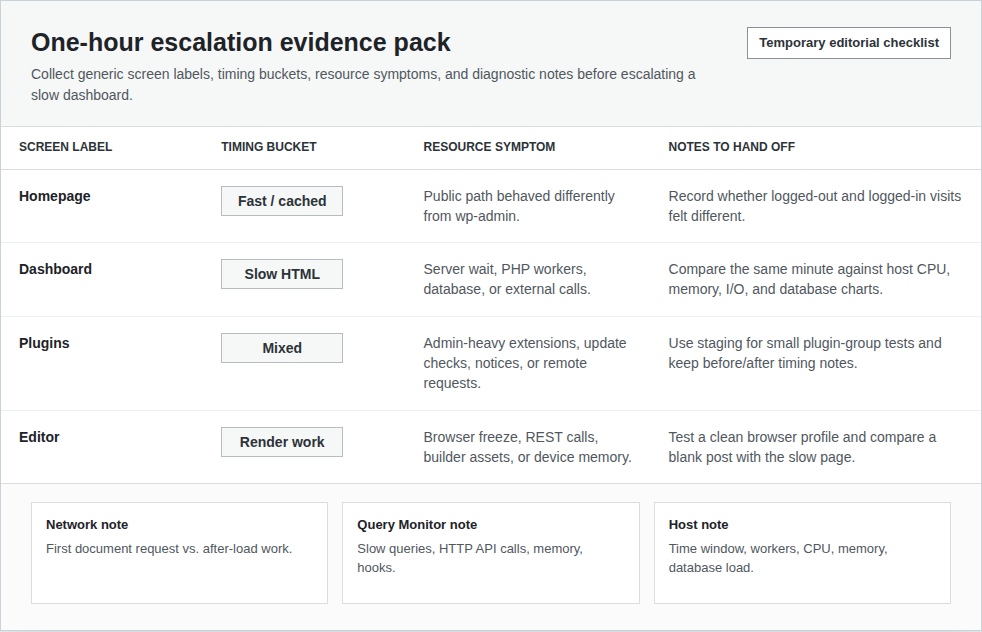
That order keeps you from breaking the site while trying to fix the feeling of slowness. If the problem needs a developer or host, you’ll also have something useful to hand over.
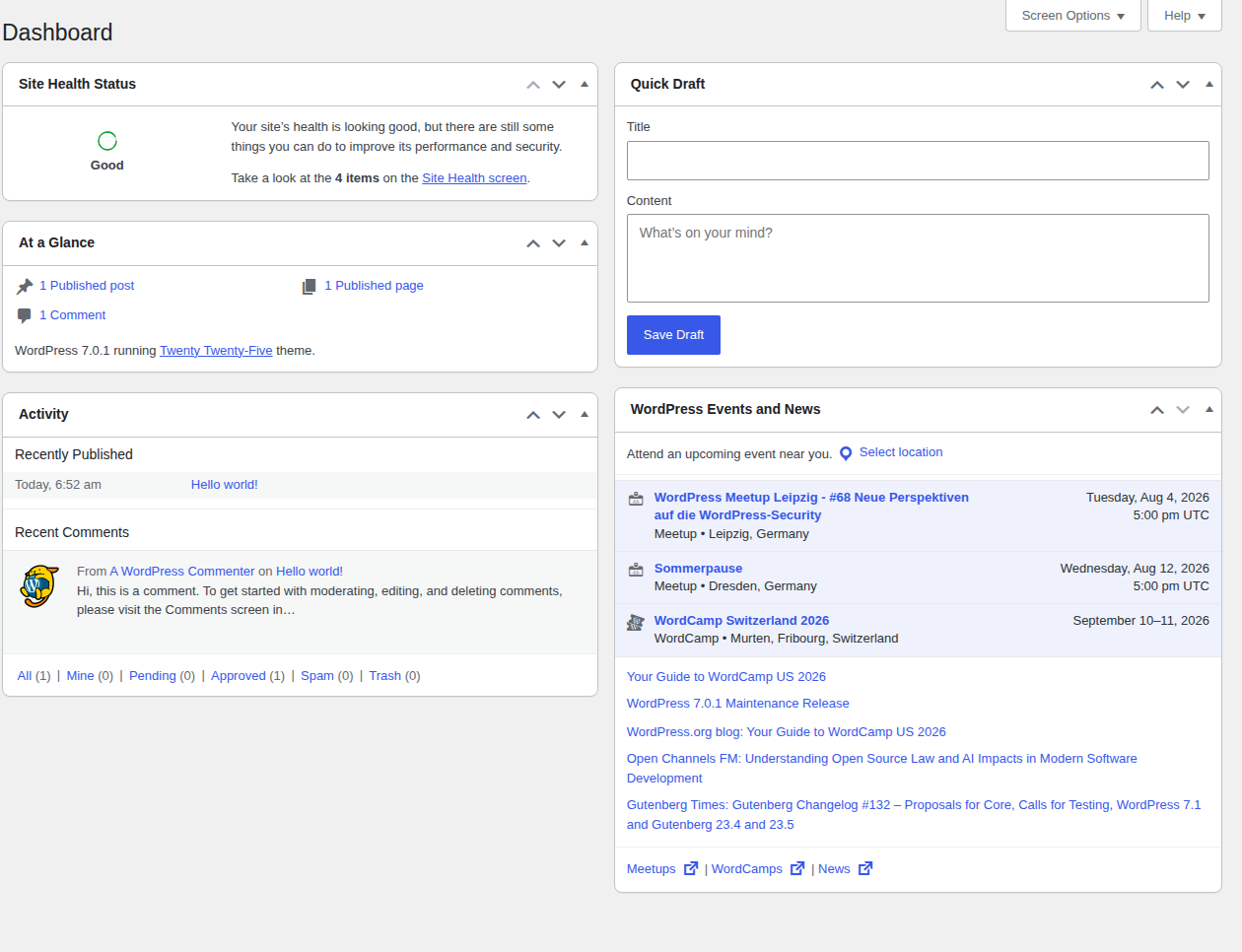
Your public site may be serving cached pages while wp-admin is doing fresh, logged-in work. The dashboard still has to execute PHP, talk to the database, check your account, build private screens, and let plugins add their own work. A fast homepage doesn’t prove the admin workload is healthy.
Open your browser’s Network tab and look at the first document request. If the HTML takes a long time to arrive, start with the server: plugin code, database queries, PHP workers, and remote HTTP calls. If the page arrives quickly but freezes afterward, check editor scripts, REST requests, browser extensions, and device memory.
Sometimes it helps around the edge cache, especially after a bad cache job or preload. But full-page cache usually helps public pages, not private admin screens. Clearing cache won’t fix a plugin query, a bloated database, browser JavaScript trouble, weak hosting, or a blocked remote request.
It can. A persistent object cache keeps repeated database results available between requests, usually through Redis or Memcached. It’s more relevant to dynamic wp-admin pages than full-page cache, though it still can’t rescue a bad query or a blocked HTTP call.
Work on staging when you can. Disable non-essential plugins in small groups, retest the same slow screen, and narrow the group when performance changes. Query Monitor can also point to expensive queries, remote requests, memory pressure, and the component involved in the current admin request.
A slow WordPress dashboard gets easier to fix once you stop lumping it in with generic speed work. The dashboard is private, live, plugin-heavy work. Your homepage speed test can miss almost all of it.
Start with timings. Find out whether you’re waiting on the server or the browser. Then move through the causes in the order the evidence supports, with the same caution you would use for routine WordPress maintenance. You’ll get to the right fix faster, and you’ll be much less likely to break something that was working.
One of the strange things about Google PageSpeed is that your site can get a 90+ score and still feel slow when you open it. Every performance plugin struggles to solve this. But…
Read

You open wp-admin to make one small change, and every click takes too long. The public site may still load quickly, which makes the problem harder to read: visitors are fine, but…
Read

PageSpeed’s “reduce initial server response time” warning can make a normal WordPress speed problem feel bigger than it is. If your report says WordPress TTFB very slow, the…
Read
Airlift works out what each page needs and applies it. Free to try on your own site.