

WordPress CDN: What It Does and When You Need One
Sometimes a WordPress site is slow, but not for everyone. It loads fine for you. Then a customer in another country says the images take forever. A speed test from your city looks…
Read

You update a logo, reload the page, and still see the old one. PageSpeed says some files need a longer cache lifetime. A plugin promises to fix caching, your host already has caching, and someone tells you to clear your browser cache as if that explains anything.
That confusion is exactly where browser caching starts to matter. Different from website caching, browser caching is the browser saving reusable website files on a visitor’s device so it can load them again without downloading everything from scratch.
TL;DR: Browser caching makes repeat visits faster by reusing files the browser already has. The safe pattern is simple: cache stable assets longer, recheck changing pages, and do not let old files survive updates. Cache the boring files aggressively, make changed files get new URLs, and treat personal pages like they can hurt you if cached in the wrong place.
Browser caching is local storage for website responses. The browser may save images, CSS, JavaScript, fonts, icons, media files, data responses, and sometimes HTML.
On the first visit, the browser downloads the page and the files that page needs. If the server says a file can be cached, the browser stores it in memory or on disk. On a later visit, the browser can reuse that saved copy if the cache rules allow it.
The important boundary: browser cache belongs to one browser on one device. Clearing Chrome on your laptop does not clear Safari on your phone, your visitor’s browser, your CDN, your host cache, or your WordPress cache plugin.
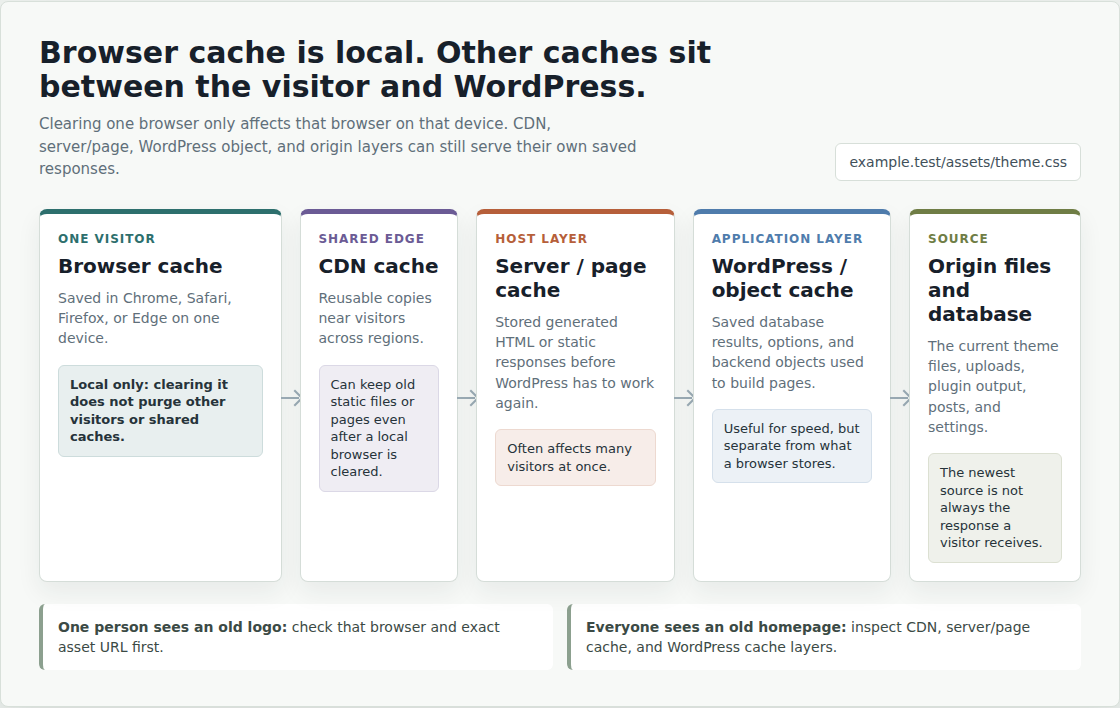
That distinction saves a lot of bad troubleshooting. If one person sees an old logo, browser cache is a reasonable suspect. If everyone sees an old homepage, start with the CDN, server cache, or WordPress page cache.
💡 Note: Browser cache is personal. A visitor can be stuck with an old file with changes not appearing, even when your site is already fixed for everyone else, which is why support reports need the exact browser, device, and URL before anyone starts purging caches.
Websites repeat themselves. A visitor may read three posts, compare two product pages, or return tomorrow to finish a checkout. Those pages often reuse the same logo, theme CSS, JavaScript, fonts, icons, and tracking files. Without caching, the browser asks for those files again and again. With caching, it can reuse files it already has.
That means:
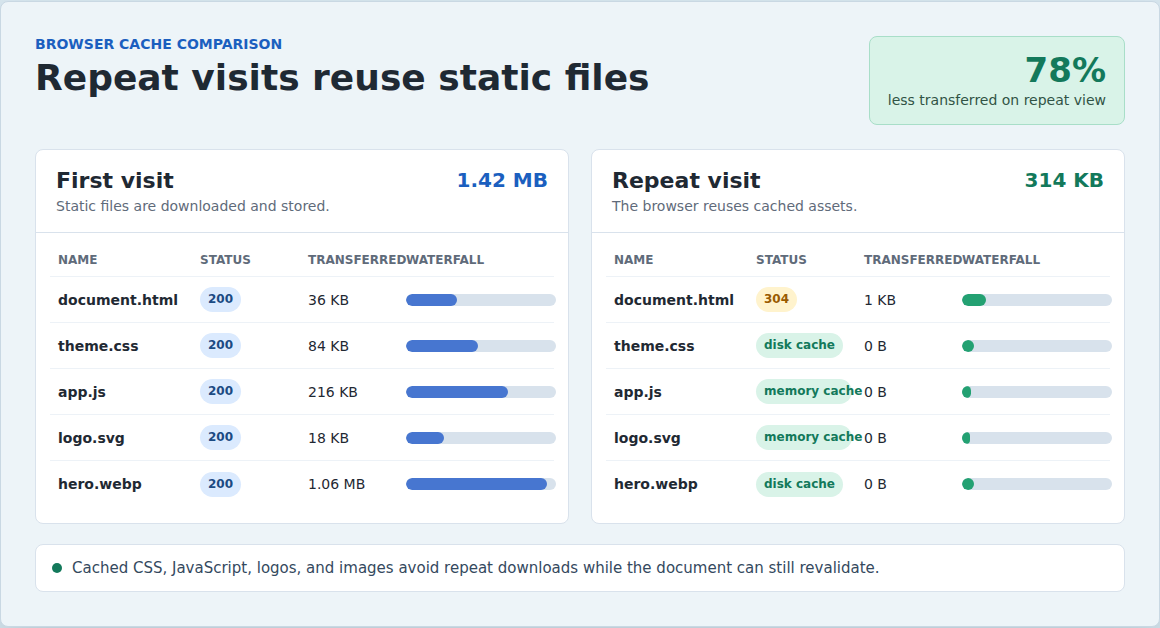
The speed gain is most obvious on repeat visits and same-site navigation. The first page still has to load. The second, third, and tenth page should not pay the full cost again. The practical rule: Unlike website caching browser caching reduces waste. It does not magically make a heavy page light, but it stops the browser from doing the same work twice.
⚡ Note: Browser caching is not a substitute for fixing a bloated page. If the first visit downloads a huge hero image, five ad scripts, and unused JavaScript, caching only makes the second visit less painful.
The browser does not cache “the website” as one object. It makes a separate decision for every response.
| Stage | What happens |
|---|---|
| First load | The browser downloads the HTML and the files referenced by that HTML. |
| Cache rule | The server sends headers that say whether each response can be stored and reused. |
| Later visit | The browser checks whether its saved copy is still fresh. |
| Reuse or validate | Fresh files can be reused. Stale files may be checked with the server. |
A cached file is fresh when its rule says it can still be reused. It is stale when the browser should check whether it changed.
Stale does not always mean wrong. It often means “ask before using.” If the file has not changed, the server can send a 304 Not Modified response. The browser keeps using its saved copy without downloading the full file again. If the file changed, the server sends a normal 200 OK response with the new version.
That is the model to remember: fresh means reuse, stale means check, changed means download again.
Cache behavior is controlled mostly by HTTP headers. You will see these in DevTools, CDN settings, hosting controls, and performance plugin documentation.
| Header or directive | Plain-English meaning |
|---|---|
| Cache-Control | The main modern cache policy. |
| max-age | How long the response stays fresh, in seconds. |
| no-cache | Store it, but check with the server before reuse. |
| no-store | Do not store this response at all. |
| private | Store only in the visitor’s browser, not a shared cache. |
| public | Shared caches may store it when the response is otherwise suitable. |
| s-max-age | Freshness rule for shared caches, such as CDNs or proxies. |
| ETag / Last-Modified | Validators that help the server check whether a saved file changed. |
| Expires | Older date-based cache rule. Cache-Control usually takes priority. |
| Vary | Says the response may differ by request details, such as encoding or language. |
The common trap is no-cache. It does not mean “do not cache.” It means the browser may store the response, but must revalidate before using it again.
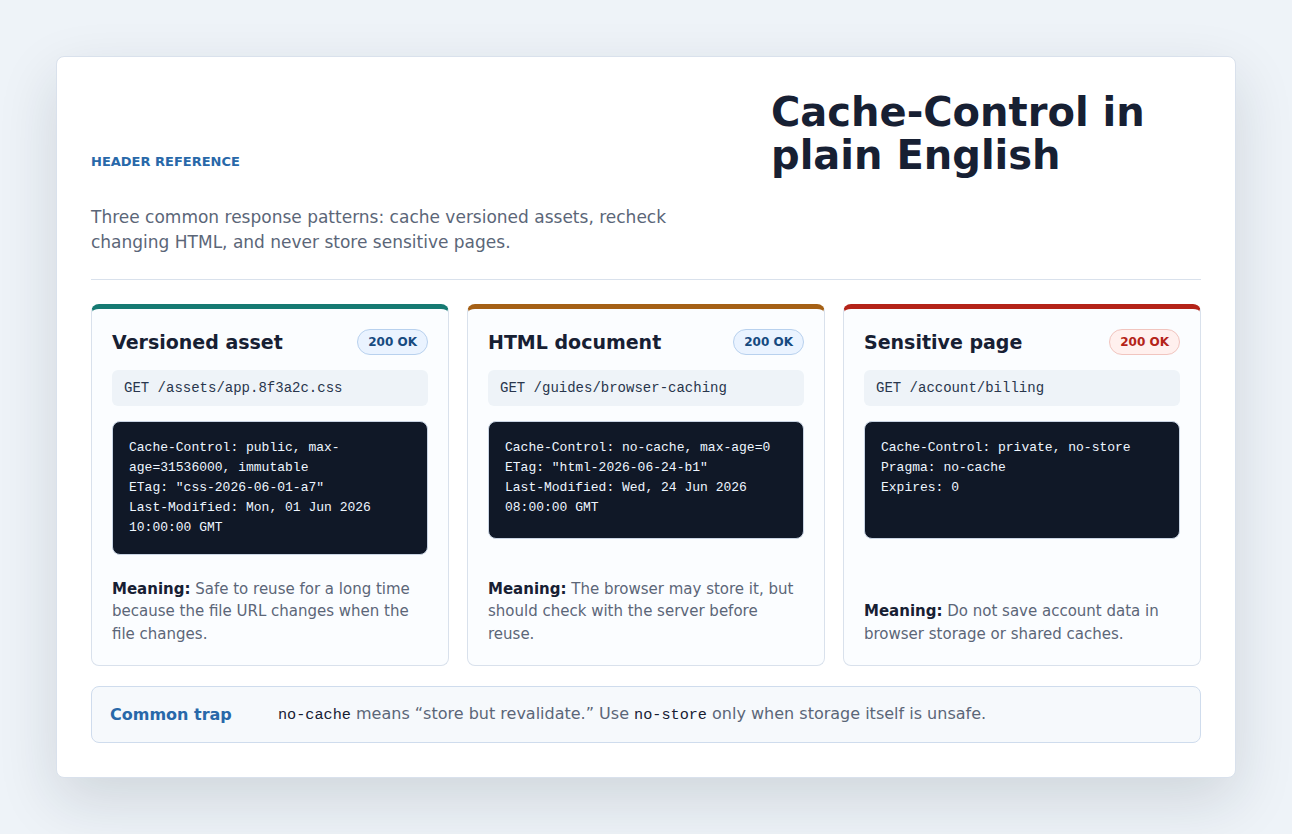
Use no-store when storage itself is unsafe, such as sensitive data. Do not use it everywhere just because it sounds strict. Overusing no-store throws away one of the browser’s best speed tools.
🔐 Note: Use no-store deliberately. It is the right instinct for sensitive responses, but it is usually the wrong default for images, CSS, JavaScript, fonts, and other reusable public files.
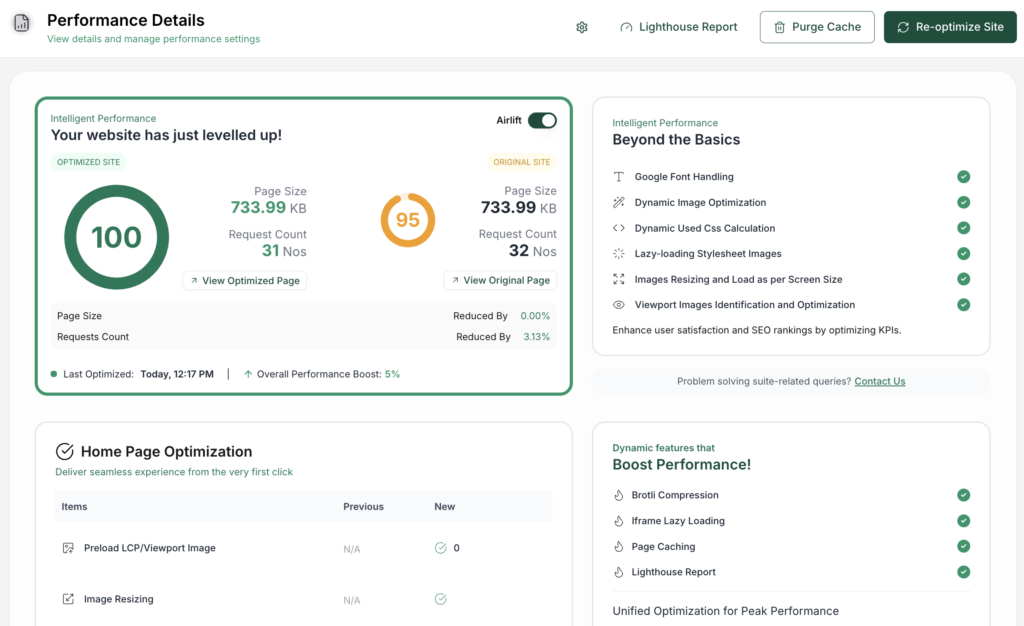
If you are evaluating a performance service that may handle site data or support access, review its privacy terms in that same risk frame; for example, the AirLift privacy policy belongs with the sensitive-response questions, not with ordinary static asset caching.
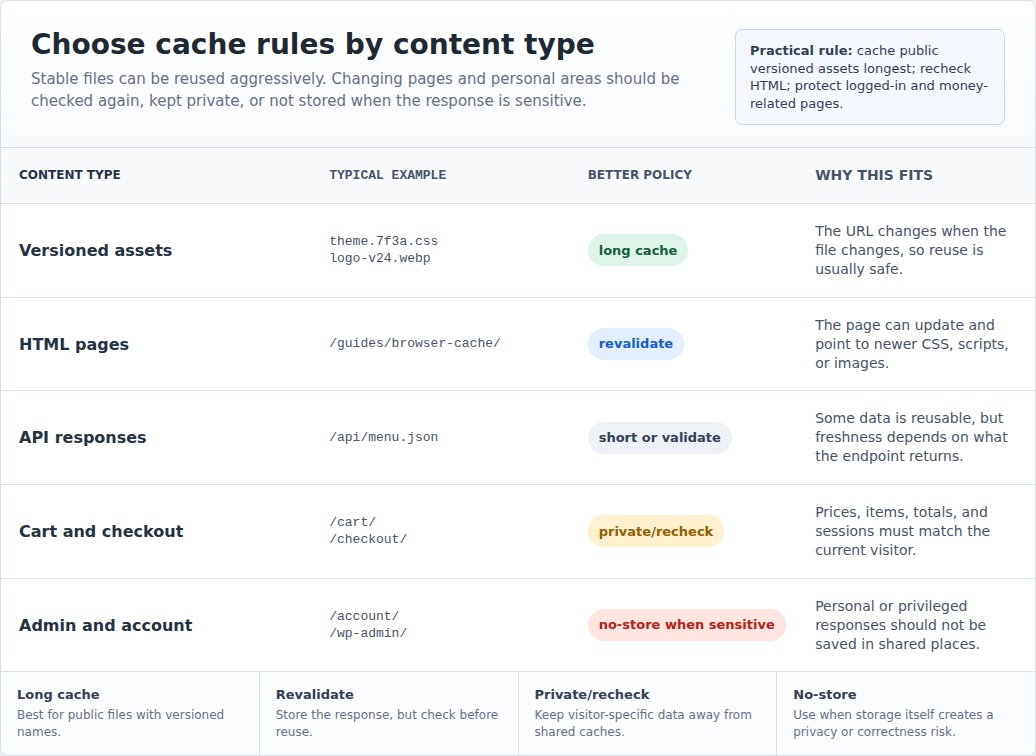
Good caching starts by separating stable files from changing or personal responses.
| Resource | Better cache approach |
|---|---|
| Versioned CSS, JavaScript, fonts, and images | Cache longer because the URL changes when the file changes. |
| Non-versioned static files | Use a shorter lifetime or version the URL first. |
| HTML pages | Usually store only with revalidation, so visitors get current content and current asset URLs. |
| API or data responses | Use short lifetimes, validation, private rules, or no storage depending on the data. |
| Cart, checkout, account, admin, and logged-in pages | Treat carefully with private, recheck, or no-store rules. |
This is where speed work needs judgment. A logo can sit in cache for a long time if its URL changes when the logo changes. A WooCommerce cart cannot be treated like a logo.
If the page affects money, access, privacy, or logged-in state, choose correctness first. A slightly slower correct page beats a fast wrong page every time.
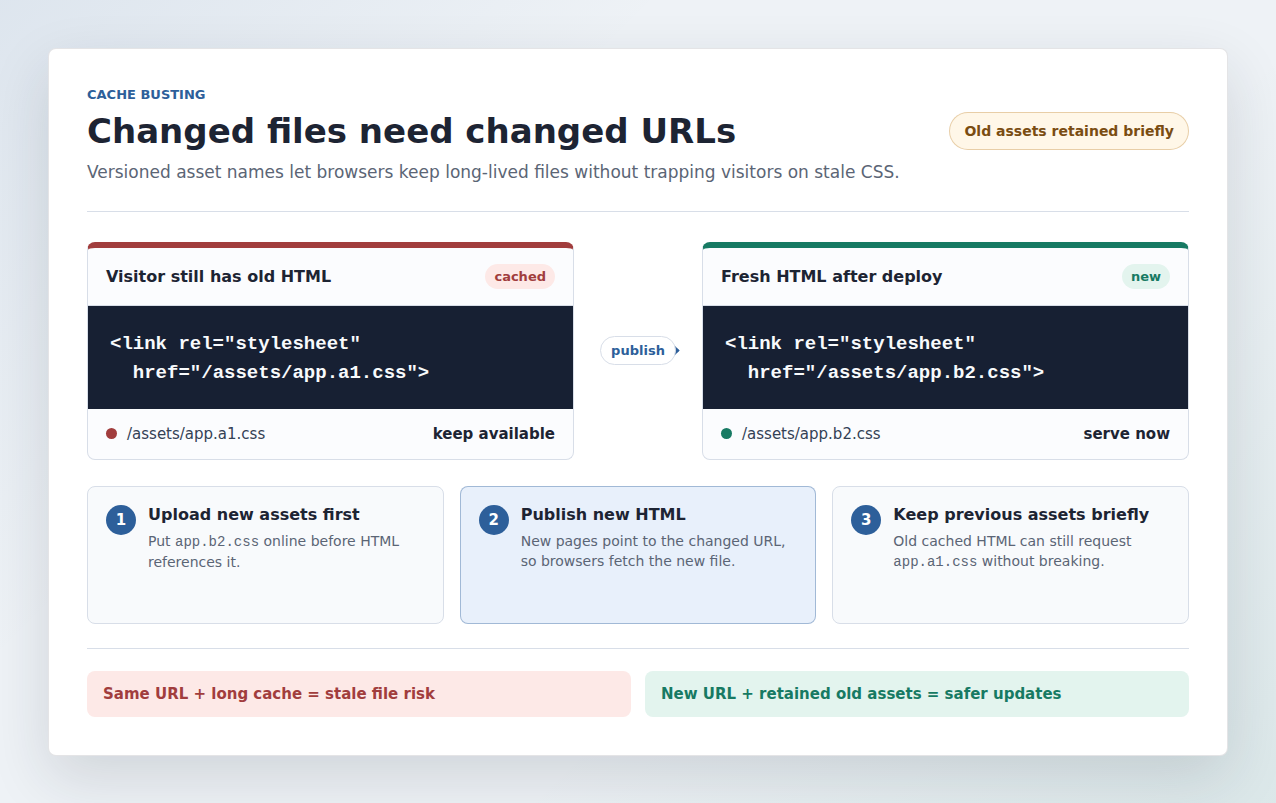
Browser caching becomes risky when a file changes, but its URL stays the same. Say your stylesheet lives at /wp-content/themes/example/style.css. If the browser is allowed to cache that URL for a long time, some visitors may keep seeing the old design after you update the file.
Cache busting fixes this by changing the URL when the content changes. The core idea is easier to see before the naming patterns.
Common patterns include:
Hashed filenames are usually the cleanest pattern in modern build systems because the name changes only when the content changes. WordPress themes and plugins often use query versions, and that can work when your server, CDN, and optimization stack respect them.
One deployment detail is easy to miss: keep old hashed assets available for a while. A visitor may still have older HTML that points to an older CSS or JavaScript file. Delete that old file too quickly and the page can break. Cache busting is what lets you cache static files for longer without trapping visitors on yesterday’s design.
🛠️ Note: The safest deploy order is boring but effective: upload the new versioned assets first, publish the HTML that points to them after that, and keep the previous assets around briefly. This avoids the half-updated state where old pages request files that no longer exist.
“Clear the cache” is too vague to be useful. The better question is: which cache is serving the old response?
| Cache layer | Where it lives | What it affects |
|---|---|---|
| Browser cache | One visitor’s browser | Files reused on that device. |
| Server or page cache | Your host or WordPress cache layer | Generated page output for many visitors. |
| CDN cache | Edge servers near visitors | Static files and sometimes pages across regions. |
| Object cache | WordPress/server memory | Database results and backend objects. |
These layers can all exist at once. You might purge a WordPress page cache and still see an old image because your browser cached the image URL. You might clear your browser and still get old HTML because the CDN has a copy.

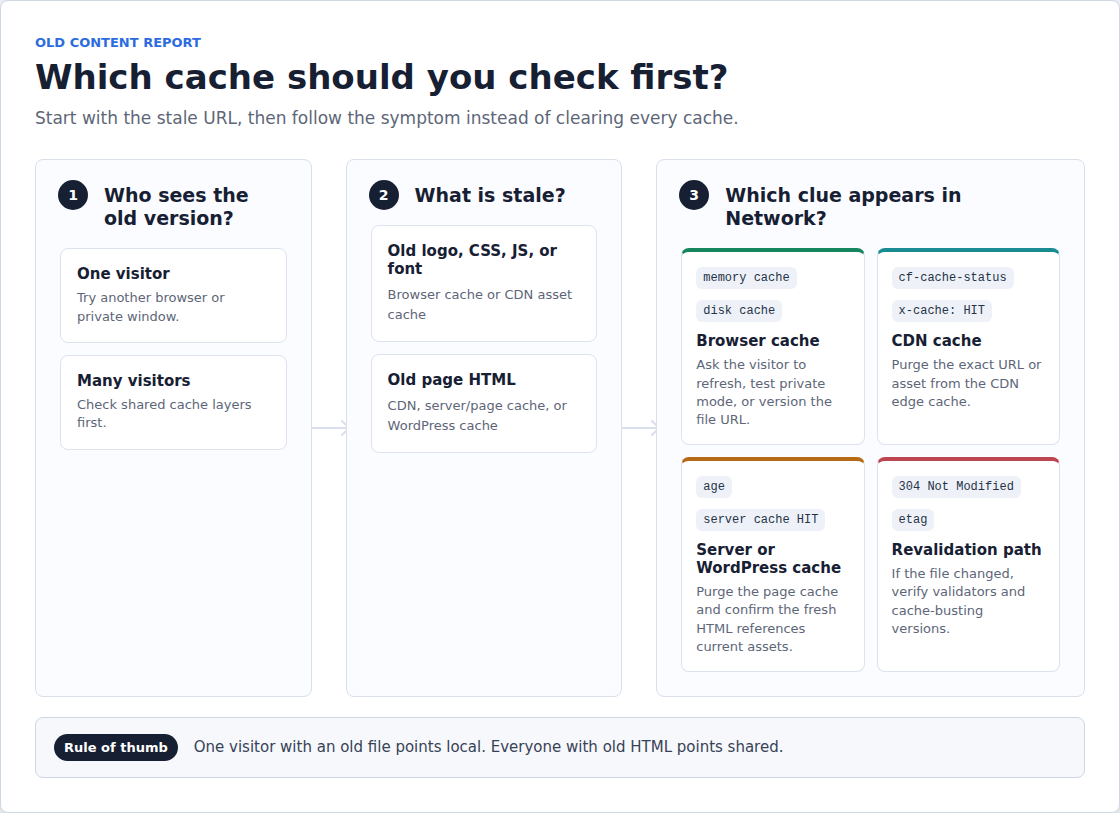
The symptom usually points to the layer. One visitor seeing an old file is different from every visitor seeing an old page.
WordPress adds moving parts. One page can involve PHP, the database, a theme, plugins, uploaded images, CSS, JavaScript, fonts, a host cache, a CDN, and a performance plugin.
Browser cache rules on a WordPress site may come from:
This is why random cache snippets can backfire. An Apache .htaccess rule may not apply to Nginx. A managed host may override manual rules. A CDN may change what visitors actually receive. Three optimization plugins may all believe they own the same header.
For most WordPress sites, the cleaner approach is one coordinated performance setup with clear ownership. AirLift is one practical route because it treats WordPress performance optimization as a stack: caching, CDN delivery, image optimization, CSS improvements, asset optimization, Core Web Vitals work, and support belong together.
That does not mean any tool can fix every third-party script or custom server issue. It means browser caching should not be treated as one lonely checkbox. It has to fit the rest of the speed setup.
Third-party files are the usual exception. If a script comes from an ad network, analytics tool, social widget, or embedded service, you usually cannot change its cache headers. You can remove it, replace it, self-host it when allowed, or load it differently. You cannot always make another company’s URL obey your cache policy. The same judgment applies when those services set third party cookies: cache warnings, tracking behavior, and consent requirements are related, but they are not the same problem.
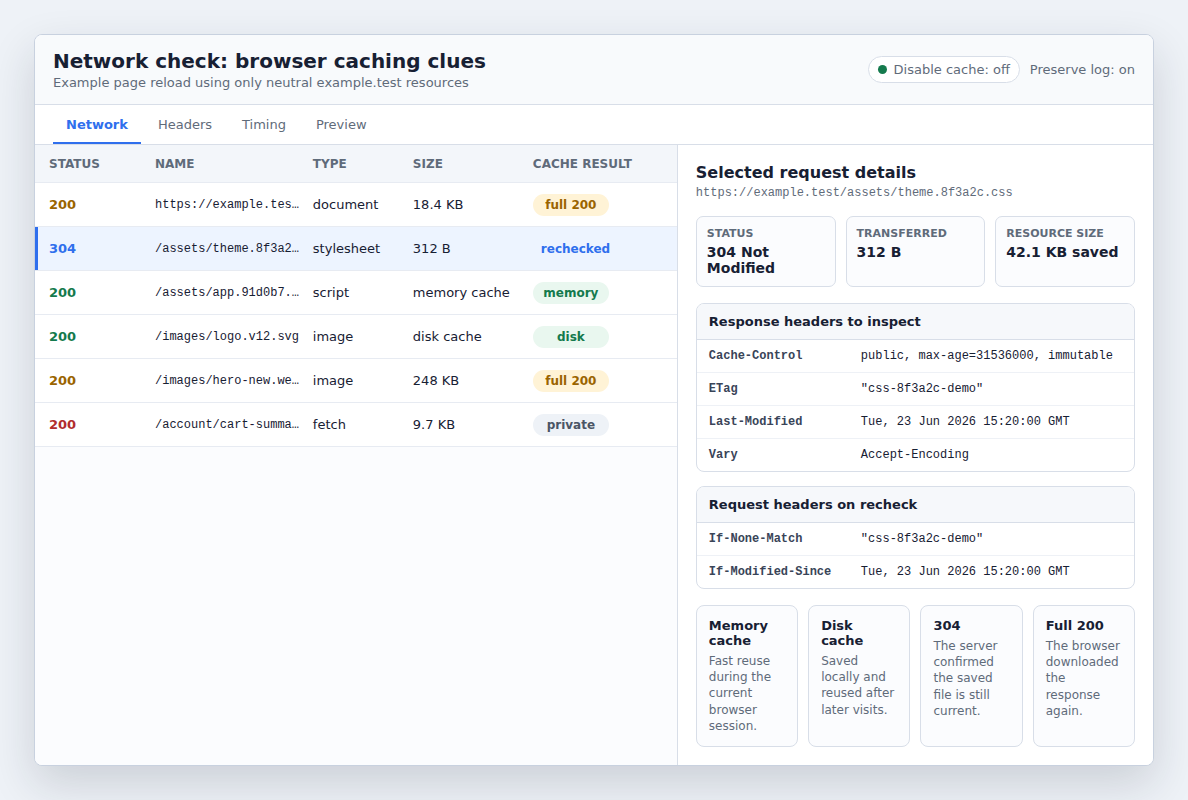
Do not judge caching by how a page feels. Check the requests. Use Chrome, Edge, or Firefox DevTools:
| What you see | What it usually means |
|---|---|
| Memory cache or disk cache | The browser reused a saved response. |
| 304 Not Modified | The browser checked with the server and kept its saved copy. |
| 200 OK with full transfer size | The browser downloaded the response again. |
| Long max-age on a versioned asset | Usually fine for stable CSS, JS, fonts, or images. |
| Long max-age on changing HTML | Worth reviewing carefully. |
PageSpeed and Lighthouse are useful clues, not final verdicts. If they flag caching, inspect the exact resource. A first-party CSS file, a hosted font, and a third-party ad script need different decisions.
Also test real paths, not only the homepage. Check a blog post, landing page, product page, cart, checkout, form, or logged-in area if that is where the business risk lives, and measure website speed after changes instead of assuming the cache setting worked.
🧪 Note: When testing in DevTools, make sure Disable cache is off for normal behavior. That checkbox is useful for debugging fresh loads, but it will make browser caching look broken even when the live visitor experience is fine.
When someone says the site is showing an old version, start with the exact stale URL. Do not clear every cache and hope.
Use this order:
If one visitor sees the old logo, suspect local browser cache. If everyone sees the old page, inspect the CDN or server cache. If the content is new but the layout is broken, look for stale CSS, stale JavaScript, or missing old assets.
The stale response tells you the fix.
Most browser caching mistakes come from using a good rule in the wrong place.
The cost of a bad cache rule is not just a slower page. It can be an old price, broken checkout, stale design, or a support queue full of visitors seeing different versions of the same site.
Use this as the working rule set:
For a small blog, your host, CDN, and one performance plugin may handle most of this. For WooCommerce, memberships, courses, lead forms, or logged-in dashboards, test more carefully. The pages that make money or collect data deserve stricter cache decisions.
Browser caching is not about caching everything for as long as possible. It is about matching the rule to the risk. Stable, versioned files can be reused for longer. HTML should usually be checked. Personal or sensitive responses need stricter handling. Third-party files may be outside your control.
For WordPress sites, browser caching works best as part of a coordinated performance setup, not as a copied server snippet or one isolated plugin toggle. Get the layers clear, verify the exact files, and make sure updates still reach visitors when they should.
If you need help separating browser, CDN, host, and plugin cache behavior, AirLift support is the right escalation path. That is the setup that feels fast without becoming fragile.
Browser caching is the browser storing reusable website files on a visitor’s device so it can reuse them later instead of downloading them again.
The browser saves eligible responses, checks whether each saved copy is still fresh, and either reuses it, revalidates it with the server, or downloads a new version.
It can store images, CSS, JavaScript, fonts, icons, media files, data responses, and sometimes HTML. The browser stores only what the response policy allows.
no-cache means the browser may store the response but must check with the server before using it again. no-store means the browser should not store the response at all.
You may be seeing a browser-cached file, CDN-cached page, server cache entry, or old HTML pointing to old assets. Inspect the exact request before clearing caches randomly.
Sometimes a WordPress site is slow, but not for everyone. It loads fine for you. Then a customer in another country says the images take forever. A speed test from your city looks…
Read

Speed reports are blunt. You search for “leverage browser caching WordPress” because a tool has handed you a list of file URLs, and now a normal WordPress slowdown feels like…
Read

You clicked Update, refreshed the page, and the live site still looks old. The image is unchanged. The menu is wrong. In some cases, a slow website can also point to an outdated…
Read
Airlift works out what each page needs and applies it. Free to try on your own site.