Core Web Vitals: What They Mean and How To Improve Them on WordPress
You usually do not go looking for Core Web Vitals on a calm afternoon.
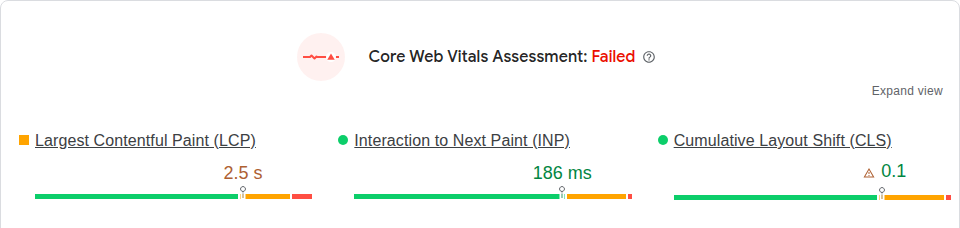
You find them because PageSpeed Insights shows a red warning, Search Console says a group of URLs is poor, or a client sends a screenshot with LCP, INP, and CLS circled like evidence. The words sound technical, but the question behind them is not: can people see your page, use it, and trust it not to jump around while they read, click, or buy?
That is the useful way to think about Core Web Vitals. They are not a trophy score. They are a set of clues about where a page feels slow, sticky, or unstable for real visitors.
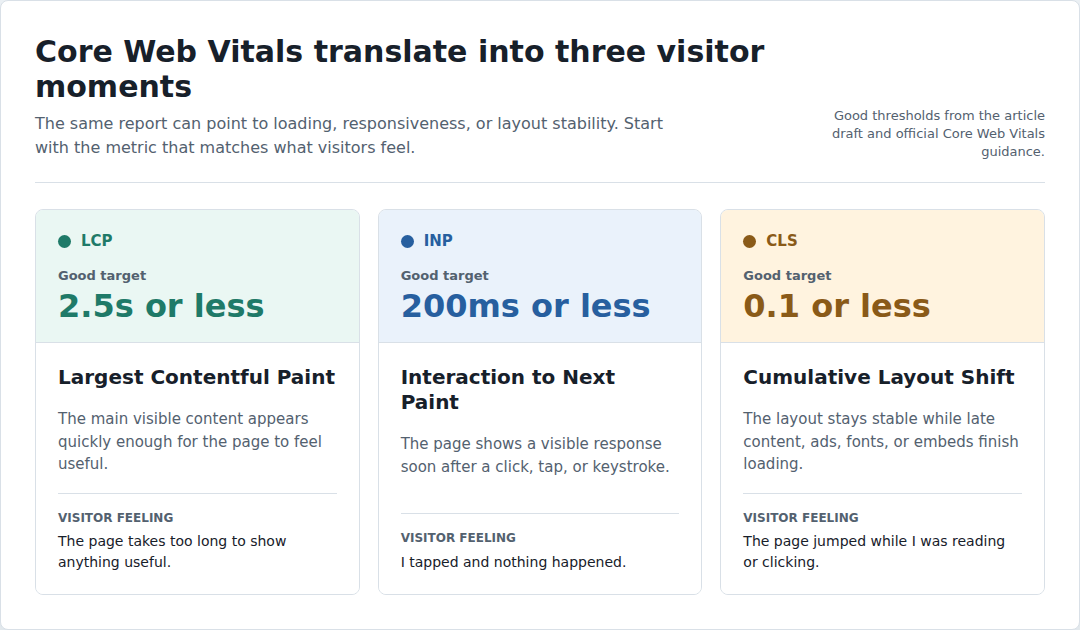
TL;DR: Core Web Vitals measure loading speed, responsiveness, and visual stability. The three current metrics are Largest Contentful Paint (LCP), which checks when the main content appears; Interaction to Next Paint (INP), which checks how quickly the page responds after a click, tap, or keystroke; and Cumulative Layout Shift (CLS), which checks whether the layout moves unexpectedly.
If you are looking at a warning right now, start with the failing metric on the page type that matters most. Fixing a checkout delay is more important than polishing a homepage score. A perfect report is not worth a broken menu, form, cart, ad setup, or tracking tag.
What they measure
Core Web Vitals are Google’s main user-experience metrics for web pages. They focus on three moments visitors notice immediately:
“The page jumped while I was reading or clicking.”
LCP is about seeing the page. INP is about using the page. CLS is about the page staying where the visitor expects it to stay.
That simple frame matters because “my site is slow” is too vague to fix. A late hero image, a delayed Add to Cart button, and an ad that pushes the article down are three different problems. Core Web Vitals help you stop guessing.
Google evaluates these speed metrics around the 75th percentile of real visits, split by mobile and desktop. In plain English, most visitors need a good experience. One clean test run is not enough.
Why they matter?
Visitors do not experience your site as hosting, themes, plugins, scripts, image files, and database queries. They experience moments.
A reader opens a post and waits for the article to appear. A shopper taps Add to Cart and expects the button to react. A lead starts filling a form, then a banner loads above it and pushes the field away.
Those moments affect trust. On a blog, poor Core Web Vitals can mean people leave before the article is readable. On WooCommerce, they can make product pages feel heavy or checkout feel risky. For an agency, they can turn into hard client conversations because the report looks bad and the fix is not obvious.
The useful mindset is this: the metric is the symptom, not the diagnosis. Your job is to find what caused the symptom and fix it without damaging the parts of the site that already work.
Do Core Web Vitals affect SEO?
Yes, Core Web Vitals are part of Google’s page experience systems. They can matter for SEO. But they are not a magic ranking lever. A fast page with thin content will not outrank a better answer just because it loads quickly. Search intent, content quality, relevance, links, and authority still matter.
Treat SEO as a secondary reason to care. The stronger reason is that visitors can read, click, buy, and submit forms with less friction. That is good for users first, and usually good for the business too.
The three Core Web Vitals at a glance
Use this table when you need to translate a report into the likely work ahead.
Metric
Common WordPress causes
First places to look
LCP
Slow hosting, no cache, oversized featured or hero images, render-blocking CSS or JavaScript, heavy page-builder output
Server response, page cache, the LCP image, above-the-fold design, critical CSS and JavaScript
INP
Heavy plugins, page builders, ads, chat widgets, tracking tags, WooCommerce scripts, long browser tasks
Mobile menu, search, filters, forms, Add to Cart, checkout, third-party scripts
CLS
Missing image sizes, late ad slots, embeds, cookie banners, font swaps, injected widgets
The pattern is usually visible once you stop treating the score as one big problem. LCP problems often live in the first view. INP problems often live in browser work after the page appears. CLS problems often come from elements that arrive late without reserved space.
LCP: Can visitors see the main thing?
Largest Contentful Paint measures when the largest important element in the first visible part of the page appears. On WordPress, that is often a featured image, hero image, product image, main heading, or large text block.
LCP is not the same as full page load. The footer, tracking scripts, and small icons may still load later. Visitors mainly care that the article, product, or form they came for appears quickly.
Poor LCP often comes from:
slow server response time
uncached public pages
oversized featured or hero images
lazy-loading the image that appears first
CSS or JavaScript files that block the browser from showing useful content
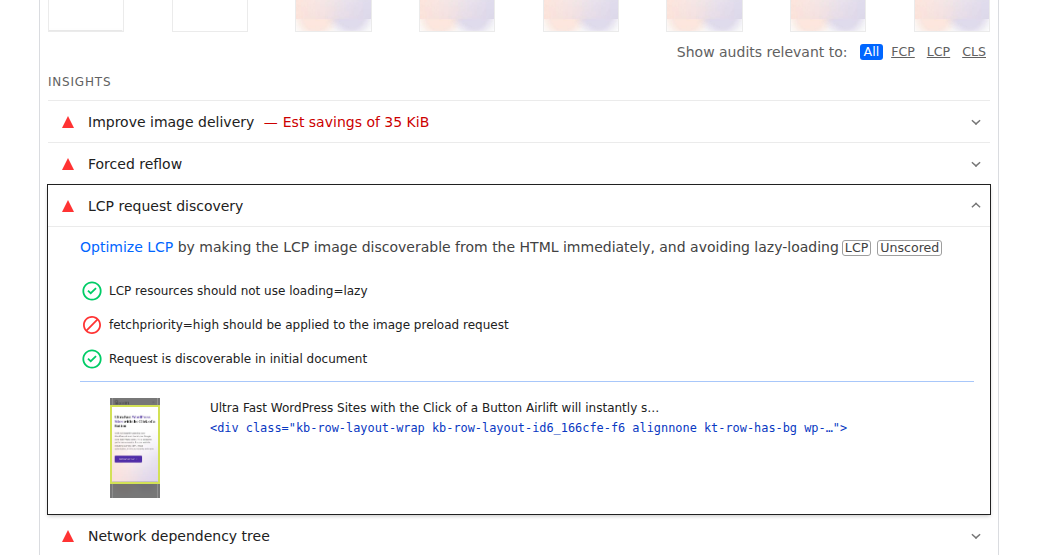
A common WordPress example is a post with a large featured image above the title. If that image is too large and lazy-loaded, the browser may wait too long to fetch the very thing visitors need first. PageSpeed Insights can often connect a poor LCP result to the specific page element or opportunity causing it.
Fix LCP by making the first useful content easy to deliver. Start with hosting and cache, then optimize the main image or above-the-fold element, meaning the part of the page visitors see before they scroll.
INP: does the page respond when visitors act?
Interaction to Next Paint measures how long the page takes to show a visible response after a visitor clicks, taps, or types. It replaced First Input Delay, the older FID metric, as a Core Web Vital on March 12, 2024. INP catches a frustrating problem: the page looks loaded, but it still feels stuck.
On WordPress, this usually points to JavaScript. JavaScript is code that runs in the visitor’s browser. It powers menus, popups, filters, carts, forms, ads, analytics, and many page-builder effects. If too many scripts compete at once, the browser may delay the visitor’s tap. Watch for these symptoms:
mobile menus that open late
product filters that freeze for a moment
Add to Cart buttons that feel delayed
checkout fields that lag while typing
popups, ads, or chat widgets that make the page feel heavy
Do not try to fix an INP problem only by compressing images. Image work can help LCP, but it will not fix a checkout button blocked by heavy scripts. Fix INP by protecting important interactions. Delay decoration before you delay menus, forms, carts, search, filters, or checkout.
CLS: Does the page stay put?
Cumulative Layout Shift measures unexpected movement on the page. It is not about every animation or menu expansion. It is about surprise movement that makes visitors lose their place or click the wrong thing. WordPress sites often get CLS from:
images or videos without set width and height
ad slots that load after the page is visible
embeds that appear late
cookie banners injected above content
fonts that change text size after loading
related-post, review, or product widgets inserted after the first render
Ad-heavy sites need special care. You may not want to remove ads, and that is fine. The safer fix is to reserve space so the page does not jump when the ad arrives. Fix CLS by making room before things load. If an element will appear, the layout should already expect it.
How to measure Core Web Vitals
The right tool depends on the question you are asking. This is where many site owners lose time: they use one PageSpeed Insights run as if it explains the whole site.
Tool
Use it for
Keep in mind
PageSpeed Insights
Checking one URL and seeing field plus lab data
One run can vary. Test important page types, not only the homepage.
Google Search Console
Finding groups of URLs with real-user issues
Data can lag, and low-traffic pages may not show enough data.
Chrome DevTools or Lighthouse
Debugging causes after you know which page to inspect
This is lab data, so use it for diagnosis, not final proof.
Real-user monitoring (RUM)
Tracking key pages on sites where performance affects revenue
RUM means collecting performance data from actual visitors. It needs setup and interpretation.
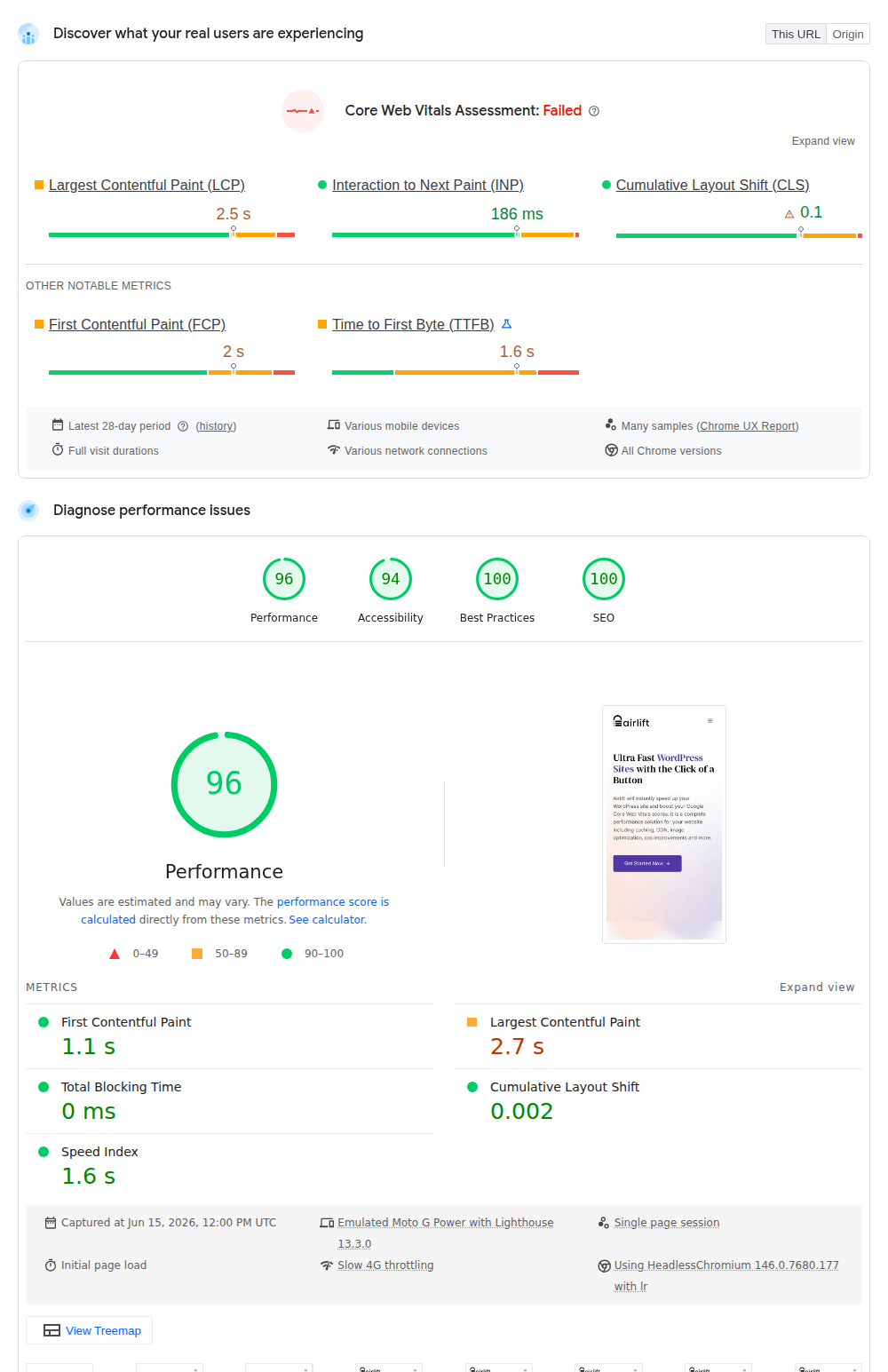
Field data means real visitors on real devices, networks, and locations. Search Console and the field section of PageSpeed Insights use this kind of data when enough traffic is available. Lab data means a controlled test. It is useful because you can run it now, change something, and test again. It does not represent every visitor.
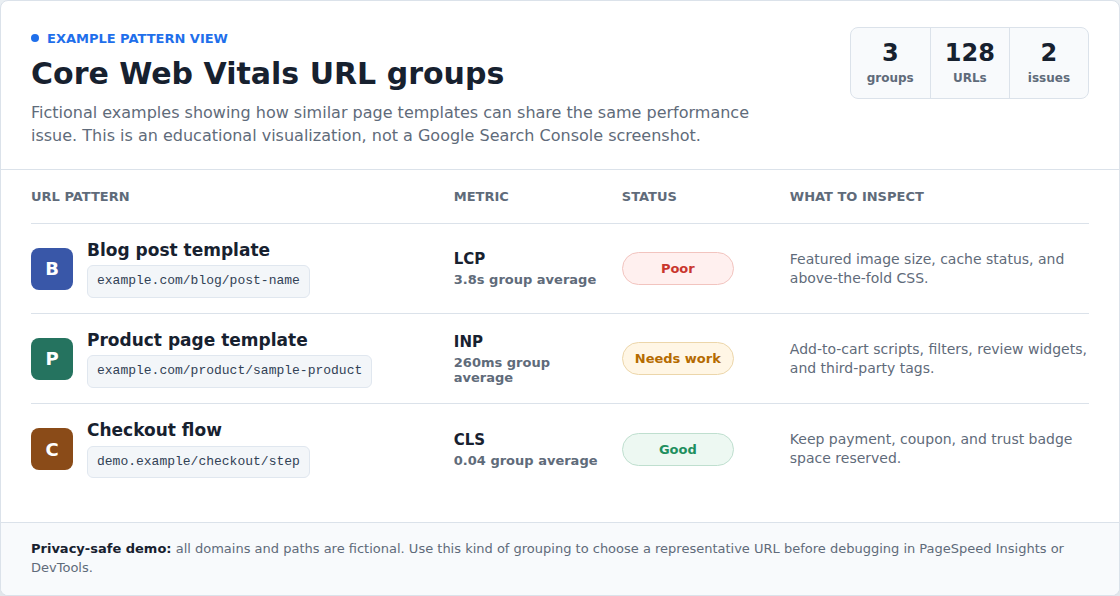
Use Search Console to spot patterns. Use PageSpeed Insights to inspect representative URLs. Use DevTools or Lighthouse to find the image, script, or layout shift causing the issue. When Search Console groups similar URLs, think in templates rather than isolated pages.
You may also see supporting website performance metrics such as Time to First Byte (TTFB), which measures how quickly the server starts responding; First Contentful Paint (FCP), which measures when the first visible content appears; and Total Blocking Time (TBT), which estimates how much JavaScript blocks interaction during a lab test. These are not Core Web Vitals, but they help explain why a Core Web Vital is failing.
What usually hurts Core Web Vitals on WordPress
WordPress performance problems usually stack up. One plugin adds a script. A page builder adds more styling code. The hero image is too large. The ad network loads late. The cookie banner shifts the page. None of these may look dramatic alone, but together they make the site feel worse. Start by matching the bad metric to the likely cause:
Poor LCP: check hosting, cache, the main image, and render-blocking files, meaning files that stop useful content from appearing quickly.
Poor INP: check plugins with heavy browser code, page builder features, ads, chat, tracking, filters, cart, and checkout.
Poor CLS: check image dimensions, ad slots, embeds, banners, fonts, and injected widgets.
Page type matters. A blog post may fail because of a featured image. A WooCommerce checkout may fail because scripts are busy. An article with ads may fail because layout space was not reserved. Do not turn on every optimization setting at once. That is how people get a greener report and a broken site.
How to improve LCP
Start with LCP when visitors wait too long before the main content appears.
Check server response before touching images. If the server is slow, the browser cannot start loading the page early enough. Caching helps public pages load without asking WordPress, PHP, and the database to rebuild the same page for every visitor.
Optimize the main visible image. Compress it, use the right dimensions, and choose a modern format when your setup supports it. Do not lazy-load the LCP image. Lazy loading is useful lower on the page, but harmful for the image visitors need first.
Reduce files that block the first view.Large CSS files, which control styling, and JavaScript files, which control interactive behavior, can delay the moment useful content appears. Be careful here. Removing or delaying the wrong file can break the layout or a key feature.
Simplify the top of the page when needed. A hero slider, video background, large font file, and multiple tracking tags can be too much for the first screen. Make the top of the page earn its weight.
The plain rule: make the important first thing small, early, and easy for the browser to fetch.
How to improve INP
Start with INP when the page looks ready but reacts slowly.
Test the interactions visitors actually use. On WordPress, that means the mobile menu, site search, filters, forms, Add to Cart, checkout fields, accordions, popups, and account pages.
Remove scripts from pages that do not need them. A plugin should not load checkout code on a blog post unless there is a real reason. The same goes for sliders, forms, maps, embeds, and marketing widgets.
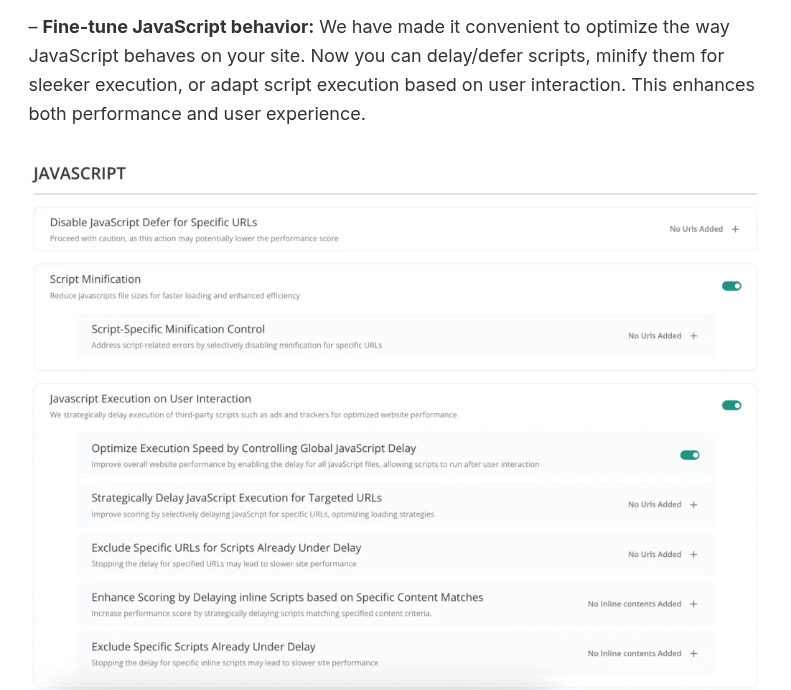
Delay third-party scripts carefully. Third-party scripts are files loaded from outside your site, such as analytics, heatmaps, social widgets, ads, and chat tools. Some may be safe to delay. Menus, forms, carts, filters, and checkout need more caution.
If the issue traces to analytics or advertising tags, also check whether they set third-party cookies before you delay or remove them.
Ask for developer help when long tasks come from theme or custom code. A long task is a piece of browser work that runs for too long and blocks user input. The plain version: the browser is busy, so your visitor has to wait.
The practical test is simple. If you improve the score but the mobile menu, product filter, or checkout feels worse, the optimization failed.
How to improve CLS
Start with CLS when the page jumps while visitors read or click.
Set image and video dimensions. This tells the browser how much space to hold before the file finishes loading.
Reserve space for ads and embeds. If an ad slot or video embed will appear, give it a stable area from the start. This is especially important above the article body or near buttons.
Keep banners from pushing content down after load. Cookie notices, promo bars, and newsletter boxes should not suddenly insert themselves above existing content.
Control font loading. Some fonts change text size after they load. That can shift headings, buttons, and paragraphs. Use font settings that reduce visible movement, such as showing a fallback font quickly and swapping carefully when the custom font is ready. It can also help to reduce font file size when custom fonts are heavy.
The rule is simple: make the page predictable.
Mistakes that waste time or break things
Most Core Web Vitals mistakes come from trying to fix the report instead of the visitor path. Avoid these:
Chasing 100 instead of fixing the user problem. A site can score below 100 and still feel fast, stable, and usable.
Testing only the homepage. Product pages, posts, forms, category pages, and checkout often matter more.
Ignoring mobile. Mobile is often where Core Web Vitals problems are worst.
Stacking multiple optimization plugins. Two tools fighting over cache, styling code, browser scripts, or images can create strange bugs.
Lazy-loading the hero image. That can delay the very content LCP is measuring.
Changing ten settings at once. If something breaks, you will not know which change caused it.
Trusting Search Console too soon. Field data needs time because it reflects real user history.
Before major changes, make sure you have a backup or a safe staging process. Do not discover a broken checkout from a customer email.
A safe workflow for improving Core Web Vitals
If you are not a developer, do not start with code. Start by narrowing the problem.
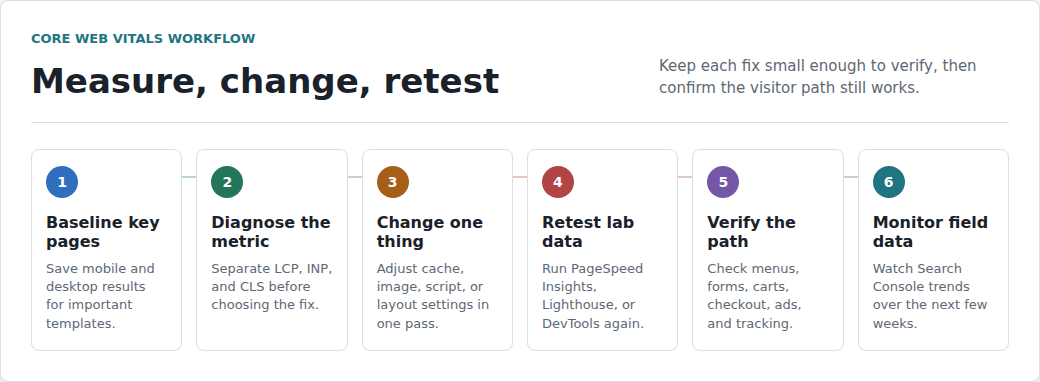
Choose the pages that matter most. Pick 3 to 5 URLs or templates, such as a blog post, product page, category page, lead form, cart, or checkout.
Record mobile and desktop baselines. Save PageSpeed Insights results before changing anything, so you can compare honestly later.
Check whether Search Console shows a pattern. A group of failing URLs often points to a template issue, not one bad page.
Identify the failing metric before choosing a fix. LCP, INP, and CLS point to different work.
Write down the likely cause first. This prevents random setting changes and makes the work easier to explain to clients or teammates.
Change one thing at a time. Fix cache, image, script, or layout issues in separate passes.
Retest lab results immediately. Use PageSpeed Insights, Lighthouse, or DevTools to see whether the change helped.
Test the real visitor path. Check menus, forms, search, carts, checkout, popups, ads, tracking, and logged-in pages.
Watch field data over time. Search Console may take weeks to show the full effect.
For recurring site care, a WordPress maintenance checklist can keep performance checks visible alongside backups, updates, and security reviews. For agencies, this also improves client reporting. “The blog template has an LCP issue from the featured image and cache behavior” is useful. “The site got a 54” is not.
Where WordPress optimization tools fit
Tools can help when WordPress performance optimization involves several common issues at once: caching, image optimization, CDN setup, CSS cleanup, JavaScript controls, and asset loading, which means deciding when images, styles, scripts, and fonts are downloaded by the browser.
AirLift can fit here for site owners who want fewer moving parts in their WordPress performance workflow. It is not a substitute for diagnosis, good hosting, or post-change testing. No tool can promise that every ad script, custom theme, checkout flow, or third-party tag will behave perfectly.
Use a tool when it reduces careful work. If you use AirLift, review the AirLift optimization settings one change at a time. If a change affects a live path, pause and contact AirLift support before stacking more fixes. Do not use any tool to avoid understanding what the report is telling you.
What to fix first
Fix the problem visitors feel most on the page that matters most.
If many blog posts fail LCP, start with the post template, featured image, cache, and server response. If checkout feels delayed, look at INP before spending days polishing homepage images. If an ad-heavy article jumps while people read, start with CLS and reserved space. Use this priority order:
Protect revenue and lead pages first: checkout, product pages, pricing pages, forms, and booking flows.
Fix template-wide problems next: one template fix can improve many URLs.
Treat mobile as the main test: desktop can hide problems your visitors feel on phones.
Prefer low-risk fixes before deep code work: cache, images, dimensions, and obvious unused scripts often come first.
Escalate when the cause is theme, custom code, server, or checkout logic: that is where a developer can save time and prevent damage.
This is the point of Core Web Vitals when they are used well. They do not tell you to panic. They tell you where to look first.
FAQs
Is FID still a Core Web Vital?+
No. Interaction to Next Paint (INP) replaced First Input Delay (FID) as a Core Web Vital on March 12, 2024.
Do Core Web Vitals affect SEO?+
Yes, they are part of Google’s page experience systems. They can help or hurt at the edges, but they do not replace strong content, relevance, intent match, links, or authority.
What is a good Core Web Vitals score?+
A good result is Largest Contentful Paint at 2.5 seconds or less, Interaction to Next Paint at 200 milliseconds or less, and Cumulative Layout Shift at 0.1 or less. Google evaluates those targets around the 75th percentile of real visits, which means most visitors need a good experience.
How long do Core Web Vitals fixes take to show in Search Console?+
Lab tools can show a change right away, but Search Console can take weeks because it reflects recent real-user history. Use lab data for immediate debugging and Search Console for longer-term confirmation.
Should I use a plugin to improve Core Web Vitals?+
A plugin can help with cache, images, a Content Delivery Network, and asset loading, which controls when page files are downloaded. Still test important pages after changes, especially menus, forms, carts, checkout, ads, tracking, and logged-in flows.
Practical takeaway
Core Web Vitals are useful because they turn a vague complaint, “the site feels slow,” into three clearer questions. Can visitors see the main content quickly? Does the page respond when they act? Does the layout stay stable while they read or click?
Start with your most important pages. Fix the failing metric. Change one thing at a time. Then verify that the site still works for the people who came there to read, buy, contact you, or get something done.