You open a WordPress page, start reading, and the text suddenly drops. Or you go to tap a button and an image, ad, cookie bar, or form appears above it, moving the button out from under your finger.
That jump is what you are trying to fix when you want to reduce CLS.
TL;DR: To reduce CLS, find the item that moves, then give it space before it loads. On WordPress, start with images, ads, embeds, banners, fonts, sliders, and anything a plugin injects after the page is already visible. Treat it as one part of WordPress performance optimization, not a random score to chase in isolation.
The simple version is this: the browser needs to know the shape of the page before the visitor starts using it. CLS problems happen when the browser discovers that shape too late.
That is the idea behind every fix in this guide. Find what moved. Reserve the space. Retest the same page on mobile and desktop.
What CLS Means
CLS stands for Cumulative Layout Shift. It is one of the Core Web Vitals, and it measures how much visible content moves unexpectedly while a page is loading or being used.
A good CLS score is 0.1 or less. A score from 0.1 to 0.25 needs improvement. Anything above 0.25 is poor.
You do not need to memorize the formula to fix most WordPress CLS issues. Think of CLS as a stability score. A low score means the page stays where the visitor expects it to stay. A high score means the layout is moving around after the visitor can already see it.
The word unexpected matters. If a visitor taps a menu and the menu opens, that movement is expected. If a newsletter form appears above the article while they are reading, that is not. The metric is the warning light. The moving element is the real problem.
Why CLS Scores Vary
PageSpeed Insights, Lighthouse, Search Console, and your own browser can show different CLS results because they are not watching the page in exactly the same way.
Lab tools, such as Lighthouse, test a controlled page load. They are good at finding repeatable problems: a hero image with no reserved space, a slider that grows after JavaScript starts, or a webfont that changes the height of the navigation.
Field data comes from real visitors. It can include slower phones, returning visitors, cookie banner states, scrolling, ads, forms, product galleries, and shifts that happen long after the first screen loaded.
Search Console also groups similar URLs. One unstable blog post template can create a CLS warning for many posts. One WooCommerce product template can affect a whole set of product pages.
So do not panic if the tools disagree. Ask a more useful question: What moved, on which template, for which users? That question keeps you from changing random performance settings and hoping one of them works.
Find What Is Moving
Most bad CLS fixes start too late. Someone sees a red score, installs another optimization plugin, changes five toggles, clears cache, and retests. The score may move, but nobody knows why.
Start with one representative URL instead. Use this workflow:
Pick one affected page from Search Console or PageSpeed Insights.
Test it on mobile and desktop.
Watch the page load in Chrome like a normal visitor.
Look for the exact area that jumps.
Scroll, wait, open the mobile menu, accept or dismiss the cookie banner, and let ads, maps, reviews, videos, and forms load.
Test another page using the same template.
If two blog posts shift in the same way, fix the post template. If several product pages shift around the gallery or review block, fix the product template. Do not patch hundreds of pages one by one unless the content itself is the cause.
Change one thing before retesting. CLS often has more than one cause, and changing everything at once hides the lesson.
Fix CLS In This Order
Beginners do not need to start with font metrics or JavaScript timing. Start with the things you can see.
Check first
Common WordPress source
First fix
Above-the-fold images
Featured images, hero blocks, builder images
Add width/height or an aspect-ratio; do not lazy-load the hero
Ads and embeds
Ad plugins, YouTube, Maps, forms, reviews
Reserve a stable container before the script loads
Banners and notices
Cookie bars, sale bars, WooCommerce notices
Reserve the space or use an overlay
Fonts and icons
Google Fonts, theme fonts, icon fonts
Load fewer critical fonts and avoid late icon swaps
Sliders and builders
Carousels, galleries, page builder rows
Set wrapper height before JavaScript runs
These five groups cause most WordPress CLS problems. The editor adds an image, marketing adds a banner, the ad plugin inserts a block, the theme loads fonts, and the page builder initializes a hero section. Each change may be reasonable on its own. Together, they can make the page feel unstable.
Fix the first screen first. That is where visitors notice the jump fastest.
Fix Images And Videos
Images are the best place to start because the fix is often simple and beginner-friendly.
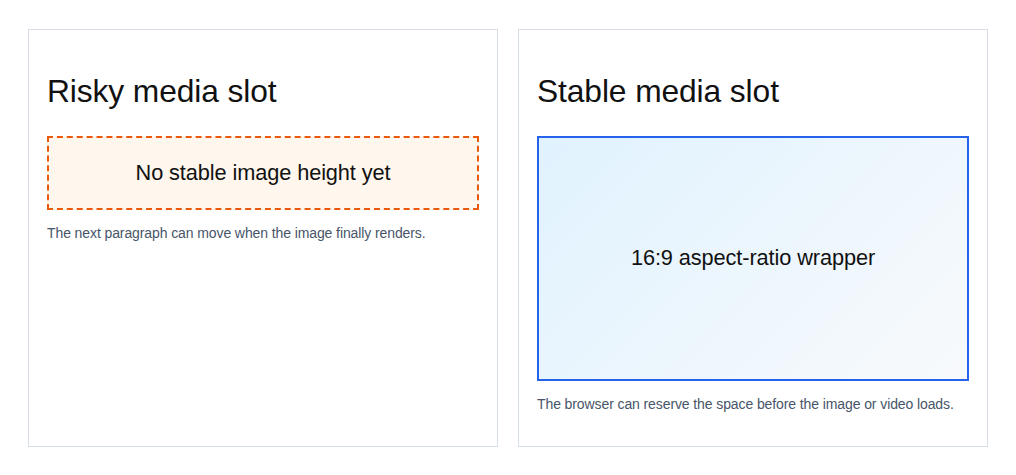
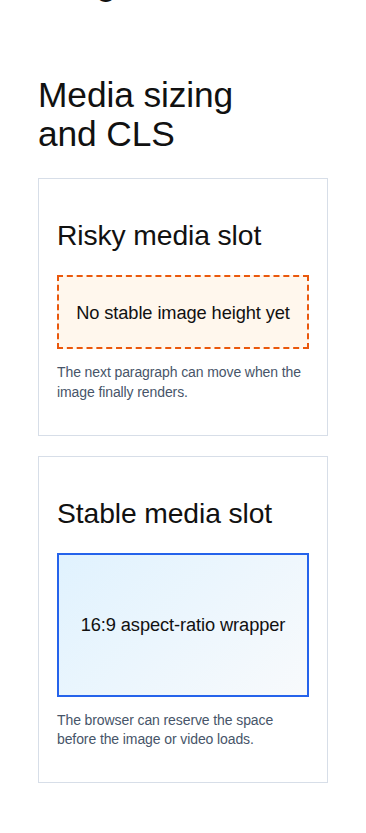
The browser can reserve space for an image when it knows the image’s width and height, or at least its aspect ratio. WordPress usually adds dimensions for normal Media Library images, but custom HTML, page builders, sliders, CSS overrides, and background images can remove that safety. Check these areas:
featured images
hero images
custom image blocks
product galleries
slider images
video embeds
maps and iframe embeds
Do not remove width and height because the image is responsive. Those attributes do not force the image to stay fixed on mobile. They help the browser understand the image shape, while CSS can still make the image scale fluidly.
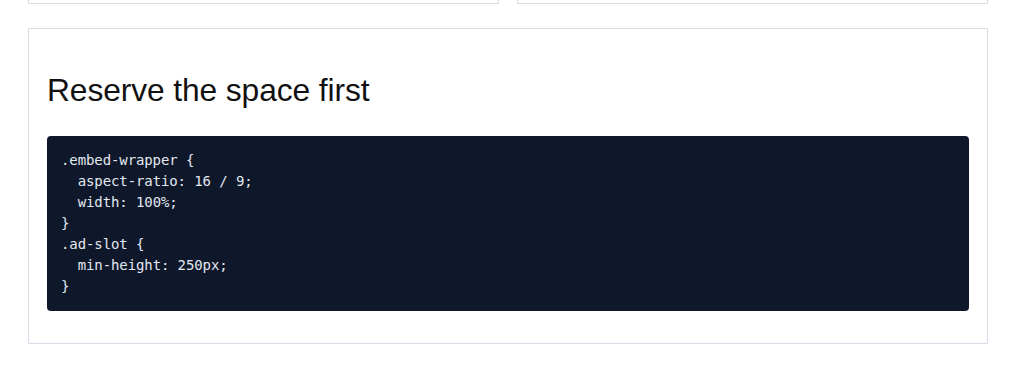
For custom layouts, use aspect-ratio, a stable wrapper, or a placeholder. A YouTube embed usually needs a 16:9 space. A map or booking form may need a predictable height. A product gallery needs a stable area before thumbnails, controls, and images finish loading.
Be careful with the hero image. Lazy loading is useful lower down the page, but the main above-the-fold image should not arrive late and shove the opening content around. Lazy loading is not the problem. Lazy loading the wrong thing is.
Fix Ads, Embeds, And Forms
Third-party content is where CLS becomes annoying. The page can look stable at first, then an ad, form, map, review widget, or recommendation block loads and pushes everything below it.
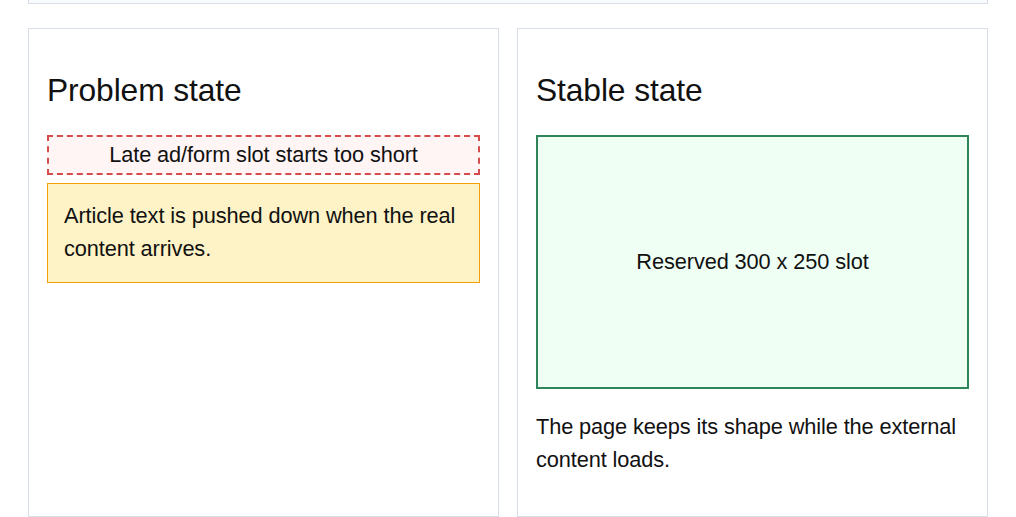
Ads need stable slots. If you reserve too little space, the page shifts when the ad expands. If you reserve too much, the layout can show an awkward blank area when no ad fills the slot. That tradeoff is real. Pick common ad sizes for your layout, reserve enough space for the usual case, and test mobile separately.
Use the same idea for:
newsletter forms
review widgets
related posts
recommendation blocks
social embeds
Google Maps
YouTube videos
WooCommerce notices and product modules
Where this goes wrong: an ad plugin inserts a large block above the first paragraph after the article has already painted. The plugin did its job. The layout did not. Do not insert large content above existing content unless the space was already there or the visitor directly asked for it.
Fix Banners And Notices
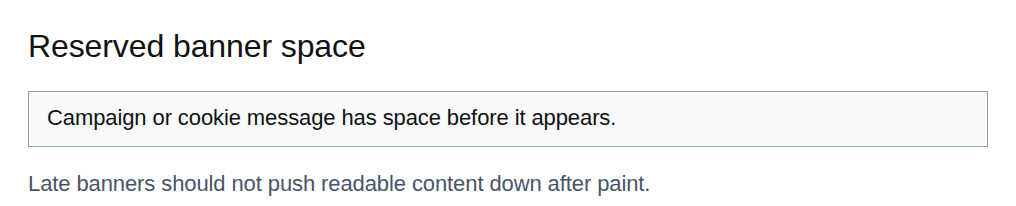
Cookie banners, sale bars, announcement bars, sticky headers, and WooCommerce notices can cause surprising shifts because they feel small in isolation.
They are not small when they move the whole page. Use one of these patterns:
Reserve the banner area before the page renders.
Use an overlay when the message does not need to push content down.
Put late-loading promos lower on the page.
Trigger large layout changes only after user action.
Test the real states, not only the version you see as an admin. If the banner changes behavior based on consent for third party cookies, check logged in, logged out, returning visitor, first-time visitor, accepted cookie banner, dismissed cookie banner, mobile, and desktop.
Many CLS issues hide in these states. The site can look fine to you and still shift for a new visitor on a phone.
Fix Fonts And Icons
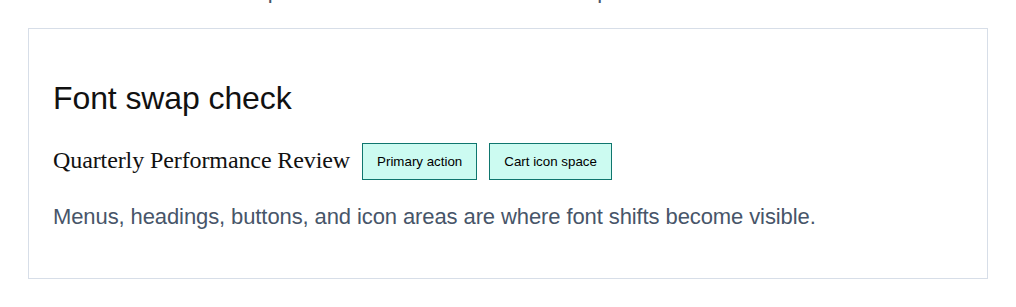
Font CLS is subtle. Nothing dramatic appears on the screen. The text just changes shape.
Here is what happens: the browser shows a fallback font first, then swaps in the final webfont. If the two fonts take up different space, headings can wrap, buttons can grow, menu items can move, and the header can become taller. Icon fonts can do the same thing. A cart icon, search icon, rating star, or mobile menu icon may appear late and change the space around it.
Start with the simple fixes:
Use fewer font families.
Use fewer font weights.
Load only the critical fonts early.
Avoid loading icon fonts late in the header.
Check headings, menus, buttons, ratings, and cart icons while the page loads.
If font files are still heavy, font subsetting can reduce font file size by serving only the characters your site actually needs. Converting older font formats to WOFF can also help keep font delivery lean, although sizing and fallback behavior still matter for CLS.
For advanced fixes, a developer can tune fallback font metrics so the temporary font takes up nearly the same space as the final font. That is not where most beginners should start, but it is a real fix when font swaps are the remaining cause.
The plain rule: the temporary text and final text should occupy almost the same room.
Fix Sliders And Builders
Sliders and page builder sections often look fine in the editor because the editor already knows the final layout. Visitors do not get that luxury. Their browser has to build the page from scratch.
Above-the-fold sliders are especially risky. The page may load a short wrapper first, then the images, captions, controls, or JavaScript initialize and the hero grows. Everything below it moves.
Set a stable wrapper height or aspect ratio before the script runs. If the slider is the first thing on the page, consider whether one stable hero image would do the job better. The same warning applies to:
carousels
galleries
accordions
tabs
counters
animated sections
page builder rows
dynamic WooCommerce blocks
For animations, avoid changing layout properties such as height, width, margin, padding, top, and left after the page appears. Use transform and opacity when possible because they can move or fade an element without pushing the rest of the page around.
If an element moves other elements, it can hurt CLS. If it only moves itself, it is usually safer.
WordPress CLS Checklist
Use this checklist on staging if the site is important. If you must work on production, change one thing at a time and test between changes. For a beginner, start here:
Check the homepage, one blog post, one landing page, one archive page, and one important product or conversion page.
Watch the first screen: logo, header, menu, hero image, top ad, promo bar, and first content block.
Confirm featured images, galleries, product photos, videos, maps, and custom images have stable space.
Exclude the hero image from lazy loading if it appears above the fold.
Check cookie banners, sale bars, popups, and WooCommerce notices.
Disable suspect display plugins one at a time on staging if you cannot identify the moving element.
For a developer or technical marketer, go deeper:
Inspect parent containers around images, embeds, ads, sliders, and page builder sections.
Add aspect-ratio, min-height, or stable wrappers where the final size is known.
AirLift can help with common performance layers such as caching, image delivery, automatic CSS re-optimization, font-related performance, and broader Core Web Vitals work. That makes it relevant when you want one place to handle repeatable WordPress performance tasks instead of managing every optimization setting manually.
But be honest about the boundary. No plugin can decide the right height for an ad slot, whether a cookie banner should overlay the page, whether a carousel is worth keeping, or whether custom theme markup changes height after JavaScript runs.
Features such as navigation prefetching can improve perceived speed between pages, but they should not be treated as a direct CLS fix.
If you are comparing tool options before choosing one, BlogVault’s WordPress speed optimization plugin roundup is a useful broader reference. Use tools for repeatable performance work. Use layout judgment for layout stability.
If CLS Still Fails
If the score does not improve, do not assume the first fix failed. You may have fixed one shift and uncovered the next one. Work through these checks:
Retest the same URL before changing more settings.
Look for the current moving element, not the one you already fixed.
Inspect parent containers around images, embeds, ads, sliders, and page builder blocks.
Test mobile separately.
Wait, scroll, open menus, accept or dismiss banners, and let ads or forms load.
Compare lab and field timing. Search Console field data can lag after a fix.
Escalate to a developer, or to AirLift support if the remaining issue is tied to AirLift configuration.
Also check whether you are chasing the wrong target. A perfect zero is nice, but the practical goal is a page people can read, tap, and buy from without the layout moving under them.
Verify Your Fix
Verification should match how people use the site.
Run PageSpeed Insights on mobile and desktop. Watch the page load in a browser. Test the page types that matter: posts, landing pages, product pages, archive pages, checkout pages, and any high-traffic template Search Console grouped together.
Then test real states:
logged out
logged in
cookie banner accepted
cookie banner dismissed
mobile menu opened
form loaded
ad loaded
product gallery used
review or recommendation block loaded
Use lab tests to confirm the obvious shift is gone now. Use Search Console and field data to confirm real visitors are seeing a stable page over time. Recheck after theme changes, plugin updates, new ad placements, campaign banners, page builder edits, and major design changes. CLS can come back when the layout changes.
For ongoing checks across important pages, WP Remote’s WordPress maintenance checklist is a useful companion to the one-page CLS workflow here.
Final Takeaway
To reduce CLS on WordPress, do not start with random toggles. Start by finding the element that moves, then give that element stable space before it loads.
Images, ads, embeds, banners, fonts, sliders, page builders, and dynamic blocks cause most real-world shifts. The durable fix is usually practical, not dramatic: stabilize the first screen, fix one cause at a time, retest the template on mobile and desktop, and keep checking after layout changes. A stable page feels calmer to readers, safer for shoppers, and easier to trust.
FAQs
What is a good CLS score?+
A good CLS score is 0.1 or less. A score from 0.1 to 0.25 needs improvement, and anything above 0.25 is poor.
What causes high CLS on WordPress?+
The most common causes are images without stable sizing, lazy-loaded hero images, ads, embeds, cookie banners, font swaps, icon fonts, sliders, page builder blocks, WooCommerce modules, and plugins that add content late.
How do I find what is causing CLS?+
Test one affected URL in PageSpeed Insights, then watch the page load in your browser or Chrome DevTools. Scroll, wait, open menus, accept banners, and let ads, forms, videos, and embeds load so you can see what moves.
Can lazy loading cause CLS?+
Yes. Lazy loading can cause CLS when above-the-fold media appears late or when images do not have reserved space. Lazy loading is usually better for lower-page images, not the main hero section.
What should I fix first?+
Fix the visible moving element on the affected template. In most WordPress cases, start with above-the-fold media, lazy-loaded hero images, ad or embed space, banners, fonts, and sliders.