

How to Speed Up WordPress Site: The Safe Fixes That Matter
Your WordPress site feels slow. Speed tests look bad, and every guide offers a different fix: caching, image optimization, better hosting, or installing plugins. Speed work gets…
Read

A slow WordPress site rarely fails in one dramatic moment. It drags a little on mobile. The homepage looks fine after the second test, but the product page still crawls. Someone installs a cache plugin, someone else turns on lazy loading, and now the menu is faster but the contact form is acting strange.
That is the trap with WordPress performance optimization: the visible problem is “my site is slow,” but the real problem is figuring out which layer is slow.
TL;DR: Measure first, back up the site, then fix the biggest bottlenecks in order: caching, images, hosting response, plugins and themes, scripts, CDN, and database cleanup. Change one major setting at a time and retest, because overlapping cache plugins, aggressive JavaScript delay, and lazy-loaded hero images can make a faster report hide a worse site.
The goal is not a perfect score on one cached homepage. The goal is a site that loads quickly, feels stable, and still lets visitors read, search, submit forms, buy, log in, and track conversions.
Most WordPress speed advice skips the uncomfortable part: the same symptom can have different causes.
A slow blog post may be carrying oversized images. A WooCommerce checkout may be slow because it cannot be cached like a static page. An Elementor landing page may be spending most of its time on JavaScript. A shared hosting plan may be slow before the browser even gets a chance to work.
Think of performance as a stack, not a checklist:
| Layer | What it affects |
|---|---|
| Server response | How quickly WordPress starts sending the page |
| Caching | Whether WordPress rebuilds the same page again and again |
| Images and media | Page weight, LCP, bandwidth, and storage |
| Theme and plugins | PHP work, CSS, JavaScript, database queries, and layout shifts |
| Front-end scripts | Interactivity, render blocking, and mobile lag |
| Delivery | CDN, compression, repeat visits, and global latency |
| Database health | Admin speed, old-site bloat, and query-heavy pages |
The table hides the annoying part: these layers overlap. A poor LCP score might come from a huge hero image, slow hosting, render-blocking CSS, or all three taking turns being unhelpful.
The metric is the symptom. It is not the diagnosis.
Do this before installing another plugin or clicking another “optimize all” button.
Test the site as it is now. Save the results. Then change one major thing at a time and test again. Without that baseline, you are guessing with nicer screenshots.
Test more than the homepage:
Use PageSpeed Insights for Core Web Vitals and lab diagnostics. Use GTmetrix or WebPageTest when you need a waterfall view of what loads first. Use browser developer tools when you need to inspect a specific image, font, script, or third-party request.
Record mobile and desktop separately. Mobile is where WordPress usually gets exposed because the test device is slower and JavaScript costs more.
Also backup the site before risky changes. Use staging for PHP updates, database cleanup, script delay, plugin removal, cache exclusions, and anything that touches checkout or lead forms.
One more reality check: field data can lag behind today’s work. Lab results can vary by location, network, cache state, and test device. Compare the same URLs under the same conditions as much as possible.
A speed report is useful only when it tells you what to fix next.
| If the report shows | Look here first |
|---|---|
| High TTFB | Hosting, cache misses, PHP, database queries, object cache, server load |
| Poor LCP | Hero image, server response, render-blocking CSS/JS, fonts, lazy-loaded LCP image |
| High CLS | Missing image dimensions, ads, embeds, banners, font swaps |
| Poor INP or TBT | JavaScript, page builders, plugins, tracking scripts, chat, popups |
| Huge page size | Images, video, fonts, CSS, JavaScript, embeds |
This is where people waste time. A high TTFB is not fixed by compressing a logo. A huge hero image is not fixed by changing database settings. A checkout page should not be cached like a blog post.
Use the report to choose the next move, not to collect every possible optimization idea.
Caching is usually the biggest safe win for logged-out visitors.
WordPress normally builds pages with PHP and database queries. Page caching stores a ready-made version so the server does not rebuild the same page for every visitor. Use your host’s server cache if it is available and reliable. If not, use one well-maintained WordPress caching plugin.
The word one matters. Two good cache plugins can still fight over page cache, minification, lazy loading, browser cache rules, CDN rewrites, or preload behavior.
Exclude pages that change per visitor:
Object cache is different from page cache. It stores database query results and can help WooCommerce, membership sites, busy admin areas, and database-heavy sites. It usually needs host support.
Where this goes wrong: someone stacks multiple optimization plugins, gets a better homepage score, and only later notices that coupons, search, or mobile menus broke.
Images are the easiest WordPress performance problem to create. Upload a few 3000 px photos into 900 px slots and the site starts carrying luggage it never needed.
Start with images on important pages:
Lazy loading is good until you lazy-load the image the visitor needs first.
If storage is also a problem, audit old uploads, generated thumbnails, and orphaned media. Just keep the jobs separate in your head: media cleanup helps storage and backups; image optimization helps page weight, bandwidth, and often LCP.
Do not host large videos directly in the WordPress media library. Use a video platform or lighter embed approach instead.
Plugin count is a rough clue, not a diagnosis. One badly behaved plugin can hurt more than ten boring ones, especially when it loads scripts everywhere or turns a normal request into the kind of slow WordPress website problem that needs evidence, not guesses.
Use this simple decision rule:
| Decision | Use it when |
|---|---|
| Keep | The plugin is active, maintained, and genuinely needed |
| Replace | The job matters, but the plugin is heavy, abandoned, or overlapping |
| Remove | The plugin is unused, duplicated, or no longer trusted |
Delete unused plugins and themes instead of only deactivating them. Keep one default WordPress theme for troubleshooting.
Pay special attention to page builders, sliders, popups, social feeds, maps, chat widgets, counters, and embeds. These often add CSS, JavaScript, fonts, layout shifts, and third-party calls. The practical question is not “Do I like this feature?” It is “Does this feature earn the speed cost?”
For WooCommerce, membership sites, and lead-generation sites, diagnose plugins on staging. Do not disable production plugins blindly and then discover that the quote form or payment method depended on one of them.
After caching and images, the browser often becomes the bottleneck. The page arrives quickly, then sits there while JavaScript, CSS, fonts, and third-party tools take turns blocking the first useful moment. Good fixes include:
Be careful with JavaScript delay. It can improve a report and break mobile menus, search, forms, popups, cookie banners, checkout, payment methods, analytics, and ads.
On modern HTTP/2 and HTTP/3 hosting, combining every CSS and JavaScript file is often less useful than reducing unused code and delaying non-critical work. Fewer files is nice. Less work is better.
A CDN helps when visitors are far from your origin server, pages are media-heavy, or traffic spikes put pressure on the host.
It serves static assets from locations closer to visitors. Brotli or GZIP compression reduces text file transfer size. Browser cache headers reduce repeat downloads for returning visitors. Use a CDN when:
For perceived speed between pages, navigation prefetching can help when it is used carefully. The catch is that a CDN does not fix slow PHP, expensive database queries, poor hosting, or JavaScript that locks the browser. It improves delivery. It does not rewrite the site underneath.
If TTFB stays high after basic caching, the server layer needs attention. Ask your host about:
Shared hosting can work for a small site. It can become the ceiling for a busy WooCommerce store, membership site, or builder-heavy site with many logged-in users, especially when the symptom is high server response time.
Upgrade PHP only after testing. A newer PHP version can improve performance, but old plugins and themes can fail if they have not been maintained.
Escalate to your host or developer when slow TTFB survives caching, admin pages crawl, checkout gets slow under traffic, or the waterfall shows the browser waiting on the server before much else happens.
Database cleanup can help older WordPress sites, especially sites with years of plugin churn. It can also break things if done carelessly. Beginner-safe cleanup usually includes:
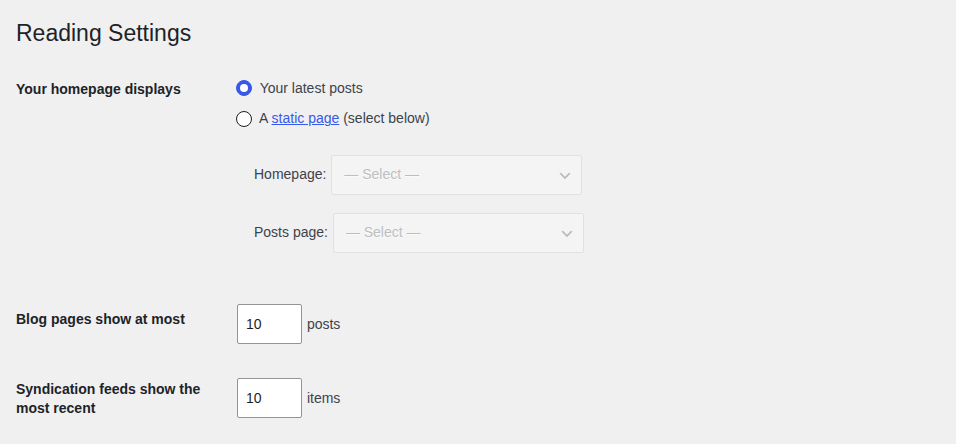
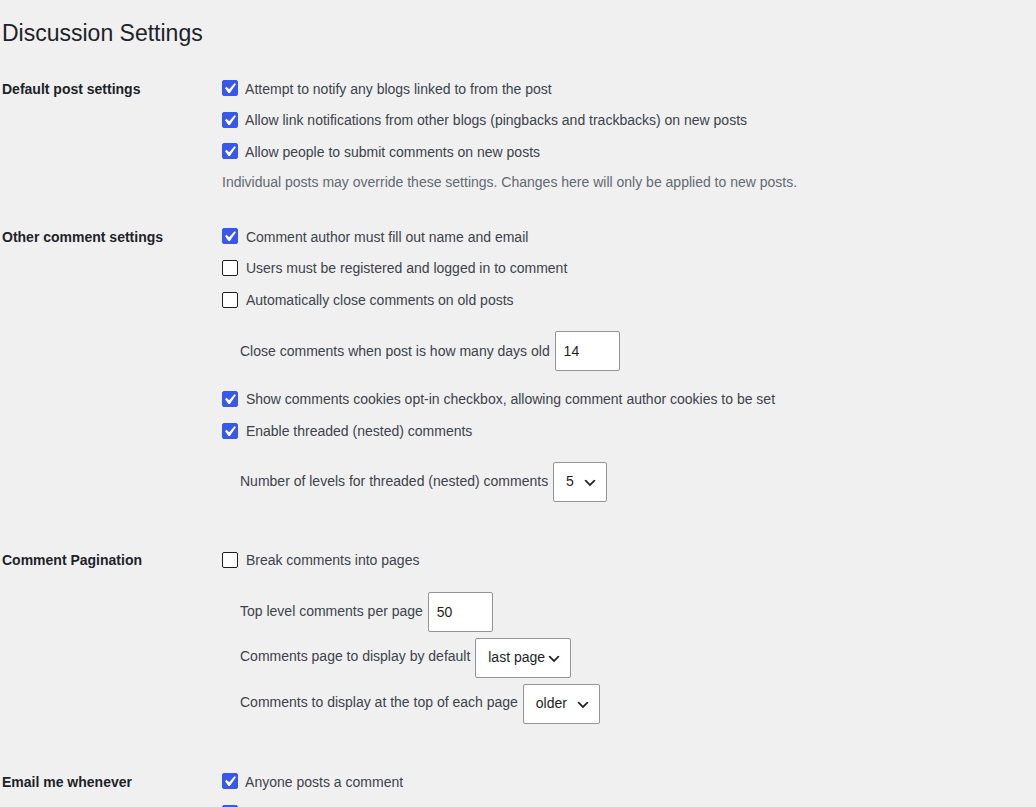
Advanced cleanup includes autoloaded options, orphaned metadata, plugin leftovers, slow queries, and Heartbeat changes. Use staging or a developer for deeper WordPress database cleanup.
Do not delete database rows because they look old. Some rows are junk. Some are the only reason an old feature still works.
If you are not sure where your comfort level ends, use this split.
| Beginner-safe with backups | Better for staging, host, or developer help |
|---|---|
| Run baseline tests | Change PHP version |
| Use one cache/performance plugin | Tune server cache or object cache |
| Compress and resize images | Edit database rows manually |
| Remove clearly unused plugins/themes | Diagnose slow SQL queries |
| Disable unused tracking scripts | Remove unused CSS deeply |
| Add CDN through a trusted tool or host | Load testing and server scaling |
The line is not about intelligence. It is about rollback risk. If the change can break checkout, accounts, forms, admin access, or revenue tracking, test it somewhere safe first and keep a recent backup available.
Manual optimization can work, but it often turns into coordination work.
One tool handles page cache. Another compresses images. Another manages CDN delivery. Another delays scripts. Another removes unused CSS. Each tool may be reasonable on its own, and the combined setup can still become fragile.
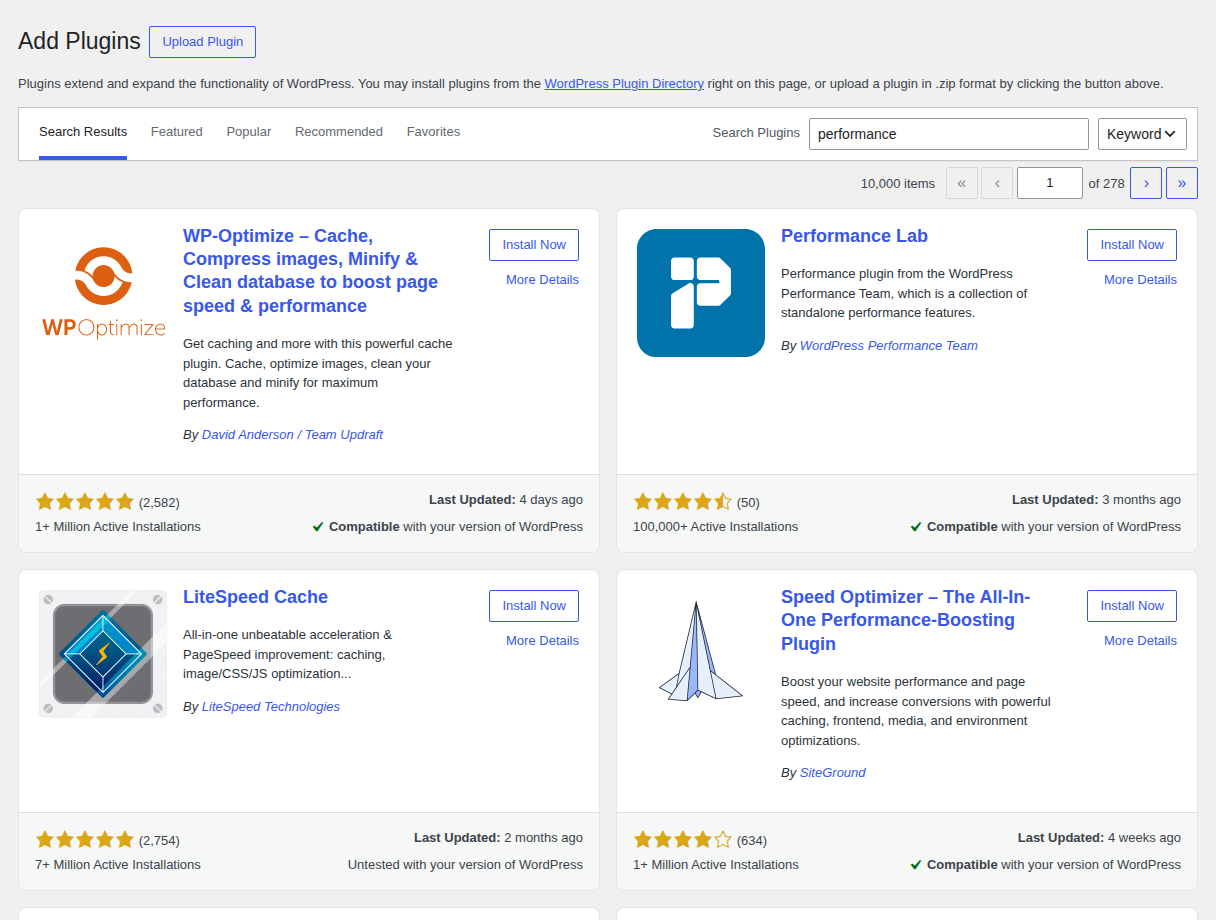
AirLift is the simpler route if you want one WordPress performance plugin for caching, CDN, image optimization, CSS and asset improvements, and Core Web Vitals-focused optimization.
Use it when you want fewer moving parts and less manual configuration. If the choice depends on budget, compare AirLift pricing before changing your stack. Still test your important pages after setup, and contact AirLift support if a plugin-specific conflict needs help. No performance plugin should be treated as permission to skip checkout, forms, search, menus, popups, tracking, and logged-in flows.
Use AirLift optimization settings to keep risky optimizations deliberate instead of turning every switch on at once.
Keep the limit clear too: a performance plugin can reduce a lot of front-end and caching work. It cannot turn weak hosting into a serious ecommerce setup by itself.
Performance work is not done when the score improves. It is done when the site is faster and the important flows still work.
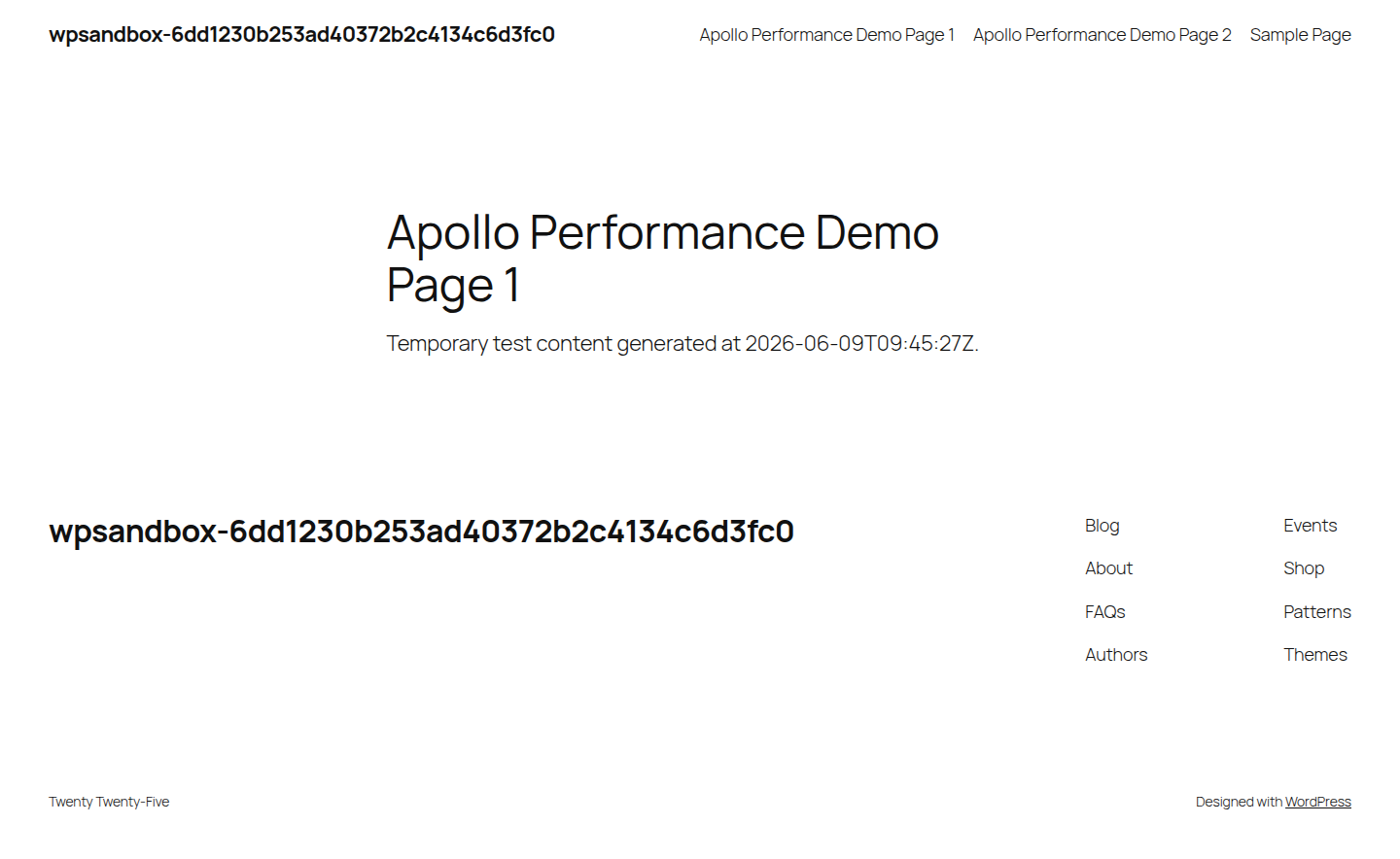
Use this QA pass:
For WooCommerce, place a test order if you safely can. At minimum, check cart updates, coupons, shipping, payment choices, account pages, and order confirmation.
For lead-generation sites, submit a test form and confirm the email, CRM entry, thank-you page, and tracking event.
If something breaks, roll back the latest setting. Re-enable changes one at a time until you find the conflict, especially after changing AirLift optimization settings.
If quick wins do not fix the site, use the remaining symptom to decide where to go next.
| Still slow after… | Look next |
|---|---|
| Caching | Cache exclusions, server cache, logged-in traffic, WooCommerce dynamics |
| Image optimization | Hero image priority, fonts, render-blocking CSS/JS, TTFB |
| Script cleanup | Page builder output, third-party tools, unused CSS, plugin behavior |
| CDN setup | Origin server, PHP, database, cache misses |
| Database cleanup | Hosting limits, object cache, cron jobs, error logs, bot traffic |
A heavy WooCommerce or Elementor site may not hit a perfect mobile score without deeper theme, hosting, or development work. That does not mean the work failed. It means the remaining bottleneck is below the easy settings layer, and the next step is to diagnose the slow WordPress website symptom more narrowly.
Start with a baseline test and backup. Then fix the largest likely bottleneck: caching if pages are not cached, images if pages are heavy, hosting/server response if TTFB is high, and scripts/plugins if interactivity is poor.
A cache plugin cannot fix every layer. The site may still have a slow host, uncached dynamic pages, oversized images, render-blocking scripts, heavy page builder output, third-party tools, database issues, or cache exclusions on WooCommerce and logged-in pages.
Yes, but not in a simplistic “one score equals rankings” way. Faster pages improve user experience, Core Web Vitals, crawl efficiency, and conversion paths. The bigger win is that visitors can actually use the site without waiting or fighting layout shifts.
Use a CDN if your audience is geographically spread out, your pages are media-heavy, or your host struggles during traffic spikes. Do not expect a CDN or navigation prefetching to fix slow PHP, database queries, plugin bloat, or heavy JavaScript.
Run a quick performance check after major plugin, theme, hosting, tracking, or design changes. For active business sites, review key pages monthly or quarterly, and always retest after adding page builder sections, video embeds, ad scripts, or new conversion tools.
The safest WordPress performance optimization workflow is boring in the best way: measure, backup, fix one layer, retest, and verify the real site still works. Start with caching and images because they usually deliver the fastest gains, then move into plugins, scripts, delivery, hosting, and database cleanup as the reports point you there.
If you want fewer moving parts, use a performance plugin like AirLift after you understand what it is helping with. If the remaining problem is hosting, database load, WooCommerce complexity, or heavy custom development, escalate instead of forcing more settings onto the site. A fast WordPress site is not the one with the prettiest report. It is the one visitors can actually use.
Your WordPress site feels slow. Speed tests look bad, and every guide offers a different fix: caching, image optimization, better hosting, or installing plugins. Speed work gets…
Read

There is a very specific irritation in opening WordPress to make one small edit and then waiting on the dashboard like it’s thinking about whether you deserve access today. The…
Read

You open wp-admin to make one small change, and every click takes too long. The public site may still load quickly, which makes the problem harder to read: visitors are fine, but…
Read
Airlift works out what each page needs and applies it. Free to try on your own site.