

WordPress Dashboard Slow? Fix the Right Problem First
There is a very specific irritation in opening WordPress to make one small edit and then waiting on the dashboard like it’s thinking about whether you deserve access today. The…
Read

You open wp-admin to make one small change, and every click takes too long. The public site may still load quickly, which makes the problem harder to read: visitors are fine, but editing posts, checking orders, or updating plugins feels stuck. If your WordPress admin slow problem looks like this, do not start by adding another speed plugin.
Find the slow layer first.
TLDR: A slow WordPress admin is usually caused by uncached admin requests, heavy plugins, database bloat, low PHP or server resources, Heartbeat or admin-ajax load, browser issues, or hosting limits. Measure the slowest admin screen, isolate the likely cause, fix one layer at a time, and retest before adding more tools.
Before you fix anything, measure website speed and compare it with how wp-admin performs. A fast homepage does not necessarily mean the WordPress dashboard is healthy because admin requests are processed differently.
Public pages can often be cached. Logged-in admin pages usually cannot.
When a visitor opens a cached page, the server may send a saved version instead of building the page again. When you open the dashboard, WordPress has to check your login, load plugins, run PHP, query the database, build admin tables, load editor files, call APIs, and sometimes trigger scheduled tasks.
That is why Core Web Vitals or a fast homepage does not settle the question. Those tests mostly measure visitor-facing pages; if that is the problem, handle it as a separate WordPress performance optimization project. They do not tell you whether the Posts screen is waiting on a slow database query or whether WooCommerce Orders is loading too much data.
Here is the plain version of the common cache terms:
| Speed layer | What it helps | What it will not fix |
|---|---|---|
| Page cache | Serves saved public pages to visitors | Most logged-in admin pages |
| Browser cache | Reuses files like images, CSS, and JavaScript | Slow PHP, database queries, or plugin work |
| OPcache | Helps PHP reuse compiled code | Bad queries or bloated data |
| Object cache | Stores repeated database results in memory | Poor plugin behavior or blocked API calls |
Note 🧭: If someone says “clear the cache” and wp-admin is still slow, that does not mean caching is broken. It may mean the slow part is not the page cache.
Do not change five settings and then hope one helped. Start with the exact screen that feels slow. Is it the Dashboard, Posts, Pages, Plugins, Media Library, block editor, or WooCommerce Orders? The screen matters because each one stresses WordPress in a different way.
If wp-admin is too slow to install anything, stop working inside the dashboard. Use hosting support, WP-CLI, SFTP, server logs, or a developer. A dashboard that is already timing out is not a good place to experiment.
In our WordPress 6.9.4 test site with PHP 8.3 and MySQL 8.0, Query Monitor and Health Check were enough to validate the diagnostic path across Dashboard, Posts, Pages, Plugins, and editor screens. A clean test site will not recreate your production issue, but it shows the right order: measure, isolate, change, retest.
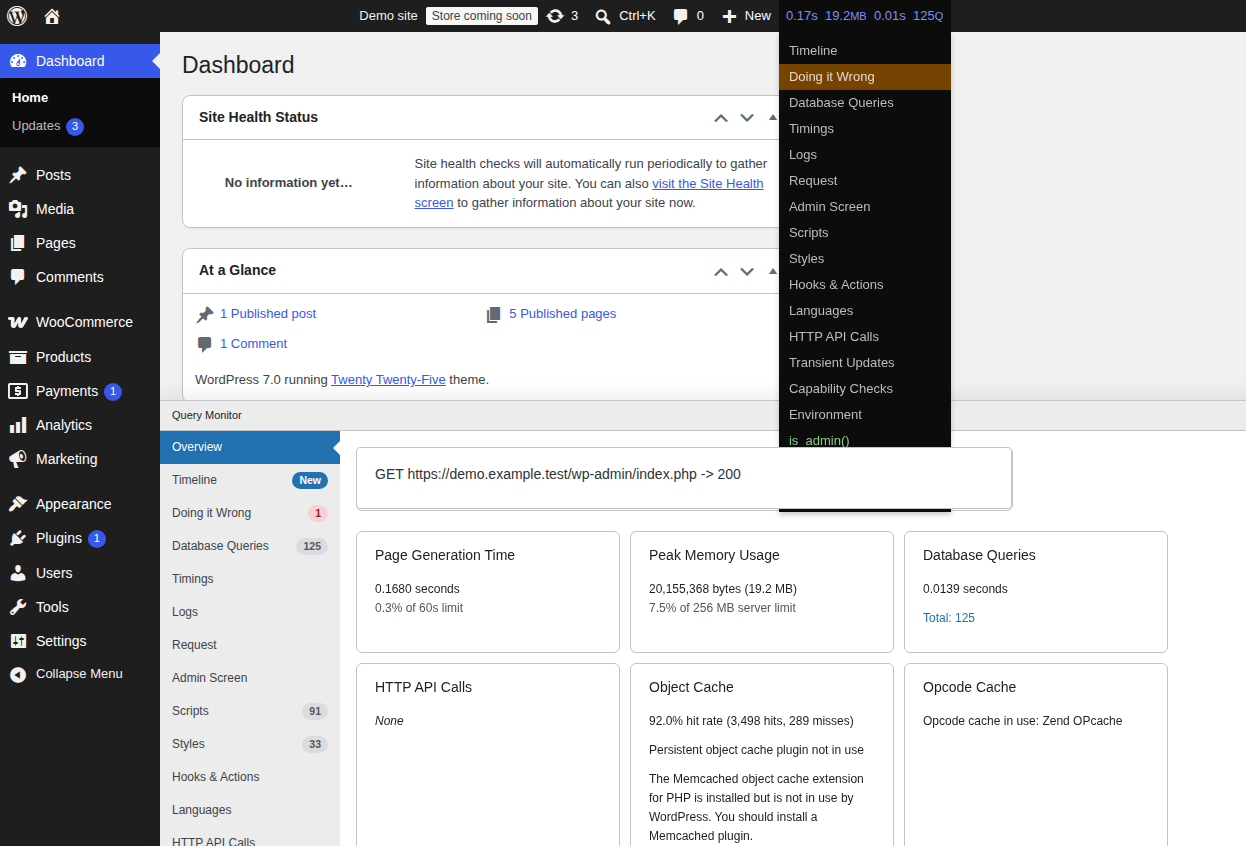
Slow admin screens usually leave clues. Use the clue before picking the fix.
| What you see | Check first |
|---|---|
| Frontend is fast, admin is slow | PHP, database queries, plugin hooks, object cache, server limits |
| Only the editor is slow | Heartbeat, autosave, block editor files, browser JavaScript, editor plugins |
| Only Dashboard is slow | Dashboard widgets, autoloaded options, external API calls, update checks |
| Posts or Pages list is slow | Too many rows, revisions, postmeta, custom columns, search or filter plugins |
| WooCommerce admin is slow | Orders, products, sessions, Action Scheduler, object cache, hosting resources |
| Slow after installing or updating a plugin | Plugin hooks, admin assets, background tasks, external API calls |
| Query Monitor is fast but the page feels slow | Browser, extensions, device memory, JavaScript rendering |
| Slow only through a CDN or firewall | SSL mode, firewall rules, redirects, blocked REST API, blocked cron or admin-ajax requests |
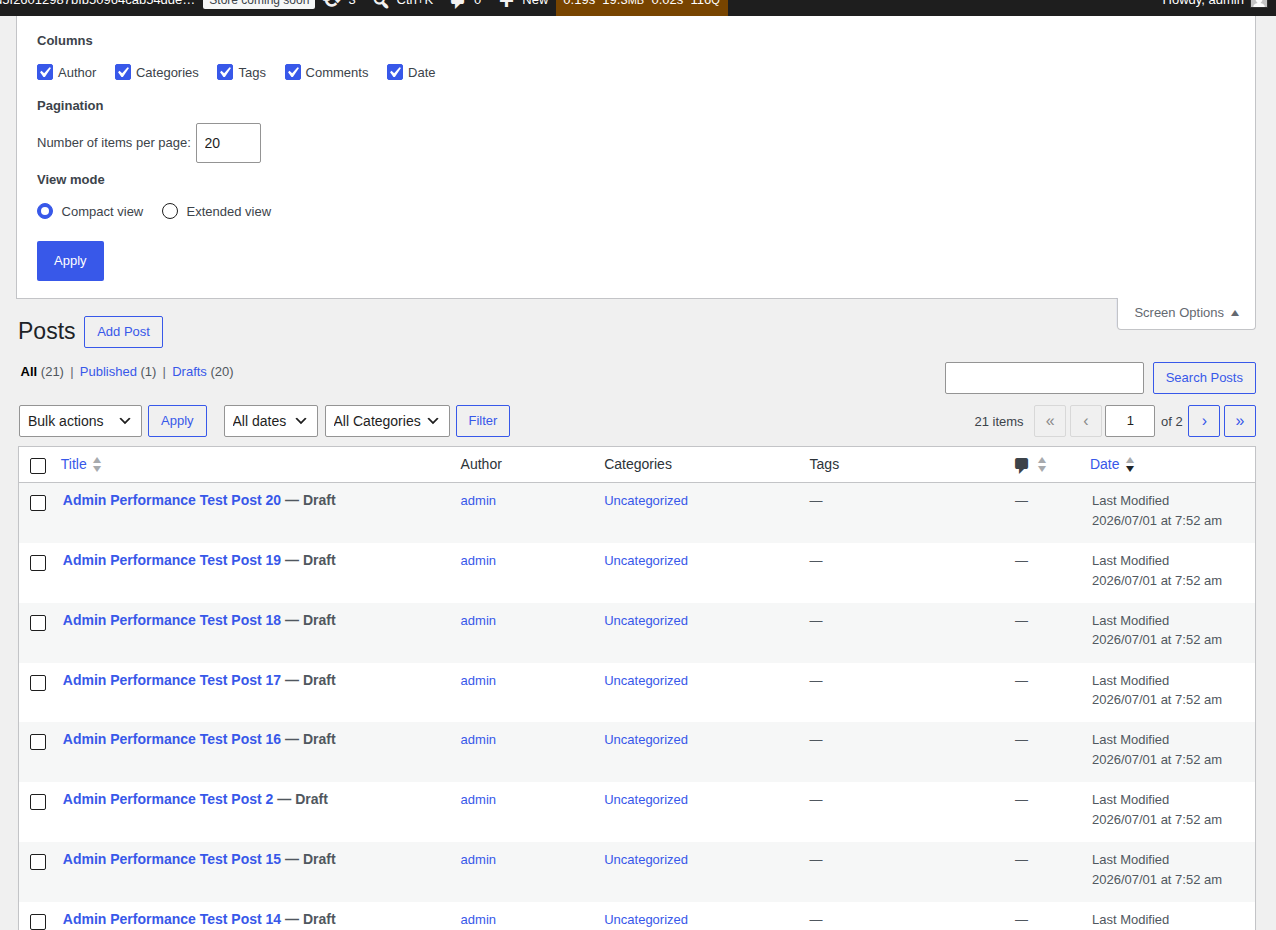
Plugin count can help you decide where to look, but it is not the diagnosis. One plugin that runs heavy work on every admin page can do more damage than twenty quiet plugins.
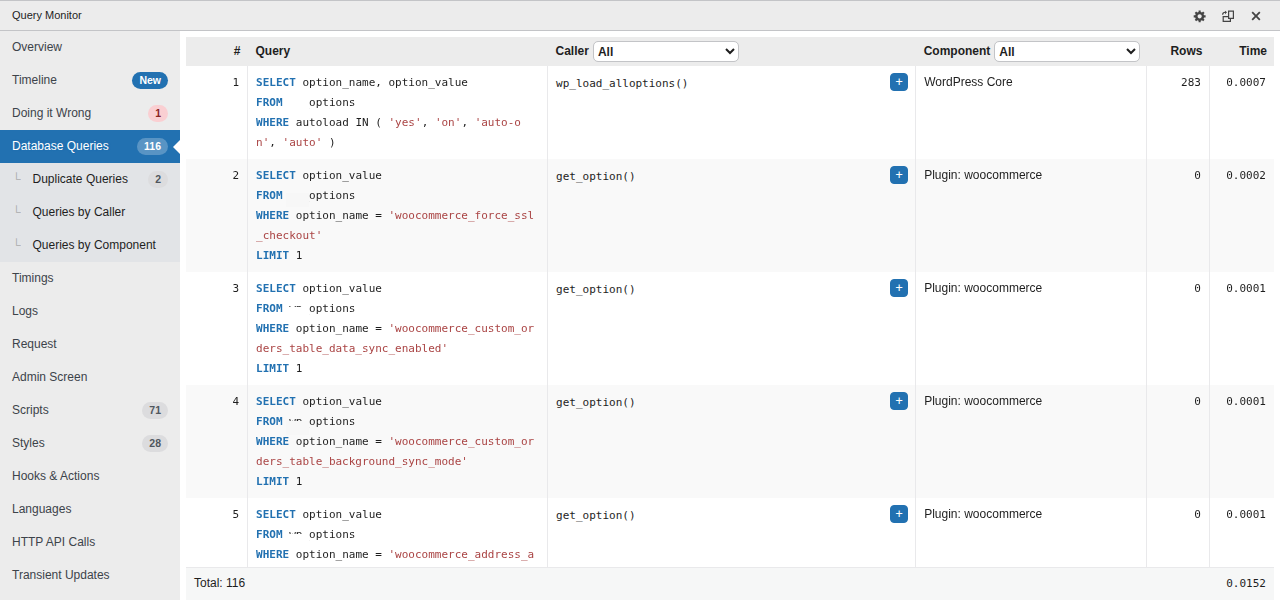
Plugins are a common cause of slow wp-admin, but the fix is not “delete plugins until something changes.” Use Query Monitor first. Look at slow database queries, PHP errors, HTTP API calls, scripts, styles, and component timing. If one plugin owns most of the slow work, test that plugin before touching the rest.
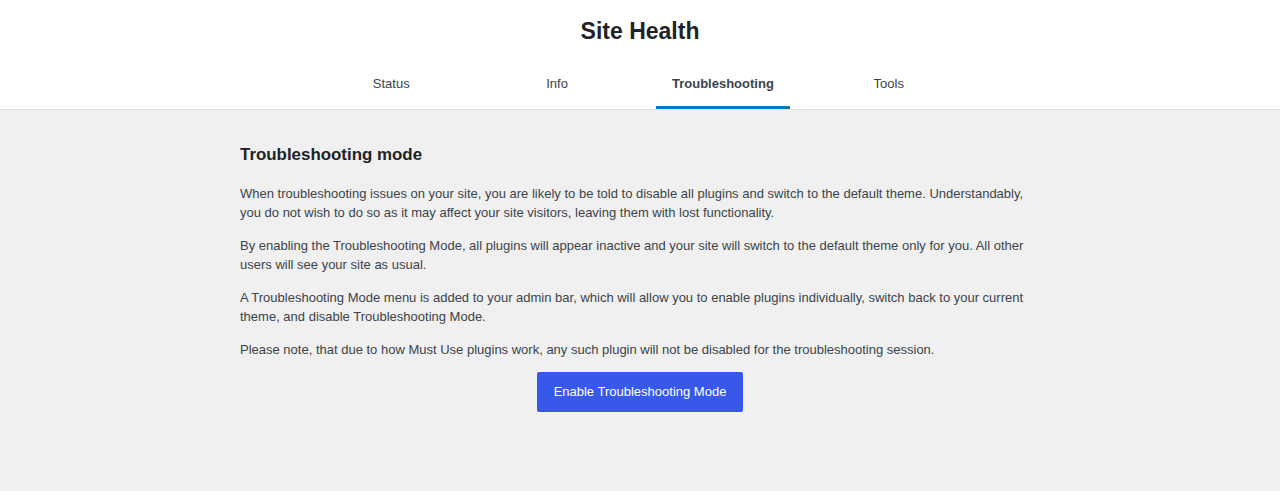
Do not blindly disable checkout, payment, membership, LMS, booking, form, or security plugins on a live site. A quick test can break a real workflow.
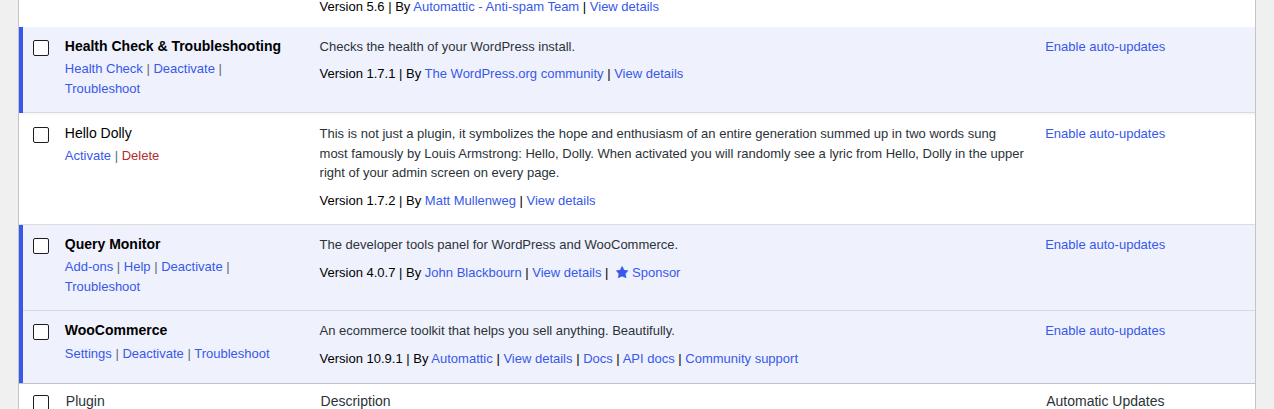
Themes can also slow admin screens through editor files, page-builder features, custom post types, or bundled plugins. Test a default theme on staging. If the admin becomes fast, the theme or one of its companion plugins needs attention. The best fix is usually to remove, replace, or reconfigure the component causing the work.
Old WordPress sites collect data. Some of it is useful. Some of it becomes drag. Beginner-safe cleanup includes:
Back up first. Cleanup plugins can help, but do not let a tool delete data you do not understand. If the tool cannot explain what it will remove, test it on staging. Deeper database issues need more care:
| Database area | Why it can slow admin | Who should handle it |
|---|---|---|
| Autoloaded options | Loads on many WordPress requests, including admin screens | Developer or host for large or strange values |
| Postmeta | Can slow list screens, filters, and searches | Developer for query and index review |
| Orphaned plugin data | Old plugin settings and tables may remain after deletion | Careful cleanup on staging |
| WooCommerce sessions and transients | Stores add more admin and checkout-related data | Store owner with backup, developer for heavy cleanup |
| Action Scheduler queues | Backlogs can slow stores and background jobs | Developer or WooCommerce-aware host |
Autoloaded options deserve special care. “Autoloaded” means WordPress loads that option automatically on many requests. If old plugins left large autoloaded values behind, the dashboard can slow down even when the public site looks fine.
Note 🧹: Do not assume every old row is junk. An old option may still power payments, forms, memberships, or shipping rules.
If plugins and database checks do not explain the lag, look at the server layer.
As of July 1, 2026, WordPress.org recommends PHP 8.3 or greater, MySQL 8.0 or MariaDB 10.6 or greater, HTTPS, and Nginx or Apache with mod_rewrite. PHP.net currently lists PHP 8.2, 8.3, 8.4, and 8.5 as supported branches in either active or security support.
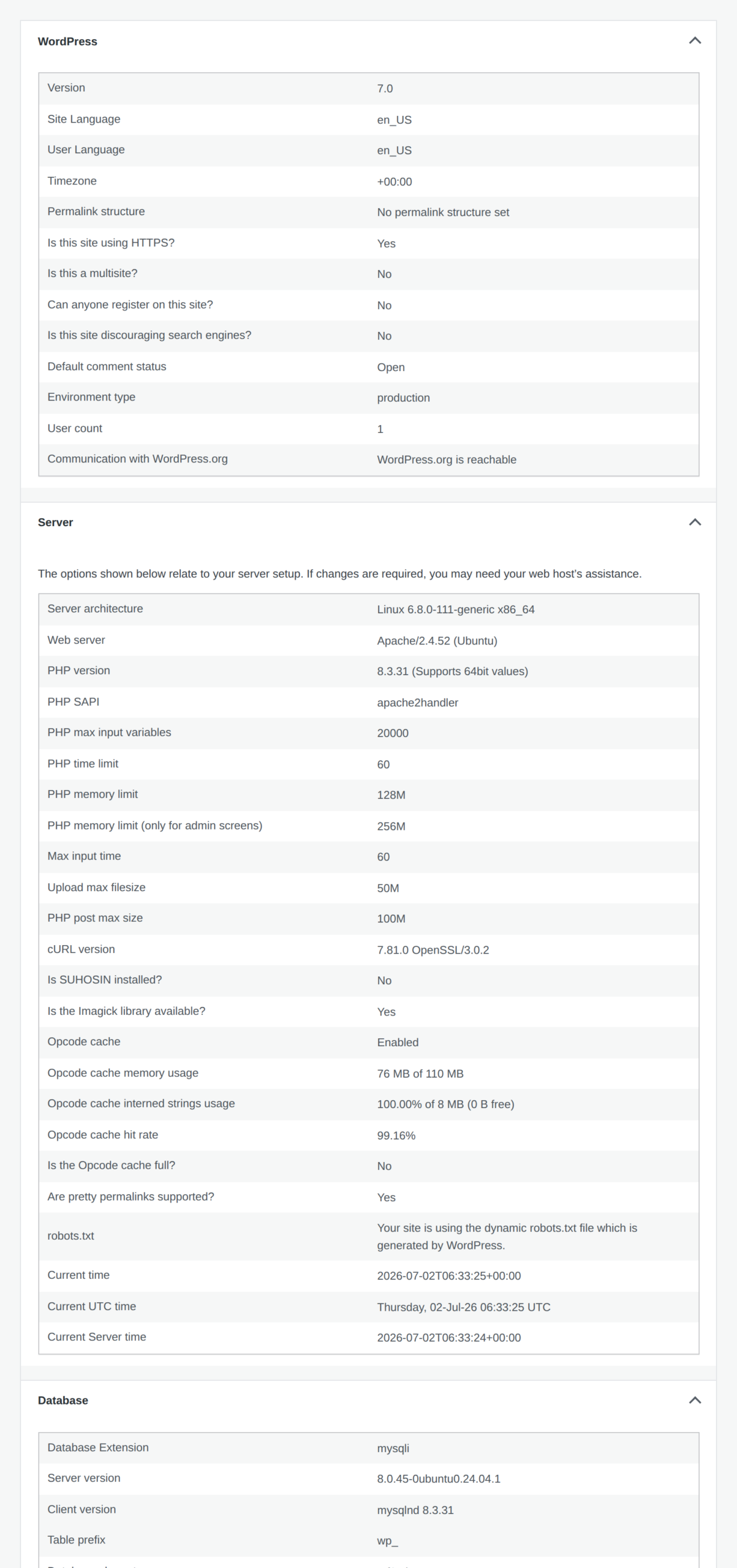
Do not upgrade production blindly. Test PHP changes on staging because older themes and plugins can fail on newer PHP versions.
PHP, OPcache, object cache, and page cache solve different problems. Use the one that matches the bottleneck.
Some admin lag comes from background requests, not the screen you clicked. Heartbeat powers autosave, post locks, and live admin updates. It is useful, but it can add load when several editors, tabs, or plugins use it at the same time.

Do not edit WordPress core files to fix Heartbeat, admin-ajax, or cron. Use plugin settings, wp-config changes on staging, safe custom code, or host-level cron settings.
Note ⏱️: Intermittent admin slowness often points to background work. If the dashboard is fast at 10:00 and slow at 10:05, check cron, update checks, external API calls, and scheduled plugin jobs.
If server timing looks normal but the admin still feels slow, test outside WordPress.
Try another browser, private window, disabled extensions, another device, and another network. Browser extensions can slow the block editor. A low-memory laptop can struggle with large admin screens. A broken browser profile can make normal JavaScript feel painful. CDNs, proxies, firewalls, and security tools can also affect admin traffic. If the problem appears only behind a CDN or firewall, bypass that layer briefly for testing, then turn protection back on. Check for:
Do not leave a firewall or CDN disabled because the admin felt faster for ten minutes. Use the test to find the rule, redirect, or origin issue that needs fixing.
WooCommerce admin is heavier because it loads business data, not just blog content.
Orders, products, refunds, coupons, sessions, scheduled actions, stock updates, payment events, reports, and extensions all add work. That does not mean WooCommerce is “bad.” It means a store needs better resources and safer testing than a small brochure site. Check these first:
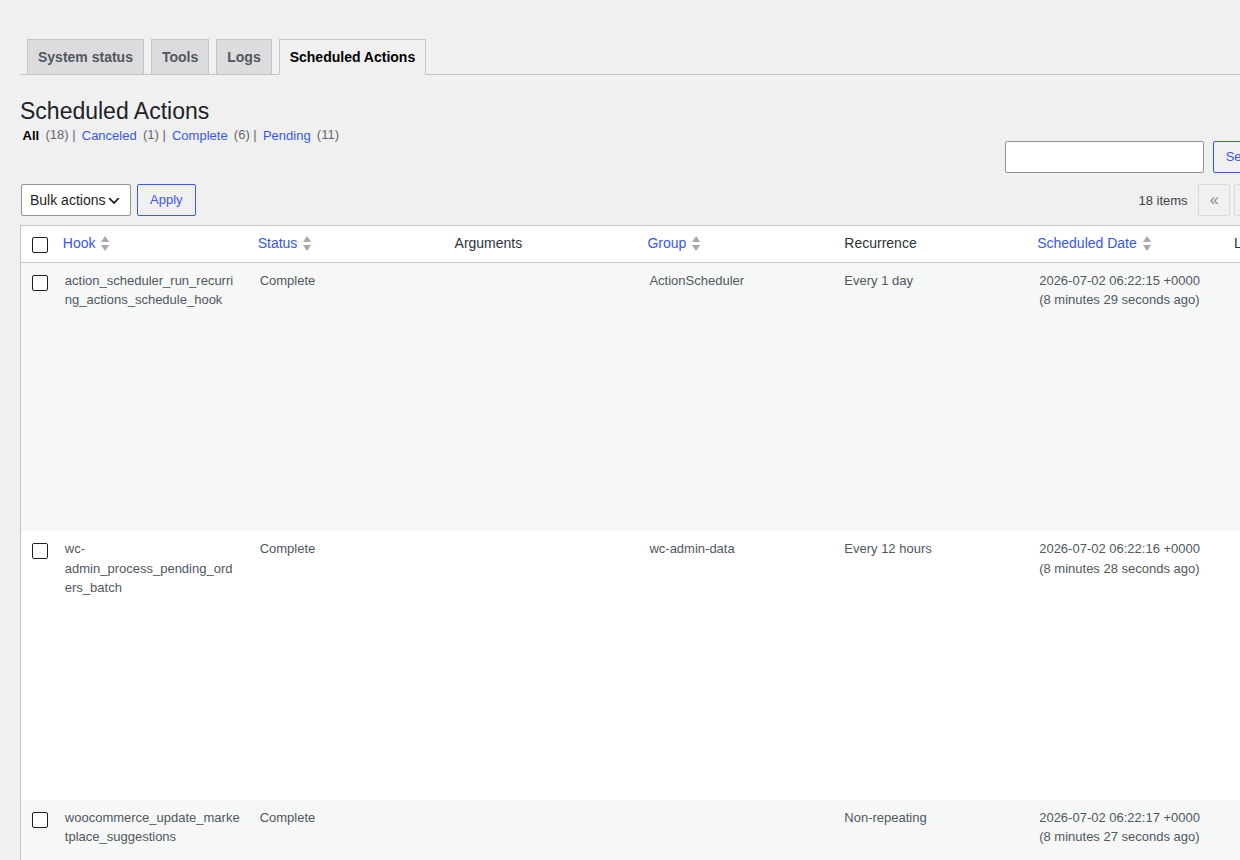
Do not test by disabling payment, checkout, subscriptions, or order-related plugins on a live store. Use staging or ask a WooCommerce-aware developer or host. For active stores, strong database performance, enough PHP workers, persistent object cache, and clean scheduled actions matter more than another generic cache plugin.
Use this as a guardrail before touching data, checkout, or server behavior.
| Usually safe for site owners | Use staging, host, or developer help |
|---|---|
| Backup the site | Manual database cleanup |
| Test another browser or device | SQL query or index changes |
| Check Site Health info | PHP version changes on old sites |
| Install Query Monitor if admin is usable | Editing wp-config without a rollback path |
| Reduce visible list items with Screen Options | Disabling payment, forms, membership, or checkout plugins |
| Clear trash, spam, and drafts you recognize | Fixing stuck WooCommerce scheduled actions |
| Use troubleshooting mode for non-critical plugins | Investigating server I/O, PHP workers, or database load |
If the change can affect live payments, stored data, logins, forms, or server behavior, test first.
Once you know what is slowing wp-admin, you can decide whether the public site also needs speed work.
If your frontend is slow, your performance stack is messy, or you are using separate tools for cache, CDN, images, CSS optimization, and Core Web Vitals work, AirLift can help simplify WordPress performance optimization for visitors.
The boundary matters: AirLift is not a universal fix for every slow admin screen. If wp-admin is slow because of database bloat, admin-only plugin hooks, weak hosting, blocked REST API calls, or WooCommerce query load, those still need targeted fixes.
Use AirLift when the admin slowdown is part of a wider performance cleanup, or when you want one frontend speed stack instead of several separate tools.
Retest the same screen that made you start troubleshooting. If the Posts list was slow, do not declare victory because the Dashboard loads faster.
Escalate to your host or developer when admin pages time out, PHP fatal errors persist, host graphs show throttling, database queries need index work, or WooCommerce admin delays can affect revenue.
Your public pages may be served from cache, while wp-admin has to run live PHP, database queries, plugin code, permissions checks, and background requests. A fast homepage does not prove the admin area is fast.
Normal page cache usually does not cache logged-in admin pages. OPcache and object cache can help if PHP work or repeated database queries are the bottleneck.
Yes, but plugin behavior matters more than plugin count. One plugin that runs slow queries, loads admin assets everywhere, or calls external APIs on every page can slow wp-admin by itself.
It can be. admin-ajax.php handles background requests for Heartbeat and many plugins. Check logs or Query Monitor to find which plugin or feature is calling it before you disable anything.
Get help when wp-admin times out, server resource graphs show throttling, PHP fatal errors keep appearing, WooCommerce admin affects orders, or the fix requires database queries, indexes, cron changes, or server settings.
A slow WordPress admin is frustrating because it blocks the work you came to do. The fastest safe path is not another random optimization plugin. Measure the slowest screen, match the symptom, fix the likely layer, and retest before moving on.
If the issue is admin-specific, focus on plugins, database load, PHP resources, background requests, browser behavior, and hosting limits. If the public site is also slow, clean up the broader performance stack after the admin bottleneck is understood. That order keeps the fix practical and lowers the chance of breaking something important.
If you use AirLift for frontend speed and need help separating product settings from an admin-only bottleneck, AirLift support is the right next step after you have isolated the slow layer.
There is a very specific irritation in opening WordPress to make one small edit and then waiting on the dashboard like it’s thinking about whether you deserve access today. The…
Read

Is your WordPress website loading slowly, but you are not sure what is causing the problem? Changing plugins, hosting, themes, or cache settings without clear evidence can waste…
Read

Your homepage can feel fast while the parts that make money still feel slow. If you’re trying to speed up your website, it helps to understand that not every request behaves the…
Read
Airlift works out what each page needs and applies it. Free to try on your own site.