

Redis Object Cache for WordPress: What It Does and When You Need It
Redis object cache sounds like one of those WordPress speed fixes you should just turn on and forget about. I get the appeal. When a site is slow, nobody wants a lecture about…
Read

Your homepage can feel fast while the parts that make money still feel slow.
If you’re trying to speed up your website, it helps to understand that not every request behaves the same way. Public pages are often served from page cache, but wp-admin, checkout, product filters, account pages, member dashboards, and search results still make WordPress do real work.
TL;DR: WordPress object caching helps most on dynamic, database-heavy sites such as WooCommerce stores, membership sites, wp-admin workflows, and high-traffic sites. It does not replace page caching, image optimization, or front-end cleanup. Instead, it forms one layer of a broader website caching strategy. Simple sites may not need persistent object caching at all.
Think of it as one layer of WordPress performance optimization, not the whole stack.
The useful question is not “Should every WordPress site turn this on?” It is: Is WordPress repeating database work that a cache could safely reuse?
If your site is mostly static and page cache already handles visitors well, object caching may do little. If your site has carts, logged-in users, dashboards, filters, subscriptions, or slow admin screens, persistent object caching is worth testing.
WordPress stores posts, pages, menus, users, options, plugin settings, product data, and metadata in the database. When a page or admin screen loads, WordPress often asks for the same type of data more than once.
Object caching stores reusable data in memory so WordPress can fetch it faster next time. Memory means fast server storage used for short-term access. It is not the same as saving a finished page. Here is the basic flow:
A cache hit means WordPress found the saved answer. A cache miss means WordPress had to do the slower work. That is the whole point: fewer repeated database trips on requests that cannot simply be served as finished HTML.
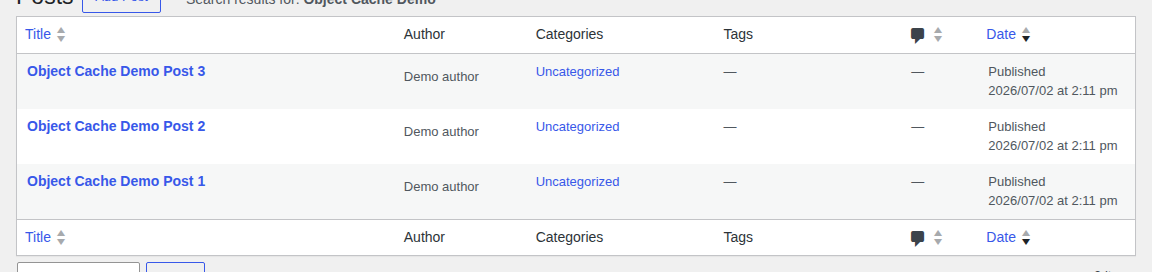
This is where many site owners get stuck: WordPress already has an object cache. The default WordPress object cache works during a single request. If WordPress asks for the same option three times while building one admin screen, it can reuse the answer during that request.
Then the request ends, and the default cache is usually gone.
Persistent object caching keeps cached data available across requests. It uses a backend such as Redis, Memcached, Valkey, or a host-managed cache. A backend is the server service that stores the cached data.
In many setups, WordPress connects to that backend through a file called object-cache.php in the wp-content folder. This file is called a drop-in, which means WordPress loads it to replace part of the default behavior.
📌 Note: If WordPress Site Health recommends a persistent object cache, it does not mean WordPress has no object cache at all. It usually means WordPress does not detect a cache that survives across requests.
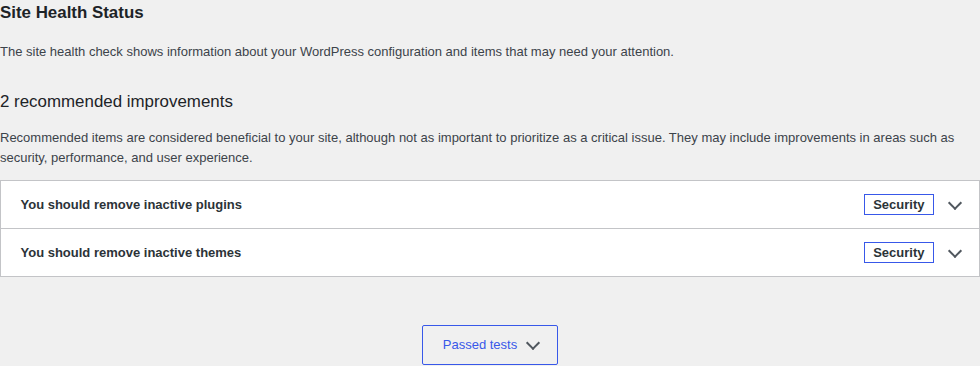
One more detail helps during troubleshooting. With persistent object cache active, some transients may live in memory instead of the database. Transients are temporary saved values that WordPress and plugins use. If you only inspect database rows, you may miss what the active cache is doing.
Object cache and page cache are both part of a broader website caching, but they solve different problems. Mixing them up often leads to the wrong fixes.
| Cache layer | What it stores | Helps most with | Does not fix |
|---|---|---|---|
| Page cache | Finished HTML pages | Public blog posts, landing pages, and other anonymous pages | Logged-in pages, checkout, wp-admin, personalized content |
| Object cache | Reusable database results and computed data | Dynamic pages, wp-admin, WooCommerce, memberships, filters, dashboards | Images, CSS, JavaScript, layout shifts, slow third-party scripts |
| Browser or CDN cache | Static files and sometimes cached responses near visitors | Repeat visits, global delivery, images, CSS, JavaScript | WordPress database work on uncached dynamic requests |
Page cache is often the biggest win for a simple public site. It can skip WordPress almost entirely for many visitors, as long as you know when to clear WordPress cache after changes Object cache matters when WordPress still has to build the response. A cart, account page, admin screen, or member dashboard cannot always show the same finished page to everyone.
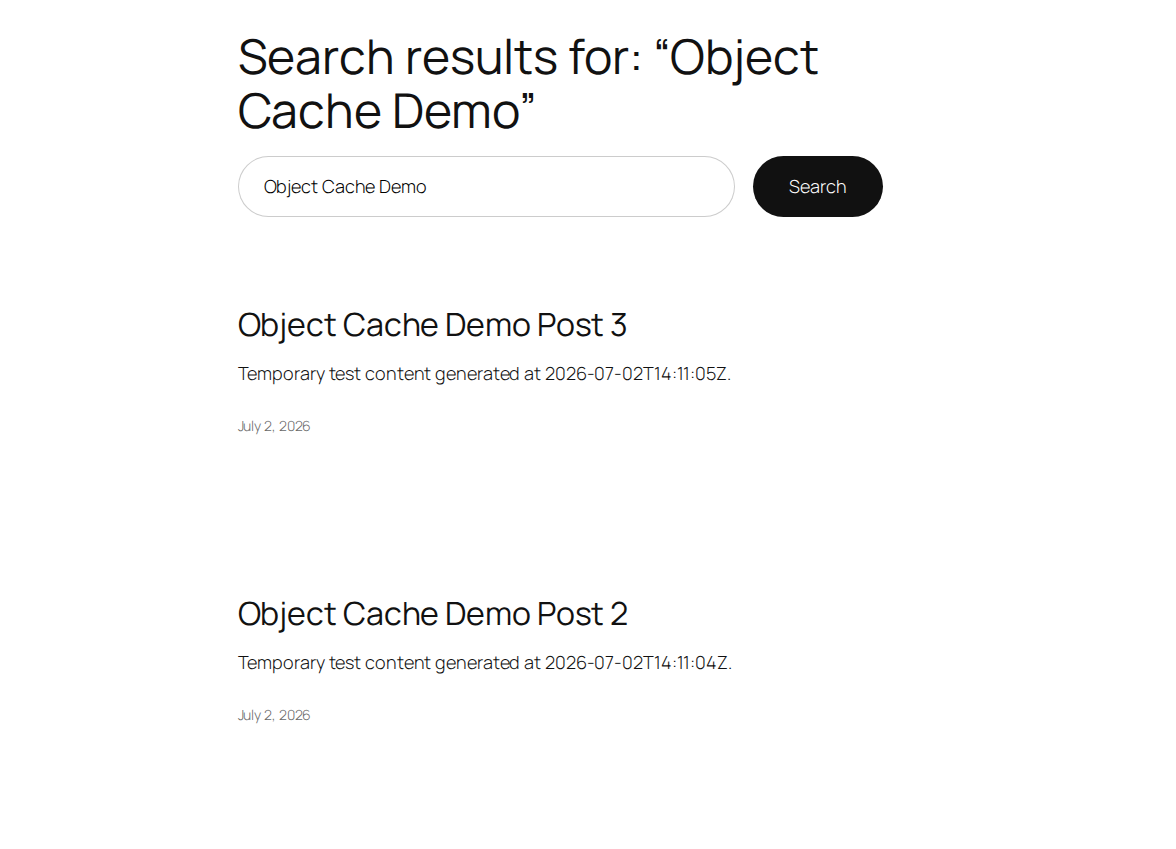
Use page cache for finished public pages. Use object cache to reduce repeated WordPress and database work. Browser caching complements both by reducing how often visitors need to download the same static assets on future visits.
Persistent object caching helps when the same expensive data is requested often, and page cache cannot safely bypass the request. It is a strong candidate for:
For a WooCommerce store, the repeated work may include product metadata, shipping options, tax settings, variation data, inventory checks, and plugin settings. For a membership site, it may include access rules, user roles, and restricted content checks.
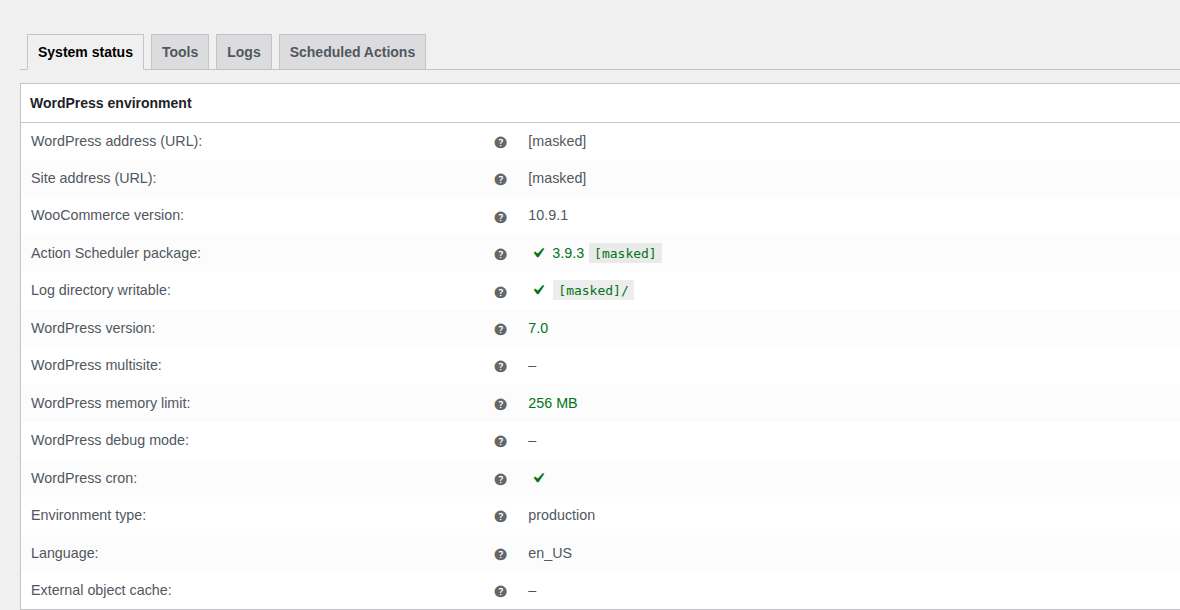
Object cache can improve backend response time and TTFB. TTFB means time to first byte, or how long the server takes to start sending a response.
But object cache will not fix every speed problem. If your site is slow because images are too large, scripts block rendering, fonts load badly, or a page builder ships too much CSS and JavaScript, object cache may only help a small part of the request.

⚠️ Note: Do not use object caching as a way to avoid fixing front-end bloat. It can make WordPress start the response faster, but visitors still wait for the browser to load and render the page.
Some sites are fast enough without persistent object caching. You may not need it yet if:
Persistent object caching adds another moving part. Cache lookups take time. Memory can fill up. Connections can fail. Cached data can go stale. Two plugins can fight over the same object-cache.php drop-in. That does not make object cache risky by default. It means it should match a real workload.
If the site is simple, do not add infrastructure just to satisfy a checklist.

Most WordPress site owners do not need a deep systems comparison. They need the option their host can run well.
| Option | Good fit | Watch out for |
|---|---|---|
| Redis | Modern WordPress stacks, WooCommerce, complex sites, teams that want strong plugin support | Needs correct server setup, memory limits, and monitoring |
| Memcached | Hosts that already provide it well, simpler cache needs | Usually loses cache data when restarted, which is normal for cache but still worth knowing |
| Valkey | Hosts that offer it as a Redis-style option | Support depends on the host and connector |
| Host-managed cache | Managed WordPress hosting, non-technical owners, teams that want fewer server tasks | Less control over settings and diagnostics |
Redis is common and flexible. Memcached is simpler and can still work well. Valkey may appear in newer hosting stacks. Host-managed cache can be the easiest path if your provider supports it. The best choice is the one your hosting environment supports reliably. A poorly connected Redis setup can be worse than a well-run host-managed cache.
If you’re wondering how to enable caching in WordPress, the first step is identifying which type of caching you need. For persistent object caching, start with your host, not the plugin screen. A WordPress plugin can connect to Redis, Memcached, or another backend, but it cannot create the server service by itself.
🧪 Note: Staging matters most when the site handles money, access, or private account data. A stale menu is annoying. A stale cart, price, permission, or account state is a real business problem; the same caution applies to safe WordPress updates that touch caching, checkout, login, or database behavior.
Do not run several object-cache plugins at once. If your host provides the drop-in, use that path unless the host tells you otherwise.
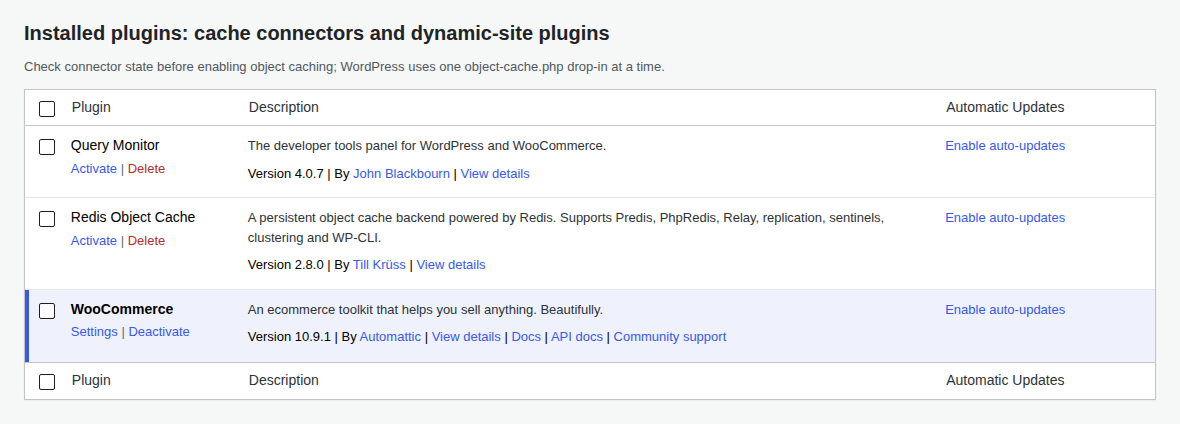
A plugin being active does not prove object caching is working. Check from more than one place:
Do not chase a 100% hit rate. Cache misses happen after content updates, plugin changes, cache flushes, expired values, user-specific requests, and cold starts.
For technical teams, WP-CLI commands such as wp cache status and wp cache flush can help. WP-CLI is the command-line tool for WordPress. Use it only if your host supports it and you know which environment you are touching. The real test is simple: Is WordPress doing less expensive work for the same user journey?
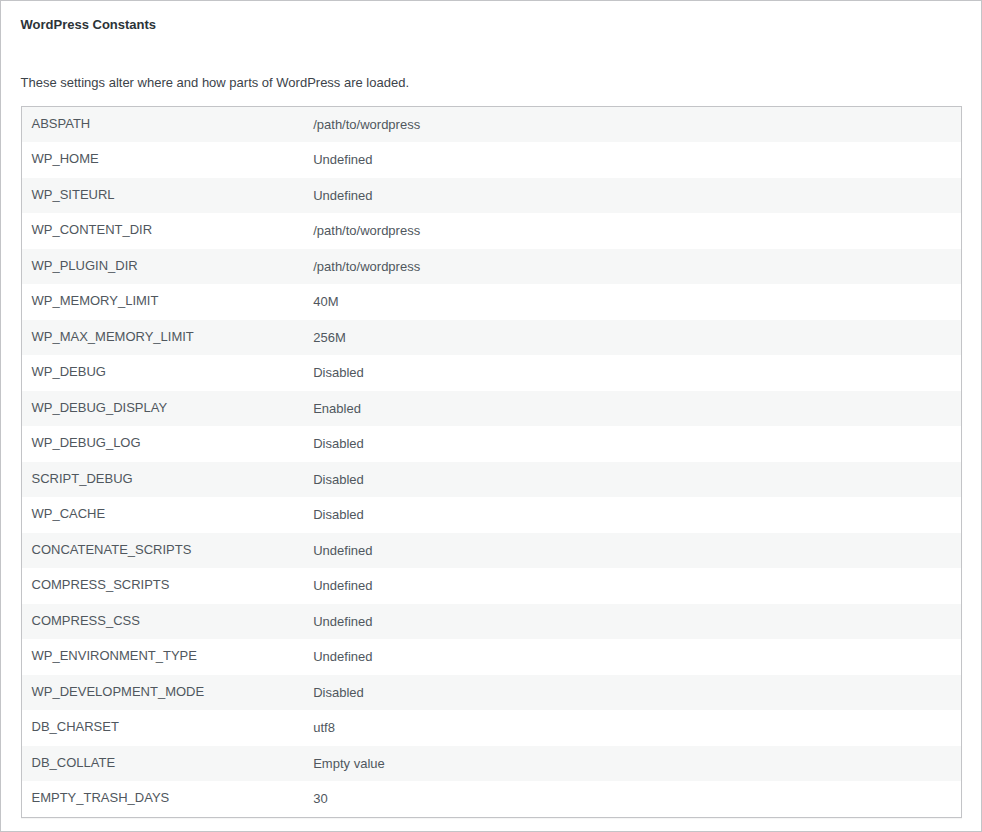
Clearing object cache deletes cached values so WordPress rebuilds them. Use a flush when:
After a flush, the site may feel slower for a short time. That is normal because the cache is cold Do not flush object cache as routine maintenance. Frequent flushing can hide the real issue: poor invalidation, too little memory, oversized cached values, plugin conflicts, or data being cached too broadly.
🔧 Note: If flushing cache is the only way to keep the site correct, the cache is not the real problem. The invalidation rules, plugin behavior, or custom code need attention; broader WordPress maintenance should make those recurring fixes visible.
Most object-cache problems come from poor setup, stale data, or plugin conflicts.
| Problem | What it often means | What to check |
|---|---|---|
| Site feels slower | Cache lookups add overhead or the backend is not close enough to WordPress | Backend location, network latency, connector settings, before-and-after query data |
| Redis or Memcached will not connect | WordPress cannot reach the cache service | Host support, service status, port or socket, credentials |
| Product, cart, price, or permission data looks stale | Cache is not clearing the right values | WooCommerce or membership compatibility, cache groups, staging tests |
| Manual flushes are needed often | Something is caching too much or clearing too little | Plugin conflicts, custom code, transients, cache memory |
| Large value errors appear | Oversized options or objects are being cached | Autoloaded options, plugin settings, memory limits |
| Behavior changes after a plugin switch | Multiple tools may be fighting over object-cache handling | Active cache plugins, host drop-ins, object-cache.php ownership |
| Multisite acts strangely | Cache keys or shared groups may not be separated correctly | Multisite-aware drop-in, global groups, host documentation |
For WooCommerce and membership sites, treat stale personalized data seriously. Disable the persistent object cache only while you troubleshoot, then find the cause before turning it back on.
Object caching is one part of WordPress performance. It can reduce database work, but it will not compress images, remove unused JavaScript, fix layout shifts, improve font loading, or make a weak page cache strategy good.
That is where a broader performance workflow matters. AirLift fits the parts around object caching: page caching strategy, CDN delivery, image optimization, Critical CSS, JavaScript handling, font optimization, page-builder support, and optimization settings you can retest.
AirLift is not a Redis or Memcached replacement. Use persistent object caching when your site needs a stronger database cache layer. Use a WordPress performance optimization plugin when the full page experience still needs work.
Use this if you came here because Site Health warned you or wp-admin feels slow. You probably need persistent object cache if:
You may not need it yet if:
Do this first:
Do not start with Redis versus Memcached debates. Start with the work your site actually repeats.
WordPress object caching stores reusable database results and computed data in memory so WordPress can fetch them faster instead of repeating the same database work.
Yes. WordPress includes a default object cache, but it is usually non-persistent. That means it lasts only for the current request unless you add a persistent backend.
Maybe. Page cache helps public finished pages. Object cache helps dynamic requests such as wp-admin, checkout, account pages, dashboards, filters, and logged-in pages.
Redis is usually more flexible and widely used in modern WordPress stacks. Memcached is simpler and can still be a good choice if your host runs it well. Host support matters more than generic rankings.
Yes. A remote or misconfigured backend, duplicate drop-ins, plugin conflicts, oversized cached values, or stale data can make the site slower or less reliable. Measure before and after.
WordPress object caching is useful when WordPress keeps rebuilding the same database-backed answers for dynamic requests. It is most valuable on stores, membership sites, logged-in experiences, slow admin workflows, and high-traffic sites where page cache cannot do the whole job.
Use it with care. Confirm host support, enable one backend, test staging workflows that affect money or access, and verify real performance changes. If the site is simple, page cache may be enough. If the site is dynamic and busy, persistent object caching can remove a lot of repeated work without pretending to solve every speed problem.
Redis object cache sounds like one of those WordPress speed fixes you should just turn on and forget about. I get the appeal. When a site is slow, nobody wants a lecture about…
Read

Website caching advice gets messy because everyone talks about the cache they sell, manage, or just discovered in a host dashboard. A plugin says full-page cache. Your host says…
Read

WooCommerce speed optimization starts with a WordPress performance audit, not a single homepage score. If your store feels slow or sales are being lost, the real bottleneck could…
Read
Airlift works out what each page needs and applies it. Free to try on your own site.