WooCommerce Speed Optimization: A Practical Guide to a Faster Store
WooCommerce speed optimization starts with a WordPress performance audit, not a single homepage score. If your store feels slow or sales are being lost, the real bottleneck could be anywhere in the customer journey: browsing the catalogue, selecting product variations, updating the cart, checking out, processing payment, or viewing a post-purchase account page.
It may also be caused by a database query, third-party service, or background order task.
This guide shows you how to measure each sales-critical path under repeatable conditions, identify the first proven bottleneck, and apply the right fix, whether it involves your hosting, database, caching, images, page code, plugins, or external services.
TL;DR: Measure the whole buying path, then make one safe change at a time. Using AirLift can simplify common caching, image, and page-file work, but you must still build cart and checkout pages for each visitor and test them after every major change.
Find the slow part first
WooCommerce is not automatically slow. A store may feel slow because the host is busy, the data system is doing too much work, the page sends oversized images, or an external payment or shipping service takes too long to respond. The cause can differ on every page.
List the customer paths that matter: Test the homepage, shop or category page, one simple product, one product with options such as size or colour, search, an important filter, cart, checkout, and the account area. Include the actions that matter to your store, such as choosing a variation, applying a coupon, or checking shipping rates.
Compare the same conditions each time: Test logged-out and logged-in states separately. Record mobile and desktop results, plus cold and warm cache results where relevant. A cold cache has no stored page copy yet. A warm cache can serve a stored copy faster. Keep a backup and a rollback plan before changing a live store.
Read the right signals: Use a speed test for browser metrics and a request timeline, often called a waterfall, to see which file or service is delaying the page. Use server logs or a query profiler, a tool that shows slow database requests, to find slow PHP, the language that runs WordPress.
TTFB, or time to first byte, shows how long the network and server take to begin the response.
FCP, or first contentful paint, shows when the browser first displays visible content.
LCP, or largest contentful paint, shows when the main visible content appears.
CLS, or cumulative layout shift, shows whether content jumps as images, banners, or fonts load.
INP, or interaction to next paint, shows how quickly the page responds to actions such as filtering or adding to the cart.
These are Core Web Vitals, a group of measures for loading speed, visual stability, and response to user actions. They help you choose a fix, but they do not replace a real checkout test. Measure your website speed first, then use the guide to website performance metrics if you need help reading the results.
📝 Note: A green test score does not prove that customers can change a variation, update a cart, or complete payment without delay. If only one route or action is slow, do not apply a site-wide fix first. A slow checkout request needs different evidence from a heavy product image or a slow uncached category page.
Improve server and database response
If many pages have a high TTFB, start with the server rather than changing images or scripts.
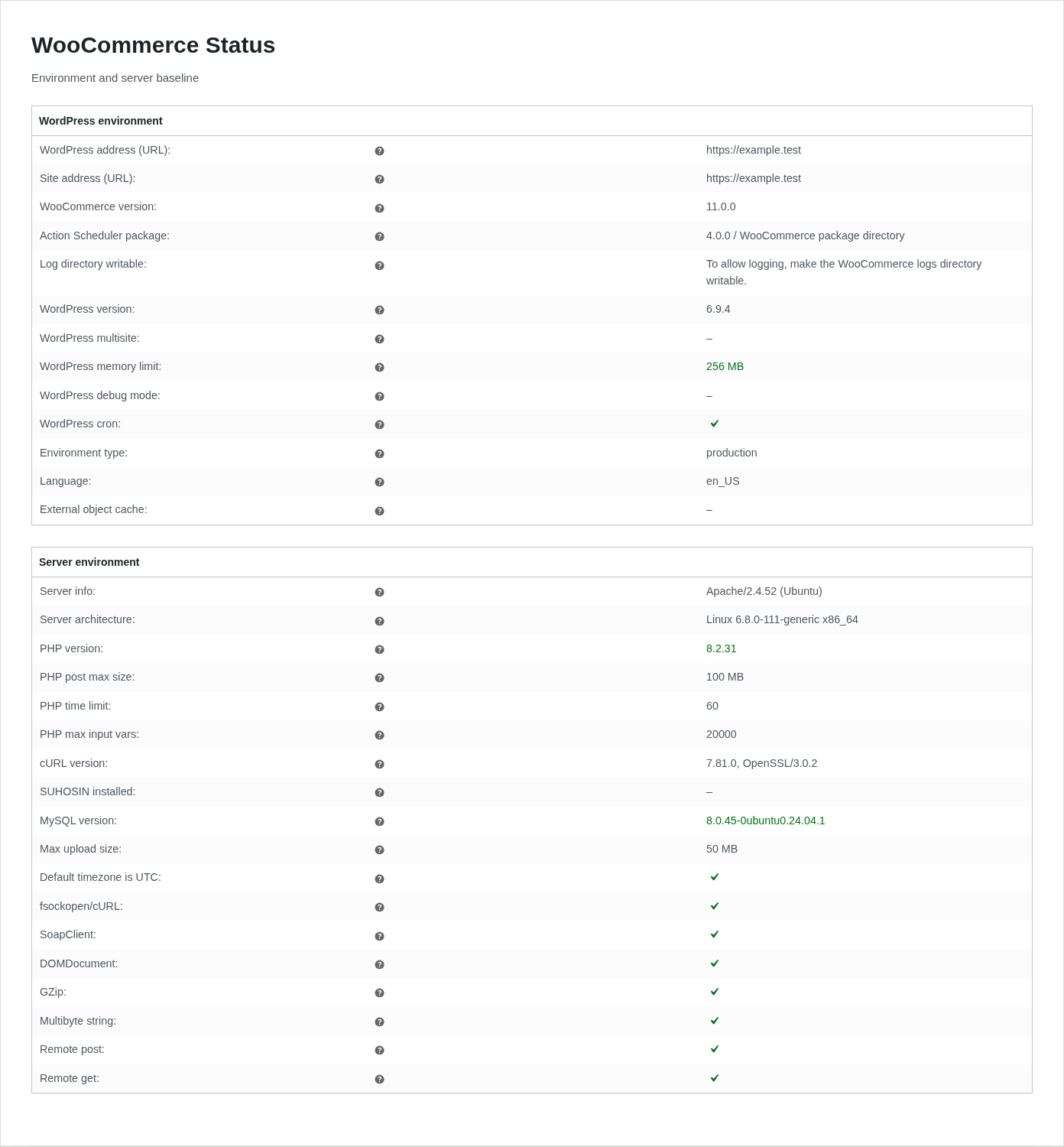
Check your hosting baseline: At the time of writing, WooCommerce recommends a current WordPress version, PHP 8.3 or newer, MySQL 8.0 or newer or MariaDB 10.6 or newer, HTTPS, and at least 256 MB of WordPress memory. Ask the host about CPU, memory, storage speed, database load, PHP workers, and OPcache.
PHP workers are the processes that handle requests. OPcache keeps ready-to-run PHP instructions in memory. If CPU usage stays high despite normal traffic, check the other causes of high WordPress CPU usage before upgrading the plan.
More workers help only when the server has enough CPU and memory. Raising a limit will not make inefficient code or a slow database query faster. If the store is busy during sales, check capacity at the expected traffic level rather than relying on an average day.
⚙️ Note: A larger memory limit can prevent failures, but it is not a speed upgrade by itself. If workers remain busy or requests queue, ask the host for worker and database metrics instead of only increasing PHP memory.
Use object caching when the evidence supports it: An object cache keeps repeated WordPress and WooCommerce data in memory so it does not need to be rebuilt for every request. Redis is one service that can provide this cache. It can help catalogue pages, filters, logged-in pages, and admin work, but it will not fix a poor query, weak hosting, or a slow external service.
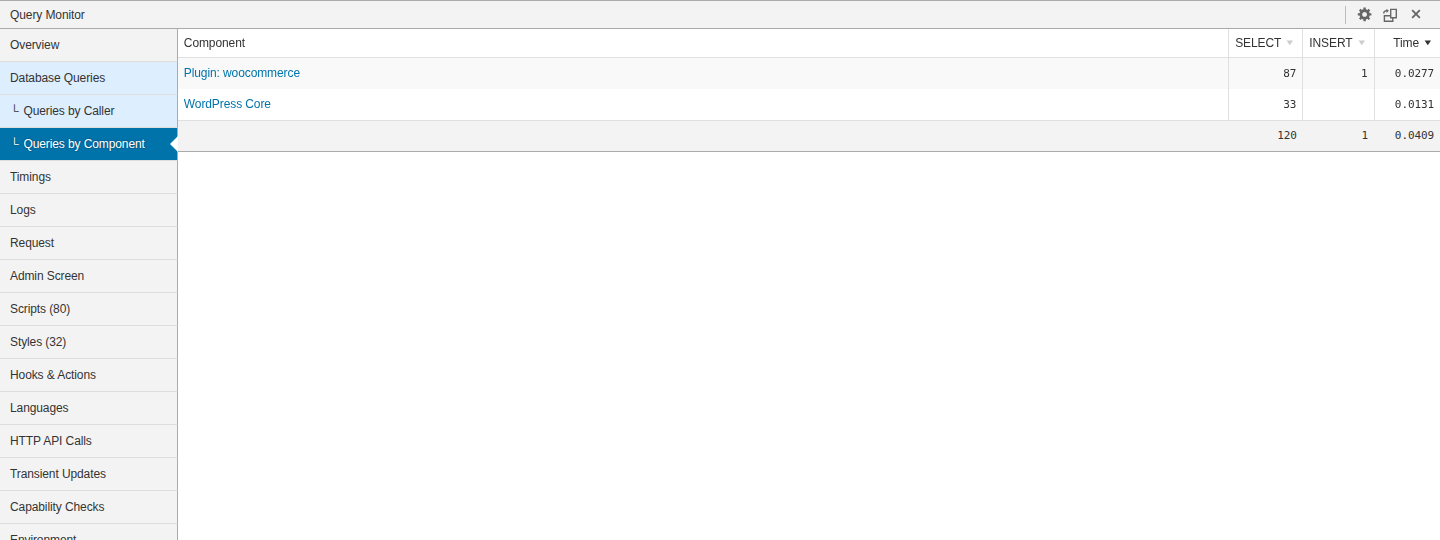
Profile data work before cleaning it: Look for slow or repeated queries, large settings that load on every request, expired temporary records, sessions, and expensive product or variation lookups. A store can have many orders without a poorly organised database. Back up first and remove only data that a known add-on has left behind and that you have confirmed is safe to remove.
🧹 Note: Never treat database optimisation as permission to delete orders, customers, or transaction history.
Cache public pages safely
Page caching stores a finished page so the server does not rebuild the same public response for every visitor. It works well for public home, shop, category, and product pages when they show the same information to many people.
Keep customer-specific pages visitor-specific: Exclude cart, checkout, account, login, order, and other pages that change for each visitor. Also check pages affected by coupons, customer roles, location, tax, currency, membership rules, stock, or cart contents. A session is a short-lived record of a shopper’s state. It often means the response cannot be reused safely for everyone.
For a second WooCommerce-specific view of these exclusions, see WooCommerce performance do’s and don’ts.
Treat search and filters as conditional: A filtered catalogue may be safe to reuse from cache when its page address, price rules, stock rules, and clearing rules are reliable. Test it before enabling broad caching. Confirm that a price or stock change clears the relevant stored copy.
Use one clear page-cache owner: A host cache, WordPress performance plugin, and CDN can overlap. A CDN, or content delivery network, serves stored files from locations closer to visitors. It is useful for images, CSS, JavaScript, and fonts, but it does not make slow PHP or database work faster. Multiple page-cache layers can also make old content difficult to clear.
Check the cache from a customer view: Use a private browser window and more than one customer state. Change a product price or stock value in staging, a safe copy of the store, and confirm that the public page updates after the stored copy is cleared.
🛒 Note: A faster catalogue page is not a successful optimisation if a cached cart shows another shopper’s items or an old price. For the broader WordPress view, read WordPress performance optimisation. WooCommerce needs extra cache rules because its buying path includes personal data and live transaction details.
Reduce product-page weight
Product pages often send more data than shoppers need on the first view. Images, galleries, reviews, recommendations, videos, and variation controls can all add work.
Resize each image for its display area: Do not upload a very large original and rely on CSS, the rules that control a page’s appearance, to shrink it in the browser. Create responsive image sizes that adjust to the screen, compress them, and use a modern format when product detail remains clear.
Protect the main product image: Keep the image that appears first available early because it may be the main visible content measured by LCP. Do not lazy-load it by default. Lazy loading delays an image until it is near the visible part of the page. It is usually better for gallery images and media below the first view.
Reserve space for media: Set image dimensions so the browser knows how much space to hold before the file arrives. This reduces unexpected movement and helps CLS. Check thumbnails, variation images, zoom, and the original file as well as the main image.
Remove only unused page work: Unload a slider, review widget, video, or recommendation feature only when the page does not need it. Do not remove product information that helps a customer decide merely to improve a lab score.
🖼️ Note: Product photography is part of conversion, not just page weight. Compress and resize it while keeping enough detail for a shopper to inspect the product, its finish, or its size.
Trim scripts and plugin work
JavaScript adds interactions such as filters, menus, variation changes, mini-carts, and payment fields. Too much of it can delay the first view or make clicks feel slow.
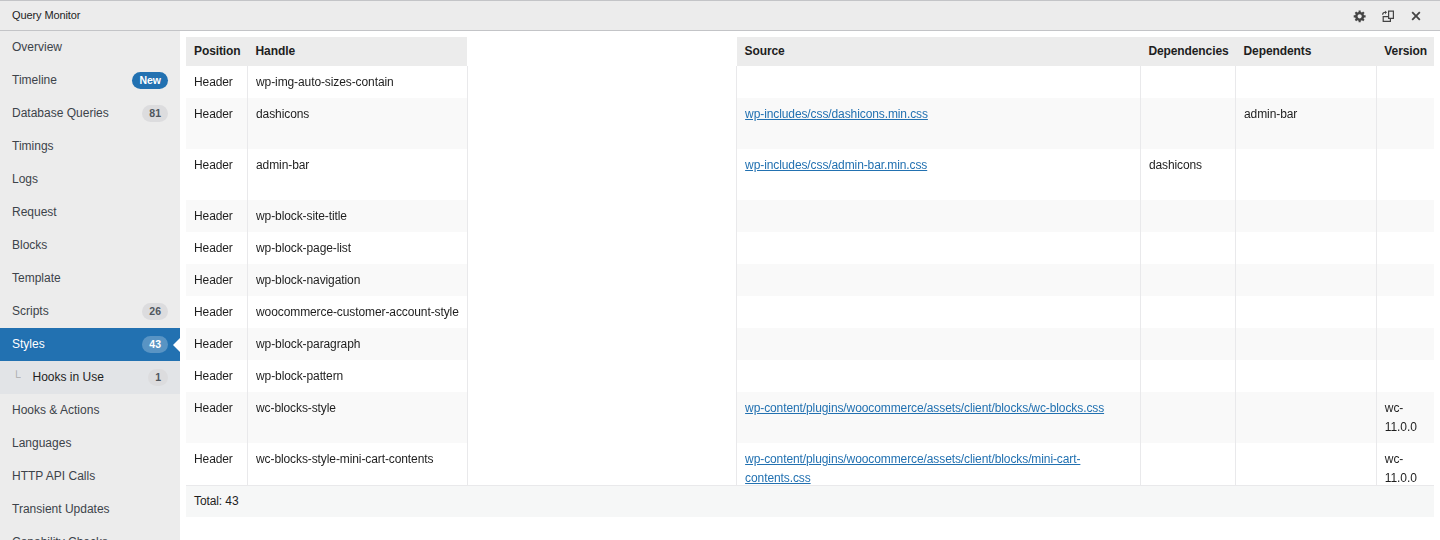
Match assets to the page: Use the request timeline to find large, blocking, duplicated, or unrelated CSS and JavaScript files. A checkout page should not load every builder, slider, chat, review, and marketing asset used across the site.
Delay non-essential scripts carefully: Defer a script when the browser can finish reading the page before running it. Delay analytics, chat, embeds, video, and scripts from outside services only after checking consent, attribution, menus, forms, variation selection, add-to-cart, shipping, and payment. If fonts are part of the delay, reduce font file size without removing type that shoppers need to read.
Keep script order intact: Minifying a file removes unnecessary characters. Combining files joins them together. Either change can break the order that scripts need. Test menus, search, forms, browser error messages, cart updates, and checkout after each change.
Measure cart fragments before changing them: Cart fragments are background requests that refresh a mini-cart or cart count without a full page reload. Some themes need them. Do not disable them everywhere. Check where they run and whether the cart still updates after the change.
Test plugins by responsibility: Plugin count alone does not diagnose a slow store. A single plugin, theme, builder, payment tool, search tool, security feature, or licence check may add more work than several small plugins. On a staging copy, disable one suspected component, retest the affected page and its dependent actions, and record the result.
Keep security scans, HTTPS, backups, updates, access controls, and payment protections in place. Scope a security feature if it creates measured overhead, but do not remove protection to chase a score.
⚠️ Note: Treat checkout JavaScript as business-critical code. A smaller waterfall is not a win if a payment field, address validation, shipping calculation, or order button stops working.
Handle catalogue growth and background work
Large variation sets, complex filters, multilingual features, related-product queries, and external search can make a catalogue request expensive. Profile the real request before moving to a new search system or a custom storefront. Those changes affect how the store is built, so they are not beginner fixes.
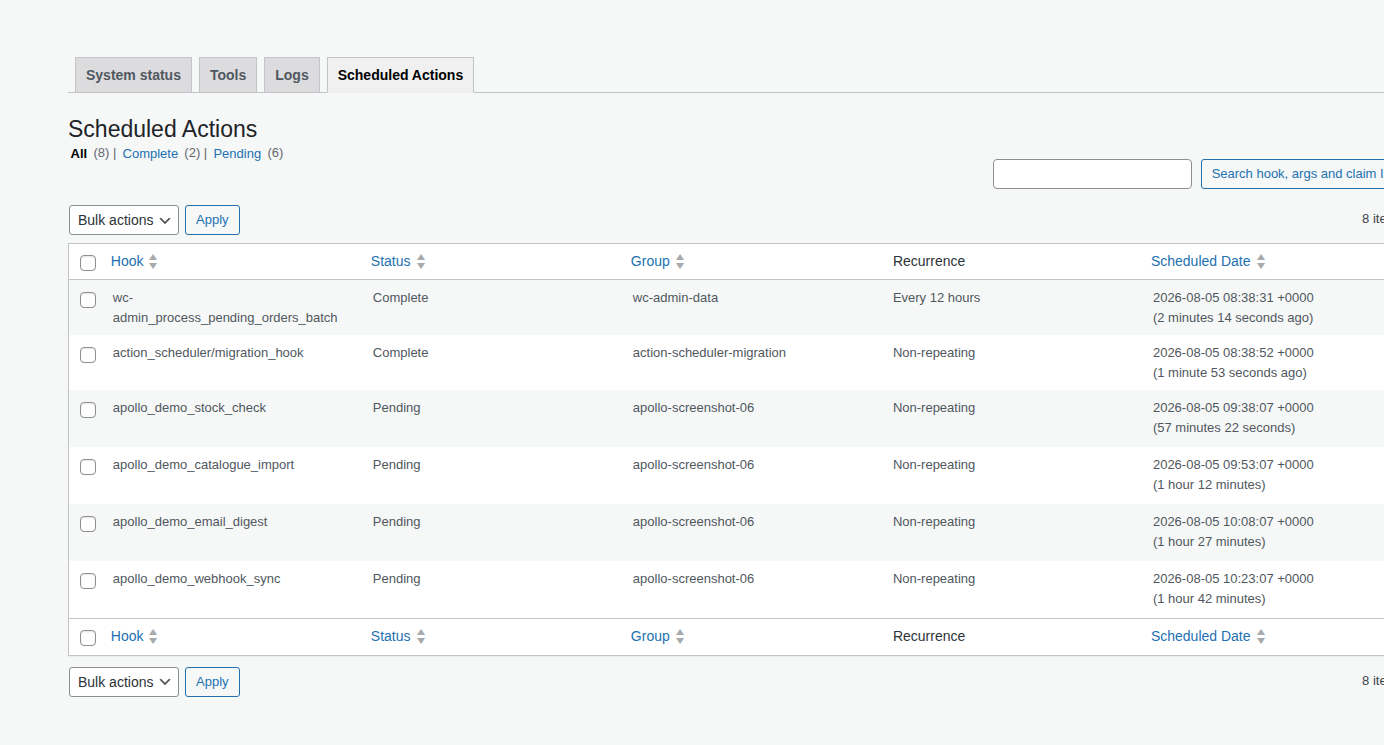
Review scheduled work: WordPress cron is the built-in scheduler for recurring tasks. Action Scheduler is a WooCommerce-supported queue that processes background jobs such as emails, automatic notifications to other services, payments, and stock work. Check for failed or delayed actions, imports, subscriptions, and order tasks. A growing queue can make operations late even when public pages are fast.
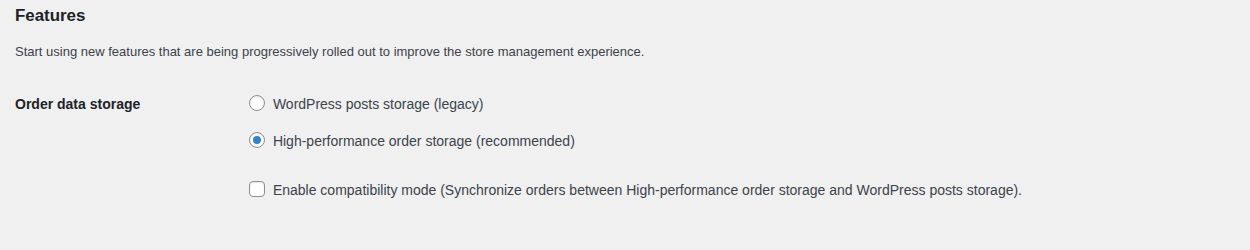
Treat HPOS as a data change: High-Performance Order Storage, or HPOS, stores order data in dedicated WooCommerce tables instead of the older WordPress post tables. New WooCommerce installations from version 8.2 have HPOS enabled by default. Existing stores should check add-on and payment-service compatibility, backup, use staging, allow the old and new order data to synchronise, and verify orders, reports, subscriptions, fulfilment, payments, and order creation before switching.
Do not enable HPOS as a blind speed toggle. Its value depends on the store, its add-ons, and the queries that are actually slow.
🗃️ Note: HPOS changes where order data is authoritative. Check the extension list and synchronisation state before enabling it, then verify old orders and a newly created order on staging.
Verify the whole buying path
After finding a bottleneck, make the smallest reversible change that addresses it. Then repeat the original test under the same conditions.
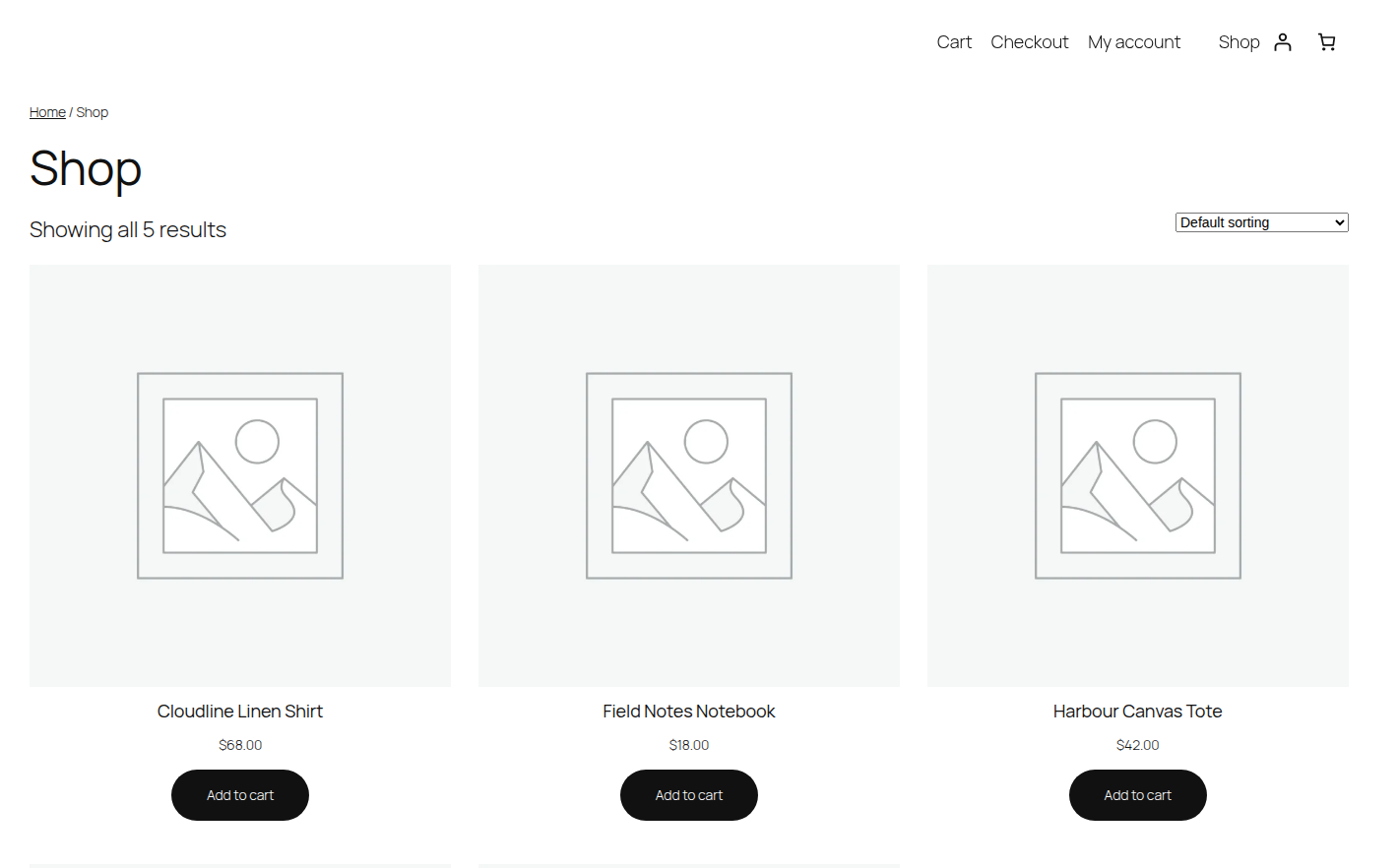
Start at discovery: Open the homepage, shop or category page, search, and an important filter as a logged-out visitor. Confirm that catalogue results, prices, stock labels, sorting, and filters are correct.
Inspect the product: Open a representative simple product and a variable product. Choose an option such as size or colour, switch variation images, review the price and stock response, and add the item to the cart.
Exercise the cart: Change quantity, remove and restore an item, and apply a coupon if the store uses one. Confirm that the cart total, shipping estimate, tax, mini-cart, and cart page update without stale or cross-visitor data.
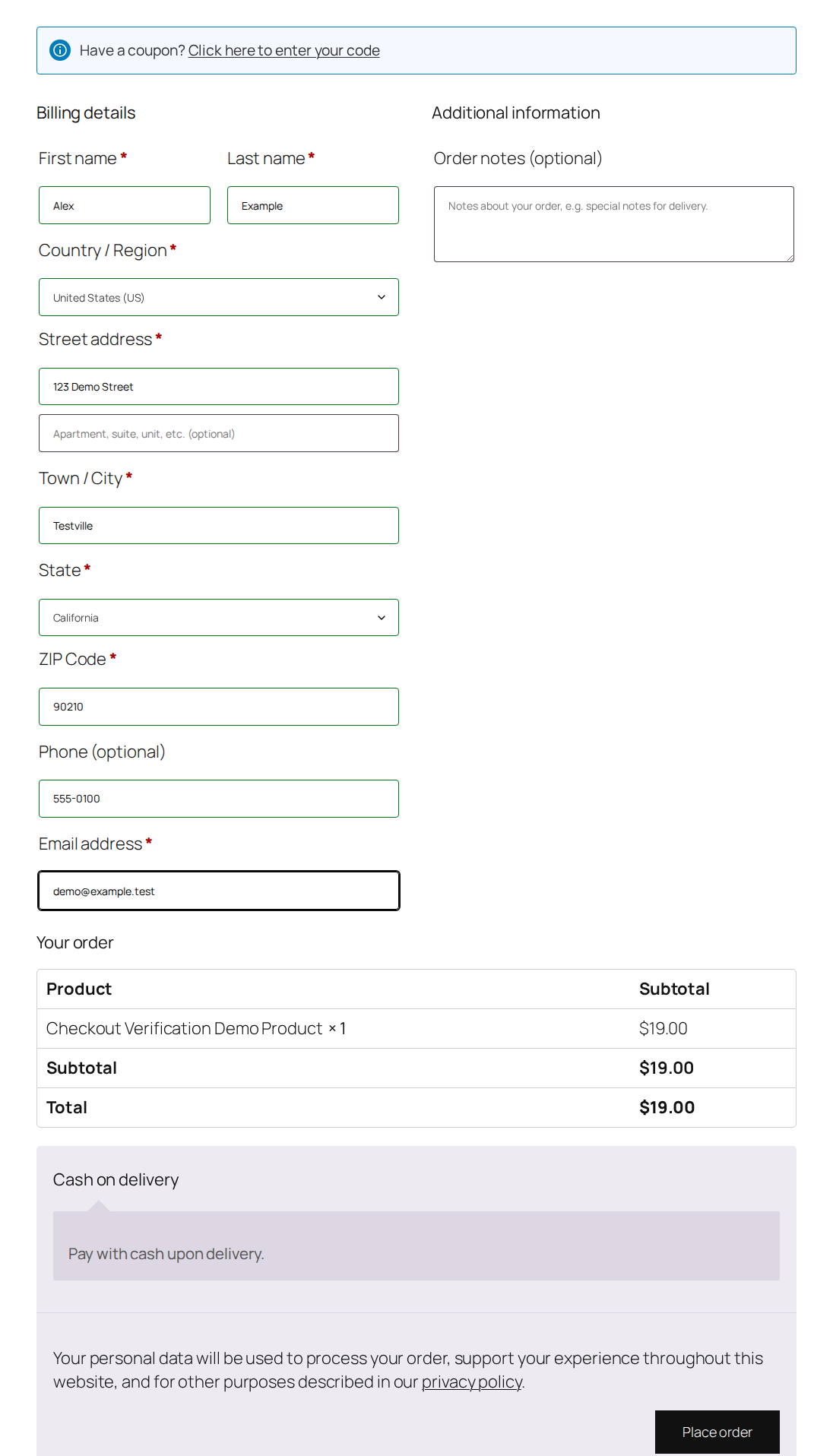
Complete checkout: Enter shipping and billing details, trigger shipping and tax calculations, choose the approved test payment mode, and place a test order. Test both guest and logged-in checkout when the store supports both.
Check the order path: Confirm the order status, stock reduction, confirmation page, customer and admin emails, fulfilment or subscription hand-off, and any connection to another service. Open the order in the account area and admin area.
Retest and compare: Repeat the original page and action tests on the same device, login state, cache state, location, and test tool. Record the change and result. If there is no measurable improvement or an action breaks, roll back the latest setting before trying another.
🧪 Note: Test on mobile and desktop, in a private window, and with both cold and warm cache states where they affect the result. A WordPress maintenance checklist can also help confirm backups and restore checks around the release.
WooCommerce speed optimization checklist
Use this short checklist before a release, campaign, or major update.
Measure the paths customers use
Test homepage, category, product, search, filter, cart, checkout, and account pages.
Record mobile, desktop, logged-out, logged-in, cold-cache, and warm-cache results where relevant.
Record TTFB, LCP, INP, CLS, the request timeline, and the action that feels slow.
Check the server and data
Confirm current WordPress and WooCommerce requirements with the host.
Inspect slow queries, settings loaded on every request, sessions, temporary records, and relevant indexes, which are shortcuts that help the database find records.
Review WordPress cron, Action Scheduler, and HPOS compatibility before changing order storage.
Protect pages and customer actions
Cache public catalogue pages only when prices, stock, and personalisation are handled safely.
Keep cart, checkout, account, login, order, and shopper-specific requests visitor-specific.
Resize and compress images, keep the main product image available early, and delay lower-page media.
Scope CSS, JavaScript, fonts, and files from outside services to the pages that need them.
Test variation selection, cart updates, coupons, shipping, tax, payment, order creation, emails, stock, and connections to other services.
Choose the right help
Start with measurement, a backup, and one change at a time. A performance plugin is useful when the evidence points to page caching, CDN delivery, images, fonts, CSS, JavaScript, or other files loaded by pages. It will not repair weak hosting, slow database work, custom code, a payment service, or a checkout conflict.
Once you know which pages are safe to cache, AirLift can simplify common WordPress performance work around page caching, CDN delivery, image optimisation, CSS and JavaScript files, fonts, and Core Web Vitals. Keep WooCommerce pages and customer actions in the test plan. AirLift is not a substitute for hosting capacity, slow-query checks, add-on compatibility, or checkout verification.
If a plugin-specific conflict remains after testing, AirLift support can help with the product configuration while you continue investigating the store-level cause.
Ask the host for help when workers are full, the database is under pressure, storage is slow, scheduled work is unreliable, or the server returns errors. Ask a WooCommerce developer when the evidence points to custom code, a theme, a plugin conflict, large variations, search, payment or shipping connections, HPOS, or a failing checkout action.
For the wider buying-path view, read ecommerce website performance. It is useful when your store needs to improve product, cart, checkout, and revenue-related pages together.
FAQs
How do I speed up a WooCommerce store?+
Measure the customer paths first, find the slowest layer, and make one reversible change. Check server response, cache rules, images, files loaded by pages, plugins, database work, external services, and background tasks. Retest the same pages and complete a test order after every major change.
Which WooCommerce pages should not be cached?+
Cart, checkout, account, login, order, and other personalised or shopper-specific pages generally need to be built for each visitor. Public product and catalogue pages may be safe to reuse from cache when price, stock, customer rules, and clearing behaviour are correct.
Does WooCommerce need Redis or object caching?+
Not every store needs it. Object caching can reduce repeated database work on catalogue, filter, admin, and other pages built for each visitor. Redis is one way to provide it. It will not fix slow queries, poor hosting, heavy page code, or a slow external service, so measure before and after enabling it.
Should I lazy-load the main product image?+
Usually not. The first visible product image may be the main content measured by LCP, so it should load early. Lazy-load gallery images and media below the first view when they are not needed immediately.
When should I upgrade hosting or hire a developer?+
Upgrade or change hosting when measurements show full workers, CPU or memory pressure, slow storage, too many requests competing for database time, unreliable scheduled work, or poor capacity during expected traffic. Hire a WooCommerce developer when the cause is custom code, a theme or plugin conflict, complex catalogue queries, HPOS, search, payment, shipping, or checkout behaviour.
Conclusion
The safest WooCommerce performance plan is measured and layered. Test the buying path, fix the first proven bottleneck, keep public caching separate from customer-specific pages, and make images and page files do only the work shoppers need. If the path is still slow, diagnose the slow WordPress layer before adding another optimisation.
Speed is only useful when the store still sells correctly. Keep backups, updates, security, stock, orders, emails, connections to other services, cart, and checkout in every verification pass. A faster, stable buying path is a better goal than a perfect score on one page.