

WordPress Object Caching: What It Is and When to Use It
Your homepage can feel fast while the parts that make money still feel slow. If you’re trying to speed up your website, it helps to understand that not every request behaves the…
Read

Excellent Ecommerce website performance is the overall health of the buying path. It’s how fast your store loads, how stable it feels, and whether a customer can move from product discovery to payment without hesitation. For a WordPress store, this isn’t a technical issue; it’s a financial one.
Performance optimization directly determines if the buying path feels fast and safe enough for a shopper to complete their purchase.
TL;DR: To improve store performance, measure the pages that directly impact sales, not just the homepage. When you discover that slow caching, large assets, or poor file delivery are the cause, use AirLift as the specific fix for these WordPress issues.
Most store owners start with PageSpeed Insights because the score is right there. I get it. A number feels clean. It gives you something to chase.
But a store can have a perfectly respectable homepage score and still lose money on a slow product page, a filter that lags, or a checkout button that pauses long enough to make someone wonder if their payment went through. The score matters. It just isn’t the store.
The better question is: where is the buying journey making people wait, doubt, or give up?
There are two parts to e-commerce performance.
Both have to hold. A fast product page that doesn’t answer the buyer’s question still leaks revenue. A beautiful checkout that waits five seconds after every click still feels unsafe.
💡 Note: When I look at a store, I don’t start by asking whether the tool is happy. I ask which part of the buying path is doing the most damage. The answer usually narrows the work from a vague speed project to one repair with a reason behind it.
The homepage gets too much attention because it’s easy to test and easy to argue about. For many ecommerce sites, it isn’t where the money leaks. Start with the path real shoppers take:
| Step | What to watch |
|---|---|
| Landing page | Does it load fast enough for the traffic source? |
| Category or search page | Do filters, sorting, and product cards respond quickly? |
| Product page | Is the main image, price, variation selector, and add-to-cart area usable fast? |
| Cart | Do quantity, coupon, shipping, and total updates feel reliable? |
| Checkout | Do forms, payment boxes, and validation respond without weird pauses? |
| Confirmation | Does the buyer get clear proof the order worked? |
On WooCommerce, give the interactive pieces their own look:
This is where generic WordPress speed advice can get risky. A blog post can usually be cached hard and survive. A cart page has to know who the shopper is, what they’re buying, and which checkout rules apply right now. Treating those pages the same is how you get a site that looks faster in a report and behaves worse in checkout.
Test mobile first. Desktop still matters, but mobile is where heavy images, tracking scripts, sticky widgets, and slow taps pile up quickly.

If category-to-product navigation feels slow even after the target pages are healthy, navigation prefetching can make likely next clicks feel faster.
You don’t need a giant audit to begin. Use a small set: one landing page, one category page, two product pages, and the full cart-to-checkout path. Learn how to measure website speed before changing plugins or hosting. Write down what failed and why that step matters to revenue.
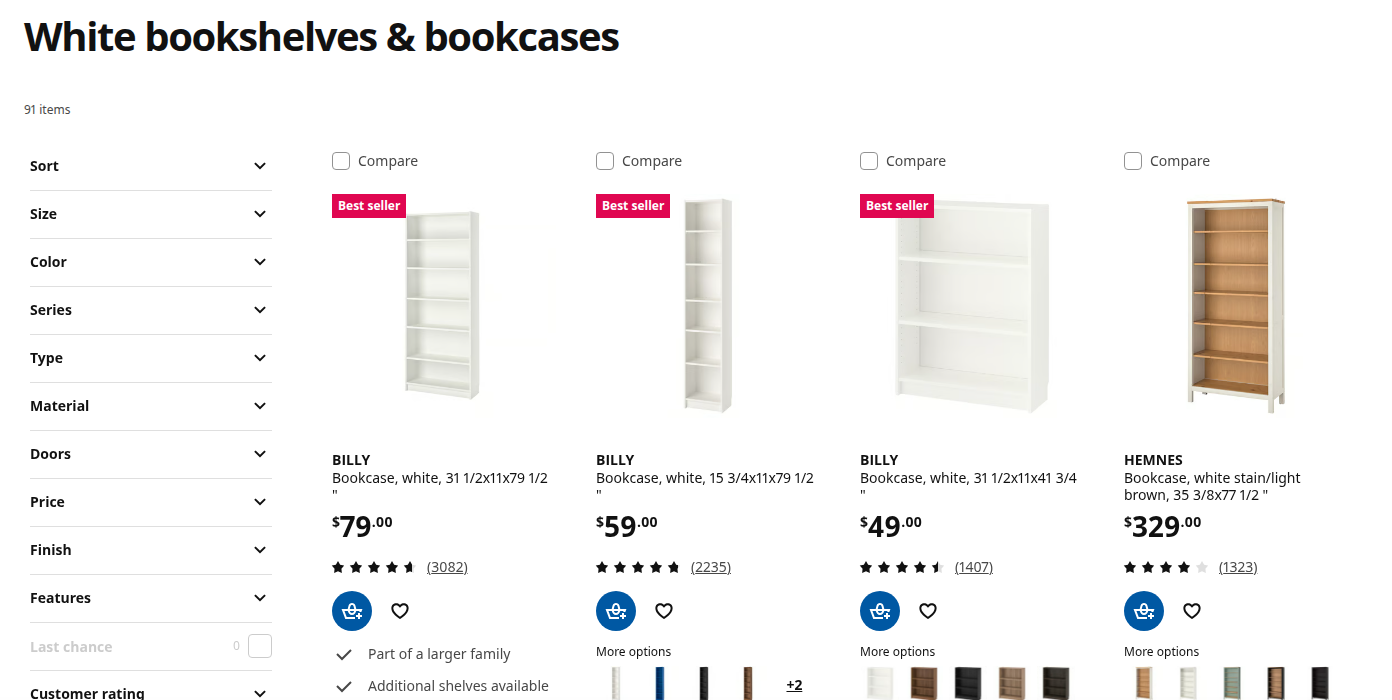
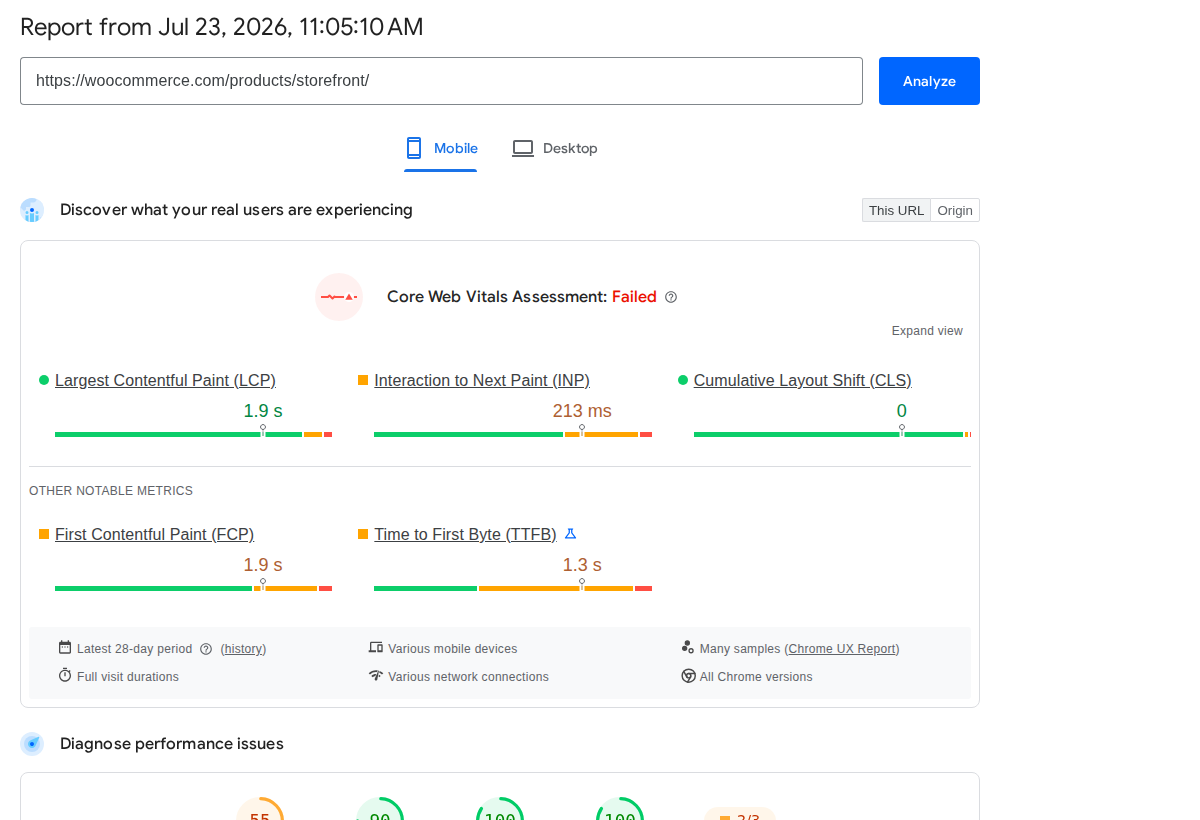
Performance reports look more technical than they need to be. Read each number as a clue, not a grade.
| Metric | Good threshold | Ecommerce meaning |
|---|---|---|
| LCP | 2.5 seconds or faster | The main image, offer area, or key content appears soon enough. |
| INP | Under 200 milliseconds | Taps, clicks, filters, cart actions, and form fields respond quickly. |
| CLS | Below 0.1 | The page doesn’t jump while someone is trying to choose or buy. |
Google evaluates Core Web Vitals with real-user data where enough of it exists, using the slower end of normal traffic rather than one perfect lab run. That’s useful for ecommerce because your best customer probably isn’t testing from your office Wi-Fi on a quiet Tuesday.
Split results by device. If mobile paid traffic converts badly while the average looks fine, the average is hiding the real leak.
Put the speed numbers beside the business numbers:
Read them together. High traffic with weak sales usually points back to landing pages, product pages, trust, or checkout. Lots of add-to-carts with few orders pushes me closer to shipping, payment, coupon behavior, or checkout speed. Healthy conversion with low traffic is probably an acquisition problem. High returns may mean the product page sold too hard or explained too little.
Core Web Vitals have public thresholds. Ecommerce KPIs don’t work that way. A store selling $19 accessories and a store selling $2,000 equipment shouldn’t chase the same conversion rate.
💡 Note: Your best benchmark is your own store, split by device, traffic source, and page type. Industry averages are fine for curiosity. They aren’t precise enough to decide which WooCommerce setting to change on Tuesday morning.
Once you can see the weak step, don’t optimize everything. Pick the page or interaction most likely to affect revenue.
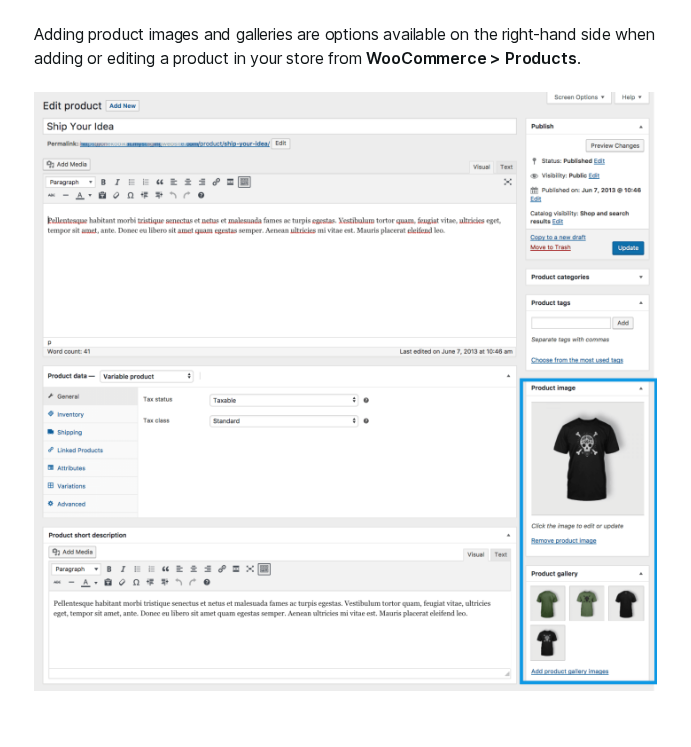
WooCommerce stores should also check High-Performance Order Storage. WooCommerce built HPOS around custom order tables designed for ecommerce queries, which can reduce the drag created by storing order data in the older post storage pattern.
The best fix is often the plain one: remove the delay or jump closest to the buying decision.
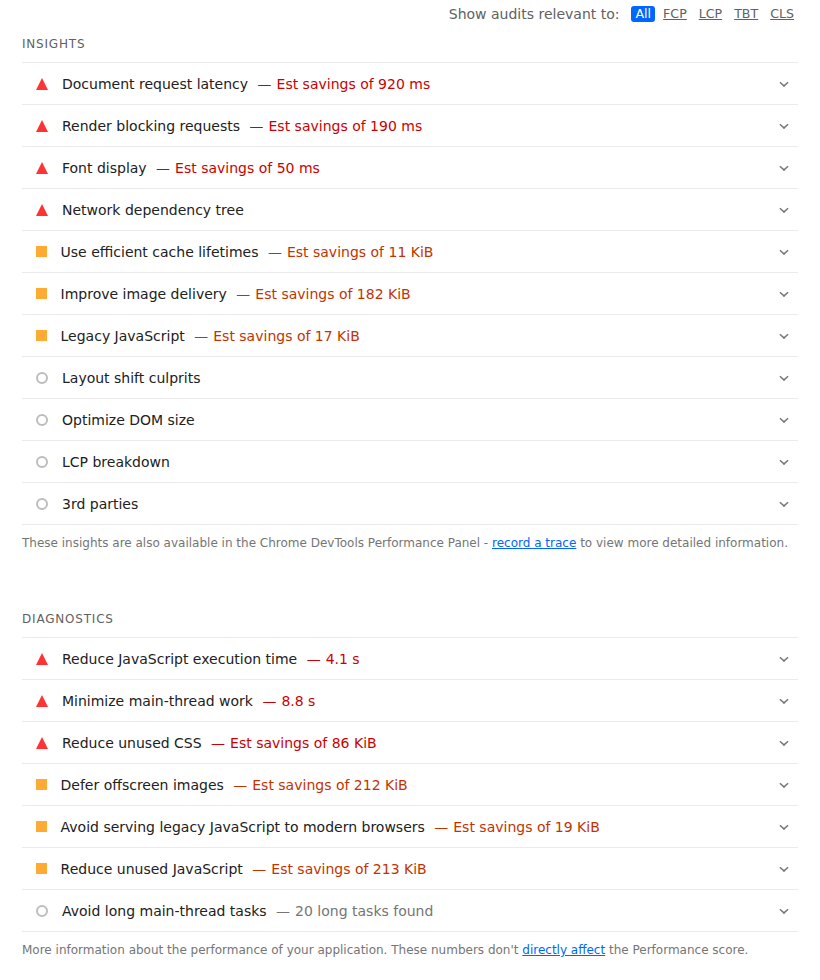
The usual WordPress performance levers still matter:
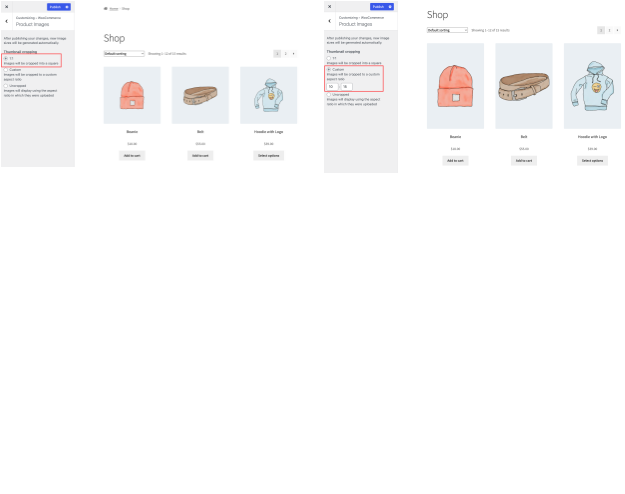
Change one setting, then test the whole buying flow as a guest and, if your store supports accounts, as a logged-in customer. If caching, script delay, image handling, and theme settings all change in one pass, the result becomes a shrug. You won’t know what helped, and you won’t know what broke the cart.
For WordPress stores where the diagnosis points to delivery and front-end weight, a WordPress performance optimization plugin can save you from stitching several tools together. AirLift is built for WordPress performance and handles page caching, CDN support, image work, and CSS cleanup from one place. I would reach for that when the store is carrying too much frontend weight, while still treating checkout rules as their own problem.
Keep the boundary clear. A plugin won’t fix weak hosting during a launch, a slow payment gateway, thin product information, or checkout rules that confuse buyers.
💡 Note: The safest WooCommerce optimization work is deliberately slow. Baseline, change one thing, test the full purchase path, and keep the change only if the store is faster and checkout still behaves.
You don’t need every performance tool open. Start with the question.
| Question | Use |
|---|---|
| What does Google see for this URL? | PageSpeed Insights, Search Console |
| What happens in a controlled test? | Lighthouse, Chrome DevTools, WebPageTest |
| Which file or script is slow? | DevTools Network panel, waterfall tools |
| What do real users experience? | CrUX, Search Console, RUM tools |
| What changed after a release? | Analytics, conversion reports, error logs |
| Can the store handle a campaign? | Load, spike, or stress testing tools |
Then keep the workflow plain:
Save the baseline. Screenshots and exports feel like admin work until a campaign tag or plugin update makes the store slower and everyone wants to know what changed.
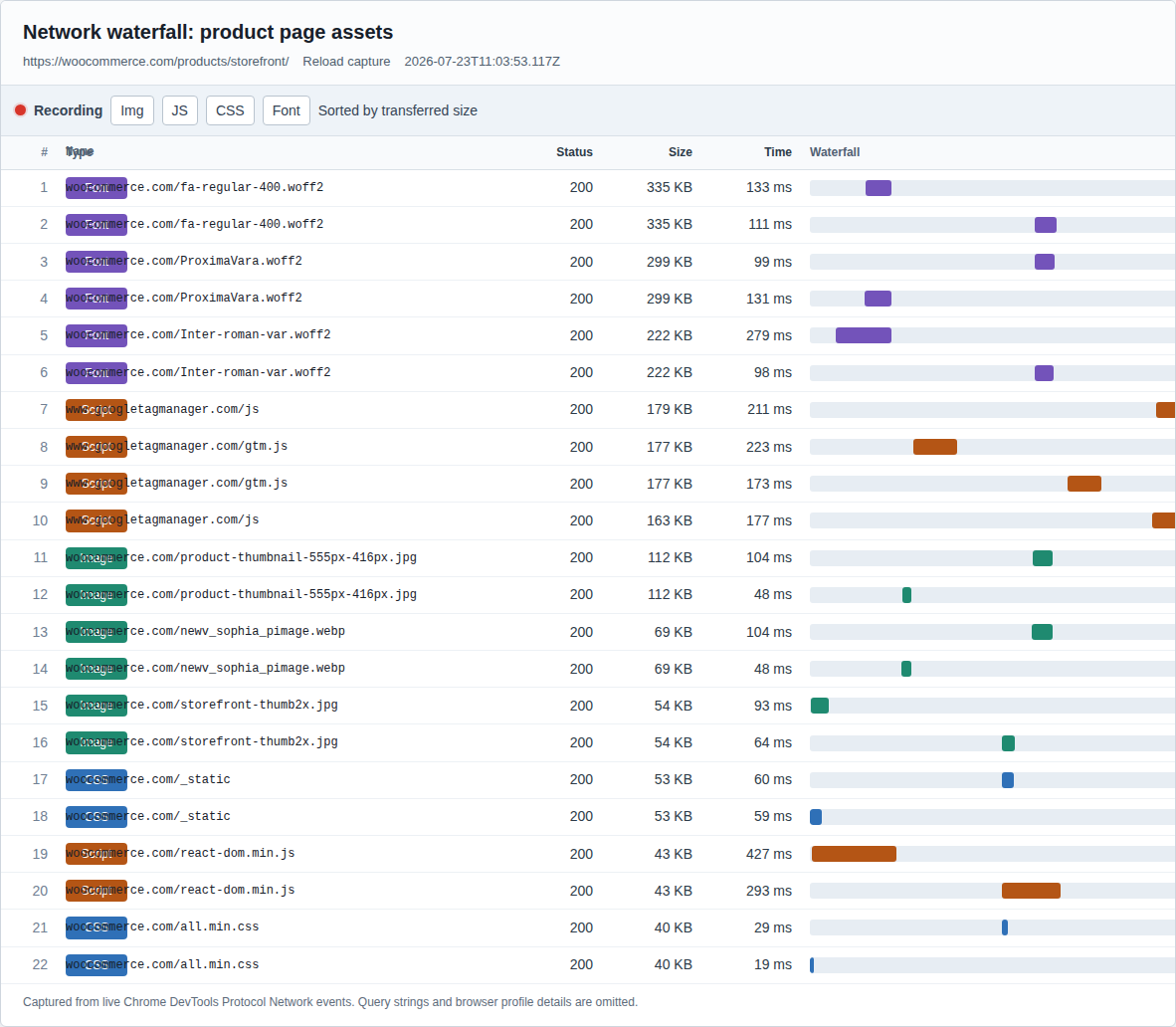
If this were my store, I wouldn’t start with a full-site cleanup. I’d run a small loop I could repeat.
Choose the pages closest to money:
Test mobile and desktop separately. Pull sales and abandonment data for the same period so you’re comparing speed and revenue from the same slice of traffic.
By the end of the week, you should know which step deserves attention first.

Choose the issue with the clearest business cost.
Maybe the main product image is late. Maybe filters feel sluggish. Maybe checkout hesitates after a coupon. Maybe paid traffic lands on a page that loads fine but doesn’t explain the product well enough.
Make the smallest change that should improve that issue.
Run the same tests again. Same URLs, same devices, same steps where possible.
After that, buy like a customer. Choose a product and use the cart. Try a coupon, check shipping, and move toward payment. Treat that manual checkout run as part of the result, not a quick sanity check at the end.
Give field data and ecommerce reporting time to catch up. Look by device and traffic source. Watch support messages and payment errors too; shoppers often describe performance problems in words that don’t sound technical.
Then repeat the loop. Busy stores can do this around meaningful releases. Smaller stores can do it monthly and before campaigns. WP Remote’s WordPress maintenance guide is a useful next step when performance checks need to become operating routine.
The common thread is guessing from one score, one device, one page, or one quiet afternoon. Ecommerce performance work gets better when you follow the buyer.
If the symptom looks like a suspicious redirect, checkout warning, or account-risk issue, treat it as security work first; MalCare’s WooCommerce security issues guide is the better next step.
Ecommerce website performance is how well an online store loads, responds, stays stable, and helps shoppers complete a purchase. It includes technical metrics like Core Web Vitals and business metrics like conversion rate, cart abandonment, revenue, and returns.
No. Speed is only one part of ecommerce performance. A store also has to help people find products, understand the offer, trust the price and shipping, use the cart, and finish checkout.
Test the pages closest to revenue first: top landing pages, important category and product pages, cart, and checkout. On WooCommerce, test the interactive buying steps separately: filters and product variations first, then coupons, cart updates, and payment.
For Core Web Vitals, use Google’s thresholds: LCP within 2.5 seconds, INP under 200 milliseconds, and CLS below 0.1. For ecommerce KPIs, compare your own store by device, traffic source, and page type because price, buying cycle, and intent change the numbers.
Test monthly for a small store, after major plugin, theme, checkout, or payment changes, and before campaigns or launches. Busy stores should make performance checks part of release work.
Start with a baseline, change one setting, and retest the full buying flow. Be careful with caching and JavaScript delay because optimization settings can affect cart updates, variation selectors, payment widgets, and checkout validation.
Ecommerce website performance isn’t a trophy score. It’s the buying experience under real conditions: phones, product photos, cart updates, payment fields, and the little pauses that make a customer wonder whether the store is worth trusting.
Start where money is closest. Measure the pages people use to buy, read the speed numbers beside the sales numbers, and fix the clearest leak first. If you’re using AirLift and aren’t sure whether a performance setting belongs on a WooCommerce store, ask AirLift support before changing the buying path.
Your homepage can feel fast while the parts that make money still feel slow. If you’re trying to speed up your website, it helps to understand that not every request behaves the…
Read

Post-migration slowness can make a clean launch feel half-done. When the search in your head is WordPress site slow after migration, the fix is usually more specific than a normal…
Read

Speed reports are blunt. You search for “leverage browser caching WordPress” because a tool has handed you a list of file URLs, and now a normal WordPress slowdown feels like…
Read
Airlift works out what each page needs and applies it. Free to try on your own site.