

WordPress Object Caching: What It Is and When to Use It
Your homepage can feel fast while the parts that make money still feel slow. If you’re trying to speed up your website, it helps to understand that not every request behaves the…
Read

You have probably seen the advice before: turn on cache to make WordPress site faster.
Then you open your host panel, a plugin screen, and maybe a CDN dashboard, and each one uses the word cache in a different way. One setting talks about browser cache. Another mentions object cache. A plugin promises page cache. Suddenly, a simple speed fix feels risky.
Here is the direct answer: WordPress page caching stores a ready-made HTML copy of a public WordPress page and serves that copy to later visitors. WordPress does not have to run PHP, query the database, load every plugin, and rebuild the same page each time.
TL;DR: WordPress page caching is often the fastest win for public pages because it reduces server work and improves TTFB, which means Time to First Byte. It must be set up with the right exclusions and purge rules so carts, forms, checkout, logged-in pages, and fresh content still work.
Page caching is powerful because it removes repeated work. It is also easy to misuse if you cache pages that should stay personal or fresh.
WordPress builds pages dynamically. That means it creates the final page when someone visits a URL.
Without page caching, WordPress has to load core files, run plugin and theme code, ask the database for content, assemble the layout, and send the final HTML to the browser. HTML is the page document the browser receives before it loads images, styles, scripts, and fonts.
Page caching saves that finished HTML. The next matching visitor can receive the saved version instead of making WordPress build it again.
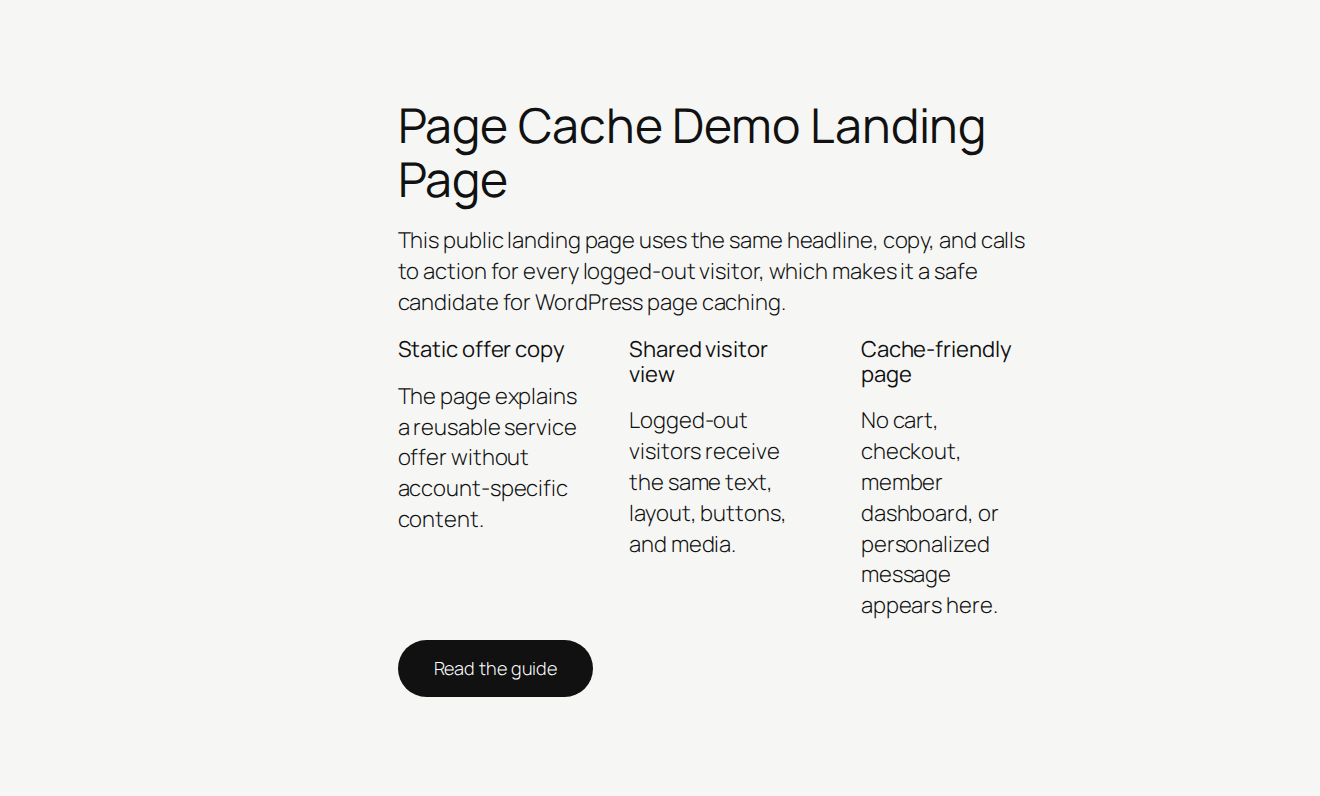
You may also see this called full-page caching or HTML caching. Those terms mean the same basic thing: the complete page response is stored and reused.
Note ⚡: Page caching is for pages that are mostly the same for everyone. A public blog post is a good fit. A checkout page is not.
WordPress speed problems often start before the browser can do much work. The server has to answer first.
Page caching improves that first answer. It can lower TTFB, or Time to First Byte. TTFB is the time between the browser asking for a page and the server starting to send it back. Lower TTFB can also help LCP, or Largest Contentful Paint, when slow server response is holding the page back. LCP measures when the main visible content finishes loading.
But page caching does not fix every slow website. It will not shrink large images, remove heavy JavaScript, fix layout shifts, clean up slow fonts, or stop a third-party script from delaying the page. The useful rule is simple: page caching helps WordPress answer faster. It does not make a bloated page lightweight. It also helps during traffic spikes. If a newsletter sends thousands of visitors to the same article, a page cache can serve many of them without making the database repeat the same work.
The easiest way to understand page caching is to compare the request path.
| Request stage | Without page cache | With page cache |
|---|---|---|
| Visitor opens a URL | Server receives the request | Server or cache layer receives the request |
| WordPress work | PHP, plugins, theme files, and database queries run | Most WordPress work is skipped |
| HTML response | WordPress builds the page again | Stored HTML is reused |
| First byte | Often delayed by server work | Usually sent faster |
| Personal pages | WordPress can show user-specific content | Cache must bypass personal content |
The first visit after a purge may still be slower because it creates the cached copy. The second matching visit is usually where the speed gain appears.
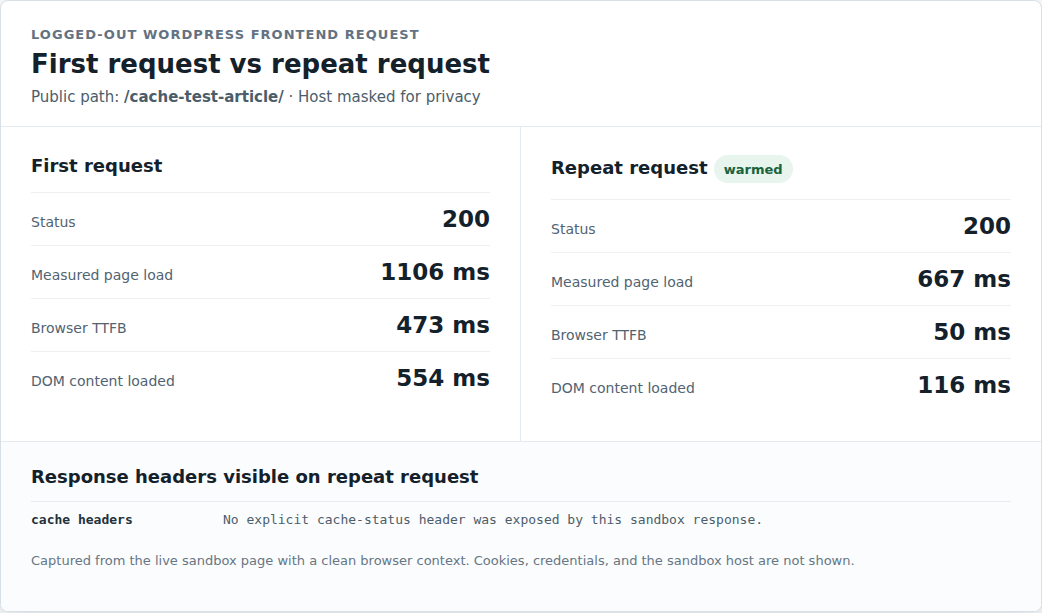
Note 🔍: Test page caching while logged out. Logged-in users often bypass full-page cache, so testing as an admin can make caching look broken when it is working for visitors.
The word cache gets confusing because different caches store different things. They are not interchangeable. If you want the broader map before choosing settings, it helps to understand how website caching works across page, browser, object, CDN, and server layers.
| Cache type | What it stores | Best for | Does not solve |
|---|---|---|---|
| Page cache | Finished HTML pages | Public pages for logged-out visitors | Personal pages, carts, checkout |
| Browser cache | Images, CSS, JavaScript, fonts | Repeat visits from the same browser | Slow WordPress HTML response |
| Object cache | Reused database results and WordPress objects | Logged-in areas, dynamic sites, busy stores | Full HTML delivery for public pages |
| Opcode cache | Compiled PHP code | Faster PHP execution | Database work or cached HTML |
| CDN asset cache | Static files near visitors | Global image, CSS, JS, and font delivery | HTML caching unless configured |
| Edge page cache | Finished HTML near visitors | Global public pages and high traffic | Personalized pages without careful rules |
The most common mistake is thinking a CDN automatically caches full WordPress pages. Many CDNs cache images, CSS, and JavaScript by default, but not HTML.
Page cache stores the finished page. Most other caches store supporting files or reusable data.
If you’re wondering how to enable caching in WordPress, start by deciding where page caching should live. Use one primary page caching layer on purpose, because running multiple page caches can make stale content difficult to troubleshoot.
| Option | Use it when | Watch out for |
|---|---|---|
| Host or server cache | Your host already provides reliable page caching | Purge rules and exclusions still matter |
| WordPress performance plugin | You want caching along with image, CSS, JS, and font optimization | Check that it does not fight your host or CDN |
| WordPress caching plugin | Your host does not provide page caching | Plugin cache may duplicate another layer |
| CDN or edge page cache | Visitors are spread across regions or traffic is high | Cookies, query strings, and logged-in users need careful rules |
| Custom server setup | You manage the server and can test safely | Do not hand-code cache rules without rollback access |
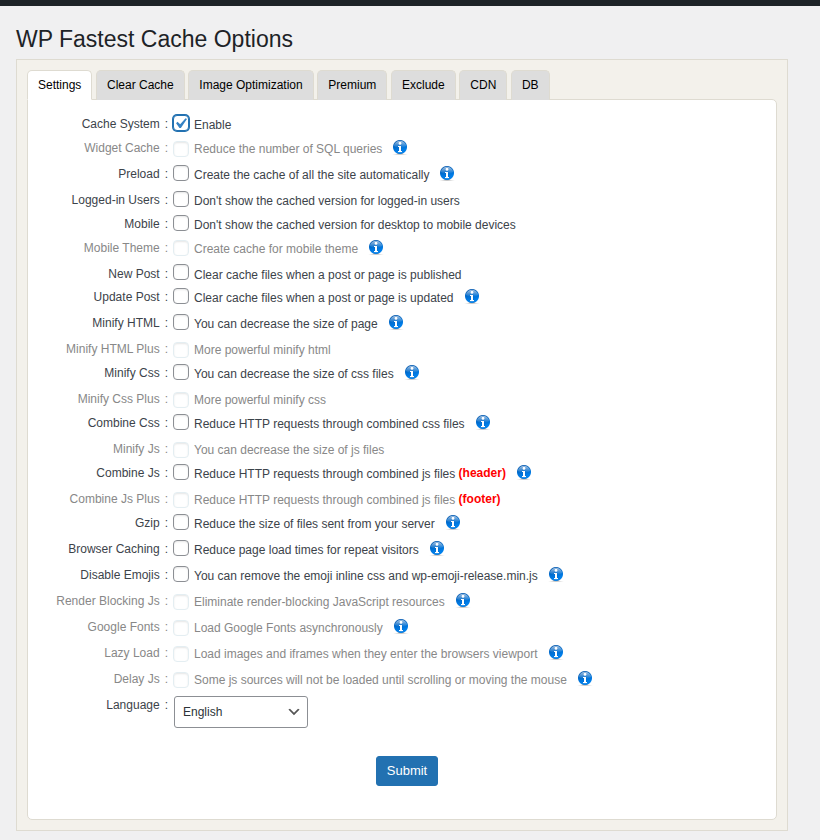
For many site owners, the safest first check is the host. Managed WordPress hosts often include page caching already. A settings screen like this is where page caching should be owned and verified in one layer.
If you want page caching handled with broader WordPress performance work, AirLift fits that path as a WordPress performance optimization plugin. It is useful when the real job is not only caching HTML, but also handling the speed issues that page cache does not fix, like images, CSS, JavaScript, fonts, and Core Web Vitals.
Note 🧭: Do not add a second full-page cache just because another plugin offers one. First decide which layer owns page caching.
Page caching is safe when the page is the same for every visitor. It becomes risky when the page changes by user, session, cookie, cart, location, or login state.
| Usually safe to cache | Exclude from page cache | Check carefully |
|---|---|---|
| Blog posts | WordPress admin | WooCommerce product pages |
| Public landing pages | Login pages | Product category pages |
| Marketing pages | Cart | Search results |
| Documentation pages | Checkout | Filtered archives |
| Static service pages | Account pages | Forms with custom messages |
| Public archives | Membership dashboards | Pages with tracking parameters |
WooCommerce is the clearest example. Product pages are often safe to cache when they show the same product information to everyone. Cart, checkout, and account pages should stay dynamic because they depend on the visitor. Forms need care too. A basic contact page may be cacheable, but confirmation messages, anti-spam checks, and session-based form data can break if the wrong response is cached.
Do not cache anything that could show one visitor another visitor’s information. That is the boundary you should never blur.
Caching always has a tradeoff: speed versus freshness. If a cached page stays around too long, visitors may see old content after you update a post, change a price, or edit a menu. If the cache expires too fast, WordPress has to rebuild pages too often. Three terms matter here:
Purging can be automatic when you update content, or manual from your host, plugin, or CDN. Good purge rules matter because one edit can affect more than one URL. Updating a post may also affect the homepage, category archive, author page, and related-post blocks.
Before risky server, file, or plugin changes, backup your WordPress site so a cache fix does not become a recovery problem. Tracking links can also reduce cache value. If every ad click adds a unique URL parameter and your cache treats each version as different, you may create many one-off cached pages instead of one reusable page.
Note 🧹: Avoid the habit of purging everything for every small edit. It works, but it can make the whole site rebuild its cache more often than needed.
Most page cache issues come from the wrong page being cached, the right cache not being cleared, or a related optimization setting breaking the front end.
| Problem | Likely cause | First thing to try |
|---|---|---|
| Changes do not show | Stale page cache | Purge the cache layer serving the old page |
| Layout breaks | CSS or JavaScript optimization, not page cache itself | Disable minify, combine, defer, or delay settings first |
| Cart behaves oddly | Dynamic WooCommerce pages are cached | Exclude cart, checkout, account, and session pages |
| Admin still feels slow | Logged-in users bypass page cache | Check object cache, plugins, database load, and server resources |
| Cache hit rate is low | Cookies, query strings, short TTL, or too many variants | Review bypass and URL parameter rules |
| First test is slow | Cache was cold after purge | Load the same public page again |
A cache hit means the request was served from cache. A cache miss means WordPress or another origin system had to create the response. Where people get this wrong: they clear the plugin cache, but the CDN is still serving the old page. If you use more than one cache layer, you need to know which one answered the request.
If CSS changes keep causing stale or broken styles, automatic CSS re-optimization is the kind of fix to look for before blaming page cache itself.
Do not judge page caching from one page view. Use a public page and test it like a visitor.
Headers are small labels in the page response that can show how the cache handled the request. You do not need to memorize them. You only need to know whether the page was served from cache, bypassed, or rebuilt.
A fast cached homepage is not a successful setup if checkout breaks.
Start with the layer you already have. Check your host dashboard or support docs before installing another caching plugin.
Then choose one primary page cache. For most small and mid-sized WordPress sites, that will be the host cache or a WordPress performance plugin. For global traffic, edge page caching can help, but only with careful rules for cookies, query strings, logged-in users, and purges.
After that, exclude dynamic pages. Keep admin, login, cart, checkout, account, membership, and personalized pages out of full-page cache. Finally, test as a visitor. Load a safe public page twice, compare TTFB, check cache status if available, and run through the important flows.
Page caching is a strong first move, but it is not the whole performance plan. If images, CSS, JavaScript, fonts, and third-party scripts are still heavy, the site can still feel slow after page caching is enabled.
WordPress page caching works because it stops WordPress from rebuilding the same public page for every visitor. Use it for pages that are safe to reuse, clear it when content changes, and test it from a logged-out visitor’s view. That covers the part of caching that gives most sites the fastest server-side gain.
The best setup is the one you can understand and verify. Use one primary page cache, protect dynamic pages, and treat broader speed work as a separate job. If you want a simpler WordPress workflow, AirLift is a practical option because it puts page caching beside the other performance fixes your site may still need.
WordPress page caching stores the final HTML version of a public page and serves it to later visitors. This helps WordPress skip repeated PHP, database, plugin, and theme work.
No. Page caching stores the finished HTML page on a server, host, plugin, or CDN layer. Browser caching stores files like images, CSS, JavaScript, and fonts on the visitor’s device.
Yes, if the wrong pages are cached. Product pages may be cacheable, but cart, checkout, and account pages should stay dynamic because they depend on each visitor.
It can help TTFB and sometimes LCP when server response is the bottleneck. It does not fix heavy JavaScript, large images, layout shifts, slow fonts, or third-party scripts by itself.
Not always. If your host already provides reliable page caching, adding another full-page cache can create stale content and purge confusion. Use a plugin only if it solves a clear gap or handles broader performance work.
Your homepage can feel fast while the parts that make money still feel slow. If you’re trying to speed up your website, it helps to understand that not every request behaves the…
Read

Website caching advice gets messy because everyone talks about the cache they sell, manage, or just discovered in a host dashboard. A plugin says full-page cache. Your host says…
Read

Redis object cache sounds like one of those WordPress speed fixes you should just turn on and forget about. I get the appeal. When a site is slow, nobody wants a lecture about…
Read
Airlift works out what each page needs and applies it. Free to try on your own site.