

Page Cache vs Object Cache: What WordPress Sites Actually Need
Website caching advice gets messy because everyone talks about the cache they sell, manage, or just discovered in a host dashboard. A plugin says full-page cache. Your host says…
Read

Redis object cache sounds like one of those WordPress speed fixes you should just turn on and forget about. I get the appeal.
When a site is slow, nobody wants a lecture about caching layers.
But the useful answer is narrower than that: Redis object cache gives WordPress a persistent object cache for database-related data, but only when your site has a working Redis service and repeated database work is part of the slowdown.
TLDR: Redis object cache gives WordPress a faster place to keep reusable database results between requests. It helps most when logged-in or database-heavy pages keep doing the same work. It won’t replace page cache, image optimization, or front-end speed work.
A lot of the confusion starts with the plugin screen. It can make Redis feel like a switch inside WordPress. Really, the plugin is just the connector. Redis is the separate service doing the storage. Without that service, WordPress can have the connector installed and still have nowhere to send cached data.
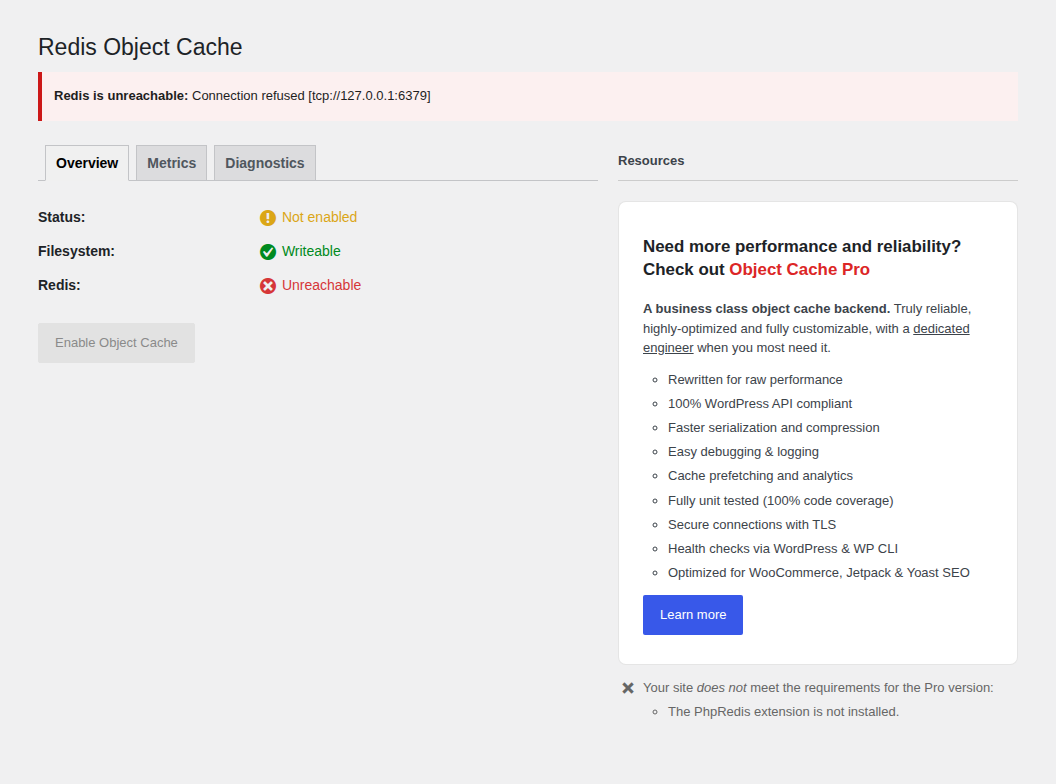
💡 Note: If you remember one thing from this article, make it this: installing a Redis plugin is not the same as having Redis running. The plugin is the phone. Redis is the person who has to answer.
Object caching is already part of WordPress. During one request, WordPress can keep reusable bits of data nearby so it doesn’t ask the database the same question twice. That data might include:
On many sites, that cache disappears when the request ends. The next visitor, editor, shopper, or student may make WordPress fetch the same kind of data again. Redis changes the lifespan of that cache.
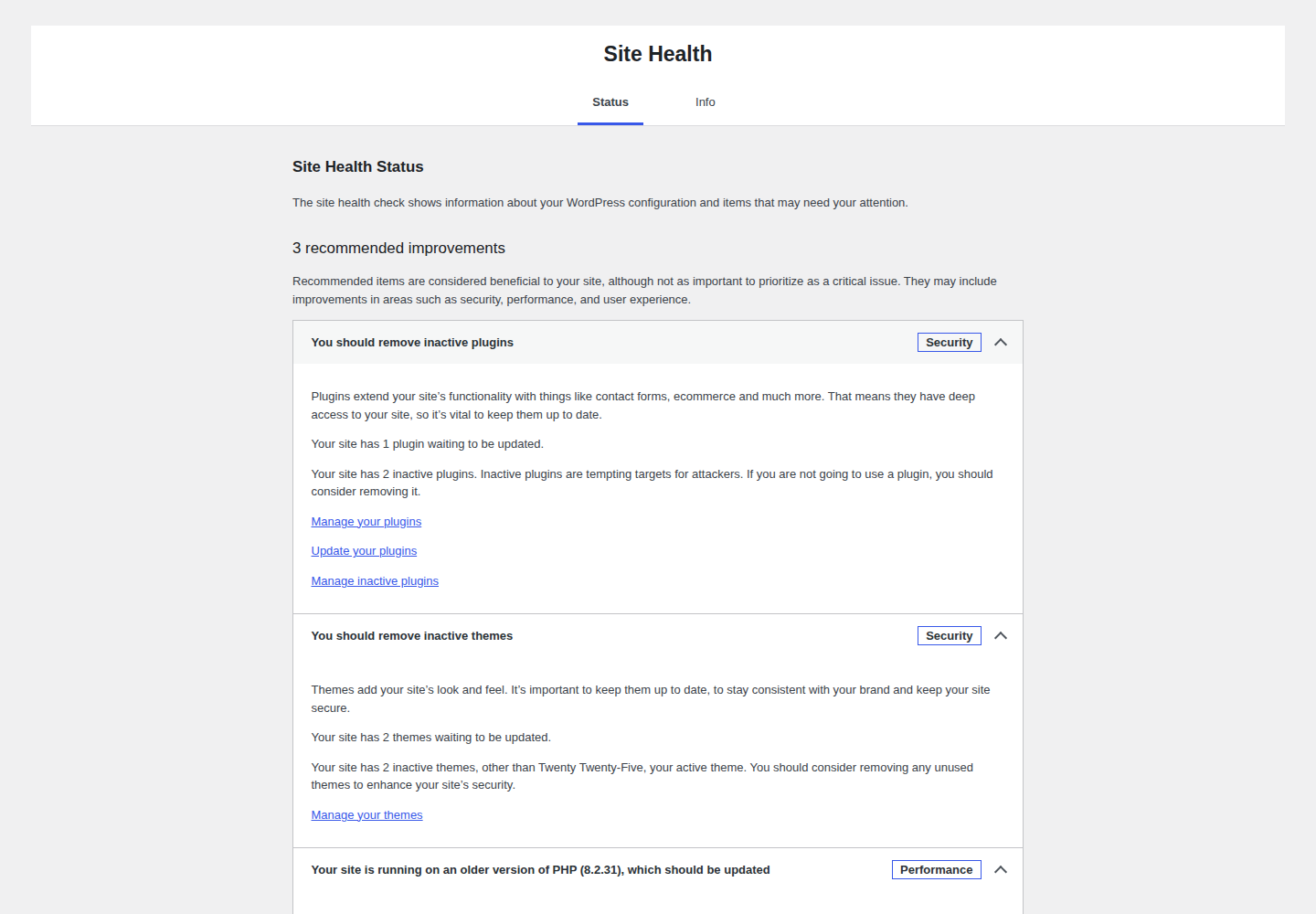
Redis is a separate in-memory data store. When WordPress is connected to it through an object cache drop-in, reusable WordPress data can stay available after one page load ends. WordPress still uses the database, but it has fewer reasons to repeat familiar work.
That’s the whole idea. Not magic. Not a replacement database. Just a faster place for WordPress to keep data it can safely reuse.
WordPress makes this harder by using the word “cache” for several different jobs. Here is the clean version:
| Cache type | What it stores | Where it helps most |
|---|---|---|
| Page cache | The finished HTML of a page | Public pages that can be shown to many visitors |
| Object cache | Saved WordPress objects and query results | Logged-in, admin, commerce, course, and database-heavy requests |
| Browser cache/CDN/static cache | Images, CSS, JavaScript, fonts, and other files | Front-end delivery and repeat visits |
With page caching, a public blog post can come back from stored HTML instead of being assembled from scratch each time. That’s great for public pages.
Redis object cache works while WordPress is still building the page.

That difference matters on pages that can’t safely be served as one saved copy to everyone. Checkout has shopper-specific data. Course dashboards have student-specific progress. Admin reports may change every few minutes. Those screens still need to be generated for the person using them, but WordPress can often pull product records, permissions, options, and query results from the object cache along the way.
If you’re wondering whether Redis replaces your page cache, CDN, host cache, or performance plugin, the answer is no. It sits in a different layer.
🧭 Note: A site can use page cache and Redis object cache at the same time. What I wouldn’t do is install two different tools that both try to manage WordPress’s persistent object-cache drop-in. That gets messy fast.
I wouldn’t start with Redis on every slow WordPress site. I’d pick the page that feels slow and ask what kind of work WordPress is doing. Redis is worth testing when the slow part of the site still needs WordPress to run on each request.

Good candidates:
Sites that can usually wait:
If your PageSpeed report mostly complains about images, scripts, CSS, fonts, or Google Core Web Vitals, Redis probably isn’t the first lever. Fix the page the visitor downloads before adding another server layer.
🔎 Note: I usually start with the slow URL, not the tool. A slow public blog post, a slow checkout, and a slow admin order screen can all feel like “WordPress is slow,” but they’re different problems.
Redis object cache does not make every part of WordPress fast.
Redis can store reusable WordPress objects and database-derived results when WordPress or a plugin sends that data through the object-cache API. Temporary values called transients can also live there when the setup routes them through the persistent object cache. Don’t expect Redis object cache to handle front-end files or finished pages:
A site can need both page caching and Redis for the same reason a kitchen can use both a menu and a prep station. One avoids remaking the whole public page. The other keeps frequently needed ingredients close while WordPress builds something specific.
And sometimes both layers miss the real problem. A page weighed down by a huge hero image and five tracking scripts won’t become light because Redis is connected.
There are two separate pieces:
That split is where a lot of setups go wrong.
On a fresh WordPress test site, I installed Redis Object Cache 2.8.0 and Query Monitor 4.0.7. The plugin installed cleanly, added Settings > Redis, showed an Enable Object Cache action, and exposed diagnostics.
The important part was the failure state. Because the test site didn’t have a Redis service running at the default address, the plugin showed: Redis is unreachable: Connection refused [tcp://127.0.0.1:6379]

That’s a useful warning. It means the WordPress plugin is present, but Redis itself isn’t reachable at the configured endpoint.
Before you install anything, ask your host whether Redis is included on your plan. You might get a control panel toggle, a support-only setup, an upgrade requirement, or a plain no. Better to find that out before you spend an hour wondering why localhost port 6379 refuses the connection.
🛠️ Note: On many shared hosts, 127.0.0.1:6379 is just a default guess. Your actual setup might use a Unix socket, a private hostname, a password, or a host-managed toggle that never asks you for a port at all.
You don’t have to become a server admin. You just need specific answers.
Send something like this:
I want to use Redis object caching for WordPress. Is Redis available on my hosting plan, and can you send the exact connection details WordPress should use?
Then check these details:
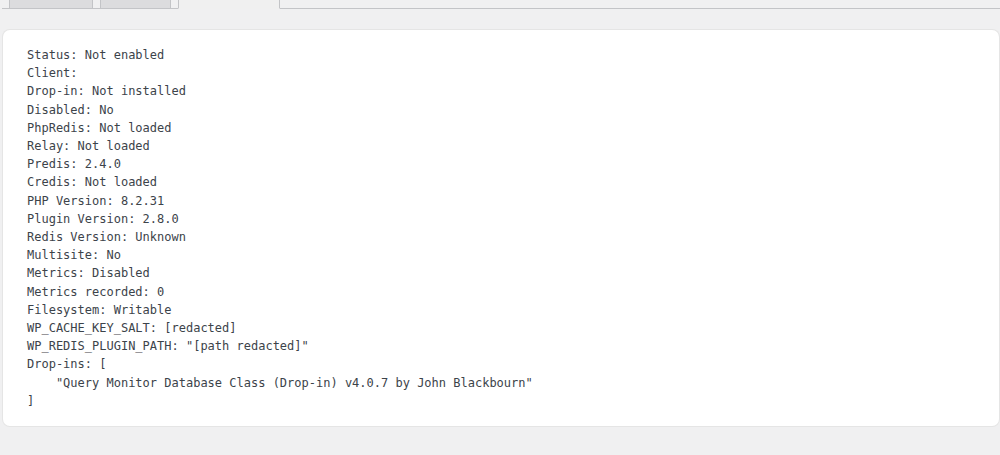
The key prefix question matters more than it sounds. If several WordPress sites share one Redis instance without proper separation, cached data can collide or be cleared in messy ways. Good hosting setups handle this. Rushed manual setups are where I get cautious.
🔐 Note: If you run staging and production on the same server, don’t let them share the same Redis keys. A staging cache flush should never be able to disturb the live site.
Keep this process dull. That’s a compliment here.
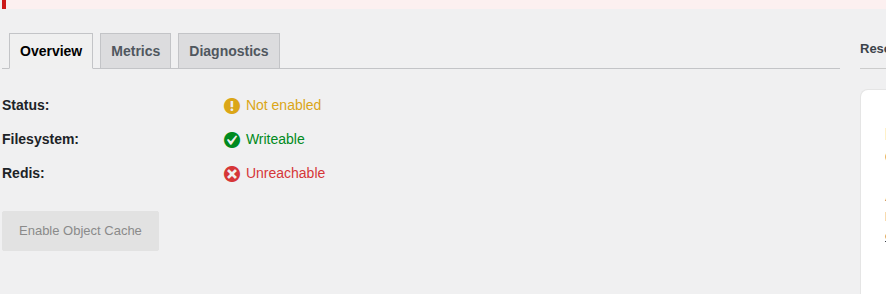
I wouldn’t do this on a Friday afternoon before a sale, course launch, migration, or client handoff. Redis is usually boring when it’s configured well, but boring changes still deserve a window where someone can watch the site.
🧪 Note: For WooCommerce, I like testing with two user sessions: one logged-in customer and one guest. Add, remove, and update cart items in both. If anything personal appears in the wrong place, stop and flush the object cache before you continue.
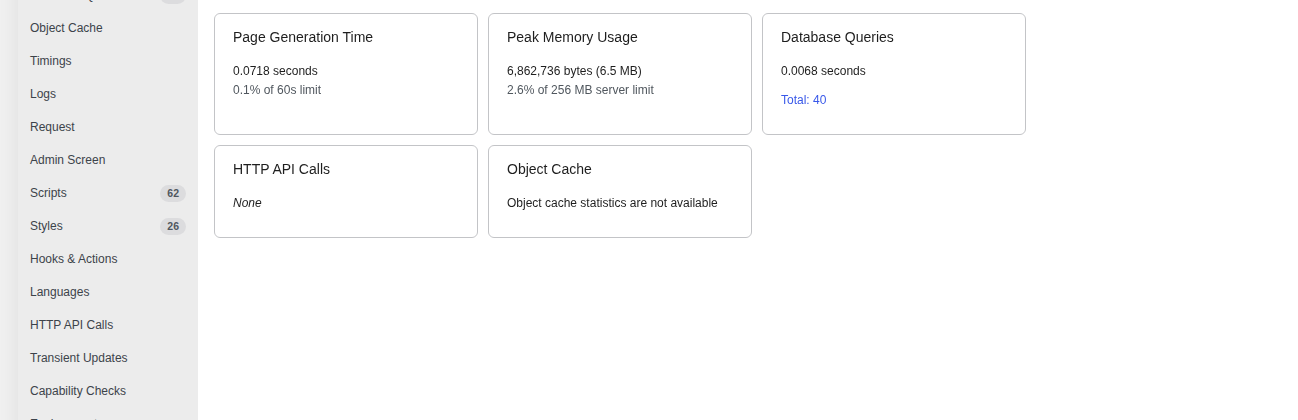
Start with the status screen. If it says Redis is unreachable, disabled, missing a drop-in, or refusing the connection, fix that before you run speed tests. Once the connection is healthy, look for evidence that Redis is doing work:
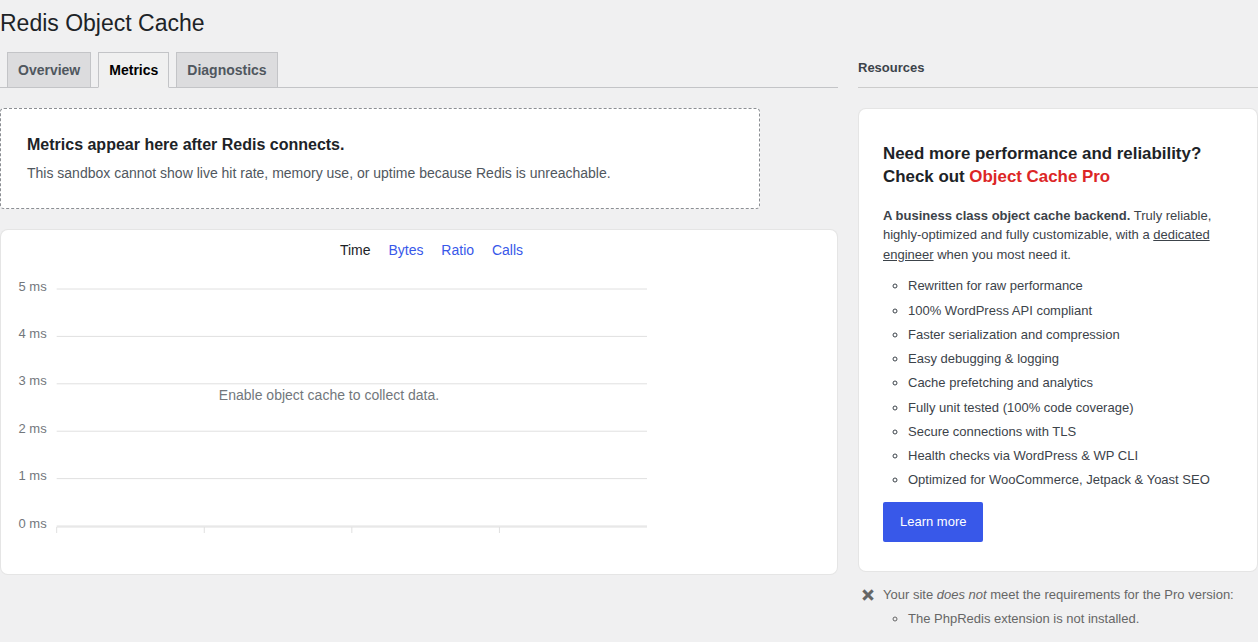
The better question isn’t just “is Redis connected?” It’s “did Redis improve the request that was expensive?”
My test page would depend on the business. For WooCommerce, I’d start with checkout and order screens. For an LMS, I’d use student dashboards and reports. On a publisher’s site, editor screens during traffic spikes may matter more than anonymous public pages.
Redis can be working and still not solve your actual speed problem. That’s not a failure of Redis. It’s a sign you were bottlenecked somewhere else.
📊 Note: Don’t judge Redis from one cold page load. Click around the same workflow a few times and watch whether hits, misses, and query counts change. Persistent object cache proves itself through repeated work.
Most Redis issues are setup issues:
The trickier problems involve stale data. That means WordPress shows old information because cached data wasn’t cleared when it should have been.
Pay special attention to:
Redis is usually safe when the site stack clears cached data properly. Custom code is where I slow down, because one badly cached result can make a private or fast-changing screen look wrong.
⚠️ Note: Be extra careful with custom dashboards, pricing rules, membership permissions, and anything that changes per user. Redis is fast, but it will faithfully serve the wrong cached answer if custom code stores the wrong thing.
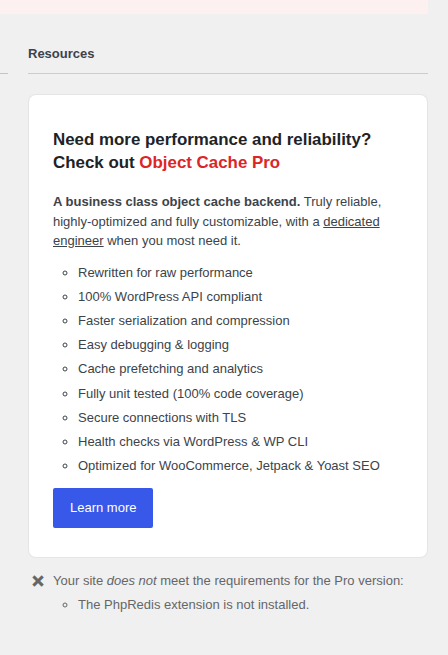
The free Redis Object Cache plugin can cover a lot of ordinary WordPress installs when the host provides a stable Redis service.
Premium object caching starts making sense when cache behavior affects money, support load, or team time. Large stores often need better observability. Membership sites may want clearer logs when account data looks stale. Publishers with heavy admin use may care about support during traffic spikes.
I wouldn’t buy premium object caching first for a small site. I’d consider it when the site already has enough traffic, orders, logged-in activity, or admin pressure that better visibility is worth paying for.
💸 Note: Paying for object caching usually buys you confidence and support more than raw speed. If you don’t know whether Redis is helping yet, measure the slow workflow before upgrading the caching layer.
For a site made mostly of public pages, I would begin with the page visitors actually download: page caching, lighter images, cleaner scripts, better font loading, navigation prefetching, and stronger hosting.
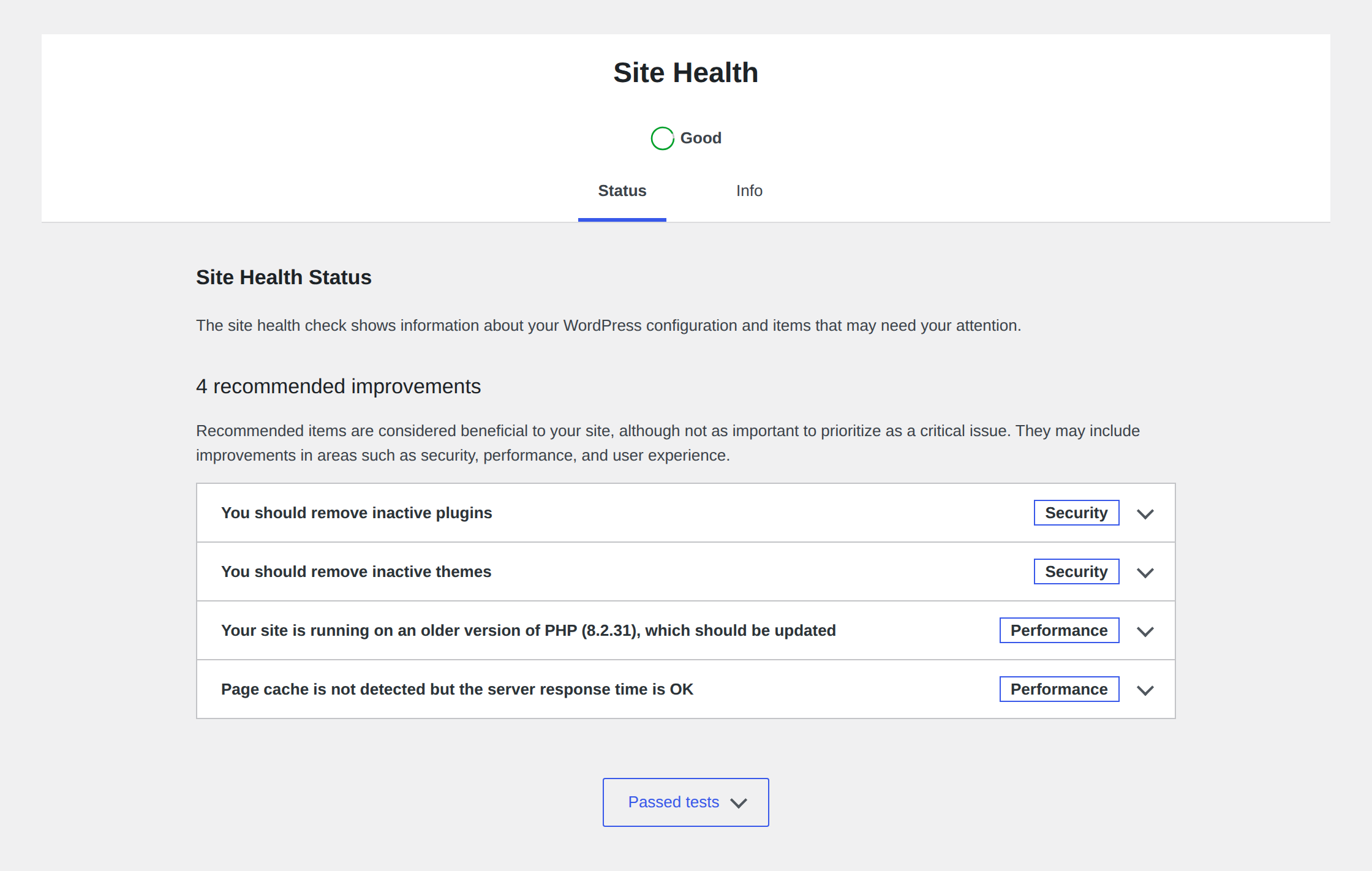
That’s where a tool like AirLift fits better than Redis. AirLift is for the broader WordPress performance problem: page speed, front-end optimization, and practical improvements to the finished page. Redis works deeper inside WordPress. It won’t make a heavy page lighter on its own.
If the slow part of the site is logged-in, database-heavy, or tied to WordPress admin work, Redis object cache deserves a proper test. Confirm host support, set it up on staging, enable one integration, test the right pages, and compare the request that made you consider Redis in the first place.
The decision is simpler once you stop asking “Should I use Redis?” and ask “Which layer is slow?”
Yes. WordPress has an object cache, but on many sites it only lasts for the current page load. Redis makes the object cache persistent so reusable data can stay available for later requests.
No. Page cache stores finished pages. Redis object cache stores reusable WordPress objects and database-derived results while WordPress builds a page or admin request.
Maybe. Keep your page cache or performance plugin for public pages and front-end speed. Add Redis when logged-in pages, admin screens, checkout, search, filters, or database-heavy requests are still slow.
Not in the WordPress object-cache sense. Redis object cache is for reusable WordPress data, not static front-end files.
It can cause problems when it is misconfigured, when multiple object cache tools conflict, when shared sites lack separate prefixes, or when custom code caches fast-changing data badly. Test dynamic pages before you call the setup done.
Use Redis object cache when WordPress keeps repeating database work that page cache can’t avoid. You’ll see that most often on WooCommerce, LMS, membership, search-heavy, and high-traffic sites with lots of repeated requests.
Don’t make it the first fix for every slow site. Confirm Redis support with your host, turn on one object cache integration, test the pages that actually matter, and keep your normal performance controls in place. If server load looks suspicious rather than merely slow, rule out WordPress high CPU usage causes too. When you treat Redis as one layer instead of the whole speed plan, the decision gets much easier.
Website caching advice gets messy because everyone talks about the cache they sell, manage, or just discovered in a host dashboard. A plugin says full-page cache. Your host says…
Read

Your homepage can feel fast while the parts that make money still feel slow. If you’re trying to speed up your website, it helps to understand that not every request behaves the…
Read

Sometimes a WordPress site is slow, but not for everyone. It loads fine for you. Then a customer in another country says the images take forever. A speed test from your city looks…
Read
Airlift works out what each page needs and applies it. Free to try on your own site.