

Page Cache vs Object Cache: What WordPress Sites Actually Need
Website caching advice gets messy because everyone talks about the cache they sell, manage, or just discovered in a host dashboard. A plugin says full-page cache. Your host says…
Read

Search for plugins for WordPress caching, and you’ll find a lot of confident answers. Most of them are half right.
Yes, cache can make WordPress faster. But choosing from a list of WordPress caching plugins depends on your host, your site type, and how much tuning you actually want to do. A recipe blog, an online store, a paid community, and a site sitting on LiteSpeed do not need identical cache advice.
That’s how people end up with two plugins caching the same page, old prices showing after an update, or checkout behaving strangely because someone treated it like a normal blog post.
TL;DR: AirLift is the best starting point for most nontechnical WordPress users because it combines caching with image optimization, CSS cleanup, reporting, and automatic purging in a simple setup. On LiteSpeed or OpenLiteSpeed hosting, LiteSpeed Cache is the better first look. For more manual control, consider W3 Total Cache or WP Rocket.
| Pick | Use it for | Watch out for |
|---|---|---|
| AirLift | Automated caching and speed work | Use the official onboarding path; free limits matter |
| LiteSpeed Cache | LiteSpeed or QUIC.cloud hosting | Much weaker without that server layer |
| WP Fastest Cache | Simple free page caching | Advanced optimization leans premium |
| WP-Optimize | Free cache plus cleanup tools | Test cleanup and minification carefully |
| W3 Total Cache | Developer-level cache control | Too much surface area for casual setup |
| WP Super Cache | Basic static page caching | Still needs correct permalink/server setup |
| WP Rocket | Paid setup, docs, and support | Paid only; check your host cache first |
| Cloudflare options | Edge caching for Cloudflare users | Exclusions and purging need care |
💡 Note: Use one main page-cache plugin. Cloudflare, Redis, and host caching can be separate layers, but two WordPress plugins trying to cache the same finished page is where stale content and confusing purge behavior start.
We checked current plugin metadata, installed representative free plugins on newly created test sites running WordPress 6.9.4, and reviewed the admin screens a normal site owner would have to use. This was not a speed benchmark, so I’m not going to pretend we measured which plugin shaved the most milliseconds off a page.
The question was more practical:
I weighted setup safety and purge behavior first. Then I looked at host fit, dynamic-page handling, free-versus-paid boundaries, and how much damage a beginner can do by guessing. A long settings page isn’t automatically bad. But if cache layers still blur together in your head, a long settings page can turn one slow site into a stranger problem.
✅ Verdict: Best for owners who want caching and performance optimization handled without learning cache rules by hand.

AirLift is the pick I’d give to a business owner who says, “I need this site faster, but I don’t want to become a performance person.” That’s a reasonable request. Most slow WordPress sites don’t have one tidy problem. Images are heavier than they should be. Fonts load badly or ship heavier than they should, which is where reducing font file size helps. Page builders leave more CSS than the page needs. And after an edit, the cache still has to be cleared at the right time.
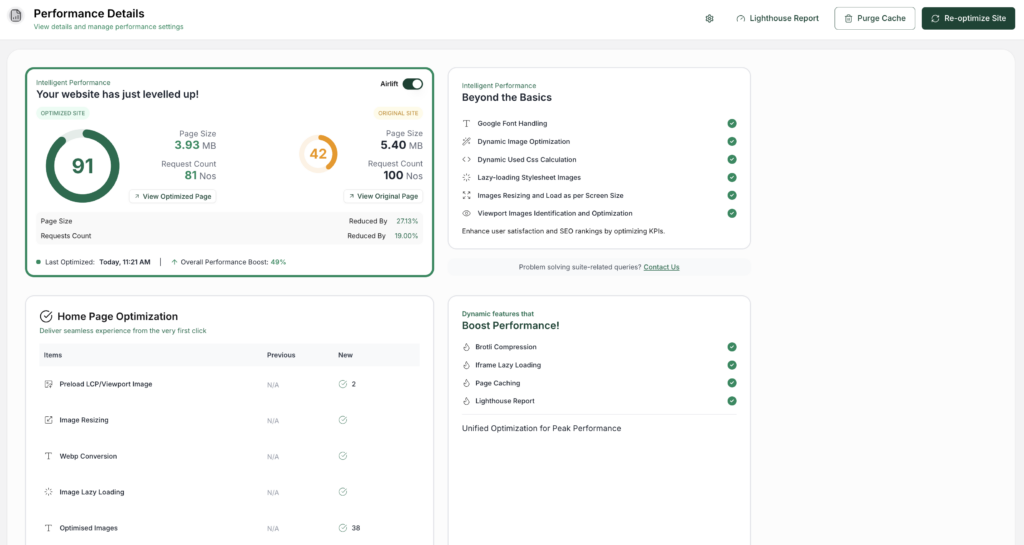
AirLift makes sense because it treats the cache as part of a broader performance workflow. Its public product and pricing pages cover page caching, image optimization, font work, dynamic used CSS, lazy loading, reporting, and automatic purge on post update. That purge piece sounds small until you’ve changed a pricing page and you’re wondering whether visitors are still seeing yesterday’s number.
💡 Note: AirLift is the better default when the site owner wants a handled workflow. Its free tier can be a good starting point, but the limits around re-optimization, custom pages, and image optimization matter on larger sites. Check the current AirLift pricing page before assuming it covers every page and every image forever.
✅ Verdict: Best if your host runs LiteSpeed, OpenLiteSpeed, or QUIC.cloud.
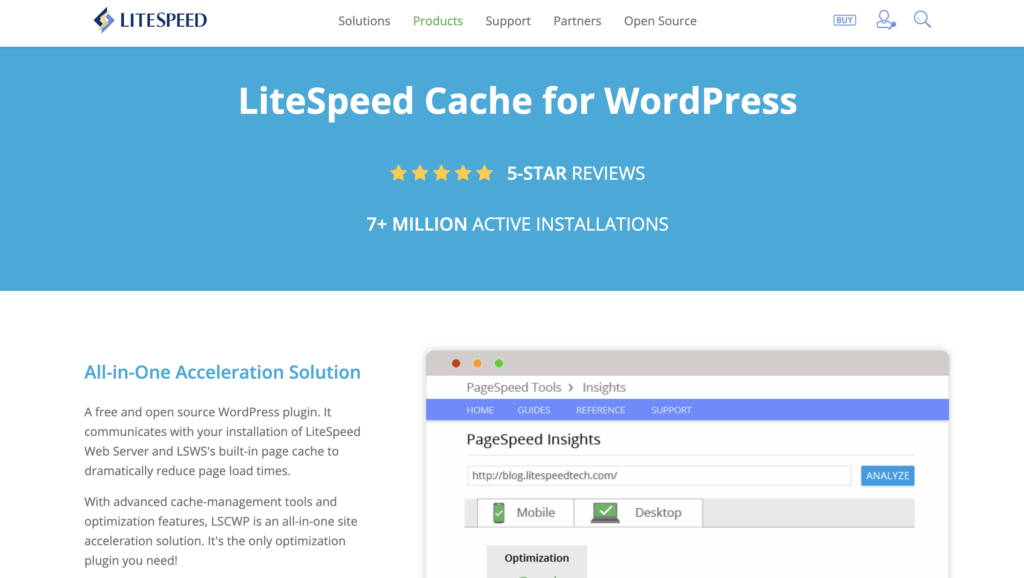
LiteSpeed Cache is excellent advice in the right environment and lazy advice everywhere else.
In our test install, it exposed the controls you’d expect from a serious cache plugin. You get TTL and purge rules. You also get exclusions, ESI, object cache, and browser cache. It showed the warning that matters too: LSCache caching functions were not available without LiteSpeed Web Server or QUIC.cloud CDN.
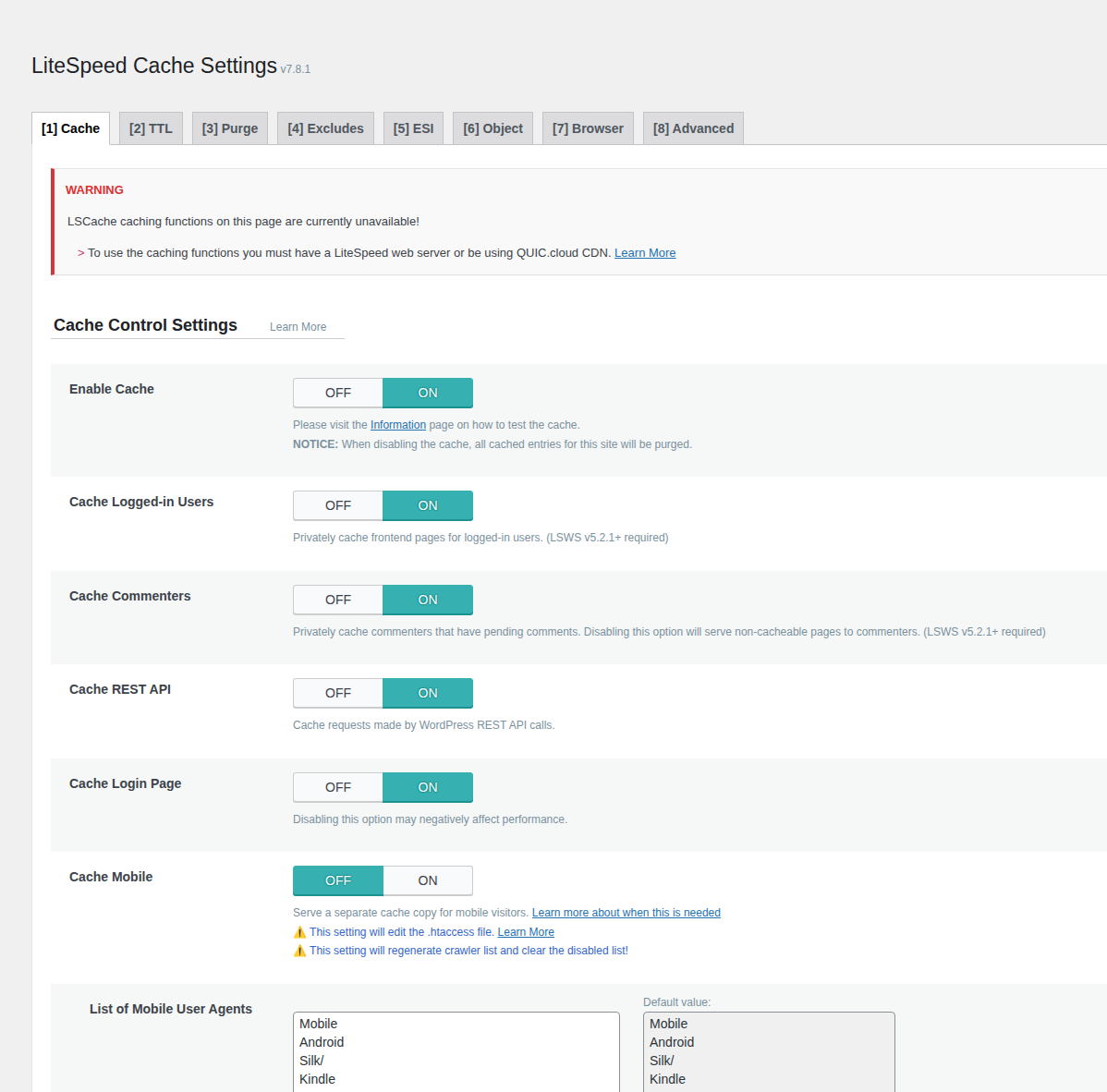
That’s the decision. Start here when your hosting gives LiteSpeed Cache the server layer it expects. On ordinary shared hosting, don’t pick it only because a forum thread said it’s always the fastest. The plugin still has useful optimization tools, but its biggest advantage depends on the stack under it. BlogVault’s LiteSpeed Cache review is useful if you want a closer look at that server dependency.
💡 Note: On WooCommerce, memberships, and LMS sites, check exclusions even when the plugin is a perfect host fit. Keep carts and checkout out of shared cache. Do the same for account pages, course dashboards, and logged-in views.
✅ Verdict: Best simple free page-cache plugin for people who want clear settings.
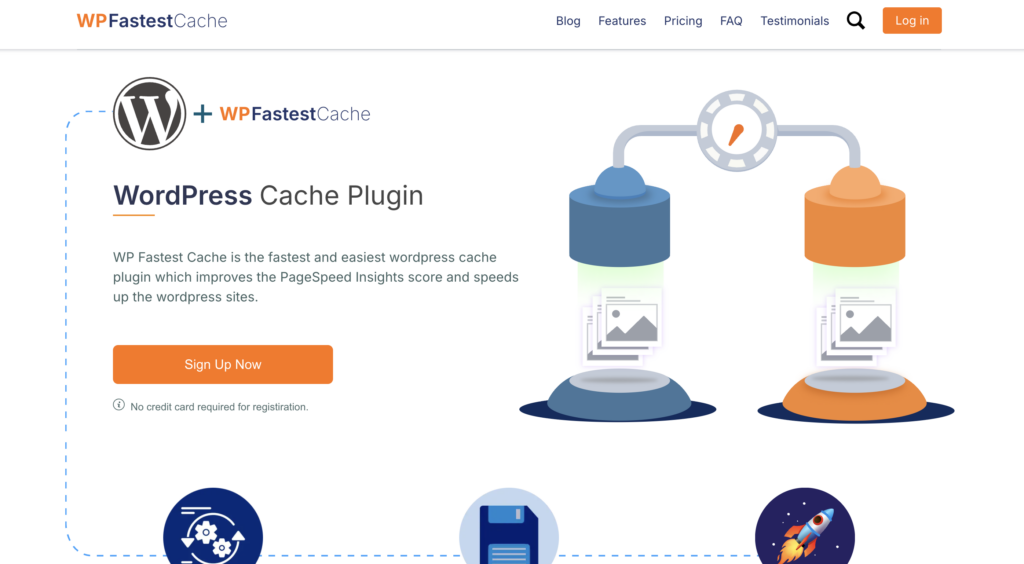
WP Fastest Cache is a good starting point when your needs are refreshingly plain. You want a page cache. You want preload. You want an obvious place to clear the cache. You don’t want to feel like you’re configuring an aircraft.
In the sandbox, the main settings area was easy to understand. The cache and preload controls were visible without much hunting. So were the logged-in, mobile, and browser-cache settings. The clear-cache button was easy to find too. The premium prompts were there, but the free plugin still gave a regular site owner enough to start.
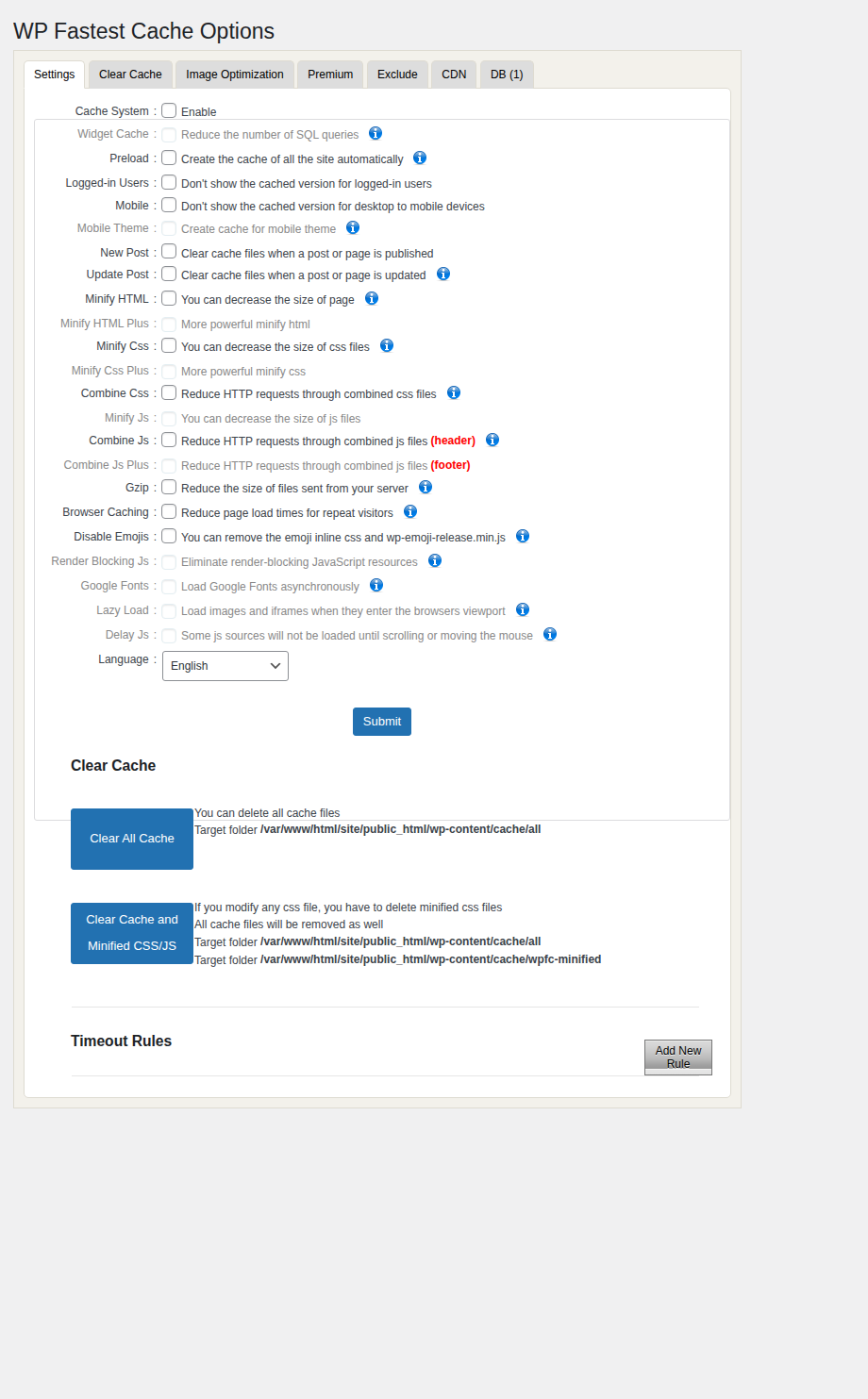
Use it for a straightforward business site or blog on regular hosting. Turn on the basic cache first, test the public pages in a private browser, then decide whether file optimization is worth touching.
💡 Note: Don’t enable every checkbox because the label sounds fast. Combining CSS or JavaScript can break navigation, forms, sliders, and checkout behavior. On many modern sites, “combine files” is not the automatic win it used to be.
✅ Verdict: Best free option when you want caching plus cleanup tools in one dashboard.
WP-Optimize is for the site that’s messy in more than one way. In our sandbox, it grouped page cache with database optimization and image compression. WebP handling and preload sat nearby. So did static headers, minification, and Google Fonts controls.
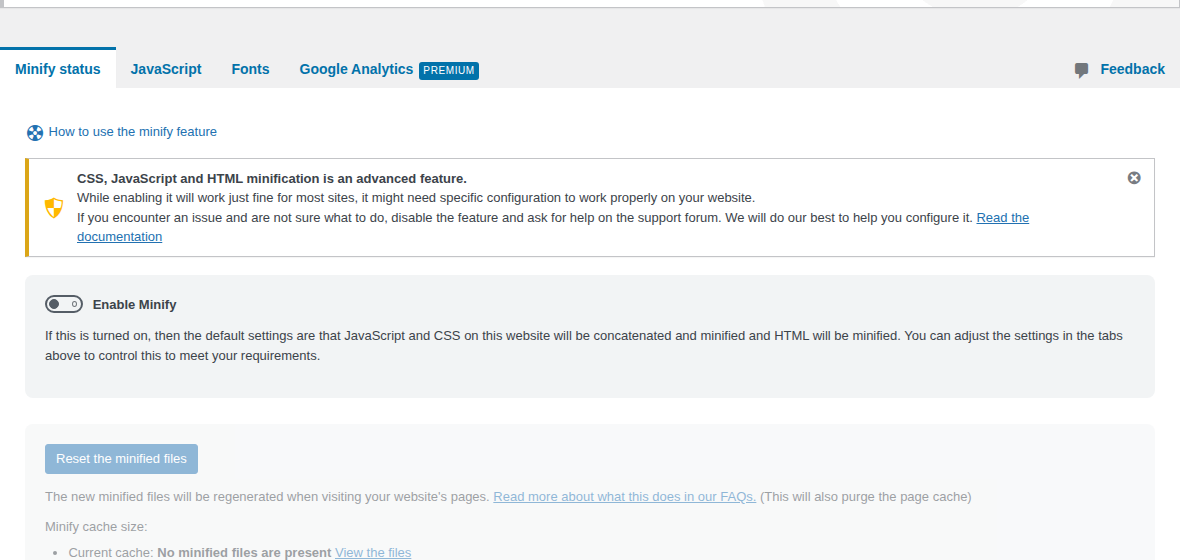
That breadth is useful. It also means the safest path is slower than “turn everything on and hope.” Treat database cleanup and image changes as real site edits. Minification deserves the same respect, even when it lives inside a performance plugin.
I’d pick WP-Optimize when you want a free toolkit and you’re willing to test after each meaningful change. If you’re only trying to add a plain page cache with fewer decisions, WP Fastest Cache is calmer.
💡 Note: Back up before cleanup. Minification and merging can help, and they can expose fragile theme or plugin code. WP-Optimize does show warnings around advanced minification and merging; read them like they’re there for you, because they are.
✅ Verdict: Best for developers who want granular control over caching layers.
W3 Total Cache still belongs in the conversation because some sites need what it offers. You can work with page cache, object cache, browser cache, CDN settings, and minification from one plugin. For a developer or agency matching WordPress to a specific host and Redis setup, that control can be exactly the point.
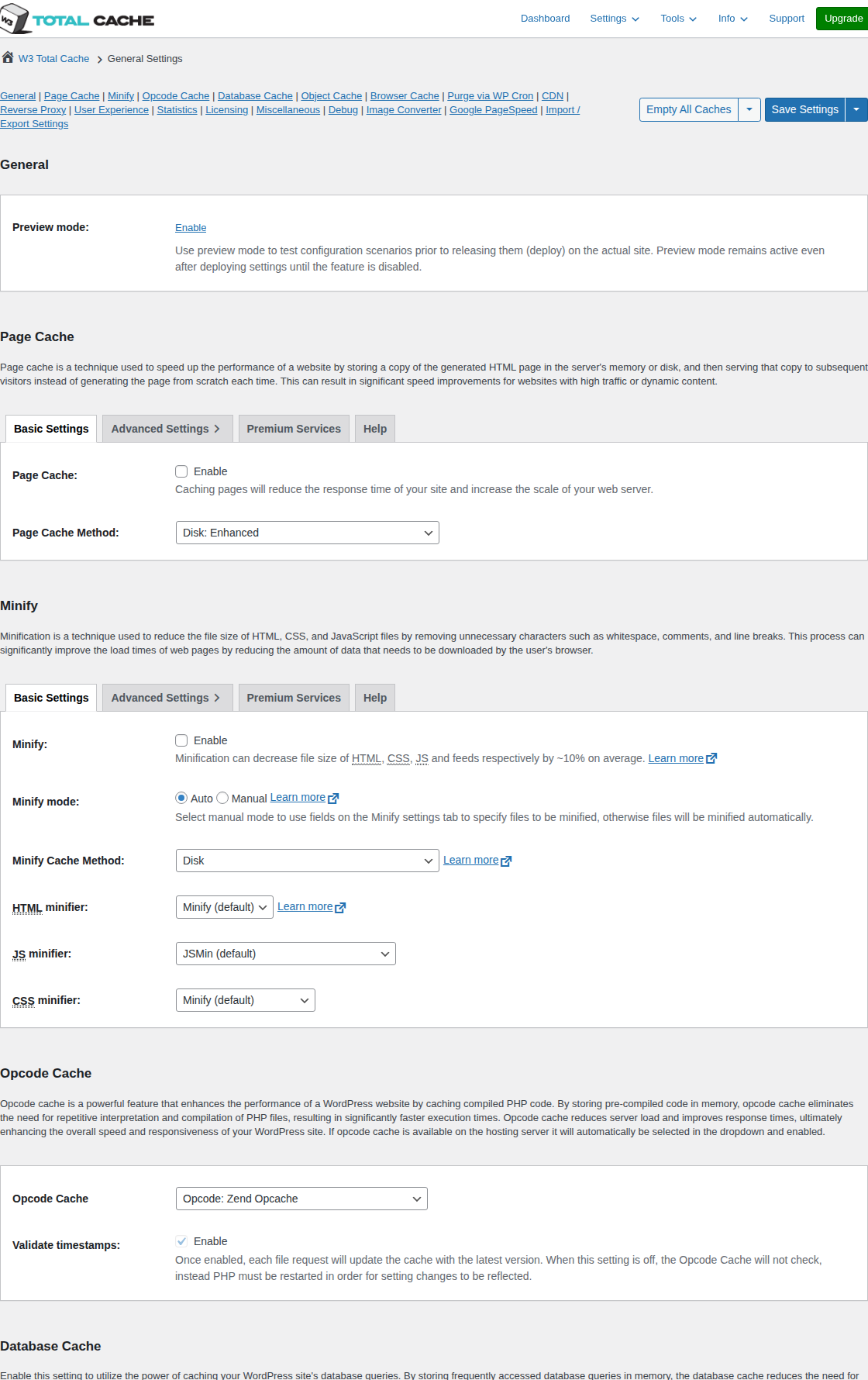
The same control is why I wouldn’t hand it to a busy owner who just wants faster product pages before lunch. Too many WordPress performance problems begin with someone enabling every available cache layer because the site was slow and all the labels sounded helpful.
Choose W3 Total Cache when the vocabulary already makes sense. Skip it if you’re hoping the plugin will make the decisions for you.
💡 Note: For stores and member sites, precision matters more than enthusiasm. Check checkout, account, dashboard, and search pages. Then test any view that changes per visitor. .
✅ Verdict: Best no-frills static page cache for simple content sites.
WP Super Cache is the plain option from Automattic. It creates static HTML copies of public pages, so WordPress doesn’t have to build the same page again for every logged-out visitor.
For a small blog, that can be enough. I don’t mean that as faint praise. Plenty of sites are better off with one reliable page cache than with six optimization toggles nobody understands.
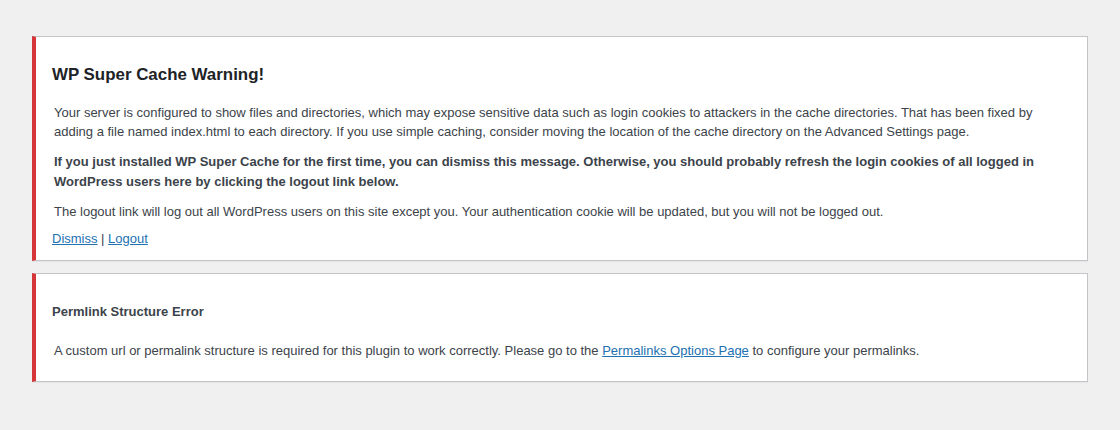
On a newly set up WordPress site, WP Super Cache produced a permalink-structure warning and a cache-directory/security notice. Both were manageable, but they prove the point: even a simple cache plugin still depends on WordPress and the server being ready for it.
💡 Note: Use WP Super Cache when you want a basic public-page cache and don’t need image optimization, font handling, or a modern all-in-one performance dashboard. Skip it for ecommerce and paid-access sites unless you already know how dynamic pages will be excluded. BlogVault’s WP Super Cache review goes deeper on that tradeoff.
✅ Verdict: Best paid general-purpose option for polished setup, documentation, and support.

WP Rocket is the commercial benchmark in this category. People compare against it because setup tends to feel less intimidating, and because paying for documentation and support can be worth it when the website brings in leads or sales.
That doesn’t mean you should buy it automatically. Check your host’s built-in caching first. Managed WordPress hosts often provide server-level caching, recommend one plugin, or block plugins that duplicate their stack. On a LiteSpeed server, LiteSpeed Cache is the more natural first stop. If you’re only looking for free plugins, WP Rocket is out before the comparison starts.
💡 Note: WP Rocket fits when you’d rather pay for a polished, general-purpose performance plugin than spend an afternoon learning cache layers. It still won’t rescue poor hosting, oversized images, or a bloated theme by itself.
✅ Verdict: Best as an edge-caching layer for readers already using Cloudflare.
Cloudflare changes where caching happens. Instead of only storing finished pages inside WordPress or on your server, Cloudflare can serve public pages from its edge network, closer to visitors in different locations.
That can be excellent for content-heavy sites with readers spread across countries. It can also be confusing if the wrong pages get cached or if purging isn’t connected to WordPress updates. Super Page Cache for Cloudflare helps WordPress communicate with Cloudflare’s cache. Cloudflare APO is Cloudflare’s own WordPress optimization path.
If you’re already comfortable with Cloudflare, these options are worth considering as an extra layer. If you want a normal WordPress dashboard plugin and don’t want to think about DNS or edge rules, choose one of the earlier picks first.
💡 Note: Cloudflare options are not a direct replacement for every WordPress caching plugin. They’re strongest when you know which pages should be cached at the edge, which must stay dynamic, and how the cache clears after edits.
Check your host first. Some managed WordPress hosts already provide a good cache, and some maintain a banned-plugin list because duplicate caching creates support problems. If the host tells you to use a specific performance stack, listen before adding another plugin.
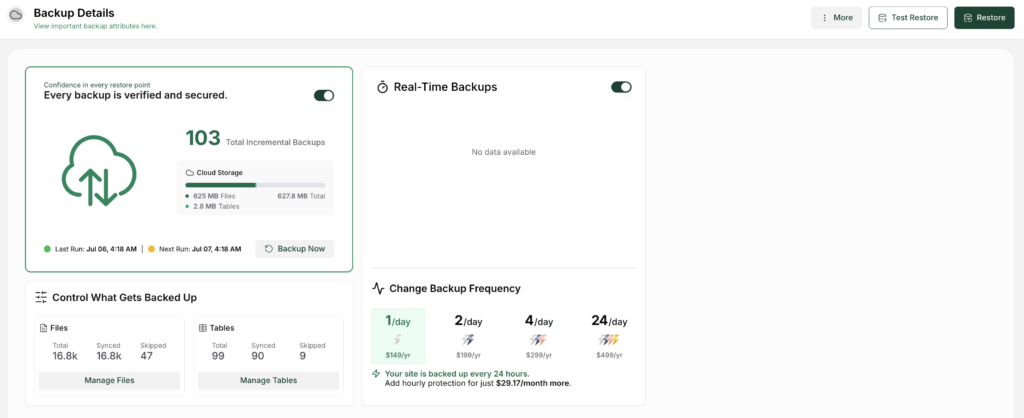
Then work on staging or make a backup first. Most cache settings are reversible, but cleanup tools and file optimization deserve a rollback point. After the plugin is active, test like a customer. Open a private browser and visit the homepage. Click the menu, submit a form, and add a product to cart if you sell anything. Your highest-value pages should still behave like nothing happened.
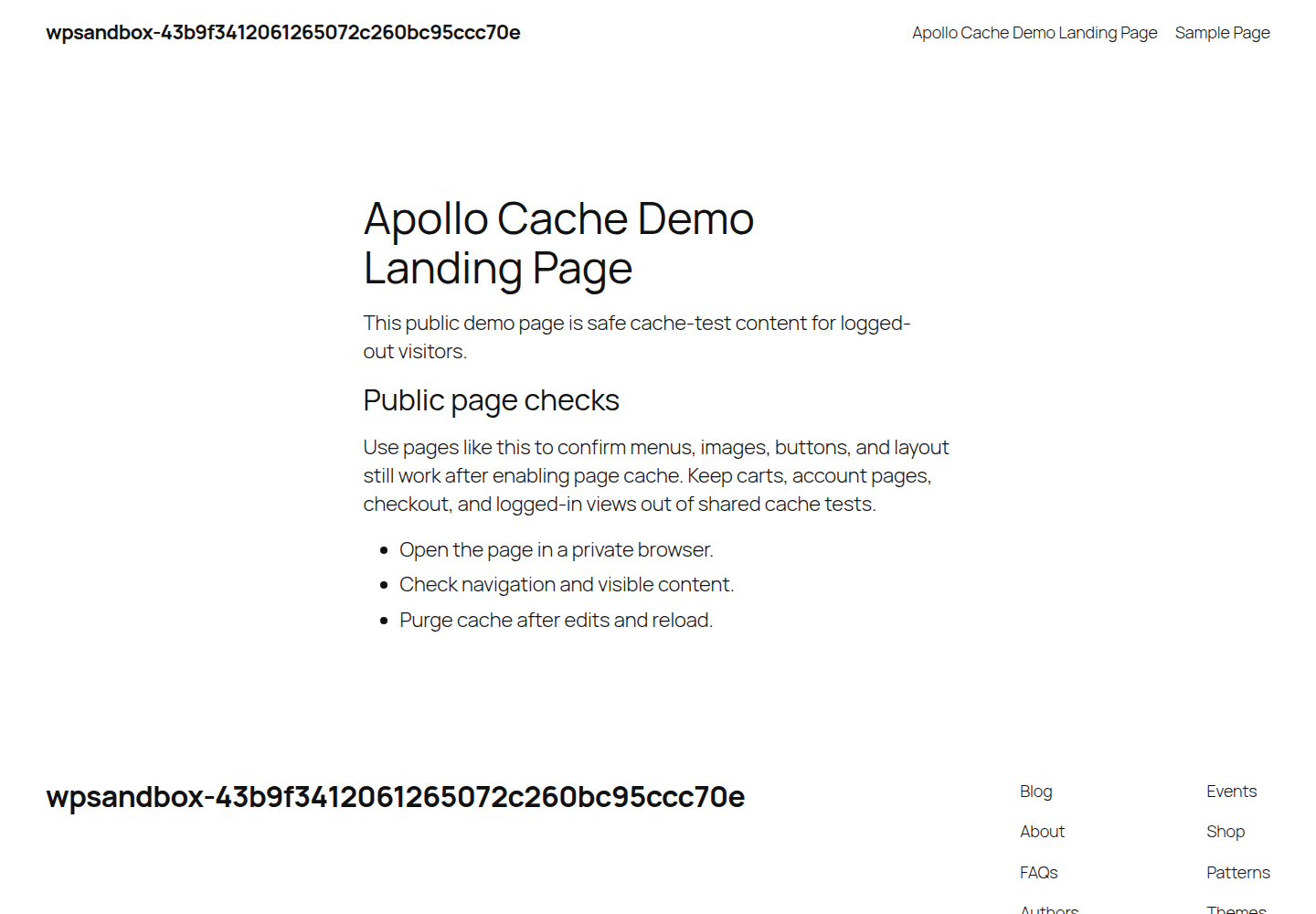
For WooCommerce stores and member areas, exclusions are part of setup. Course and community sites need the same care. Anything personal to one visitor should stay out of shared full-page cache. The cache plugin’s job is to speed up public pages. It shouldn’t be guessing which account page belongs to which user.
💡 Note: Purging matters as much as caching. A plugin that makes pages fast but leaves old content visible after an edit creates a different problem. Look for automatic purge on post update, visible manual purge controls, and clear rules for when cached pages expire. If you’re troubleshooting stale pages, here’s a guide to clearing WordPress cache.
For many sites, free is enough. A decent host, a clean theme, compressed images, and a free page-cache plugin can make a real difference.
Free starts to feel thin when you’re expecting one plugin to handle the whole performance job and support you when something breaks. That’s when AirLift, WP Rocket, or a host-specific setup can be worth paying for, especially if you want clearer optimization settings instead of another pile of switches.
My rule: if the website makes money, pay for the setup that saves time and lowers risk. If it’s a personal site or a small blog, start free and upgrade only when you know what you’re missing.
For most nontechnical owners, AirLift is the easiest default because it handles caching and nearby performance work together. If your server is LiteSpeed, start with LiteSpeed Cache.
AirLift is the better beginner pick if you want automation. WP Fastest Cache is a good free beginner pick when you only need plain page caching.
No. LiteSpeed Cache is strongest on LiteSpeed, OpenLiteSpeed, or QUIC.cloud hosting. Without that layer, its biggest advantage is missing.
Usually, no. Use one main page-cache plugin. Add Cloudflare, Redis, or host caching only when each layer has a separate job and clear exclusions.
No. Keep checkout, cart, account areas, and logged-in screens out of shared full-page cache because they show user-specific information.
Start with AirLift if you want caching and the surrounding performance work handled with minimal setup. Choose LiteSpeed Cache first when your host is built on LiteSpeed or QUIC.cloud.
Choose WP Fastest Cache for a simple free page cache, WP-Optimize for a broader free toolkit, W3 Total Cache for technical control, and WP Rocket when you’d rather pay for a polished commercial plugin and support.
The real decision is fit. Match the plugin to your host, your comfort level, and the pages that actually make money. Do that, test the important paths, and caching stops feeling like a pile of mysterious switches.
Website caching advice gets messy because everyone talks about the cache they sell, manage, or just discovered in a host dashboard. A plugin says full-page cache. Your host says…
Read

WordPress performance work gets messy fast when a slow site pushes you into plugin comparison mode. You search for the best WordPress performance optimization plugin, see the same…
Read

Redis object cache sounds like one of those WordPress speed fixes you should just turn on and forget about. I get the appeal. When a site is slow, nobody wants a lecture about…
Read
Airlift works out what each page needs and applies it. Free to try on your own site.