

Redis Object Cache for WordPress: What It Does and When You Need It
Redis object cache sounds like one of those WordPress speed fixes you should just turn on and forget about. I get the appeal. When a site is slow, nobody wants a lecture about…
Read

You know your WordPress site is slow. The confusing part is that every answer points to a different fix.
One person says to install a cache plugin. Your host says caching is already on. Cloudflare talks about edge cache. Someone else mentions Redis. Then a developer warns you not to cache checkout, account pages, or logged-in views.
That is where most people meet WordPress caching: not as one clear setting, but as a pile of speed advice that sounds useful and slightly dangerous.
TL;DR: WordPress caching stores reusable copies of pages, files, or database results so WordPress does not rebuild the same work for every visit. Start with one safe full-page cache path, exclude personalized pages, then add browser, object, server, or CDN caching only when your site actually needs that layer.
The practical rule is simple: cache what stays the same for everyone. Protect anything that changes by visitor, login state, cart, form, location, stock, or session.
WordPress does a lot of work before a visitor sees a page.
It runs PHP, asks the database for content, loads your theme, runs plugin output, builds blocks, and sends images, fonts, CSS, and JavaScript to the browser. On a small site, that may be fine. On a busy or heavy site, repeating that work for every visitor is wasteful. Caching saves the parts that can be reused.
The first visitor may wait while WordPress builds a public page. The next visitor can get a saved copy instead of making the server rebuild the same answer.
That saved copy might be:
Cache is not your real site data. Your posts, pages, products, users, orders, media, and settings still live in WordPress and the database. Cache is a disposable copy. So when you clear cache, you are usually deleting saved copies so fresh ones can be made. You are not deleting your site.
That distinction matters when something looks stale. Purge the plugin, host, or CDN cache first. Do not touch database tables, media files, or theme files unless you are deliberately changing the site.
Caching helps when many visitors need the same answer.
A blog post is a clean example. If 1,000 logged-out visitors read the same article, they usually need the same headline, text, images, layout, header, and footer. Without page cache, WordPress may rebuild that page 1,000 times. With page cache, it can build the page once and reuse the saved version.
That can improve:
The catch is that caching only helps with reusable work. If your biggest problem is a huge hero image, too much JavaScript, oversized fonts, bad hosting, ad scripts, or third-party tags, cache may improve the server response and still leave the page feeling heavy. Use this quick read:
| What feels slow | What to check first |
|---|---|
| The page waits before anything starts loading | Page cache, server cache, hosting, TTFB |
| The page starts loading but images drag | Image size, image format, lazy loading, preload |
| Menus, forms, or sliders feel broken | JavaScript optimization, delayed scripts, plugin conflicts |
| wp-admin, search, filters, or dashboards are slow | Database queries, object cache, plugin load |
| Visitors far away get slower responses | CDN or edge caching |
Caching is a shortcut for repeated work. It can help you speed up your WordPress site when repeated server work is the bottleneck, but it is not a repair kit for every performance problem.
The easiest way to avoid cache trouble is to stop treating every cache setting as the same thing. Each layer saves a different kind of work. Each layer also has a different owner: your plugin, browser, host, server stack, CDN, or developer.
| Cache type | What it stores | Where it usually lives | Best for | Watch out for |
|---|---|---|---|---|
| Full-page cache | Finished HTML pages | Plugin, host, server, CDN | Public posts, pages, landing pages | Dynamic or personalized pages |
| Browser cache | Images, CSS, JS, fonts | Visitor browser | Repeat visits and static files | Old files after design changes |
| Object cache | Database results and WordPress objects | Redis, Memcached, host/server | Busy stores, memberships, slow admin screens | Needs proper server support |
| Opcode cache | Compiled PHP bytecode | Server | Faster PHP execution | Usually host-managed |
| CDN or edge cache | Static files, sometimes HTML | CDN network | Global audiences and traffic spikes | Purge rules and dynamic pages |
For most small content sites, full-page cache is the first meaningful win. Browser cache helps returning visitors. Object cache helps when the database is doing too much repeated work. CDN or edge cache helps when distance and traffic spikes matter.
Where people get into trouble is stacking tools that control the same layer. A host cache, a cache plugin, and a CDN can all claim to speed up pages. That does not mean all three should cache the same HTML with unclear purge rules. More caching is not always better caching. Often it is just more places for an old version to hide.
AirLift fits best as a performance automation route, not as another checkbox-heavy cache tool. It is useful when you want caching handled alongside related speed work such as CDN, image optimization, CSS improvements, font optimization, image preloading, and lazy loading. You still need to test important pages, but you have fewer separate systems to tune by hand.
Start with the problem your site actually has, not the plugin with the longest settings page.
| Site situation | Start here |
|---|---|
| Blog, brochure site, resource library | One reliable full-page cache path |
| WooCommerce, membership, LMS, forum | Cache public pages only and exclude private flows |
| Global audience | Page cache plus CDN for static files |
| Slow wp-admin, search, filters, dashboards | Object cache with host support |
| High-traffic publisher | Server or edge cache with planned purge rules |
Public full-page cache is safe when every visitor should see the same HTML. A public guide is usually safe. A standard landing page is usually safe after testing. A checkout page is not safe for public full-page cache because every visitor has a different cart, session, and payment state.
| Page or feature | Public full-page cache? |
|---|---|
| Blog posts, public pages, standard landing pages | Usually yes |
| Homepage | Yes, after testing menus, banners, and forms |
| Search results, filters, forms | Maybe, with careful rules |
| Cart, checkout, account pages | No |
| Membership, LMS, forums, dashboards | No |
| Live prices, stock, geolocation, recommendations | Only with clear dynamic handling |
This is the hidden part of caching. The homepage gets faster, the core web vitals score improves, and the broken page sits three clicks deeper.
That is how a customer sees an old cart, a member sees stale dashboard content, or a form fails because a token was cached too aggressively. The same stale-copy pattern is why WordPress edits sometimes do not show up after you publish them. Caching is not unsafe. A broad cache rule is unsafe.
Also separate page cache from nearby optimization settings. A broken menu may come from delayed JavaScript. A shifted layout may come from CSS optimization. A missing hero image may come from lazy loading. If something breaks after a performance change, the newest optimization setting is often the first suspect. Never judge a cache setup only from the homepage. Test the page that makes money, captures leads, handles accounts, or completes the real user journey.
The safe setup is mostly about sequence. Do not turn on six performance settings and then try to guess which one helped or broke the site. Start with one main cache path, validate it, then add the next layer only if the problem points there. Before you enable caching, check:
For stores, lead-generation sites, memberships, LMS sites, and agency-managed sites, use staging or take a backup first. Do not test aggressive cache rules in production five minutes before a sale, launch, or client review. Then measure a few real pages:
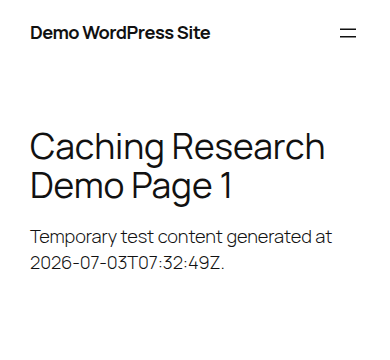
Now enable one main full-page cache path: host cache, a cache plugin, or a server-integrated cache. Purge the relevant cache layers. Visit key public pages once if the cache needs a first request before it stores the page. After setup, test:
If managing cache, CDN, images, CSS, JavaScript, fonts, preloading, lazy loading, and purge rules across separate tools feels like too much manual tuning, AirLift is the simpler route. It is still worth checking your most important pages after setup, but the day-to-day performance work is less fragmented.
Do not trust the checkbox. Test the same URLs before and after.Good signs include:
The header words are simpler than they look:
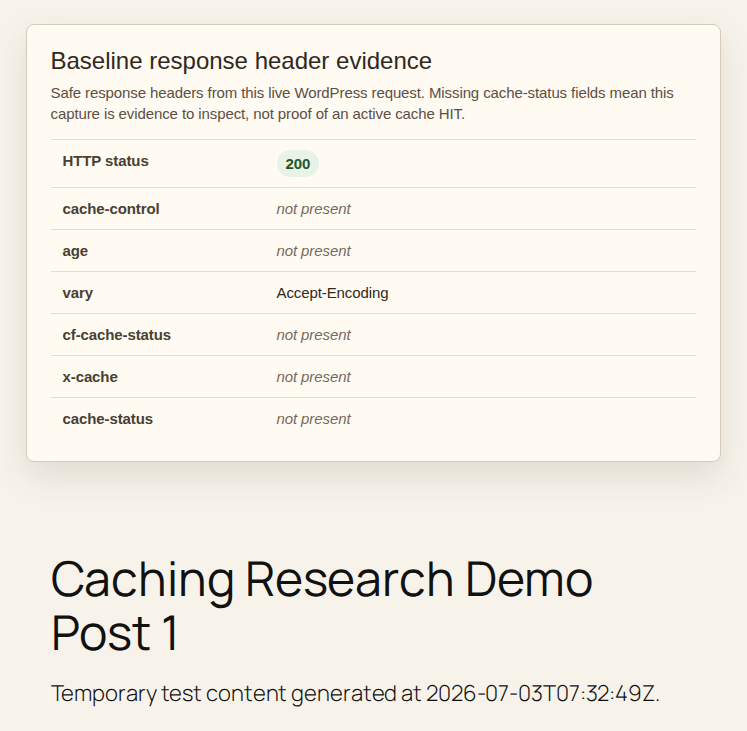
A first request can be MISS and the second can become HIT. That is normal. A logged-in request, cart, checkout, or account page may show BYPASS. That can be correct too.
Use PageSpeed Insights, Lighthouse, WebPageTest, GTmetrix, or browser DevTools, but do not chase a lab score by itself. Lab tests are useful for controlled checks. Field data is useful for trends, but it can lag after a change. The score is a signal. The working user journey is the proof.
Most WordPress caching problems come from skipping the boring checks.
Avoid these:
A faster homepage is useful. A broken conversion path is not a performance win.
Most cache problems are reversible. Make the smallest change that matches the symptom.
| Symptom | First move |
|---|---|
| Old content keeps showing | Purge plugin, host, CDN, and browser cache. Check TTL and purge rules. |
| Layout looks broken | Disable the newest CSS or JavaScript optimization first. |
| Form, cart, checkout, or account page fails | Exclude that URL or dynamic fragment from public full-page cache. |
| Every request is MISS | Check login state, cookies, query strings, exclusions, and whether the URL is cacheable. |
Do not change ten settings at once. That turns one cache problem into a guessing game. If the symptom is stale content, start with a focused clear WordPress cache process before changing unrelated performance settings.
Maybe. If your host already provides reliable page cache, you may not need another plugin for the same layer. You may still want a performance tool for images, CSS, JavaScript, fonts, lazy loading, preload, or CDN setup; comparing WP Rocket vs W3 Total Cache can help if you want a more configurable plugin path.
Use the one that gives you reliable caching and clear purge rules without duplicating the same layer. Host cache is often better integrated with the server. A plugin is often easier to control inside WordPress.
Yes, when the rules match the page. Public pages that look the same for everyone are usually safe. Personalized pages, logged-in pages, carts, checkout, and account areas need exclusions or private handling.
HIT means the cache served a saved response. MISS means the cache did not have a saved response yet. BYPASS means the request skipped cache on purpose, often because it is logged in, excluded, or dynamic.
Clear cache after important content edits, design changes, plugin or theme updates, pricing changes, troubleshooting, and cache-rule changes. If host or CDN cache is active, purge those layers too.
For most informational sites, start with one safe full-page cache path, use browser caching for static files, optimize images, and verify the pages that matter. For dynamic or commercial sites, cache public pages, exclude personalized flows, and add object, server, or edge caching deliberately.
For non-technical owners, AirLift is the practical next step when you want WordPress caching plus broader performance optimization without managing every cache, CDN, image, CSS, JavaScript, font, preload, and lazy-loading setting by hand. Cache the repeatable work. Protect the personal work. Then prove the important journeys still work.
Redis object cache sounds like one of those WordPress speed fixes you should just turn on and forget about. I get the appeal. When a site is slow, nobody wants a lecture about…
Read

Website caching advice gets messy because everyone talks about the cache they sell, manage, or just discovered in a host dashboard. A plugin says full-page cache. Your host says…
Read

Your homepage can feel fast while the parts that make money still feel slow. If you’re trying to speed up your website, it helps to understand that not every request behaves the…
Read
Airlift works out what each page needs and applies it. Free to try on your own site.