

WordPress Object Caching: What It Is and When to Use It
Your homepage can feel fast while the parts that make money still feel slow. If you’re trying to speed up your website, it helps to understand that not every request behaves the…
Read

Your WordPress site feels slow. Speed tests look bad, and every guide offers a different fix: caching, image optimization, better hosting, or installing plugins.
Speed work gets messy because a slow WordPress site often has multiple bottlenecks. The visible problem is “WordPress is slow.” Hidden issues might include an uncached homepage, oversized images, non-cacheable checkout pages, an outdated builder, weak hosting, or forgotten JavaScript.
Addressing these is essential to speed up your WordPress site effectively.
TL;DR: To speed up WordPress site, test the site first, then fix the biggest bottlenecks in order: caching, images, hosting and TTFB, plugin/theme bloat, JavaScript and CSS, CDN/compression, and database cleanup. Make one change at a time and retest, because stacked speed plugins, aggressive JavaScript delay, or lazy-loading the wrong image can make the site worse.
Use this guide as a safe order of work. We will start with a baseline, read the test results in plain language, apply the WordPress speed fixes that usually matter most, and show when to stop guessing and ask your host or developer for help.
If the site is painfully slow today, start with the baseline test, caching, and images. Those three steps solve many slow WordPress sites and make the next problem easier to see.
Speed settings can change how pages load, how images appear, how forms submit, and how checkout behaves. Most changes can be undone, but a broken layout or stale checkout page is still a bad way to learn.
Do this first:
The safest rule is simple: change one thing, test it, then move on. If something breaks, you know where to look. This is especially important on WooCommerce, membership, LMS, and lead-generation sites. A perfect score is not worth a checkout that shows stale cart data or a form that stops submitting.
The first job is not to get a perfect score. The first job is to find out what kind of slow you have. That is the difference between trying to speed up WordPress and just rearranging settings until the score changes.
Test at least these pages:
Use PageSpeed Insights for Core Web Vitals and mobile/desktop signals. Use GTmetrix or WebPageTest when you need a waterfall view that shows large files, slow requests, redirects, fonts, scripts, and third-party calls. Browser DevTools can also show which files block or slow the page.
Write down:
Scores vary by device, test location, connection, and cache state. A cached desktop test from one city is not the same as an uncached mobile test from another country. Baseline notes keep the work honest. Without them, every change feels like progress until the same page is still slow.
If you only do one careful thing before you optimize, do this. A baseline turns “my site feels slow” into “this page has high TTFB” or “this hero image is delaying LCP.” That difference saves hours.
Not sure which issue deserves your attention first? Use the quick diagnosis tool below. Select the metric or symptom that most closely matches your speed test results and we’ll point you toward the most likely bottleneck.
Select a result to see where to start. This interactive diagnosis requires JavaScript.
Caching is usually the biggest easy win for a mostly static WordPress site. WordPress often builds a page for each visitor by running PHP, querying the database, loading the theme, and running plugins. Page caching stores the finished page so the server can send it faster next time.
Start here:
Where this goes wrong: people stack several speed plugins because each one promises a different win. Then a form stops submitting, a cart shows stale content, or logged-in users see odd behavior.
Use one caching path you understand. More caching is not always better caching.
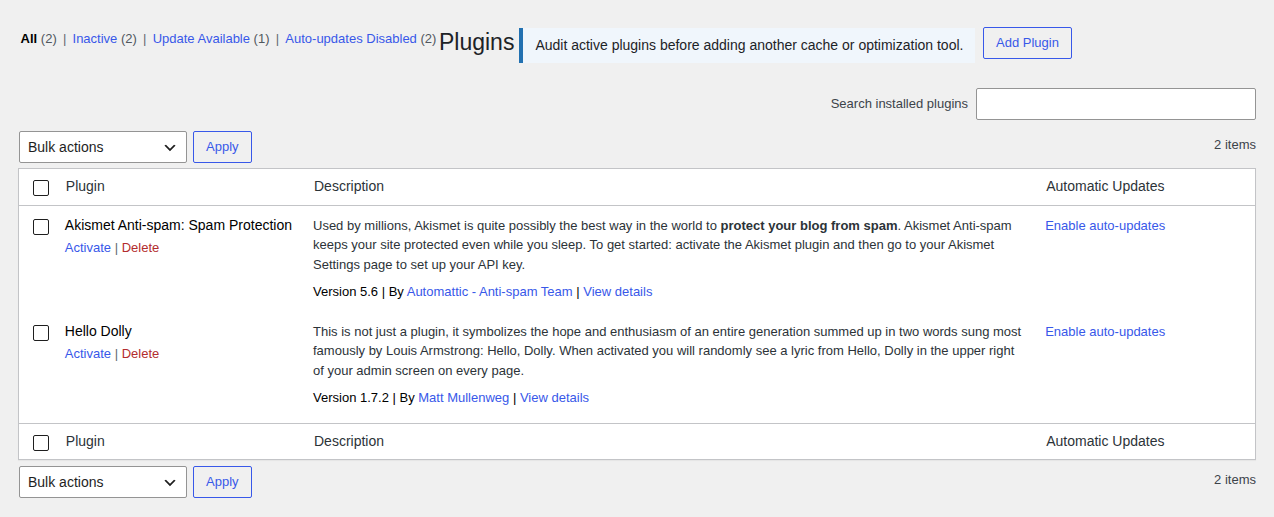
For a mostly static blog or service site, page caching can make WordPress feel dramatically faster. For WooCommerce, memberships, LMS sites, forums, and logged-in dashboards, caching still matters, but the rules get more careful because not every visitor should see the same page.
Images are one of the most common WordPress speed problems because they are easy to upload and easy to forget. Start with images above the fold, especially the image reported as LCP. Then work through the rest of the page.
Do this:
The LCP image needs special care. Lazy loading helps images the visitor has not reached yet. It hurts when it delays the main image at the top of the page.
A recipe post with a large hero image, twenty process photos, embedded video, ads, and comments may need more than one image fix. Compressing all images helps, but the first screen still needs the right size, priority, and cache behavior. Prioritize what the visitor sees first. Delay what can wait.
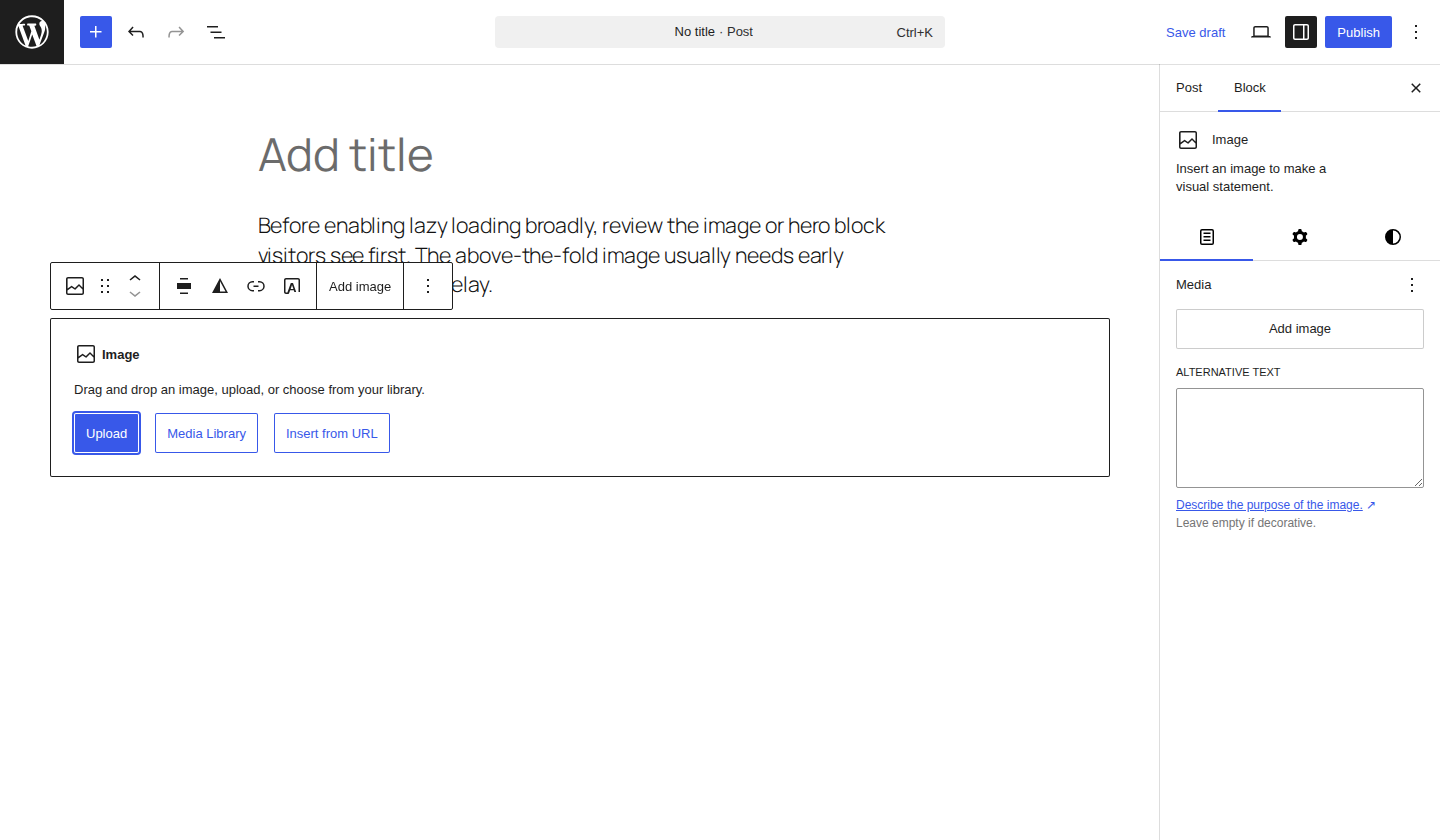
This is one of the most reliable ways to speed up WordPress because images are visible, measurable, and usually fixable without touching code. Start with the image PageSpeed Insights names as LCP, not with a blind media-library cleanup that might take all afternoon.
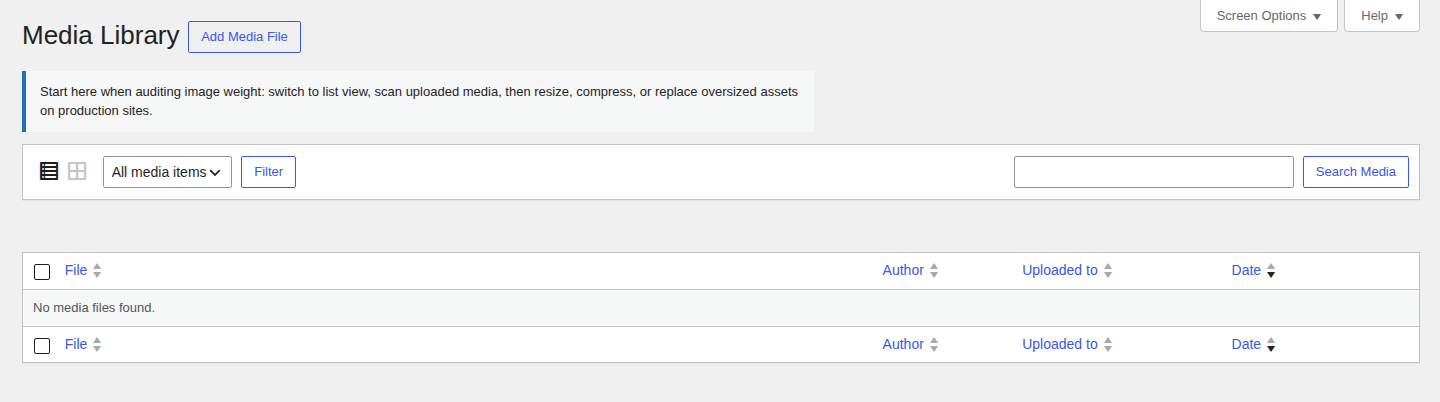
Plugin count gets blamed too often. Plugin behavior matters more than the raw number.
Ten small, well-built plugins can be fine. One heavy plugin can slow every page by loading scripts everywhere, running slow database queries, or calling an external service.
Look for:
The useful question is not “Can we keep this feature?” The useful question is, “Is this feature worth what every visitor pays in load time?”
If a booking widget, video background, slider, and chat popup all load on a small business homepage, the visitor may wait before they can even find the phone number. Keep what helps the visitor act. Remove what only decorates the page.

Once caching and images are under control, look at what the browser has to download, parse, and run. JavaScript and CSS affect how fast the page appears and how soon it responds to taps and clicks. Fonts, ads, analytics, social embeds, chat tools, review widgets, maps, and tag managers can also delay the page.
Use these fixes carefully:
Be careful with aggressive JavaScript delay. It can improve a test score and still break the menu, form, checkout step, or search box that visitors need.
Also, do not assume combining every CSS and JavaScript file is always the answer. On HTTP/2 and HTTP/3 sites, timing, file size, and blocking behavior often matter more than the number of files. If fonts are still heavy after cleanup, convert fonts to WOFF before adding another optimization plugin.
The goal is a page that appears fast and works when the visitor taps it. That second half matters. A speed score that improves because the contact form no longer loads is not optimization. It is damage with a nicer graph.
A CDN helps when visitors are far from your server or when the site serves many static assets. It stores and serves assets such as images, CSS, and JavaScript from locations closer to visitors. That can help global sites, image-heavy sites, and sites with traffic from several regions.
Set up or verify:
A CDN reduces distance and delivery time. It does not fix a slow database query, bloated page builder, or server that takes too long to generate the first response.
If your audience is local and the site is slow from the same region as the server, fix caching, hosting, images, and scripts first. If your audience is global, move CDN higher on the list.
If TTFB stays high after caching, images, and cleanup, the bottleneck may sit below normal WordPress settings.
Look at hosting and server health when you see:
Ask your host about server-level cache, PHP version, OPcache, Brotli or GZIP, HTTP/2 or HTTP/3, Redis or Memcached object cache, database load, backups, and staging.
Use a current PHP version only after checking theme and plugin compatibility. Faster PHP helps only if the site still works. Shared hosting can be enough for a small site. It can also become the limit for a growing WooCommerce store, busy membership site, or image-heavy publication.
Do not blame hosting first. Do not ignore it after the evidence points there. The decision rule is simple: if public cached pages are fast but uncached pages, admin screens, imports, updates, or checkout actions are slow, you are no longer solving only a front-end speed problem.
Database cleanup matters most on older sites, busy sites, and dynamic sites with years of revisions, spam, transients, sessions, and plugin leftovers.
Beginner-safe cleanup with a backup:
Use more caution with:
wp_options with help if needed: Too much autoloaded data can slow requests.A database cleanup plugin can help remove clutter. It can also remove data a plugin still expects. Remove the obvious junk first. Get help for data you cannot identify.
Database cleanup is not a contest to delete the most rows. The goal is to remove clutter you understand without surprising the plugins that still rely on their data.
Updates can improve speed because newer versions of WordPress, PHP, themes, and plugins often include performance and compatibility fixes.
Treat updates as changes, not chores:
The forgotten plugin is often the one that causes trouble. If nobody knows why it exists, pause before deleting it, then document the decision.
If you feel overwhelmed, use this order. It starts with common, reversible fixes and moves toward deeper work only when the symptoms point there.
| Priority | Fix | Best for | Watch out for |
|---|---|---|---|
| 1 | Baseline test and backup | Every site | Comparing different pages, devices, locations, or cache states |
| 2 | Page/server caching | Blogs, landing pages, brochure sites | Dynamic pages, logged-in users, double caching |
| 3 | Image resizing and compression | Image-heavy posts, ecommerce, portfolios | Lazy loading the LCP image |
| 4 | Plugin/theme cleanup | Sites with old tools, page builders, duplicate features | Removing a plugin that powers a live form, checkout, or tracking |
| 5 | JavaScript/CSS/font cleanup | Poor mobile scores, high INP/TBT, render-blocking issues | Breaking menus, sliders, forms, checkout, and search |
| 6 | CDN and compression | Global visitors, heavy static assets | Expecting CDN to fix backend TTFB |
| 7 | Hosting/PHP/object cache | High TTFB, slow admin, dynamic sites | Changing server settings without compatibility checks |
| 8 | Database cleanup | Older sites, WooCommerce, membership sites, high-comment sites | Deleting plugin data blindly |
The pattern matters more than the table: fix what is common and easy to verify first. Move to server and database work when the test results support it.
Not every speed fix has the same risk.
| Beginner-safe with a backup | Better with staging, host support, or a developer |
|---|---|
| Run PageSpeed Insights, GTmetrix, or WebPageTest | Edit .htaccess, wp-config.php, or server config |
| Compress and resize images | Change PHP versions on a fragile site |
| Enable one trusted caching or performance plugin | Tune Redis, Memcached, or object cache |
| Delete clearly unused plugins and themes | Remove database tables or autoloaded options |
| Reduce fonts, embeds, sliders, and widgets | Rewrite theme templates or page-builder output |
| Enable CDN and compression from a trusted provider | Diagnose slow SQL queries or custom plugin code |
| Paginate comments and archive pages | Modify WooCommerce cache or session behavior |
This is not about being afraid of technical fixes. It is about matching the fix to the risk.
A slow site is frustrating. A broken slow site is worse.
Manual speed work gives you control, but it also means coordinating cache, CDN, image optimization, lazy loading, CSS, JavaScript, fonts, browser cache headers, and Core Web Vitals settings.
That can become too much, especially when several plugins overlap.
AirLift fits readers who want a simpler route for common WordPress performance work: caching, CDN, image optimization, CSS and asset improvements, and Core Web Vitals optimization. The useful part is not that any plugin removes the need to understand your bottleneck. The useful part is that AirLift optimization settings reduce how many separate systems you have to configure and test.
Use a performance plugin when:
No plugin can fix every weak host, heavy ad stack, bloated theme, or custom database problem. A good performance plugin handles common work and gives you a cleaner starting point.
You still test after enabling it, and use AirLift support if you need product-specific help before switching workflows.
Most speed mistakes happen because the site owner is trying to fix the problem quickly. These are the mistakes to avoid:
The visitor matters more than the test score. The site needs to be faster and still work.
If the site is still slow after the first pass, go back to the symptom. Do not restart the random-plugin loop.
| What is still wrong? | Likely next investigation |
|---|---|
| TTFB is still high | Hosting, cache misses, PHP version, database load, object cache, server errors |
| LCP is still poor | Hero image, server response, render-blocking CSS/JS, font loading |
| INP or TBT is still poor | Heavy JavaScript, page-builder output, plugins, ads, trackers, chat widgets |
| CLS is still high | Missing image dimensions, font swaps, injected banners, ads, embeds |
| Admin dashboard is slow | Server resources, plugin queries, cron jobs, database bloat, malware or bot traffic, host limits |
| Checkout or forms broke | Recent cache, minification, JS delay, lazy-load setting, stale cache, plugin conflict |
| Mobile score is much worse | Large above-the-fold content, JavaScript, fonts, weaker device and network assumptions |
| Repeat visits still feel sluggish | Cache behavior, asset delivery, and navigation prefetching for WordPress on pages visitors commonly open next |
When optimization breaks something, roll back the last change. Clear caches. Test the exact feature that failed. Then re-enable settings one at a time.
If TTFB remains high after cache, image, and plugin cleanup, talk to your host. If the admin times out, errors keep appearing, or database work is needed, involve someone technical. At this stage, do not keep adding more speed plugins. The next good move is diagnosis: logs, cache behavior, server response, plugin queries, and the specific page or feature that is still slow.
Speed work does not end after one good test. WordPress changes every time you install a plugin, change a theme, add tracking, upload large images, publish a heavy page, or get more traffic.
Use a simple maintenance rhythm:
This prevents the slow drift that happens after a fast launch. Small changes add up. Most sites do not become slow in one dramatic moment. They get slow one uploaded image, campaign popup, tracking tag, plugin update, and forgotten widget at a time.
The safest way to speed up WordPress is to diagnose first, fix the biggest bottleneck, and retest after each change.
Start with caching and images. Then remove bloat, reduce scripts, add CDN and compression where they fit, and investigate hosting or database issues when the metrics point there.
If you want fewer moving parts, AirLift is the practical next step for common WordPress performance work such as caching, CDN, image optimization, asset improvements, and Core Web Vitals optimization.
Whatever path you choose, keep the rule: measure, change one thing, test the pages that matter, then move on. That is slower than clicking every optimization toggle in one sitting, but it is much faster than debugging a broken site with no idea which setting caused it.
Run a baseline test, then enable proper caching and optimize images. Those are usually the fastest high-impact fixes for a typical WordPress blog, landing page, or small business site. If TTFB is high, investigate caching and hosting. If LCP is poor, check the hero image, server response, and render-blocking resources.
Caching does not fix every bottleneck. The site may still have oversized images, slow hosting, heavy JavaScript, bloated page-builder output, too many third-party scripts, database issues, or dynamic pages that cannot be cached like static posts. High TTFB after caching usually points toward hosting, cache misses, PHP, database load, or server configuration.
Yes, caching plugins can speed up WordPress when pages can be safely cached. They are especially useful for mostly static pages such as blog posts, service pages, and landing pages. Be careful with WooCommerce carts, checkout, account pages, membership dashboards, and logged-in views. Those pages often need exclusions or different caching rules.
Use a CDN if visitors are spread across different regions or the site serves many static assets such as images, CSS, and JavaScript. A CDN can reduce delivery time by serving assets closer to visitors. A CDN will not fix a slow database, weak hosting, or a page that is too heavy. It improves delivery. It does not replace cleanup.
Mobile tests usually assume slower devices and weaker connections. Heavy JavaScript, large images, fonts, ads, and render-blocking files hurt mobile users more. Treat mobile as a first-class test. Many real visitors experience your site closer to the mobile test than the desktop test.
Your homepage can feel fast while the parts that make money still feel slow. If you’re trying to speed up your website, it helps to understand that not every request behaves the…
Read

Is your WordPress website loading slowly, but you are not sure what is causing the problem? Changing plugins, hosting, themes, or cache settings without clear evidence can waste…
Read

There is a very specific irritation in opening WordPress to make one small edit and then waiting on the dashboard like it’s thinking about whether you deserve access today. The…
Read
Airlift works out what each page needs and applies it. Free to try on your own site.