

Redis Object Cache for WordPress: What It Does and When You Need It
Redis object cache sounds like one of those WordPress speed fixes you should just turn on and forget about. I get the appeal. When a site is slow, nobody wants a lecture about…
Read

Website caching advice gets messy because everyone talks about the cache they sell, manage, or just discovered in a host dashboard. A plugin says full-page cache. Your host says Redis. A performance report says TTFB. Then you end up searching for page cache vs object cache when the useful question is much more practical:
What work is WordPress repeating, and is it safe to skip that work?
That’s the whole article, really. These two layers of website caching don’t compete for the same job. Page cache can hand back a saved public page without calling WordPress in for the full build. Object cache helps WordPress reuse internal data on requests that still need PHP, database queries, and plugin logic.
TL;DR: WordPress page caching keeps the completed page ready. WordPress object caching keeps reusable WordPress data ready. Use page cache for repeatable public URLs. Use object cache when the slow part is dynamic, logged-in, admin, or database-heavy.
| Slow area | Better first bet |
|---|---|
| Public posts, pages, landing pages | Page cache |
| Logged-out TTFB on the same URLs | Page cache |
| wp-admin, orders, reports, search, filters | Object cache |
| WooCommerce or membership sites | Both, with strict page-cache rules |
| Images, JavaScript, fonts, layout shifts | Front-end optimization |
My rule is simple: page cache is for repeatable public output. Object cache is for repeatable internal work. That sounds small, but it saves people from the two mistakes I see most often: enabling Redis and expecting a blog post to suddenly feel different, or enabling page cache and wondering why wp-admin is still slow.
Page cache stores a ready page response, usually HTML.
Take a public article on your site. Without page cache, WordPress has to boot, load the theme and plugins, pull content from the database, build the HTML, and return it to the browser. If 500 logged-out visitors open that same article, WordPress may repeat a lot of the same work 500 times.
With a page-cache hit, the server can answer with the saved page. WordPress may not need to run for that request at all. That’s why page cache can make public pages feel dramatically faster.
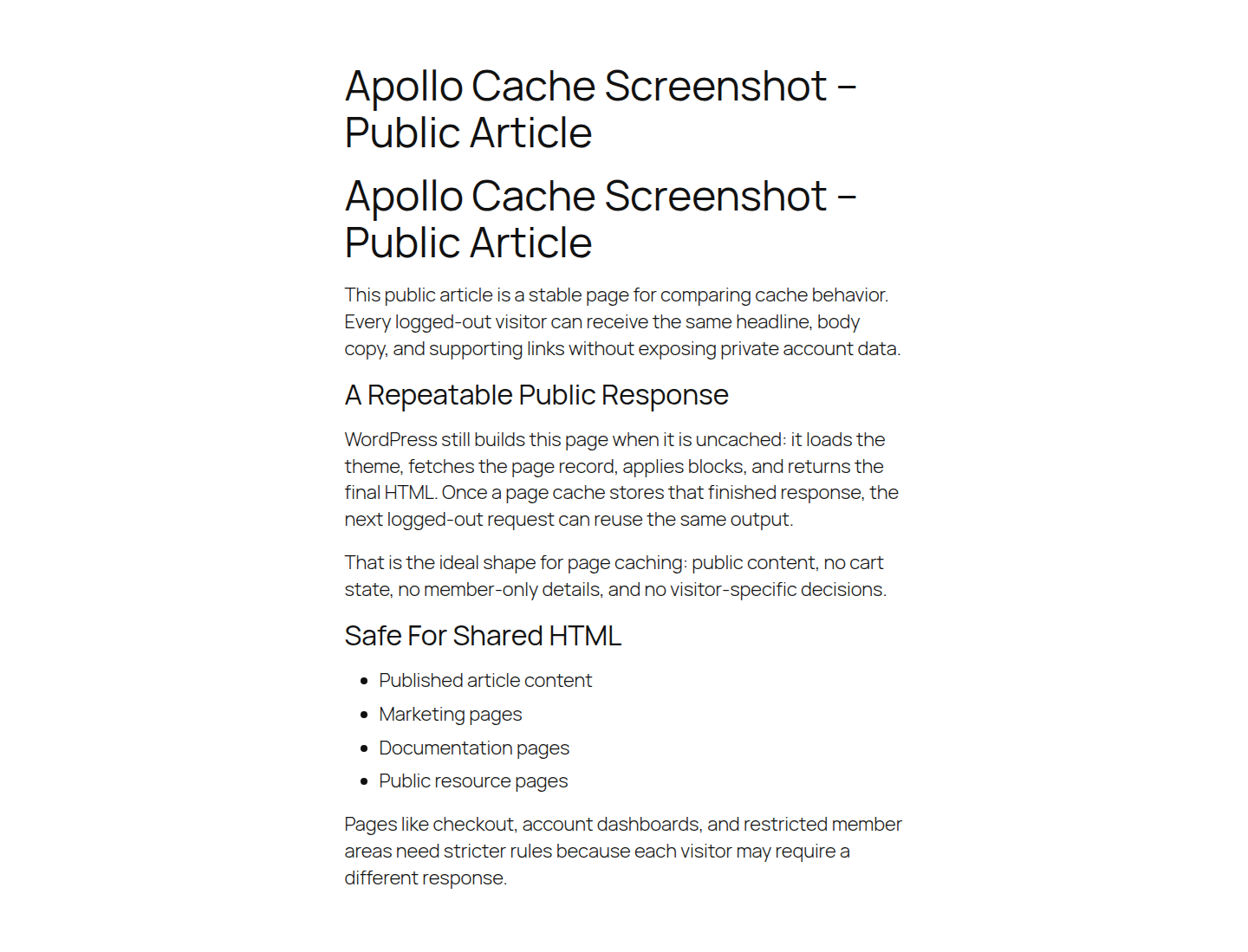
It fits sites and pages where many visitors can safely see the same thing:
The last part matters. Page cache gets its speed by reusing a finished response. That’s perfect for a public article. It’s dangerous on carts and account pages, or anywhere access rules change what the visitor should see.
Object cache works after WordPress is already involved.
WordPress still runs. It still decides who the visitor is, what they can see, what the cart contains, what the admin screen needs, and which plugins must load. Object cache helps by reducing repeated internal lookups while WordPress builds the correct response.
Those lookups can be query results, options, metadata, transients, API responses, or plugin data WordPress would otherwise fetch again. WordPress does have an object cache built in, but the usual default is short-lived. It helps during the current request and then disappears. When people talk about Redis object cache or persistent object cache, they mean WordPress is connected to a backend that can keep those reusable pieces around for later requests.
Redis is common. Memcached and Valkey show up too. Some hosts manage the whole thing.
One detail gets missed a lot: the WordPress plugin is usually just the connector. Persistent object cache still needs a working backend behind it. If the host doesn’t provide one, or the backend is slow, overloaded, or far away from the site, adding a connector plugin won’t turn a database-heavy workflow into a fast one.
Object cache is worth looking at when the slow area is:
A page-cache hit can make object cache irrelevant for that one public request.
If the finished HTML is already coming back from cache, WordPress doesn’t need cached query results to build it. There is nothing to build. That’s why a Redis plugin may appear to do nothing when you retest a logged-out blog post that never reaches WordPress.
But the moment the request misses or bypasses page cache, object cache can matter a lot. A logged-in visitor needs their own view. Checkout needs live cart state. wp-admin has to respect roles, plugin state, and current data. Product filters may need fresh stock and variation information. WordPress is back in the middle of the request, and repeated database work becomes part of the wait.
This is the trap: people test the wrong layer.
They enable object cache, reload a public article, and decide Redis is useless. Or they enable page cache, open an admin report, and decide caching is overrated. Neither test tells you much. You have to test the request that was actually slow.
For a small public site, start with page cache. Then fix the front end. Images, heavy scripts, font loading, and render-blocking CSS can still make a cached page feel slow once it reaches the browser. I wouldn’t start with persistent object cache for a five-page brochure site unless the host already includes it and you can point to a real bottleneck.
For WooCommerce, expect to use both, but don’t let page cache near the wrong pages.
Page cache can help product and category pages when prices, stock, cart fragments, and user-specific states are handled correctly. Cart and checkout need strict exclusions. So do account, login, and order pages unless your stack knows how to vary those pages safely.
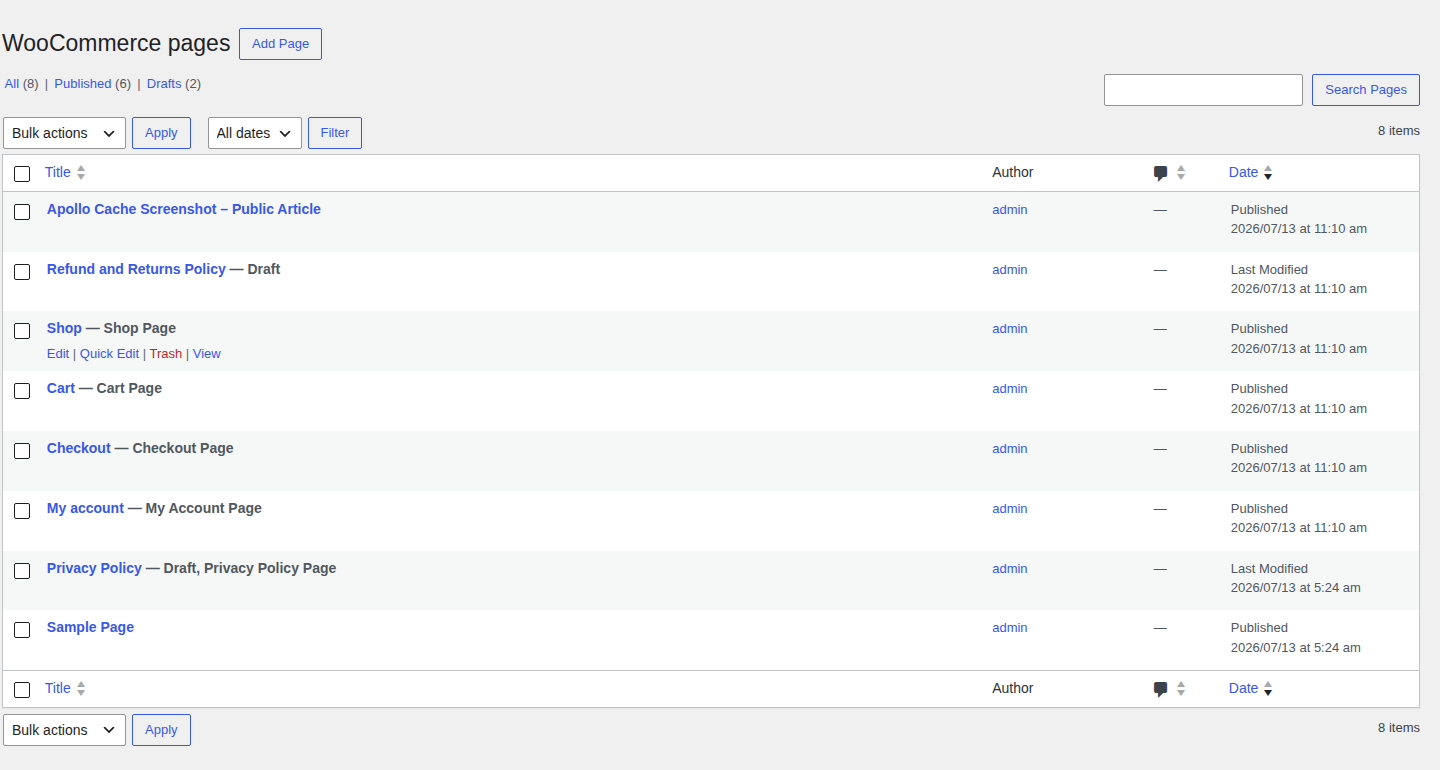
Object cache is often more useful for the parts of WooCommerce that stay dynamic:
A faster checkout is only good if it shows the right checkout.
For membership, LMS, and community sites, public sales pages can use page cache. Logged-in areas usually shouldn’t. WordPress has to check the member, the access rule, and often the payment state. Object cache can reduce the repeated work without treating all members as identical.
For slow wp-admin, page cache is usually a distraction. Look at the server first, especially if the symptom is WordPress high CPU usage. Then look at plugin load, scheduled tasks, database queries, and persistent object-cache support. I’ve seen people spend hours adjusting page-cache exclusions for an admin problem that page cache was never going to touch.
Page-cache mistakes tend to be loud because the visitor sees them.
Those aren’t tiny performance tradeoffs. They’re privacy, revenue, and trust problems.
Object-cache mistakes are usually quieter. You may see stale settings, old product data, odd admin behavior, or a workflow that fixes itself after a cache flush and then breaks again later. That clue helps. It still doesn’t make the afternoon less annoying.
Object cache can also make a site slower if the backend is underpowered or the connection cost is higher than the work it saves. I see this most often when Redis is treated like a badge instead of a service that needs memory, proximity, and a healthy connection path. The plugin can be installed perfectly and still not help much if the backend isn’t in good shape.
⚠️ Note: If a cache flush “fixes” the issue for a while, don’t stop there. That’s evidence, not a solution. Ask which cache held the stale value, why the purge missed it, and whether another plugin or host feature is also claiming that layer.
The simplest rule is usually the one that saves the most time: give each cache layer one owner.
Stacking cache plugins feels like doing more, but it can turn one stale page into a hunt through three dashboards.
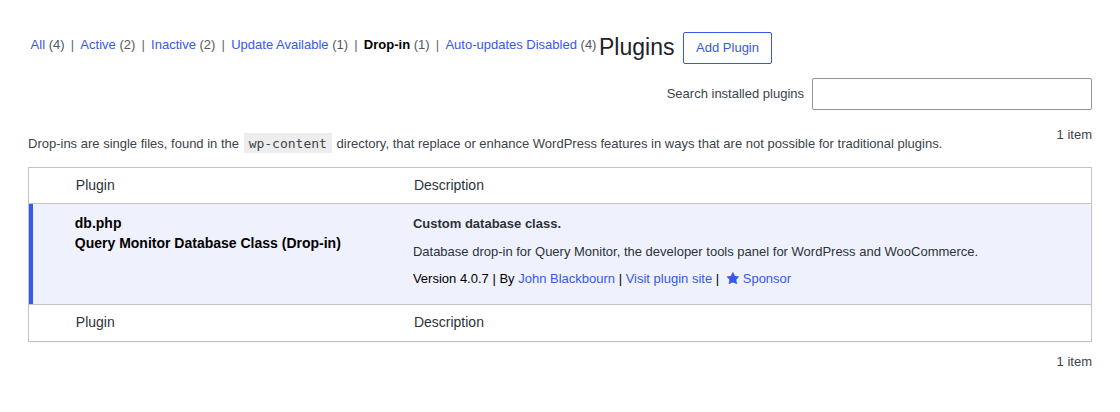
If you’re troubleshooting ownership, WordPress drop-ins can give you a clue. Page-cache setups often use advanced-cache.php. Persistent object-cache setups often use object-cache.php. You don’t need to obsess over these files, but if two tools are fighting over the same layer, even a simple stale-page issue gets harder to reason about.
Caching reduces repeated server work. It doesn’t make every part of a slow site disappear. Page cache won’t fix:
Object cache won’t fix those either. It can help WordPress do less database work on dynamic requests, but the visitor still has to download, parse, and render the page.
This is where a WordPress performance optimization plugin like AirLift fits the public-page side of the problem. AirLift helps with page caching, navigation prefetching, and the visible speed work visitors actually feel: lighter images, cleaner JavaScript, better font handling, Critical CSS, CDN delivery, and page-builder output that has grown too heavy.
💡 Note: Treat AirLift as part of the public-page performance layer, not as a Redis, Memcached, or Valkey replacement. If your real bottleneck is database-heavy admin, checkout logic, or store filtering, object cache still needs its own backend and its own checks.
Don’t test caching with one random page and call it done. Pick the page or workflow that made you care in the first place. For page cache, test a logged-out public URL:
For object cache, don’t stare at the homepage. Confirm the backend is actually connected, then test the dynamic workflow:
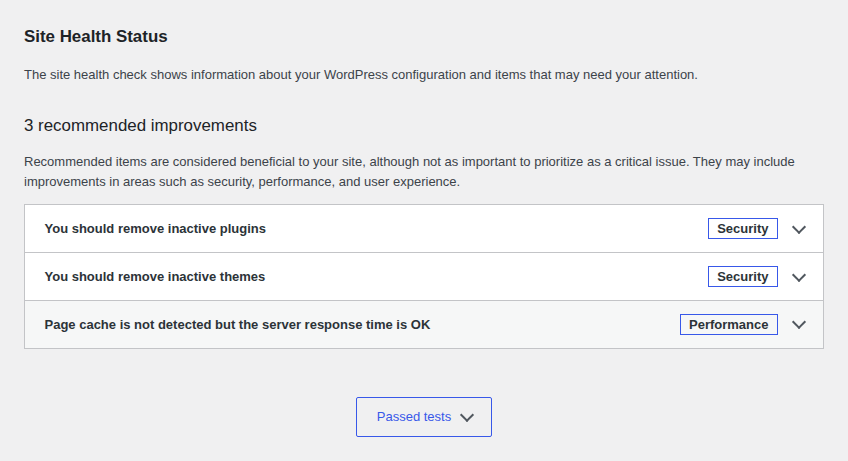
If you have a query tool available, compare repeated database work before and after. If your host exposes memory use, hit/miss data, or connection health, watch those too.
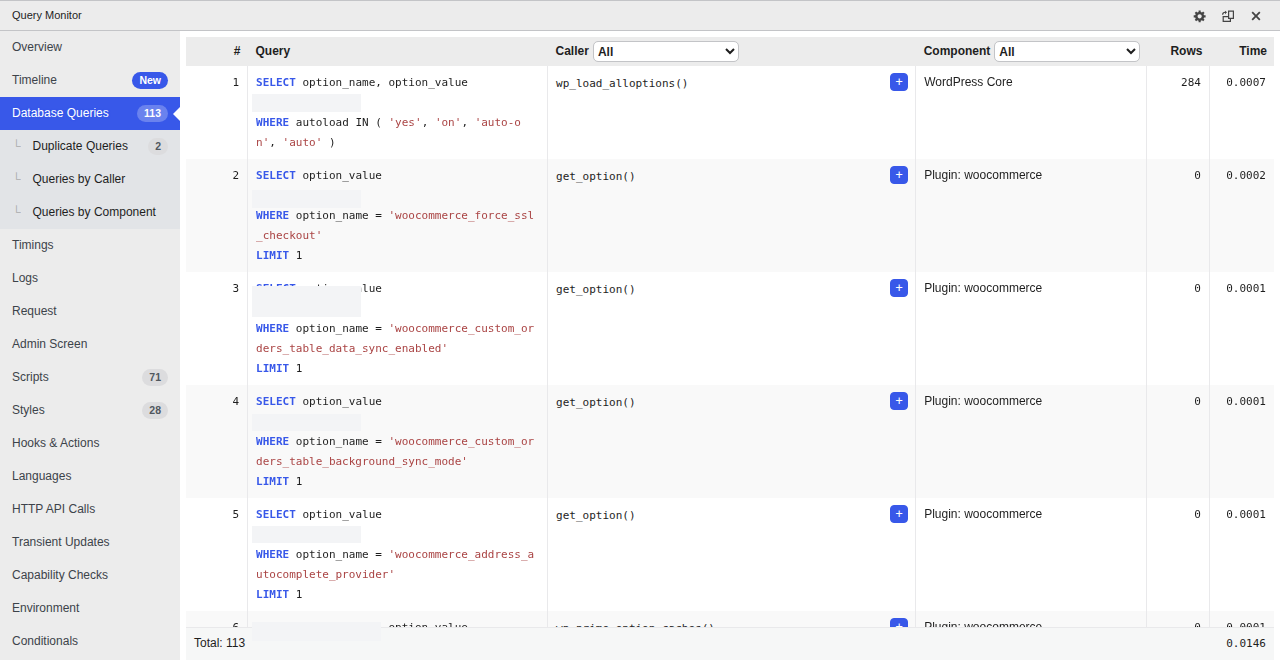
🔎 Note: A cached article doesn’t prove object cache helped checkout. A connected Redis plugin doesn’t prove your logged-out URLs are fast. Measure the request that was slow.
You’ll also run into a few other cache names while tuning a WordPress site. They’re useful, but they aren’t interchangeable with page cache or object cache.
| Cache layer | What it stores | What to remember |
|---|---|---|
| Browser cache | Static assets on the visitor’s device | Helps repeat visits download less |
| CDN cache | Assets, and sometimes full HTML, on edge servers | May act like page cache away from your origin server |
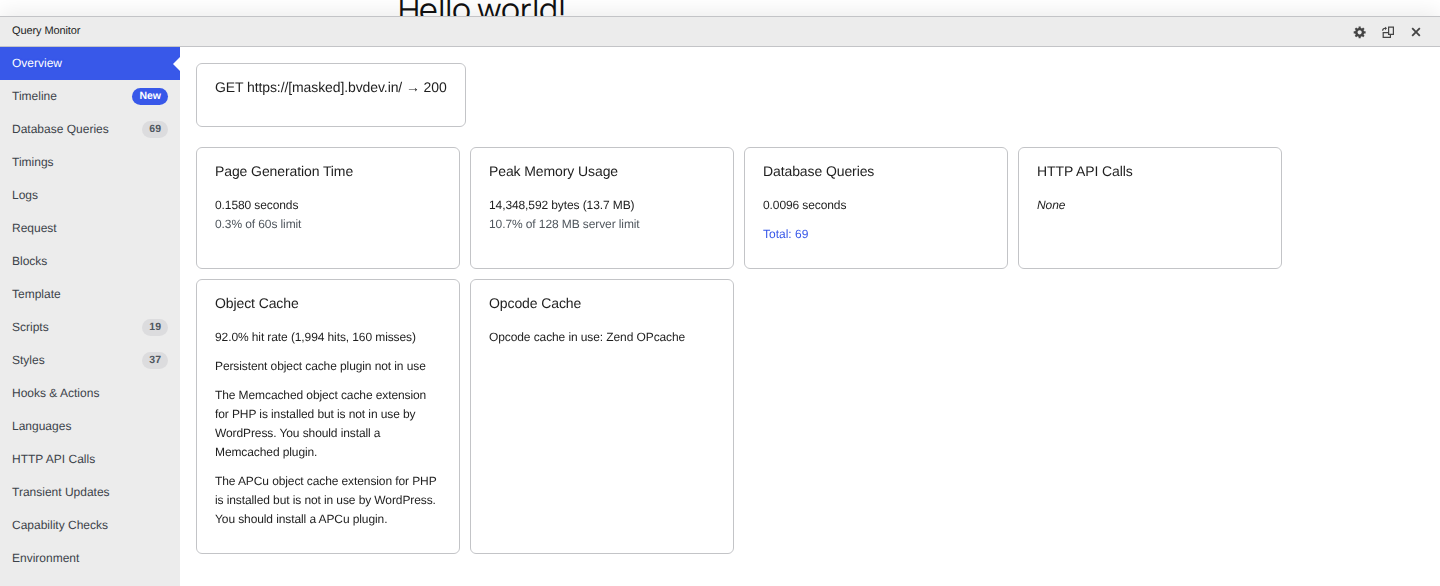
| OPcache | Prepared PHP code | Speeds PHP execution, not finished pages or WordPress query results |
🧭 Note: When a CDN caches full HTML, it can become another page-cache owner. That’s fine when purges are coordinated. It’s painful when three separate layers are holding three separate copies of the same page.
For a mostly public site, start with page cache. Make sure logged-out visitors are getting cached pages, then improve the front end: images, JavaScript, CSS, fonts, and CDN delivery.
If your site sells products, runs memberships, hosts courses, or depends on logged-in workflows, plan for both:
If only wp-admin is slow, don’t spend the afternoon tuning page-cache rules. Look at the server, plugin load, scheduled tasks, and database queries. Then check whether your host supports persistent object cache well.
When you’re ready to configure the layer you chose, use a practical guide to how to enable caching in WordPress instead of turning on every cache setting at once.
If you’re using AirLift and unsure whether a problem belongs to page cache, front-end optimization, or your host’s object-cache layer, AirLift support can help you sort out ownership before you change more settings.
✅ Note: My default order is page cache for public pages, front-end cleanup for what the browser still has to render, and object cache when the slow request is dynamic or database-heavy. If both caches are already enabled, stop asking which one is better in the abstract. Pick the slow request. Then ask what work is repeating.
Sometimes. Page cache helps reusable public URLs. Object cache can still help requests that bypass page cache. I would check admin screens and checkout before retesting the homepage.
No. Object cache stores reusable WordPress data. Page cache stores the ready page response. They work at different points in the request.
Usually both, but in different places. Page cache can help product and category pages when exclusions are correct. Object cache often matters more for order screens, checkout logic, and filter-heavy catalog browsing.
Usually, no. wp-admin changes by user, role, and action. Plugin state and live data matter too. Object cache, stronger hosting, database cleanup, and plugin cleanup are more relevant.
Yes, only if your site has dynamic or database-heavy work that benefits from persistent object cache, and your host supports Redis well. Memcached and Valkey can also be valid when the host manages them properly. A small public site may get more value from page cache and front-end optimization first.
Redis object cache sounds like one of those WordPress speed fixes you should just turn on and forget about. I get the appeal. When a site is slow, nobody wants a lecture about…
Read

Your homepage can feel fast while the parts that make money still feel slow. If you’re trying to speed up your website, it helps to understand that not every request behaves the…
Read

You know your WordPress site is slow. The confusing part is that every answer points to a different fix. One person says to install a cache plugin. Your host says caching is…
Read
Airlift works out what each page needs and applies it. Free to try on your own site.