

WordPress CDN: What It Does and When You Need One
Sometimes a WordPress site is slow, but not for everyone. It loads fine for you. Then a customer in another country says the images take forever. A speed test from your city looks…
Read

You update a headline, change a logo, fix a typo, or publish a new pricing page. Then you open the site and still see the old version. Someone says, “Clear your cache.”
That advice may be right, but it skips the useful part. Your browser may have a saved copy. Your WordPress site may have one. Your host or CDN may have one too. A CDN is a content delivery network, which serves files from servers closer to visitors. If you clear the wrong layer, nothing changes.
So here is website caching explained in plain English: caching stores ready-to-use copies of website content so the same work does not happen again for every visitor.
TL;DR: Website caching saves ready-to-use copies of pages, files, or data so repeat requests load faster. The trick is caching the right things for the right length of time, then purging or revalidating them when content changes.
Caching is not one switch. It is a set of rules about what can be reused, who can reuse it, and when the saved copy should be replaced.
Website caching stores temporary copies of website pages, files, responses, or data in a place where they can be reused quickly.
That can mean a browser reusing the same logo file it downloaded yesterday. It can mean WordPress serving a saved copy of a blog post instead of rebuilding it with PHP and database queries. It can mean a CDN serving an image from a location closer to the visitor. The cache is not the original page. It is a shortcut to a copy.
The important rule is simple: cache content that is public and stable. Be careful with content that is personal, urgent, or often changing.
⚡ Note: Think of cache as a helpful assistant, not the source of truth. If the assistant keeps handing out an old menu, the problem is not that assistants are bad. The problem is that nobody told this one the menu changed.
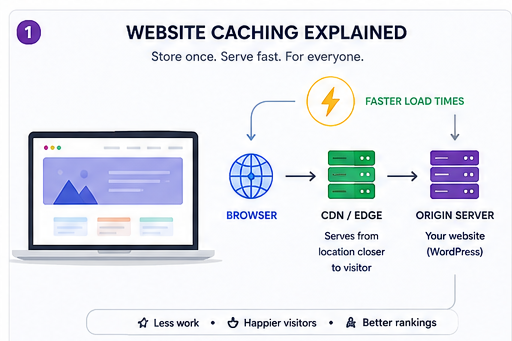
A website can do a lot of work before one page appears.
On a first visit, the browser asks for the page. The server may run code, query a database, load a WordPress theme, run plugins, assemble the page, and send images, CSS, JavaScript, fonts, and tracking scripts back to the browser.
That work is normal the first time. It becomes wasteful when the same page or file has not changed.
A blog post does not need to be rebuilt from scratch for every reader. A logo does not need to be downloaded every time someone clicks to another page. A product category page may not need fresh database work every second if the list changes a few times a day. Caching cuts repeated work. The browser waits less. The server does less. The site can handle more visitors before it starts to strain.
This matters more on WordPress because WordPress is dynamic by default. A simple page may still involve PHP, database calls, theme files, plugin hooks, images, CSS, and JavaScript. Caching does not remove that complexity. It stops the site from repeating it when the result can safely be reused.
🧠 Note: The fastest cache setup still cannot rescue a page that is shipping huge images, five unused tracking scripts, and a theme that loads assets on every page whether they are needed or not. Cache removes repeated work. It does not make bad work disappear.
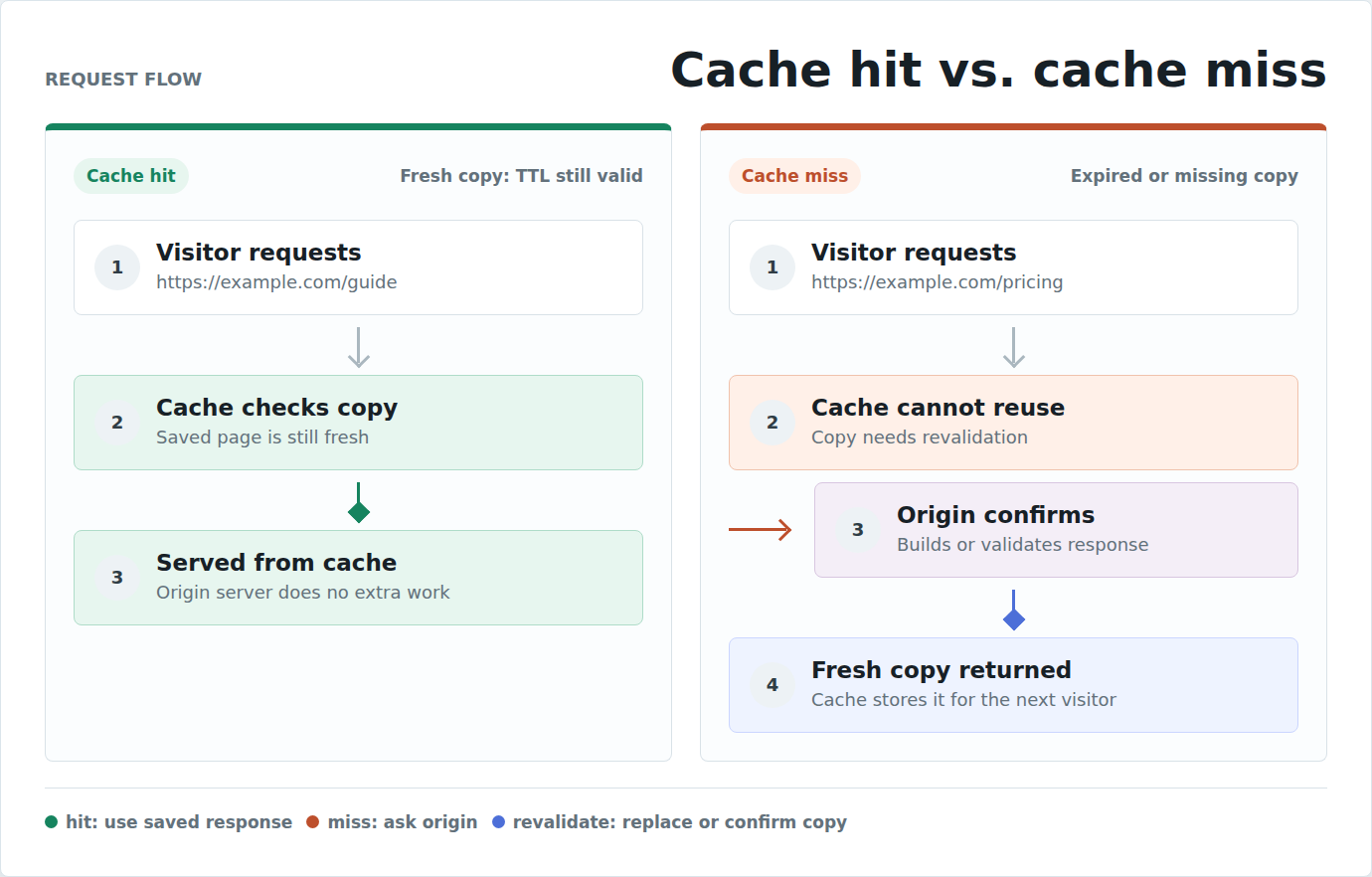
Every cache follows the same basic flow.
| Stage | What happens |
|---|---|
| First visit | The site builds or sends the page or file. |
| Store | A cache saves a copy if the rules allow it. |
| Repeat visit | The browser, server, or CDN checks for a saved copy. |
| Cache hit | The saved copy is still usable, so it loads faster. |
| Cache miss | No usable copy exists, so the request goes back to the source. |
| Recheck | The cache asks whether an older copy is still current. |
A cache hit is the fast path. The saved copy is ready and allowed to be used. A cache miss is not a failure. It only means the cache could not use a saved copy. The page may be new, expired, personalized, logged in, or excluded on purpose.
The key idea is freshness. A cached copy usually has a time limit. That limit is often called TTL, which means time to live. It is the period a saved copy can be reused before the cache needs to check again.
Short TTLs keep content fresher but reduce the speed gain. Long TTLs improve reuse but increase the chance that visitors see an older version after a change.
Good caching is a balance between website speed and correctness.
⏱️ Note: For pages that rarely change, a longer TTL is usually fine. For prices, event dates, sale banners, inventory messages, or legal copy, use shorter lifetimes or reliable purging. Speed is useful only if the visitor sees the right answer.
The first caching mistake is treating cache as one layer. Most real sites have several layers. Clearing your browser cache will not fix a stale CDN copy. Purging a WordPress plugin cache will not help if the browser is still holding an old CSS file.
| Cache type | Where it lives | Who usually controls it | What it is best for |
|---|---|---|---|
| Browser cache | Visitor’s device | Browser rules, your headers, file versions | Reusing images, CSS, JavaScript, and fonts on repeat visits. |
| Page cache | Server, host, plugin, or reverse proxy | WordPress plugin, host, or server config | Serving saved HTML so WordPress does less work. |
| Object cache | Server memory or cache service | Host, developer, or WordPress configuration | Reusing database query results on dynamic sites. |
| Opcode cache | PHP server | Host or server admin | Reusing compiled PHP code instead of compiling it again. |
| CDN or edge cache | Distributed servers | CDN settings and cache rules | Serving files or public pages closer to visitors. |
The practical lesson is this: ask which cache layer has the old copy before clearing everything.
For most WordPress sites, start with page caching and browser caching. Add a CDN if visitors are spread across regions or traffic spikes matter. Use object caching when the database is a real bottleneck, such as on larger WooCommerce, membership, or content-heavy sites.
🧭 Note: If a change appears in an incognito window but not your regular browser, suspect browser cache. If nobody sees the update, suspect page cache, host cache, or CDN cache. That one distinction saves a lot of pointless button-clicking.
Good cache candidates are content that many visitors can share safely. Usually safe to cache:
Some items need more care:
The decision rule is useful: if the same answer is safe for many visitors, caching probably helps. If the answer changes by user, session, cart, location, or login state, slow down and check the rules.
The risky caching mistake is storing private content in a shared cache. Do not publicly cache:
This does not mean a user’s own browser can never store anything personal. It means shared caches, such as CDNs and proxy caches, must not treat private pages as public reusable content. A product image is safe to cache publicly. A cart page showing one customer’s items is not. A checkout page with address or payment state needs stricter rules.
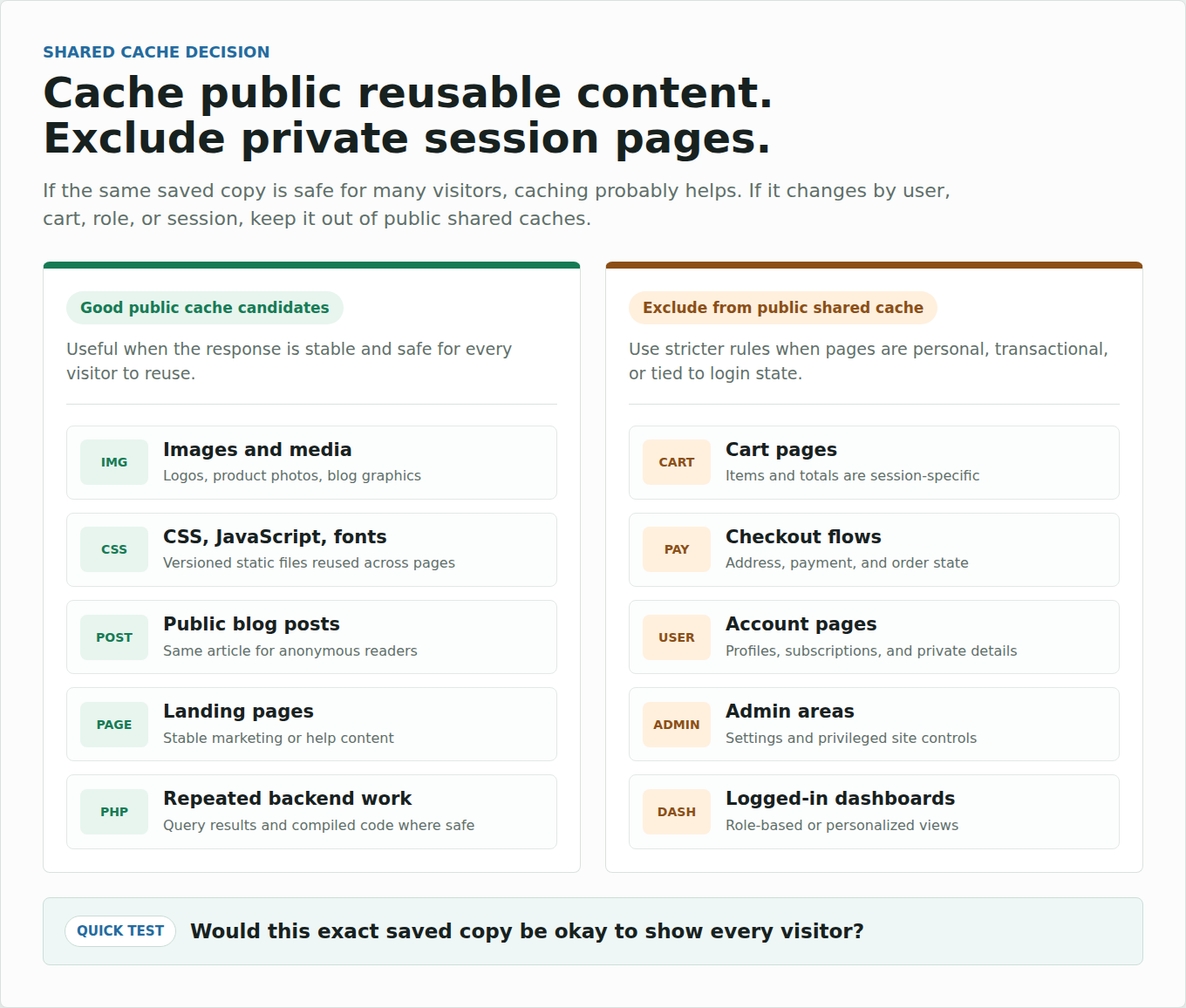
Do not cache private pages just because they are slow. Fix the reason they are slow.
🚦 Note: Shared cache rules should start conservative. Cache the public shell of a site freely, but treat carts, account areas, checkout flows, dashboards, and logged-in views as “prove it is safe first” territory. If a page changes by cookie, session, or user role, it needs explicit exclusions or carefully designed fragment caching.
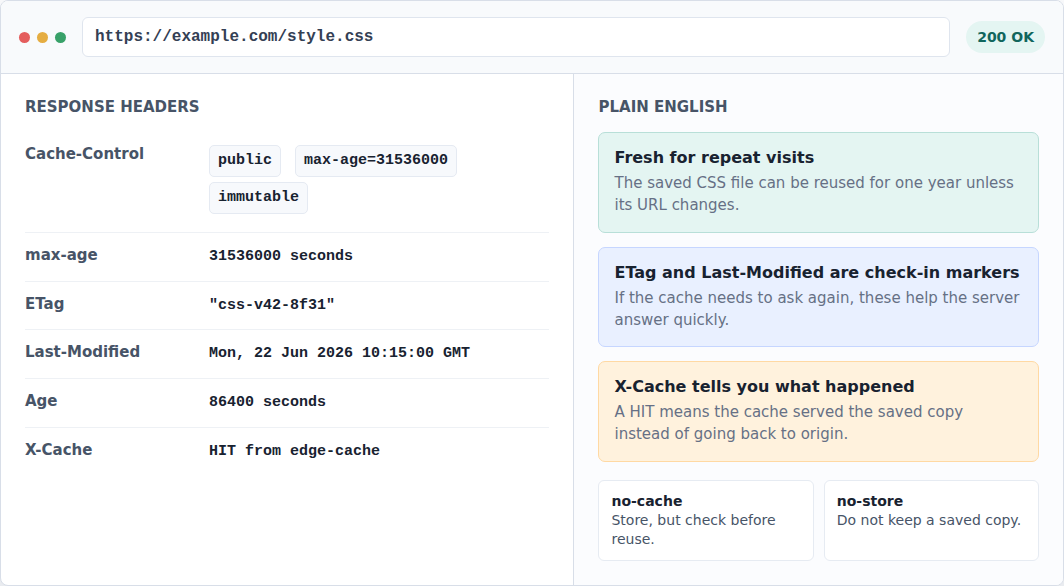
Cache headers are instructions sent with a page or file. They tell browsers and shared caches what they may store and how long they may reuse it. You do not need to become an HTTP expert, but these terms show up in speed tests, developer tools, CDN dashboards, and support tickets.
| Term | Plain-English meaning |
|---|---|
| Cache-Control | The main rule for whether a response can be stored and reused. |
| max-age | How long a saved copy stays fresh. |
| s-maxage | How long a shared cache, such as a CDN, may reuse the response. |
| public | Shared caches may store this response. |
| private | Only the visitor’s own browser should store it. |
| no-cache | A copy may be stored, but it must be checked before reuse. |
| no-store | Do not store this response. |
| ETag / Last-Modified | Markers that help a cache ask, “Has this changed?” |
| Vary | Store different versions when the response depends on request details, such as language. |
The common trap is no-cache versus no-store. No-cache does not mean “never store this.” It means “check with the server before using the saved copy.” No-store means “do not keep a copy.”
That difference matters on sensitive pages.
🧪 Note: Vary is useful, but it is not free. If a response varies by too many headers, the cache may end up storing many tiny variations and reusing very little. Use it when the page truly changes by language, encoding, device behavior, or another meaningful request detail.
Caching helps because it removes work that does not need to happen again.
The gains usually show up in five places:
Caching is strongest when it works with other speed techniques. For example, navigation prefetching can make likely next pages feel faster, while caching keeps reusable files and responses from being fetched again.
Caching can also support SEO because faster, more stable pages usually create a better user experience. But it is not a magic ranking lever.
A cached page can still be bad if it ships huge images, too much JavaScript, slow third-party scripts, weak hosting, or a bloated layout. Caching helps most when it is part of broader WordPress performance optimization.
🎛️ Note: Watch first-byte time and repeat-view behavior separately. Page cache often improves the server response. Browser and CDN cache often improve repeat visits and asset delivery. If you only look at one score, you can miss which layer actually helped.
Caching becomes frustrating when it keeps the wrong copy alive. Common problems include:
The most common problem is stale content. You changed something, but one cache still has the old version.
The fix is not always to clear everything. Purge the changed page, file, or CDN path when you can. A targeted purge keeps the rest of the speed benefit. If the stale behavior is a redirect, BlogVault’s guide to Simple 301 Redirects not working is a useful next step.
The more serious problem is over-aggressive caching. If a shared cache stores private or user-specific content, speed is no longer the main concern. Privacy and correctness are. Redirect loops need the same caution; MalCare’s guide to too many redirects in WordPress starts with cache and cookie checks before deeper configuration changes.
Fast and wrong is not performance.
🧯 Note: When a cache rule feels risky, ask one plain question: “Would I be comfortable showing this exact saved copy to every visitor?” If not, do not put it in a shared cache. That test is faster than arguing about every header one by one.
Clear or purge cache when a saved copy is likely blocking the right version from appearing. Use this order for a typical WordPress site:
Clear cache after major design changes, template changes, plugin changes that affect the frontend, menu updates, global banners, important copy changes, redirect changes, and CSS or JavaScript updates.
Do not clear cache as a habit. If you purge everything every hour, you throw away the speed benefit you set up caching to get.
For static files, the cleaner long-term fix is cache busting. That means the file name changes when the file changes, so browsers know the old saved file is no longer the right one. You get long browser caching without asking visitors to clear anything manually.
🧩 Note: Cache busting is why many production CSS and JavaScript files have names like style.8f3a1.css or a version query string. The browser can keep the old file for a long time because the next real change gets a new address.
🪜 Note: Purge from the outside in when debugging a visible change. Check your browser first, then WordPress or host cache, then CDN cache. Changing three layers at once may fix the page, but it also hides which layer was holding the stale copy.
Cache clearing fixes stale copies. It does not fix every slow-site problem. It will not help much if first-time visitors are slow because the page is too heavy. It will not fix a bad script, a broken layout, weak hosting, slow database queries, or an overloaded checkout flow.
It can also hurt during a busy moment. A full purge before a campaign can force the origin server to rebuild many pages at the worst time. The better rule is this: clear the cache layer that is holding the wrong copy. Do not punish every other layer for doing its job.
Do not guess. Measure your website speed on one important page before and after changing caching. Use a simple check:
If you or your developer checks headers, look for signs such as Cache-Control, Age, X-Cache, CF-Cache-Status, ETag, or Last-Modified. The names vary by host and CDN, but the question is the same: was this response cacheable, was it served from cache, and how old is the copy? If you are stuck interpreting those results on an AirLift setup, contact AirLift support.
The practical test is not just “did the cache hit?” It is whether repeat visits got faster, public pages still update correctly, and private pages stay out of shared caches.
📊 Note: Test twice. The first test may build or fetch the page. The second test often shows whether the cache is doing useful work. If the first and second results are identical, caching may be disabled, bypassed, or hidden behind another bottleneck.
Start with the safest high-impact setup.
If manual setup is getting messy, AirLift is a practical WordPress performance optimization plugin for WordPress users who want caching handled alongside CDN delivery, image optimization, CSS and asset improvements, and Core Web Vitals-focused work. Still test key pages after setup, especially forms, search, checkout, logged-in flows, popups, and tracking scripts.
No performance plugin should be treated as permission to skip testing.
✅ Note: For WordPress, the safest rollout is boring on purpose: enable caching, test public pages, test forms, test checkout or login flows if they exist, then make one real content change and confirm the right cache layer refreshes. That is how you catch bad exclusions before visitors do.
Caching fixes every slow website. It does not. Caching reduces repeated work. It cannot remove oversized images, weak hosting, bloated scripts, or broken code.
A cache miss means something is broken. Not usually. A miss is normal when content is new, expired, personalized, or excluded from cache. Clearing cache is harmless. Not always. A full purge can make the server rebuild many pages at once. Prefer targeted purges.
A CDN replaces all other caching. No. A CDN helps with delivery, but WordPress page generation, browser caching, images, scripts, and database work still matter. More caching is always better. No. More caching is better only when the saved copy is safe, current, and useful.
Website caching stores temporary copies of pages, files, or data so they can be reused faster later. Instead of rebuilding or downloading the same thing every time, the browser, server, or CDN can serve a saved copy.
Browser cache lives on the visitor’s device and usually stores files like images, CSS, JavaScript, and fonts. Server cache lives closer to your website and can store ready-made pages, database results, or compiled PHP code.
A cache hit means a usable saved copy was found and served. A cache miss means no usable copy was available, so the request went back to the original source.
Clear or purge the relevant cache after important updates, especially design, template, CSS, JavaScript, menu, or global content changes. Use targeted purging when possible instead of clearing the whole site.
Caching can cause stale pages, old CSS, broken layouts, confusing debugging, or incorrect behavior if private pages are cached publicly. The fix is not to avoid caching. The fix is to set clear rules and test important pages.
Website caching is simple at the center: reuse a good copy instead of rebuilding or redownloading the same thing. The hard part is deciding which copies are safe to reuse, how long they should live, and which cache layer should be refreshed when something changes.
For most site owners, the right path is practical rather than perfect. Cache public and stable content aggressively, keep private and session-based pages out of shared caches, purge only what changed, and measure the result. If you run WordPress, treat caching as one part of performance work alongside images, scripts, fonts, hosting, and Core Web Vitals.
Sometimes a WordPress site is slow, but not for everyone. It loads fine for you. Then a customer in another country says the images take forever. A speed test from your city looks…
Read

Redis object cache sounds like one of those WordPress speed fixes you should just turn on and forget about. I get the appeal. When a site is slow, nobody wants a lecture about…
Read

Speed reports are blunt. You search for “leverage browser caching WordPress” because a tool has handed you a list of file URLs, and now a normal WordPress slowdown feels like…
Read
Airlift works out what each page needs and applies it. Free to try on your own site.