

Browser Caching: What It Is and How It Speeds Up Your Website
You update a logo, reload the page, and still see the old one. PageSpeed says some files need a longer cache lifetime. A plugin promises to fix caching, your host already has…
Read

Speed reports are blunt. You search for “leverage browser caching WordPress” because a tool has handed you a list of file URLs, and now a normal WordPress slowdown feels like server homework. It feels like WordPress should have one setting for this.
It doesn’t, which is why so many guides jump too quickly to plugins and snippets.
TL;DR: To leverage browser cache, set browser-cache rules for reusable static files, especially your stylesheets, scripts, and media. Use the control point that actually serves those files: your performance plugin, host, CDN, or server config.
The part I wouldn’t rush is the code snippet. Browser caching is a policy decision, not a magic switch. A good fix makes returning visits faster. A bad fix can leave shoppers seeing stale carts, logged-in users seeing the wrong page, or returning visitors stuck with old CSS after a design change.
So the job is smaller and more specific than “make the warning disappear.” Find the files in the report, decide which ones are yours, and give those files cache rules that match how your site updates.
Browser caching tells a visitor’s browser how long it can keep a file before asking your server for it again.
When someone opens a WordPress page, the browser downloads the pieces that make the page work. Your theme stylesheet is one. Plugin JavaScript is another. The same is true for images, fonts, and icons. The first visit still has to fetch those files. On the next page view or next visit, the browser may already have some of them saved locally.
That’s the win. Browser caching mostly helps repeat visits and multi-page sessions. It won’t make a brand-new visitor magically skip the first download, but it can stop the same files being fetched over and over again.
It also isn’t the same as clearing cache. Clearing cache deletes stored files. Browser caching sets the rules that tell the browser what it may store and when it should check for an update. Those rules arrive as response headers. The ones you’ll see most often are:
If DevTools shows 304 Not Modified, that’s usually a good sign. It means the browser checked with the server, the server said the saved copy was still current, and the full file didn’t need to be sent again. That sits alongside WordPress page caching, but it is not the same layer.
Older reports used to say “Leverage browser caching.” Newer Lighthouse and PageSpeed Insights reports usually say Serve static assets with an efficient cache policy.
I actually prefer the newer wording. It pushes you toward the files, which is where the answer is. The warning isn’t asking you to install any one WordPress plugin. It’s saying these specific assets don’t have a cache lifetime the tool considers efficient.
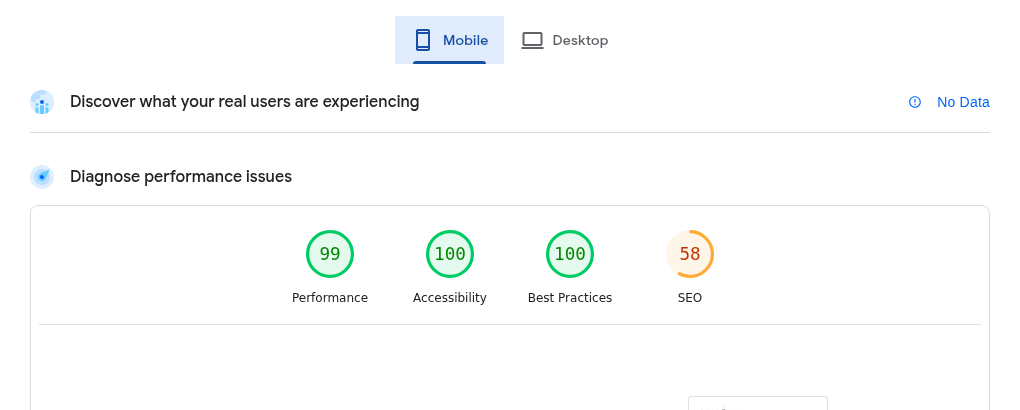
Open the warning and look at the URLs. If the file is from your domain, your WordPress setup, host, CDN, or server may be able to change its headers. If it comes from Google, Meta, an ad network, a social embed, live chat software, or another outside service, you usually can’t control it from WordPress.
This is why people fix their own headers and still see the warning. The report may still be complaining about a third-party script. Annoying, yes. But it doesn’t automatically mean your WordPress browser caching work missed the mark.
Static files are the safest place to use longer browser-cache lifetimes. For most WordPress sites, these are the files to sort out first:
| File type | Safer cache choice |
|---|---|
| Images | Long cache time if replaced files get new names or URLs |
| CSS and JavaScript | Long cache time when versioned; shorter when the same URL is reused |
| Fonts | Long cache time when served from your domain or CDN |
| PDFs and downloads | Long cache time if updated files are renamed |
| HTML pages | Short cache time or revalidation |
| Cart, checkout, and account pages | Avoid aggressive browser caching |
| Third-party scripts | Usually outside your control |
The detail that matters most is cache busting. If your stylesheet changes from style.css?ver=2.4.1 to style.css?ver=2.4.2, the browser sees a new URL and downloads the new file. That makes a long cache time much safer, because updates get a new address.
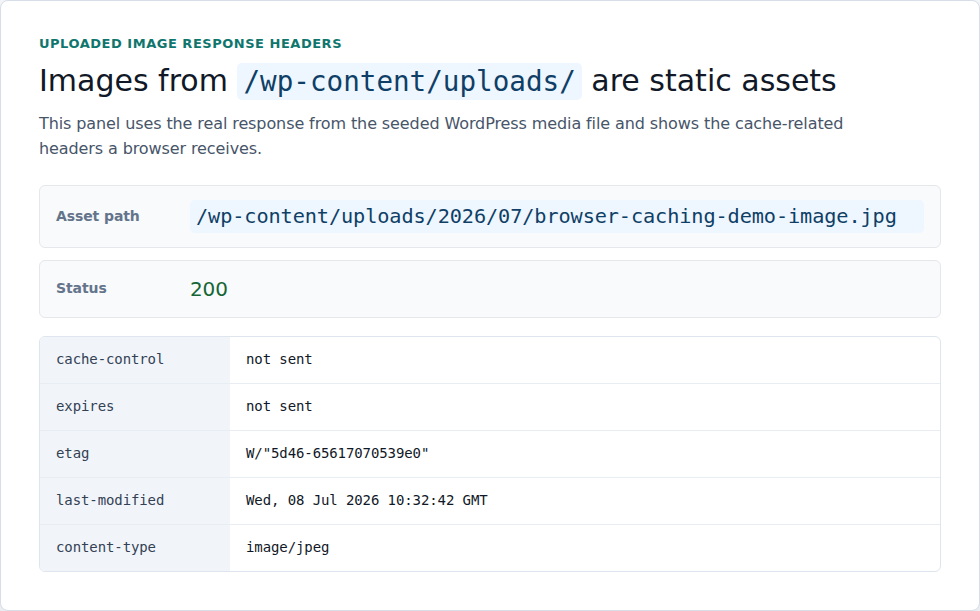
If your site keeps editing a file but serving it from the exact same URL, be more conservative. A one-year cache time can be fine for versioned static assets. It’s much less fine for an unversioned CSS file that controls your layout.
Uploaded media is one of the easiest places to see this distinction, because WordPress gives each file a concrete asset URL.
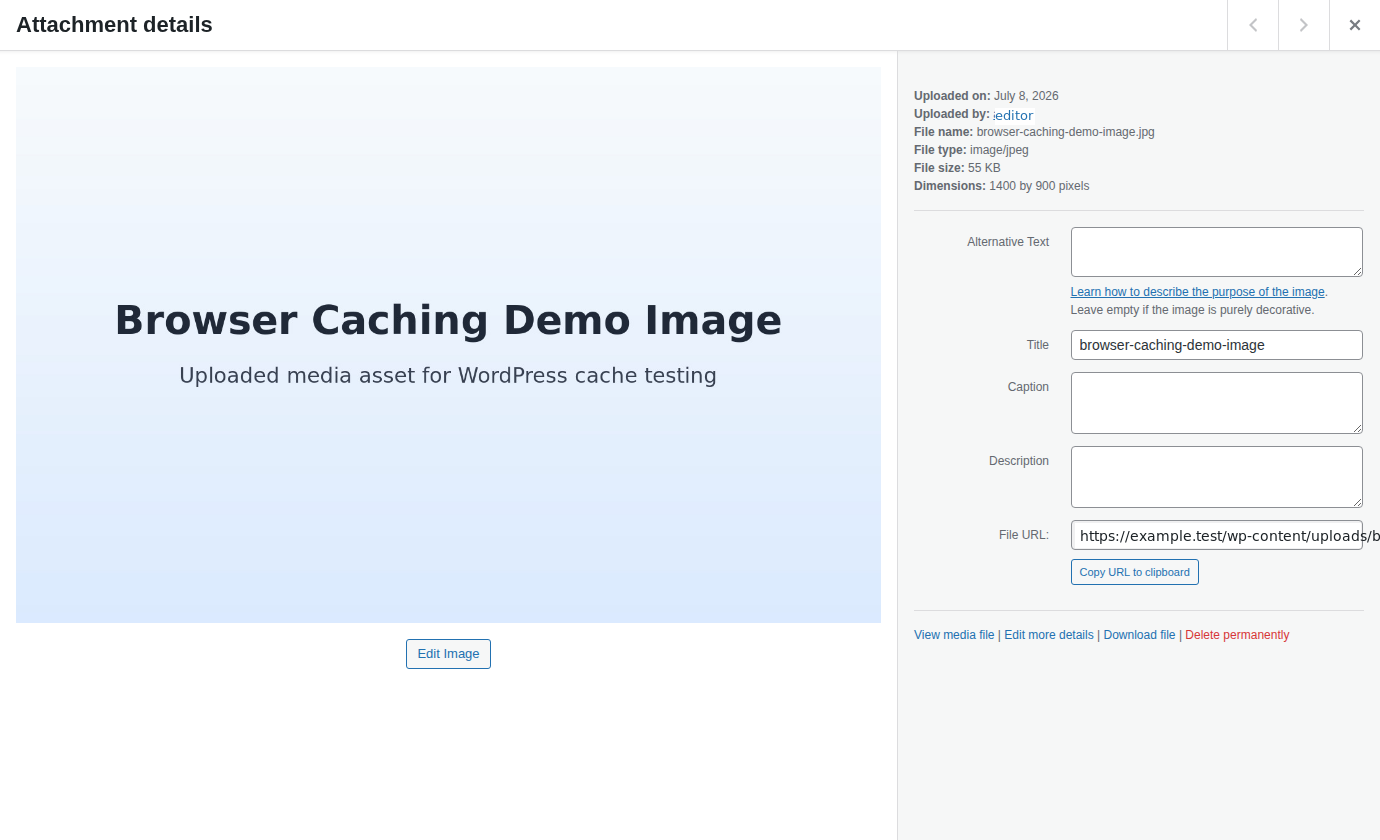
HTML deserves a different rule. A blog post is fairly stable. A cart page or logged-in account page is personal to the visitor. Some HTML can be page-cached by WordPress or your host, but asking every visitor’s browser to keep it for a year is where speed work starts turning into support tickets.
Start where the file is actually being served. That’s the part many WordPress guides skip, and it’s why the same advice works beautifully on one site and does nothing on another.
I would check these places in this order:
For the broader WordPress speed workflow, AirLift can be a practical next step once you’ve separated first-party files from everything else. I wouldn’t expect any WordPress tool to control third-party servers, and I wouldn’t claim a header fix without checking the actual response headers. The value is having the speed work organized around the site instead of around one isolated warning.
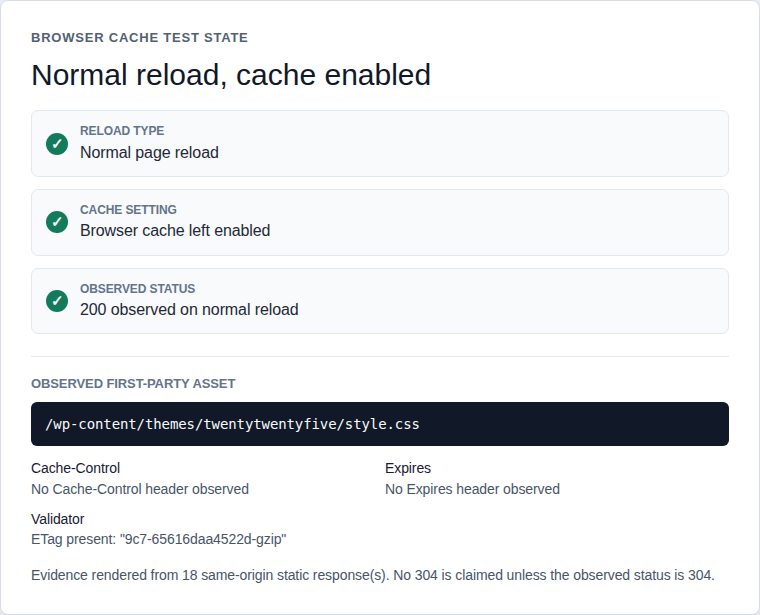
Don’t check this from memory, and don’t rely only on the score. Test the same flagged files before and after the change.
Expires date, or later reloads pulled from local browser storage.The small trap here is changing too many variables. If you test one page before the fix and another page after it, or you switch from normal reload to hard reload, you won’t know what changed. If this is part of recurring site care, fold the same speed check into a WordPress maintenance checklist and retest after WordPress updates.
Most failed fixes come from treating browser caching as one setting that belongs everywhere.
No. Clearing WordPress cache removes stored files. Browser caching tells a visitor’s browser how long it can keep files and when it should check for updates.
Only a little, if at all. The first visit has to download the files before the browser can store them. Browser caching helps more on the next page view, the next visit, and any session where the same assets appear again.
Use Cache-Control as the main modern header. Expires is older, but it’s still common enough that some server setups and performance tools look for it.
Often, yes, when the affected files are first-party assets and the plugin can influence the response headers. It may not fix files controlled by your host, CDN, Nginx config, or a third-party domain.
It can be safe when the asset URL changes after updates. If your CSS or JavaScript keeps the same URL after edits, use a shorter cache time or fix versioning first, especially if your workflow includes CSS re-optimization.
To leverage browser caching in WordPress, give static assets a sensible cache policy and make the change in the layer that actually serves those files. Keep dynamic pages conservative, especially carts, account pages, and checkout flows. If a warning remains for a third-party URL, don’t treat it as proof that your WordPress fix failed.
You update a logo, reload the page, and still see the old one. PageSpeed says some files need a longer cache lifetime. A plugin promises to fix caching, your host already has…
Read

Reports don’t make this easy: Core Web Vitals assessment failed WordPress can sit beside a performance score that doesn’t look that bad. That’s the part that throws people. The…
Read

If you’ve tried to enable caching and visitors are now seeing old CSS, outdated content, or a private page from the wrong cache, the cache control header is a key place to…
Read
Airlift works out what each page needs and applies it. Free to try on your own site.