

WordPress Dashboard Slow? Fix the Right Problem First
There is a very specific irritation in opening WordPress to make one small edit and then waiting on the dashboard like it’s thinking about whether you deserve access today. The…
Read

PageSpeed Insights can make one slow WordPress page feel like five different emergencies. It may point at a hero image, server response, unused CSS, JavaScript, fonts, lazy loading, and third-party scripts in the same report.
If you searched for how to improve LCP WordPress, the safest path is not to switch on every speed setting you can find. It is to treat LCP as one part of WordPress performance optimization: find the exact LCP element, find which part of its load is slow, and fix that part first.
TL;DR: To improve LCP on WordPress, identify your LCP element in PageSpeed Insights, check whether TTFB, resource delay, resource size, or render delay is the bottleneck, then fix that layer first. For most sites, the biggest wins come from page caching or CDN, making the hero image load early, excluding first-screen media from lazy loading, reducing unused CSS and JavaScript, and retesting important pages after every change.
The visible problem is a bad LCP score. The hidden problem is usually a chain of small delays: WordPress takes too long to send the page, the browser discovers the hero image late, the file is too large, or CSS and JavaScript block the first screen.
Fix the chain in the right order and LCP becomes much less mysterious.
LCP means Largest Contentful Paint. In plain English, it measures how long it takes for the most important thing on the first visible screen to appear. A good LCP is 2.5 seconds or less for at least 75% of real visits. That last part matters.
One fast Lighthouse run is nice, but Google cares about how real visitors experience the page over time. On WordPress, the LCP element is often one of these:
The same site can have different LCP problems on different pages. A homepage may be slowed by a slider, a blog post by a featured image, a product page by the gallery, and a landing page by a font-heavy hero.
That is why generic speed checklists waste time. You are not optimizing “WordPress” in the abstract. You are optimizing one specific URL, one device view, and one LCP element at a time. If you are battling an overall slow website, you must isolate these variables sequentially.
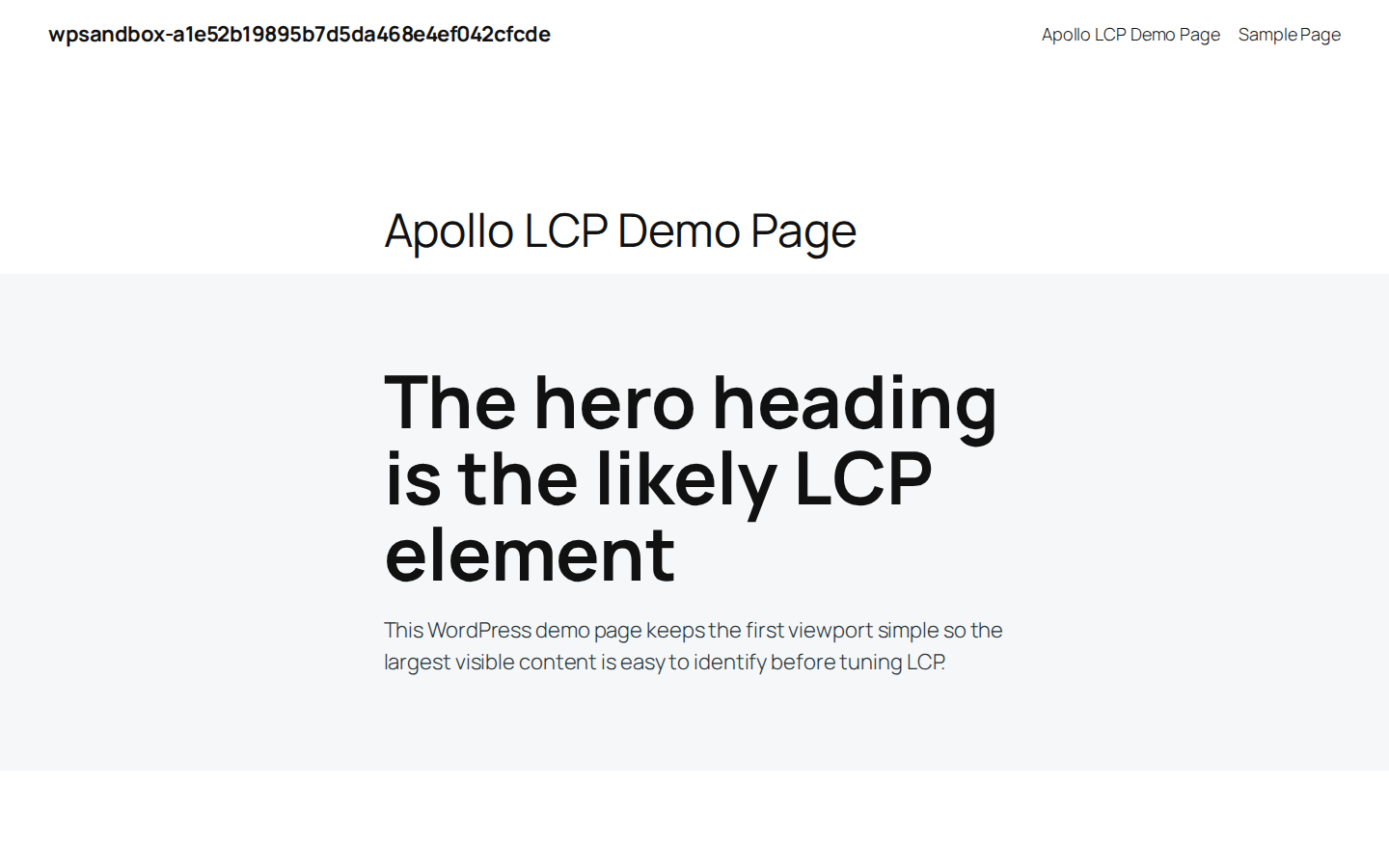
Before changing settings, test the page that is actually failing. A green homepage does not prove your product pages, blog posts, landing pages, or checkout flow are fast.
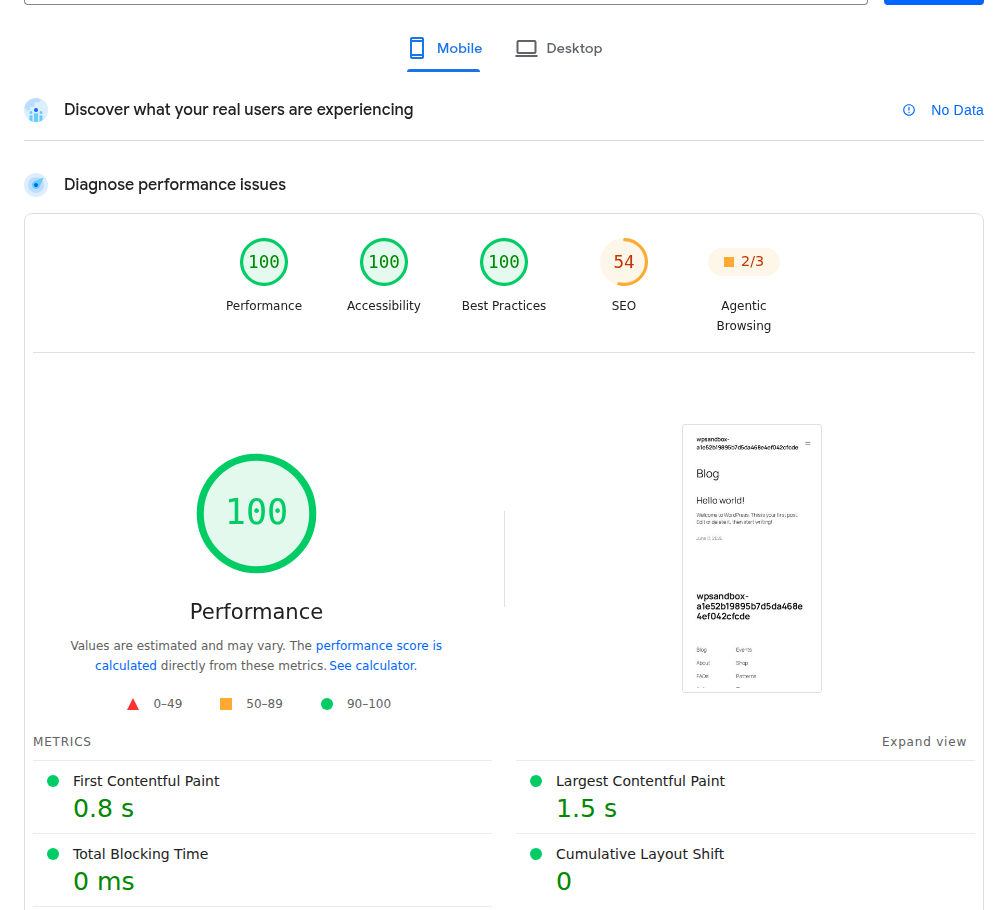
Start with PageSpeed Insights and the broader website performance metrics that explain whether you are looking at lab data, field data, or a changing mix of both:
Then widen the check only as needed. Google Search Console can show Core Web Vitals issues by URL group and device. Chrome DevTools or WebPageTest can help when PageSpeed does not clearly show when a file starts downloading or which script blocks rendering.
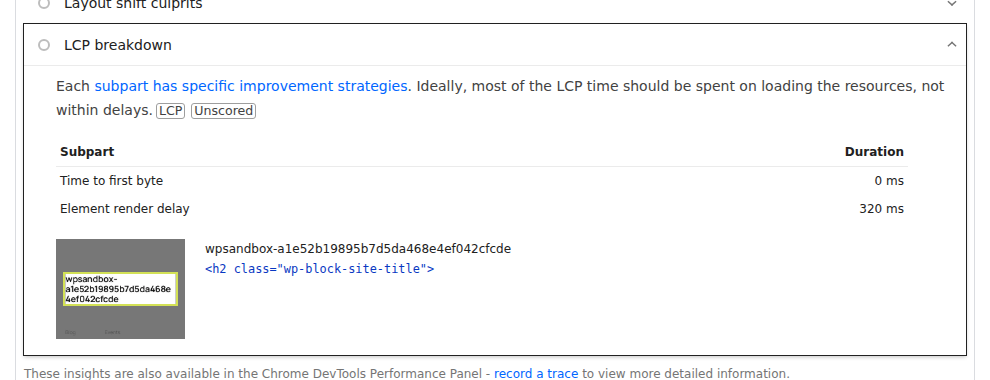
Run more than one lab test. Cache state, ads, server load, and third-party scripts can change the result. You are looking for a pattern, not one perfect run.
For a beginner, this is enough: find the page, find the LCP element, and read the slowest timing part. For a developer, the next stop is the network waterfall and main-thread work. Both paths start with the same question: what is the browser waiting for?
PageSpeed breaks LCP into parts. Treat that breakdown like a triage table. It tells you where to look first.
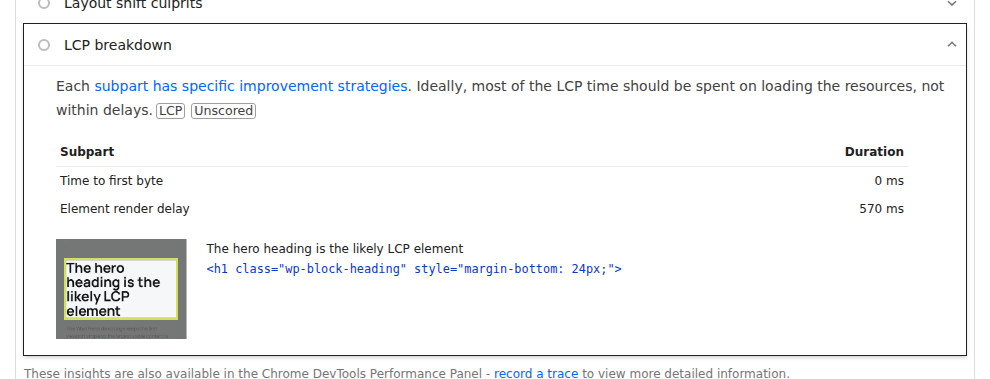
| Slow part | What it means | Common WordPress causes | First fix to try |
|---|---|---|---|
| TTFB | The HTML arrives late. | No page cache, slow hosting, redirects, heavy plugins, database work, uncached dynamic pages. | Enable and verify caching, reduce redirects, audit plugins, improve hosting or server setup. |
| Resource delay | The LCP file starts loading late. | Lazy-loaded hero images, CSS background heroes, sliders, JavaScript-injected content, page-builder markup. | Make the LCP element discoverable early and exclude first-screen media from lazy loading. |
| Resource duration | The LCP file takes too long to download. | Oversized images, weak compression, missing mobile sizes, distant server, competing CSS/JS/font files. | Resize, compress, use responsive images, use CDN delivery, reduce competing payloads. |
| Render delay | The file is ready but cannot appear. | Blocking CSS, JavaScript, fonts, animations, popups, ads, consent tools, client-side rendering. | Remove unused CSS/JS, defer non-critical scripts, improve font loading, simplify first-screen rendering. |
The important lesson is this: an optimized image can still be late.
If the browser discovers a hero image after two seconds, compressing it from 220 KB to 140 KB may help a little, but it will not fix the real problem. If the file downloads quickly but waits behind CSS and JavaScript, image work is not the first fix either. Fix the slowest part first. Then test again. If the bottleneck moves, that is progress. You have uncovered the next limit.
If TTFB is high, the browser is waiting for WordPress to send the page HTML. The hero image cannot load early if the page itself arrives late.
This is common on sites where every public visit makes WordPress rebuild the page with PHP, theme code, plugins, database queries, and third-party hooks. A brochure page should not need that much work every time someone opens it. Start here:
For WooCommerce, membership sites, LMS sites, and logged-in dashboards, be careful. Cart, checkout, account, payment, coupon, shipping, order confirmation, and personalized pages should not be blindly cached like a public blog post. The rule is simple: cache what is safe to reuse. Test anything that changes per visitor.
Resource delay is one of the most frustrating WordPress LCP problems because the LCP file may be perfectly reasonable once it starts downloading. The browser simply finds it too late.
This happens a lot with page builders, sliders, CSS background images, and custom hero sections. The image is visible to a human looking at the page, but not immediately obvious to the browser reading the first HTML.
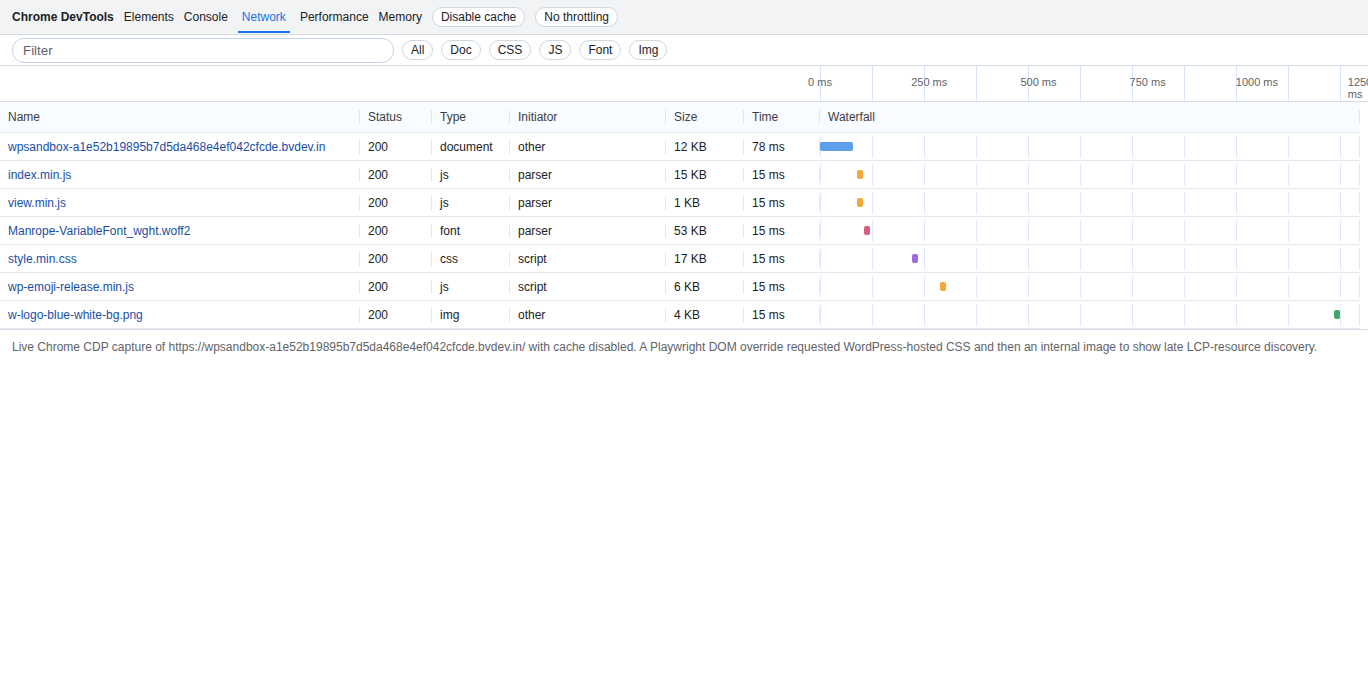
Use this order:
<img> hero when possible. A normal image in the HTML is easier for the browser to discover than a background image buried in CSS.fetchpriority="high" with restraint. It can help the browser prioritize the likely LCP image, but marking many images as high priority defeats the point.WordPress core can help with image loading behavior, including fetch priority for likely LCP images in newer versions. But custom markup, CSS backgrounds, page-builder output, and sliders can bypass those improvements.
🔔 Where this goes wrong: people see that an image is compressed and assume it is no longer the problem. Compression answers “how heavy is this file?” It does not answer “did the browser find it early enough?”
Once the LCP resource starts early, make it lighter. Focus on the exact file PageSpeed names, not every image in the media library. For image LCP, check the basics first:
If the LCP element is text, the “file size” problem may be CSS or fonts instead of images. A large font file, too many font weights, or slow third-party font delivery can delay the first meaningful text.
Text files matter too. HTML, CSS, JavaScript, SVG, and font-adjacent assets should use Brotli or Gzip where appropriate. Large CSS and JavaScript files can also compete with the LCP resource for bandwidth.
Do not stop at smaller files if the file is still discovered late. A lighter resource is good. An early lighter resource is better.
Render delay means the browser has what it needs, or nearly has it, but still cannot paint the LCP element. This is where WordPress speed plugins can help, but it is also where careless presets break sites.
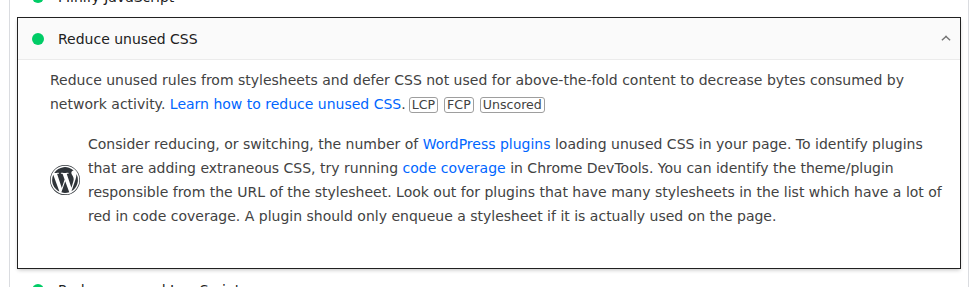
Work from least risky to most risky:
font-display, critical font preload when needed, and font subsetting for smaller files.If your LCP element is a heading, font work can matter more than image work. If you have legacy font assets, convert fonts to WOFF before tuning preload and display behavior. If your LCP element is a hero image but the page waits on animation scripts before showing it, JavaScript is part of the LCP problem.
The score is not successful until the page still works. Always test the front end after changing CSS, JavaScript, or AirLift optimization settings, especially on mobile.
The right LCP fix depends on what kind of WordPress site you run. The diagnosis is the same, but the risk is different.
| Site type | What usually matters most | What to be careful with |
|---|---|---|
| Blog or publisher site | Featured images, ads, fonts, related-post widgets, third-party scripts. | Ad scripts and newsletter popups can dominate mobile LCP. |
| Brochure or service site | Hero image, page-builder CSS, fonts, background sections, contact forms. | Do not break forms or mobile menus while delaying scripts. |
| WooCommerce store | Product images, category pages, galleries, cart fragments, hosting, cache rules. | Cart, checkout, account, payment, coupon, and order pages need manual QA. |
| Landing page | Hero media, tracking scripts, A/B testing tools, forms, animations. | Do not remove scripts that attribution or lead capture depends on without a replacement plan. |
| Membership or LMS site | Logged-in pages, personalized content, dashboard scripts, database work. | Full-page caching is harder when content differs per user. |
| Agency-managed site | Repeatable process, client-safe QA, template-level fixes, reporting. | A global preset may help one template and break another. |
This is why “install a cache plugin” is not a complete answer. A static service page and a WooCommerce checkout are not the same performance problem. If the page makes money, captures leads, or handles logged-in users, move slower. Improve LCP, but do not turn a performance task into a production incident.
Generic performance advice often misses the messy WordPress parts.
<img> hero is usually easier to prioritize.Keep what earns its place. Move what can wait. Remove what no one uses. For WooCommerce, optimize public product and category pages first. Treat cart, checkout, account, payment, shipping, coupon, and order pages as high-risk. Test them manually before and after performance changes.
Manual LCP work is manageable when one layer is clearly slow. It gets harder when the same site needs caching, CDN delivery, image optimization, CSS cleanup, JavaScript control, font work, lazy-load rules, and Core Web Vitals checks.
AirLift fits when you want one WordPress performance optimization plugin for common performance layers instead of several overlapping plugins. It can help with caching, CDN delivery, image optimization, CSS and asset work, font optimization, and Core Web Vitals-focused settings. Use AirLift if:
Do not expect any plugin to fix weak hosting, broken markup, a heavy builder hero, or third-party scripts that must run before the first screen. The value is fewer moving parts, not skipped diagnosis. For product evaluation, check AirLift pricing or contact AirLift support.
LCP work is done only when the page is faster and the site still works. Use this QA checklist after each meaningful change, then use a broader WordPress performance checklist before you move from an LCP fix to site-wide optimization:
Field data does not update instantly. If the lab result improves today, Search Console may still show the old URL group until enough real-user data rolls forward.
Do not panic if the LCP element changes after a fix. That often means the old blocker was removed and the browser is now exposing the next slowest piece.
When LCP stays stubborn, return to the breakdown instead of stacking more settings.
If you have already handled the obvious items and the page still misses LCP badly, involve a developer or host. Some problems live in theme templates, server configuration, database queries, or third-party scripts that a plugin cannot safely guess its way through.
The point is not to keep adding optimizations forever. The point is to find the current blocker, fix it, and stop before you break something that matters.
A good LCP is 2.5 seconds or less for at least 75% of real visits. Use lab scores to debug changes today, then use field data to confirm the real visitor trend.
Mobile tests use slower device and network conditions. Your mobile layout may also use different images, menus, sliders, fonts, popups, or scripts, so inspect the mobile LCP element separately.
No. Lazy-load images below the first screen, not the main image or media users see first. If the hero is the LCP element, it should load early.
Sometimes. Preload helps when the browser cannot discover the LCP resource early, such as a CSS background hero image. If possible, replace the background hero with a normal <img> element; if the design requires the background image, preload the exact above-the-fold file and verify in the waterfall that it starts earlier.
Compression only helps when download time is the main issue. If the image is discovered late, blocked by CSS or JavaScript, or waiting on a slow server response, compression will not fix the real cause.
The safest way to improve LCP on WordPress is to stop treating it like one generic speed score. Find the LCP element, read the timing breakdown, fix the slow layer, and test the page that matters.
Start with the failing URL and device. Then work through server response, early LCP discovery, file size, render delays, WordPress-specific traps, and QA. If manual coordination becomes hard to manage, AirLift can reduce the number of moving parts.
Keep the rule either way: diagnose first, change carefully, and verify the site from a visitor’s point of view.
There is a very specific irritation in opening WordPress to make one small edit and then waiting on the dashboard like it’s thinking about whether you deserve access today. The…
Read

PageSpeed’s “reduce initial server response time” warning can make a normal WordPress speed problem feel bigger than it is. If your report says WordPress TTFB very slow, the…
Read

Is your WordPress website loading slowly, but you are not sure what is causing the problem? Changing plugins, hosting, themes, or cache settings without clear evidence can waste…
Read
Airlift works out what each page needs and applies it. Free to try on your own site.