

WordPress Object Caching: What It Is and When to Use It
Your homepage can feel fast while the parts that make money still feel slow. If you’re trying to speed up your website, it helps to understand that not every request behaves the…
Read

Your WordPress site feels slow, PageSpeed gives you a score, and every fix sounds urgent. One person says to install a cache plugin. Another blames hosting. A third says to delay scripts, which sounds harmless until the mobile menu or checkout stops working.
You need to optimise your WordPress performance. This WordPress performance checklist gives you the safer order: measure the right pages, fix the biggest bottleneck first, and test the site after each change.
TL;DR: Benchmark your important pages first, then work through hosting, caching, theme/plugins, images, scripts, database health, and third-party code. After each change, retest speed and manually check forms, checkout, search, menus, account pages, and logged-in pages.
The rule is simple: measure first, change one layer, verify the result. Use this shorter order when you need a safe path:
| Priority | What to fix | Why it comes here | Watch out for |
|---|---|---|---|
| 1 | Baseline tests | You need to know what is slow before changing settings | Do not judge the whole site by the homepage |
| 2 | Hosting and cache | A slow server limits every other fix | Do not cache carts, checkout, accounts, or personalized pages blindly |
| 3 | Theme and plugins | Bloated code can slow every page | Plugin count matters less than plugin quality |
| 4 | Images and media | Large media often hurts mobile speed and LCP | Do not lazy-load the main hero image |
| 5 | CSS, JavaScript, fonts, and third-party scripts | These can improve scores or break real user actions | Test menus, forms, search, checkout, and popups |
| 6 | Database, cron, logs, and maintenance | Old data and failed background tasks slow sites over time | Back up before cleanup |
The table is short because the work is not complicated in theory. It becomes risky when you turn on too many settings at once and cannot tell which one helped or broke the site.
The first fix is not always a plugin. Often, the first fix is finding out whether you have a slow WordPress website and what is actually slow.
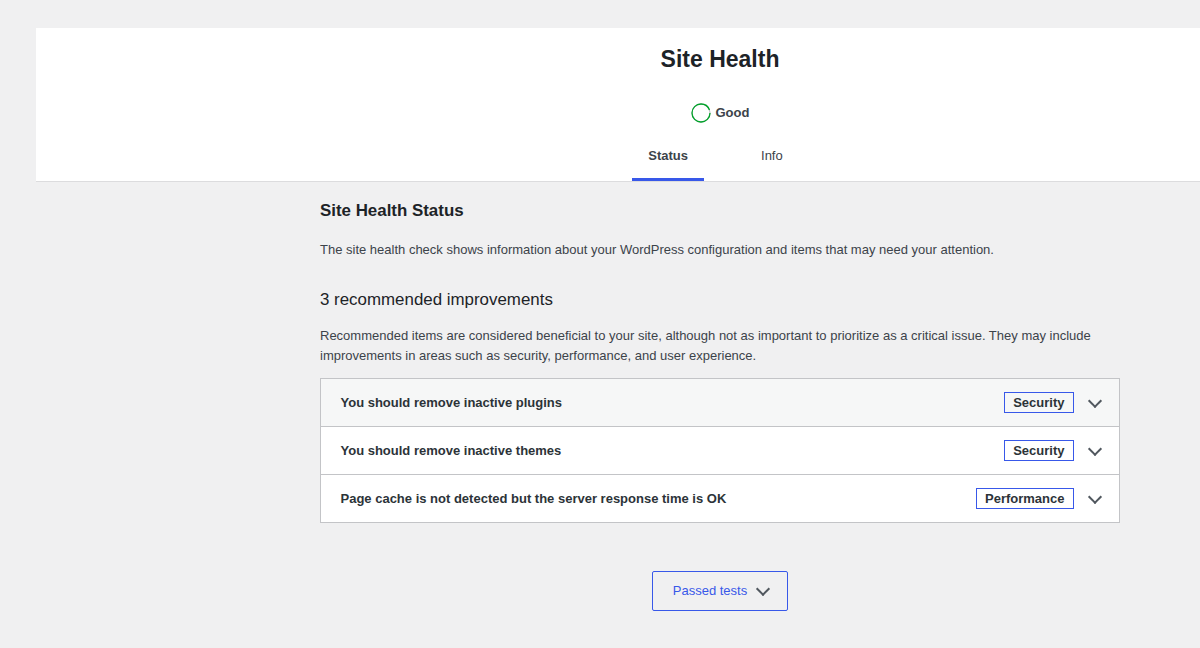
Test the pages users rely on: homepage, top blog post, main landing page, product page, cart, checkout, form page, account page, and any logged-in page that matters.
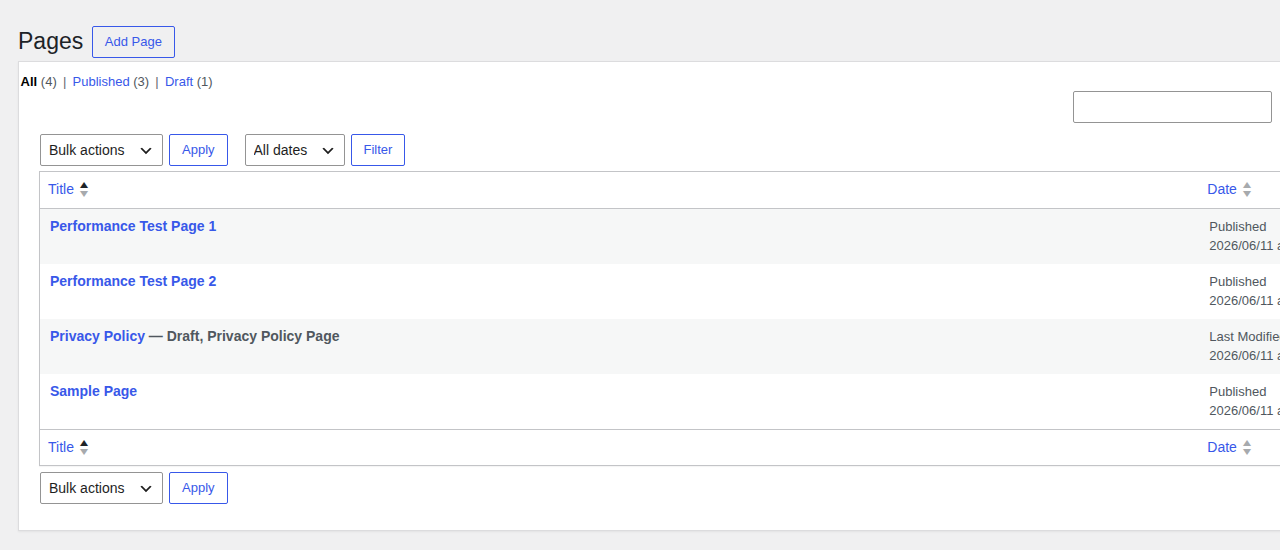
Use mobile results first: desktop can look fine while mobile users wait, tap a frozen button, or watch the layout jump.
Record the useful clues: page URL, mobile score, LCP, INP, CLS, TTFB, page weight, request count, and your next action. Here is what those terms mean:
| Metric | Plain meaning | Good target or use |
|---|---|---|
| LCP | How fast the main visible content loads | 2.5 seconds or less is good |
| INP | How fast the page responds after a tap or click | 200 milliseconds or less is good |
| CLS | How much the page jumps while loading | 0.1 or less is good |
| TTFB | How long the server takes to start responding | Use it to spot hosting, cache, or backend delay |
| Page weight | How large the page is | Use it to find heavy images, fonts, and scripts |
| Waterfall | The order files load in | Use it to find blockers, delays, and failed files |
PageSpeed Insights is useful, but the score is only a summary. The clues under the score tell you what to fix. Do not chase a green score on a page nobody visits. A faster checkout, lead form, or landing page matters more than a perfect score on a page that rarely affects users.
If the server is slow, the browser starts late. That makes every other improvement harder.
Ask your host direct questions: What PHP version is the site using? Is the site hitting CPU or memory limits? Is server-side caching enabled? Is object caching available? Are there slow database queries or repeated PHP errors? Is the server close to most visitors?
PHP is the language WordPress runs on. Object cache means WordPress can reuse some database results instead of asking the database for the same answer again and again. You do not need to configure these alone, but your host should be able to explain what your plan supports.

Set up caching carefully: page cache is great for public pages because it saves a ready-made copy. Browser cache helps repeat visitors reuse files. A CDN serves files from locations closer to visitors. Edge cache can serve full pages nearer to visitors when the setup supports it. If repeat visitors move through predictable page paths, navigation prefetching for WordPress can also make the next click feel faster when configured carefully.
Exclude dynamic pages: cart, checkout, account pages, dashboards, logged-in pages, and personalized pages should not be cached blindly. Those pages can include private user data, prices, cart contents, or security tokens.
A CDN helps with distance and file delivery. It does not fix slow PHP, bad database queries, or heavy JavaScript.
Plugin count is a clue, not a diagnosis. Five poor plugins can be worse than twenty well-built ones.
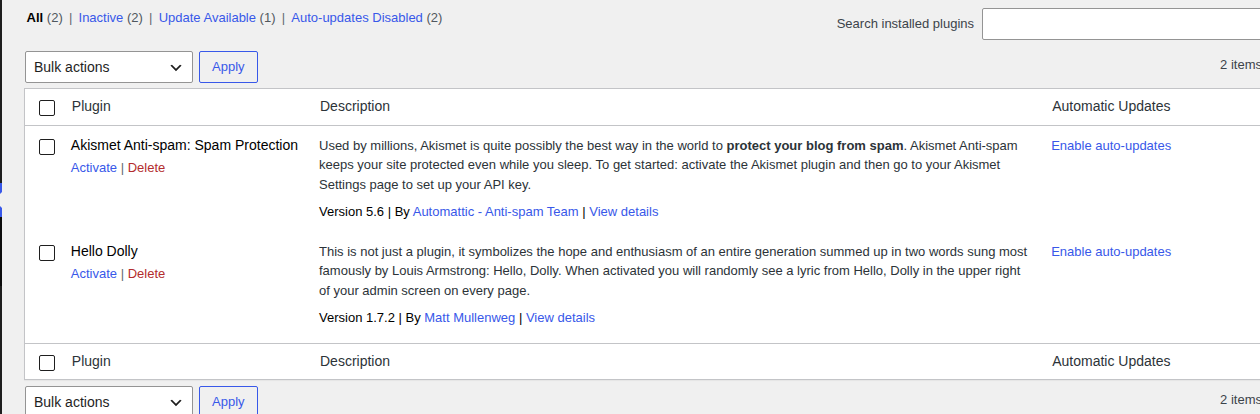
A page builder is not automatically bad. It becomes a problem when a simple page loads nested sections, animations, unused widgets, icon libraries, and large style files.
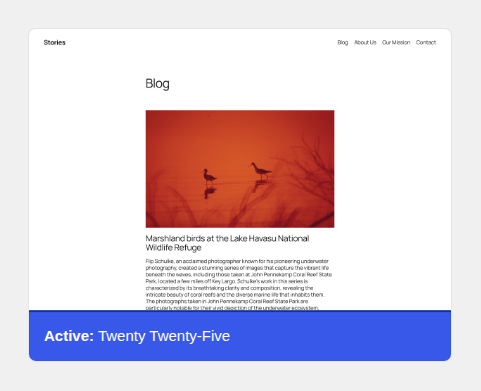
Use staging when possible. Staging is a private copy of the site where you can test changes before touching the live site.
Images are often the easiest win because the problem is visible. A huge hero image can slow a mobile page before the visitor reads one line.
Lazy-load lower images, not the main one: lazy loading means the browser waits to load an image until it is needed. That is useful below the fold. It is bad for the main hero image if that image is the LCP element. Video embeds, maps, social posts, and background videos can pull in a lot of extra files. If they are not essential, use a thumbnail or click-to-load setup.
This is where performance settings can help a lot, or break the site in ways a score will not notice.
CSS controls styling. JavaScript controls behavior. Fonts control typefaces. Third-party scripts are files loaded from outside services, such as analytics, ads, chat widgets, maps, cookie banners, social embeds, or payment tools.
Where this goes wrong: someone delays every script, gets a better score, and later finds that the lead form no longer submits. That is not a speed win. That is a broken business flow.
Not every slowdown appears in a browser test. Some problems live in the database and background jobs.
The database is not a junk drawer. Clean it like you might need to undo the change, because sometimes you will.
Optimization is not done when the score improves. It is done when the page is faster and the site still works.
Use a simple log:
| Change | Page tested | Before | After | Manual check | Decision |
|---|---|---|---|---|---|
| Enabled page cache | Landing page | LCP 3.8s | LCP 2.4s | Form and menu worked | Keep |
| Delayed scripts | Lead page | INP improved | Form failed | Form broke | Roll back |
Lab tools do not know that your quote form sends leads to sales or that checkout depends on a payment script. You have to test those yourself.
Performance drifts because websites keep changing. Plugins update. Campaign tags get added. Images go up in a hurry. A redesign adds a beautiful section that quietly weighs more than the old page.
This is not broad website maintenance. Keep it focused on speed and the pages that make the site useful.
These shortcuts look reasonable until they create a harder problem.
The cost of bad optimization is not only a lower score. It is false confidence, broken forms, lost orders, and wasted time.
Manual performance work is possible, but it can turn into a lot of coordination: host cache, page cache, CDN, image compression, lazy loading, CSS cleanup, JavaScript settings, font loading, exclusions, and repeat testing.
AirLift makes sense when you want one WordPress performance workflow for caching, CDN delivery, image optimization, CSS and asset improvements, and Core Web Vitals-focused work.
Use it if you want fewer settings to manage by hand, especially across more than one site. It is also useful when you want a practical path for improving speed without stitching together several separate plugins.
For a deeper step-by-step path, use a WordPress performance optimization guide alongside your own page tests. Do not expect any performance plugin to fix bad hosting, broken custom code, heavy third-party scripts, or a poorly built template by itself. The responsible workflow stays the same: benchmark first, enable carefully, verify the pages that matter, and keep checking after major changes.
Start with measurement, hosting, and caching. If the server is slow or public pages are not cached correctly, image and script tweaks will only go so far; navigation prefetching comes later, after the basics work.
Watch LCP, INP, and CLS first because they reflect loading speed, responsiveness, and layout stability. Also check TTFB, page weight, request count, and the waterfall so you know why the main metrics are poor.
Yes, but quality matters more than count. Look for plugins that are abandoned, duplicate another tool, load files on every page, create slow database queries, or call outside services during page load.
No. A CDN helps with distance, media delivery, and traffic spikes. It will not fix slow PHP, database problems, heavy JavaScript, or a bloated theme.
Change one layer at a time. Exclude dynamic pages from caching, avoid delaying required form and payment scripts, test on staging when possible, and manually check forms, checkout, search, menus, account pages, and emails after each change.
A good WordPress performance checklist is not a pile of speed tricks. It is an order of operations: benchmark important pages, fix the slowest layer, test the result, and keep the site working for real users. Start with the basics that set the ceiling, such as hosting and caching. Then clean up plugins, media, scripts, and the database with care. The safe pattern is boring for a reason: measure, fix, verify, repeat.
Your homepage can feel fast while the parts that make money still feel slow. If you’re trying to speed up your website, it helps to understand that not every request behaves the…
Read

Redis object cache sounds like one of those WordPress speed fixes you should just turn on and forget about. I get the appeal. When a site is slow, nobody wants a lecture about…
Read

Is your WordPress website loading slowly, but you are not sure what is causing the problem? Changing plugins, hosting, themes, or cache settings without clear evidence can waste…
Read
Airlift works out what each page needs and applies it. Free to try on your own site.