Improve INP: 9 Useful WordPress Fixes That Actually Work
Sometimes your WordPress site looks loaded, but still feels late.
The mobile menu ignores the first tap. A filter freezes after someone chooses a size. Search hesitates after every letter. The checkout button responds slowly enough that a buyer wonders whether the click worked.
If you want to improve INP, start with that moment. INP is not a general speed score. It is a responsiveness score, and the fix depends on what the user touched, what the browser was doing, and why the next visual response was delayed.
TL;DR: To improve INP, find the slow interaction first, then fix the part of the delay that is actually high: input delay, processing time, or presentation delay. On WordPress, the fastest wins usually come from reducing heavy plugins and third-party scripts, simplifying menus/popups/widgets, optimizing CSS and JavaScript, and retesting the same mobile interactions after every change.
The practical goal is simple: make the page acknowledge the user quickly. A green Core Web Vitals report is useful. A site that responds when people tap, type, search, filter, and buy is the real win.
Use the fixes in this order:
Find the slow interaction.
Read the INP breakdown.
Cut background scripts.
Lighten click, tap, and typing work.
Simplify what the browser redraws.
Remove WordPress frontend clutter.
Use AirLift for broad performance cleanup.
Bring in a developer for code-level bottlenecks.
Verify the same interaction before trusting the result.
What INP Measures
INP stands for Interaction to Next Paint. It measures how long the page takes to show a visible response after a user clicks, taps, or uses the keyboard.
That last part matters. INP is not asking, “Did the page load?” It is asking, “After the user did something, how long did the page take to prove it heard them?”For Core Web Vitals:
200 ms or less is good
Over 500 ms is poor
Anything in between needs improvement
INP does not directly measure hover or scroll. It focuses on active interactions. It replaced First Input Delay because FID only looked at the first input delay, while INP reflects responsiveness across the visit, using the slowest meaningful interaction after outlier handling.
That is why a page can load quickly and still fail INP. Loading speed tells you how fast the page appears. INP tells you whether the page responds when someone tries to use it.
That makes responsiveness part of website performance, not a separate technical side quest. The performance metric is the symptom. The slow interaction is the diagnosis.
Find The Slow Interaction
The most expensive INP mistake is guessing.
Site owners see a poor score, then compress images, switch cache plugins, disable random features, or remove a slider because it looks guilty. Sometimes that helps. Often it misses the thing that actually blocked the tap. Use a minimum viable diagnosis first:
Check the affected URL group: Open Google Search Console Core Web Vitals and note the device type and URL group.
Compare mobile and desktop: Run a representative URL through PageSpeed Insights. Mobile INP is often worse because phones have less CPU headroom.
Test likely interactions: Try the mobile menu, search, filters, forms, add-to-cart buttons, checkout steps, popups, galleries, account links, and sticky bars.
Record the worst moment: Write down the URL, device type, interaction, and what happened. Use Chrome DevTools Performance if you can.
Change one thing at a time: Clear caches, retest the same interaction, and keep notes.
This does not need to be fancy. A simple note like “mobile category page, filter Apply button, delayed visual update” is already much more useful than “INP is bad.”
Read The INP Breakdown
A slow interaction usually has one main bottleneck. The browser may be busy before it can handle the tap. The interaction code may run for too long. Or the browser may take too long to draw the result. That gives you three places to look:
Remove unused tags, delay nonessential scripts, stop loading plugin assets where the feature does not appear.
Processing time
The page hears the click, but the action takes too long.
Heavy menus, live search, filters, form validation, tracking inside click handlers, complex widgets.
Make the visible response happen first, reduce event-handler work, debounce search, simplify widgets.
Presentation delay
The code finishes, but the visual update appears late.
Page-builder layouts, mega menus, large product grids, big DOM updates, complex CSS.
Reduce page structure, simplify CSS, shrink large UI updates, remove unnecessary wrappers and effects.
The table hides one useful truth: INP is not one problem. Image compression may help the overall site, but it will not fix a filter button that rebuilds a huge product grid after every tap. A cache plugin may help early load work, but it will not rewrite a slow custom click handler. Fix the work that blocks the next visible response.
Cut Background Work
Input delay usually happens when the page looks usable before the browser is actually free.
A visitor sees the header and taps the menu. Behind the scenes, the browser is still running analytics, consent scripts, ad code, chat widgets, popup logic, tracking pixels, or plugin JavaScript. The tap waits in line behind work the visitor did not ask for. Start with the usual WordPress suspects:
old analytics tags no one reviews
duplicate tracking events
ad scripts and header bidding tools
cookie consent platforms
chat widgets
heatmaps and session recording
social sharing widgets
popup and opt-in tools
A/B testing tools
plugins that load scripts on pages where the feature does not appear
The boring cleanup is often the important cleanup. If two plugins add social buttons, keep one. If three tools track the same click, decide which one the team actually uses. If a popup has not produced leads in months, it has earned a serious review.
Caching, a CDN, and asset optimization can reduce early work, but they are not permission to ship unlimited JavaScript to a phone. A cached page can still be unresponsive if it keeps the browser busy after the page appears.
Decision rule: if the script does not help the user act on that page, it should not compete with the user’s first tap.
Lighten User Actions
Processing time is the work caused by the interaction itself.
The page heard the click. Then the code did too much before showing feedback. This is common with live search, filters, menu animations, form validation, add-to-cart behavior, tracking events, and page-builder widgets. Use this rule: show the user something first, then do non-urgent work.
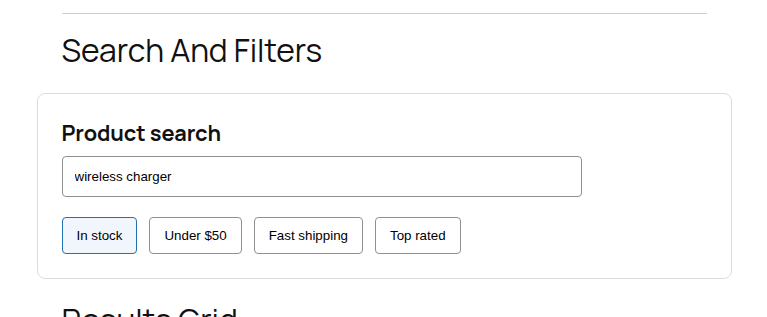
A search box does not need to run heavy work on every letter. A filter panel should not rebuild more of the page than needed. A button click should not wait for every analytics event before the button changes state. A search or filter panel is a useful place to look because every tap or keystroke can trigger more work than the visitor sees.
Beginner-safe fixes:
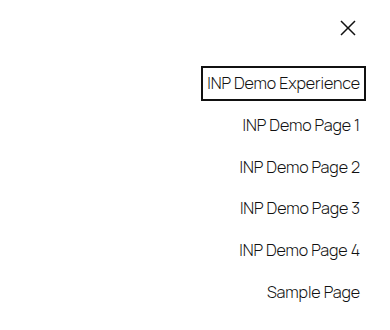
Simplify mobile menus and dropdowns: Remove deep nesting and unused menu items.
Reduce live search work: Add a short delay before search runs, or use a simpler search experience.
Clean up filter panels: Remove filters people do not use and avoid huge product grid updates where possible.
Remove duplicate tracking: Do not fire several tools for the same low-value event.
Turn off heavy animations: Page-builder effects can make simple interactions feel slow.
Compare plugin behavior: A lighter form, popup, filter, or menu plugin may solve the issue faster than custom work.
Developer fixes may include moving tracking after the visual update, splitting long tasks, reducing unnecessary re-renders, improving selectors, or using a worker for heavy work that does not touch the page. A worker is a browser feature that can run some JavaScript away from the main page thread, so the page can stay more responsive.
One warning is worth making blunt: a spinner only helps if it appears before the heavy work starts. If the page creates a spinner and then blocks the browser for 800 ms, users still saw a frozen page with better decoration.
Simplify Redraws
Presentation delay happens after the interaction code runs. The browser still has to calculate styles, place elements, paint pixels, and show the update.
This is where WordPress sites can get surprisingly heavy. A single tap may open a mega menu, inject a popup, rebuild a product grid, expand a recipe card, redraw a comparison table, or change a parent class that forces thousands of elements to be reconsidered. Practical fixes:
Shorten large pages: Paginate comments, archives, and long product lists.
Reduce page-builder wrappers: Remove sections used only for spacing, animation, or decoration.
Limit broad style changes: Avoid changes that force the browser to reconsider large parts of the page.
Reduce unused CSS: Less CSS gives the browser less to check during a visual update, and automatic CSS re-optimization can help keep that cleanup current after site changes.
Two terms help here. DOM means the page structure the browser builds from your HTML. A very large DOM gives the browser more structure to inspect and update. Layout thrashing means code keeps changing the page and immediately asking the browser to measure it again, which can make the visual response drag.
The plain version: do not make one tap force the browser to rethink the whole page.
Use WordPress Quick Wins
For many site owners, the first pass should not be custom code. It should be removing frontend work that never needed to be there. Use this checklist:
Remove unused plugins: Focus on plugins that add frontend scripts, widgets, forms, popups, sliders, or tracking.
Replace duplicate plugins: One clear tool is better than two overlapping tools.
Clean up third-party tags: Remove old analytics, heatmap, ad, and tracking scripts no one uses.
Simplify mobile navigation: Keep the menu useful, but remove unnecessary depth and heavy effects.
Review popups and sticky bars: Keep the ones that earn their space. Remove the ones that only add delay.
Reduce page-builder weight: Cut decorative sections, nested layouts, and animations that do not help users act.
Test business flows: Check forms, carts, checkout, search, filters, account pages, and conversion tracking after every change.
Do not remove useful navigation, lead forms, checkout features, payment scripts, or conversion tracking just to chase a green score. That is how a performance cleanup turns into a revenue problem.
For a brochure site, cleanup may be simple. For WooCommerce, move carefully. Add-to-cart, checkout, search, filters, payment methods, and tracking events may all be tied to money.
If the cleanup points to broader speed problems, step back and use a full plan to speed up WordPress instead of chasing INP in isolation.
The better question is not “Can I remove this?” It is “Does this feature earn the delay it adds?”
Use AirLift Wisely
Manual INP work on WordPress can spread across caching, CDN setup, images, CSS, JavaScript, plugin assets, fonts, third-party scripts, mobile templates, and page-builder output. That is a lot of moving parts for one responsiveness problem.
AirLift is useful when you want one WordPress performance workflow instead of several overlapping tools. It can help with common performance foundations such as caching, CDN, image optimization, CSS and asset optimization, and Core Web Vitals-focused improvements.
Use AirLift when your site has broad speed or Core Web Vitals issues and you want fewer manual performance chores. Then retest the same interactions that were slow before optimization.
AirLift can help with
You may still need focused review for
Caching and delivery improvements
A bad custom click handler
Image and asset optimization
A business-critical third-party script
CSS and performance cleanup
A theme or page builder creating too much page structure
Broader Core Web Vitals optimization
A checkout, filter, or search flow that needs code-level changes
The limit matters. A performance plugin can remove a lot of waste, but it cannot know that a custom product filter should update fewer items, or that a tracking script should wait until after the button changes state. Use the tool for the performance layers it can simplify. Use diagnosis for the interaction-specific work it cannot guess.
Call A Developer
Some INP problems are not settings problems.
Bring in a developer when the slow interaction is tied to custom JavaScript, a theme component, a complex page-builder widget, checkout customization, a React or Vue feature, or a third-party business script you cannot safely move. Give the developer evidence, not just a score:
affected URL or template
device type where the issue appears
exact interaction that feels slow
PageSpeed or Search Console evidence
DevTools recording, if available
whether the delay looks like input delay, processing time, or presentation delay
recent plugin, theme, tag, or page-builder changes
what improved or broke after each test
“INP is bad” is too vague. “The mobile product filter on category pages has a long presentation delay after tapping Apply” gives someone a real place to start.
Verify The Fix
After each change, retest the same page, same device type, and same interaction. Clear page cache, CDN cache, and optimization caches first. Use this quick QA pass:
Retest the affected URL group: Do not rely on a different page.
Retest the exact interaction: Check the same menu, filter, form, button, or search field.
Check mobile: Desktop can hide problems that phones expose.
Test revenue and lead paths: Forms, checkout, carts, account pages, ads, analytics, and tracking still need to work.
Compare before and after evidence: Use the same tool or trace where possible.
Watch field data over time: Search Console depends on real-user data and may take time to reflect changes, often across a rolling 28-day window.
If lab tools improve today but Search Console does not change right away, do not panic. Field data needs enough real visits after the fix. If this INP pass exposes wider site-speed work, continue with a broader WordPress performance optimization workflow before making more isolated changes.
If INP Is Still Poor
Do not restart from scratch. Return to the slow interaction and ask what is still blocking the visible response.
What you see
What to do next
Lab results improved, but Search Console did not
Wait for field data, then test more URLs in the affected group.
One interaction improved, but INP is still poor
Find the next slowest interaction. The bottleneck may have moved.
Desktop is fine, but mobile is poor
Test on a slower phone or use CPU throttling in DevTools.
Defer non-visual work, simplify handlers, split long tasks, or involve a developer.
Presentation delay is still high
Reduce page structure, simplify CSS, and avoid broad page updates after a click.
Fixing the worst interaction can reveal the next slowest one. That does not mean the work failed. It means the page had more than one bottleneck.
FAQs
What causes poor INP on WordPress?+
Poor INP usually comes from too much work before the page can show feedback. Common WordPress causes include heavy plugins, third-party scripts, consent banners, ads, complex menus, page-builder bloat, large page structures, slow event handlers, and expensive CSS or layout work.
Does caching improve INP?+
Caching can help by reducing early page work and improving the performance foundation. It will not fix a slow click handler, a huge page update, layout thrashing, or a third-party script that blocks an interaction.
Do plugins affect INP?+
Yes. Plugins affect INP when they load frontend scripts, add widgets, attach event handlers, inject popups, change layout, or load assets on pages where they are not needed. The number of plugins matters less than what they do on the frontend.
Why is mobile INP worse than desktop?+
Mobile devices usually have less CPU power and are less forgiving of heavy JavaScript and rendering work. A site that feels fine on a fast laptop can feel slow on a mid-range phone.
How long does it take for INP fixes to show in Google Search Console?+
Lab tools can show improvement after the fix and cache clear. Google Search Console takes longer because it uses real-user field data over time, often across a rolling 28-day window.
Conclusion
The best way to improve INP is to stop treating it like a mystery score. Find the slow page and interaction, check whether the delay comes before the browser starts, during the interaction work, or while the browser redraws the page, then fix that specific problem.
On WordPress, that usually means cleaning up plugins, scripts, menus, popups, filters, page-builder output, and third-party tools before jumping into custom code. Keep the workflow careful: change one thing, clear caches, retest the same interaction, and protect the parts of the site that make money or collect leads.
If the issue is broad performance waste, AirLift can simplify the WordPress optimization layer. If the trace points to custom code or a heavy third-party script, bring a developer the exact interaction and evidence so they can fix the real bottleneck.