Here’s How to Improve Core Web Vitals WordPress WITHOUT Breaking Your Site
If you are searching for improve Core Web Vitals WordPress, start with the failing metric, not a generic speed optimization guide.
Test the URLs that matter, identify whether LCP, INP, or CLS is the problem, then fix the WordPress-specific cause. Retest afterward to make sure your menus, forms, checkout, and tracking still work.
TL;DR: Measure first, then fix the metric that failed. LCP usually improves with faster page delivery and better first-view images. INP usually requires reducing heavy JavaScript, the code that powers buttons, menus, forms, ads, and widgets. CLS usually requires reserving stable space for images, fonts, ads, embeds, and banners. If Search Console shows that your site has failed Core Web Vitals, an automated optimization tool such as AirLift can help target individual URLs and get them back into the green faster.
Do not chase a perfect homepage score. Your homepage can pass while a blog post, landing page, product page, or checkout page fails on mobile.
What does it mean to improve Core Web Vitals WordPress
Core Web Vitals are Google’s page experience metrics for three things users notice fast: loading speed, response after a click or tap, and page movement while content loads. To understand how these tie into overall site speed and SEO, read our detailed guide on what website performance is.
Largest Contentful Paint, or LCP: Measures how long the main visible content takes to appear. On WordPress, this is often a hero image, featured image, heading, banner, or large text block. A good LCP is 2.5 seconds or less.
Interaction to Next Paint, or INP: Measures how quickly the page responds after someone interacts with it. This can be a menu tap, form input, filter click, popup close, or product option change. A good INP is 200 milliseconds or less. INP replaced First Input Delay in 2024, so older advice that only talks about FID is outdated.
Cumulative Layout Shift, or CLS: Measures unexpected page movement. Text jumping after an image loads, a banner pushing content down, or an ad appearing late can all hurt CLS. A good CLS is 0.1 or less.
Core Web Vitals are not the same as a general PageSpeed score. They are specific signals tied to real user experience. Google Search documentation recommends good Core Web Vitals for Search and users, but it also says rankings depend on many signals. Treat the score as a symptom. Before touching any code or settings, run a structured WordPress performance audit to identify whether WordPress, hosting, images, scripts, fonts, ads, or a theme template caused the symptom.
🔎 Note: A green Core Web Vitals result is not a ranking guarantee, and a poor result is not the only reason a page may struggle. Use these metrics as a concrete way to remove friction for visitors. Search performance still depends on content quality, relevance, authority, crawlability, and many other signals.
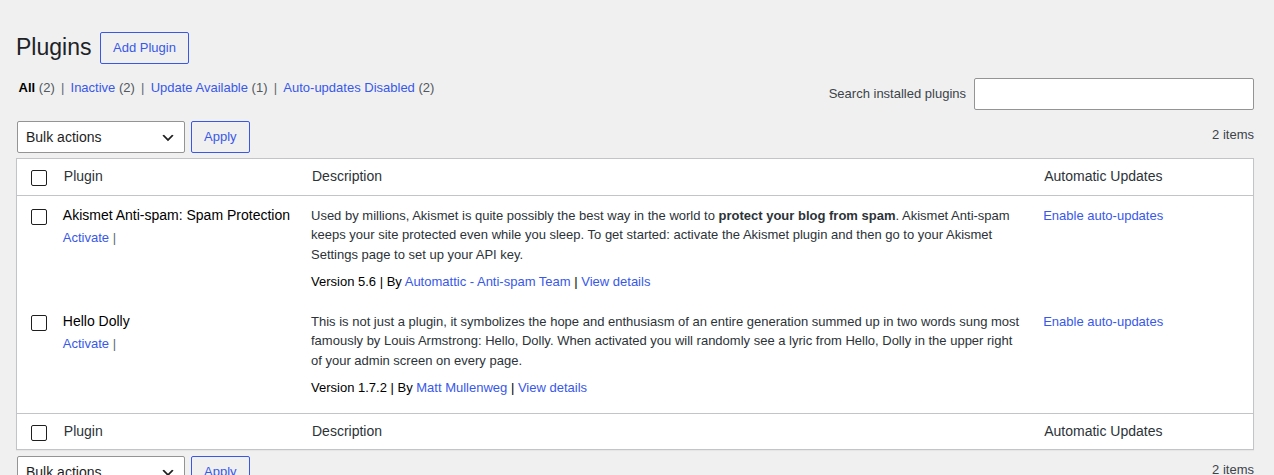
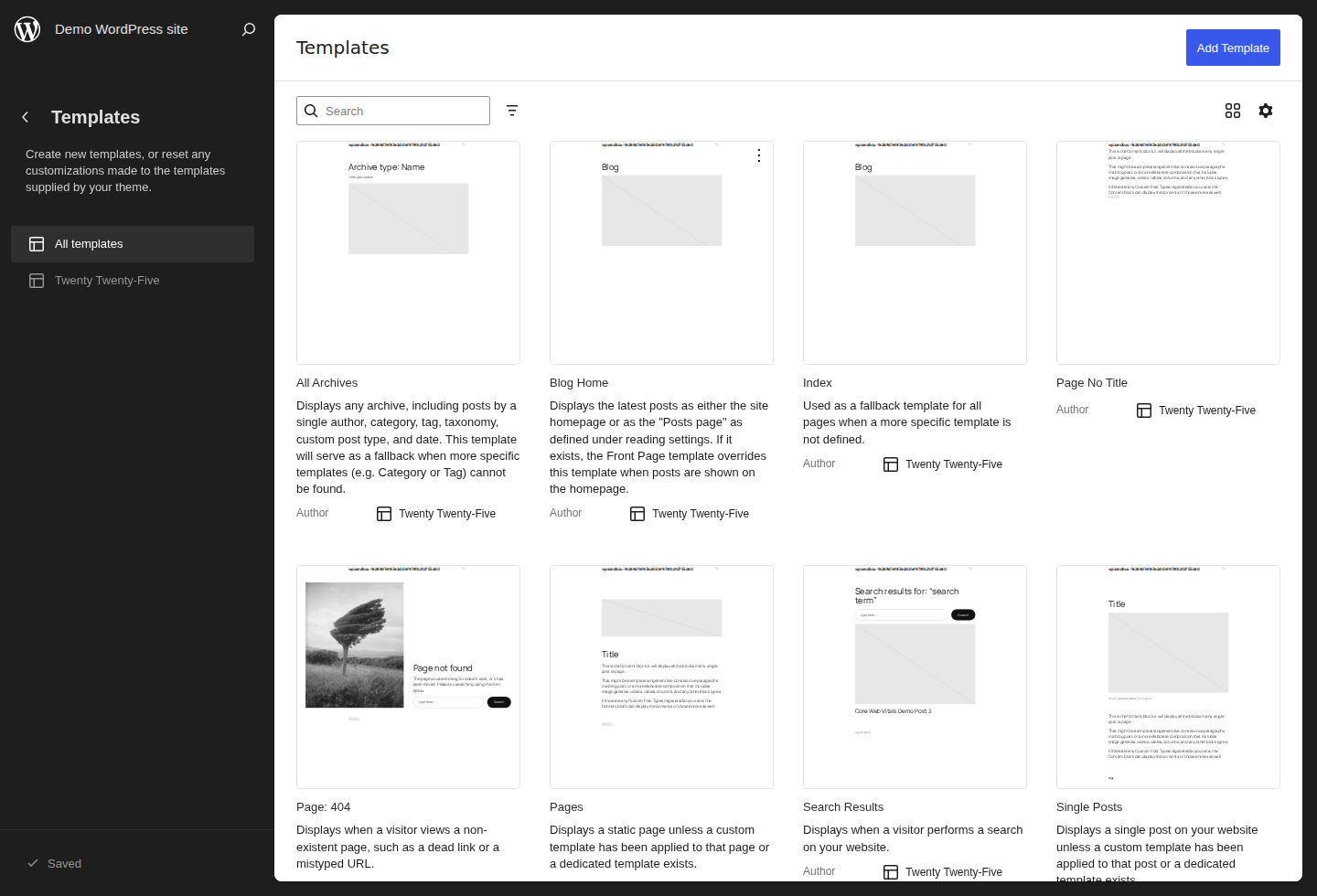
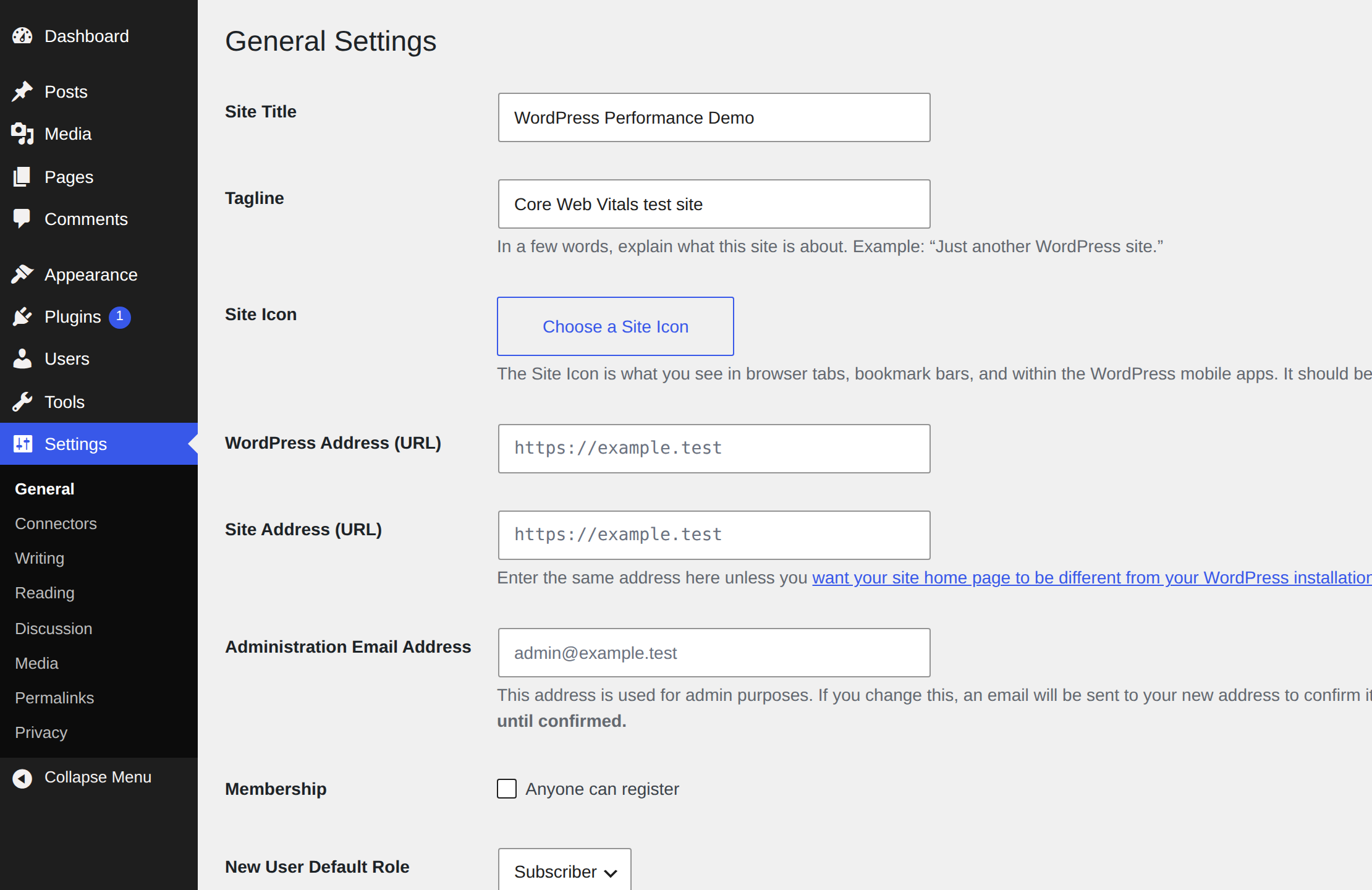
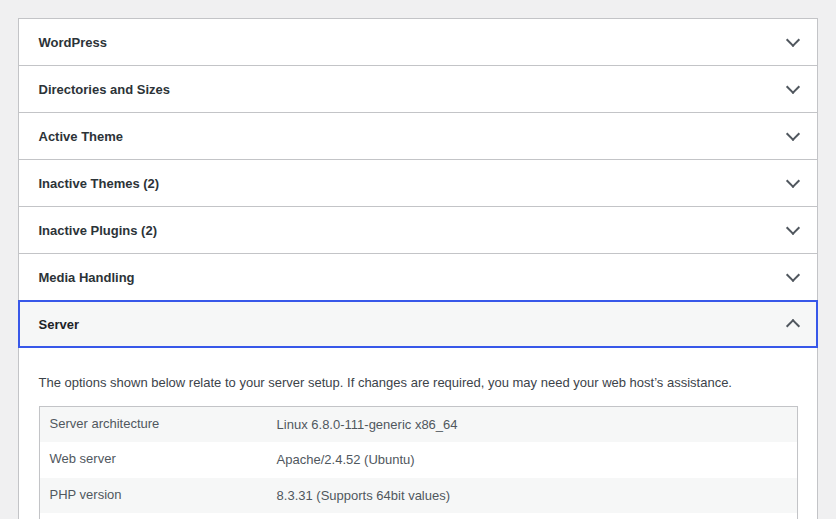
On a current fresh WordPress test site, we confirmed WordPress 6.9.4, PHP 8.3, MySQL 8.0, REST status 200, and the Twenty Twenty-Five block theme. That is current-version context, not Core Web Vitals benchmark evidence.
Measure the pages that matter
Use PageSpeed Insights for one URL at a time. It can show real-user field data when enough data exists, plus lab data from a controlled test. Field data shows what users experienced. Lab data helps you debug now.
Use Google Search Console for site-wide patterns. Its Core Web Vitals report groups similar URLs by status and metric. If all posts fail LCP, check the post template; if checkout fails INP, focus there.
Test mobile and desktop separately. Mobile often fails first because phones and slower networks expose issues that desktop tests hide.
Check more than the homepage.Use one high-traffic post, one landing or service page, and one conversion page such as a form, cart, checkout, or booking page. (If speed dropped unexpectedly after a site move, follow our guide on why a WordPress site is slow after migration).
Before changing settings, test:
Page type
Why it matters
Homepage
Theme, hero, menu, and global scripts
High-traffic post
The experience many organic visitors get
Landing or service page
Images, forms, tracking, and layout blocks
Cart, checkout, form, or booking page
Conversion-risk checks
📊 Note: Low-traffic sites may not have enough field data. Use lab data carefully, run the same URL more than once, and keep checking Search Console or performance monitoring as real-user data builds up.
Choose the first fix
Before changing settings, save your current PageSpeed or Search Console result. You need a baseline so you can tell whether a change helped.
Heavy page builders, sliders, forms, filters, ads, analytics, chat, popups, scripts loaded on every page
CLS
Page movement
Missing image sizes, ad slots without space, embeds, cookie banners, announcement bars, sticky headers, font swaps
Make one major change at a time on important sites. Use staging for risky changes, and keep a backup before major WordPress changes, including cache changes, plugin removal, JavaScript delay, database cleanup, or theme edits.
🧪 Note: If a report improves but your mobile menu, form, checkout, cookie banner, or analytics stops working, the optimization failed. The safe order is baseline, one controlled change, cache clear, same-URL retest, then workflow testing.
Improve LCP by speeding up the first view
Poor LCP means the main content appears too late. On WordPress, the usual causes are slow server response, missing page caching, oversized hero images, blocking CSS, blocking JavaScript, slow fonts, or weak asset delivery. Start with the element PageSpeed identifies.
Confirm full-page caching is working. Full-page caching stores a ready-made version for visitors, so the server can send the page faster. For a detailed comparison of options, check our guide to the best WordPress caching plugins. TTFB is not a Core Web Vital, but slow server response makes good LCP harder.
Check whether the page is cacheable. Public posts and pages are usually safe to cache. Cart, checkout, account pages, logged-in pages, and personalized views often need exclusions.
Find the LCP element in PageSpeed Insights. If it is a hero or featured image, resize it to the displayed size, compress it, and use modern image formats if your tools support them.
Exclude the hero image from lazy loading. Lazy loading helps images lower on the page, but the LCP image needs to load early. WordPress, themes, and performance plugins can all add lazy loading, so check the actual first-view image.
🖼️ Note: The LCP element is not always an image. It can be a heading, cookie banner, slider, or text waiting on fonts and CSS. Fix what PageSpeed identifies on that URL.
Reduce blocking CSS and JavaScript. Large theme files, page builder styles, animation libraries, sliders, and plugin assets can delay the first visible content. Excess asset loads inflate overall requests see our guide on what HTTP requests are to see how trimming them improves loading speed.
Simplify font loading. Use fewer font families and weights. WOFF conversion and font subsetting can reduce font weight when fonts are part of the problem. Slow or shifting font loads can hurt LCP and CLS.
Use a CDN when distance is part of the problem. A CDN serves files from locations closer to visitors. Pair this with edge caching to serve entire HTML documents directly from server locations nearest to your traffic.
🌐 Note: A CDN helps most when visitors are far from the origin server or static files are heavy. If the first server response is slow because the host is overloaded or page caching is missing, check TTFB and cache headers before assuming distance is the cause.
Improve INP by reducing heavy page work
Poor INP means the page is slow after a click, tap, or keystroke. On WordPress, this is usually caused by too much JavaScript work. If the page looks loaded but feels frozen after a tap, think INP first. Start with the pages that fail INP. If simple posts fail, global scripts are likely loading everywhere. If checkout, filters, forms, or account pages fail, focus on that workflow.
Total Blocking Time can help in lab reports. It is not the same as INP, but it often points to the same heavy scripts. Use this order:
Remove scripts and plugins you do not need.
Stop page-specific features from loading across the whole site.
Delay non-critical third-party scripts carefully.
Retest real interactions, not only the lab score.
Remove scripts you do not need. Delete unused plugins and disable unused features carefully. A plugin that looks unused may power a form, tracking pixel, redirect, checkout feature, security scanner, or template; compare tradeoffs before replacing security tools.
Stop plugins from loading everywhere. Forms, sliders, maps, social feeds, chat tools, and galleries often load scripts on pages where they are not used.
Delay only non-critical third-party scripts. Analytics, ads, chat, maps, pixels, and embeds can be expensive. Delaying them can help, but it can also break consent tools, ad tracking, payment methods, and forms.
⚙️ Note: Script delay is safest when you know which scripts are optional for first interaction. Payment scripts, consent scripts, security scripts, search, cart fragments, and form validation need more care.
Simplify heavy interactive sections. Page builders, animations, sliders, filters, and popups can create slow taps.
After any JavaScript delay setting: Test like a visitor. Open the mobile menu, search, submit a form, add to cart, use filters, complete checkout, and accept or reject cookies.
📱 Note: Mobile INP problems often appear before desktop problems because low-power devices expose heavy JavaScript faster. If mobile taps lag, prioritize the mobile workflow.
Improve CLS by stopping page jumps
Poor CLS means the layout moves after the page starts loading. The fix is usually to reserve space before late content appears. The visitor should not lose their place or tap the wrong thing while the page loads.
Add stable dimensions for media. Images and videos need width and height values or stable CSS sizing. Custom blocks, older posts, page builder modules, embeds, and theme templates can still miss dimensions.
Reserve space for ads and embeds. Ads, maps, videos, social posts, and newsletter forms often load late. Give each one a predictable container.
Control banners and sticky elements. Cookie notices, announcement bars, promo strips, sticky headers, chat widgets, and app prompts can hurt CLS when they inject above content or resize after loading.
📐 Note: CLS fixes are often small template fixes, not broad performance settings. A missing image size, ad slot without height, or banner above the heading can cause more visible movement than a large file.
Check font swaps. If fallback text changes size when your web font loads, the text can move. Use fewer fonts and test on mobile.
CLS is often easy to spot. Reload the page on a phone, watch the first few seconds, and look for jumps. Then confirm the pattern in PageSpeed Insights and Search Console. CLS checklist:
Images and videos have stable width and height.
Ad and embed containers reserve space before content loads.
Banners do not push the main heading down after load.
Fonts do not visibly resize important text.
Sticky elements do not cover buttons or form fields.
Use one performance stack
A WordPress performance optimisation plugin can help because Core Web Vitals work touches caching, images, lazy loading, CSS, JavaScript, CDN delivery, and asset cleanup. The value is coordination.
The problem starts when several tools control the same thing. Two plugins may minify the same file, lazy-load the same image, rewrite the same CDN URL, or purge the same cache.
Use one main performance stack where possible. If your host already handles page caching or CDN delivery, check what it does before enabling the same feature in a plugin. Features such as navigation prefetching can also affect how fast likely next pages feel after the first page is usable.
AirLift fits here when you want a coordinated WordPress performance solution instead of managing caching, CDN, image optimization, CSS improvements, asset optimization, and Core Web Vitals-focused settings across separate tools. Its optimization controls can reduce manual work for many WordPress sites. Still test important pages because no plugin can guarantee perfect scores, fix poor hosting by itself, or erase the cost of custom code and third-party scripts.
🧩 Note: The goal is clear ownership, not fewer plugins for its own sake. Problems start when two tools both minify files, lazy-load images, rewrite CDN URLs, or purge caches.
When to get developer or hosting help
Some Core Web Vitals problems are not plugin-setting problems. Bring in your host or a developer when server response stays slow after caching, checkout breaks, INP stays poor on complex pages, or the theme loads large files you cannot safely change.
Also ask for help before editing theme files, database tables, PHP settings, ecommerce cache exclusions, or custom JavaScript.
🧑💻 Note: Developer help is not a failure of the process. It usually means the bottleneck has moved below dashboard settings into theme code, server configuration, custom JavaScript, or ecommerce logic.
FAQs
What are good Core Web Vitals scores?+
Good scores are LCP at 2.5 seconds or less, INP at 200 milliseconds or less, and CLS at 0.1 or less. These are measured at the 75th percentile, which means the page should feel good for most visits, not only in one perfect test.
Why do PageSpeed Insights and Search Console show different results?+
PageSpeed Insights checks one URL and can show field data plus lab diagnostics. Search Console groups real-user field data across similar URLs and updates over time. They answer different questions, so differences are normal.
Can a WordPress plugin fix Core Web Vitals?+
A good plugin can handle common fixes such as caching, image optimization, lazy loading, CSS and JavaScript handling, CDN delivery, and asset cleanup. It cannot guarantee rankings or fix weak hosting and complex custom code by itself.
How often should I retest Core Web Vitals?+
Retest lab results after each major change. Review Search Console after theme updates, plugin changes, new ads, new tracking scripts, new templates, and major content changes.
Conclusion
The best way to improve Core Web Vitals on WordPress is to work from the failed metric back to the cause. Measure the right URLs, separate LCP, INP, and CLS, make one controlled change, clear caches, retest, and keep the changes that improve both the report and the real site experience.
Good Core Web Vitals will not guarantee rankings, but they remove a real weakness in how visitors experience your site. A fast, stable, responsive, clean, secure site is easier to use and easier to trust.