

WordPress Object Caching: What It Is and When to Use It
Your homepage can feel fast while the parts that make money still feel slow. If you’re trying to speed up your website, it helps to understand that not every request behaves the…
Read

Edge caching sounds technical, but the core idea is simple: just like website caching, instead of making your website generate the same page over and over, it stores reusable content on servers closer to your visitors so it can be delivered faster.
For WordPress, that matters most at the page level. A CDN can speed up images, CSS, and JavaScript, but your site can still feel slow if WordPress has to rebuild the HTML for every request.
Edge caching helps solve that by serving safe, cached HTML copies of public pages from locations near the visitor.
TL;DR: Edge caching stores reusable website content on servers closer to visitors, reducing the work your origin server has to do. For WordPress, the biggest performance gain usually comes from caching public HTML pages safely, not just offloading static files. If you want that handled as part of a broader WordPress performance setup, AirLift is built for exactly that.
Your WordPress site has an origin server. That’s the real home of the site. WordPress runs there. The database lives there. Publishing and login flows still depend on that server, and so does any plugin work that needs WordPress to think before it answers. Without caching, each visit returns to that origin. On a popular public post, WordPress may repeat the same PHP and database work all day for readers who are all meant to get one identical version.
Edge caching puts a network of servers between the visitor and the origin. Those servers sit in different locations, often much closer to the visitor than your hosting account. When a response is safe to reuse, the edge keeps a copy and sends that copy to the next similar visitor.
If your host is in the US and someone visits from London, the page may come from a nearby edge location instead of traveling all the way to your origin and back.
🧭 Important: The origin doesn’t become unimportant. It remains the source of truth. Edge caching just means the origin doesn’t have to answer every repeat request for the same public content.
Imagine a reader opening one of your published articles. The request reaches the edge first. The edge checks its rules: Is this a cacheable URL? Is the visitor logged out? Are there cookies that change the page? Is there already a fresh saved copy?
When everything lines up, the edge sends its saved copy back. That’s a cache hit. When no fresh copy exists, the edge has to ask your origin. WordPress builds the page, the reader gets the response, and the edge may keep that response for later. That’s a cache miss.
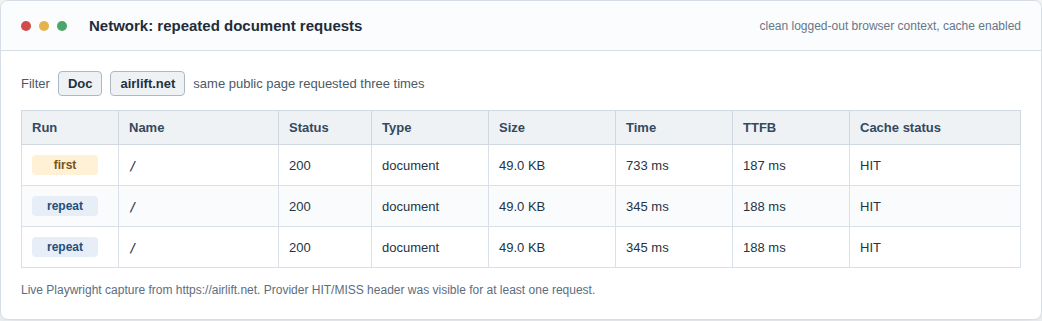
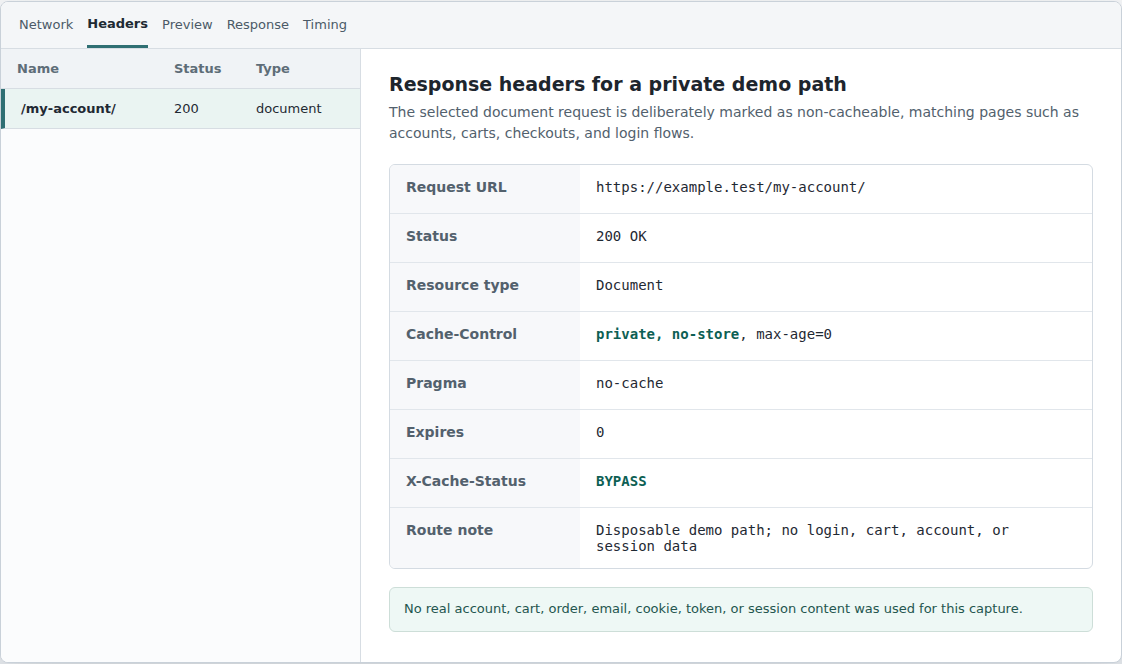
Sometimes the edge skips cache on purpose. That’s a bypass. You want that behavior for admin screens, account pages, carts, checkouts, previews, and anything else that depends on who the visitor is.
This is the point where speed advice can get reckless. “Cache everything” sounds efficient until a cart, account page, or membership dashboard shows the wrong person’s content. On private pages, correctness matters more than shaving off another few milliseconds.
🔐 Important: If a page changes because of login state, cart contents, membership level, location-specific pricing, or a meaningful cookie, treat it as dynamic until you’ve proved otherwise. The cost of a stale page is annoying. The cost of a leaked private page is much worse.
A CDN is the delivery network. Edge caching is the act of storing reusable content inside that network. They overlap, but they aren’t the same thing.
Many WordPress sites use a CDN for media files, font files, stylesheets, and scripts. That’s useful, and it can make a page feel lighter once the browser starts loading assets. But the browser has to receive the HTML document first. That HTML is the page itself. On your site, it might be the homepage, a product category, or a documentation page.
If the HTML still comes from WordPress every time, your CDN may be helping the easy half of the problem while leaving the first wait untouched.
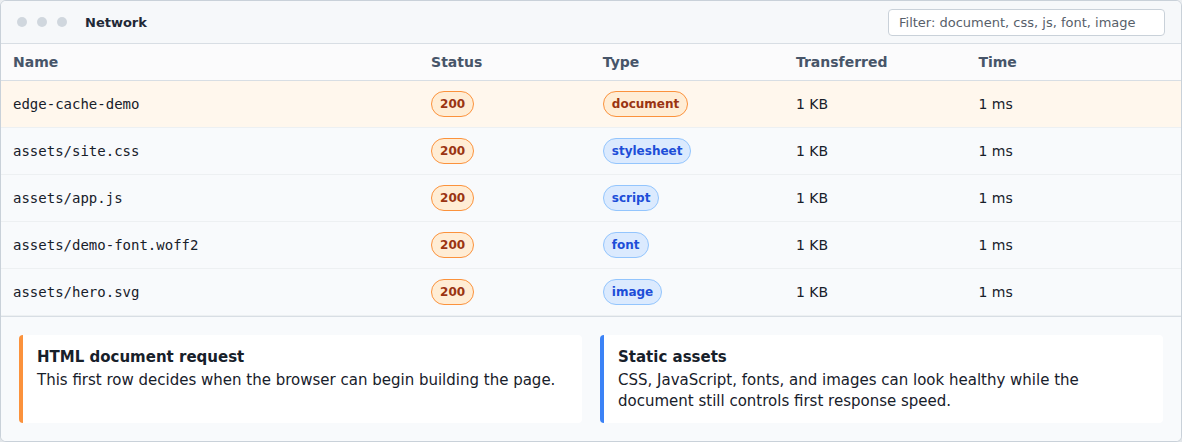
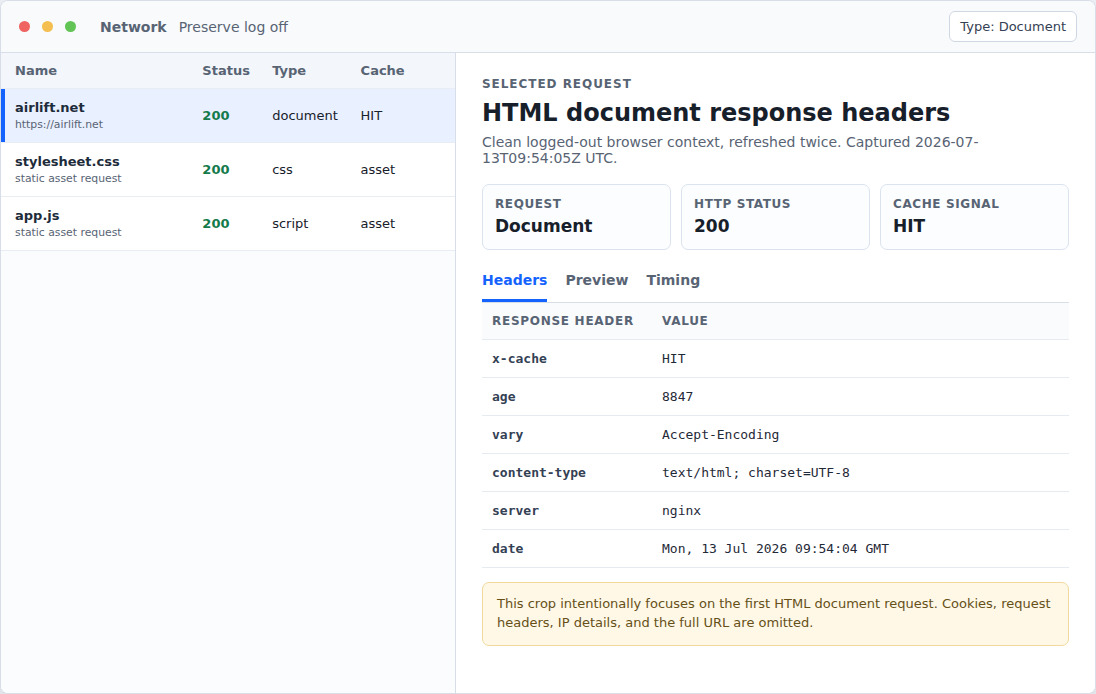
I’ve seen this setup plenty of times. The waterfall looks tidy after the document loads. Images are coming from the CDN. CSS and scripts are cached. Then you click the first document request and find the slow part: WordPress still generated the page at the origin. That’s the question I want you to ask instead: what exact response did the edge store?
For WordPress, full-page caching is often the bigger lever because it saves the already-rendered HTML for public pages. The edge can return the page before PHP, database queries, theme rendering, and plugin logic get pulled back into the request.
Edge caching works best when many people can safely receive the same response. Good candidates include:
Static files are usually the easiest. A logo is a logo. A CSS file with a version in its URL can sit in cache comfortably because a new version points browsers to a different address.
HTML takes more judgment:
🧪 Important: Test page types, not just pages. One blog post proving a cache hit doesn’t mean your product pages, archives, or landing pages are configured correctly. WordPress sites are rarely one uniform kind of page.
Some pages should usually bypass full-page edge cache without much debate:
Cookies are the part that can surprise people. WordPress and plugins set them for all kinds of reasons. Some cookies are harmless for page output. Others change what the visitor sees. If the cache ignores one of those, it can save one visitor’s version and serve it to someone else.
My rule here is boring and strict: start with public, shared responses. Add exceptions only when you understand what changes the page. A bypass header or private cache instruction is exactly what you want to see on pages that should never be reused for another visitor.
Two controls decide how fresh a cached response stays: TTL and purging.
TTL is short for time to live. It’s the timer on a cached copy. A page with a one-day TTL can be reused for a day before the edge treats it as stale. A versioned image or stylesheet can usually stay cached much longer because updates send visitors to a new file address.

Purging clears cached content before the TTL ends. WordPress content doesn’t sit still. Posts get edited, menus move, prices change, homepage banners come and go. The old saved response shouldn’t remain live just because its timer hasn’t run out.
Long TTLs reduce origin work. Short TTLs reduce stale-content risk. Neither is a strategy by itself.
For most WordPress sites, I’d rather see a sensible TTL with reliable automatic purging than a very long TTL that relies on a person clearing cache by hand. Manual cache clearing works until the day a price, legal line, event date, or conversion page changes under pressure. If you do need the manual path.
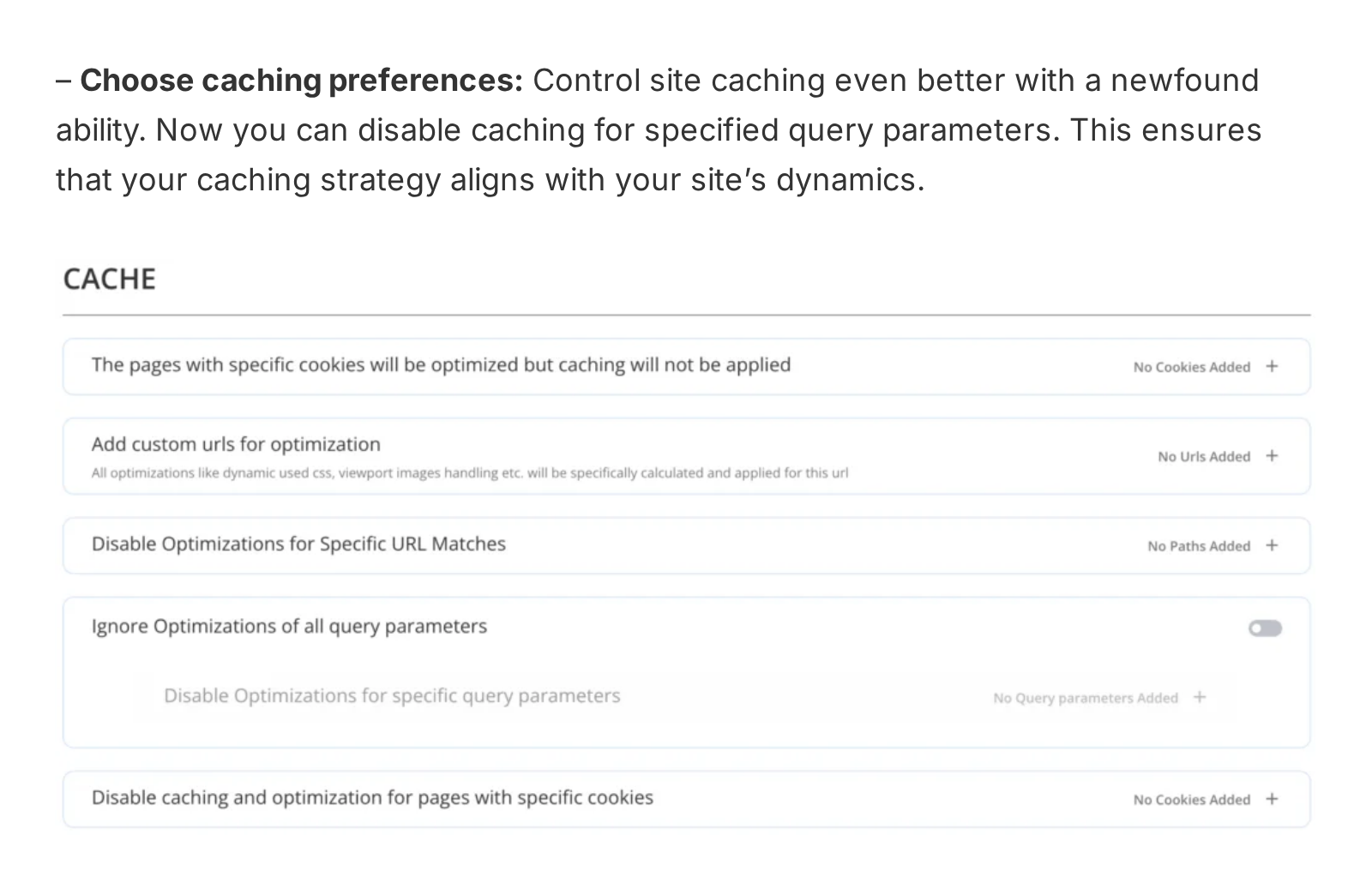
There is one more thing worth knowing during traffic spikes. Some mature caching systems can collapse identical requests after a purge. Instead of a hundred visitors all forcing WordPress to rebuild the same missing page at once, one request refreshes the page while the others wait for that response. The label is secondary; the useful part is fewer duplicate requests stampeding the origin.
Edge caching usually improves the beginning of the page load.
The metric people notice here is TTFB, the pause before the browser starts receiving the response. When a nearby edge server can send cached HTML, the request avoids the longer trip to the origin and skips WordPress work for that visit.
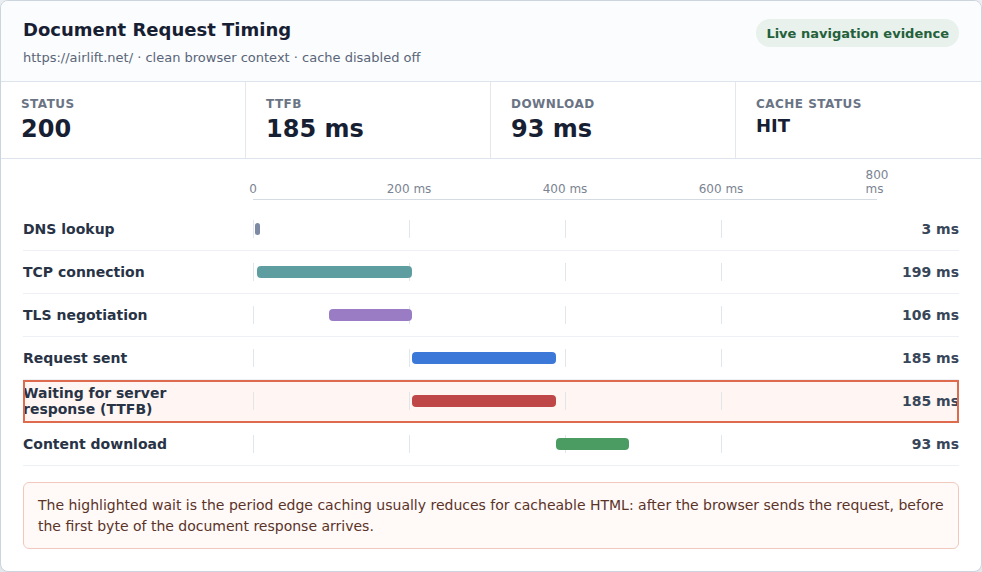
This can help Core Web Vitals when the server response is holding everything else back. If the main content can’t even start loading because the HTML is late, improving that first response matters. But edge caching won’t clean up every slow page. It won’t fix:
Other techniques, like navigation prefetching, can make the next click feel faster, but they don’t replace cached HTML for the first document request.
⚙️ Important: If only logged-out public pages get faster, edge caching is probably doing its job. Don’t judge it by the WordPress admin, checkout, or account area. Those pages often should stay uncached.
If you turned on a CDN and TTFB barely moved, don’t assume nothing is working. Check the HTML document request. The usual causes are pretty plain:
The document request usually gives the game away. Image and script requests can show healthy cache behavior while the HTML is still slow.
Providers use different header names, but the status often uses words like HIT, MISS, BYPASS, DYNAMIC, or EXPIRED. HIT means the edge answered from storage. MISS means it had to ask the origin. BYPASS means rules or headers told the edge to skip cache. EXPIRED usually means a stored copy existed but needed refreshing.
Repeat the test. Right after a purge, your first request may only create the new saved copy. The second or third request is usually closer to what normal visitors will see.
WordPress caching gets messy because several layers use similar words.
| Cache type | Where it lives | What it helps with |
|---|---|---|
| Browser cache | One visitor’s device | Reusing files like logos, CSS, and scripts for that same visitor |
| Edge cache | Servers near many visitors | Serving shared pages or files without returning to the origin |
| Page cache | Server or edge cache | Reusing the finished HTML for a public page |
| Object cache | WordPress/server environment | Reusing database results or computed values during requests that still need WordPress |
You don’t have to pick one. You do have to know what each one is supposed to solve.
Browser cache helps one returning visitor reuse files already on their device. Object cache helps when WordPress still has to run but shouldn’t redo the same database lookups. Page cache lets WordPress avoid rebuilding public HTML. Edge cache can place that reusable response nearer to the people asking for it.
Clear the wrong cache and nothing changes. Tune the wrong layer and the real bottleneck stays right where it was.
Start with a map of your page types. Cache these first:
Bypass these:
After that, define what happens when content changes:
Test from the outside, as a normal logged-out visitor would see the site. An incognito window or external speed test is usually enough for the first pass. Check the first document request, then compare a public post with an account page. The goal is selective behavior, not one sweeping rule for the whole site.
If you’re using WordPress and don’t want to wire together caching, CDN behavior, image optimization, CSS improvements, custom page handling, and purge behavior yourself, AirLift is a relevant option to look at. It’s a WordPress performance solution that includes caching, CDN support, image optimization, CSS improvements, and automatic cache purging on post updates.
That kind of automation helps because the real job is narrower than “make the site fast.” It’s making the right pages fast without making the wrong pages risky.
Edge caching doesn’t help SEO because the phrase sounds technical. It helps when the result is a faster, steadier site that serves the correct public content without making visitors or crawlers wait on an overloaded origin.
It can also hurt if the rules are careless.
Old titles can stay live after edits. Redirects can behave strangely. Important pages can bypass cache forever while everyone assumes they’re cached. Private content can leak if the cache key ignores the things that make one visitor different from another.
For SEO, I care about three things: the right public page, served quickly, with freshness handled properly. Everything else is implementation detail.
📌 Important: Lab tests can improve before real-user Core Web Vitals move. Field data reflects real visitors over time, so don’t panic if a cache fix looks obvious in testing but takes longer to show up in reporting.
You don’t need a full performance audit to answer the first question.
Do this across several page types. A blog post and an account page should not behave the same.
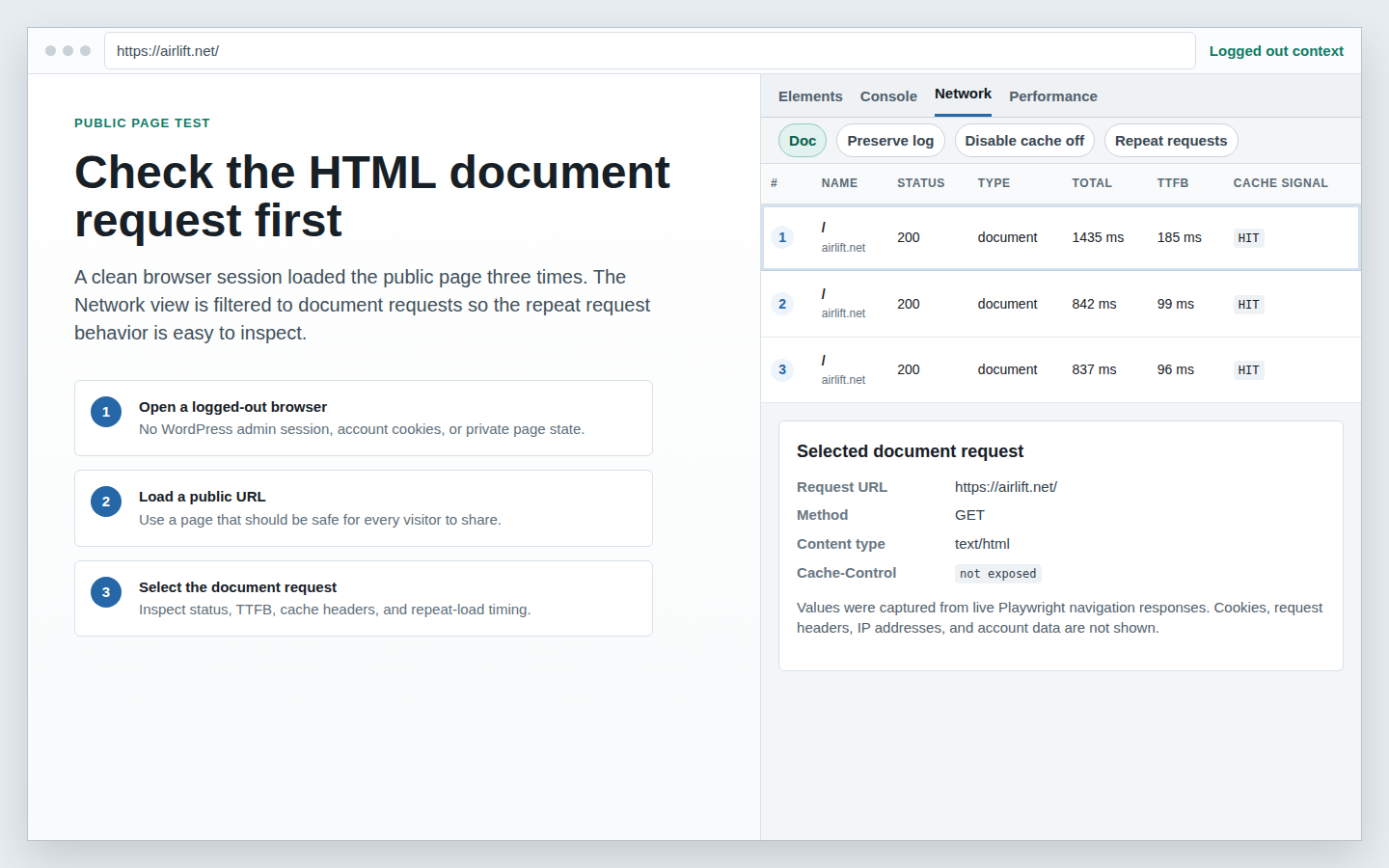
If every page shows a hit, I’d worry about private or dynamic pages. If every page bypasses cache, I’d worry that your public content isn’t benefiting. Good caching is selective.
If your WordPress site has public pages and visitors spread across regions, yes, edge caching is worth understanding and probably worth using.
It matters for blogs, marketing sites, documentation hubs, and other content-heavy business sites. It can help WooCommerce too, especially product and category pages, as long as carts and customer-specific areas are handled separately.
For a site that mostly behaves like a logged-in app or private dashboard, edge caching won’t transform the parts that are personal by design. It can still help static assets and some public pages, but the bigger fixes may be hosting, object caching, database work, plugin cleanup, or front-end cleanup.
For WordPress owners who want image, CSS, CDN, page-handling, and purge controls in one place, AirLift’s optimization settings are the relevant next step. If you need help deciding whether that setup fits your site, you can contact AirLift support.
Treat edge caching as a routing decision: let the edge answer when the response is safe and shared. Let WordPress answer when the response is private, newly changed, or specific to one visitor.
Edge caching keeps reusable content near visitors, which means WordPress can avoid preparing the same public page again and again.
The WordPress version of the idea is practical: cache public pages and static files, bypass anything private or personalized, purge reliably when content changes, and check the HTML document request instead of assuming a CDN solved the whole problem.
That’s where you’ll see whether edge caching is actually helping your site, or whether you’re only caching the easy files around a slow first response. For WordPress owners who want image, CSS, CDN, page-handling, and purge controls in one place, AirLift’s optimization settings are the relevant next step.
No. A CDN is the delivery network. Edge caching is what happens when reusable content is stored on edge servers in that network. Many CDN setups cache static files while still sending HTML back to WordPress.
A cache hit means the edge already had a fresh stored version and could answer without contacting the origin.
It can, especially when public HTML pages are cached. If only images and front-end files are cached, the first HTML response may still come from WordPress and stay slow.
Don’t full-page cache admin pages, login pages, carts, checkouts, account areas, membership dashboards, previews, form responses, or pages that show personal data.
Test while logged out, inspect the first HTML document request, and read the cache status header. Run the request more than once because the first visit may only create the stored copy.
Your homepage can feel fast while the parts that make money still feel slow. If you’re trying to speed up your website, it helps to understand that not every request behaves the…
Read

You know your WordPress site is slow. The confusing part is that every answer points to a different fix. One person says to install a cache plugin. Your host says caching is…
Read

Sometimes a WordPress site is slow, but not for everyone. It loads fine for you. Then a customer in another country says the images take forever. A speed test from your city looks…
Read
Airlift works out what each page needs and applies it. Free to try on your own site.