

Browser Caching: What It Is and How It Speeds Up Your Website
You update a logo, reload the page, and still see the old one. PageSpeed says some files need a longer cache lifetime. A plugin promises to fix caching, your host already has…
Read

NitroPack does a lot for you, which is exactly the problem when something breaks. A payment button stalls, a menu stops opening on mobile, and you can’t tell which setting caused it, because you didn’t choose most of them.
If you’re here, you’re probably weighing a switch. The usual reasons are the pageview limits, the pricing, or simply wanting more control over what happens to your site. All fair.
So we went through each alternative’s documentation, settings, and pricing pages, and compared them on the things that decide whether a switch actually works: your host, how much configuration you’re willing to own, and how each tool treats pages like the cart and checkout.
TL;DR: Airlift is a practical NitroPack alternative if you want automated optimization with little to configure, and its free plan lets you test it on your own site first. Check its page, image, and CDN limits against your site, and test your checkout before you call the switch done.Start with three questions
Before you compare a single feature, answer these. They’ll knock out most of the list on their own.
One more thing worth saying upfront: a plugin rarely decides your speed on its own. Your theme, page builder, and third-party scripts often matter just as much. A WordPress performance audit can help identify which layer actually needs attention.
| Option | Best for | Main strength | Main limit |
|---|---|---|---|
| Airlift | Less configuration, free start | Automated optimization, original files untouched | Plan limits, and the CDN serves assets, not full pages |
| FlyingPress | Automation on a fixed price | Broad controls, works on Apache and Nginx | You own exclusions and retesting |
| WP Rocket | Settings you can inspect | Cache exclusions, WooCommerce cache rules | Images and CDN may need separate tools |
| LiteSpeed Cache | LiteSpeed or OpenLiteSpeed hosts | Server-level caching, free plugin | Main advantage disappears on Apache or Nginx |
| WP-Optimize | Database clutter and heavy images | Cleanup, caching, image compression | Not a full NitroPack-style platform |
Airlift is built for owners who don’t want to spend their evenings fiddling with optimisation settings. The setup is short: connect the site, connect the plugin, and start optimizing. It also leaves your original theme and plugin files alone, which is reassuring if you ever need to roll back.

The part to read carefully is the plan limits, because they’re real. The Free plan covers 10 custom pages and 1,000 images, lets you re-optimize once a week, and has no CDN at all.

And one distinction trips people up. Airlift’s CDN delivers images, CSS, JavaScript, and fonts. It doesn’t cache whole HTML pages at the edge. If edge caching is the reason you’re leaving NitroPack, this won’t replace it.
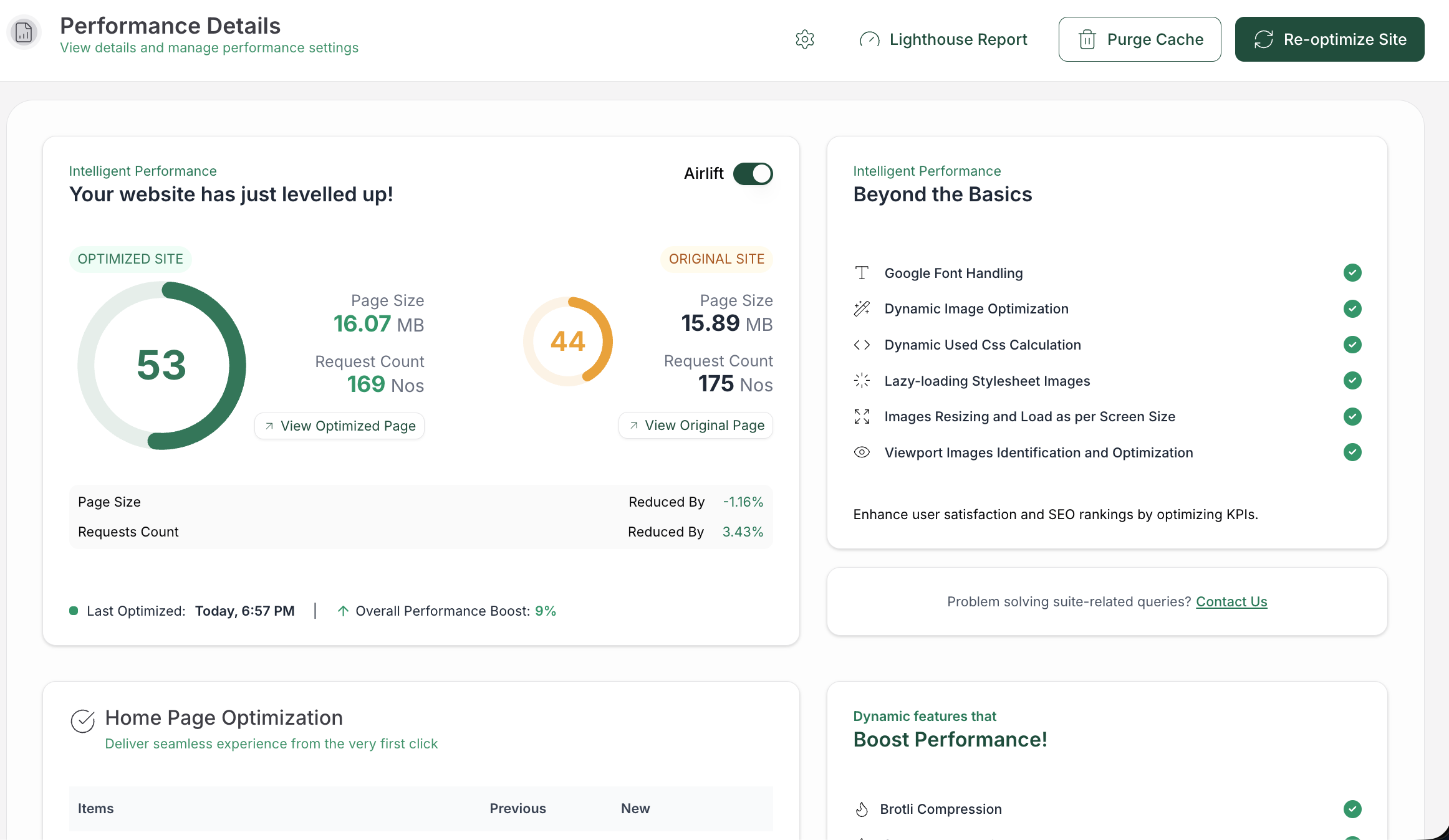
Free is $0. Starter costs $100 a year with 5 GB of CDN each month, Growth costs $200 a year with 25 GB, and Scale costs $1,000 a year with 200 GB. Airlift’s pricing page has the current numbers.
Verdict: Airlift makes sense if you want less to manage and your site fits inside its allowances. If you need edge HTML caching or unlimited capacity, it’s the wrong tool for the job.
FlyingPress keeps a lot of the automation but runs it inside WordPress, so you can see and change what it’s doing. It works on the usual Apache and Nginx hosts, which means you aren’t locked into one server type.
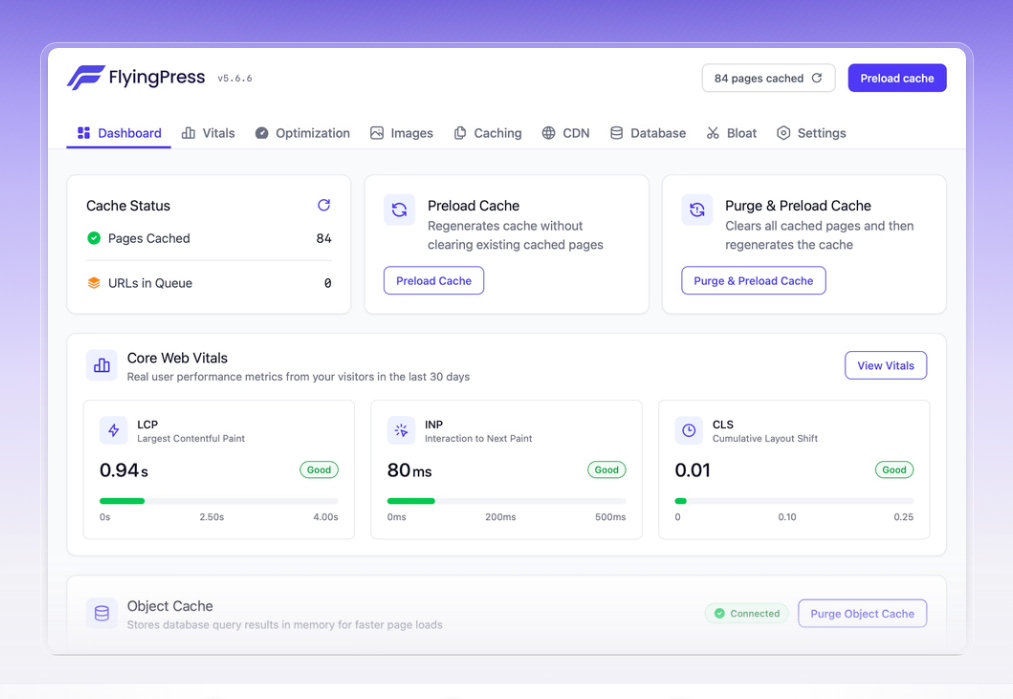
The pricing is the big draw. A fixed yearly fee is far easier to plan around than a bill that climbs with your traffic.
The catch is that the license doesn’t cover everything. Depending on your site, you may still need separate services for image delivery, a CDN, and monitoring. And you own the exclusions, so someone has to retest after theme and plugin updates.
$59 a year for one site, $109 for three, $229 for 25, and $279 for unlimited sites.
Verdict: FlyingPress is a good fit if someone on your team will actually check the site after updates. If nobody will, the automation won’t catch a broken checkout for you.
WP Rocket is for owners who want to see exactly what’s switched on. Its dashboard is clear, and when something looks off after you enable a setting, you can usually find the culprit yourself instead of opening a support ticket.
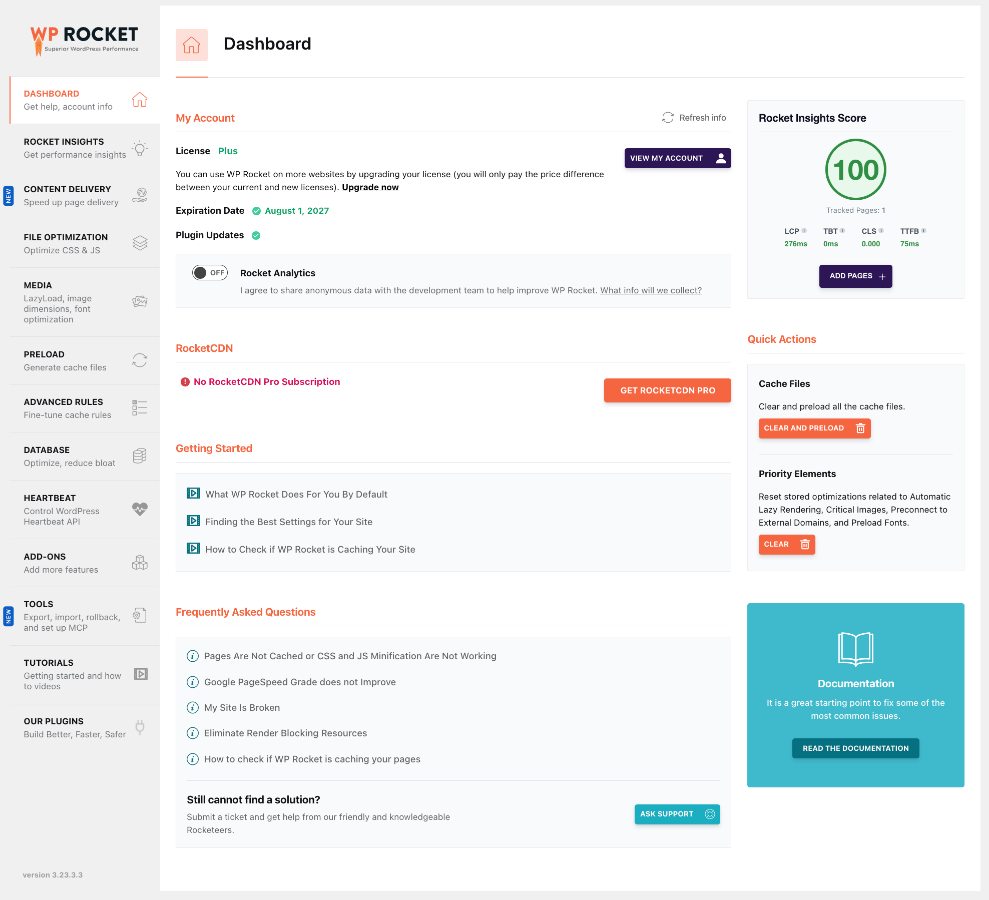
It covers the essentials: page caching, browser caching, lazy rendering, GZIP compression, font handling, and cache exclusions. It also has WooCommerce-aware cache controls, though you’ll still want to test your store by hand.
Control comes with a responsibility, though. Delayed JavaScript can break menus, forms, analytics, and checkout. Optimized CSS can shift a layout. These aren’t WP Rocket flaws, exactly. They’re what happens when you change how a page loads.
$59.95 a year for one site, $119.95 for three, and $299.95 for 50.
Verdict: WP Rocket is a solid choice if you want control and you’re fine adding a couple of services around it. Just retest after every change, not only the first one.
LiteSpeed Cache is free; it has millions of active installs, and on the right server, it’s genuinely excellent. The reason is server-level integration, which lets it handle caching in ways most plugins can’t.
But that’s also the whole reason to choose it. If your host runs Apache or Nginx, the main advantage is gone, and you’re left with a large settings area and no particular edge. Check your server in your hosting panel, or just ask your host, before you install anything.
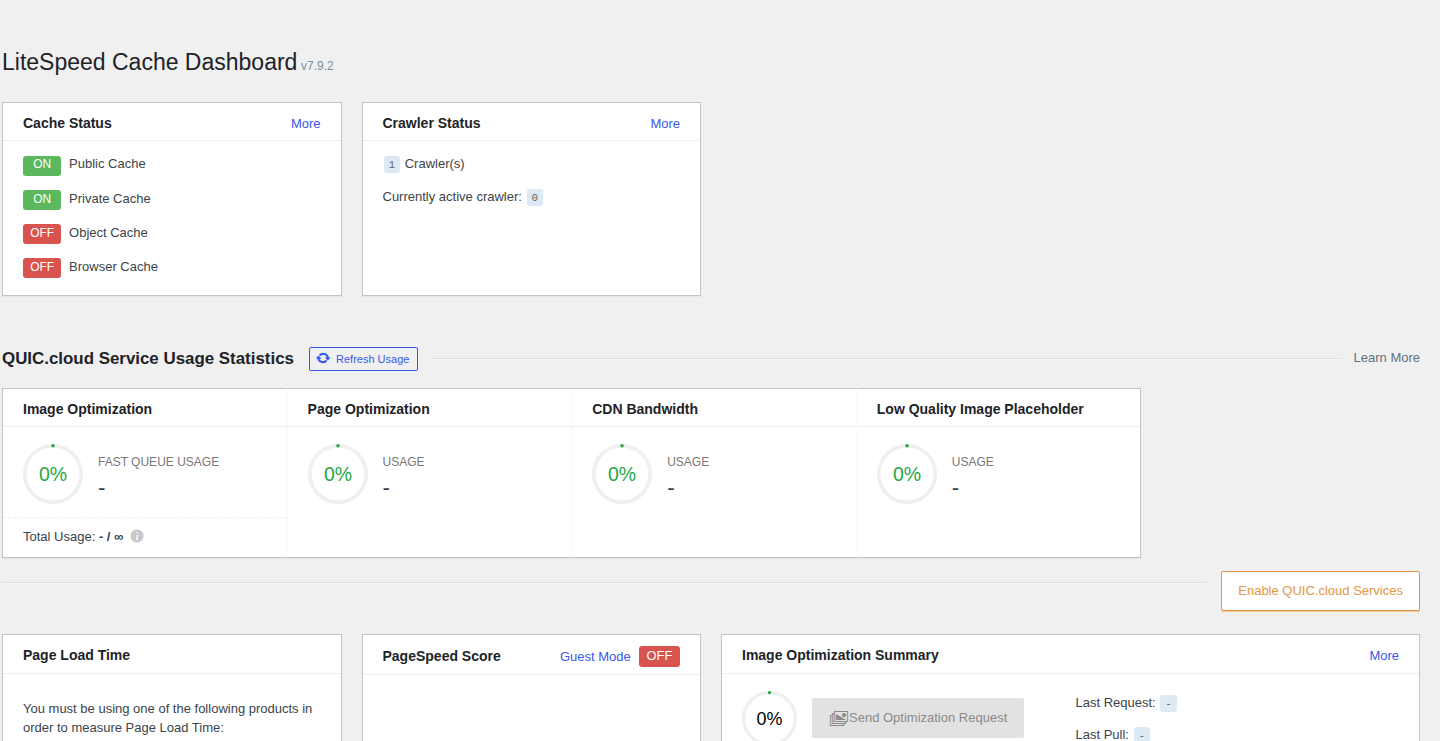
The settings area deserves a mention too. It covers caching, CSS, JavaScript, images, and lazy loading. Experienced users will appreciate that depth. Beginners may find it a lot to take in.
The plugin is free. QUIC.cloud services have their own terms.
Verdict: Choose LiteSpeed Cache because your server supports it, not because it’s free. On the right host, it’s hard to beat. On the wrong one, look elsewhere.
WP-Optimize is the odd one out, and that’s a compliment. Older sites build up years of post revisions, spam comments, leftover plugin tables, and oversized images. Sometimes that clutter is the real problem, and a full optimization platform is overkill.
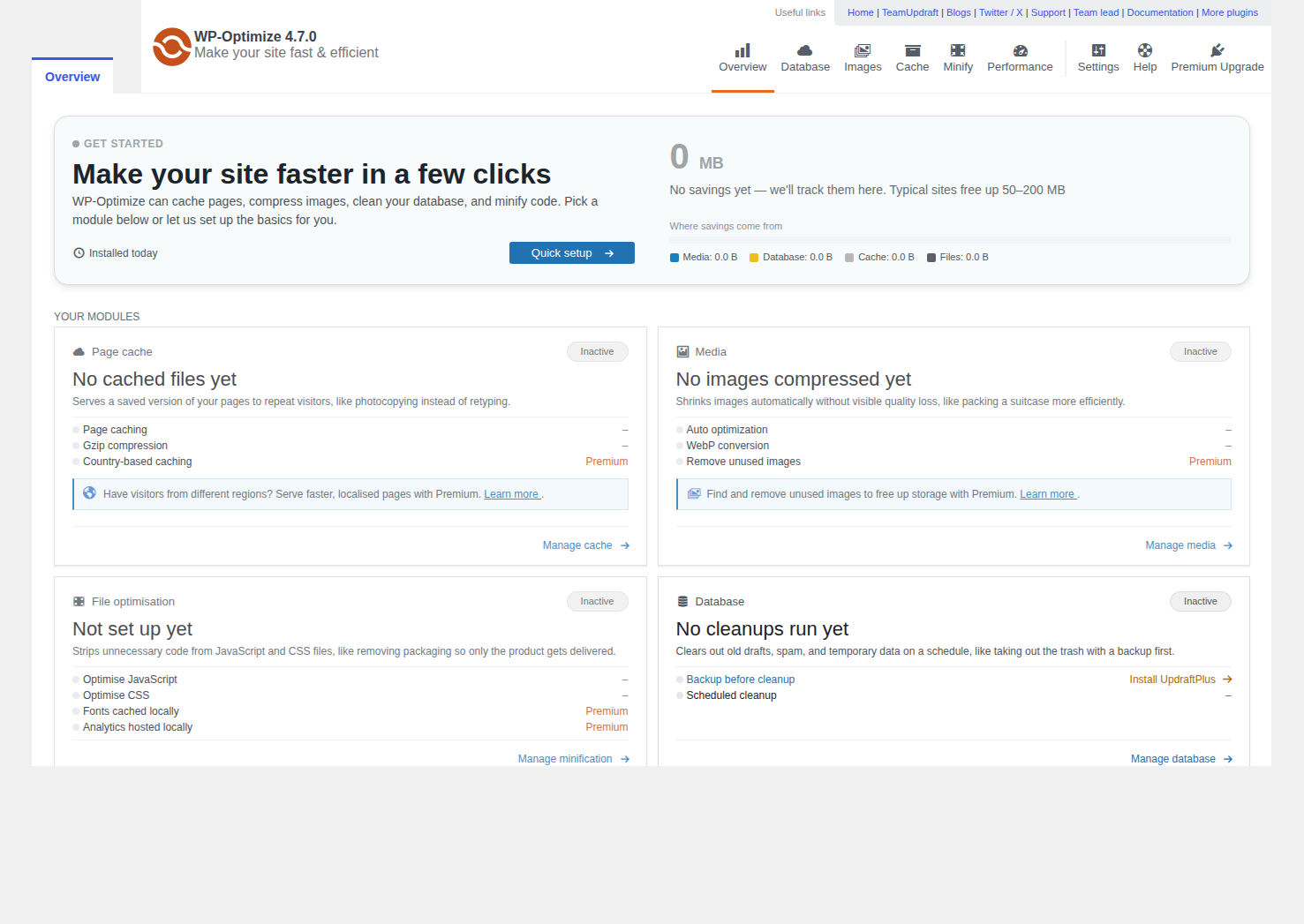
It isn’t a like-for-like NitroPack replacement, and it doesn’t pretend to be. There’s no cloud delivery, no whole-page edge caching, and no advanced critical CSS. If you need those, keep looking.
Check the plugin’s page for the current free and premium plans.
Verdict: WP-Optimize is the right tool when maintenance is the problem. Diagnose that first, before you pay for something bigger.
Neither of these replaces NitroPack on its own, but both can fill a specific gap.
📝 Note: Each extra tool is another thing that can conflict. Before you combine tools, decide which one owns each job: page caching, images, CSS, JavaScript, and the CDN.
Your homepage score is the least important thing to check after a switch. Carts, checkouts, and account pages run on sessions and cookies. A cache rule that’s harmless on a blog post can break a payment page, and a fast homepage won’t help a customer who can’t finish paying.
Test from a logged-out browser and a logged-in account. Add a product, change the quantity, apply a coupon, and start checkout. Then complete a test order through your normal payment process. Check variations, shipping, tax, the confirmation email, and the account pages while you’re at it. Our WooCommerce speed optimization guide explains how to improve store performance while protecting these dynamic pages.
📝 Note: If something breaks, put the old layer back first. Then find the specific setting responsible before you try again.
LiteSpeed Cache, if your host runs LiteSpeed or OpenLiteSpeed. On Apache or Nginx, Airlift’s free plan is a more practical place to start.
It can be, if its plan limits fit your site. Its CDN doesn’t cache whole HTML pages, so check whether you need that before deciding.
The license often is. Add image optimization and a CDN, though, and the gap can shrink.
Not two full-page caches. A second tool only makes sense when it does a different job.
A completed test purchase through your real payment process, from both a logged-out and a logged-in session.
No. Your host, theme, scripts, images, and testing conditions all affect the result.
There’s no single best NitroPack alternative, but there is a best one for your site. Start with your host: LiteSpeed Cache wins on LiteSpeed servers. If you want control inside WordPress, look at FlyingPress or WP Rocket. If you’d rather configure less, Airlift is an option, within its limits. If old data is the problem, WP-Optimize may be all you need.
Then test before you commit. Switch one layer at a time, and check your checkout as carefully as your homepage. A better score means very little if a customer can’t finish paying.
You update a logo, reload the page, and still see the old one. PageSpeed says some files need a longer cache lifetime. A plugin promises to fix caching, your host already has…
Read

If you’ve tried to enable caching and visitors are now seeing old CSS, outdated content, or a private page from the wrong cache, the cache control header is a key place to…
Read

You clicked Update, refreshed the page, and the live site still looks old. The image is unchanged. The menu is wrong. In some cases, a slow website can also point to an outdated…
Read
Airlift works out what each page needs and applies it. Free to try on your own site.