

Browser Caching: What It Is and How It Speeds Up Your Website
You update a logo, reload the page, and still see the old one. PageSpeed says some files need a longer cache lifetime. A plugin promises to fix caching, your host already has…
Read

You run a quick speed test, and there it is: “Reduce JavaScript execution time.” Your thumb hovers over the nearest “delay all scripts” toggle because that sounds like the fast way out. Don’t click it yet.
We’ve watched that exact shortcut turn a decent speed score into a checkout that stops working, a consent banner that never shows up, or a menu that only opens on the second tap.
The warning you’re staring at is honest, though. It’s telling you that some script on your site is making a visitor’s browser work harder than it should, right when that visitor is trying to do something. What it won’t tell you is which script is responsible or whether your page even needs it. That part is on you, and it takes a lot less time than you’d think.
TL;DR: Find the script causing the delay, remove it if it isn’t needed, or load it only where necessary. Test your site’s key interactions before delaying scripts, and once you know which scripts are safe to delay, AirLift’s JavaScript optimization can help automate script delivery.
“JavaScript execution time” is not about file size. It measures how long a visitor’s browser spends parsing, compiling, and running your scripts.
Most of this work happens on the browser’s main thread. That same thread also handles page layout, visual updates, clicks, and taps. This means even a small JavaScript file can slow down your site if the code inside it requires too much processing.

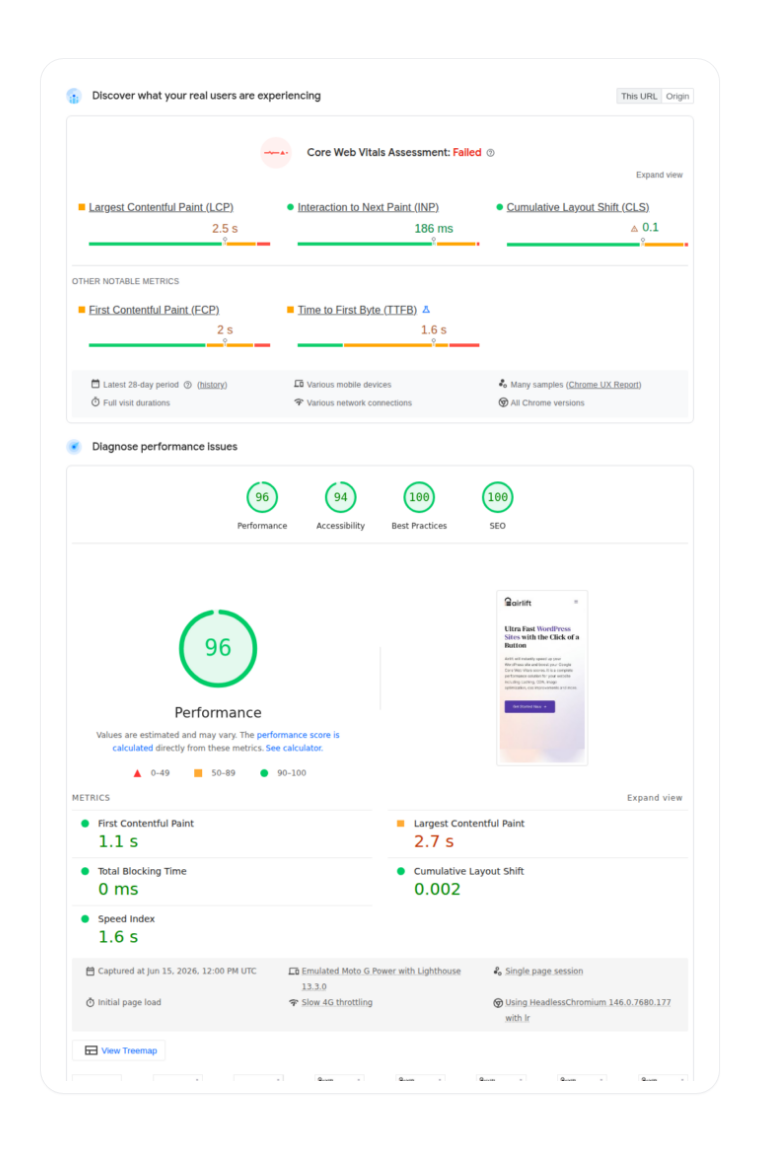
Chrome calls any task that takes more than 50 milliseconds a long task. The time after those first 50 milliseconds becomes blocking time, when the browser may struggle to respond to a visitor’s actions.
Long tasks can hurt Interaction to Next Paint (INP), which measures how quickly your page responds when someone clicks, taps, or types.
INP is generally rated as follows:
These numbers can show that JavaScript is causing delays, but they will not identify the specific script responsible. Understanding Core Web Vitals can help you see how JavaScript execution issues fit into your site’s overall performance. You’ll need to find that yourself, and the next section shows you how.
Test the specific page the audit flagged, not your homepage, and definitely not “the site in general.” A site-wide score loves to hide a problem that only exists on one template, like a form script loaded sitewide when the form itself lives on a single contact page.
Or a product-options script quietly running on a landing page with no products anywhere near it. Chrome’s DevTools give you three ways to dig in, and each one answers a different question you’ll need answered.
For a broader workflow to diagnose and fix slow WordPress pages, see our guide to WordPress performance optimization
| Tool | What it shows you | When to reach for it |
|---|---|---|
| Network panel | Which domain a script came from, and roughly how heavy it is | To work out who owns it: your theme, a plugin, or a third party |
| Performance panel | The long tasks hogging the main thread, with their call stacks | To trace a slow interaction back to the exact script causing it |
| Coverage panel | How much of a script’s code actually ran while you used the page | To spot code that might be loading for no reason |
Don’t judge a script by its weight alone, because weight lies. A small file can run genuinely expensive logic, while a large one might sit there untouched until someone clicks a button, already cached from their last visit anyway. Network tells you what showed up. Performance tells you what actually ate your visitor’s attention, and that gap is wider than most people expect.
Use Coverage with a healthy dose of suspicion, too. Reload the page, then do everything a real person would do: open the menu, fill out a form, expand a product option, trigger whatever modal exists. Unused bytes in that recording are a lead, never a verdict. Code that looks dead on first load might be exactly what fires three seconds later, the moment someone opens their cart.
The same principle applies to stylesheets: before optimising code that loads on a page, check whether the page actually uses it. This guide on removing unused CSS in WordPress walks through how to identify unnecessary CSS without breaking your site.
📝 Note: We’ve tested a bare WordPress page running a default theme with nothing else installed, and it barely registers any JavaScript overhead at all. That’s worth remembering, because the weight you’re chasing almost always traces back to what you’ve added, not to WordPress itself.
Once you find the script causing the slowdown, ask one simple question: Does this page actually need the feature it provides?
If the feature is no longer useful, removing the plugin is often the best solution. Deleting an unnecessary plugin is usually more effective than trying to delay or optimize its scripts.
If the feature is still important, prevent it from loading on pages that do not use it. For example:
Loading these scripts sitewide makes every page do extra work, even when visitors never use the feature, which can contribute to a slow WordPress website.
Many well-built plugins include settings that let you control where their scripts load. If your plugin does not offer that option, a developer can conditionally load the script using its handle, which is the name WordPress uses to identify the script internally.
Since WordPress 6.3, scripts can also be registered with a built-in defer loading strategy:
wp_enqueue_script(
    'site-interactions',
    get_theme_file_uri( '/assets/js/site-interactions.js' ),
    [],
    null,
    [
        'strategy'  => 'defer',
        'in_footer' => true,
    ]
);
A deferred script still runs during page load, but it lets the browser read through your HTML first, and it keeps its place in line with whatever else depends on it. That ordering matters more than it looks like it should, because a script expecting another one to run first can fail quietly the moment you shuffle the timing without checking what’s connected.
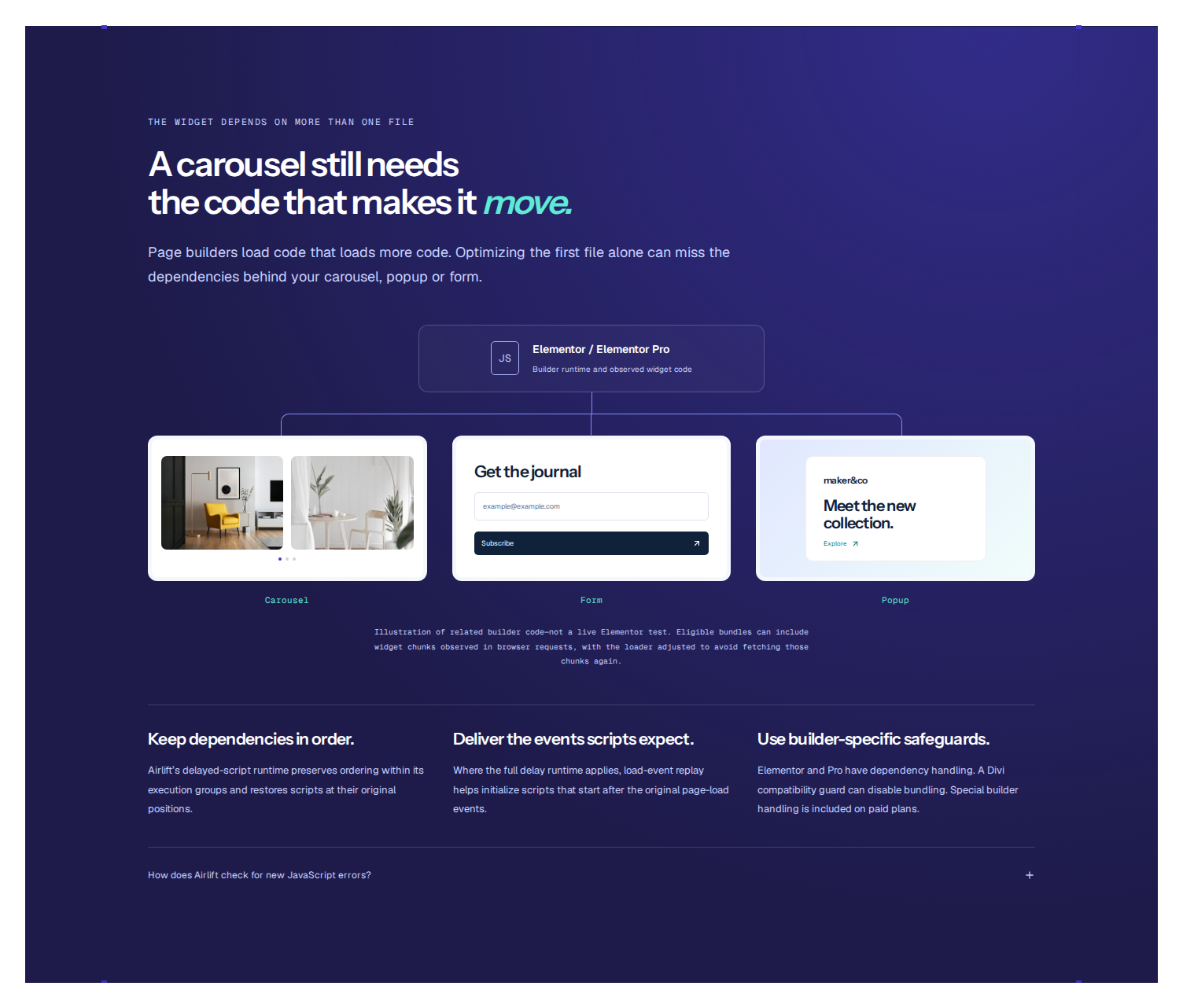
Removing or relocating a script fixes the actual cause. Everything you’re about to read fixes nothing except when the work happens. Four techniques get thrown around constantly in speed advice, and they get treated like interchangeable synonyms far too often.
| Technique | What it really does | Where it belongs |
|---|---|---|
| Minification | Strips formatting and comments to shrink the file | Reducing download size, never runtime cost |
| Defer | Lets HTML parse first, then runs the script in order | A needed script that doesn’t need to run immediately |
| Async | Runs as soon as it’s ready, order be damned | A script that stands completely alone |
| Interaction-based delay | Waits for a click, scroll, or timer before firing | Code the first view honestly doesn’t need yet |
Minification will never fix an expensive script, no matter how good it looks on paper. It trims whitespace and comments, which shrinks what gets downloaded, but the logic inside runs exactly as slowly as it did before. CSS optimization follows a similar principle: reducing file size is only one part of the process. You can also improve delivery by optimizing CSS in WordPress. Test it by itself. Combine it with other changes at the same time, and you’ll have no idea which one broke something when the console starts throwing errors.
Defer and async are not the same tool wearing different names, whatever some guides imply. Defer holds a script’s place in line while letting the page parse first, which makes it the safer pick whenever one script leans on another. Async throws that ordering guarantee out entirely, so save it for scripts that genuinely stand alone, with zero shared dependencies and no timing assumptions baked in.
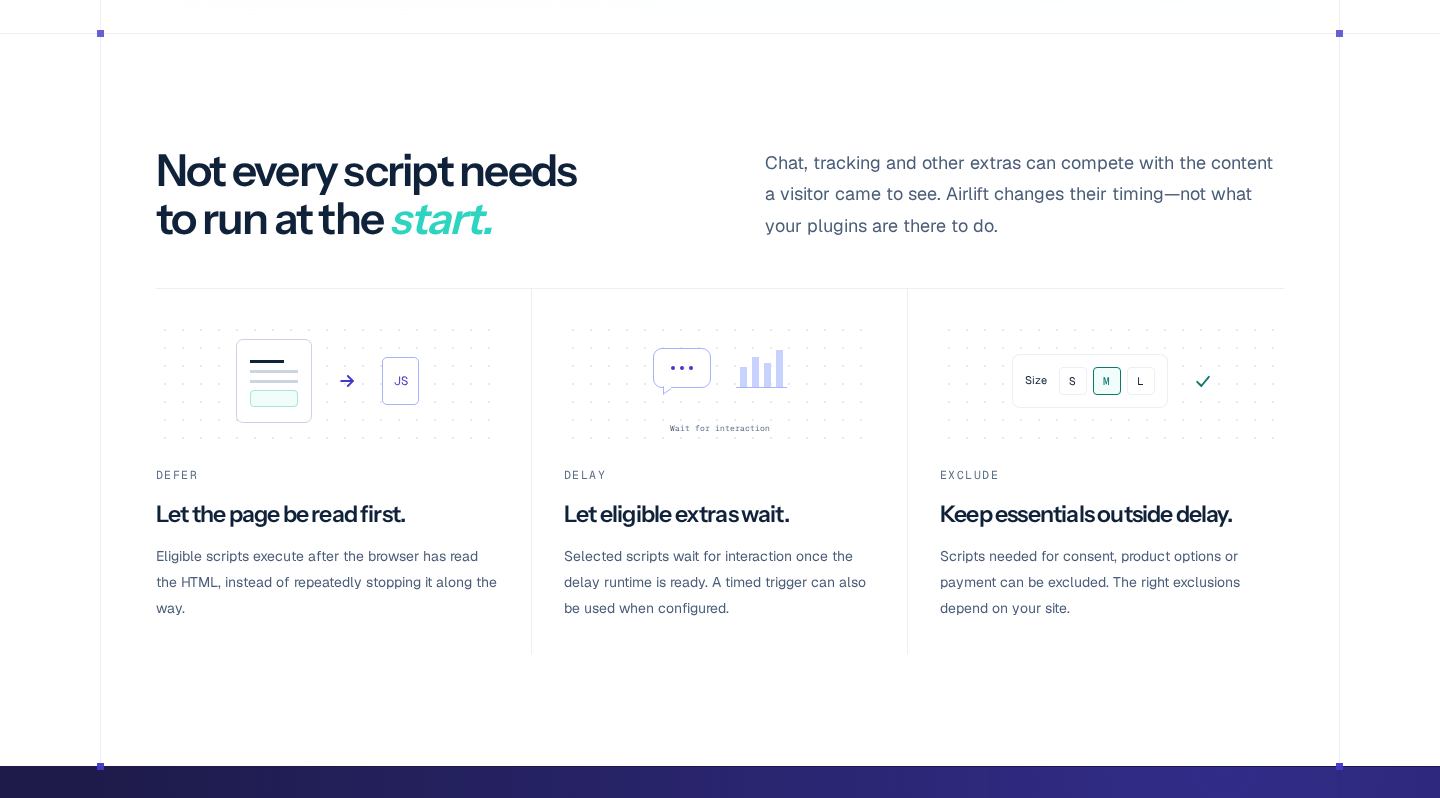
Delay is where real damage tends to happen. It holds a script back until something triggers it, which can genuinely speed up that crucial first view. We’ve seen stores delay their add-to-cart script chasing a better lab number, only to watch real customers click the button before the delay timer had even finished counting down.
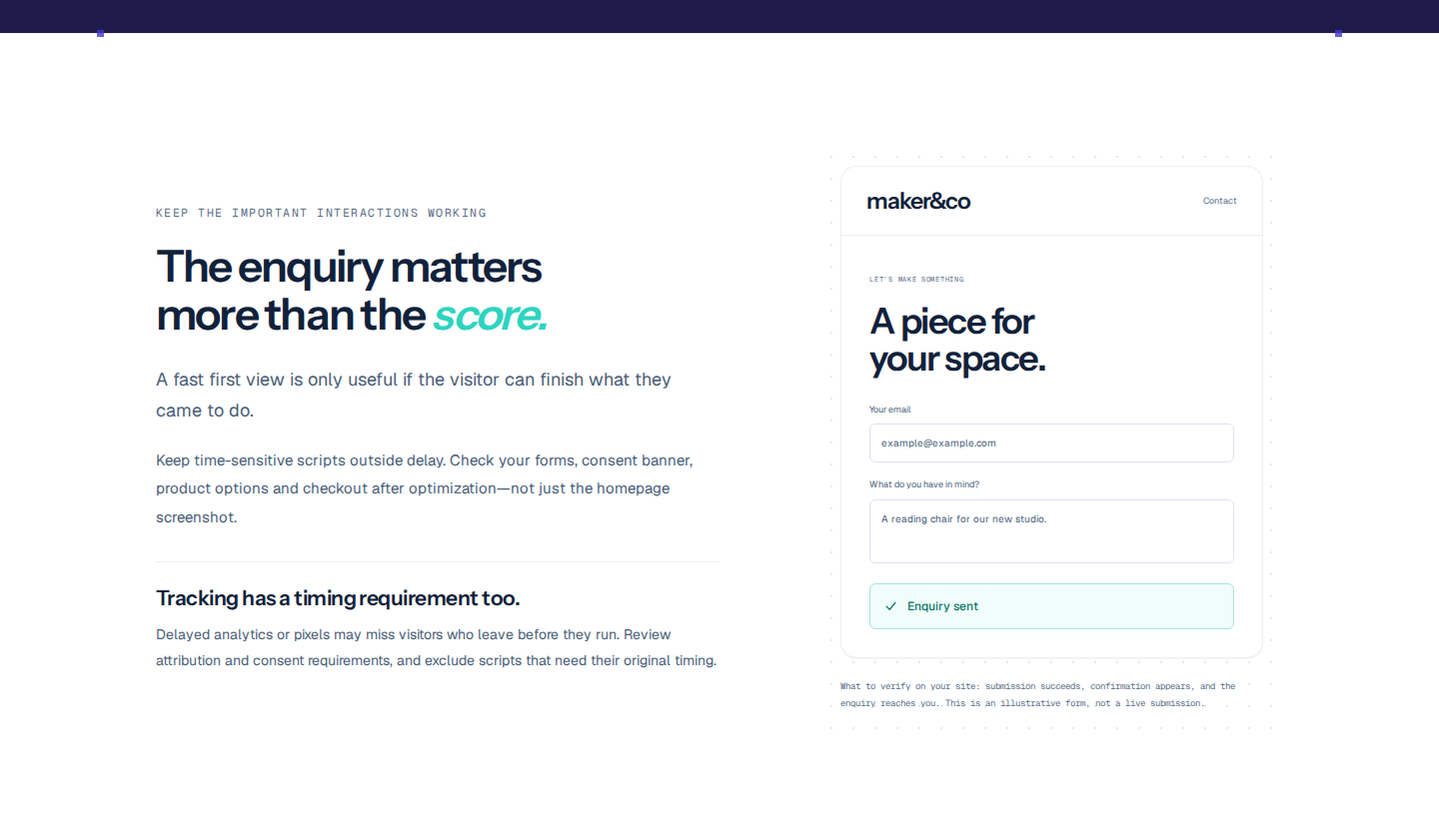
Keep navigation, consent banners, forms, product options, payment, and checkout out of any broad delay rule until you’ve walked that journey yourself, start to finish.
📝 Note: Analytics and advertising scripts need extra care here. Shift when they fire, and you can quietly throw off what gets recorded as a conversion, long before anyone notices the numbers look wrong.
A faster lab score means nothing if the page underneath it quietly stopped working. After every single change, run through this list before you let yourself move to the next one:
If something breaks on the live site, roll it back immediately, clear the caches again, and confirm the broken journey is working before you even think about a narrower version of the change. Jot down what you changed and what happened. That one habit is what stops you from repeating the same mistake a second time, usually at a worse moment.
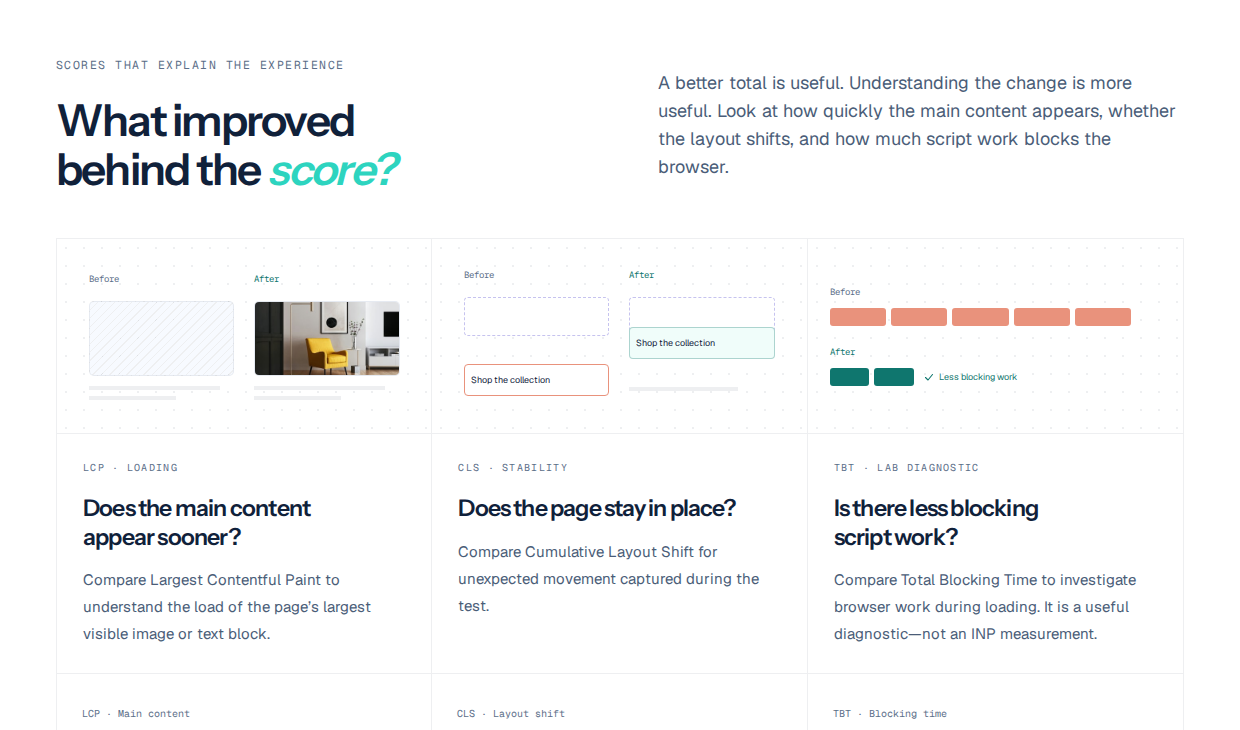
Once you know exactly which scripts are safe to delay, a delivery layer can apply that timing for you, without you ever touching your theme or plugin files.

Airlift’s JavaScript optimization can:
Its documented handling also covers eligible Elementor and Elementor Pro cases, along with a compatibility guard built for Divi.
Because Airlift serves optimized copies while your original files sit untouched, rolling back a setting that doesn’t work out is usually a quick fix rather than a scramble.
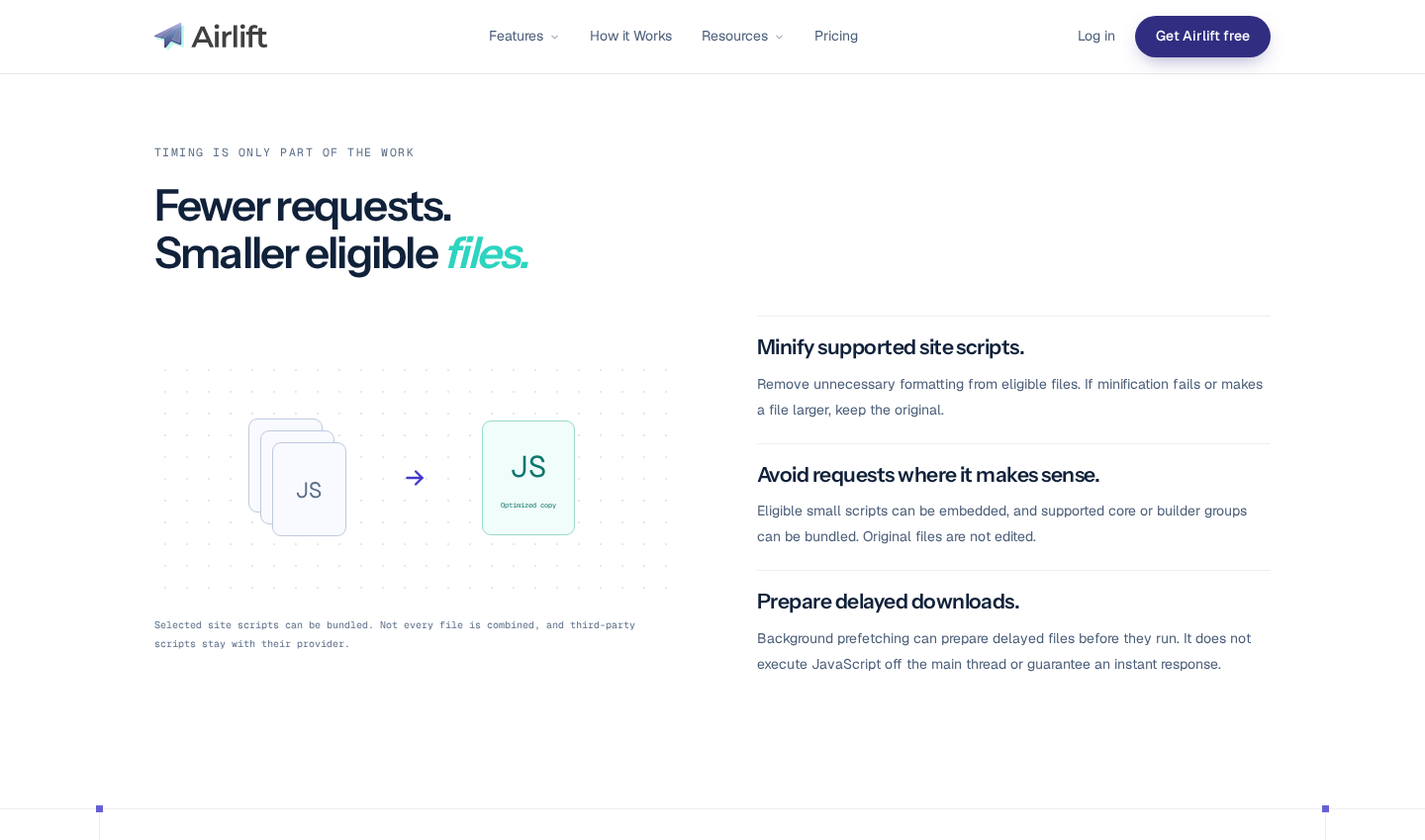
It won’t strip dead functions out of your code or rewrite the scripts themselves, so if a third-party tag turns out to be the real cause of your slow audit, that tag is still exactly as slow as it was before.
When automatic JavaScript level selection is switched on, Airlift checks your homepage for console errors in a mobile browser before and after it optimizes anything.
That catches an obvious, glaring regression. It is not, and was never meant to be, a replacement for you personally testing your own forms, your own checkout, and your own consent flow.
Find the specific scripts running on the page that actually failed the audit, then remove or conditionally load whatever that page doesn’t need. This gets you closer to the real cause than delaying every script on the site ever will.
No, it only moves when that work happens. The total execution time stays exactly the same until you remove a feature, load it conditionally, split the code apart, or rework the underlying logic.
Reach for defer whenever a script belongs to a group that relies on loading order, which describes most scripts on a typical WordPress site. Save async for something genuinely independent, with no reliance on another library or an earlier setup step.
No, and this is the mistake that does the most damage. Broad delay rules can break navigation, consent banners, forms, product options, checkout, and analytics, so walk through the complete journey before you trust a wide delay setting with anything that matters.
Roll back the last change you made, clear every cache that could be involved, and confirm the broken journey works again before you test anything narrower. No score is worth more than a site that actually functions.
That speed warning isn’t telling you to gut your site down to nothing. It’s pointing at one specific page and saying a visitor’s browser is working harder than it should, and now you know exactly how to find out why.
Test the real page, not a vague site-wide number. Let the Network, Performance, and Coverage panels separate the scripts that merely showed up from the ones genuinely slowing things down.
Remove what the page doesn’t need, reorder what it does, and walk through every interaction that actually matters before checking whether your Core Web Vitals assessment passes .
Do that groundwork once, and a tool like Airlift can hold that timing in place for you. So the next time this warning shows up, you’ll already know exactly what it’s talking about.
You update a logo, reload the page, and still see the old one. PageSpeed says some files need a longer cache lifetime. A plugin promises to fix caching, your host already has…
Read

If you’ve tried to enable caching and visitors are now seeing old CSS, outdated content, or a private page from the wrong cache, the cache control header is a key place to…
Read

You clicked Update, refreshed the page, and the live site still looks old. The image is unchanged. The menu is wrong. In some cases, a slow website can also point to an outdated…
Read
Airlift works out what each page needs and applies it. Free to try on your own site.