

Browser Caching: What It Is and How It Speeds Up Your Website
You update a logo, reload the page, and still see the old one. PageSpeed says some files need a longer cache lifetime. A plugin promises to fix caching, your host already has…
Read

You’re checking your WordPress site after a performance audit, and there it is: a red “Reduce unused CSS” warning. You open the page, everything looks fine, and then wonder whether the biggest stylesheet is quietly slowing the site down.
If you searched for “remove unused CSS WordPress,” you’re probably looking for a safe way to improve performance without breaking the layout your visitors rely on.
The safest approach is to understand what the audit actually measured, trace the responsible stylesheet, and make a reversible change that matches the page. Once the change is in place, test the states a first load may miss, including mobile layouts, menus, forms, overlays, and important conversion flows.
TL;DR: A PageSpeed warning is a reason to investigate, not a reason to delete every CSS rule marked red. The safest fix is the smallest reversible change that reduces delivered CSS without breaking a later interaction or another page template.Follow a safe WordPress performance optimization process that lets you test the change, compare the result, and reverse it if something breaks.
Before you change anything, put the warning in context. It describes CSS that the measured page downloaded but did not use in the state being measured. That same CSS may still be needed when a menu opens, a form receives focus, the viewport reaches another breakpoint, or a dynamic component appears.
WordPress pages can receive CSS from WordPress core, the active theme, a page builder, and several plugins. A stylesheet that looks unnecessary on the homepage may control a form on the contact page or a product layout in WooCommerce. Unused CSS is a page-and-state problem, not a list of files you can safely remove everywhere.
That distinction changes the goal. You are not trying to make every coverage report show zero unused bytes. You are trying to reduce CSS that a page delivers without sacrificing the layout and interactions visitors need.
With the warning in perspective, investigate the exact page that produced it. The file with the largest size is not automatically the right file to edit, and its filename alone tells you very little about who registered it.
Measure your WordPress website’s speed by running the exact public URL through PageSpeed Insights on both mobile and desktop. Its unused-CSS audit can identify stylesheets that contributed bytes that were not used during the measured load. That gives you a useful starting point, but it does not describe every state a visitor may reach.
Treat the audit as a diagnostic signal, not a safety certificate. A page may load a hidden mobile menu, a modal, a form validation state, or a responsive layout that the initial audit did not exercise. A smaller audit number is not enough to prove that the change is safe.
For more detail, open the page in Chrome, open DevTools, and start Coverage from the command menu. Coverage is a browser report that shows CSS files and the proportion of their bytes used during the recorded session. Reload the page while it is recording.
Use that session to exercise the page before drawing conclusions. Open the navigation menu, expand accordions, focus and submit forms, open modals, resize the viewport, and visit the states that matter to the page. Then inspect which stylesheet contains the rules that remain unused.
Coverage is still a sample of one session. It can show that a rule was not used during the states you exercised, but it cannot prove that the rule is never needed elsewhere on the site or later in a visitor’s journey. This is the distinction I see people trip over more often than the CSS itself.
Now use the browser’s Network panel and the page source to identify whether the file came from the theme, a plugin, a page builder, or custom CSS. The HTML style element or link commonly has an ID ending in -css; the WordPress enqueue handle, which is the name WordPress uses to register the asset, usually does not include that suffix.
Do not assume the visible filename or HTML ID is the handle needed for a WordPress dequeue, meaning a request to remove a registered style from the page queue.
Record the URL, owning component, page condition, and interaction states you checked before changing anything. That short record prevents a common mistake: removing a file without knowing which feature registered it or which other page depends on it.
Once you know what is involved, choose the least aggressive option that addresses the measured problem. The right choice depends on whether the stylesheet is truly irrelevant to a page or simply arrives earlier and more broadly than necessary.
The file size is not the only consideration. A large stylesheet can contain essential rules, while a small file can block a visible layout or a key form. The best change reduces delivered work while keeping the page predictable.
If a plugin’s stylesheet is needed on one page but not others, conditional loading is often safer than global removal. For example, a form plugin’s stylesheet may be needed on a contact page but not on blog posts. Removing it from posts avoids affecting the page where the form is used.
An illustrative WordPress pattern looks like this:
add_action( 'wp_enqueue_scripts', function () {
    if ( ! is_page( 'contact' ) ) {
        wp_dequeue_style( 'example-form-handle' );
        wp_deregister_style( 'example-form-handle' );
    }
}, 100 );
This is a pattern, not a ready-to-paste handle. Replace the example handle with the actual enqueue handle, confirm that the plugin has registered it, and confirm the page condition on staging. The late priority gives the plugin a chance to register the style first, but the correct timing depends on how that plugin loads assets.
Do not edit a parent theme’s files for this change. Use a child theme or a site-specific plugin, keep the change reversible, and record which templates were checked. A guessed handle can do nothing, while a broad condition can remove styles from pages that need them.
The decision is easier when these three techniques stay separate:
Give one tool clear ownership of used-CSS removal. When several tools transform, compile, cache, or remove CSS, they can create WordPress caching and optimization conflicts that make broken layouts and stale files harder to diagnose. Check the final output and disable overlapping features elsewhere.
The distinctions above also show when automation is useful. Manual dequeueing works well when the problem is a small number of clearly owned assets. It becomes difficult when a site has many templates, page-builder states, responsive variants, and frequent design changes. Automation can help, but it must measure the relevant layouts, preserve exclusions, and fall back when processing cannot produce a safe result.
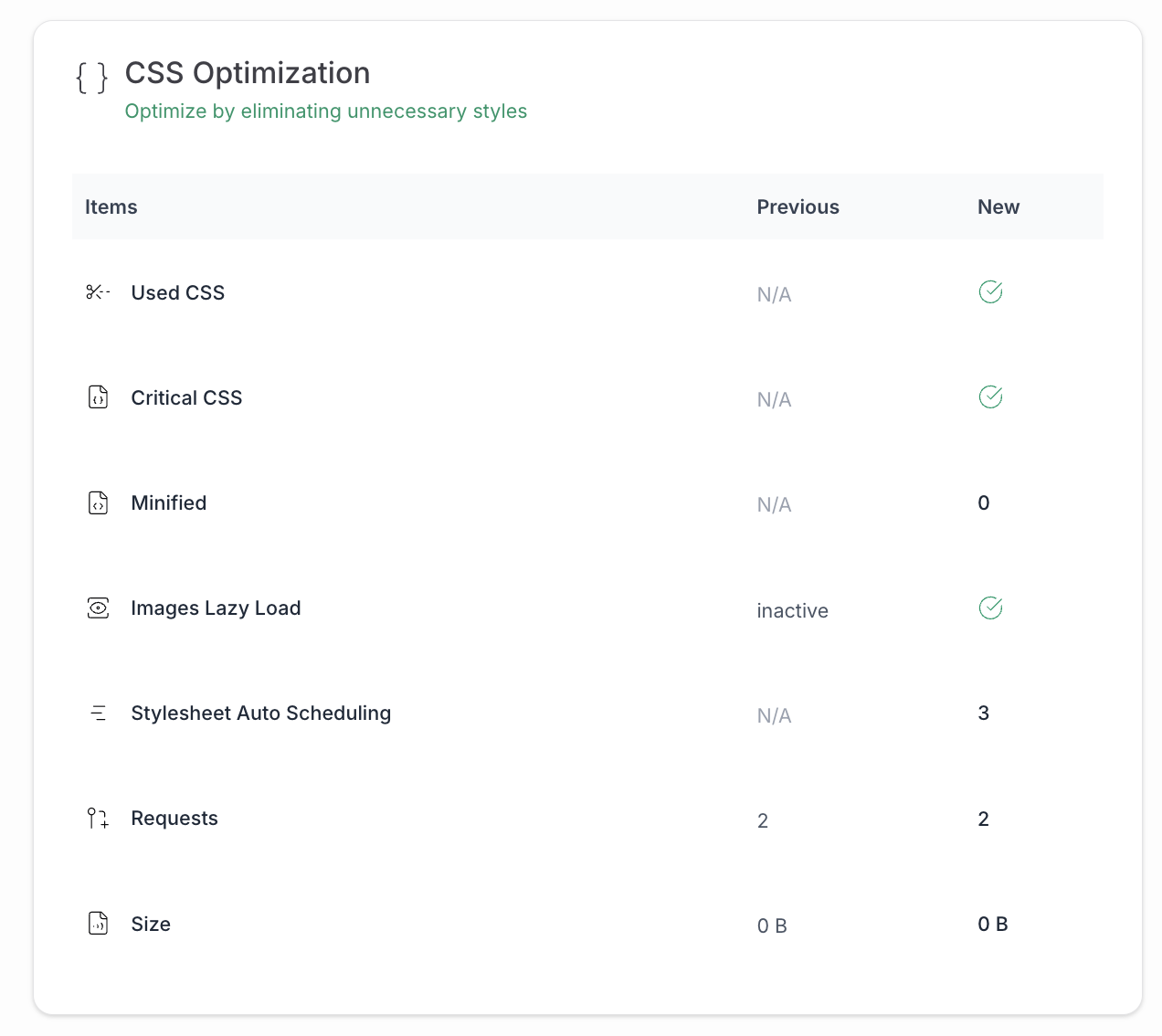
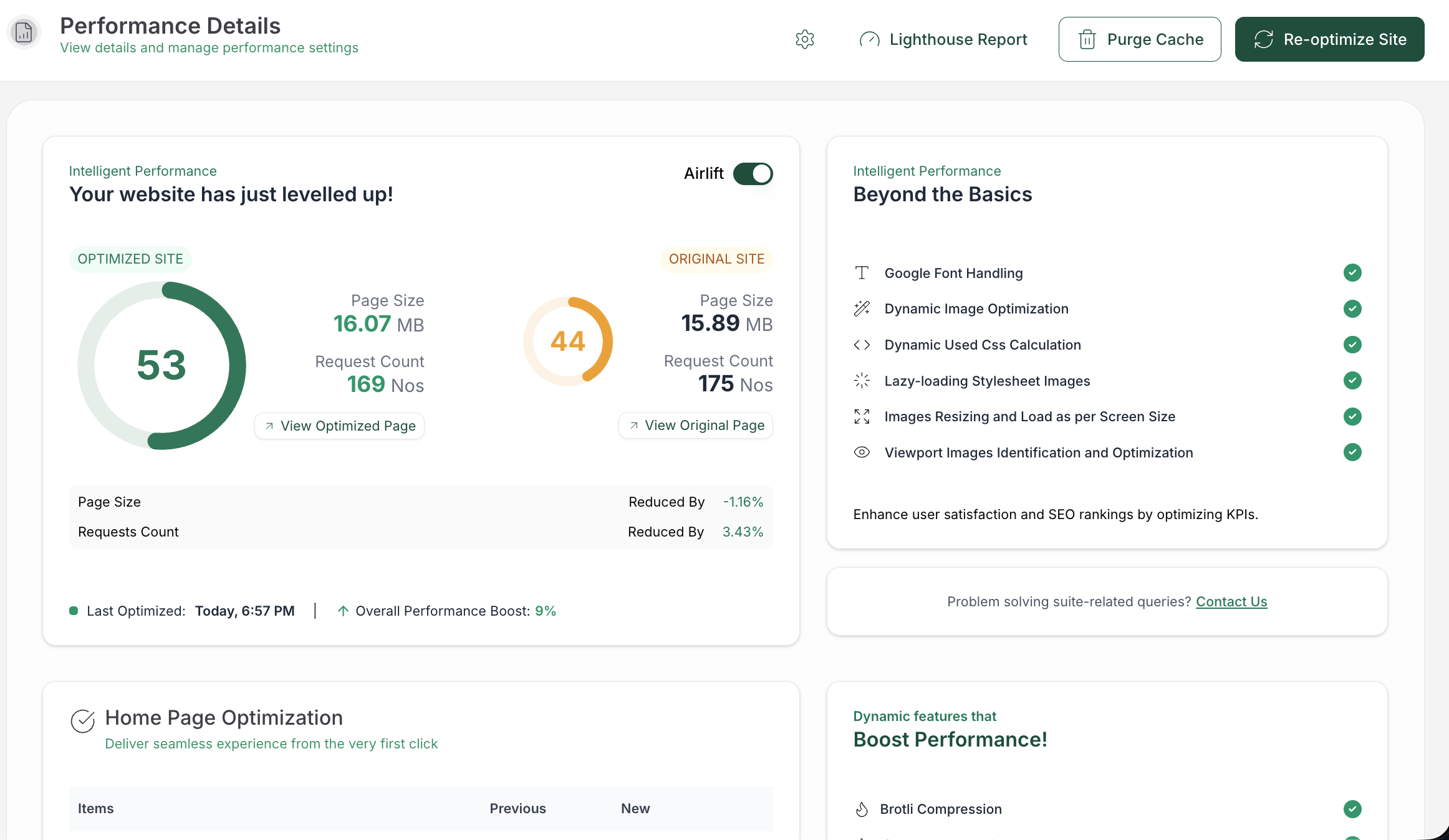
AirLift’s current CSS optimization documentation describes a page-aware workflow for eligible measured layouts.
It says the feature serves used CSS for eligible layouts, uses critical CSS and deferred stylesheets for other eligible pages, checks supported interaction states across four screen widths, leaves the original theme and plugin files intact, and serves optimized copies with a fallback when processing fails. These are documented capabilities, not a promise that every site or component will qualify or that a particular score improvement will result.
If you do not want to maintain handles, page conditions, exclusions, cache layers, and repeated measurements yourself, AirLift’s CSS optimization is the relevant next step to evaluate. Compare the page before and after enabling any optimization, and treat menus, forms, checkout, key pages, desktop, and mobile as part of the acceptance test.
You’ve identified the asset and chosen an intervention. Now run the same checks before and after the change. A lighter CSS payload is useful only if the page still works, so this is where a promising audit result earns your trust.
Start with the page in a clean session at the desktop and mobile widths that matter to your visitors. Check the header, navigation, hero or first content block, buttons, cards, images, typography, and spacing. Resize the viewport instead of checking only one fixed width so that breakpoint rules, the rules that change a layout at different screen widths, are exercised.
Once the static layout looks right, open the mobile menu, hover or focus controls, expand accordions, open modals, submit a form, and trigger validation messages. Check any tabs, sliders, tooltips, animations, sticky elements, and cookie or consent panels used on the page. These states often need CSS that is not present during the initial render.
The page that produced the warning is not always the page where a regression matters most. For an online store, test product pages, the cart, checkout, account screens, and payment-related states. For a lead-generation site, test the contact and signup flows. Also check logged-in and personalized states when the site serves different markup to those visitors.
Compare transferred CSS bytes, page behavior, and Core web vitals, but do not treat a PageSpeed score as the only success measure. Confirm that the page remains usable and that no browser-console errors, layout shifts, missing icons, or unstyled states appeared. A small performance gain is not worth a broken conversion path.
Clear the relevant page, plugin, content-delivery network (CDN), and browser caches before comparing results. A CDN is a network that serves cached files from locations closer to visitors. If an automated process generated used CSS, regenerate it after a theme, plugin, page builder, template, or major content change. Keep a rollback path so you can restore the previous behavior quickly.
The same measured output that made automation useful also explains why it can go stale. Used-CSS output describes the pages and states measured at a particular point in time. A new menu, form field, builder module, product template, or responsive rule can make the old result incomplete.
Some hosted measurement systems also require public page access, scheduled processing, firewall allow-listing, and pages that respond within their limits.
Recheck optimization after substantial design or plugin changes. If a site changes frequently, prefer a workflow with manual or scheduled re-optimization, visible exclusions, and a documented fallback. Keep the process small enough to repeat: measure, change, exercise the important states, compare, and roll back if the behavior is worse.
It means reducing the CSS rules delivered to a page when that page does not need them, while retaining rules needed for responsive layouts and interactive states. The same CSS can be unnecessary on one page and essential on another.
Run the URL through PageSpeed Insights for an audit view, then use Chrome DevTools Coverage to inspect CSS files during a real page session. Exercise menus, forms, overlays, and responsive widths before deciding that a rule is safe to remove.
Yes, if you identify the owning stylesheet and confirm that the rules are not required by another page or later state. Prefer a reversible, page-specific dequeue or conditional-loading change over a global deletion or a direct edit to a theme or plugin file.
No. Critical CSS prioritizes first-screen styling, used CSS reduces or defers rules for a measured layout, and minification changes the file’s formatting. Minification alone does not identify CSS that a page does not need.
Yes. Menus, forms, checkout, page builders, dynamic CSS, breakpoints, icon fonts, hover and focus states, and custom interactions can break when their styles were not observed during measurement. Test those states and keep a rollback path before treating the change as complete.
Removing unused CSS in WordPress is safest when you treat it as a testing problem. Identify the responsible asset, make the smallest page-specific change or choose a measured workflow, and validate the layouts and interactions that a coverage report cannot see by itself.
When you’re ready, start with the page that raised the warning and optimize your WordPress site one bottleneck at a time. Keep the change only when the CSS payload is smaller and the visitor journey remains intact.
You update a logo, reload the page, and still see the old one. PageSpeed says some files need a longer cache lifetime. A plugin promises to fix caching, your host already has…
Read

If you’ve tried to enable caching and visitors are now seeing old CSS, outdated content, or a private page from the wrong cache, the cache control header is a key place to…
Read

You clicked Update, refreshed the page, and the live site still looks old. The image is unchanged. The menu is wrong. In some cases, a slow website can also point to an outdated…
Read
Airlift works out what each page needs and applies it. Free to try on your own site.