

WordPress Object Caching: What It Is and When to Use It
Your homepage can feel fast while the parts that make money still feel slow. If you’re trying to speed up your website, it helps to understand that not every request behaves the…
Read

You update a page, fix a typo, change a product price, or adjust a layout. WordPress says the change is saved. The admin screen looks right. Then you open the site like a visitor and see the old page, a broken layout, or a form that suddenly refuses to behave.
That is the usual shape of WordPress caching issues. The change happened, but an old or over-optimized copy is still being shown somewhere between WordPress and the visitor.
TL;DR: Most WordPress caching issues happen because the wrong layer is serving an old or broken copy: browser, plugin, host, CDN, object cache, or generated CSS/JS. Start by testing logged out, clear cache layer by layer, keep a recent backup from a backup plugin before manual cleanup, then fix the setting that caused the bad cached copy.
The fastest fix starts with the symptom. Do not clear every cache button at once. You want to know which layer is likely involved.
| What you see | Likely cause | What to try first |
|---|---|---|
| Changes show when logged in, but not for visitors | Page cache, host cache, or CDN cache | Test in a private window and purge that exact URL |
| Only one browser shows the old version | Browser cache or site data | Clear that browser’s cache or test another browser |
| Layout breaks after an update | Cached CSS/JS or an optimization setting | Purge generated files and test one setting at a time |
| Homepage is old, but other pages are fine | Page-specific cache or CDN edge cache | Purge the homepage URL, not the whole site first |
| Cart, checkout, account, or member pages look wrong | Dynamic page cached by mistake | Bypass cache now and ask your host or developer to check rules |
| Clearing cache does nothing | Wrong layer cleared or the issue is not cache | Check response headers and host/CDN settings |
The risky cases are the ones with private or buyer-specific content. An old logo is annoying. A mixed cart, stale checkout, or account page shown to the wrong person needs fast attention.
⚠️ Note: If user data, payment pages, carts, orders, or membership content look wrong, stop broad testing on the live site. Bypass cache for those pages first, then investigate.
Before changing settings, prove where the issue appears. This keeps you from breaking a working setup while chasing the wrong cause. This is the basic comparison you are trying to make: WordPress can show one state in the editor while visitors still receive another.
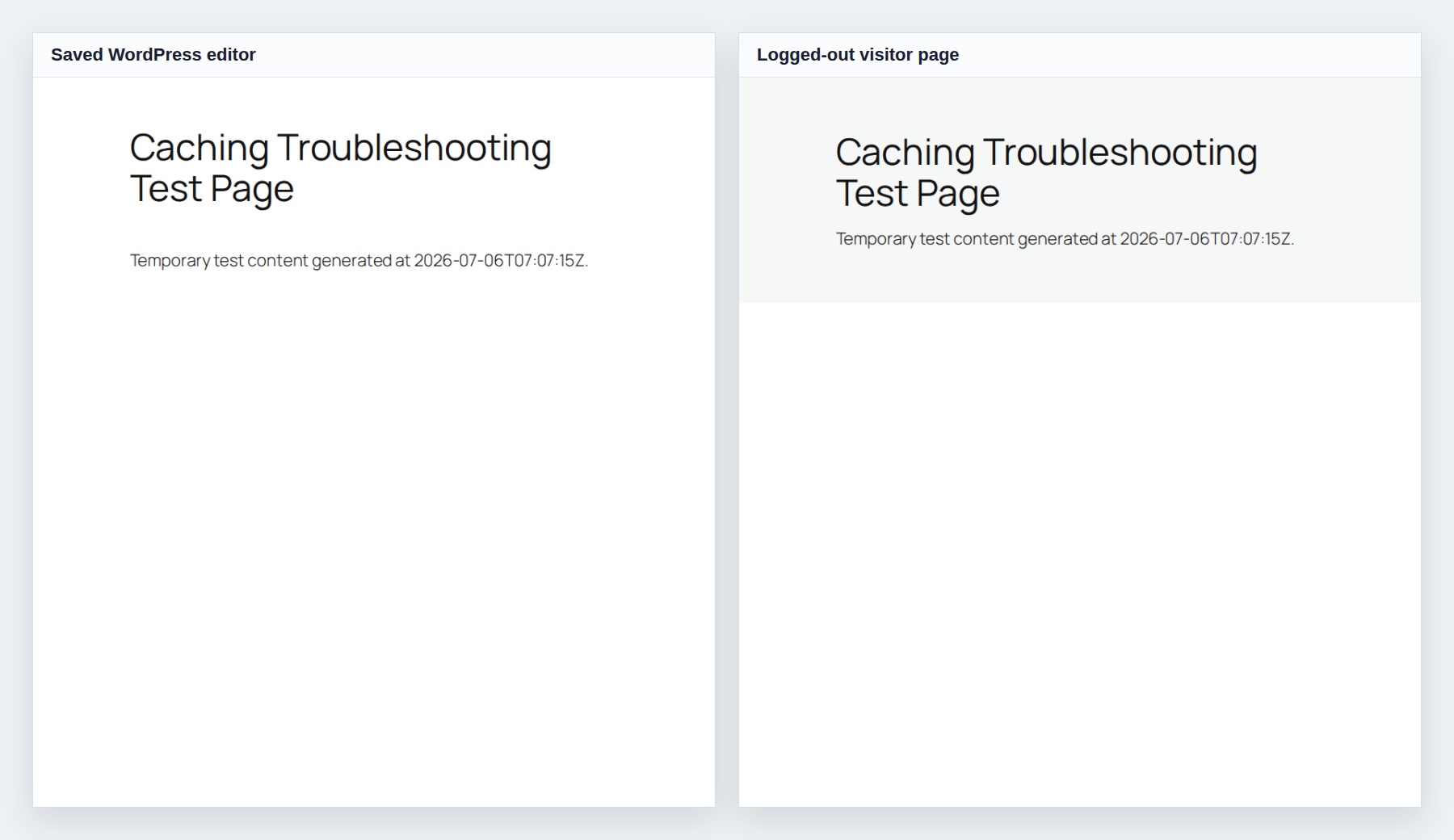
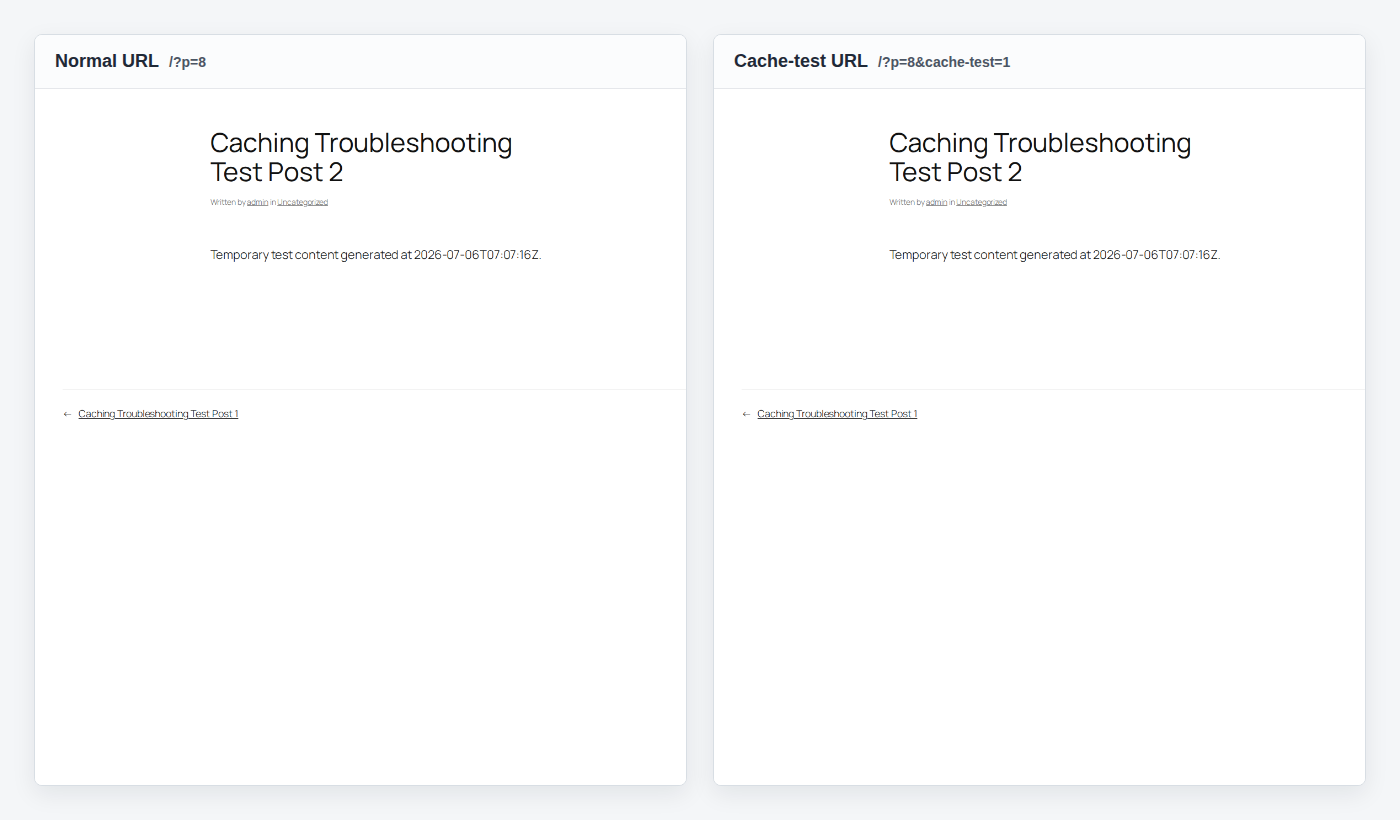
Do not install a new caching plugin just to find another purge button. More caching tools usually means more places for the same problem to hide.
Clear the closest layer first, then move outward. This gives you a cleaner answer about what fixed the issue.
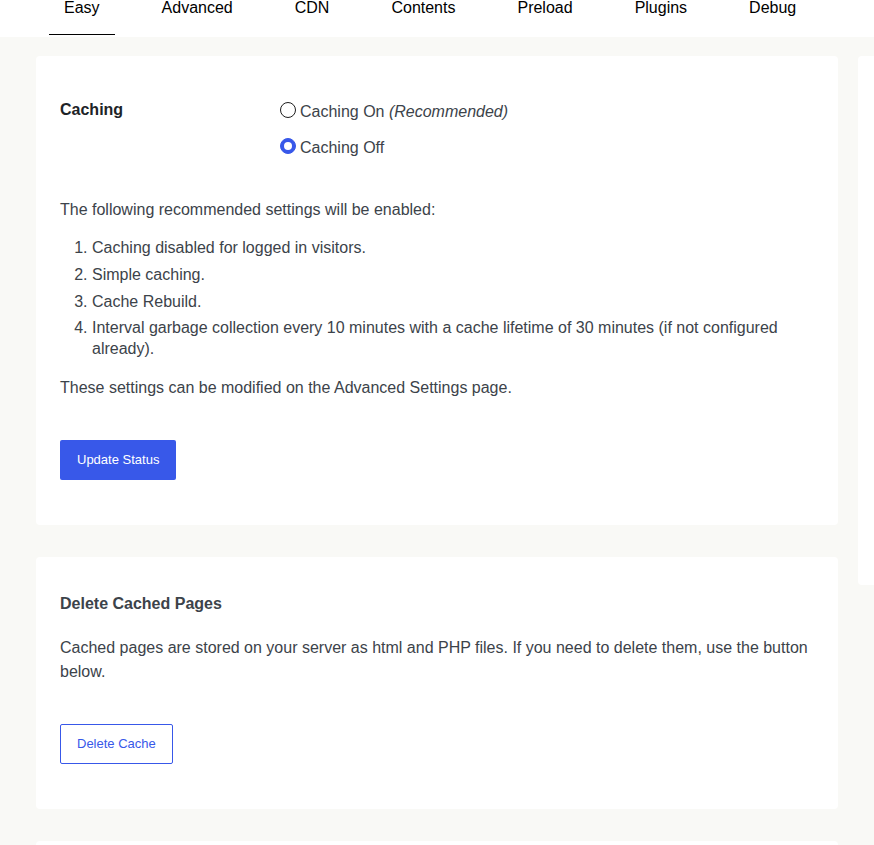
Clearing cache does not delete posts, pages, media, or orders. It removes stored copies that can be rebuilt. The first few visits after a broad purge may be slower. That is normal. On a busy site, targeted purges are safer than clearing the whole site every time someone edits one sentence.
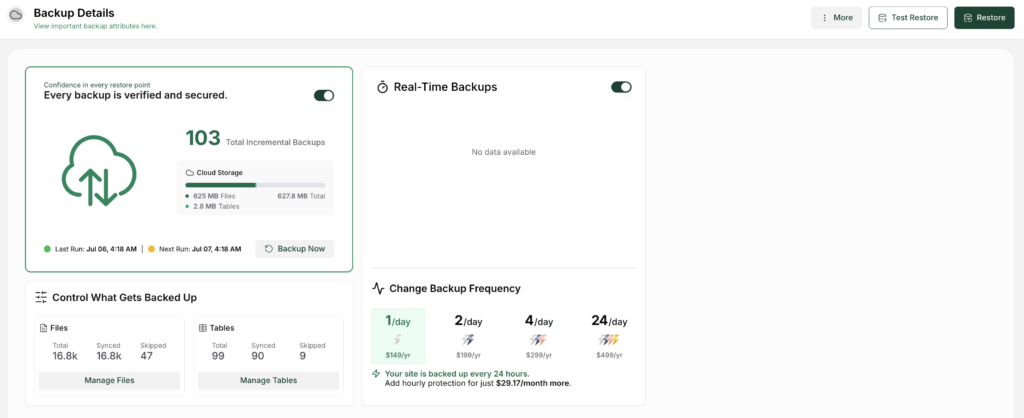
💡 Note: Use a backup plugin before manual cleanup under wp-content/cache or before removing old cache-plugin files. A good backup gives you a way back if a file, rule, or drop-in was still needed.
Headers are small pieces of information sent with a page request. They can tell you whether a cached copy was served. Open your browser developer tools, go to the Network tab, reload the page, click the main page request, and look at the response headers.
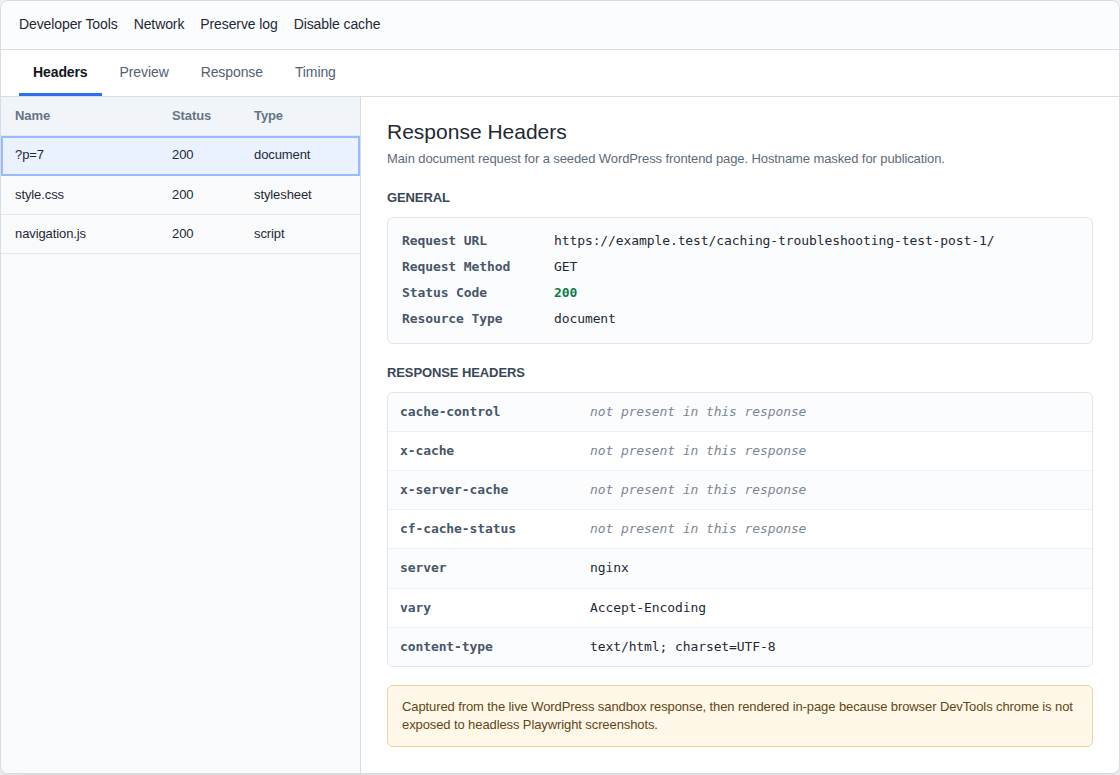
| Header | Plain meaning |
|---|---|
| cache-control | Says whether the browser or shared caches may store the page |
| expires | Shows an older-style expiry time |
| etag | Helps the browser check whether a file changed |
| x-cache | Often shows HIT, MISS, or BYPASS |
| cf-cache-status | Shows Cloudflare cache status when Cloudflare is used |
| x-server-cache or host headers | Suggests a host/server cache served the page |
A cache hit means a stored copy was served. A cache miss means the cache did not have a copy and had to ask WordPress or rebuild the page. You do not need to understand every header. Look for the layer that says HIT when you expected a fresh page. That is your next place to purge or reconfigure.
Stale content is the common case: WordPress has the new content, but visitors still see the old page.
If a removed caching plugin still seems to affect the site, check for leftover cache files, drop-ins, or server rules. Do this carefully and only after a backup. Old performance plugins can leave behind files that still load even after the plugin is gone.

Sometimes the page is fresh, but the optimized files are broken. This happens when performance settings change how CSS or JavaScript loads.
Minification means removing extra characters from files. Combining means merging files. Deferring or delaying JavaScript means loading scripts later. Critical CSS means loading only the CSS needed for the first visible part of the page. Those features can speed up a site. They can also break sliders, menus, forms, popups, maps, payment widgets, and animations if a file loads too late or in the wrong order.
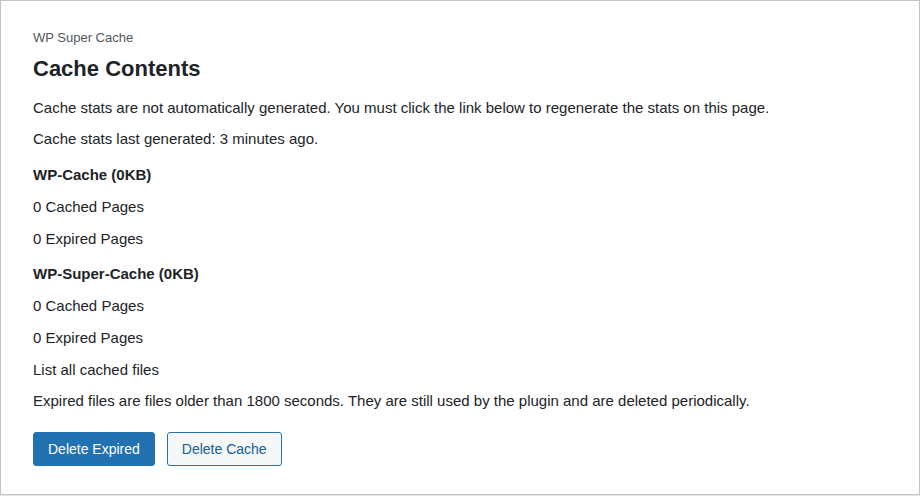
Turning off optimization is a test, not a long-term plan. The better fix is narrow: exclude one form script, regenerate critical CSS, or skip lazy loading for a hero image that must appear right away.
🛠️ Note: If a checkout, booking form, lead form, or payment widget breaks after optimization, protect the conversion path first. Speed gains are not worth lost orders or leads.
Some pages should not be cached like normal blog posts. They change by visitor, cart, login state, location, language, or consent choice. Usually bypass page cache for:
The rule is simple: if two visitors should not see the same page, shared page cache is the wrong tool for that page.
WooCommerce is a common example. Cart and checkout depend on sessions, cookies, shipping rules, tax rules, payment scripts, and sometimes currency logic. Cache the public pages around them, but keep the buyer-specific flow out of the shared page cache.
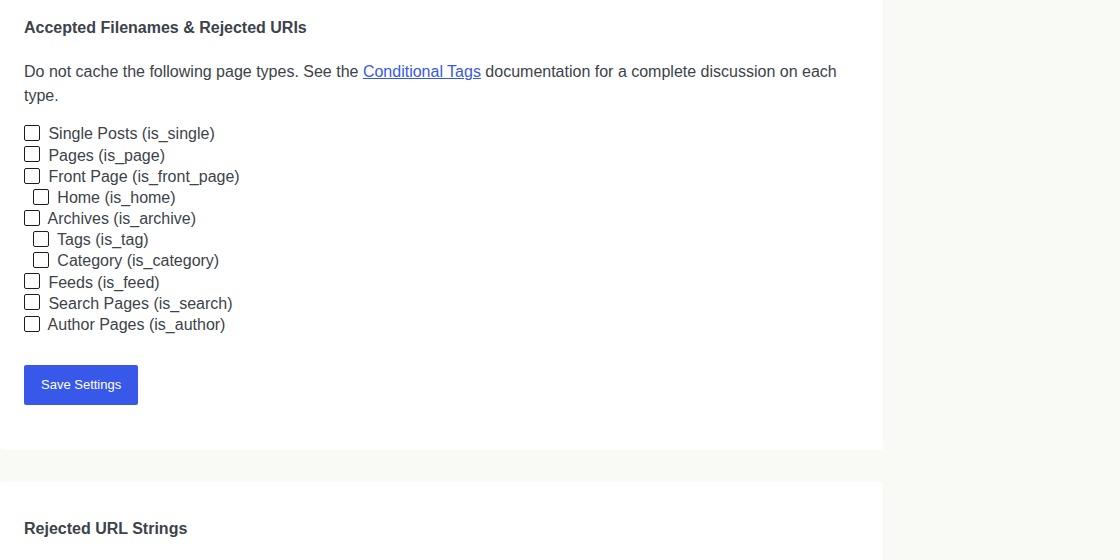
If clearing cache helps for a moment and the issue returns, cache is preserving the bad output. It may not be the root cause. Common reasons a purge fails:
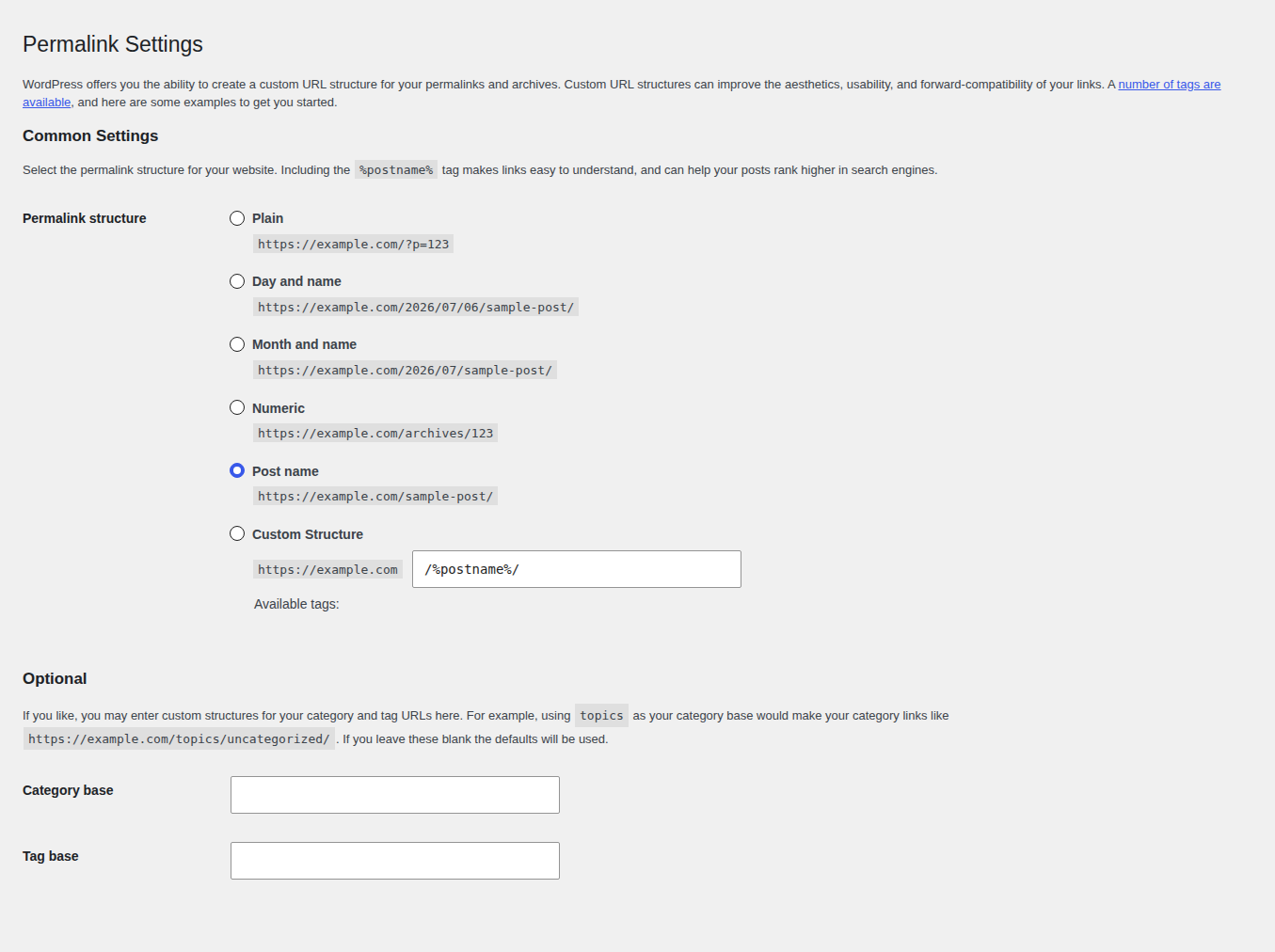
A site setting can also change whether cache tools work as expected, so check the underlying WordPress configuration before assuming the purge button failed.
Ask support a specific question:
Visitors still see the old version of this URL after I purge the WordPress plugin cache. Can you check whether server cache, CDN cache, object cache, OPcache, or another origin is serving the response? I can share the URL, timestamp, region, browser, and response headers.
That request gives support something real to inspect.
Once the site is stable, simplify the setup. Most repeat WordPress caching issues come from too many tools changing the same page.
The tradeoff is speed versus freshness. Cache stable public pages more aggressively. Treat changing, private, and revenue-critical pages with more care.
If your current setup is a pile of separate caching, minification, lazy-loading, and asset plugins, simplify after the immediate issue is fixed. AirLift can help as a WordPress performance optimization plugin with fewer moving parts, so everyday cache and asset work is easier to control. It does not replace host rules, CDN rules, ecommerce exclusions, or developer help for broken custom code.
Some cache problems are safe to troubleshoot yourself. Others need server or code access. Ask for help when:
For a developer, the useful question is: Is WordPress generating the wrong output, is cache storing the wrong output, or is an optimization layer changing good output into broken output? That question separates the work. Until you know which part is failing, every fix is a guess.
If the issue is specific to an AirLift setup or AirLift optimization setting, contact AirLift support with the same URL, timestamp, browser, region, and response-header details.
WordPress caching issues feel messy because the visible problem is simple, but the cause can sit in several places. Start with the symptom, test as a logged-out visitor, clear the closest cache first, and use headers when the source is not clear. That process is slower than pressing every purge button, but it gets you to the real cause faster.
Do not turn caching off forever just because it caused trouble once. A good WordPress site still needs caching. The goal of WordPress performance optimization is to cache stable public pages, protect dynamic pages, keep a backup before risky cleanup, and simplify the performance setup so the same issue does not return next month.
WordPress caching issues happen when an old, broken, or user-specific copy is served from the browser, cache plugin, host cache, CDN, object cache, or generated CSS/JS files.
Logged-in admins often bypass page cache. Logged-out visitors may see a cached public version from a plugin, host, or CDN. Test in a private window and purge the affected URL from each layer.
Clear browser cache, WordPress cache plugin cache, host/server cache, CDN cache, and object cache if your site uses Redis or Memcached. Start with the affected URL before doing a full purge.
You may have cleared the wrong layer, missed generated CSS/JS files, missed host or CDN cache, or blamed cache for a theme, plugin, database, or deployment problem.
Yes. Cart, checkout, account, and payment pages depend on sessions, cookies, payment scripts, and buyer-specific data. They should usually bypass shared page cache.
Your homepage can feel fast while the parts that make money still feel slow. If you’re trying to speed up your website, it helps to understand that not every request behaves the…
Read

If you’ve tried to enable caching and visitors are now seeing old CSS, outdated content, or a private page from the wrong cache, the cache control header is a key place to…
Read

You clicked Update, refreshed the page, and the live site still looks old. The image is unchanged. The menu is wrong. In some cases, a slow website can also point to an outdated…
Read
Airlift works out what each page needs and applies it. Free to try on your own site.