

WordPress Object Caching: What It Is and When to Use It
Your homepage can feel fast while the parts that make money still feel slow. If you’re trying to speed up your website, it helps to understand that not every request behaves the…
Read

If a WordPress performance audit has told you to “enable lazy loading,” you may be wondering what to change first, especially if your site already uses a lazy-loading plugin. Lazy Loading WordPress does not mean making every image wait.
It means delaying images visitors cannot see yet while allowing the important content at the top of the page to load promptly.
This guide will help you check what WordPress already handles, avoid overlapping settings, and make the smallest safe change for your site. You’ll also learn how to verify the result on the pages your visitors actually use, so you can improve performance without slowing down important content or causing images to load incorrectly.
TL;DR: WordPress already lazy-loads many eligible images and embedded frames, but the hero image and other first-screen media should usually load early. Airlift can help optimize image loading and overall page performance when additional control is needed. Inspect the rendered page and record a baseline before adding a plugin for a specific coverage or control gap.
Lazy loading tells the browser to delay a noncritical resource until it is close to the visible part of the page or needed by the visitor. For an image, the browser can wait before requesting the file. When the visitor scrolls toward it, the browser starts the request and displays the image when it is ready.
A lower-page image can stay lazy while its dimensions reserve space before the request begins.
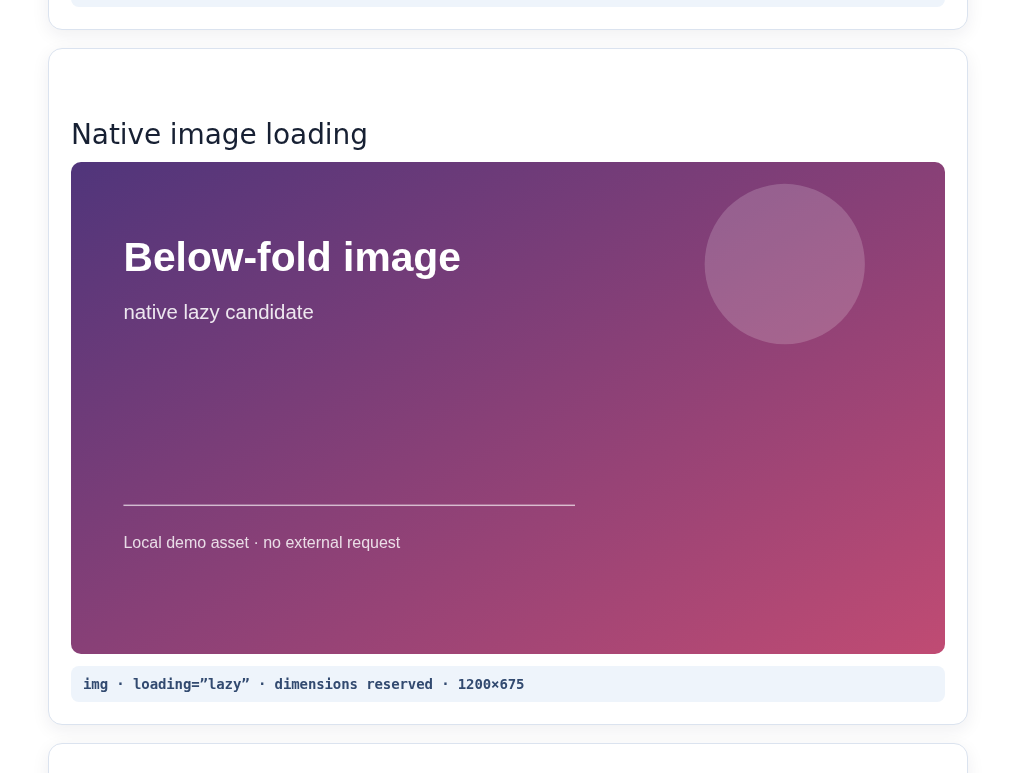
The browser does not always wait until an image is literally visible. It may request a lazy image before the visitor reaches it, based on the viewport, connection speed, distance from the viewport, and other signals. That behavior is expected. A request before a scroll is not enough to prove that lazy loading has failed. Check the final markup, the request timing, and the visible result together.
Lazy loading changes when a file is requested. It does not make the file smaller. A 2 MB image is still 2 MB when it eventually downloads. Image dimensions, responsive srcset and sizes, compression, modern formats, caching, and a content delivery network address the file size or delivery instead.
In HTML, loading=”lazy” asks the browser to defer an eligible image or iframe. loading=”eager” indicates that the resource should load without that instruction. You generally should not add either value to every image by hand. WordPress and the browser can make better decisions when the page has correct dimensions and a clear distinction between critical and noncritical media.
Yes. WordPress added built-in lazy loading for images in version 5.5 and expanded the feature to iframes in version 5.7. The current loading system works mainly with img and iframe elements and can add loading optimization attributes based on the tag and its context. The WordPress image-loading announcement and iframe-loading announcement explain the core behavior.
The current loading-optimization reference documents the API details.
That does not mean WordPress knows the visual importance of every element on every page. A theme, page builder, slider, shop template, shortcode, custom field, or JavaScript can shape the final output. Core is a baseline for common markup, not a complete WordPress performance optimization strategy for every site.
WordPress also does more than apply loading=”lazy” to everything. Its loading-optimization APIs can leave a small number of early content media elements without the lazy attribute and add priority hints for resources likely to be important. The default threshold reference documents three early content media elements omitted from lazy loading, although the result depends on the page context. Inspect the output rather than assuming that the first image in the source is the most important one.
Images without usable width and height information may not receive lazy loading. Those dimensions tell the browser how much space the image needs before the file arrives. They also help prevent text and controls from moving when the image is inserted.
Note: A public check of a fresh WordPress 7.0 site with the Twenty Twenty-Five theme and no plugins returned HTTP 200 and exposed two fetchpriority=”low” attributes. The default homepage contained no images or iframes, so the check confirmed a working response and loading hints, not lazy loading on a media-heavy page.
The most common mistake is to lazy-load the resource that controls the first impression of the page. This is often the hero image, a large product image, a campaign banner, or a visible logo.
The largest visible element is used for LCP, or Largest Contentful Paint. LCP measures when the main content in the initial view becomes visible. If that candidate is an image held back by lazy loading, the page can become slower even though lower-page requests are deferred.
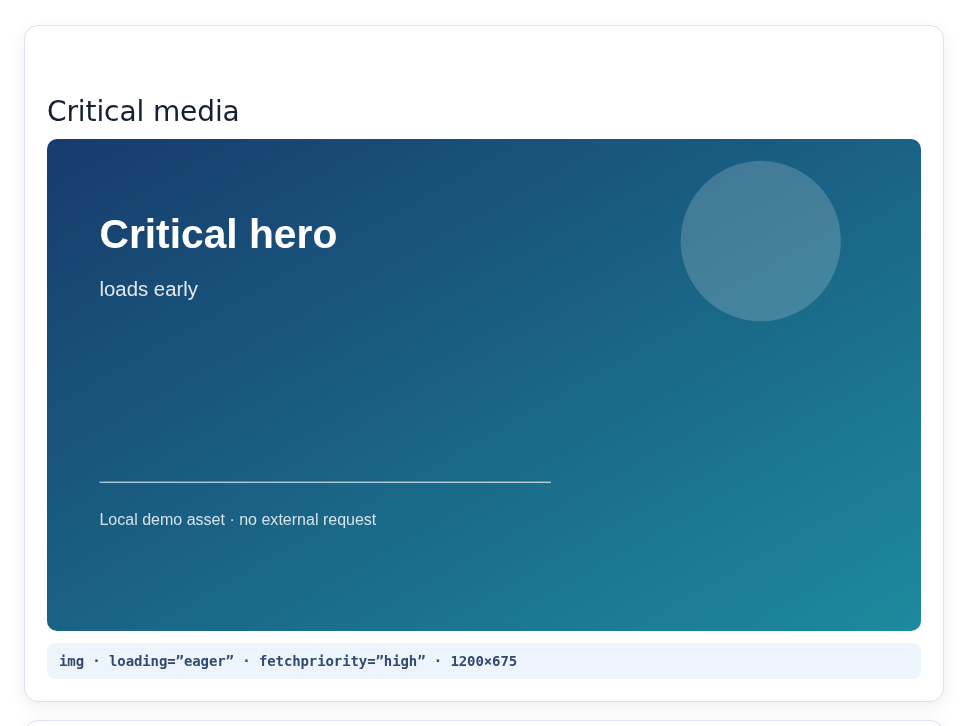
For a critical hero, early loading, priority, and reserved dimensions work together.
Do not identify the critical image by position alone. The first image in the page source may be a logo, an icon, or a hidden image. A mobile layout may use a different hero image from the desktop layout. Check both views in a performance tool and in the rendered page.
Repeat the critical-media check at the mobile breakpoint because the hero can change with the layout. The safe priority rule is simple:
Note: If the hero is slow, changing every image to eager treats the symptom by making the browser do more work. Check whether the hero is being delayed, whether its file is too large, whether the selected source is appropriate for the screen, and whether the server responds quickly.
Use this order when responding to a speed audit or changing an existing setup.
Choose the page that shows the problem: a long article, gallery, WooCommerce page, landing page, or media-heavy homepage. Record the page address, device view, cache state, connection conditions, main visible element, layout movement, transferred data, request count, and visible errors.
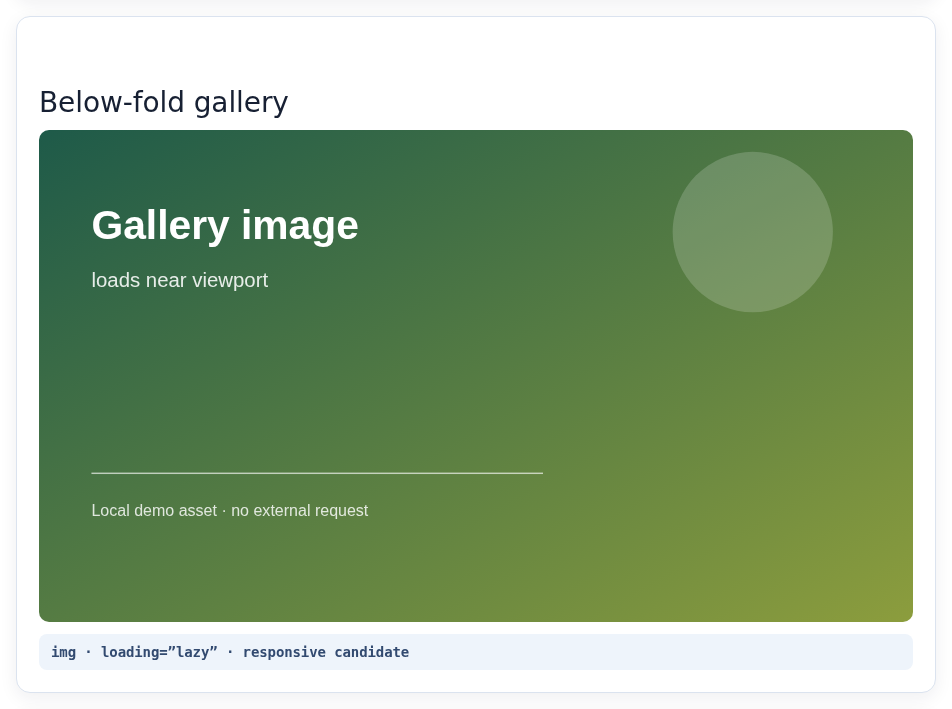
A below-fold gallery image is a useful baseline target: record when it requests, appears, and keeps its reserved space.
Repeat the check when possible. A score can change because of cache state, network conditions, third-party requests, or a different layout decision. It cannot tell you by itself whether the right image was delayed or a gallery interaction broke. For update-related changes, visual regression testing can add a before-and-after check for visible breakage.
Open the final page in the browser, inspect a lower-page image, and inspect the hero separately. Confirm:
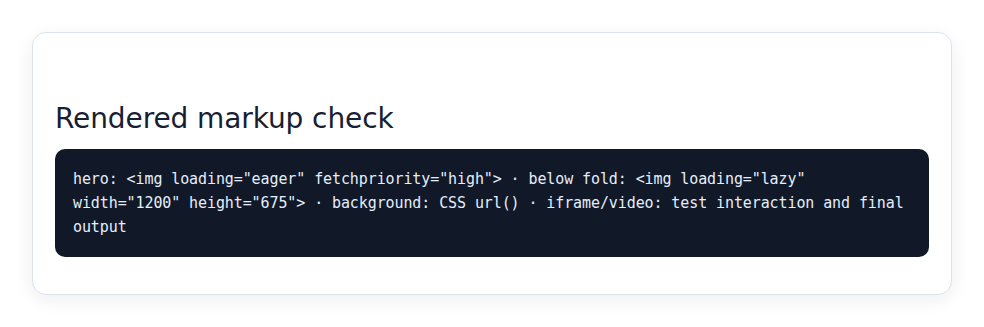
The rendered markup makes the priority split visible: the hero loads early while the lower image remains a lazy candidate.
The editor view and plugin settings screen are not enough. The browser acts on the markup and styles it receives after the theme, plugins, and scripts have done their work.
If WordPress is already handling ordinary images correctly, do not add a second lazy-loading system without a reason. Themes, page builders, image services, caching tools, content delivery networks, consent tools, and performance plugins can all change media output. Overlapping rules can result in missing images, duplicate downloads, broken responsive sources, or one system overriding another.
Add a plugin or custom code when you have a confirmed gap, such as:
img attribute cannot coverMake one change at a time and keep a rollback path. Recheck the page after clearing the relevant cache. Test galleries, sliders, forms, video controls, product variations, and other media-dependent interactions.
Reload the page with the browser’s Network panel filtered to Img or Media. The Network panel lists requests made by the page. Watch the hero and first-screen media during the initial load, then scroll slowly and quickly through the page. Note which requests start before scrolling, near the viewport, and after interaction.
Compare the same page before and after the change. Check transferred data, request count, image source selection, visible pop-in, layout shifts, broken media, duplicate downloads, and console errors on mobile and desktop. If JavaScript supplies the media address, check the rendered HTML after scripts run.
Google’s lazy-loading guidance recommends checking the final page because search systems do not scroll and click exactly like a person. Important media should be available in rendered output when it becomes visible. A script that hides its address until interaction can create crawlability, accessibility, and usability problems.
The native loading attribute is not a universal switch for every visual.
Use semantic img elements with dimensions and responsive sources where possible. Check that a phone is not downloading a desktop-sized file and that the displayed ratio matches the reserved space. For a normal post image, WordPress core may already provide the needed baseline.
Background images are requested through CSS rather than an img element, so the normal loading attribute does not control them. A theme or plugin may use a separate strategy. Test each screen size, including the first-screen background, because delaying it can make the page look empty.
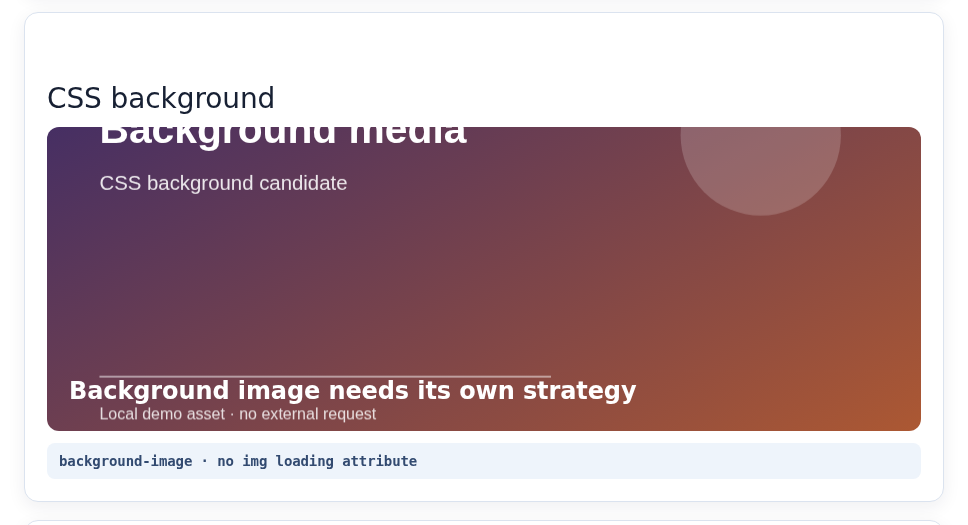
A CSS background has no img loading attribute, so test its first-screen behavior separately.
Iframes can use native lazy loading, but the frame still needs testing. Maps, forms, social embeds, and other third-party content may have their own loading and interaction behavior. Keep an iframe immediately needed in view from being delayed blindly.
The native image setting does not turn a full video player into a light preview. A video facade can show an image or poster and load the player after the visitor starts it. That is a separate optimization and should be tested for keyboard access, consent behavior, playback, and the correct poster image.
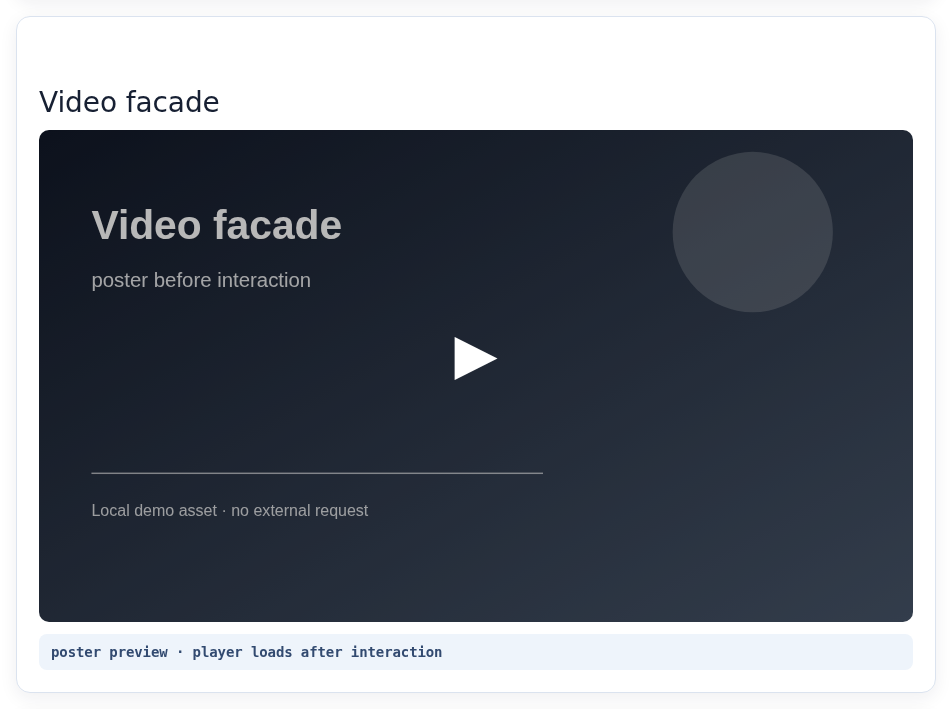
A facade keeps the poster visible until interaction starts the player; it is a separate optimization from image lazy loading.
Sliders, AJAX-loaded products, custom fields, shortcodes, related-post modules, and infinite scroll can create or replace media after the initial HTML arrives. Check the inserted content, not only the first page source. A plugin that works for ordinary post images may need an exclusion or integration for a custom component.
Use the measured symptom to choose the next fix.
Note: A plugin can fill a coverage or control gap. It cannot compress an oversized image, repair missing dimensions, make a slow server respond quickly, or guarantee a Core Web Vitals pass. If images stop appearing, use this WordPress image troubleshooting guide to investigate the broader failure.
Not necessarily. Start with the behavior WordPress and the browser provide for ordinary images and iframes. Add a plugin when the rendered page shows a need for exclusions, threshold controls, background handling, video facades, or dynamic-content support.
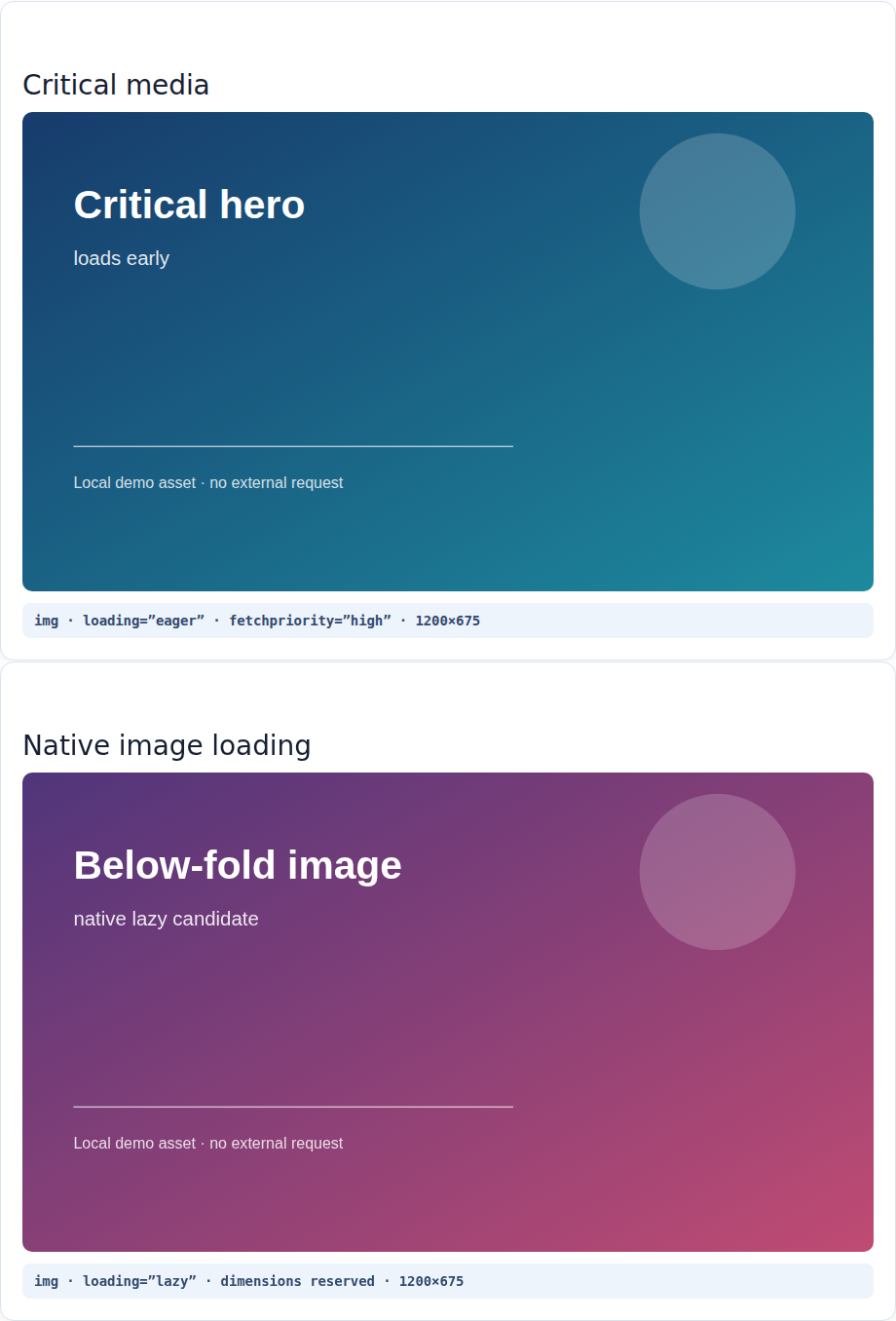
The smallest safe change is visible in the rendered output: protect the critical resource and defer the lower-page one.
The smallest safe implementation covers the actual markup, protects the LCP resource, reserves layout space, avoids duplicate loaders, and survives a rendered-HTML and Network-panel check. If the page passes, another optimizer may add complexity without solving the problem.
Yes. Current WordPress adds loading optimization to common image and iframe output. A theme, builder, slider, shop template, custom field, or script can create different markup, so inspect the rendered page.
Usually no. Keep the image that controls the first visible content available early, especially when it is the LCP candidate. Check mobile and desktop because the critical resource can change between layouts.
No. It delays the request but does not compress or resize the file. Use appropriate dimensions, responsive sources, compression, modern formats, caching, or a content delivery network for those problems.
Not through the ordinary img or iframe loading attribute. Background images need their own tested handling. A video facade can show a light preview until interaction, but that is a separate implementation.
It can create search or accessibility problems when JavaScript hides important media until interaction. A correct browser-native or viewport-triggered implementation can work, but verify the rendered HTML and media address. Do not rely on an editor setting alone.
The browser may start a lazy request before the image is literally visible. It uses distance from the viewport and connection conditions to prevent a late appearance. Judge the behavior with the loading attribute, request timing, visual result, and layout stability together.
Lazy loading in WordPress is a targeted way to delay media the visitor does not need yet. WordPress already provides a baseline for eligible images and iframes, so begin by inspecting the final page instead of installing a plugin automatically. Keep the hero, LCP candidate, logo, and other first-screen media available early. Give delayed media stable dimensions, use responsive image sources, and test backgrounds, video players, shop components, and dynamic content according to how they are actually implemented.
If the page is still slow after that check, fix the largest measured bottleneck before adding another performance feature such as CSS re-optimization. A small change with a clear baseline and rollback path is easier to verify and less likely to break the images, embeds, and interactions visitors rely on.
Your homepage can feel fast while the parts that make money still feel slow. If you’re trying to speed up your website, it helps to understand that not every request behaves the…
Read

It is wise to run a WordPress performance audit before adjusting any other speed settings or installing another WordPress speed optimization plugin. That’s how you find which pages…
Read

Reports don’t make this easy: Core Web Vitals assessment failed WordPress can sit beside a performance score that doesn’t look that bad. That’s the part that throws people. The…
Read
Airlift works out what each page needs and applies it. Free to try on your own site.