

Introducing Font Subsetting for Enhanced Performance
Today, we are introducing Font Subsetting, a new feature that streamlines the delivery of font files, ensuring that your website operates at lightning speed. How fonts affect…
Read

You build a Divi page you love, paste the URL into PageSpeed Insights, and a red 38 stares back at you. So you search for Divi speed optimization, open five guides, and find five different lists of settings to flip.
Frustrating, right? Take a breath. Slow Divi pages almost always trace back to one or two causes, and you can find yours quickly. After that, each fix is small, testable, and easy to undo.
As we work on AirLift, we often come back to one question: what causes sites to slow down, and how can it be fixed safely? This guide follows a simple approach: identify the bottleneck, make one change at a time, and test how it affects performance for visitors.
Here’s what you’ll walk away with:
No guide can promise you a particular score, and we won’t pretend otherwise. What you get is a method that works for a five-page brochure site and a busy store alike. Fair warning: a couple of steps are dull, like measuring and note-taking. They’re also the ones that save you from a dead checkout at 11 p.m.
TL;DR: Measure one slow page, find the metric that’s failing, and change one layer at a time, using Divi’s built-in settings and AirLift. Retest your forms, menus, and checkout after every change.
Divi is only one part of your site’s performance. Slow loading could come from your server, oversized images, CSS, or scripts competing for resources. As Elegant Themes itself points out, Divi isn’t the only factor.
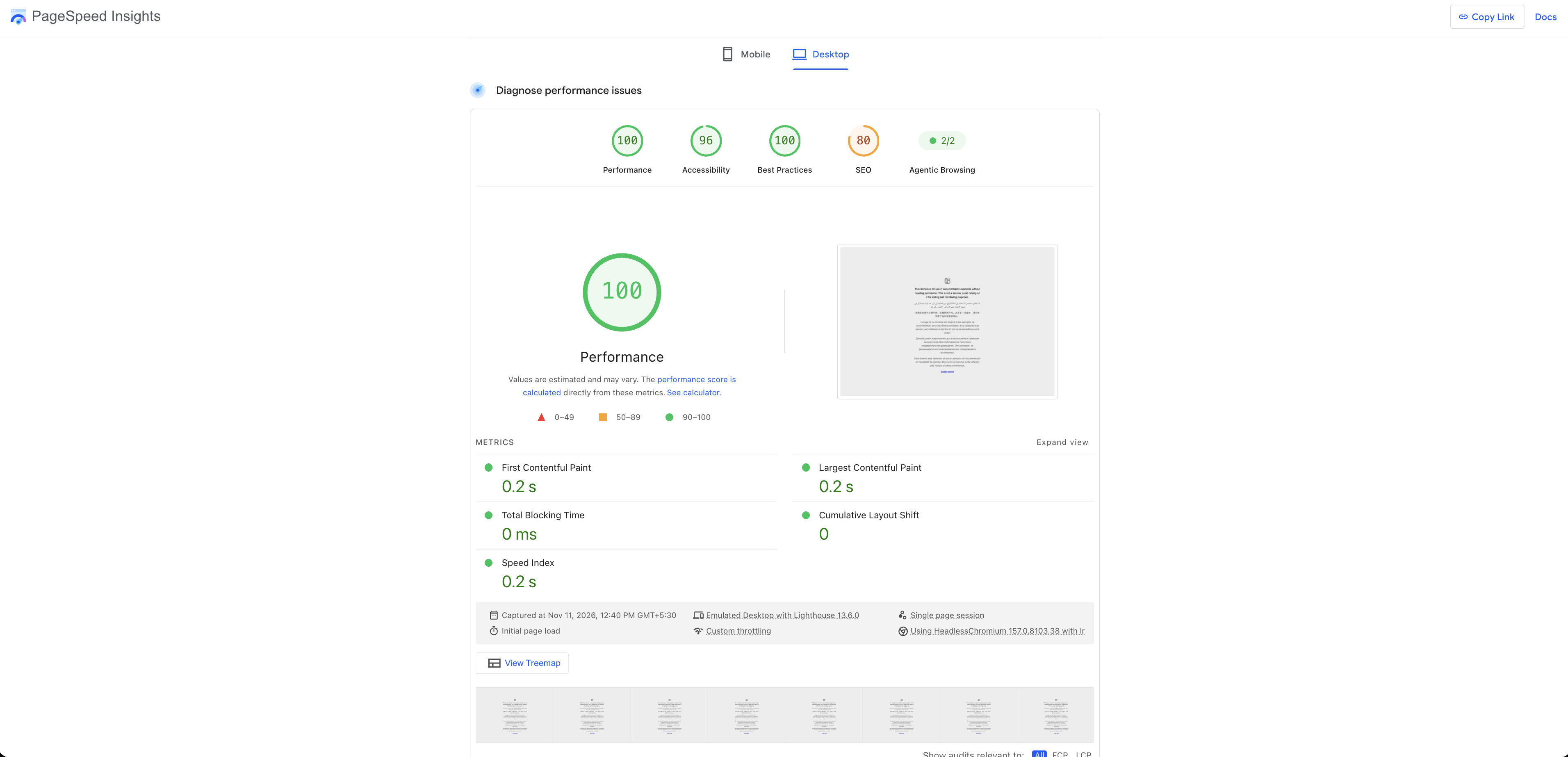
The first step is identifying what’s slowing your site down.
Google judges speed with a few numbers, and each one points at a different problem. These website performance metrics help you identify where to start.
Google checks LCP, INP, and CLS at the 75th percentile of real visits. In plain terms, three out of four visitors should have a good experience.
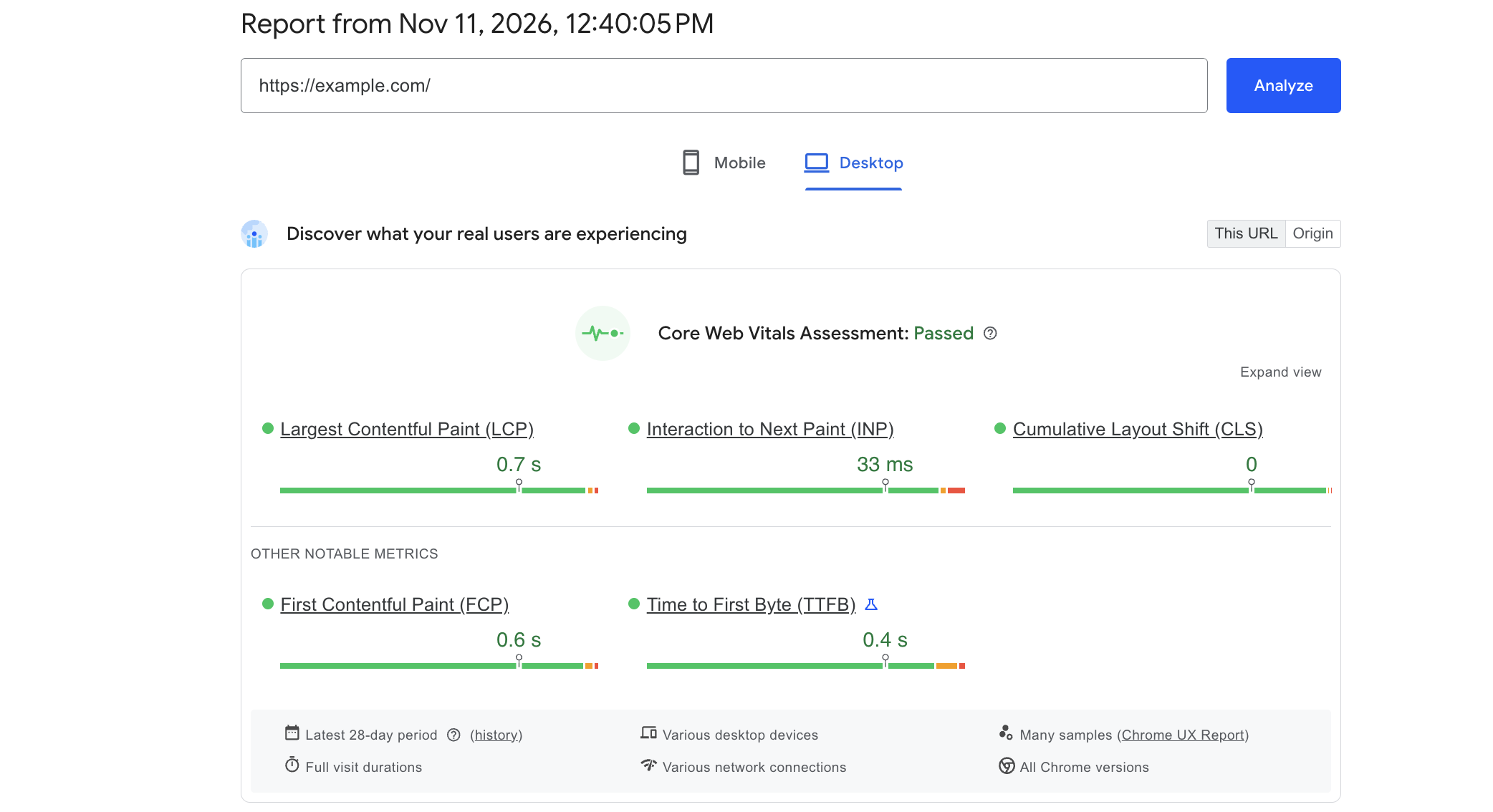
Here’s how what you see maps to the steps below.
| What you see | What it usually points to | Start at |
|---|---|---|
| Slow first byte (TTFB) | Hosting, caching, heavy database work | Step 2 |
| Slow LCP, hero appears late | Large or late-loading hero image, CSS, fonts | Steps 3 to 6 |
| Page jumps while loading (CLS) | Images without reserved space, late fonts, Critical CSS settings | Steps 3, 5, 6 |
| Laggy taps and clicks (INP) | Heavy JavaScript, third-party scripts | Step 7 |
Pick the one page that hurts. Your homepage? The landing page your ads point to? A product page? Each fails for different reasons, so start with the one that matters most. If most visitors use phones, test mobile first.
Write down the starting line before you touch anything. Record the URL, the device mode, whether the cache was warm, and the numbers. Then rerun the same test after each change, so a warm cache can’t make a bad change look brilliant.
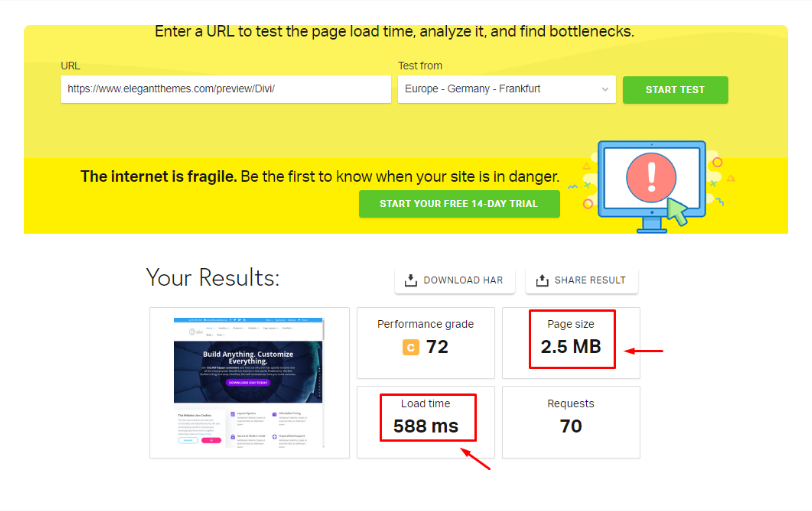
Read the failing metric, not just the score. Say your mobile LCP is 4.8 seconds while INP and CLS look fine. That points you at images, fonts, CSS, or the server, and it tells you to leave your scripts alone.
Use both kinds of data. Field data shows how the page feels to real people, and lab data helps you work out why. PageSpeed Insights gives you both, and Search Console’s Core Web Vitals report, GTmetrix, and Chrome DevTools Lighthouse fill in the rest.
Test the Divi Visual Builder separately. If editing feels sluggish but the public page flies, you’re chasing a different problem.
📝 Note: Run every test twice. The first run after a cache clear is usually slow because the server has to build the page from scratch, and that can make you blame a change that did nothing wrong.
Start at the server, because everything else waits for it. If your TTFB is slow, no Divi setting can fix it. So if you’re well above 0.8 seconds with caching on, look here first.
Shared plans can be the hidden culprit. Many sites split one server, so a neighbor’s traffic spike can slow yours down. Elegant Themes points speed-sensitive sites toward managed WordPress, VPS, or cloud hosting.
Ask your host three questions:
Know your four caches. The names sound alike, so here’s the plain version:
Divi caches its own CSS and JavaScript files, but it doesn’t page-cache your whole site. That job belongs to your host or a caching plugin such as WP Rocket or Autoptimize. AirLift also handles caching: it saves your public pages and keeps personal requests separate.
Clear the right caches after every change. That means your caching plugin, your host’s cache, your CDN, and Divi’s own generated files.
📝 Note: Open Divi > Support Center in your dashboard. Its system status shows whether your PHP settings match what Elegant Themes recommends. It takes thirty seconds, and it catches a surprising number of “why is this so slow?” mysteries.
Here’s the part you probably came for. Open Divi > Theme Options > General > Performance. Elegant Themes turns most of these on by default, so check what your site actually has instead of assuming.
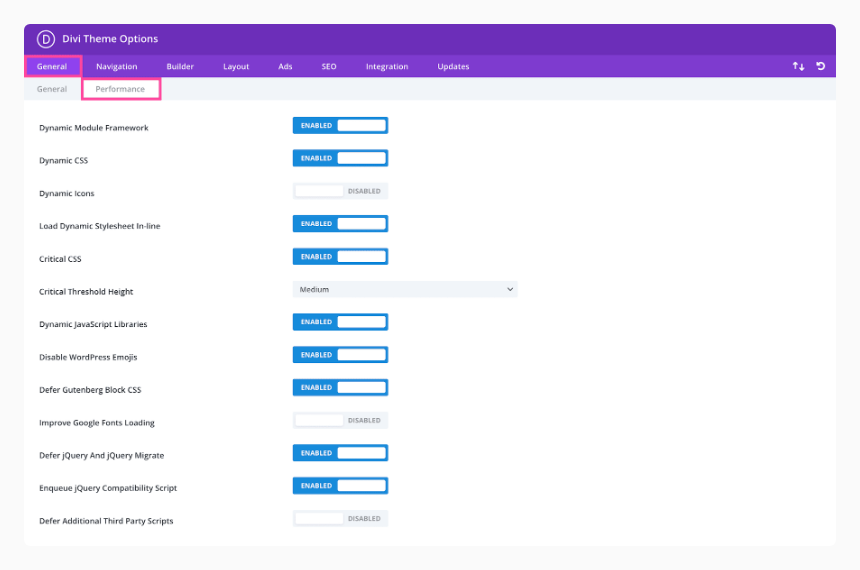
Labels and locations can differ by Divi version. Divi 5 has been out since early 2026 and was rebuilt with performance as a main goal, but the documentation for these settings was written around Divi 4 screens. Match settings by name on your own site.
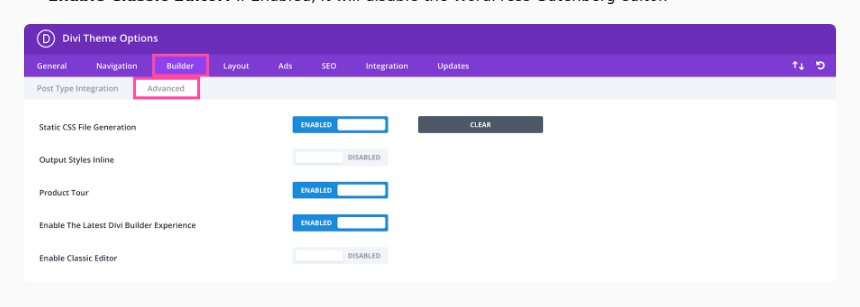
One quick translation first. Render-blocking means the browser has to finish downloading a file before it can paint anything, and most of these settings exist to stop that.
| Setting | What it does | Check after turning it on |
|---|---|---|
| Dynamic Icons | Loads only the icon subset a page needs. Elegant Themes says the base icon font drops from about 90 KB to 6 KB. | Icons in buttons, menus, and custom modules. It’s off by default with child themes and custom modules, so leave it off if yours use the full icon set. |
| Critical CSS and Critical Threshold Height | Loads the opening view’s styles first and defers the rest. | Scroll the whole page on mobile and desktop. If the layout jumps (CLS), raise the threshold height. Divi then defers fewer styles, which costs a little speed. |
| Load Dynamic Stylesheet In-line | Prints the stylesheet inside the page, which removes a render-blocking request. | The file can’t be cached. Elegant Themes recommends it for single landing pages. |
| Defer jQuery and jQuery Migrate | Moves both to the page body, and back to the head if a plugin needs them early. | Red errors in the console. If you see any, turn on Enqueue jQuery Compatibility Script. |
| Defer Additional Third-Party Scripts | Defers scripts registered by plugins and themes. | Forms, sliders, popups, and checkout. Elegant Themes warns this can cause JavaScript errors. |
📝 Note: We’d turn on Defer Additional Third-Party Scripts last, and only when one specific script is hurting you. It touches code Divi didn’t write, so it’s the setting most likely to break a form, slider, or checkout.
Test every setting the same way:
Yes, that’s slower than flipping everything at once. It’s also the only way to find out which switch caused a problem.
Want a hand on the CSS side? AirLift, our tool, checks what each page actually uses in a real browser and serves those styles first. Critical CSS is included in its free plan, and used-CSS removal and scheduled re-optimization come with paid plans. If you run it alongside Divi, pick one to own critical CSS so the two don’t overlap.

Settings help, and so does how you build the page. Divi loads only what a page uses, so every extra feature has a price.
Want proof? Elegant Themes built a demo site that scored 100 on PageSpeed desktop and 99 on mobile. It used Divi’s built-in settings, a web-safe font, compressed images, no animation, and few icons. You don’t need to go that bare, but it shows where the weight comes from.
Find your LCP element first. It’s probably your hero. HTTP Archive’s Web Almanac reports that the largest element is an image on most mobile pages, and PageSpeed Insights shows you which element is yours.
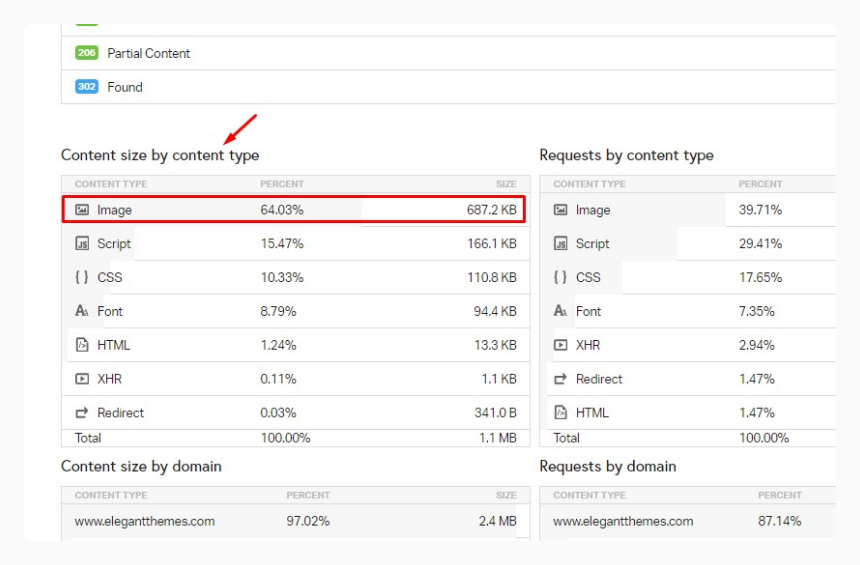
Then work through the image basics:
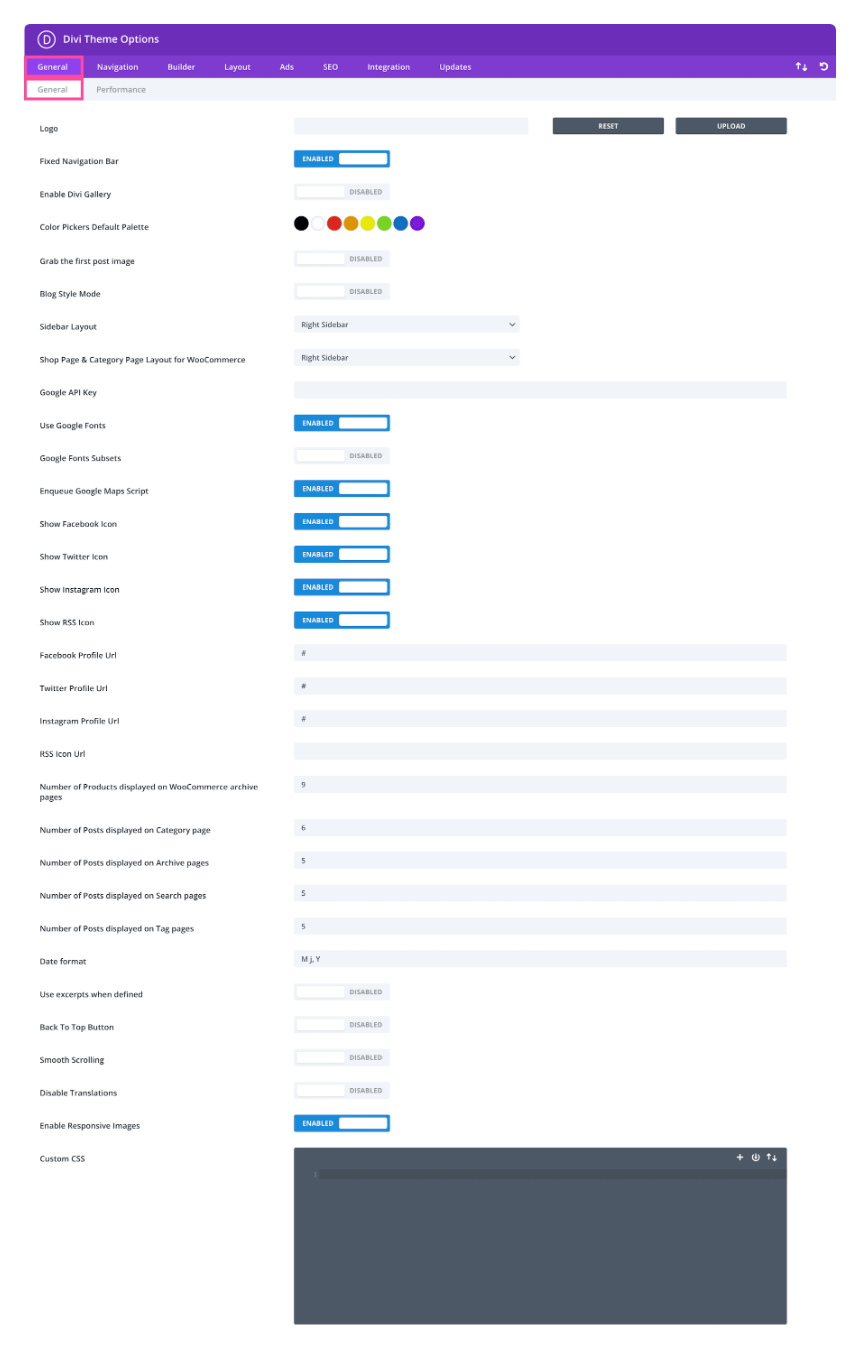
Don’t lazy-load your hero. That’s like asking the lead singer to wait in the van while the crowd stares at an empty stage. Load what’s visible right away, and save the waiting for what’s below the fold.
Know why section backgrounds load late. A browser spots a regular image tag in the page itself, but it finds a background image only after it reads the CSS. If your hero is a Divi section background, that delay can hold up LCP. You can use an image module for the hero, or let a tool preload it.
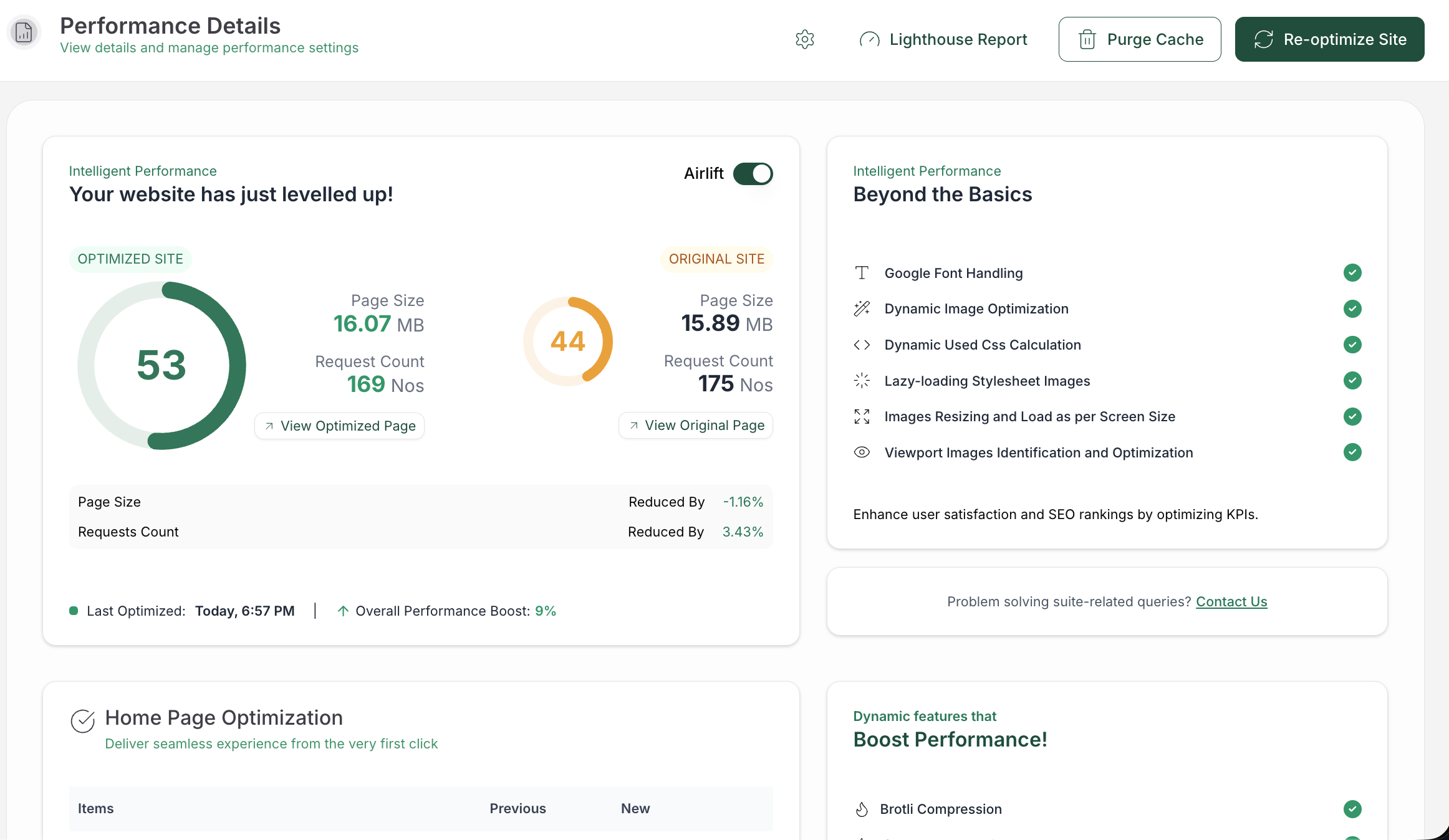
Want a hand with images? AirLift can do the measuring and sizing for you:
Your original files stay untouched, and you can exclude specific images. The free plan covers WebP compression and image lazy loading within its allowances, and dynamic resizing and advanced background and builder-image handling come with paid plans. You can start on the free plan and compare scores, page weight, and requests before and after in its dashboard.
📝 Note: Check the rendered page, not just your settings. Caching and image plugins can lazy-load every image, including your hero. View your page source and search for
loading="lazy"on the hero, and exclude that image if you find it.
Fonts are sneaky. Each family and weight is another box the browser has to fetch from the stockroom before it can show your text.
If you’d like help here too, AirLift’s font layer shrinks font files and keeps your chosen typeface.
If taps feel laggy, JavaScript is usually the reason. Analytics, chat widgets, ads, consent tools, maps, video embeds, and filters all compete for the browser’s attention. The Lighthouse audits Reduce unused JavaScript and Reduce the impact of third-party code show you who’s hogging it.
Ask four questions about each script:
Test the interaction it supports right after each change.
Pick one owner for each job. Divi minifies and combines its own CSS and JavaScript, though it doesn’t minify your HTML. If a caching plugin or AirLift also minifies, defers, or builds critical CSS, decide who owns each job. When two systems conflict, you can turn Divi’s setting off and let the other one handle it.
Let a tool handle the delaying if you’d like. AirLift moves eligible scripts out of the first load, and you choose which ones must run right away, like your consent banner or checkout scripts. Where automatic level selection is on, it compares homepage console errors in a mobile browser before and after, and it can pick a gentler setting. JavaScript optimization can also be switched off on its own, which makes testing easy.
Test the moments that earn you money. Open the mobile menu, submit a form, trigger a popup, accept the consent banner, and confirm your analytics still fire. A page that loads quickly but can’t take a booking is a broken page.
📝 Note: Your laptop is lying to you. In Chrome DevTools, throttle the CPU to mimic a mid-range phone, then try your menu and forms again. Sluggish interactions that never show up on a fast machine love to hide here.
Audit your plugins. Quality matters more than count, but every plugin adds files and work to each page. Remove the ones you don’t use, and replace outdated ones. With Divi’s settings on, heavy blocking files usually come from plugins.
Deactivate suspects one at a time on a staging copy. Retest after each one. You’ll often find the culprit is something you installed once for a single page and forgot.
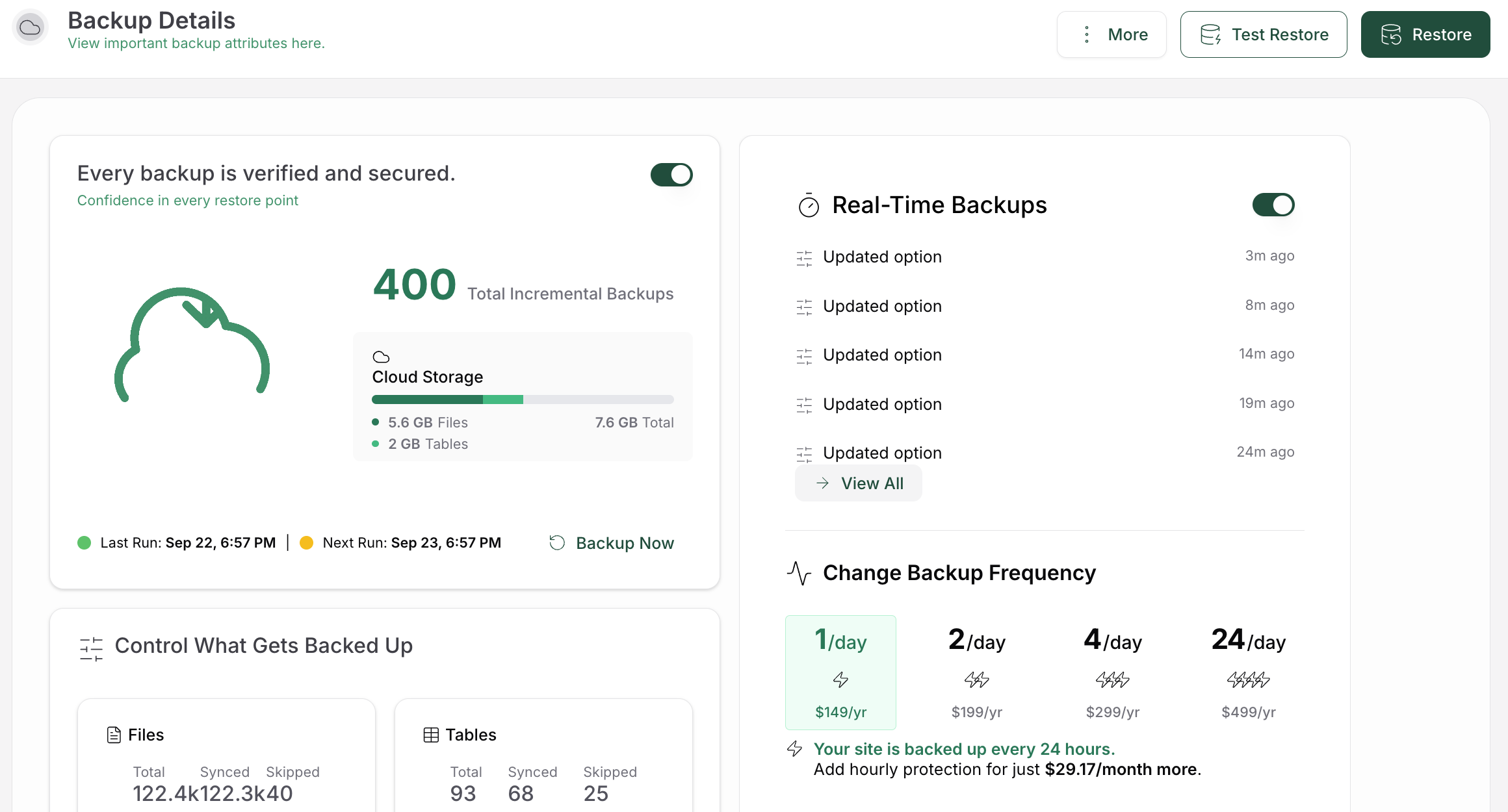
Clean the database. Plugins can leave data behind after you delete them. A tool like WP-Optimize can clear it out, and you can also shorten how long WordPress keeps trashed items.
📝 Note: Try the cleanup on a staging copy first. A database cleanup deletes data, and “I’m sure that table is unused” has ruined plenty of afternoons. Run it on staging, click through the site, and only then repeat it on your live one.
📝 Note: Mind the calendar. Black Friday lands on November 27 this year, with Cyber Monday on November 30. If you run a store, finish your speed changes in the next week or so, then freeze the setup. Nobody wants to troubleshoot a checkout while the busiest weekend of the year is underway.
Keep a tiny change log. Write what you changed, what you expected, and what happened. A change earns its place when it fixes the problem without creating a new one.
📝 Note: A 98 on a page whose menu won’t open is a failed optimization. We’d take an 80 with a working checkout every time. Elegant Themes’ own guide warns that chasing perfect grades can backfire, and we agree.
Short on time? You know what? One hour is enough to make real progress. Do these five things, in this order.
Divi is one part of what your visitors wait for. Hosting, images, fonts, plugins, and third-party scripts matter just as much. Elegant Themes’ own guide says Divi is often not the main factor, and Divi ships with built-in settings that trim its own output.
Usually yes, or a host that provides page caching. Divi caches its own CSS and JavaScript files, but it doesn’t cache your whole site. Keep cart, checkout, and account pages out of the page cache.
Divi 5 was rebuilt with performance as a core goal, and Elegant Themes continues to support Divi 4. If you rely on third-party Divi extensions, test the move on a staging copy first. Your hosting, images, and scripts will still decide most of your results.
Lab tests simulate a device and a connection, so scores vary. Mobile tests are harsher than desktop ones. Run each test a few times, compare like with like, and check the real-visitor data in PageSpeed Insights when it’s available.
Yes, if each one owns a separate job and you test the combined result. That includes Divi’s built-in settings and tools like AirLift. Two systems minifying, deferring, or rewriting the same files can create errors or stale files, so when they overlap, turn one setting off.
Remember that red 38? It doesn’t have to stay a mystery. Measure one page, find the failing layer, change one thing at a time, and test the journeys that matter to your business. Start with your slowest page today, and you’ll have a clear plan for everything else.
Today, we are introducing Font Subsetting, a new feature that streamlines the delivery of font files, ensuring that your website operates at lightning speed. How fonts affect…
Read

You update a logo, reload the page, and still see the old one. PageSpeed says some files need a longer cache lifetime. A plugin promises to fix caching, your host already has…
Read

If you’ve tried to enable caching and visitors are now seeing old CSS, outdated content, or a private page from the wrong cache, the cache control header is a key place to…
Read
Airlift works out what each page needs and applies it. Free to try on your own site.