

Introducing Font Subsetting for Enhanced Performance
Today, we are introducing Font Subsetting, a new feature that streamlines the delivery of font files, ensuring that your website operates at lightning speed. How fonts affect…
Read

You have just opened PageSpeed Insights or Lighthouse and found a warning about how to eliminate render blocking resources in WordPress.
The red message makes it tempting to switch on a global setting and hope the score improves, but it can also leave you wondering whether the next click will break your menu, form, or checkout.
This is a fixable problem, and you can follow a safe WordPress performance optimization process without putting the first page your visitors see at risk.
TL;DR: Identify each flagged URL and its owner before changing how it loads. Keep critical CSS and dependency-ordered scripts early, then defer, delay, unload, or reduce only work that the first view does not need.
Before changing anything, it helps to name what the warning is measuring. Render-blocking resources are files the browser must fetch and process before it can paint the initial page. A stylesheet in the document head is a common example. Synchronous JavaScript in the head can also stop HTML parsing while the browser downloads and runs it.
The audit is asking whether these requests delay the first visible content. It is not saying that every request is unnecessary.
A page needs some styles to avoid showing an unstyled layout, and some scripts may be required for navigation, consent, a form, or another interaction that appears immediately.
The goal is to reduce the number, size, priority, or timing of blocking work, not to reach zero CSS or JavaScript requests at any cost. Keep the CSS and JavaScript needed to display and use the first view.
Start with a WordPress performance audit instead of a global optimization switch. PageSpeed Insights and Lighthouse list the URLs involved.
DevTools can show the request initiator, meaning the file or page action that caused the request, its transfer size, timing, and dependency chain, meaning which request is waiting for another. A waterfall from a performance test can show which request is waiting for another request or connection.
Use the following checks before changing a setting:
WordPress builds its asset list from several layers. The theme, a page builder, plugins, custom snippets, fonts, and embedded services can all add files. That is why a setting that helps one template can damage another.
That investigation gives you enough context to decide what each flagged request does on the first view. This is the mistake I see most often: treating the report’s wording as an instruction to remove everything it names. Use one of these actions instead:
If you use AirLift, apply the same asset-by-asset checks to its optimization settings. Confirm what a setting changes, which pages it affects, how exclusions preserve dependencies, and how to roll it back before enabling it.
No specific AirLift feature or performance result is assumed here.
📝 Note: The safest candidate is usually a specific, non-critical piece of work on a known page type. If you cannot describe what the asset does and where it is needed, leave it alone until you can.
The first classification that deserves extra care is CSS, because it controls how the page takes shape. CSS usually needs more care than JavaScript because the browser uses it to construct the first layout. Loading all styles asynchronously can create a flash of unstyled content, missing layout rules, or visible changes after the page has already appeared.
Use a CSS-specific approach: If you use Airlift, review its WordPress CSS optimization approach before deciding which styles must remain early and which can load later.
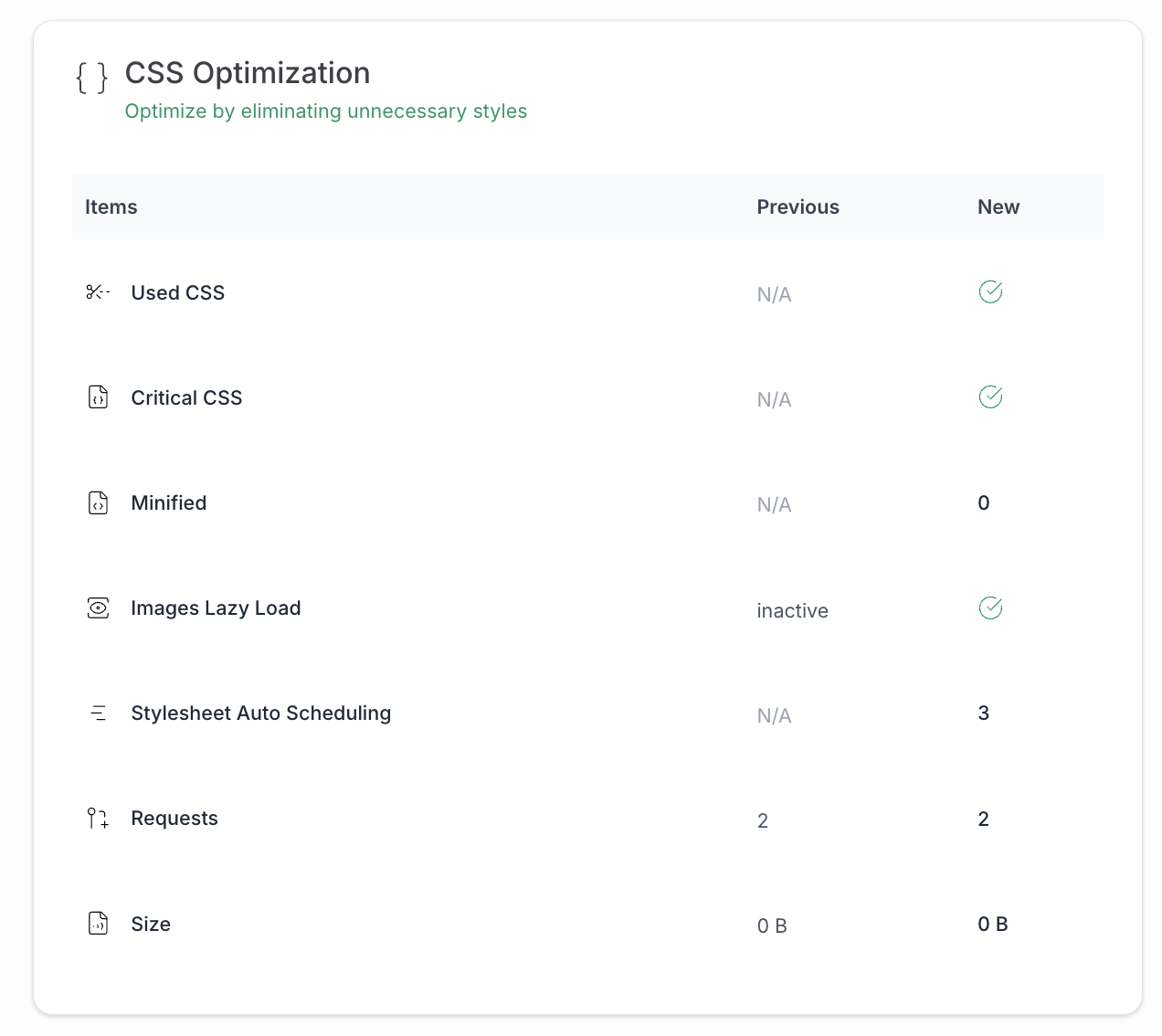
Keep above-the-fold styles available for the first paint. Above-the-fold means the part of the page visible without scrolling. Critical CSS can be inlined or delivered in a way that remains early, but the inline block should stay limited.
Too much inline CSS increases the HTML response and can remove the browser caching benefit of a separate file.
Move below-the-fold or conditional styles later. Styles for a modal, carousel, form, or template that is not visible yet may be candidates for later loading. Confirm that the component still receives its styles when it opens or enters the viewport.
Check for CSS import chains. @import can make the browser discover styles later and create an extra request chain. Replace or reorganize it only after confirming the resulting order and cascade.
Check the rendered page, not only the score. Look for unstyled text, shifted navigation, missing spacing, incorrect responsive layouts, and changes to the first visible content.
Once the visible layout is protected, JavaScript is often a better candidate for later execution, but the loading mode still matters. defer allows a script to download while HTML parsing continues and runs deferred scripts after parsing in document order. That makes it useful when scripts depend on one another and can wait until the document has been parsed.
async is different. An async script runs as soon as it finishes downloading, independently of the other scripts. async is not a safer version of defer. It can be suitable for a genuinely independent script, but it can break code that expects a library or another dependency to be ready first.
Apply JavaScript changes in this order:
Combining JavaScript files does not automatically make them non-blocking. A combined file can still be on the initial path, and combining can make its dependency order and rollback harder to inspect. If you use Airlift, review its JavaScript optimization options alongside these dependency and interaction checks.
Not every performance request belongs in the same bucket as a head stylesheet or synchronous script. Fonts and images are not normally the same full-page render-blocking audit target, but they can still affect what users see. Font CSS and font-display behavior can delay or change visible text, while a large or poorly prioritized hero image can affect the largest contentful paint.
Treat preload as a narrow priority hint. Preloading too many fonts, stylesheets, or scripts makes them compete with the requests that are genuinely needed first. A single named critical resource may justify preload; a broad list of likely-important files usually does not.
Third-party code deserves its own decision. A consent tool, payment integration, video, map, or marketing tag may be slow, but moving it can change privacy behavior or user-visible functionality. Delay it only when the required consent and interaction path still works.
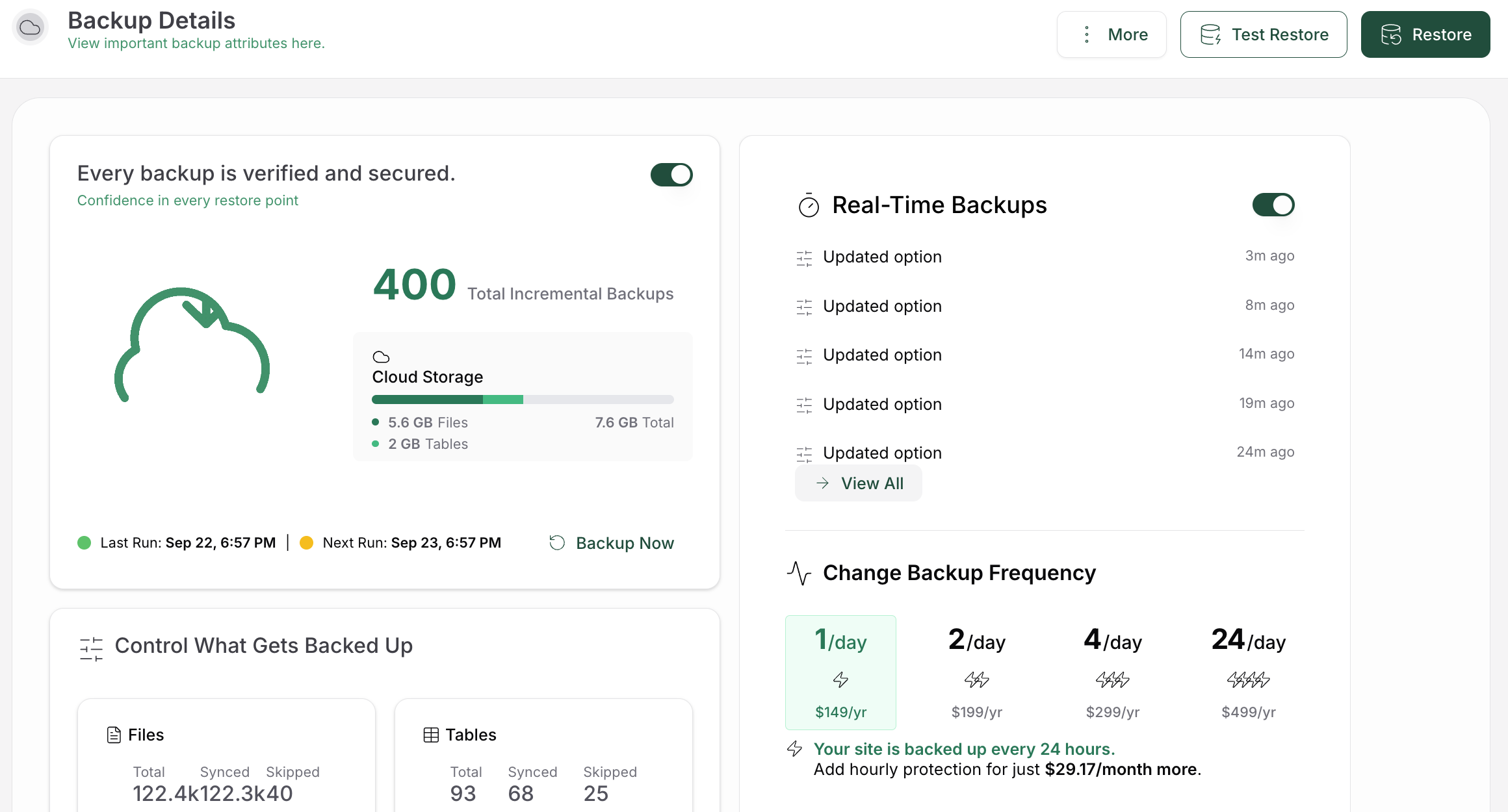
A classification is only useful when the change survives contact with the site. Make one related change at a time on a staging copy or a controlled deployment. Clear the page cache, optimization cache, content delivery network (CDN) cache, and browser cache as appropriate so the test is not comparing different generated files.
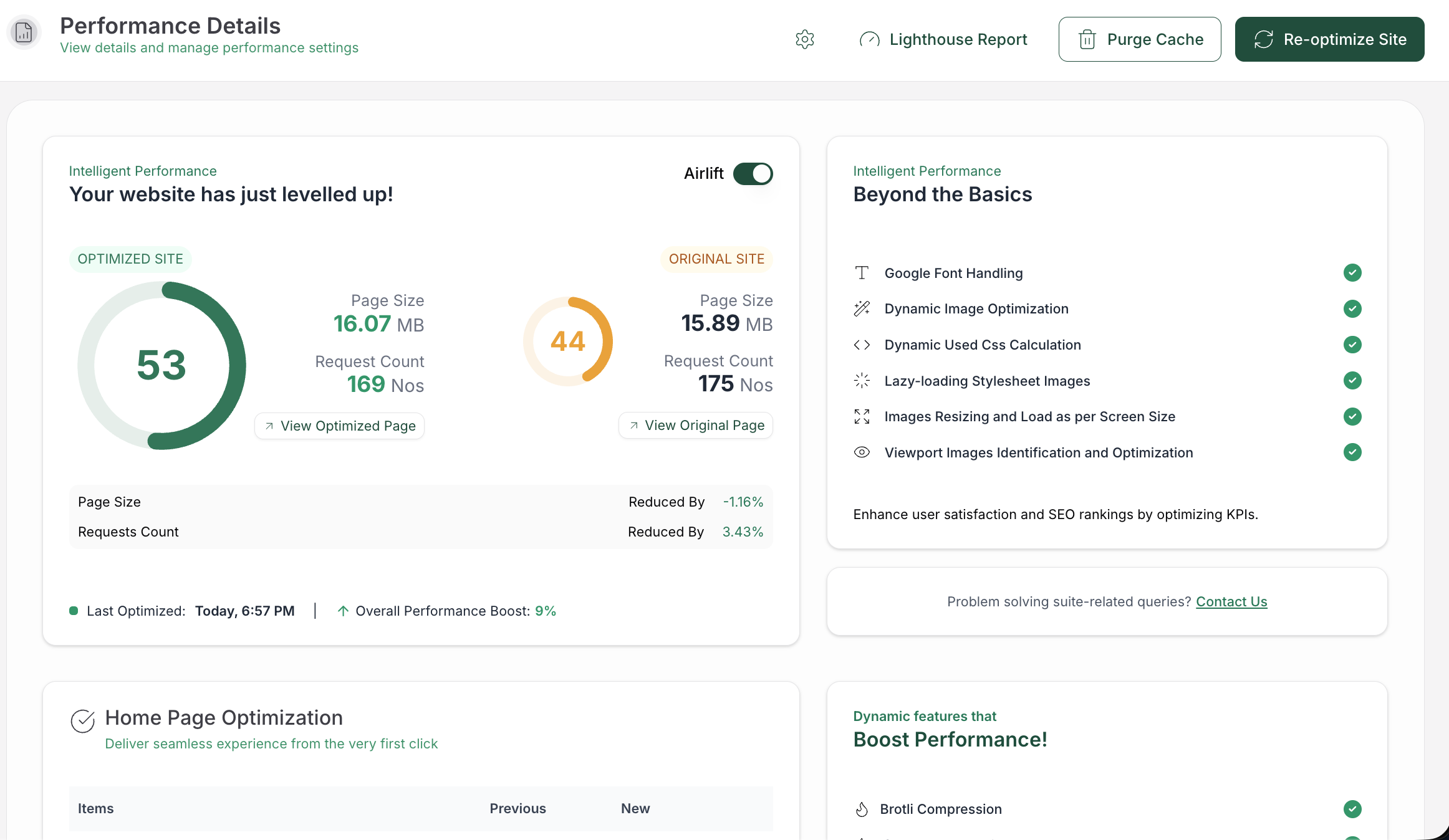
Run the same audit conditions again after the results have refreshed. Compare the named requests, the waterfall, and the user-facing metrics rather than relying on the overall score.
Check the first visible layout and the interactions that were recorded before the change.
Test at least these states when they exist on the site:
If a change improves the audit but causes a broken layout, missing control, delayed form, or console error, roll it back and narrow the exclusion. Optimization is complete only when the performance change and the site behavior are both acceptable.
After the retest, a remaining warning does not necessarily mean the change failed. An audit can continue to name a resource after an optimization change because the file may have been excluded for compatibility, regenerated by another plugin, retained in a dependency chain, or served from a cache that has not refreshed.
The test may also be measuring a different page type, device profile, or URL than the one you changed.
Check the current generated markup and waterfall before adding another optimization plugin. Overlapping CSS and JavaScript features create conflict risk and make it difficult to tell which layer changed execution order. If the remaining resource is required for the first view, reducing its size or cost may be safer than forcing it later.
Passing this audit does not by itself guarantee better rankings, conversions, or a lower bounce rate. It is one signal in a broader performance check. Keep the change that improves the measured loading path without harming layout, interaction, or core web vitals.
They are CSS files and synchronous JavaScript that the browser must fetch or process before it can render the initial content. The audit identifies the specific URLs. Those URLs may come from the theme, a plugin, a page builder, custom code, or a third-party service.
Identify each flagged URL and its owner, keep the CSS and JavaScript needed for the first view, and move non-critical work later. Depending on the asset, that can mean reducing it, deferring or delaying it, unloading it on selected pages, or removing the feature that added it. Test the affected interactions and retest the same page after caches and lab results refresh.
async lets a script execute as soon as it finishes downloading, without preserving the order of other async scripts. defer lets the browser download the script while parsing continues, then executes deferred scripts after parsing in document order. Use async only when the script is independent. Use defer when order and dependencies matter.
No. Some CSS is needed to display the initial layout, and some JavaScript is needed for an immediate feature or a dependency. The practical goal is to make the critical path smaller and less expensive, then move work that is not needed yet out of that path.
They are not usually the same blocking audit target as a head stylesheet or synchronous head script. Font CSS and font display behavior can affect when text appears, and a large image can affect the largest contentful paint. Treat those as related performance concerns and measure them separately instead of assuming that fixing the blocking list fixes every loading problem.
To eliminate render-blocking resources in WordPress safely, start with the exact URLs in the report. Identify their owners, classify their role in the first view, keep critical CSS and dependency-ordered scripts available, and move only non-critical work later. Check the pages and interactions that use each asset, because a cleaner audit is not a useful improvement if the site becomes harder to use.
Before you change a global optimization setting, open the report and make an asset-by-asset list. Test the smallest reversible change on staging, clear the relevant caches, run the same test again, and keep the rollback path available if the layout or an interaction changes.
Today, we are introducing Font Subsetting, a new feature that streamlines the delivery of font files, ensuring that your website operates at lightning speed. How fonts affect…
Read

You update a logo, reload the page, and still see the old one. PageSpeed says some files need a longer cache lifetime. A plugin promises to fix caching, your host already has…
Read

If you’ve tried to enable caching and visitors are now seeing old CSS, outdated content, or a private page from the wrong cache, the cache control header is a key place to…
Read
Airlift works out what each page needs and applies it. Free to try on your own site.