

Browser Caching: What It Is and How It Speeds Up Your Website
You update a logo, reload the page, and still see the old one. PageSpeed says some files need a longer cache lifetime. A plugin promises to fix caching, your host already has…
Read

You added a plugin last month. Maybe a slider, a chat widget, or a form tweak a client asked for. Nothing broke, so you moved on. But today your homepage takes longer to load, and you can’t say when that started.
Working out which plugins slow down WordPress on your site is a lot like hunting for the one dead bulb in a string of holiday lights. The plugin list won’t point to it. It shows names and version numbers, not the work each plugin does on every page load, or at 2 a.m. while you sleep.
Pull the wrong plugin, and you can break a layout, lose a contact form, or quietly stop your checkout. At AirLift, making WordPress sites faster is all we do, and the culprit is almost always findable once you know where to look.
TL;DR: Start optimizing WordPress performance by matching the symptom to a test, confirming the cause on a staging copy, then changing the plugin’s setting before you remove it. Backup, security, form, builder, and store plugins are common suspects, and their settings decide how much load they add.
Slowness has a signature, and each one points to a different kind of plugin work:
If only your WordPress admin is slow, zoom in on the exact screen that drags, like the editor, your orders, or a report.
Name the signature, and you’ve already shortened your suspect list.
There’s no honest speed ranking of plugins. The same plugin can fly on one host and crawl on another, depending on your traffic, content, and server. What does repeat across sites is a short list of plugin types and the settings that decide how much work they do.
| If you use… | The setting worth a look | Why it can add load |
|---|---|---|
| A backup plugin | Schedule, storage location, archive size | Backups use CPU and disk while they run |
| A security plugin | Traffic logging, scan schedule | Logging every visit writes to the database |
| A form plugin | Where its files load | Its CSS and JavaScript can load on every page |
| A page builder | Add-on packs, icon settings | Unused widgets and libraries can still load |
| A store plugin | Cart refresh behavior | An extra request on pages with no cart |
| Chat or analytics tools | Duplicate tracking | Scripts load from other companies’ servers |
None of these are plugins to avoid. Most are well built, and the settings are what tip them from helpful to heavy.
Backups are heavy work by nature. Many backup plugins build each backup on your server: they zip your files and export your database, using the same CPU, memory, and disk your visitors need. On a small hosting plan, the whole site can slow while a backup runs. That’s often the 2 a.m. dip in your hosting graphs.
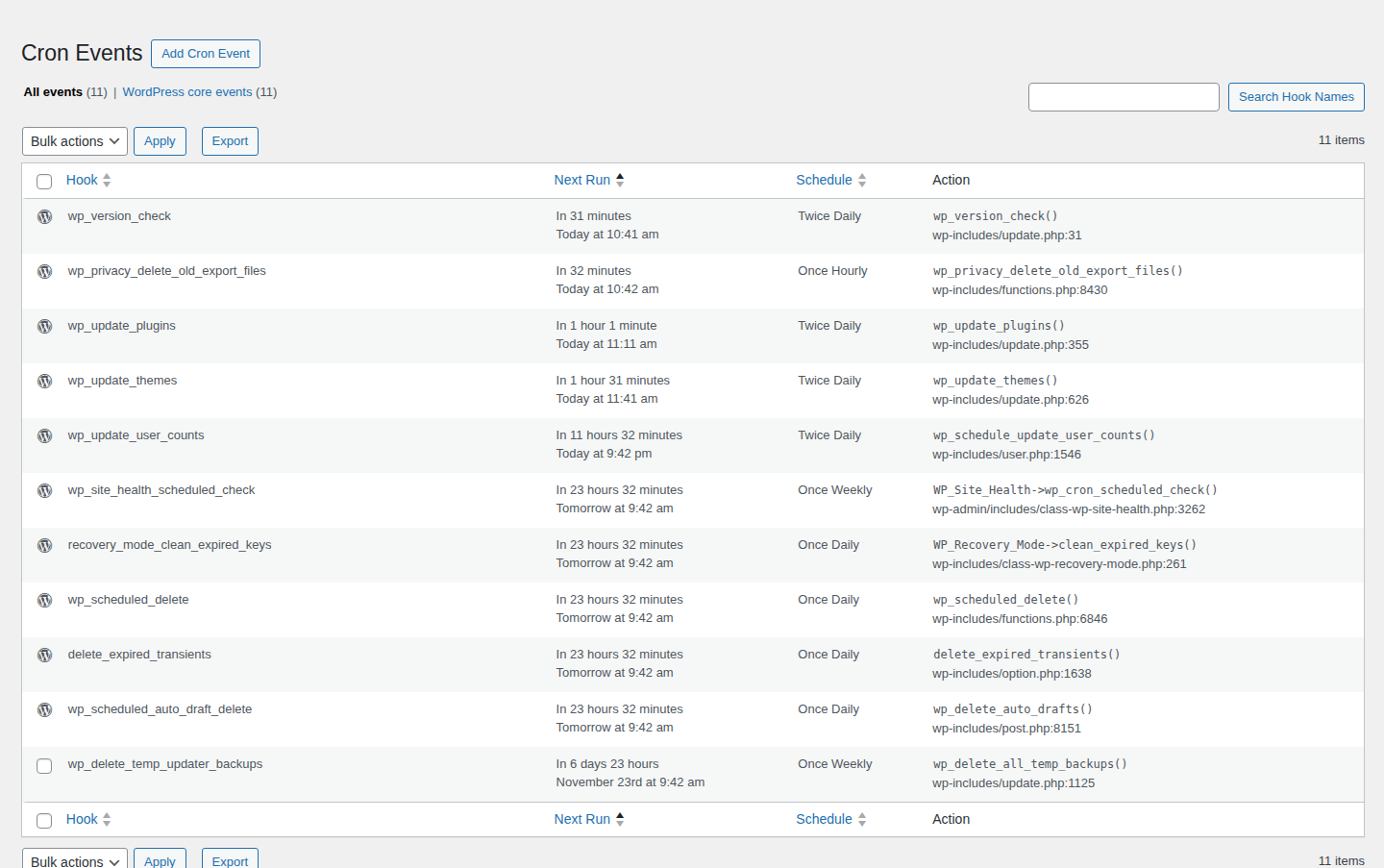
Storage can quietly make it worse. Without remote storage, backups pile up on your server, and each copy eats disk space. Fill the disk, and the site can go down entirely. Check your plan’s disk usage and the size of your backup plugin’s folder inside wp-content.
If your backup plugin runs on your server, here’s what to change:
There’s another way to handle it entirely. BlogVault, our sister product, uses incremental backups to copy only what changed since the last backup, then does the heavy work, like zipping, on its own servers. Backups are stored there too. Your server isn’t the one building and storing the backup, so your visitors don’t pay for it in speed.
📝 Note: A backup that lives on the same server as your site protects you from bad updates, not from a bad server. If the server fails, or an attacker gets in, the backup can go with it. Keep at least one copy somewhere else.
Security plugins inspect traffic and scan files, so some load is the price of protection, and it’s usually worth paying. The trick is knowing which settings cost the most:
Keep the firewall on. It’s rarely the setting that’s hurting you.
Some form plugins load their CSS and JavaScript on every page by default, even the pages with no form on them. Many document a way to load those files only where a form appears. Spam-protection add-ons can bring scripts of their own, so check those too.
Page builders do a lot of work, and add-on packs bring their own files on top. A simple page can still carry unused CSS and code for widgets it never uses. Check the builder’s performance and icon settings, then switch off any add-on widgets you don’t use, if the add-on allows it.
If you use Elementor, follow these steps to speed up Elementor while keeping your layouts and widgets working.
In older setups, some store plugins refreshed the cart with an extra request on every page, even with no cart in sight. An old version, or a theme that switches that behavior back on, can still add the work.
Speeding up a WooCommerce store often means focusing on one slow step. A shipping extension might wait on a carrier’s server, or a pricing extension might read thousands of records. Test the step that drags, not the homepage.
These tools load scripts from other companies’ servers, which you don’t control. And two tools tracking the same visit do the same work twice. web.dev names third-party scripts as a common cause of slow pages, so they’re worth a look even when the plugin itself is tiny.
A suspect isn’t proof, though. Time to catch one in the act.
Do your testing on a staging copy, a private copy of your site that can’t email real customers or take live payments. No staging site? Take a fresh WordPress backup and test at your quietest hour, one change at a time.
Without a baseline, every test is a guess. Note:
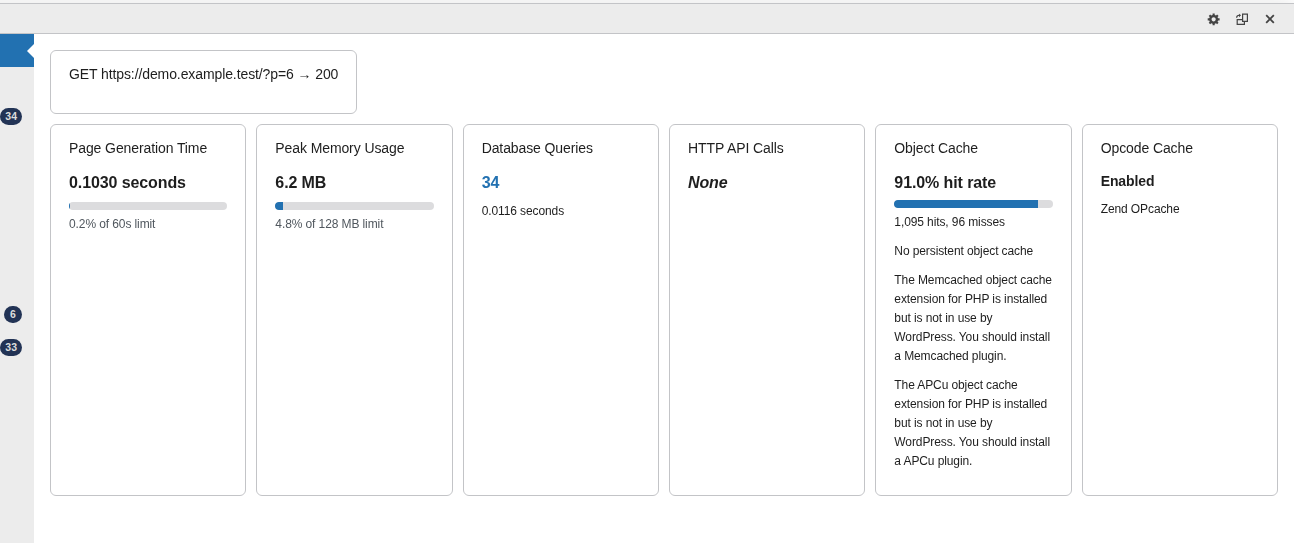
For public pages, measure website speed with Google PageSpeed Insights three times and keep the middle result. It flags heavy files and late content, but it usually can’t name the plugin behind slow server work. That’s a job for the next tools.
If Query Monitor doesn’t explain the wait, ask your host or developer for a code profiler, which shows exactly where the server spends its time.

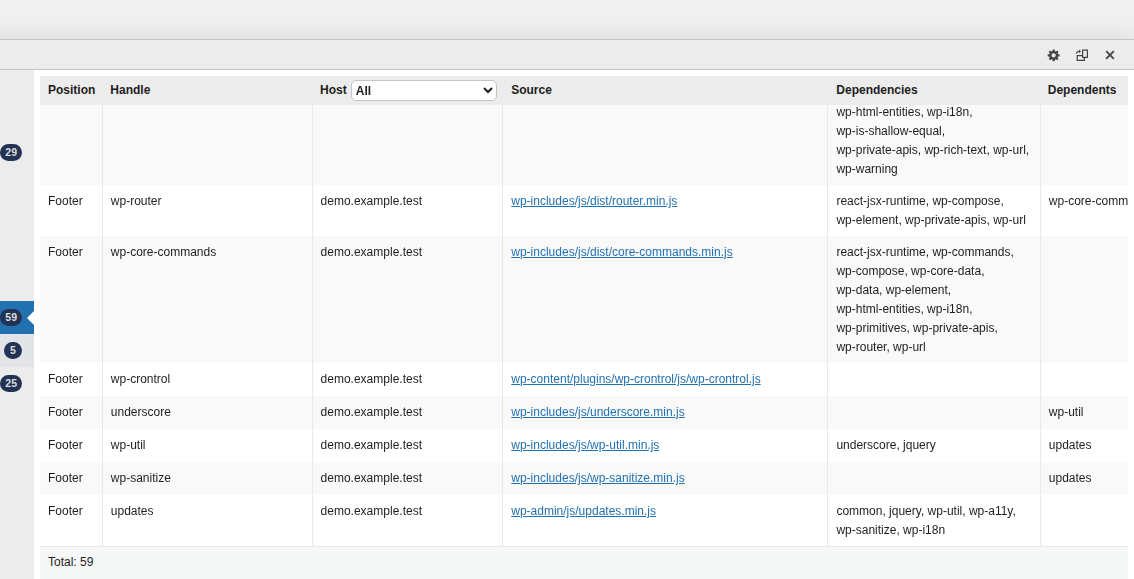
📝 Note: Query Monitor normally shows your logged-in visit, while a public speed test visits as a guest. WordPress caching can make the guest version look fast while logged-in visitors still feel the delay, or the other way around. Test the same kind of visit your users complain about.
Once a tool points at a suspect, prove it:
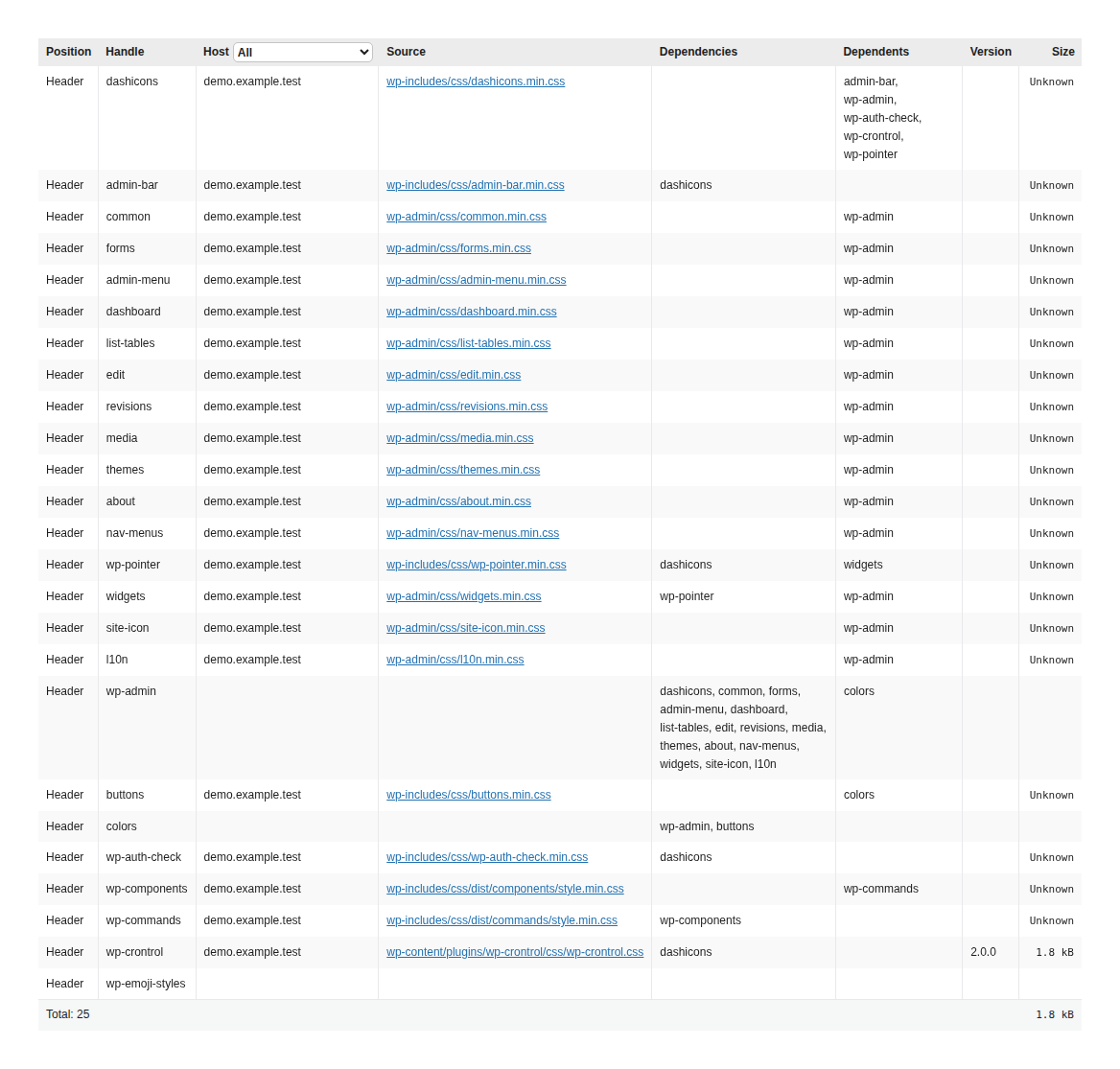
If the speed comes and goes with the plugin, you’ve found your bulb. One fast run isn’t proof, so repeat it. And if disabling a whole store or builder plugin removes the page you’re measuring, test one add-on or extension instead.
Before anything reaches the live site, open menus and popups on desktop and mobile, send a test form, and complete the shop or login step with a safe test setup. A missing feature isn’t a speed fix.
Most slow plugins don’t need replacing. They need reconfiguring. The suspect sections above cover the common fixes. Beyond those, if two tools apply the same optimization, give the job to one of them. And if you can repeat a bug, send the developer the version, the action, and your test results.
Sometimes you need a plugin that simply sends more code than the page uses. That’s where AirLift’s WordPress speed optimization comes in: it removes unused CSS and controls when scripts load, so the page gets what it needs first. Check menus and forms afterward, especially if you delay scripts they depend on.
📝 Note: Front-end tools fix what reaches the browser. They can’t fix a slow database query or buggy plugin code. Those need a fix at the source, from the developer or a better-suited plugin. Before you switch, make sure the alternative supports your content and integrations.
If your tests don’t point to a plugin, the bulb may not be on the plugin string at all:
Share the page, the timing, and your test results with support, including the causes you’ve ruled out. When you’re done, deactivate Query Monitor and WP Crontrol unless your developer still needs them.
Not by running code, but they can leave data behind. A deactivated plugin doesn’t load on normal visits, but a deleted one can leave autoloaded options and scheduled tasks. Since WordPress 6.6, Tools → Site Health warns you when autoloaded options pass 800 KB.
They can add work, but the category alone doesn’t make them slow. Look at the specific feature, like content analysis or reporting, on the screen where the delay happens.
There’s no safe number. A few plugins doing heavy work can cost more than many light ones. Judge each plugin by the work it adds on your site.
Yes. Two caching or optimization plugins, for example, can both process the same files. Test the pair together on staging.
Treat that update as your first suspect. Reproduce the problem on staging, and look for a newer fix or compatibility notes. Roll back only if the older version is safe with your current data.
That homepage beat you noticed didn’t come out of nowhere, and you don’t have to pull plugins at random to find it.
Read the symptom, catch the suspect in the act, and fix its setting, and your site gets faster without losing a single feature your visitors rely on.
You update a logo, reload the page, and still see the old one. PageSpeed says some files need a longer cache lifetime. A plugin promises to fix caching, your host already has…
Read

If you’ve tried to enable caching and visitors are now seeing old CSS, outdated content, or a private page from the wrong cache, the cache control header is a key place to…
Read

You clicked Update, refreshed the page, and the live site still looks old. The image is unchanged. The menu is wrong. In some cases, a slow website can also point to an outdated…
Read
Airlift works out what each page needs and applies it. Free to try on your own site.