
Introducing Font Subsetting for Enhanced Performance
Today, we are introducing Font Subsetting, a new feature that streamlines the delivery of font files, ensuring that your website operates at lightning speed. How fonts affect…
Read

Your WordPress website looks perfectly fine on your laptop, and then a customer opens it on their phone, taps a link, and waits. The page takes too long to appear, the buttons feel unresponsive, and they leave before discovering what your business offers. You may not even realise there is a problem until someone complains.
You have already tried compressing images, installing a caching plugin, or checking your desktop score, but your WordPress website still feels slow on mobile.
If you are searching for how to increase WordPress website speed in mobile, you have landed in the right place. This guide will help you understand what is holding your site back and show you what to do next, without wasting time on fixes that make little difference.
TL;DR: A fast desktop score doesn’t reflect what a phone actually experiences. Run a repeatable mobile test first, find the largest bottleneck, and fix that one thing before touching anything else. Airlift provides page caching, CDN delivery, image optimization, page-specific CSS, and delayed JavaScript, and it’s worth trying after a baseline test.
Your site may look fast when you test it on a laptop. The hero image appears instantly, the menu responds as soon as you click it, and the page feels smooth. Then a customer opens the same page on a phone and gets a very different experience.
The layout may fit the smaller screen perfectly, but that does not mean the page is optimised for mobile. Responsive design changes how content is displayed, not necessarily how much work the phone has to do.
A mobile visitor may still need to download and process:
A slower connection and less powerful processor can make files and scripts feel harmless on desktop but painfully slow on mobile. A strong desktop score does not prove your mobile experience is fast. Test the exact public page under consistent mobile conditions before changing WordPress settings, so you can identify the real cause of the delay.
📝 Note: A 90-plus desktop result can’t tell you whether a phone visitor waits on a slower connection.
Now test the exact page your visitors find slow, not just your homepage. Open PageSpeed Insights, enter the public URL, and select Mobile.
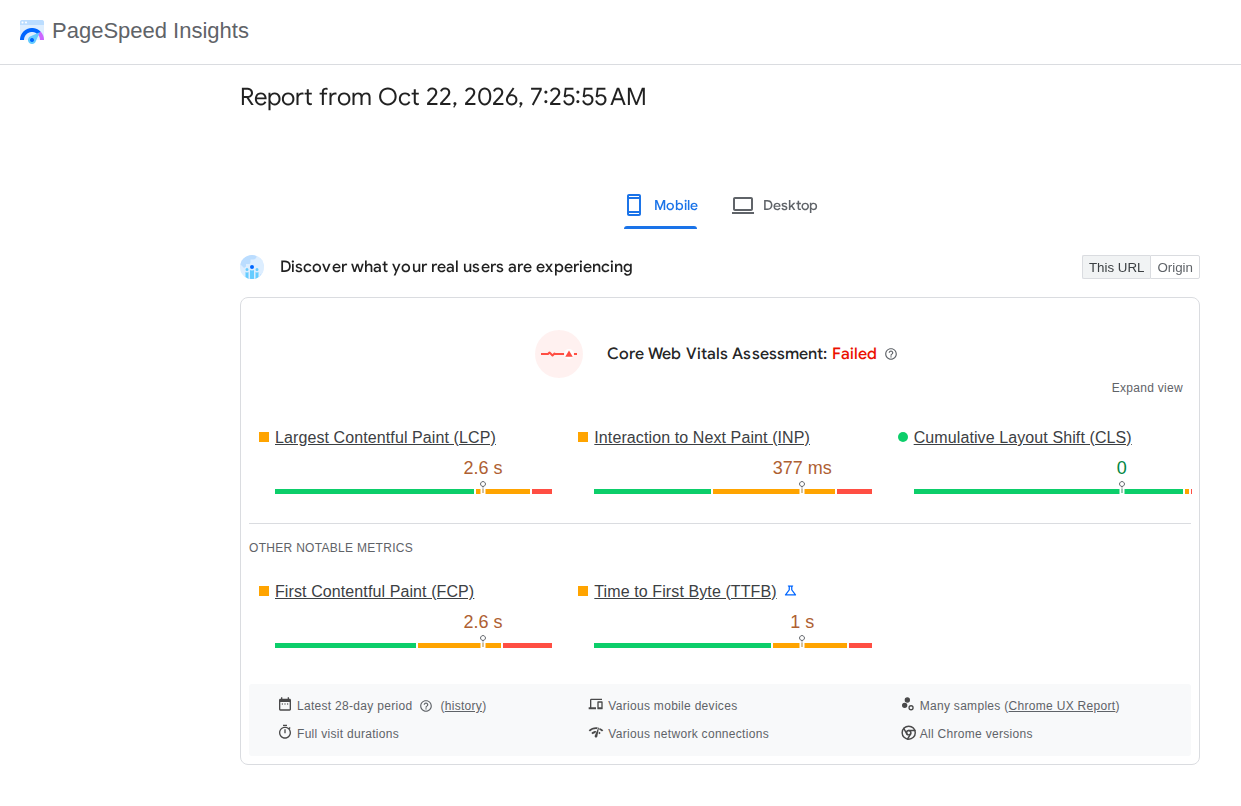
Run the test a few times and note:
When you measure website speed, use the same URL, device setting, and test method each time so you have a reliable baseline.
PageSpeed Insights shows both lab and field data. Lab data helps you diagnose changes immediately, while field data reflects real visitors over the previous 28 days and takes time to update.
For reference, good Core Web Vitals are:
Do not change settings simply to chase a higher score. Use the report to find what is delaying the first screen or making the page feel unresponsive. Next, inspect the resource taking the most time in the first viewport.
Your test has identified what visitors are waiting for. If LCP points to a hero image, featured image, slider, or large text block, fix that element first to improve LCP on WordPress.
Start with WordPress image optimisation: check the image’s rendered size on a phone and provide a file close to those dimensions instead of sending the original desktop-sized image. Use a suitable modern format, declare its width and height to prevent layout shifts, and confirm that WordPress serves the right srcset candidate.
The waterfall can reveal whether a small-looking mobile image is actually hiding a much larger download, such as a 2.5 MB slider image.
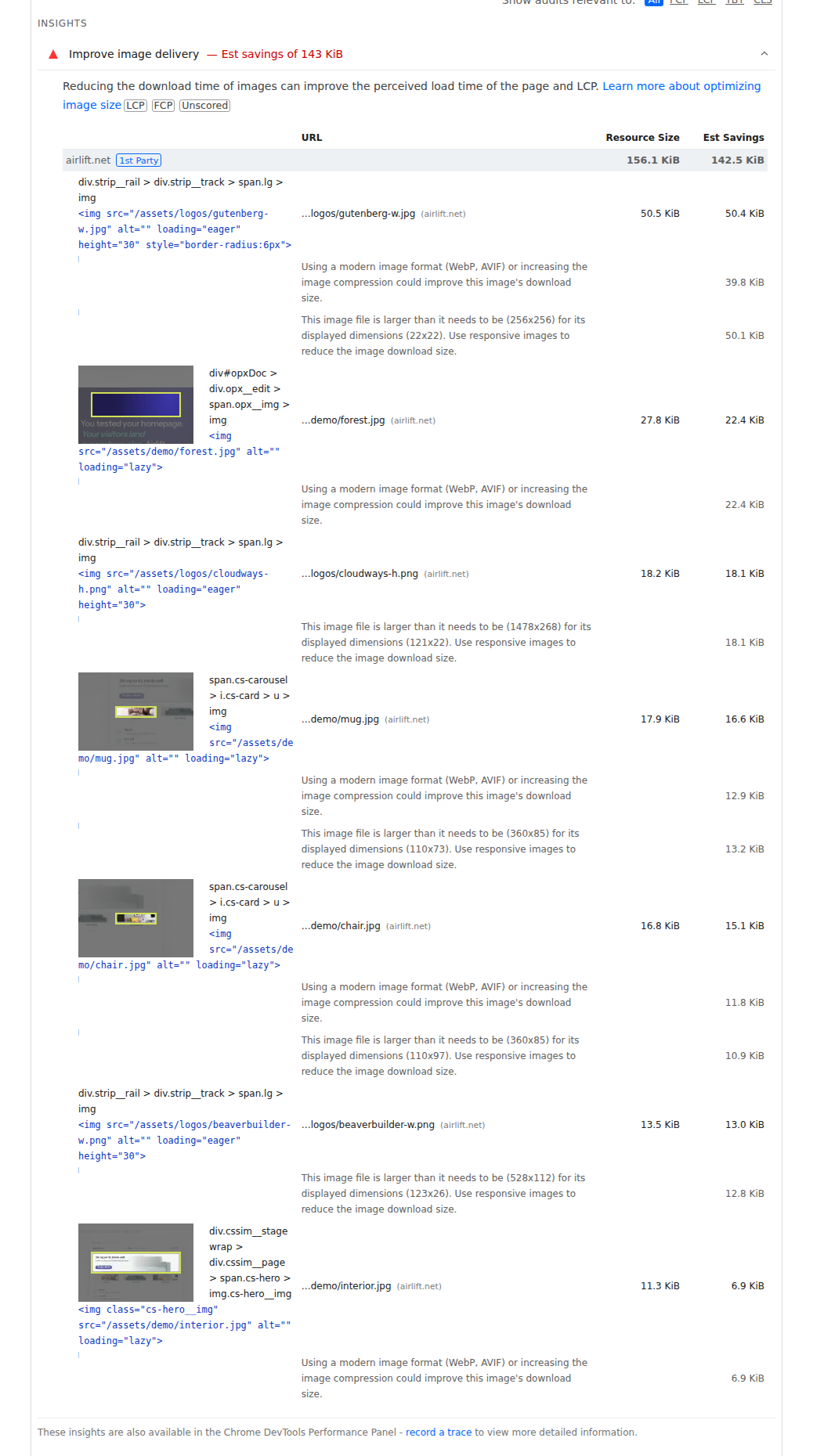
That is not a universal file-size limit. The right target depends on the image’s dimensions, format, position, and the visitor’s connection. Do not lazy-load the LCP image, because it is the content visitors came to see. Images below the fold can use lazy loading, while an unnecessary slider can be replaced with a lighter first image and have its later slides loaded afterwards.
Once the first viewport is under control, check whether your server or delivery setup is slowing down every request.
📝 Note: The first visible resource deserves priority because it competes directly with the content a visitor came to see.
Caching can improve mobile speed, but a cache plugin cannot fix every slow-page problem. Each layer addresses a different delay:
These tools can reduce server and delivery time, but they will not shrink oversized images, remove unused CSS, or eliminate third-party widgets.
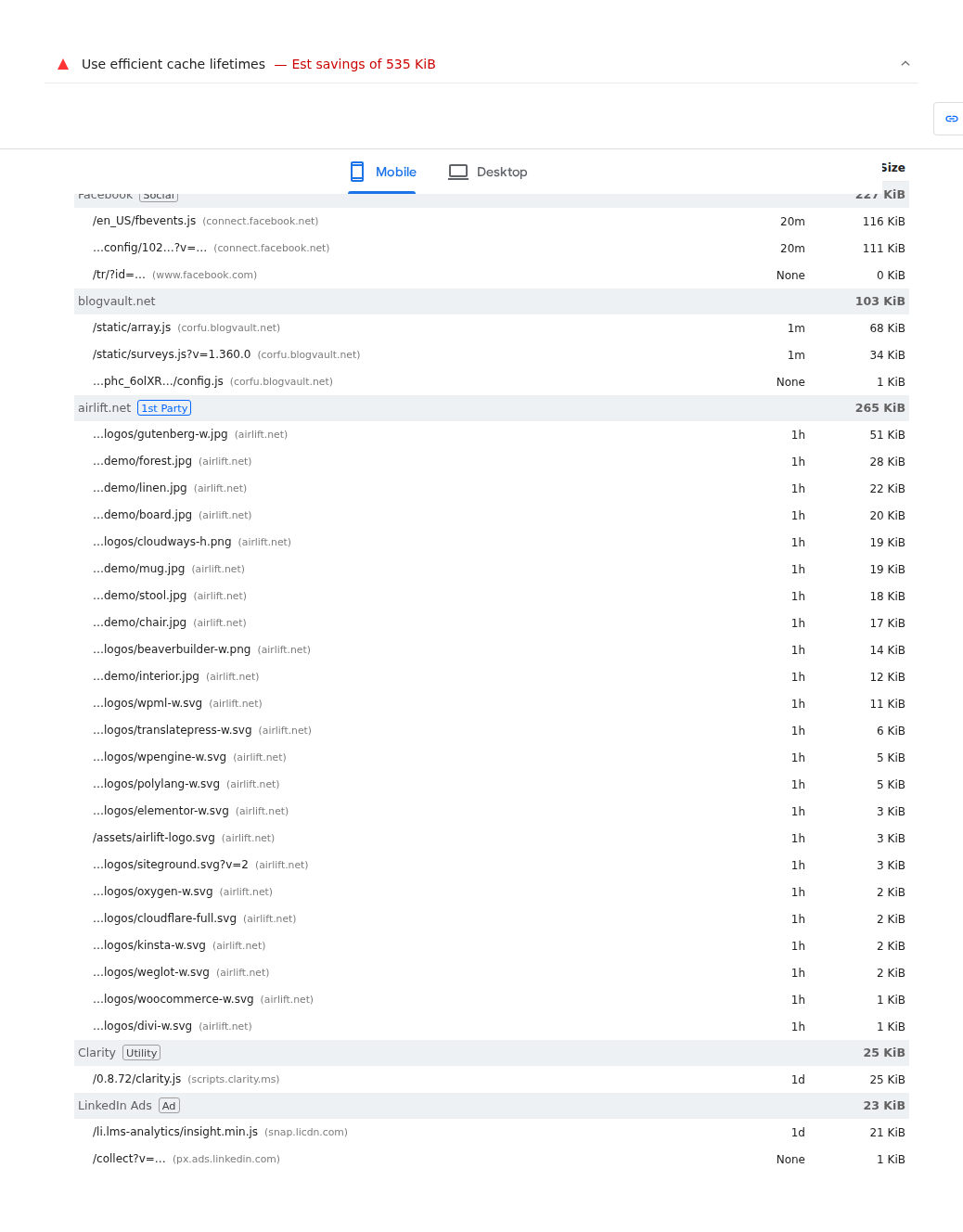
If your WordPress TTFB is slow, it can help you identify where to look:
A CDN cannot fix slow PHP or oversized HTML. After changing your setup, check the public page to confirm that caching is working.
Cache dynamic content carefully. Make sure updated content appears correctly, and exclude account pages, carts, and checkout when necessary.
Avoid using multiple plugins that perform the same optimisations. Change one layer, clear the relevant cache, test the page, and record the result.
AMP is not a default fix for a slow WordPress page. Consider it only for a specific need, then test navigation, forms, analytics, and ecommerce features carefully. If delivery is fast but taps still feel delayed, inspect the browser work happening after the response arrives.
📝 Note: A warm page cache and an asset cache answer different questions, so inspect both when a report points to delivery.
The page has appeared, but something still feels wrong. The menu takes a moment to open, a button ignores your tap, or the whole page jumps when an advert loads. That usually means the browser is still working too hard.
Your phone’s main thread handles much of the page’s layout and interaction. Sliders, chat tools, analytics, ads, and social embeds can all compete for its attention.
Start by removing scripts the page does not need. Load features only where they are used, and use JavaScript optimization to delay anything that is not essential to the first screen. For videos, maps, and social embeds, consider showing a lightweight preview until someone taps to activate them.
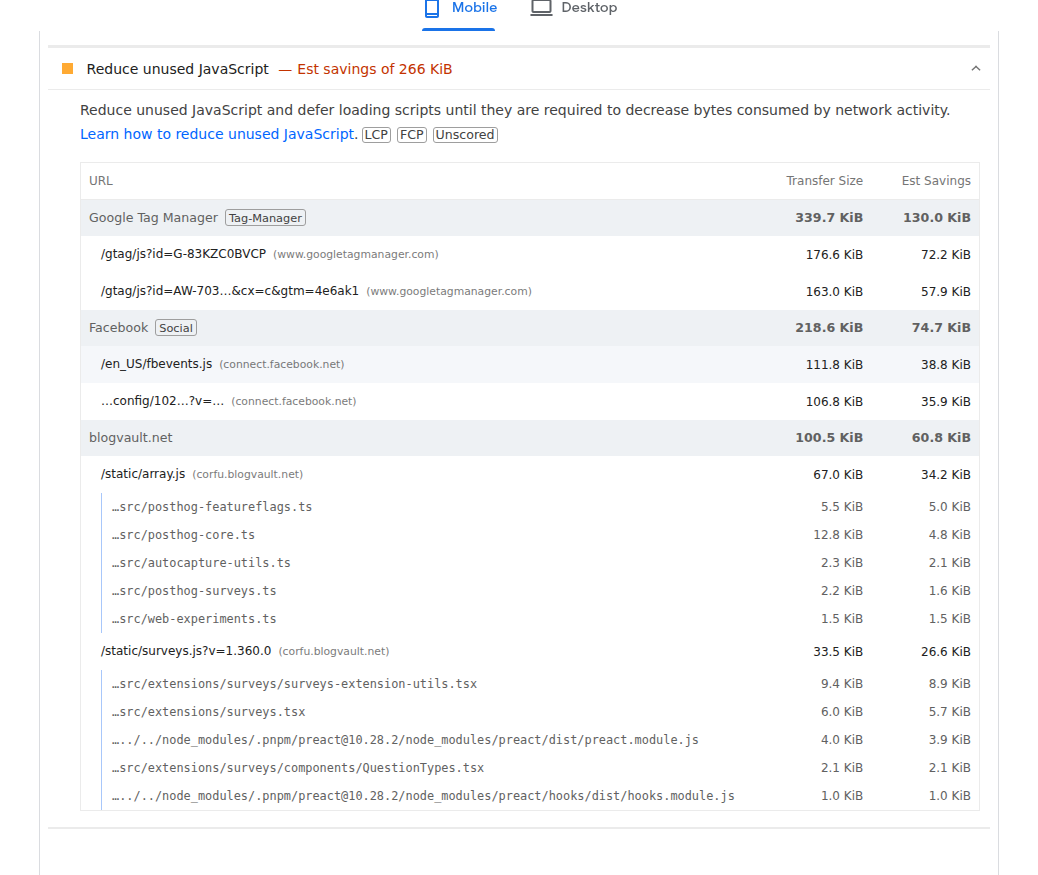
Remove unused CSS where it is safe, and prioritise the styles needed for the first viewport. Do not combine or defer files blindly. A smaller page is not useful if it breaks the menu or leaves the content unstyled.
After making changes, test the site on a real phone. Open the menu, submit a form, log in, play media, open a modal, and test the cart and checkout if you sell online.
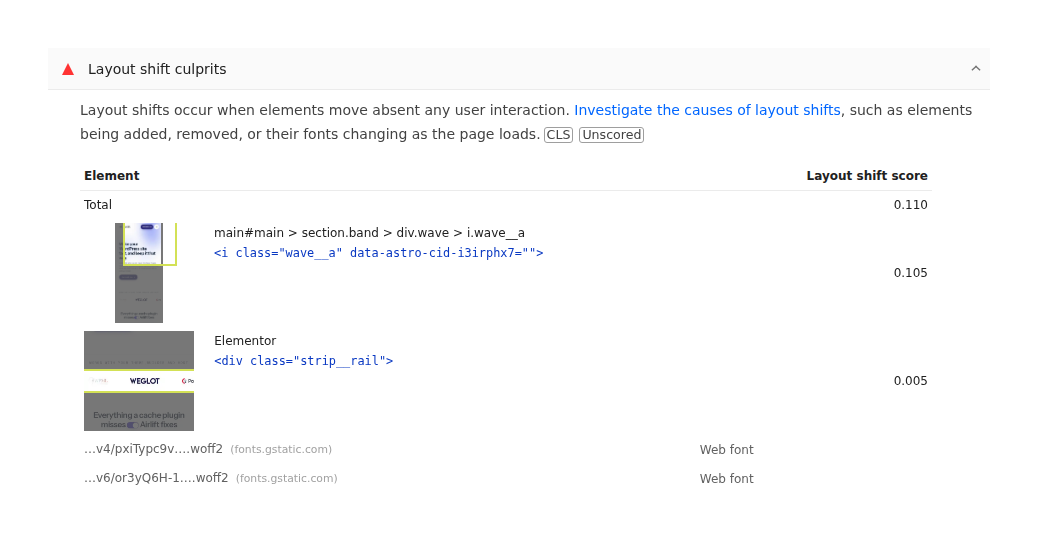
Reserve space for images, videos, embeds, and adverts by setting dimensions or aspect ratios. Avoid inserting banners above content after the page has loaded, and limit the font families and weights your site uses. For more ways to prevent these movements, follow our guide to reducing layout shifts in WordPress.
Fast should still feel easy to use. Keep text readable, controls simple to tap, and pop-ups away from important content.
📝 Note: If tapping feels slow after a CSS or script change, a browser console error is evidence to investigate.
Update WordPress, the active theme, and plugins after checking compatibility and keeping a tested backup. Remove software that’s genuinely unused only after confirming that it’s not required for content, integrations, or security.
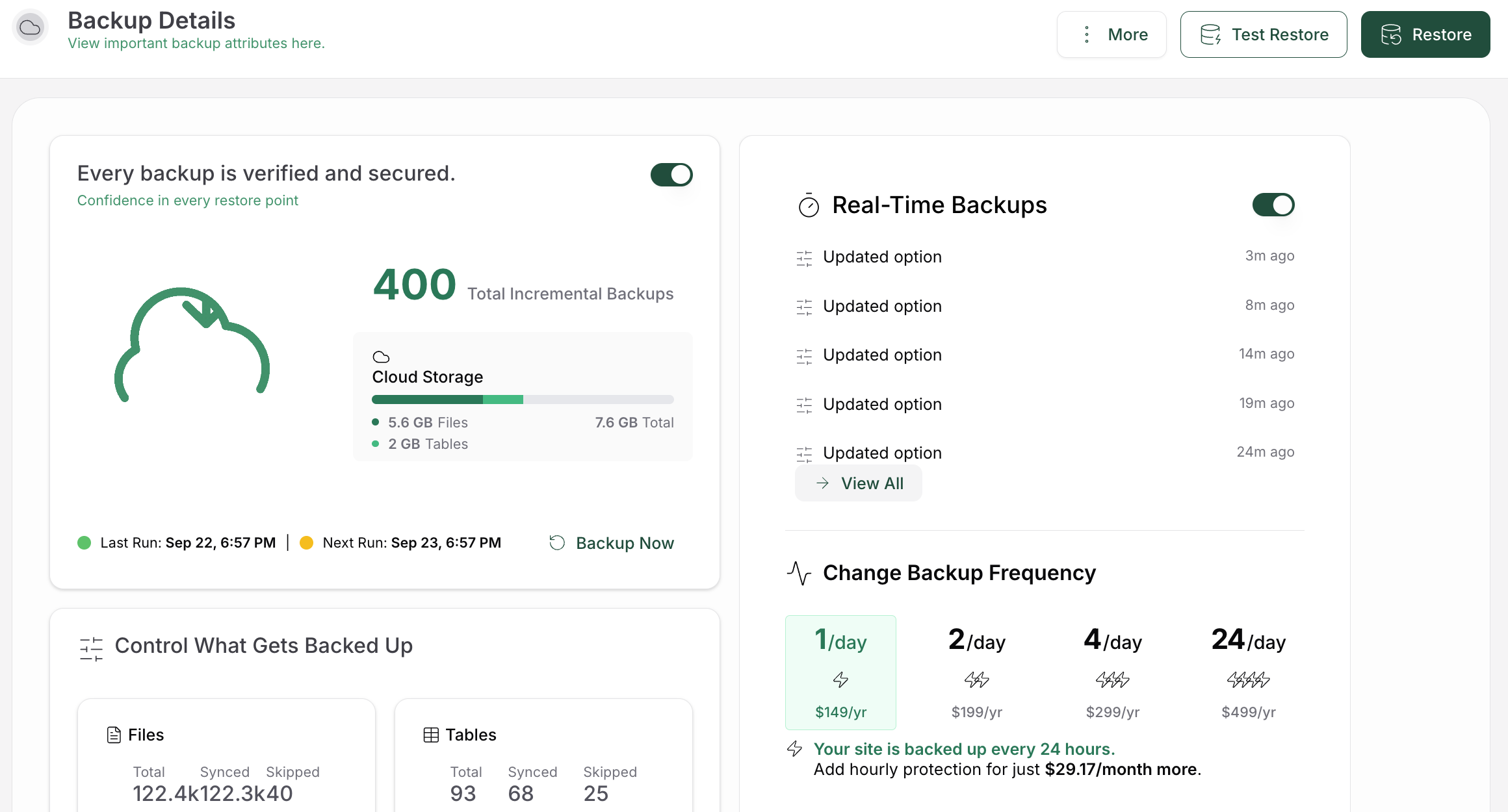
Don’t treat a fixed plugin count as a performance rule. One badly configured feature can matter more than several small plugins, and removing a needed component can create a larger stability or security problem.
Review the page after theme changes, plugin changes, new content, and optimization changes. A new block, font, tracking tag, video, or popup can change the first viewport.
Keep security updates current because an insecure site can be forced into extra work or taken offline; performance changes aren’t a substitute for maintenance.
Run the same mobile test on the same public URL after each meaningful fix. Compare the metric that led you to the change, the LCP element, the resource waterfall, and the behavior on a real phone.
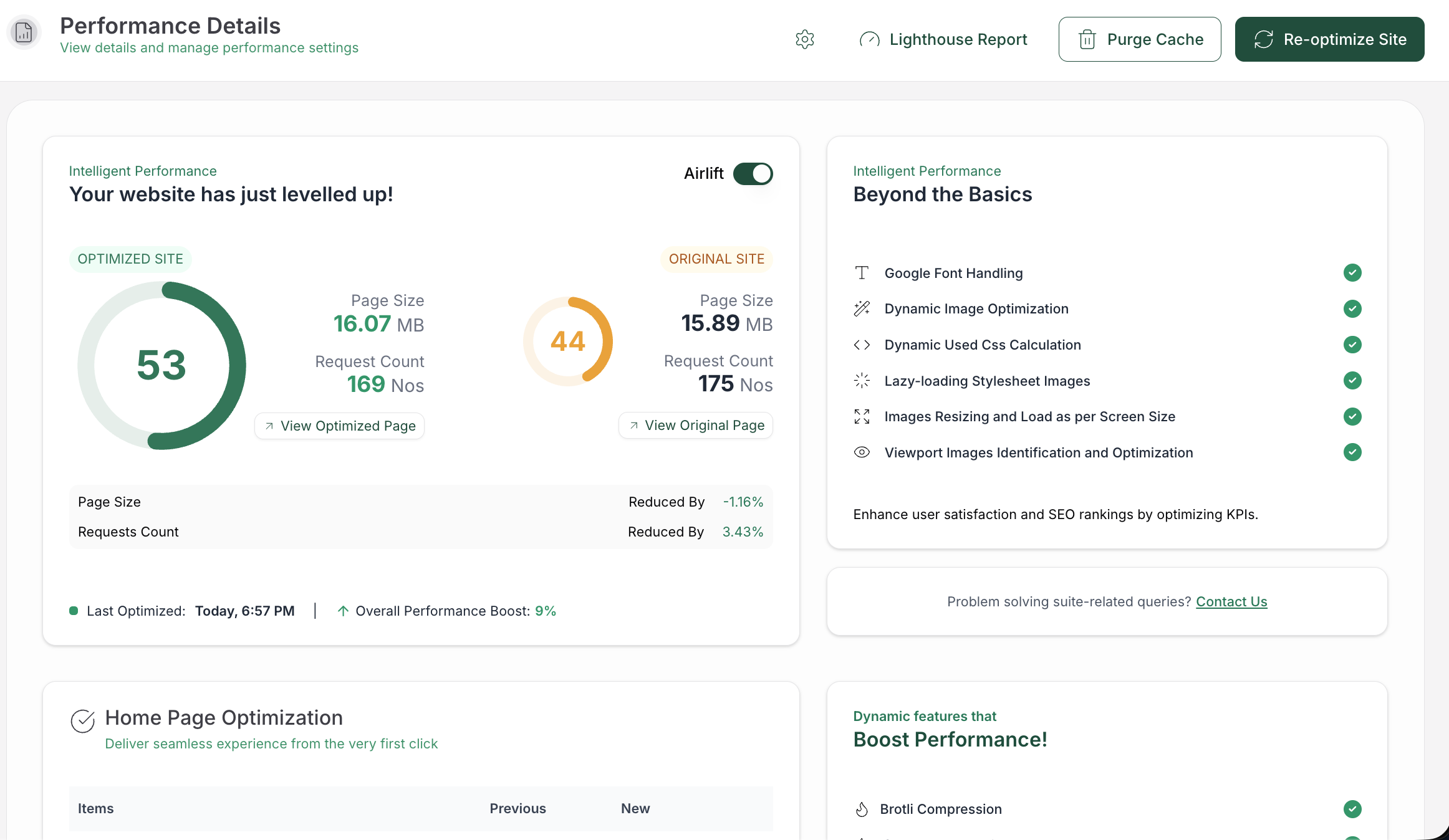
If the score improves but the page feels slower, investigate the difference instead of declaring success. If a change has no measurable effect, revert it or move to the next largest bottleneck. Use this short verification checklist, or follow our broader WordPress performance checklist.
Keep monitoring field data. A one-time lab result can improve while a new campaign, template, plugin, or third-party script worsens real-user performance later.
📝 Note: Keep the original baseline beside later runs so you can spot regressions after future site changes.
Yes, mobile speed can contribute to SEO performance, but a speed score alone can’t guarantee rankings. Search visibility also depends on the page’s content, relevance, and overall experience.
It can, when the current theme ships unnecessary assets or heavy features. A theme change can also create new layout and compatibility work, so compare the same public page before and after the switch.
Compare the network waterfall and main-thread work with the script enabled, then test a safe temporary exclusion in a staging environment. If the delay falls without the script, review whether the feature is needed on that page.
Mobile speed matters independently because phone visitors use different connections, hardware, and interaction conditions. A strong desktop result can’t stand in for the mobile experience.
Treat the real-phone experience as a signal to investigate. Check field data, interaction delay, the waterfall, and any third-party work instead of relying on the score alone.
A good desktop score does not help much if a customer is still waiting for your site to load on their phone. To improve your WordPress website speed on mobile, start with the exact page that feels slow, find the biggest delay, and work through the problem one change at a time.
Test every improvement on the same page, compare the results, and check the experience on a real phone. That way, you are not simply chasing a better score. You are making the site faster and easier for the people who use it.
Today, we are introducing Font Subsetting, a new feature that streamlines the delivery of font files, ensuring that your website operates at lightning speed. How fonts affect…
Read

You update a logo, reload the page, and still see the old one. PageSpeed says some files need a longer cache lifetime. A plugin promises to fix caching, your host already has…
Read

If you’ve tried to enable caching and visitors are now seeing old CSS, outdated content, or a private page from the wrong cache, the cache control header is a key place to…
Read
Airlift works out what each page needs and applies it. Free to try on your own site.