

Page Cache vs Object Cache: What WordPress Sites Actually Need
Website caching advice gets messy because everyone talks about the cache they sell, manage, or just discovered in a host dashboard. A plugin says full-page cache. Your host says…
Read

HTTP requests tend to show up at the exact moment a speed report stops feeling helpful. PageSpeed Insights points at them, a developer mentions them, or the browser’s waterfall view takes one normal-looking page and splits it into rows of files, domains, timings, and status codes.
That’s when what are HTTP requests stops being a textbook question and becomes a practical one. The real concern is what the browser asked for, whether the number is actually hurting the page, and which requests deserve attention first. That’s the right way to approach it, because request count by itself can be a noisy clue.
For WordPress owners, it is also part of the broader work to speed up your WordPress site without chasing the wrong metric.
TL;DR: HTTP requests are the messages browsers, apps, and tools send to servers to load pages, fetch files, submit forms, or call APIs. On WordPress, every page, image, script, font, redirect, API call, and third-party embed can add requests, so performance depends on how many requests happen, how heavy they are, and how well they are cached or delivered through a WordPress CDN.
The useful mental model is simple: an HTTP request is one job your site asks another system to handle. Some jobs are cheap. Some are necessary. Some are broken, repeated, or slow enough that visitors feel them.
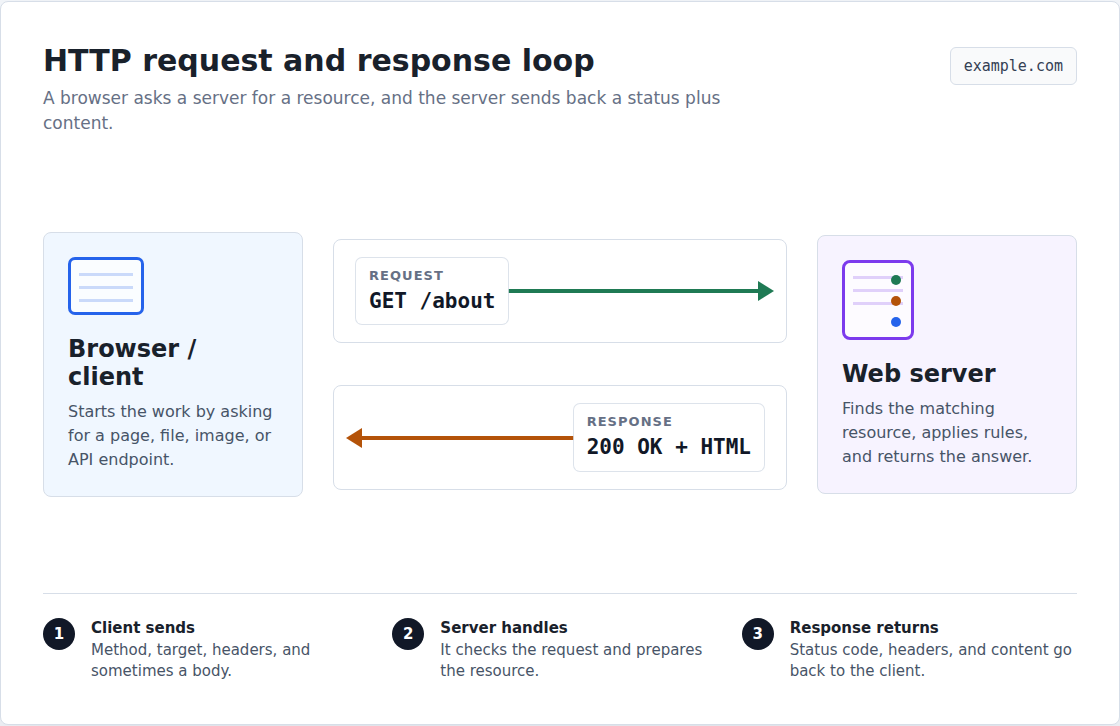
HTTP means Hypertext Transfer Protocol. It’s the set of rules browsers and servers use to ask for things and answer those asks. Here’s the basic loop:
The client is often a browser, but it doesn’t have to be. Googlebot crawling your site is a client. A mobile app can be a client. WordPress can be a client when it talks to a payment provider, email service, security tool, or another API.
That matters because HTTP requests aren’t only about loading web pages. They’re also how modern sites talk to other systems.
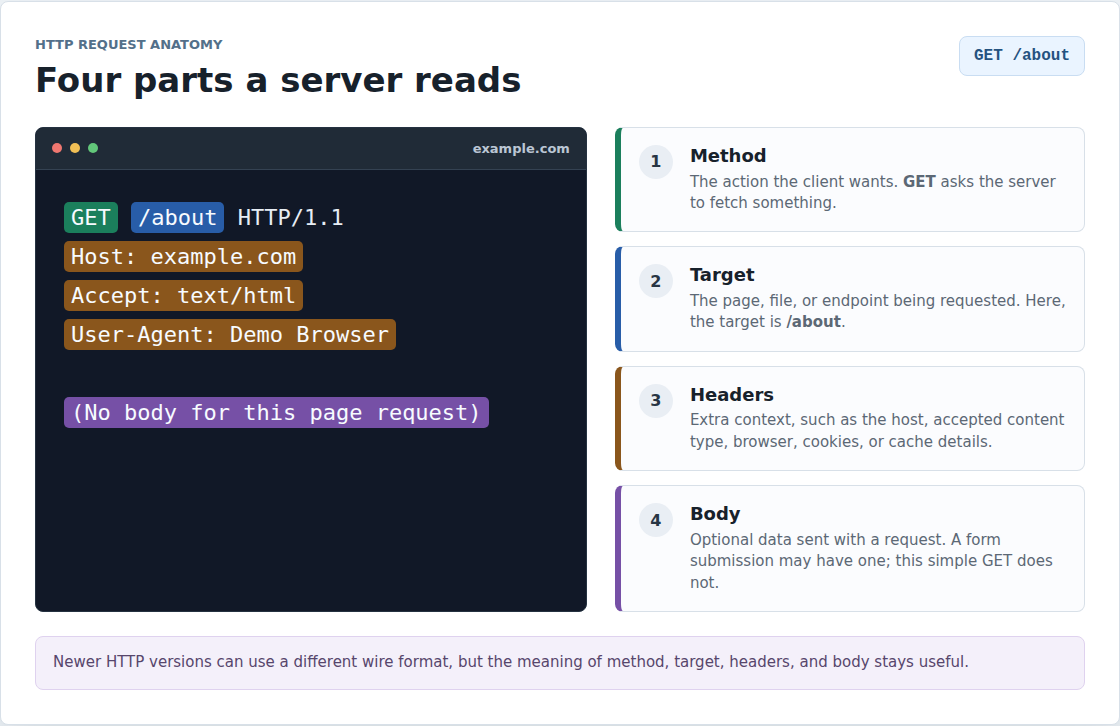
An HTTP request usually has four parts:
| Part | What it means |
|---|---|
| Method | The action the client wants, such as fetch, submit, update, or delete. |
| Target | The page, file, URL path, or API endpoint being requested. |
| Headers | Extra details, such as the browser type, accepted file type, cookies, cache data, or login context. |
| Body | Optional data sent with the request, such as a contact form message or checkout details. |
A very simple page request can look like this:
GET /about HTTP/1.1
Host: example.com
Accept: text/html
You don’t need to memorize the format. What matters is the pattern: GET asks for something, /about names the thing, and the headers give the server extra context.
⚠️ Note: Newer HTTP versions don’t travel across the network in this same readable text form. The meaning is still the same, so this older style keeps the idea easy to see.
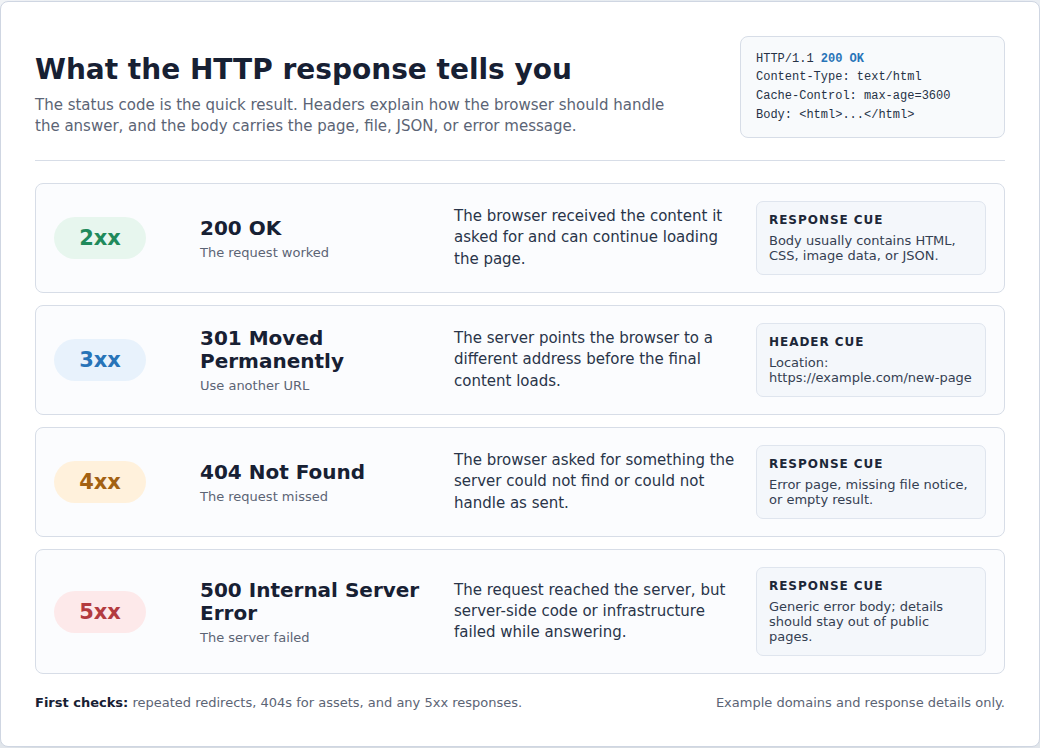
The HTTP response is the server’s answer. It usually includes:
Status codes are the part most site owners meet first:
| Code range | What it usually means | Common example |
|---|---|---|
| 2xx | The request worked | 200 OK |
| 3xx | The browser needs another URL | 301 Moved Permanently |
| 4xx | The request could not be handled as sent | 404 Not Found |
| 5xx | The server failed while handling it | 500 Internal Server Error |
If a page has a lot of 404s, the browser is asking for files that are not there. If it has a chain of 301s or 302s, the browser is being bounced through extra URLs before it gets the real answer. Both are usually better first fixes than obsessing over a harmless request total.
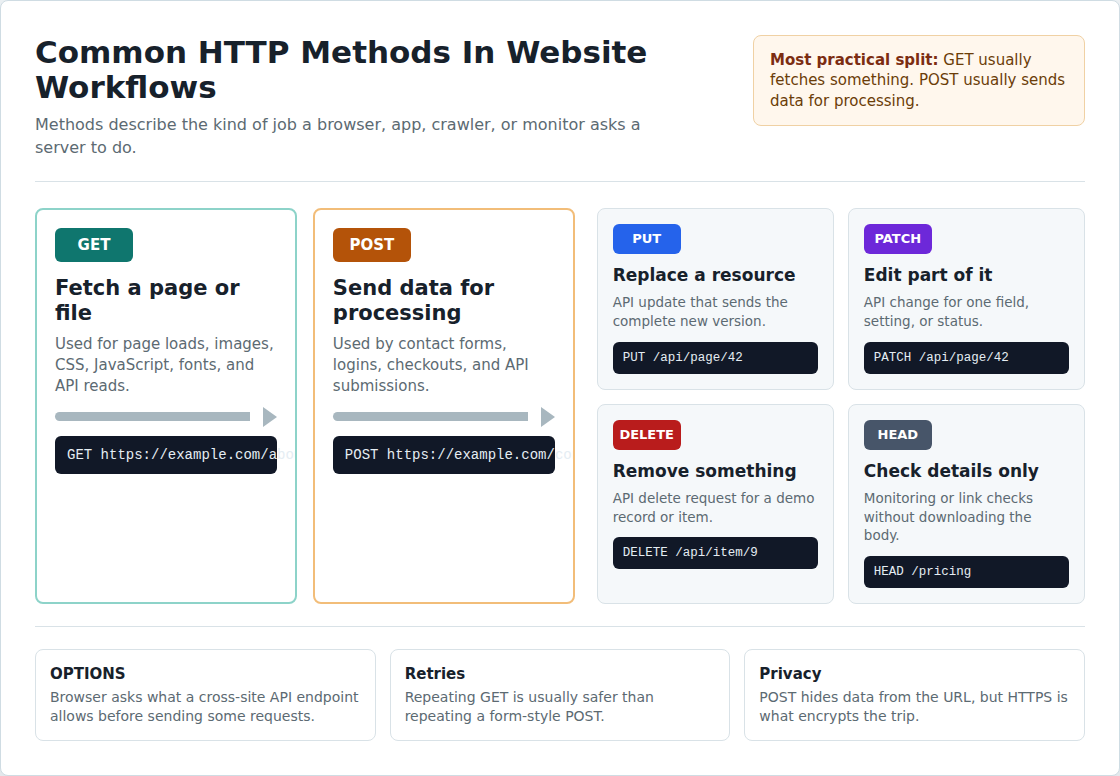
Most people only need a working grasp of the common HTTP methods.
| Method | Plain meaning | Where you might see it |
|---|---|---|
| GET | Fetch something | Pages, images, scripts, fonts, API reads |
| POST | Send data for processing | Contact forms, logins, checkout, API submissions |
| PUT | Replace something | API updates |
| PATCH | Change part of something | API edits |
| DELETE | Remove something | API deletes |
| HEAD | Fetch only response details | Monitoring, link checks, cache checks |
| OPTIONS | Ask what is allowed | Browser checks before some cross-site API calls |
For a website owner, the important split is simple. GET requests usually fetch things. POST requests usually send data that may change something on the server. That affects caching and retries. A browser can often repeat a GET safely. Repeating a POST could send the same form twice, create two orders, or trigger the same server-side work again.
🔒 Note: POST is not automatically private. It keeps data out of the URL, which helps, but HTTPS is what encrypts the connection while the data travels.
A few terms get mixed together, so it’s worth separating them early.
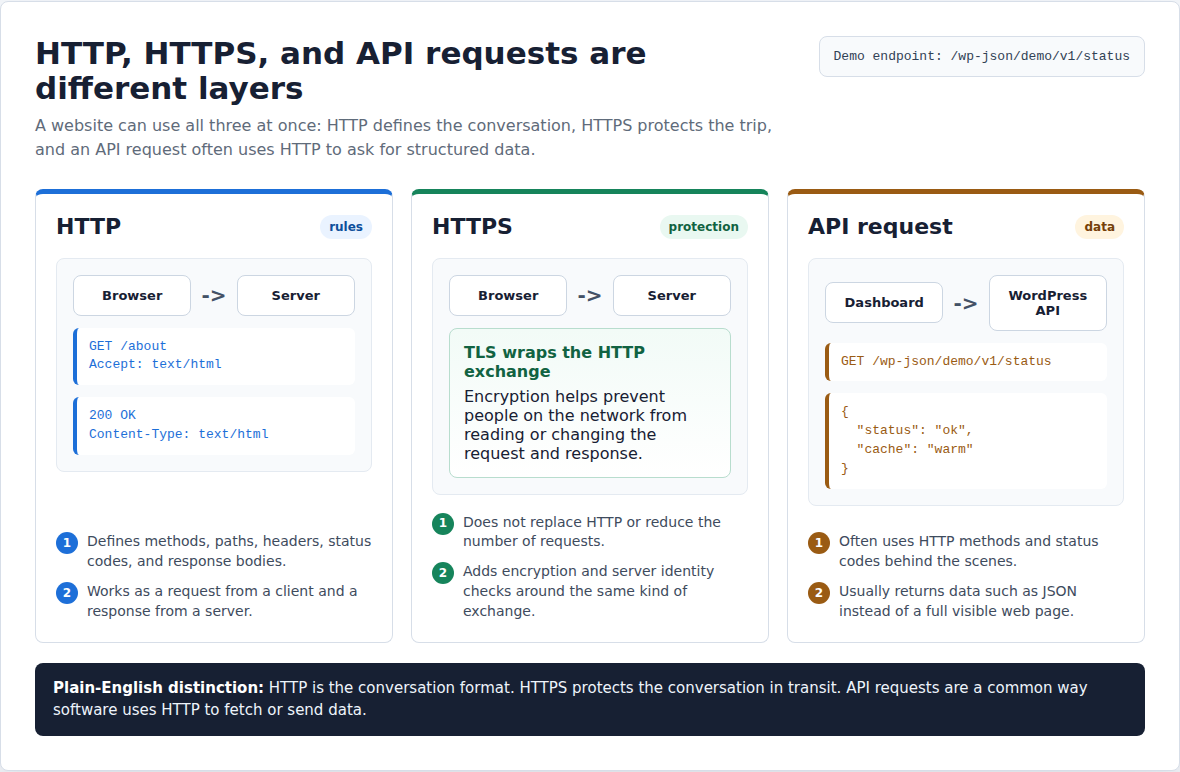
HTTP is the request-and-response system. It defines methods, headers, status codes, and how clients ask for resources. HTTPS is HTTP protected by TLS, the encryption layer that keeps people on the network from reading or changing the exchange. It also lets the browser check that the server is really the site it claims to be.
API requests often use HTTP too. The difference is usually the target and the response. A browser asking for /about may get HTML. A dashboard asking for a WordPress REST API endpoint may get JSON, a data format software can read.
HTTP is also stateless, which means each request stands on its own. Sites still remember logins and carts because cookies and headers carry context with each request.
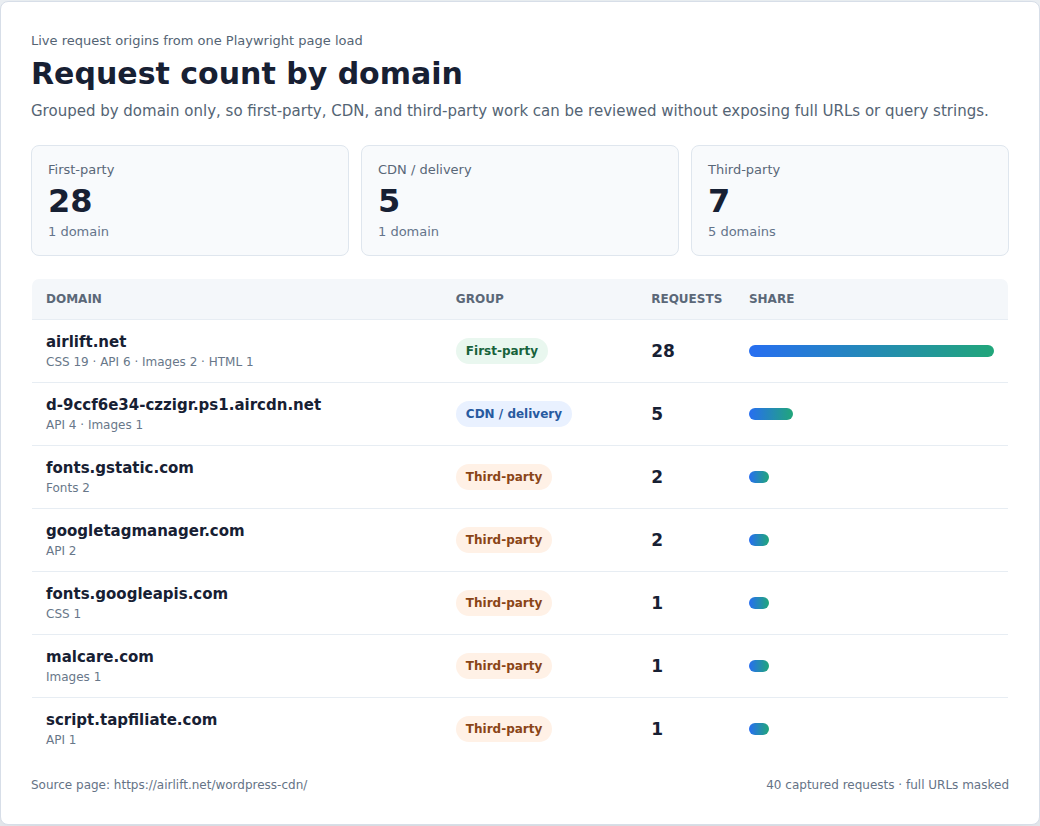
A web page looks like one thing after it loads. The browser sees a list of jobs. First, it requests the HTML document. As it reads that document, it finds more work: styling files, behavior files, media, outside tools, and background data calls.
WordPress adds its own layers. Themes load styles and scripts. Plugins add their own files for forms and reviews. Payment tools, builders, and popups can add more. WooCommerce adds extra work around shopping behavior, especially carts and checkout. Some sites also use admin-ajax.php, a WordPress file that plugins often call in the background. Others use REST API requests for dynamic content.
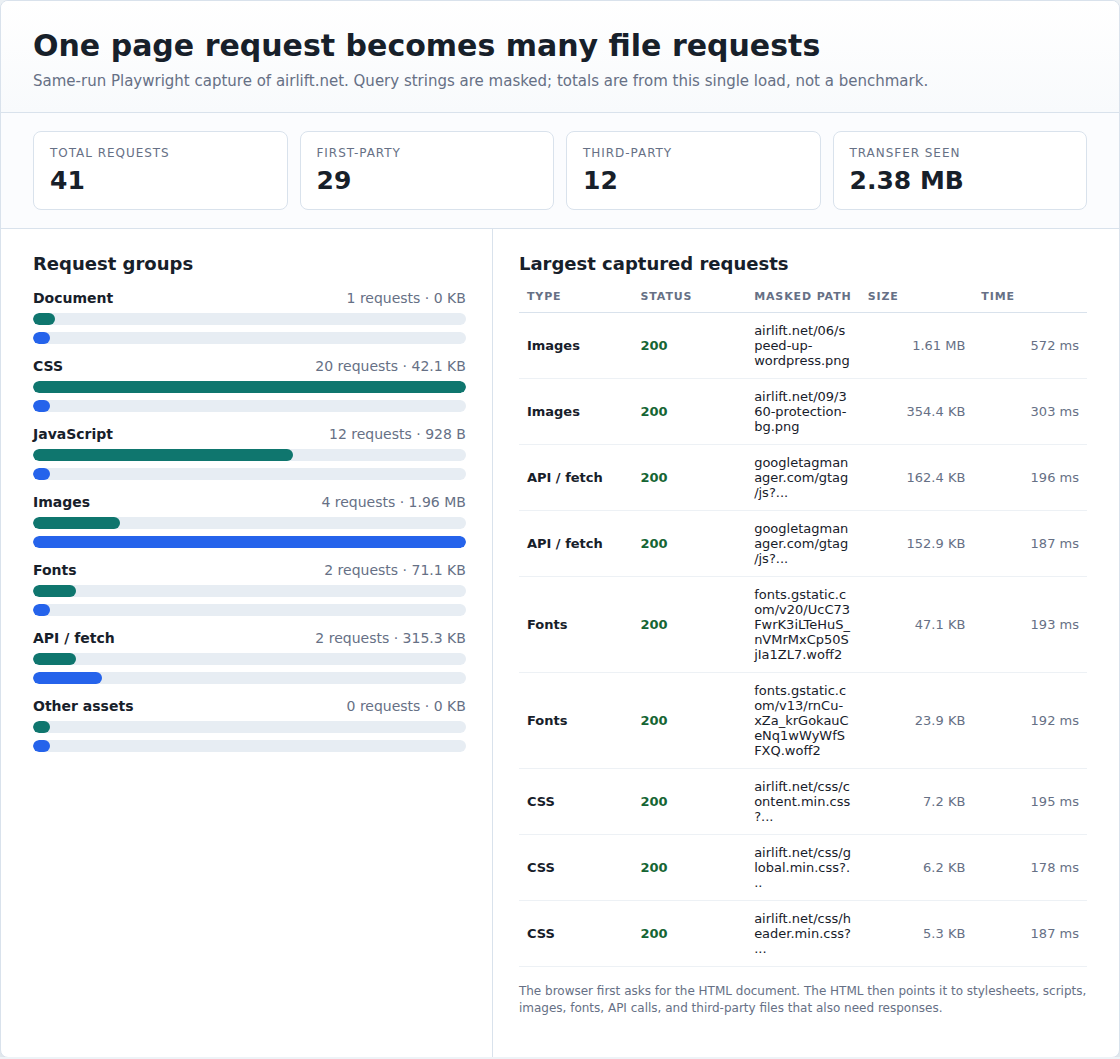
This is why a single WordPress page can make dozens of HTTP requests before the visitor can use it.
⚠️ Note: Don’t panic at the number alone. Fifty small cached requests can be less harmful than five slow requests that block the page from showing useful content.
Request count matters when requests add delay, weight, failure, or extra server work.
It matters less when files are small, cached, delivered from a nearby CDN server, and loaded without blocking the page.
Old performance advice often said to combine as many CSS and JavaScript files as possible. That made more sense under HTTP/1.1, where extra files could mean more connection overhead. Newer HTTP versions changed some of that math because browsers and servers can handle many requests more efficiently. They don’t make bad requests free, though.
The expensive requests are usually:
If you’re trying to make WordPress faster, start with those. Don’t waste your first hour shaving off tiny files that are already cached and harmless.
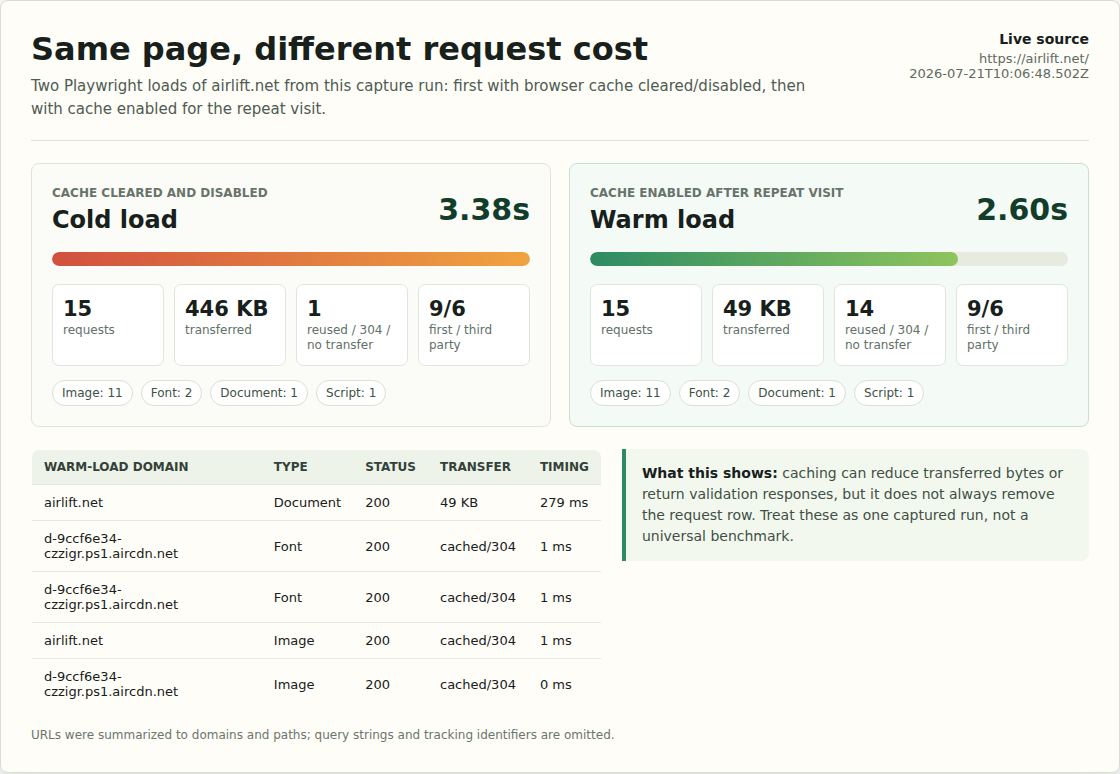
Caching doesn’t always remove an HTTP request. It changes how much work the request causes.
Your browser may reuse a cached font or stylesheet. Page caching can return stored HTML for a WordPress page instead of asking the server to build it again. A CDN can answer eligible image, CSS, JavaScript, or page requests from a server closer to the visitor.
That last part is why a CDN can help. The request still happens, but a server closer to the visitor may answer it instead of your origin server. The visitor gets an answer faster, and your hosting has less work to do.
There are limits. A CDN can’t repair plugin bugs, risky cache rules, uncached checkout behavior, oversized images, or a slow third-party script. It pays off more when the site also has sane caching, clean assets, and fewer avoidable delays. Navigation prefetching is related, but it works best when it predicts likely next pages instead of creating wasteful background requests.
For WordPress sites, AirLift fits here. Its job is the practical cleanup around request cost: cached pages, CDN delivery, optimized images, and better asset handling. AirLift doesn’t change what HTTP is. It helps your site handle common requests with less manual tuning.
You don’t need a networking background to look at requests. Your browser already has the tool.
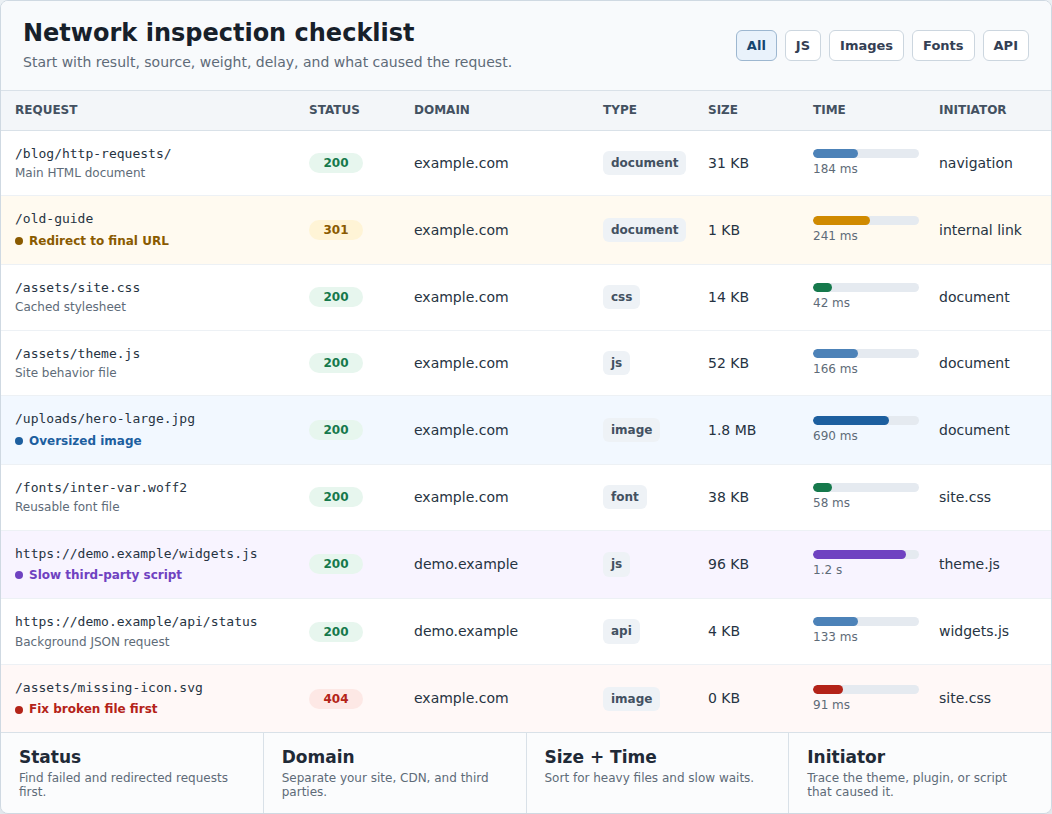
Performance waterfall tools show the same idea in a report-friendly view. DevTools is better when you want to click a request and see the details. If you’re already using AirLift and a request still looks wrong, AirLift support is the right next step for setup-specific troubleshooting.
💡 Note: Check more than one kind of page. Checkout, product pages, blog posts, and landing pages often load different plugins and third-party tools.
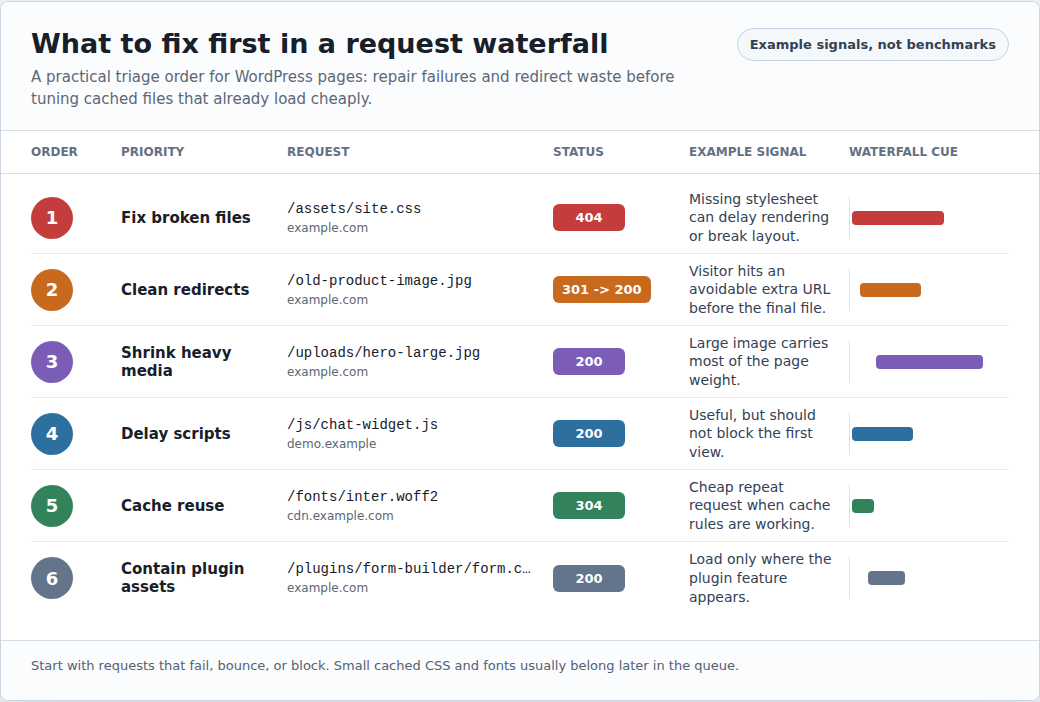
If you’re staring at a waterfall and wondering where to start, use this order.
The practical rule I use is this: if you wouldn’t add the request again today, remove it or contain it.
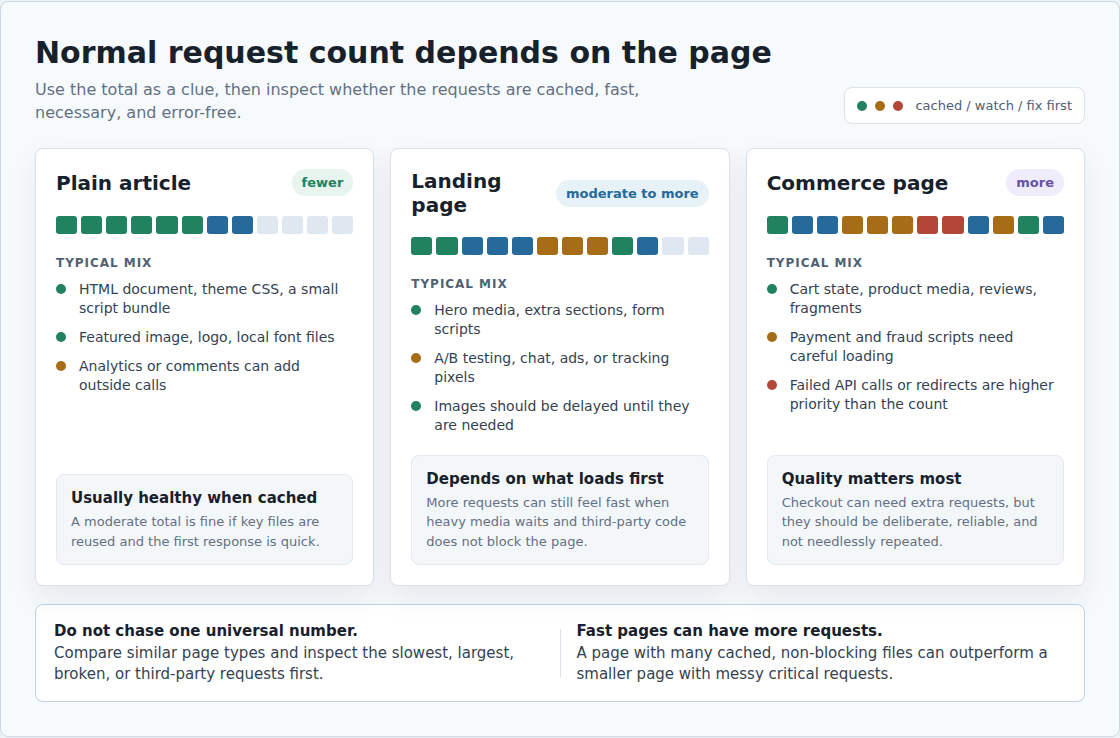
There is no universal good number.
Plain articles often make a few dozen requests. Media-heavy landing pages may make more. WooCommerce product and checkout pages tend to add work for cart state, reviews, payment scripts, and personalization. Judge the number with context:
A page with 80 well-handled requests can feel quick. A page with 25 messy ones can drag. If the whole site feels slow, Our guide to WordPress loading slow is a useful companion checklist. Treat the number as a clue, then inspect the requests that sit behind it.
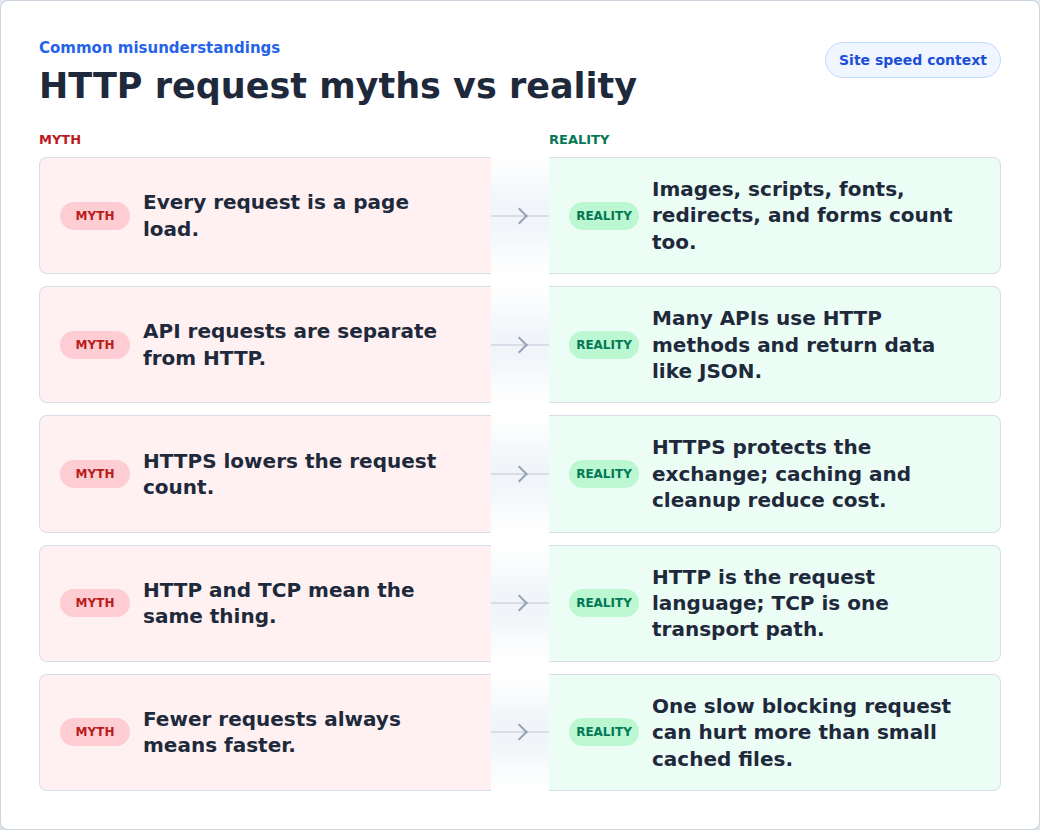
HTTP requests sit behind the ordinary things a site does. They load pages and download assets. They also send forms, call APIs, and follow redirects. Once that clicks, a speed report stops feeling like a wall of strange terms. You can see what the browser asked for, what the server answered, and which requests made the page slower than it needed to be.
For a WordPress site, don’t chase the smallest possible request count. Keep the useful requests, remove the wasteful ones, cache what can be reused, and make expensive work happen as little as possible. AirLift is the practical next step when you want that cleanup handled through caching, CDN delivery, image optimization, and asset optimization. That’s how a cleaner report turns into a site that feels faster for real visitors.
HTTP requests are messages that a client, such as a browser or app, sends to a server to ask for a resource or action. The server replies with an HTTP response.
They can. A request may add delay if it is large, slow, broken, uncached, blocked by another file, or served by a slow third party. Small cached requests are often cheap.
HTTP requests are protected when they use HTTPS. HTTPS encrypts the connection and helps the browser verify the server’s identity.
Often, yes. Many APIs use HTTP requests, but they usually return structured data for software instead of a web page for a person.
No. Reduce requests that fail or repeat work. Do the same for requests that block the page, bypass caching, or don’t need to be there. Keep useful requests when they help the page work and don’t slow the visitor down.
Website caching advice gets messy because everyone talks about the cache they sell, manage, or just discovered in a host dashboard. A plugin says full-page cache. Your host says…
Read

Redis object cache sounds like one of those WordPress speed fixes you should just turn on and forget about. I get the appeal. When a site is slow, nobody wants a lecture about…
Read

Your homepage can feel fast while the parts that make money still feel slow. If you’re trying to speed up your website, it helps to understand that not every request behaves the…
Read
Airlift works out what each page needs and applies it. Free to try on your own site.