

Introducing Font Subsetting for Enhanced Performance
Today, we are introducing Font Subsetting, a new feature that streamlines the delivery of font files, ensuring that your website operates at lightning speed. How fonts affect…
Read

The right WordPress lazy load plugin can make your site load faster, improve Core Web Vitals, and keep visitors from abandoning slow pages.
However, the wrong one can create visual glitches or delay important content.
In this guide, we’ll compare the best options, explain what each plugin does well, and help you choose the right fit for your website.
TL;DR: Check WordPress core first, keep the hero or LCP image eager, and give one tool ownership of each lazy-loading layer. Choose AirLift for broad performance work, including Airlift performance reports, a3 Lazy Load for focused control, Smush or Optimole for images, LiteSpeed Cache for compatible hosting, and a video specialist for YouTube or Vimeo.
A lazy-load plugin changes when a resource loads; it does not make that resource smaller. A deferred 2 MB image is still 2 MB when the visitor scrolls to it. If the problem is oversized images, missing compression, slow hosting, unused code, or a third-party script, lazy loading is only one part of the fix. Use this route:
The safest performance change is the smallest one that solves a measured problem on a representative page.
Treat a PageSpeed Insights recommendation as a diagnostic clue, not a plugin specification. Open the affected-resource list and separate image transfer size from iframe, background, script, font, page cache, and server-response work. Then inspect the request initiator in the browser’s Network panel so you know whether lazy loading can solve the problem before adding another settings panel.
| Pick | Best fit | What it adds | Main watch-out |
|---|---|---|---|
| AirLift | Several performance problems in one WordPress workflow | Broader image, code, font, delivery, caching, and embed scope | More product scope, plan boundaries, and service dependence |
| WordPress core | Simple sites with ordinary images | Native baseline with no extra plugin | Limited control for special media and delivery |
| a3 Lazy Load | Focused media control | Documented toggles, exclusions, effects, and broad media coverage | More settings and compatibility responsibility |
| LazyLoad Plugin by WP Rocket | A narrow standalone layer | Lightweight image, video, iframe, and YouTube-preview approach | Current name, maintenance, and exclusion controls need checking |
| Smush | Ongoing image-library work | Compression, resizing, formats, and lazy loading in one image workflow | Feature and plan boundaries may differ by tier |
| Optimole | Adaptive cloud image delivery | Device-aware resizing, formats, placeholders, and CDN delivery | Account, traffic allowance, fallback, and external-service dependency |
| LiteSpeed Cache | Sites on LiteSpeed/OpenLiteSpeed | Host-integrated caching and media controls | Deep settings and host-dependent value |
| Autoptimize | A clearly defined gap in an existing cache stack | Additional HTML, CSS, JavaScript, font, and media controls | Layering can break builders or scripts if enabled broadly |
| WP YouTube Lyte | YouTube-heavy pages | Click-to-load YouTube preview | YouTube, embed, block, and builder coverage varies |
| Lazy Load for Videos | YouTube- or Vimeo-heavy pages | Delayed video players and broader video controls | Provider, embed, block, and builder coverage varies |
The list is organized by decision, not by an arbitrary score. Current plugin status, exact limits, and compatibility should be verified on the official listing for the site’s publication date.
Choose AirLift if you want a streamlined approach to WordPress performance. It combines image lazy loading and WebP compression with additional tools designed to help improve areas such as code, fonts, caching, delivery, videos, and embeds.
This makes AirLift worth considering for business websites, publications, and online stores that want to address more than image loading alone. Before installing it, check your current plugins for overlapping features and see AirLift’s current plans to confirm it supports your specific needs.
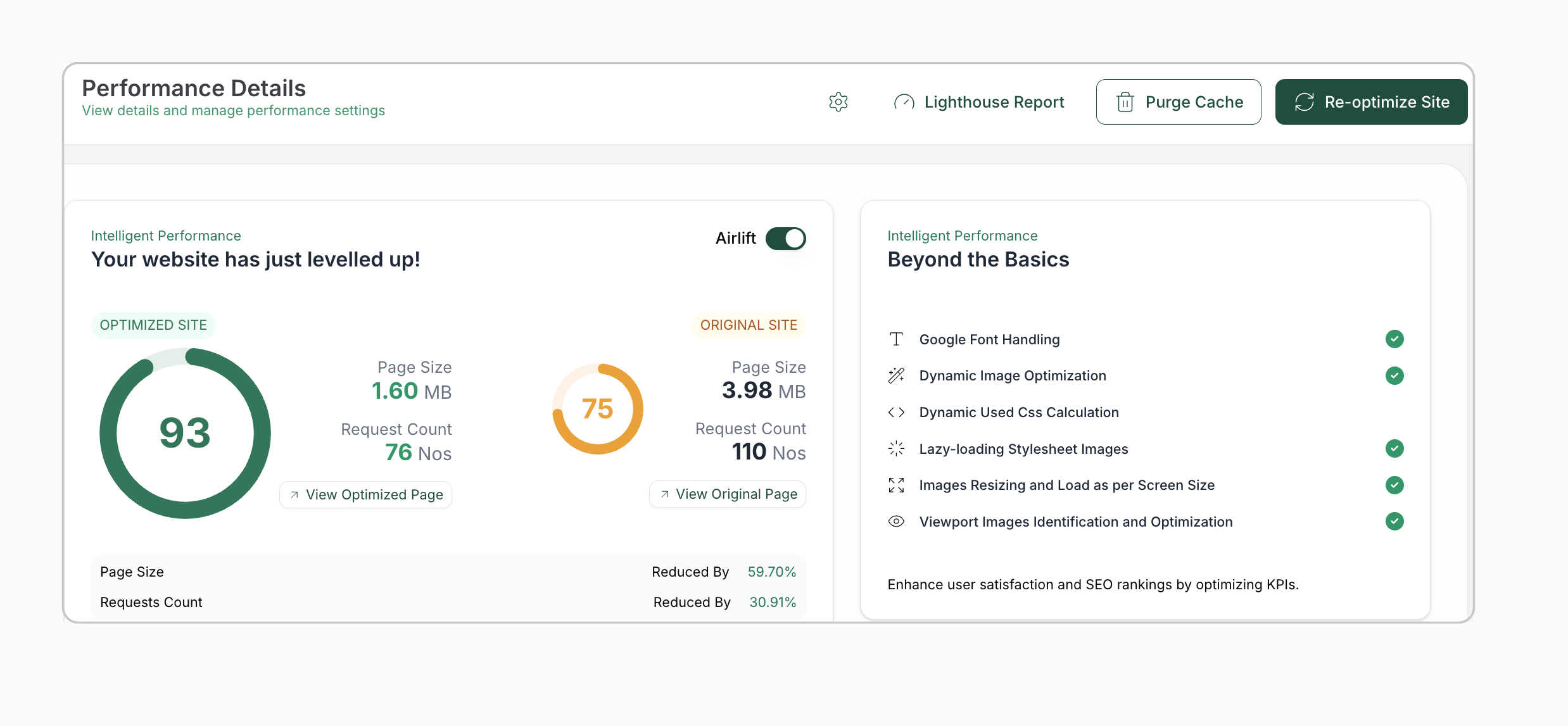
If your site only needs basic lazy loading for a few images, WordPress’s built-in lazy loading may be enough. For broader optimization needs, AirLift offers a convenient place to start.
For a simple site, WordPress core is the first option to check. Modern WordPress adds native lazy-loading behavior to many ordinary images, so a blog, brochure site, or small business site may not need a dedicated plugin.
Inspect the rendered HTML of a representative page. If ordinary lower-page images already have a loading="lazy" attribute and the first viewport is fast and stable, leave the setup alone while you address image dimensions and compression. Core is not a complete answer for every CSS background, custom block, third-party player, map, widget, or builder-generated element. It also does not compress an image or deliver a smaller version from a CDN.
Skip an extra plugin when core covers the content visitors care about. Choose one only when a specific gap remains.
Choose a3 when you want dedicated media controls without adopting a full performance suite. Its documented scope covers multiple image and embed situations, with controls for exclusions and presentation effects. That is useful for content-heavy sites with thumbnails, galleries, avatars, comments, or embedded media.
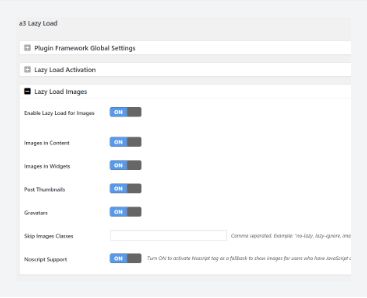
The value is control over what waits and what stays immediate. The cost is that every extra setting becomes a compatibility decision. Custom-rendered content, shortcodes, builders, WooCommerce galleries, and theme-specific markup need to be checked rather than assumed.
Skip a3 if an existing cache or performance suite already owns lazy loading, or if you do not want another media settings panel. Verify its current WordPress.org status, release information, and exact free feature boundary before publication.
Choose LazyLoad this route when you need a small, dedicated media-loading layer. This lightweight route covers images, videos, iframes, backgrounds, and a lighter YouTube preview experience without requiring a broad optimization suite.
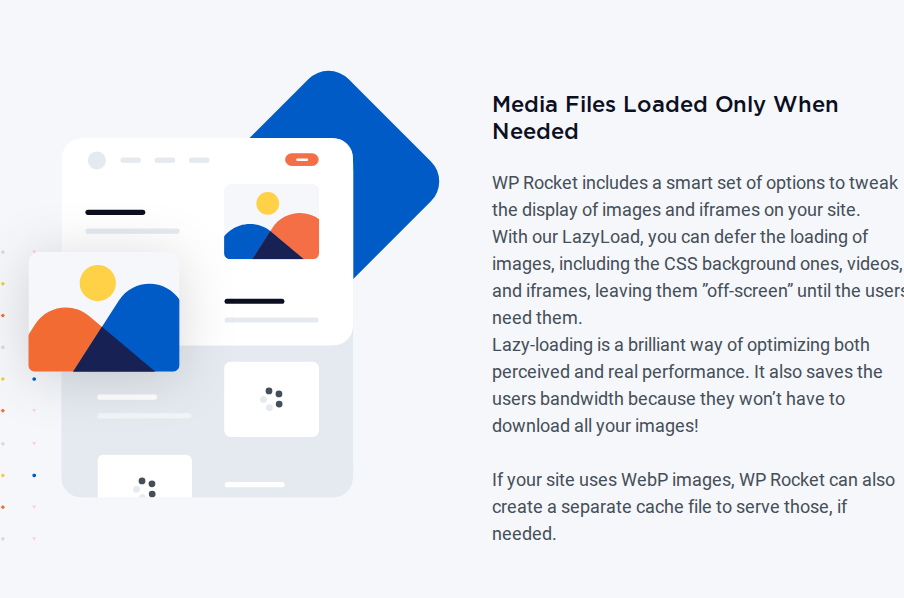
That narrow scope can fit a site whose image compression and caching are already settled. It is less suitable when you need a rich exclusion interface, image delivery, or a single dashboard for several optimization jobs.
The important check is maintenance and control. Confirm the current display name, release status, supported exclusions, and compatibility before relying on it for a production site. If advanced exclusions require hooks, make sure the person maintaining the site can test and support that code.
Choose Smush when new uploads, resizing, compression, formats, and lazy loading belong in one image workflow. It is a natural fit for a blog, portfolio, or store that regularly adds media and wants image administration alongside loading controls.
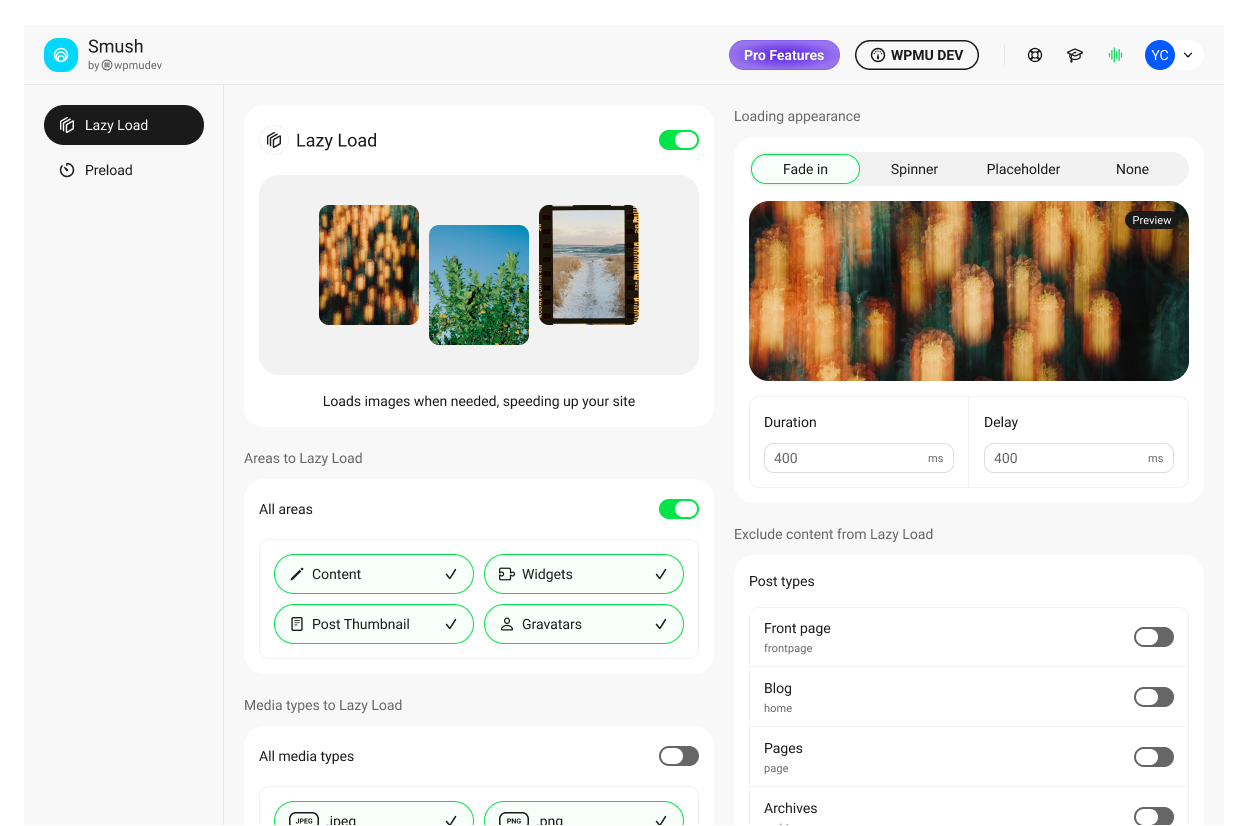
On a media-heavy site, the practical benefit is consistency: an editor can upload an image and keep the optimization step close to the media library instead of remembering a separate export process. It still does not make a poor lazy-loading rule safe, so protect the hero and verify responsive markup after enabling it.
The tradeoff is a larger feature surface. Check the current boundaries for file size, bulk processing, modern formats, CDN delivery, backups, and paid features. Skip Smush if another tool already optimizes the media library or if you need only a tiny standalone loader.
Choose Optimole when adaptive image delivery matters more than keeping every transformation on the origin server. Its documented workflow includes responsive sizing, modern formats, placeholders, and CDN delivery, which can reduce the work of preparing multiple image versions locally.
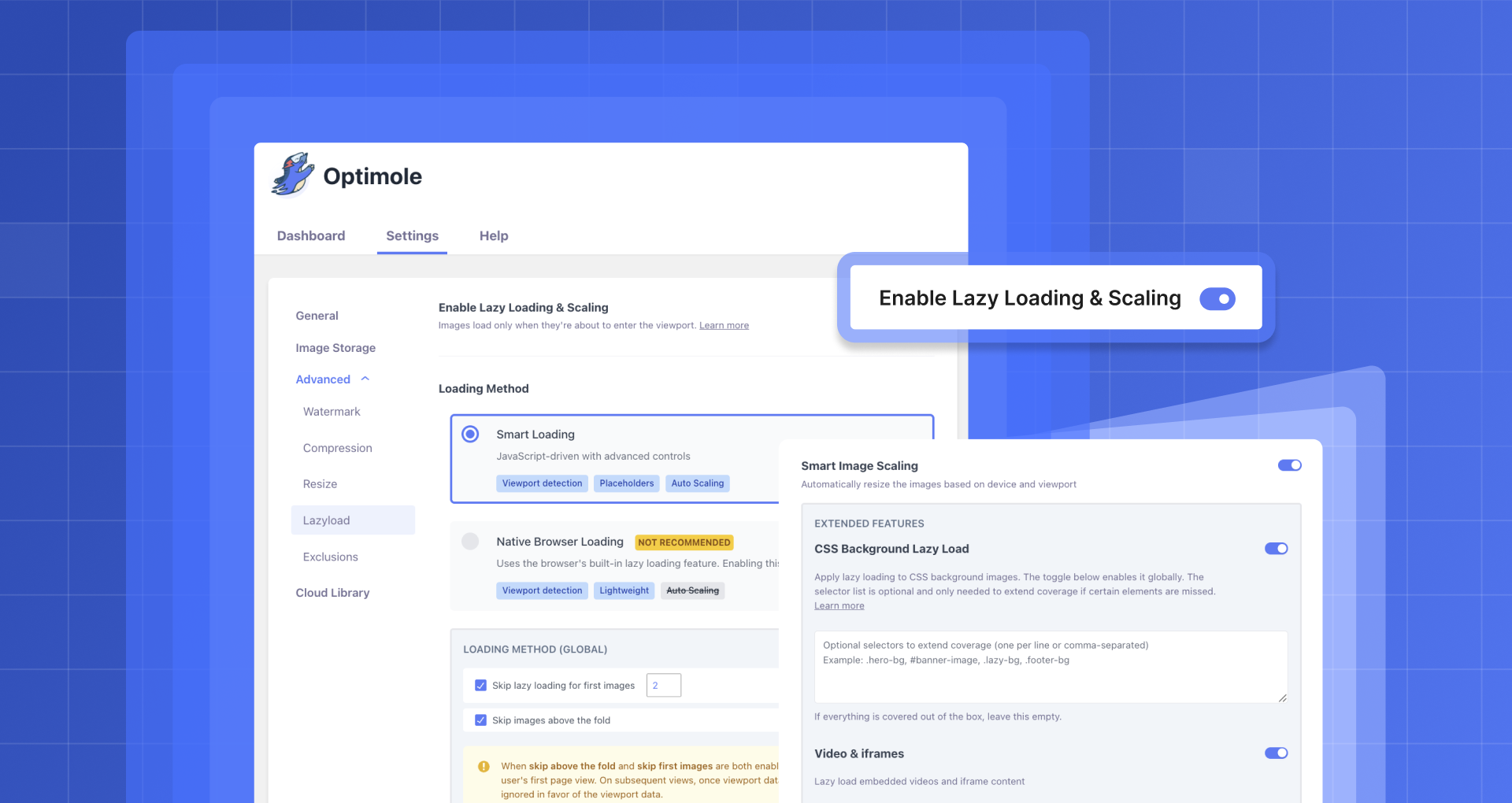
That model suits a portfolio or store serving visitors on many screen sizes because the origin does not need to prepare and serve every variant itself. It is less attractive when privacy, cache invalidation, or predictable origin URLs matter more than reducing local image work.
The tradeoff is operational dependence: an account, usage allowance, outside delivery service, fallback behavior, and a different image URL or caching path. Skip Optimole if external delivery or quota management does not fit the site. Verify current visitor limits, pricing, privacy details, and fallback behavior before choosing it.
Choose LiteSpeed Cache when the site runs on LiteSpeed or OpenLiteSpeed and you want host-aware caching and media controls together. Its strongest cache value is conditional on that hosting environment; a different server can change the reason to use it.
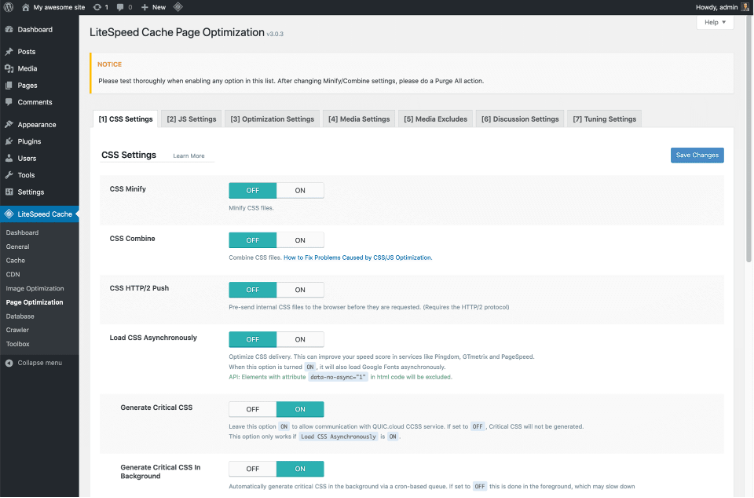
The plugin can be broader than lazy loading alone, which is useful when cache and media settings need one owner. It also means the setup deserves a staged rollout. Host requirements, QUIC.cloud or account implications, image services, placeholders, and current media settings should be verified for the site.
Skip it when the host fit is unclear or when the page needs only one small media fix. Do not enable every performance switch at once: a gallery, form, builder, or store page needs a real frontend check after each meaningful change.
Choose Autoptimize only when you can name the layer it will add to a working setup. It can complement an existing cache with HTML, CSS, JavaScript optimization, font subsetting, and image-related controls, but it should not be installed merely because a PageSpeed report mentions lazy loading.
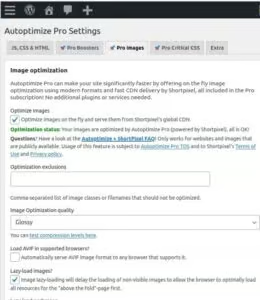
The risk is overlap. Aggregation, deferral, or media transformations can change the initialization order that a page builder, form, gallery, or store depends on. Enable one feature, clear the relevant caches, and test the important templates before enabling another.
Skip Autoptimize if an all-in-one suite already covers the same work or if the site cannot spare time for incremental compatibility testing. Verify current integrations and optional paid features rather than repeating an old roundup’s pricing.
Choose WP YouTube Lyte when the full YouTube player is the page’s third-party bottleneck. A click-to-load facade shows a lighter preview first and loads the player after the visitor chooses to watch. That is different from ordinary iframe lazy loading, which generally waits until the iframe approaches the viewport but can still load before a click.
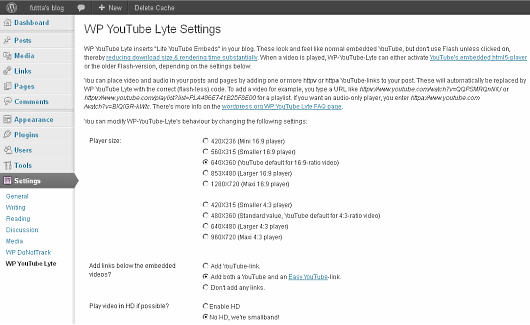
This distinction matters on tutorials, articles, and landing pages where many visitors read without playing every video. Skip it when the page is image-heavy, uses another provider, or relies on an embed path the plugin does not transform. Confirm current YouTube, block, shortcode, and builder support.
Choose Lazy Load for Videos when YouTube and Vimeo are central to the site and the player should wait for interaction. It is a narrower answer than an image optimizer or full performance suite, but that narrowness is useful when video embeds—not photographs—are creating the first-load cost.
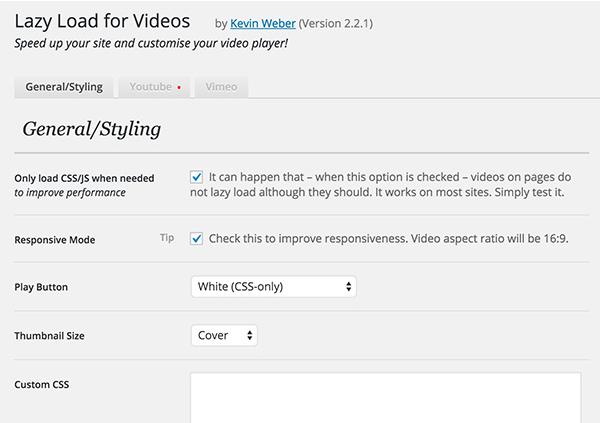
The tradeoff is provider and publishing-path coverage. A Vimeo embed in a custom block may behave differently from a standard editor embed. Check the exact block, page builder, responsive ratio, thumbnail, consent, and click behavior used by the site.
Skip it for an image-only problem or unsupported custom embeds. A video specialist should not become a second plugin trying to lazy load the same images as the site’s existing stack.
Answer these questions in order:
Do not select a plugin because it has the longest feature list. Select it because its coverage matches the page and its exclusions can protect the content that matters first.
Use one representative page and make one change at a time. Back up or stage the site, disable overlapping lazy-load modules, clear page and CDN caches, then check the page on a phone-sized and desktop-sized viewport.
In the rendered HTML, a below-the-fold image may look like this:
<img src="gallery-image.jpg" width="1200" height="800" loading="lazy" alt="...">The exact output differs by theme and plugin. The useful checks are that the browser can discover the image, width and height or an equivalent aspect ratio reserve space, and srcset and sizes still select an appropriate file. A manual transformation that moves srcset or sizes incorrectly can cause the browser to fetch the wrong resource—or fetch it before the lazy-loading script is ready. If a tool moves the URL into data-src, confirm that JavaScript restores it and that a usable fallback remains where needed.
The first visible image should usually follow the opposite pattern:
<img src="hero-image.jpg" width="1600" height="900" loading="eager" fetchpriority="high" alt="...">This is an example of the intent, not a universal instruction to add every attribute. Do not lazy load the LCP image by default. If the hero is a CSS background or a product gallery image, verify its actual request in the browser’s Network panel instead of trusting the plugin setting.
Then complete the real interaction test:
A lower lab score is not a win if the page’s first promise arrives late or a key interaction breaks.
Correctly implemented lazy loading can reduce initial work, but it is not a guaranteed ranking improvement. The outcome depends on which resource is delayed, whether the browser can discover the image, whether dimensions reserve space, and what else is slowing the page.
Delaying an LCP image can worsen the first visual and LCP, while omitting dimensions can increase Cumulative Layout Shift (CLS). JavaScript-only transformations can also create crawler, fallback, or cache problems when they do not preserve a usable image path.
For SEO, keep important images discoverable with normal markup and meaningful alternative text. For performance, measure the page that real visitors use rather than assuming that every offscreen request is harmful.
Modern WordPress provides native lazy loading for many ordinary images, so core is the first option to check. Add a plugin only when the existing stack misses a meaningful need such as a video facade, special iframe, background image, custom media, stronger delivery, or finer exclusions.
Do not run two tools that transform the same media. They can compete over src, srcset, sizes, data attributes, placeholders, or event handlers. Disable the overlapping module in the cache, image, theme, or dedicated plugin and keep one owner for each layer.
Usually no. The hero, LCP image, logo, or first product image often establishes what the page is about. Keep it available early and lazy load lower-priority media after checking the first viewport on mobile and desktop.
Choose Smush when you want a recurring image-management workflow; choose Optimole when adaptive cloud delivery is the priority. Choose AirLift when image loading is one part of a larger performance system. If images are already correctly sized and delivered, core or a focused loader may be enough.
Choose WP YouTube Lyte for a YouTube-first click-to-load approach, or Lazy Load for Videos when Vimeo and broader video controls matter. Confirm that the plugin transforms the exact embed, block, or builder output used on the site.
Start with one representative page, not the plugin directory. If ordinary images already load sensibly, keep WordPress core and fix the asset that is actually heavy. If a third-party player blocks the page, use a video facade. If the site has a wider mix of image, code, font, caching, delivery, and embed problems, investigate AirLift as the broader route, then compare AirLift’s current plans.
Whatever you choose, protect the visual that introduces the page, reserve space for everything that follows, and give only one tool ownership of each lazy-load layer. The best WordPress lazy load plugin is the one that removes a real bottleneck without making the page harder to trust, use, or maintain.
Today, we are introducing Font Subsetting, a new feature that streamlines the delivery of font files, ensuring that your website operates at lightning speed. How fonts affect…
Read

You update a logo, reload the page, and still see the old one. PageSpeed says some files need a longer cache lifetime. A plugin promises to fix caching, your host already has…
Read

If you’ve tried to enable caching and visitors are now seeing old CSS, outdated content, or a private page from the wrong cache, the cache control header is a key place to…
Read
Airlift works out what each page needs and applies it. Free to try on your own site.