
Airlift’s Navigation Prefetching: Lightning-Fast Page Navigation
Every second saved when loading a page increases conversions by up to 7%. Most WordPress speed solutions try to achieve this by focusing on initial page load. But, the experience…
Read

If a WordPress site feels slow, large images are a sensible place to investigate first. The right WordPress image optimisation plugins can resize uploads, reduce file size, create newer formats, and deliver an image that fits the visitor’s screen. A smaller image will not fix a slow host, overloaded page, or poor cache by itself, and each tool solves a different part of the problem.
There is no universal winner. Choose Imagify for a simple workflow, ShortPixel for compression control, Optimole for adaptive cloud delivery, EWWW Image Optimizer for local control, or Smush for a familiar WordPress workflow. AirLift suits sites where images are only one part of a wider speed problem.
TL;DR: Use Imagify for simplicity, ShortPixel for control, Optimole for adaptive cloud delivery, EWWW for local processing, or Smush for a broad WordPress workflow.
If caching, fonts, scripts, and delivery are also slowing the site, consider AirLift as the broader performance option.
| Pick | Choose if | What stands out | Main limitation |
|---|---|---|---|
| Imagify | Simple automatic and bulk workflow | Clear controls, modern formats, background work, and restoration | Data and upload limits can affect large libraries |
| ShortPixel | Compression control and agency work | Several compression modes, exclusions, backups, and format conversion | Account setup and credit tracking |
| Optimole | Adaptive cloud delivery | Device-aware sizing, CDN delivery, and low-maintenance serving | Traffic limits and third-party delivery |
| EWWW Image Optimizer | Local or advanced control | Local processing, folder jobs, scheduling, and command-line support | Host requirements and server load |
| Smush | Familiar WordPress and WPMU DEV product-family workflow | Bulk and directory handling with broad integrations | Important features depend on the plan |
If these terms are new, use this quick guide: compression makes an image file smaller, resizing makes its width and height smaller, bulk processing handles many images at once, WebP and AVIF are newer image file types, lazy loading waits before loading images lower on the page, and a CDN delivers images from servers closer to visitors.
The five focused image plugins are the core comparison. AirLift is discussed first as a broader alternative because it solves a wider performance problem; it is not a sixth image-only pick.
AirLift belongs in this decision list because it handles a wider problem. Its current product pages describe page caching (keeping a ready-to-show copy of a page), CDN delivery, image optimisation, font work, CSS and script handling, lazy loading, and performance reports. In practical terms, it is aimed at sites where several parts of the page need attention together, not only the image file.
AirLift is not a like-for-like replacement for a specialist compressor. It can reduce the number of separate speed tools to manage, but a focused plugin may offer more detailed compression or format controls. Check whether your host or another plugin already owns caching or delivery before enabling another performance layer. Plan limits and prices are time-sensitive, so check the current AirLift pricing for the size and traffic of your site.
Choose if:
Skip if:
⚡ Note: AirLift can simplify the stack, but test one important page first. A broader tool still needs to be checked against your theme, page builder (a tool for designing pages), shop, and existing cache.
If that wider performance stack is more than you need, the focused choices below make the tradeoff easier to see.
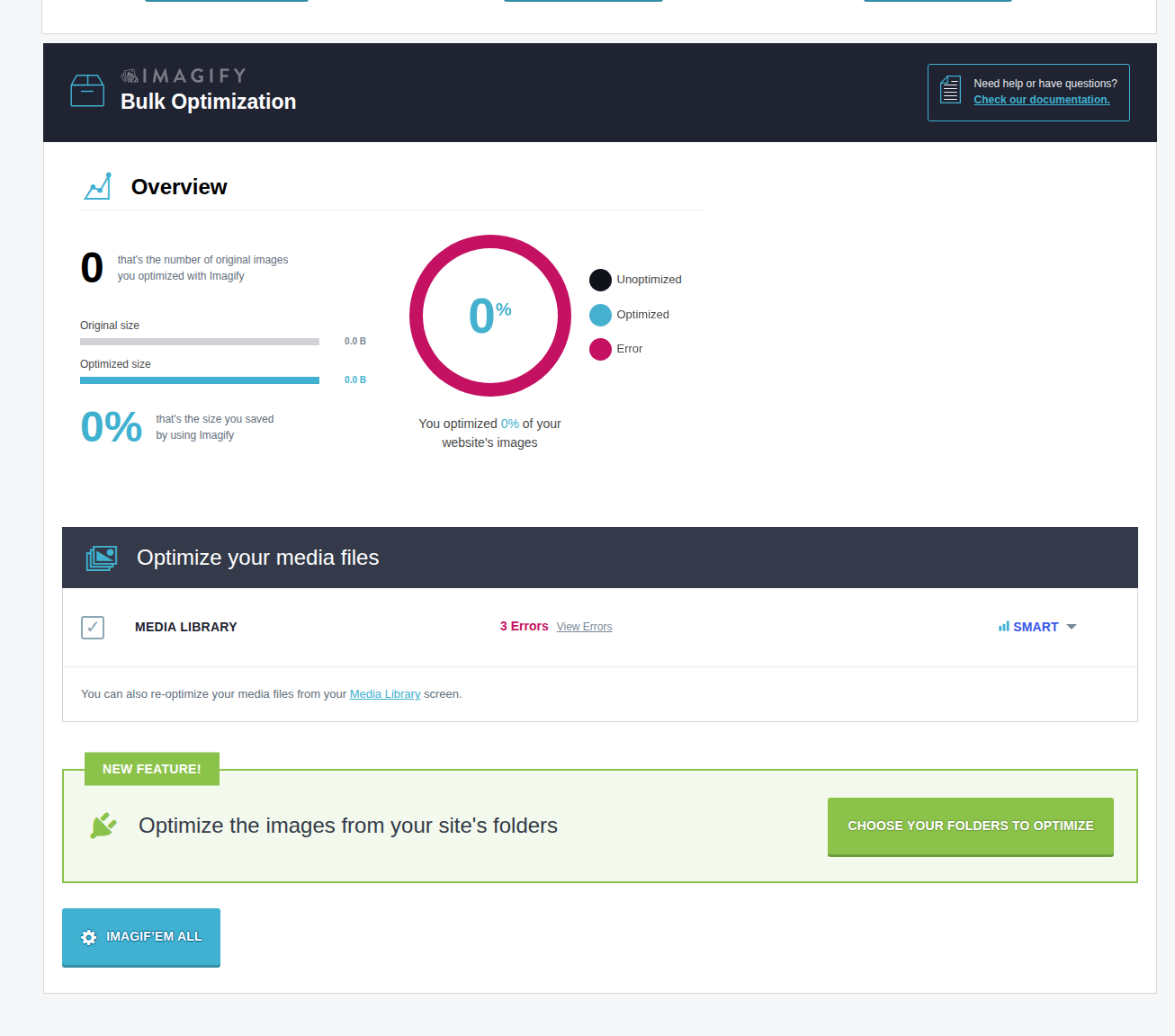
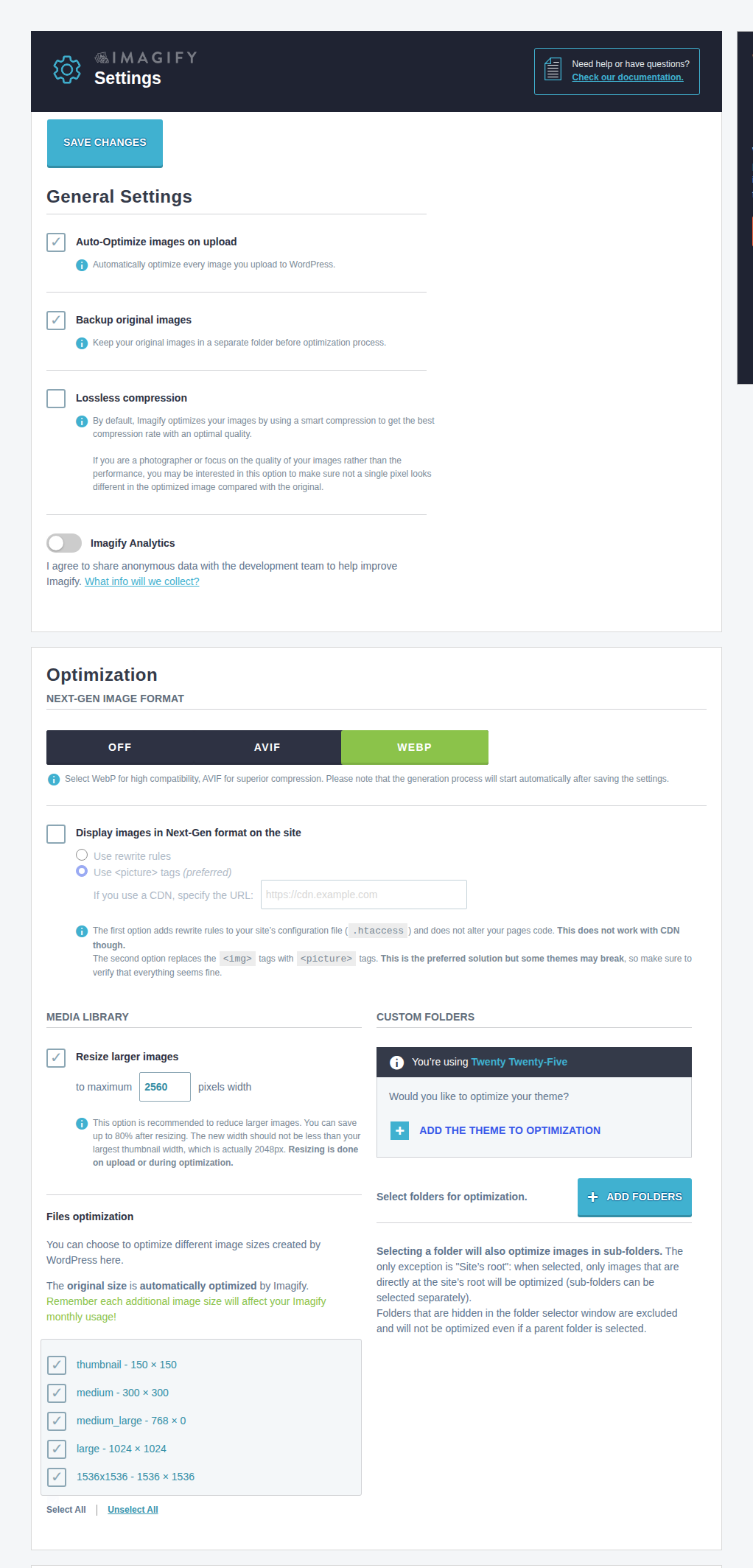
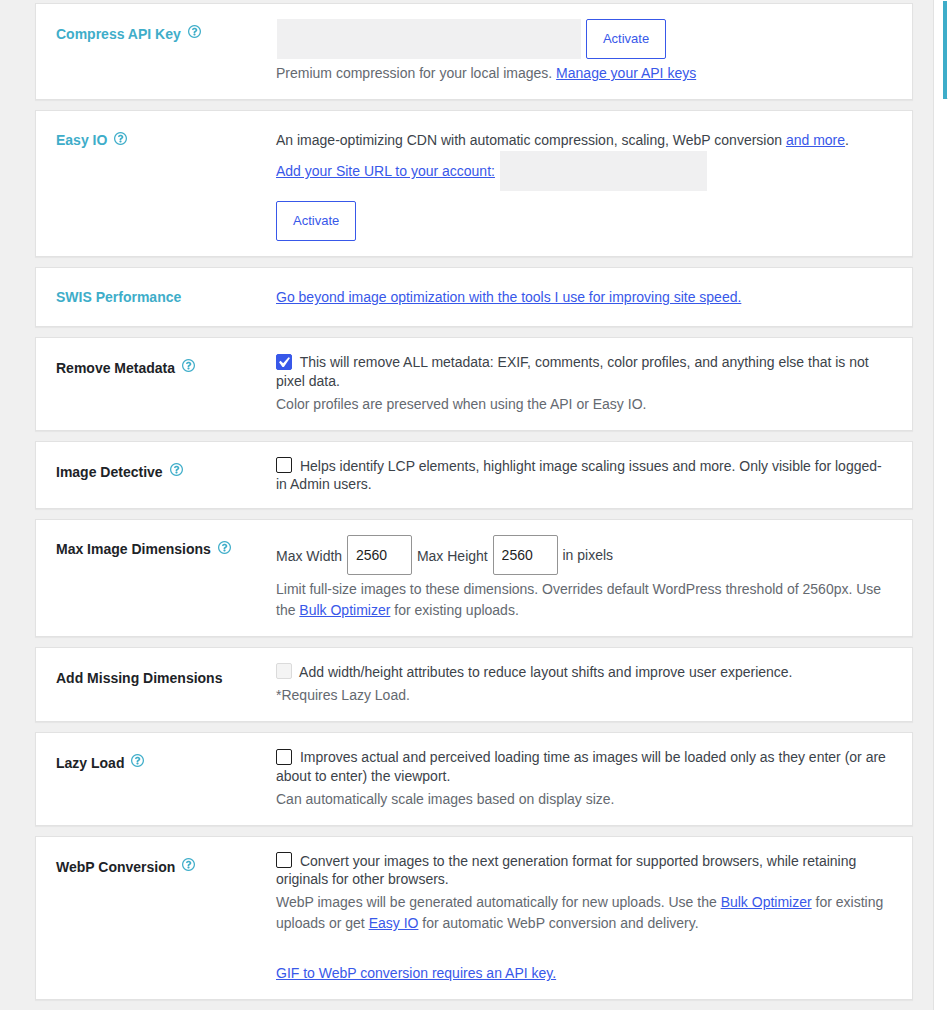
Imagify is a strong starting point when you want automatic processing without managing many settings. It optimises new uploads, processes an existing WordPress Media Library in bulk, creates WebP and AVIF versions, and can keep originals for restoration. Because WordPress creates several copies of an upload for thumbnails and other layouts, check what will be processed before starting a large library. When we tested Imagify 2.3.4, its settings exposed automatic optimisation, backups, lossless compression, next-generation formats, resizing, and custom-folder controls.
Choose if:
Skip if:
If those limits are acceptable but you want more control over compression choices and bulk accounting, ShortPixel is the next option to consider.
ShortPixel suits agencies, developers, and owners who want to choose between lossy, glossy, and lossless compression. In simple terms, those settings trade smaller files against more preserved detail. It also supports exclusions, backups, WebP and AVIF conversion, custom media folders, multisite work, and WP-CLI, a command-line tool for managing WordPress tasks.
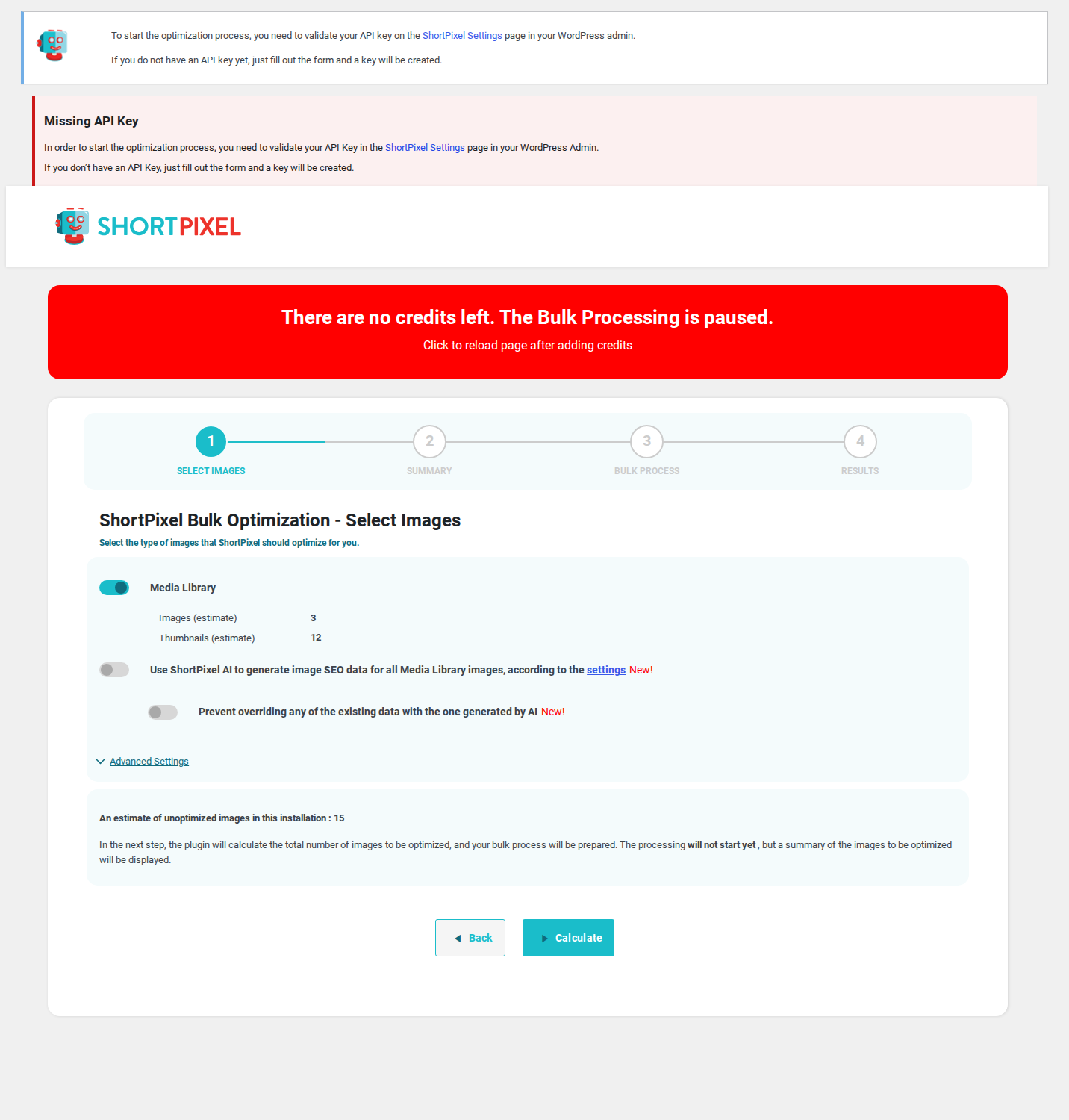
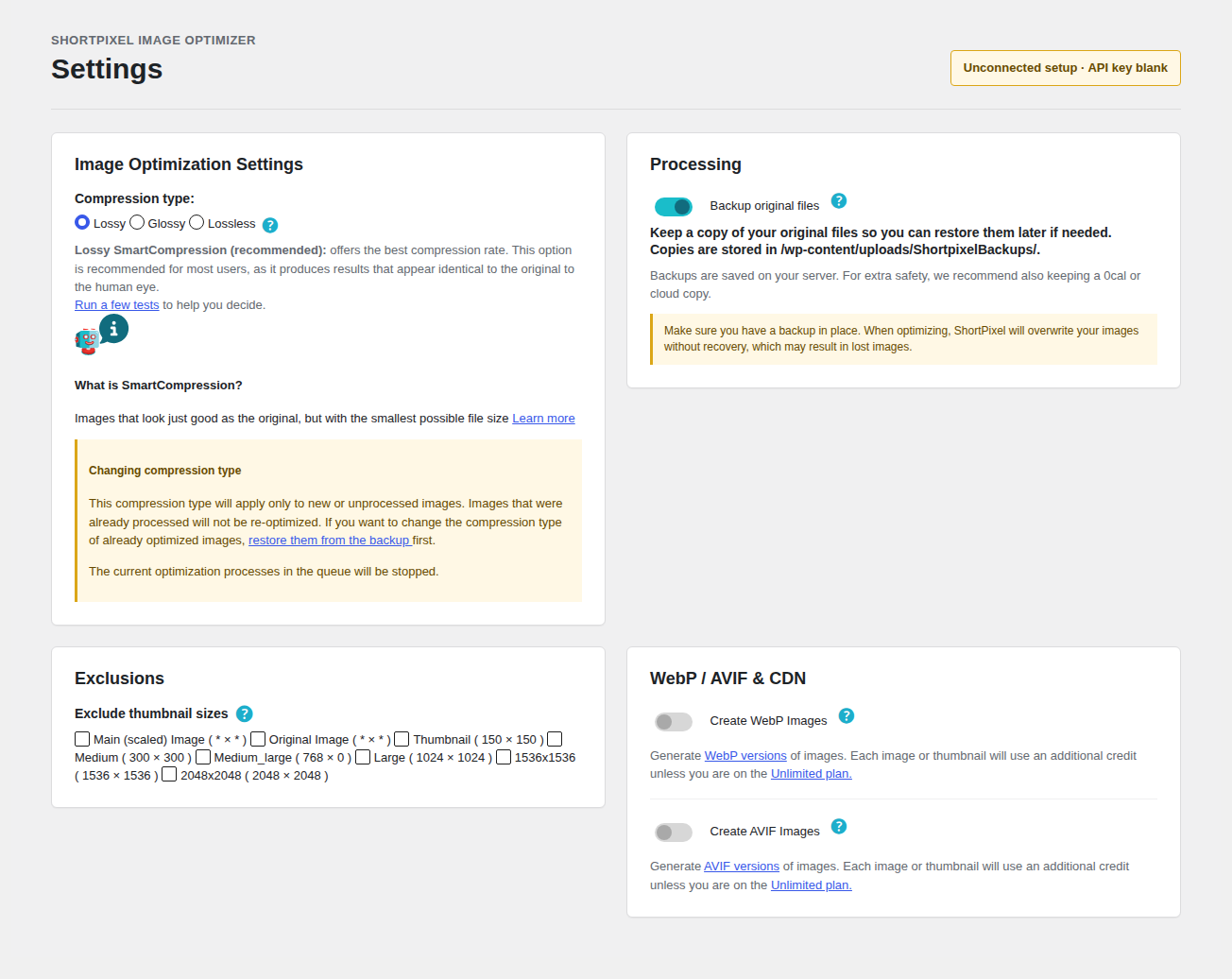
Its credit model needs attention. ShortPixel’s current credit guidance says one credit is used when it optimises an image or thumbnail by at least 5%; each WordPress-generated thumbnail can count separately, and a WebP or AVIF counterpart can use another credit. For example, one original plus eight thumbnails and their WebP versions would use 18 credits. When we tested ShortPixel 6.5.5, the bulk screen showed “There are no credits left,” “Missing API Key,” and “No images found.” An API key is a connection code that authorises processing. The workflow therefore needs an account, credits, and a populated library before bulk work can begin.
Choose if:
Skip if:
🧾 Note: Count generated image copies before buying credits. The Media Library count may be much lower than the number of files the plugin processes.
That accounting is the main ShortPixel tradeoff. If you would rather have the service choose an image variant for each visitor, Optimole takes a different approach.
Optimole compresses, resizes, and serves images through its cloud service and CDN. It can select an image size and format for the visitor’s device and connection, which is useful when mobile and desktop visitors need different files. This is primarily a delivery service: the image a visitor receives may differ from the file kept in the WordPress Media Library.
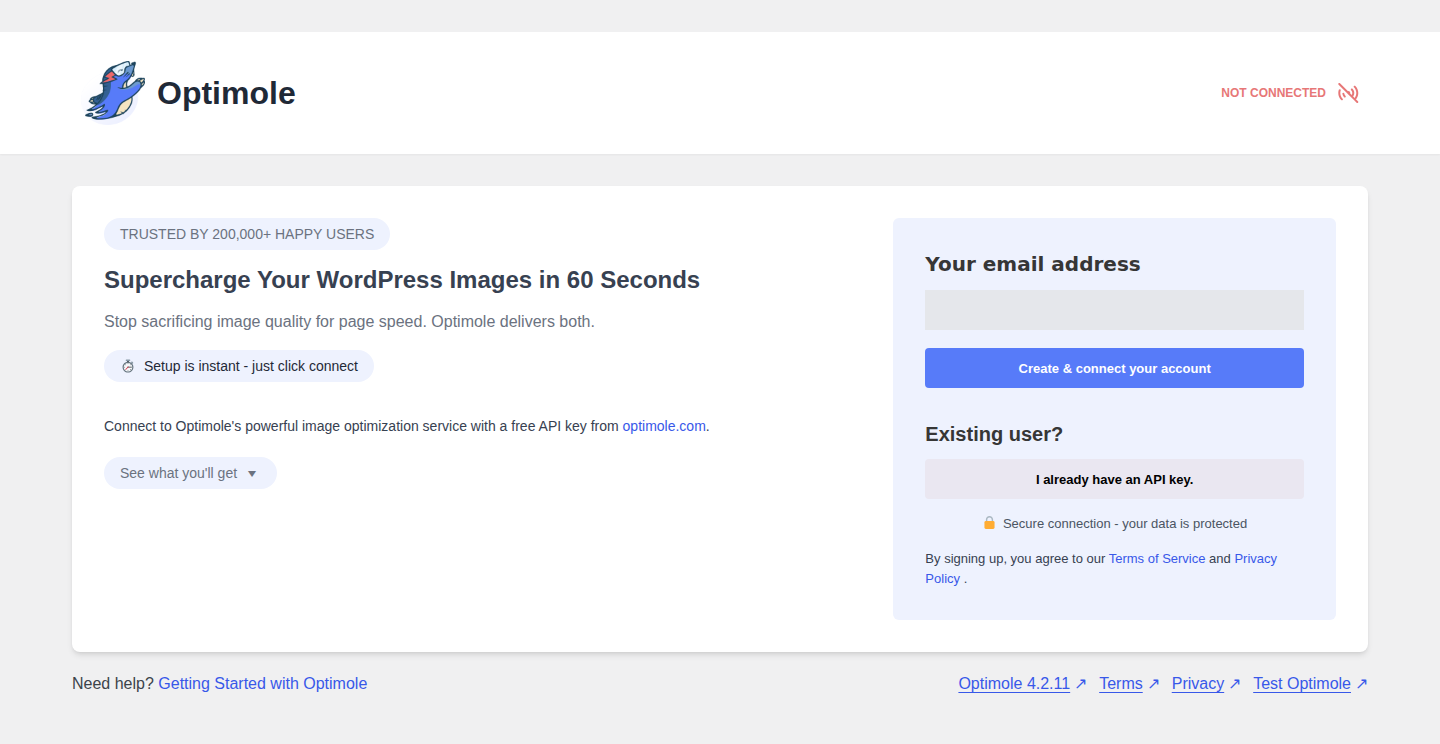
The current settings documentation includes AVIF and WebP selection, smart image scaling, lazy-loading controls, and options to skip images near the top of a page. Traffic-based limits and an outside delivery service also become part of the operating model, so check whether saved page copies show the new image and what happens if the plan limit is reached. When we tested Optimole 4.2.11 while ShortPixel was active, it warned that another image optimisation plugin was active. That warning matters because two tools can both change which image file is used or when it loads.
Choose if:
Skip if:
Optimole shifts more of the work to delivery. When keeping processing closer to the WordPress server matters more than adaptive serving, EWWW Image Optimizer is the better fit to examine next.
EWWW Image Optimizer is a good fit when you want to decide where processing happens and how large jobs run. Its current WordPress listing covers local processing, cloud alternatives, bulk and folder jobs, scheduling, backups, metadata choices, WebP and AVIF paths, and WP-CLI support, which lets an administrator run WordPress tasks from a command window.
That control comes with a hosting responsibility. Local processing can reduce dependence on an outside service, but the server must support the required image tools. Some setups require exec(), a server function that allows WordPress to run a command on the server; some hosts disable it. Large batches can also use the server’s processing power, memory, storage, and time.
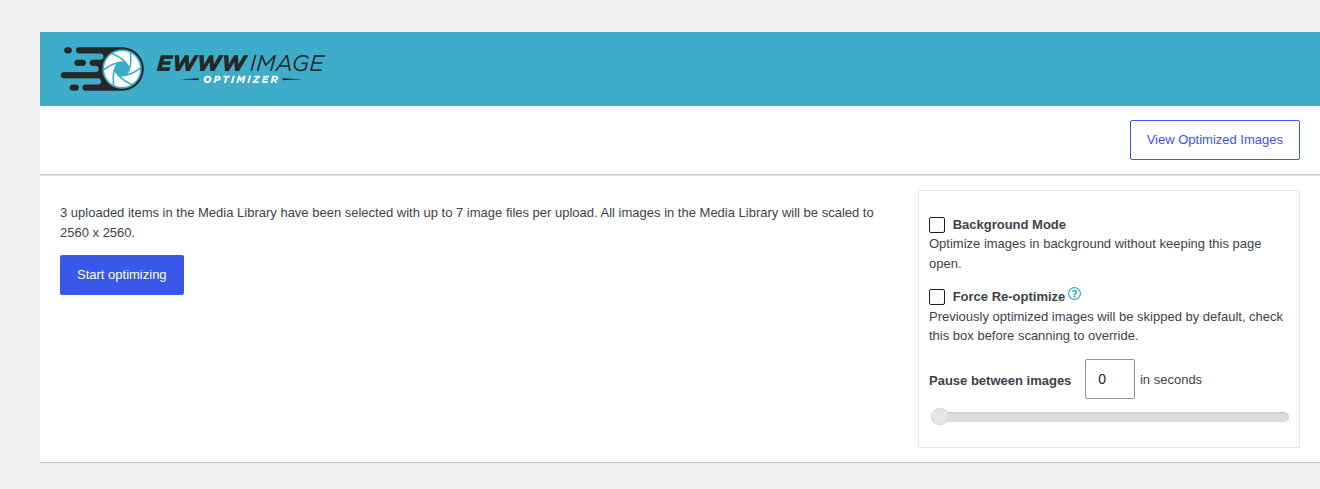
The setup reflects that split. When we tested EWWW Image Optimizer 8.7.7, its setup wizard covered speed or storage goals, budget, cloud processing, and Easy IO delivery. If those terms are unfamiliar, ask the host whether local processing is supported before starting a full-library job.
The free workflow includes local optimisation and local backups. Paid options add features such as expanded optimisation, one-click WebP and AVIF delivery, enhanced responsive sizing, and CDN delivery. That makes EWWW flexible, but it also means the simplest local setup and the broadest automated delivery setup are different choices.
Choose if:
Skip if:
🖥️ Note: Test a small batch while watching server load. Local control can move service costs into hosting resources.
If that server-side responsibility is not a good fit, Smush offers a more familiar WordPress workflow, with its own plan boundaries to check.
Smush is practical for owners who value a familiar WordPress dashboard, bulk processing, directory handling, and WPMU DEV integrations. Its current listing covers automatic uploads, bulk work, lazy loading, and directory optimisation. WebP, AVIF, image CDN delivery, and dynamic image sizing are marked as Pro features, so check the plan before treating them as part of the free workflow.
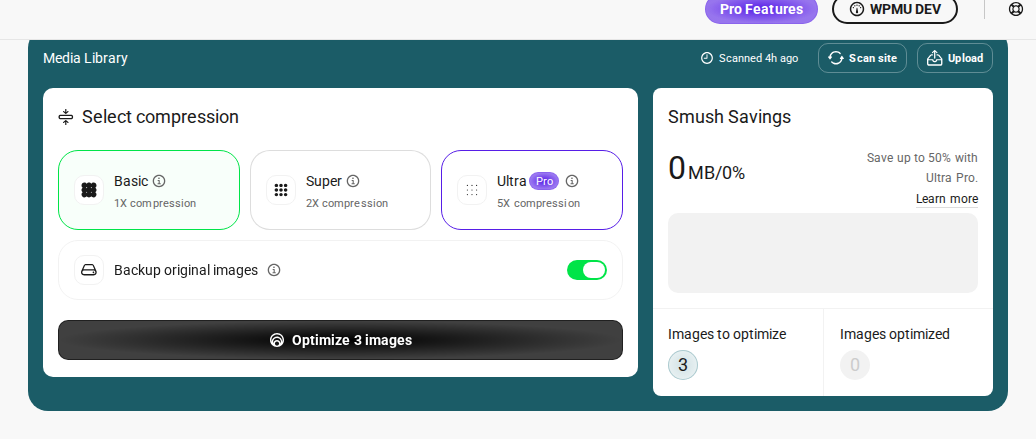
When we tested Smush 4.3.2 with Optimole active, it showed a conflict warning naming Optimole. That does not make Smush unsuitable. It shows why one tool should own each overlapping task, such as format conversion, lazy loading, resizing, CDN delivery, or caching.
Choose if:
Skip if:
The differences between these picks come from the jobs they own: some change the file, some change how it is delivered, and some coordinate the wider page. That distinction is useful when deciding what an image optimisation plugin should actually do.
Image optimisation includes several separate jobs. You do not need every job on every site. The important point is to choose the job you actually need instead of turning on every setting.
Each job affects a different part of page delivery. A smaller image can help while hosting, page caching, scripts, fonts, or mobile network conditions remain the real bottleneck. Start by identifying whether the page is sending a file that is too large, requesting it too early, or serving it from a slow location.
If the bottleneck spans several of these layers, review the site’s wider AirLift optimization controls before adding another image plugin.
Those separate jobs also explain why a feature list is not a performance test. We evaluated the plugins for setup and administration first, then kept the recommendations within what that evaluation could support.
We installed and explored Imagify 2.3.4, ShortPixel 6.5.5, EWWW Image Optimizer 8.7.7, Optimole 4.2.11, and Smush 4.3.2 in sequence on a clean WordPress 7.0 site running PHP 8.4.21 and MySQL 8.0. We checked setup screens, settings, bulk-processing screens, backup or restore controls, modern-format options, and warnings about overlapping plugins.
The evaluation covered setup and admin workflows, not a controlled speed benchmark. The site had no sample images, and connection keys were not configured for services that required them. We therefore report no measured savings, Largest Contentful Paint (LCP) result, or Google PageSpeed score. LCP is the time it takes the main visible content, often a hero image, to appear. The recommendations describe workflow fit and known tradeoffs, not a universal compression ranking.
With that scope clear, the right choice depends less on a headline feature than on the site’s files, traffic, hosting, and maintenance needs.
For a broader diagnostic path, use AirLift’s WordPress performance audit guide before changing another performance layer.
Match the tool to the site’s files, traffic, hosting, and comfort level rather than choosing from a feature list. A WordPress performance checklist can help when the problem spans more than images. A site with contributor or customer uploads also needs automatic processing and a safe original-image policy, because not every uploader will prepare images before adding them.
Before adding any of those layers, check what WordPress already handles for you.
WordPress already creates several image sizes and can add responsive srcset and sizes instructions. In plain terms, the browser can choose a closer match for the available space instead of always downloading the largest file. WordPress also supports native lazy loading. This built-in handling does not necessarily prevent someone from uploading a very large original, and it does not guarantee that every theme or page builder (a tool for designing pages) outputs the best image for the space available.

That helps, but it does not provide every compression setting, modern-format workflow, original backup, external CDN, metadata policy, bulk job, or schedule. Add a plugin when a clear gap remains, such as oversized uploads, large files, missing modern formats, weak delivery, or a library that needs repeatable processing. For the broader stack, see AirLift’s guide to optimize WordPress speed, which shows how image work fits with caching, delivery, and front-end assets. Do not add one just because a speed report mentions images if the page is already sending an appropriately sized, lightweight file.
If the native output leaves a real gap, the next step is to separate the jobs that plugins often bundle together.
These features often appear together, but they solve different problems:
The largest visible image often controls LCP, the time at which the main visible content appears. Lazy-loading that image can delay the first useful view. Exclude it when needed and test the finished page on mobile and desktop.
Use AirLift’s website performance metrics guide when you need to connect LCP to the image and delivery choices.
Once those roles are clear, it becomes easier to see why installing two broad image tools can create more work than it removes.
Yes, but only when the responsibilities are clearly separated. One owner for each overlapping task is safer.
AirLift’s guidance on WordPress caching applies the same one-setup principle to caching and related performance layers.
Keep only one plugin in charge of each of these jobs:
These conflicts are easy to miss because both plugins may appear to work. One plugin can create a WebP file while the other changes which file the page uses, leaving the page pointing to the wrong copy or falling back to the original. Two lazy-loading features can delay the main image. Two resizing rules can make it unclear which dimensions a visitor receives. Two cache or CDN layers can also show an old image after you have replaced it. The result is often a page that is difficult to troubleshoot rather than an obvious error.
This happened during the evaluation:
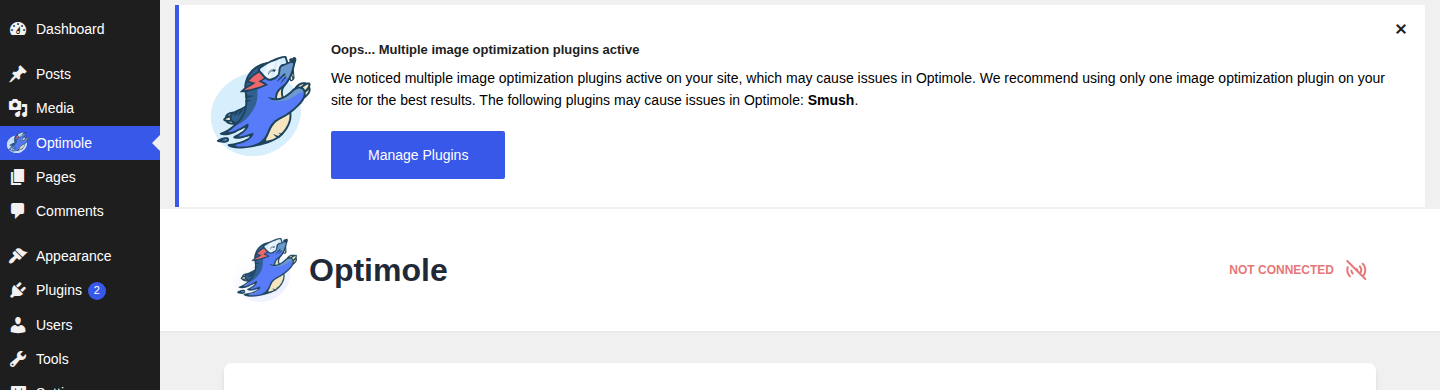
Treat those messages as a configuration task. They are telling you that the plugins may be trying to manage the same part of image delivery.
If two tools are necessary, define the boundary before activating them. For example, one can compress local files while another delivers them through a CDN, but only if their format, lazy-loading, resizing, and cache settings do not overlap. Clear saved page copies and inspect image requests after each change.
🔧 Note: A conflict warning is a configuration signal. Resolve it before bulk processing, especially when it names another image optimisation plugin.
After the boundary between tools is clear, verify the result on one representative page before applying it to the whole site.
Use a small, repeatable test instead of trusting a claimed saving percentage.
An image plugin has done its job when the page is lighter or better delivered without visible damage or broken business flows. If the site is still slow, investigate hosting, caching, scripts, styles, fonts, and third-party requests instead of stacking another image plugin on top.
That final check gives you a better basis for choosing than a universal ranking. The common questions below apply the same decision rules to the most important cases.
Choose the tool that matches the actual bottleneck. Imagify is the clearest simple starting point, ShortPixel is the stronger control choice, Optimole is built for adaptive delivery, EWWW suits local workflows, and Smush fits a broad WordPress setup. If the problem includes caching, fonts, scripts, and delivery as well as images, the broader WordPress speed problem is more relevant.
Start with one important page, preserve the originals, and change one setting or tool at a time. The best result is a page that delivers the right image quickly, looks correct, and keeps galleries, forms, shops, and other important flows working.
There is no single best choice. Imagify is the simplest focused starting point, ShortPixel gives more control, Optimole specialises in adaptive cloud delivery, EWWW suits local processing, and Smush fits owners who value a broad WordPress ecosystem. AirLift is the better route when image work must be coordinated with caching and wider page performance.
Not always. WordPress can create responsive image sizes and loading instructions, but a plugin can add compression, resizing rules, WebP or AVIF conversion, backups, CDN delivery, bulk processing, and ongoing automation.
Both can reduce image size. Choose the format your delivery setup supports well, keep an original-format fallback, and check the file the browser actually downloads.
Usually not. The hero image is often the LCP image, so delaying it can make the page feel slower. Lazy-load images below the visible area and verify the main image on mobile and desktop to [improve LCP](https://airlift.net/improve-lcp-wordpress/).
Only when their jobs are separate. One may compress files while another delivers them, but duplicate format conversion, lazy loading, resizing, CDN, or caching controls can cause conflicts and make results difficult to diagnose. If the plugins show a conflict warning, treat it as a setup task to resolve, not as a warning to dismiss.
No. Compression can reduce the bytes an image transfers, but a [slow server response](https://airlift.net/wordpress-slow-server-response-time/), page caching, CSS or JavaScript that holds back the page, font optimization, third-party requests, and the way the browser discovers the main image can still dominate the result. Measure the important page before adding another optimisation layer. The practical choice is therefore the one that addresses the site's actual bottleneck without creating a second owner for the same job.
Every second saved when loading a page increases conversions by up to 7%. Most WordPress speed solutions try to achieve this by focusing on initial page load. But, the experience…
Read

Today, we are introducing Font Subsetting, a new feature that streamlines the delivery of font files, ensuring that your website operates at lightning speed. How fonts affect…
Read

You update a logo, reload the page, and still see the old one. PageSpeed says some files need a longer cache lifetime. A plugin promises to fix caching, your host already has…
Read
Airlift works out what each page needs and applies it. Free to try on your own site.