
WordPress Admin Slow? How to Diagnose and Fix wp-admin Lag
You open wp-admin to make one small change, and every click takes too long. The public site may still load quickly, which makes the problem harder to read: visitors are fine, but…
Read

You open the WordPress dashboard, and it loads, but something drags. In the browser’s Network panel, a request to admin-ajax.php hangs around for several seconds. The filename tells you nothing, so you’re left wondering which plugin or feature is behind it.
You don’t have to guess. Many WordPress features send requests through admin-ajax.php, so the filename alone can’t point to the cause.
The request itself holds the clue, and This guide shows you how to read that clue, trace it to the plugin or task behind it, and figure out where to look first.
If the lag affects more than one request or screen, start with the broader checks for a slow WordPress admin.
TL;DR: Find the
actionname in the slow request, read the response, trace that action to the code that handles it, and test every change on staging. Heartbeat is the most common culprit, but turning it off breaks autosave, so slow it down instead.For public-page caching and frontend optimization, Airlift can help; slow AJAX handlers still need targeted fixes.
Every request to admin-ajax.php includes an action value. WordPress uses that value to pick the handler, the function that does the actual work. Core, themes, and plugins all share this one entry point.
Think of it as one front door leading to many offices. The door isn’t the reason the building is slow; the office receiving the most visitors is.
Open your browser’s developer tools, select the Network tab, reload the screen where you see the lag, and filter for admin-ajax.php. Sort by duration and open the slowest request.
Note four things: the action value, the request method, the status code, and the response body. The initiator column also shows which script sent the request.
📝 Note: Check whether the request repeats. A request that fires every few seconds can add up to more work over an hour than one long request that fires once. If your host also reports high CPU usage in WordPress, compare the spike with the timing of those requests.
The response body often explains more than the duration does.
0 means no handler matched the action. WordPress’s older Codex documentation describes this behavior. Check for a deactivated plugin or a typo in the action name.📝 Note: A request can return HTTP 200 and still contain an error message, so always read the body.
WordPress registers handlers with two hooks:
wp_ajax_{action} runs for logged-in users.wp_ajax_nopriv_{action} runs for logged-out visitors.If your action is my_report_fetch, search your plugins and theme for wp_ajax_my_report_fetch. The file that registers it is where your investigation continues.
If nothing matches, the action may have come from a plugin you’ve removed or from a page builder script. The initiator column usually reveals which one. If the initiator points to an old script from a removed plugin, clear the relevant cache and reload before tracing the request again.
Heartbeat is a built-in feature that sends regular requests to admin-ajax.php while someone works in the admin. It powers autosave, post locking, and login checks, which is why it’s useful and why it often gets blamed.
The default interval varies by WordPress version and setup, so check the heartbeat.js on your own install rather than trusting a number from a blog post.
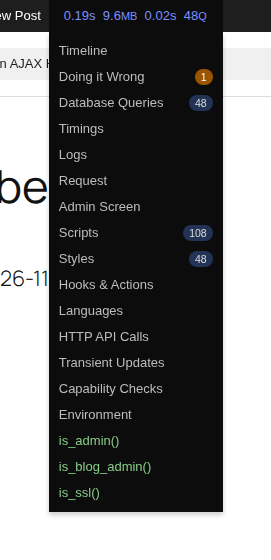
In our test, we seeded a draft and watched the editor sit idle for 20 seconds. The browser sent three Heartbeat POST requests, and each returned HTTP 200 with a post lock refresh and an authentication check. An idle tab can keep the server busy like that. We ran this once on a single site, so treat it as an illustration rather than a benchmark.
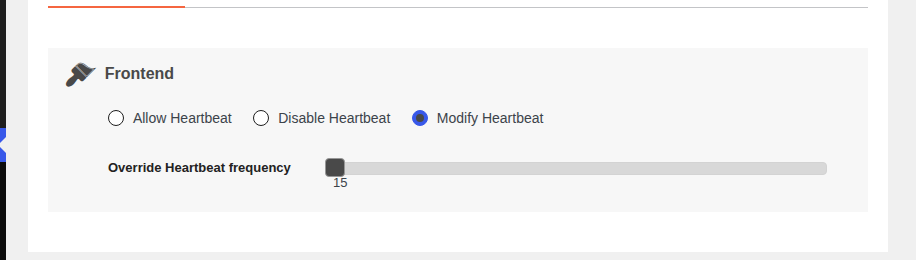
Disabling Heartbeat breaks autosave and post locking, as Delicious Brains notes, and that can mean lost drafts and two editors overwriting each other. Adjust the interval instead with the heartbeat_settings filter:
add_filter( 'heartbeat_settings', function( $settings ) {
    $settings['interval'] = 60;
    return $settings;
});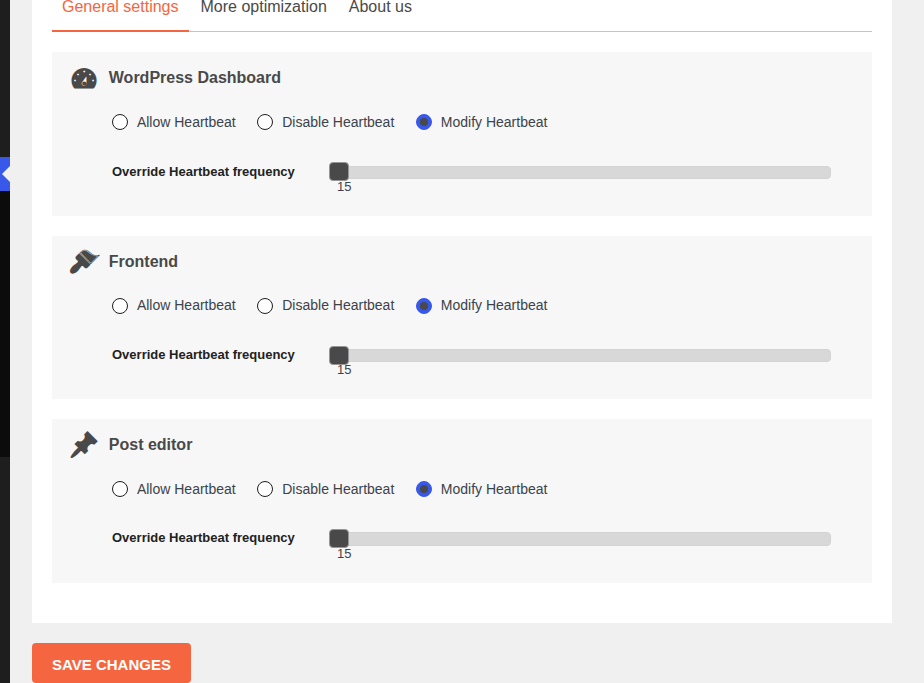
Confirm the change in the Network panel. If your new interval doesn’t take effect, a plugin or the core code may be overriding it.
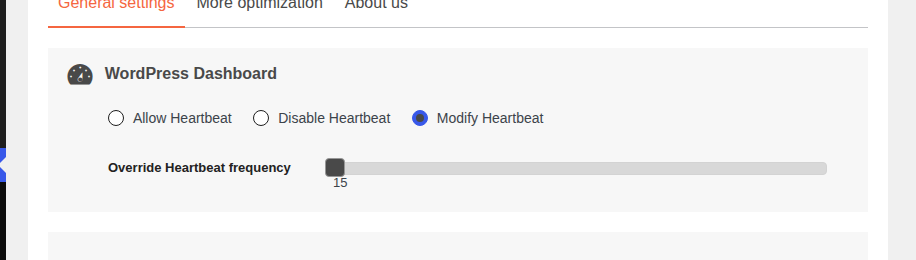
📝 Note: Heartbeat requests are POST requests, and Delicious Brains notes they bypass page caching. A cache rule won’t reduce them, so adjust the interval or the screens where Heartbeat runs.
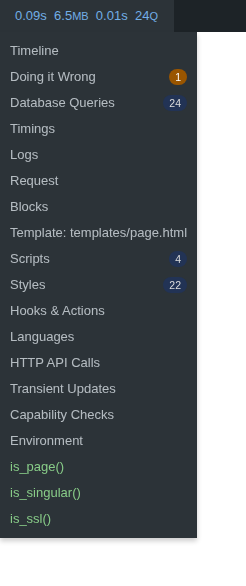
Query Monitor is a free debugging plugin that shows what happens during a request. On staging, it can reveal which plugin, theme, or function runs each database query.
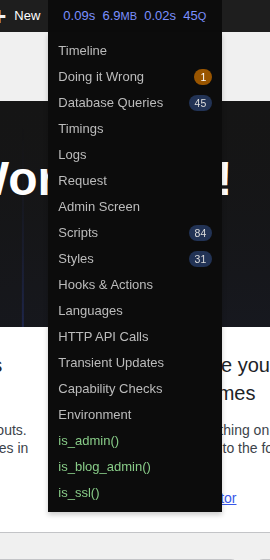
By default, only administrators see its output. Install it on staging and keep it off a live site.
📝 Note: Query Monitor tells you where the work happens. You still need to change the code or the setting.
You can still enable caching in WordPress for public pages, but keep admin and personalized AJAX responses out of shared page cache. That improves public-page delivery without fixing the slow handler itself. A WordPress caching plugin can help speed up public pages, but it won’t fix an expensive AJAX handler or reduce Heartbeat’s request frequency.
Maybe, but don’t expect a speed boost. The REST API suits functionality you own and gives you clean permission checks. If the handler runs an expensive query, a REST route runs the same query. Treat any migration as a project with its own testing.
admin-ajax.php is the single doorway WordPress uses to handle AJAX requests, and the action value in each request decides which handler does the work. Core, themes, and plugins all send requests through it, so one filename can cover many unrelated jobs. That’s why the filename alone never tells you what’s wrong.
A slow request usually means one action is either running too often, doing heavy database work, or waiting on an outside service. The request itself is rarely the culprit, so you need to find which action is slow before you change anything.
Read the action value in the slow request, search your plugins and theme for the matching wp_ajax_ hook, and confirm the work on staging with Query Monitor. The hook tells you where the handler is registered, and Query Monitor shows which plugin or theme runs the queries during that request.
Yes, it can, especially when several editor tabs are open at once. Measure the Heartbeat requests first, then adjust the interval rather than disabling the feature, because disabling it breaks autosave and post locking.
No, because too many parts of WordPress depend on it. Blocking or disabling it tends to break features in places you won’t connect to the change, so target the specific action instead.
A slow admin-ajax.php request is a clue, not a diagnosis. Find the action, read the response, trace the handler, and test before you change anything. Often the answer is Heartbeat, and the better fix is a longer interval rather than a feature that’s switched off.
Your editors keep their autosave, and you know exactly which action was making the noise.
You open wp-admin to make one small change, and every click takes too long. The public site may still load quickly, which makes the problem harder to read: visitors are fine, but…
Read

You update a logo, reload the page, and still see the old one. PageSpeed says some files need a longer cache lifetime. A plugin promises to fix caching, your host already has…
Read

If you’ve tried to enable caching and visitors are now seeing old CSS, outdated content, or a private page from the wrong cache, the cache control header is a key place to…
Read
Airlift works out what each page needs and applies it. Free to try on your own site.