Why Is My WooCommerce Admin Slow? Let’s Find the Request That’s Stuck
You click Orders, the spinner starts turning, and you wonder why your WooCommerce admin is slow when the store loads just fine. That split is frustrating, and it’s easy to fear something is badly broken. Relax a little; this is one of the most common WooCommerce headaches, and it’s very fixable.
If the slowdown also affects Posts, Settings, or other screens outside WooCommerce, follow the broader checks for a slow WordPress admin.
By the end, you’ll know whether the delay sits in the page, a background request, a database query, a queue, or shared server work. You’ll also have one safe test to run next. Most people reach for another cache or switch plugins off at random, but the step that matters most is finding the request that’s actually waiting.
One real store showed fast public pages while its live admin screens took 15 to 25 seconds to load. The same code and database ran quickly on staging, which pointed at the live environment. That clue didn’t name the final cause, but it gave a direction, and direction is what you need right now.
TL;DR: A healthy storefront does not explain a slow admin. Open the browser Network panel, reproduce one slow click, and identify whether the initial page or a later request is waiting. AirLift can help optimize public-facing pages; admin delays need separate checks for queries, background jobs, and server resources.
Start here
The screen that frustrates you most tells you where to look first. Pick that screen and follow the work behind it. Keep the screen, action, user, and rough wait the same for each comparison, so you’re comparing like with like.
Orders takes forever: Check order storage, filters, columns, and extension queries.
Products takes forever: Check product metadata, variations, and product extensions.
Analytics or Dashboard stalls: Check REST or AJAX requests, remote calls, scheduled actions, and failed tasks.
Every admin screen crawls: Check whether this is a broader WordPress dashboard slowdown, then compare PHP workers, database pressure, remote activity, security processing, and traffic rules for logged-in users.
The store is fast but admin is slow: Profile the admin request on its own, because public pages and admin screens take different paths.
Fast on staging, slow on live: Suspect the live environment, including its resources, remote calls, security handling, and permissions.
📝 Note: Keep your security plugin switched on while you investigate. Login abuse controls, firewall rules, and heavy scans can slow a request or stop it from finishing, but turning them off would hide the very clue you’re hunting for.
Spot the delay
Repeat one action twice, and a vague complaint becomes a measurement you can work with. Open the affected screen as an administrator, then click Orders or apply the same filter. Repeating the same workload keeps the comparison fair, and it takes less effort than it sounds.
Open the browser Network panel before you click. Watch the main page document, the admin-ajax.php file, REST API calls, WooCommerce requests, analytics calls, and anything headed to an outside domain. A REST call fetches or sends data in the background, and an AJAX call does similar work without reloading the page.
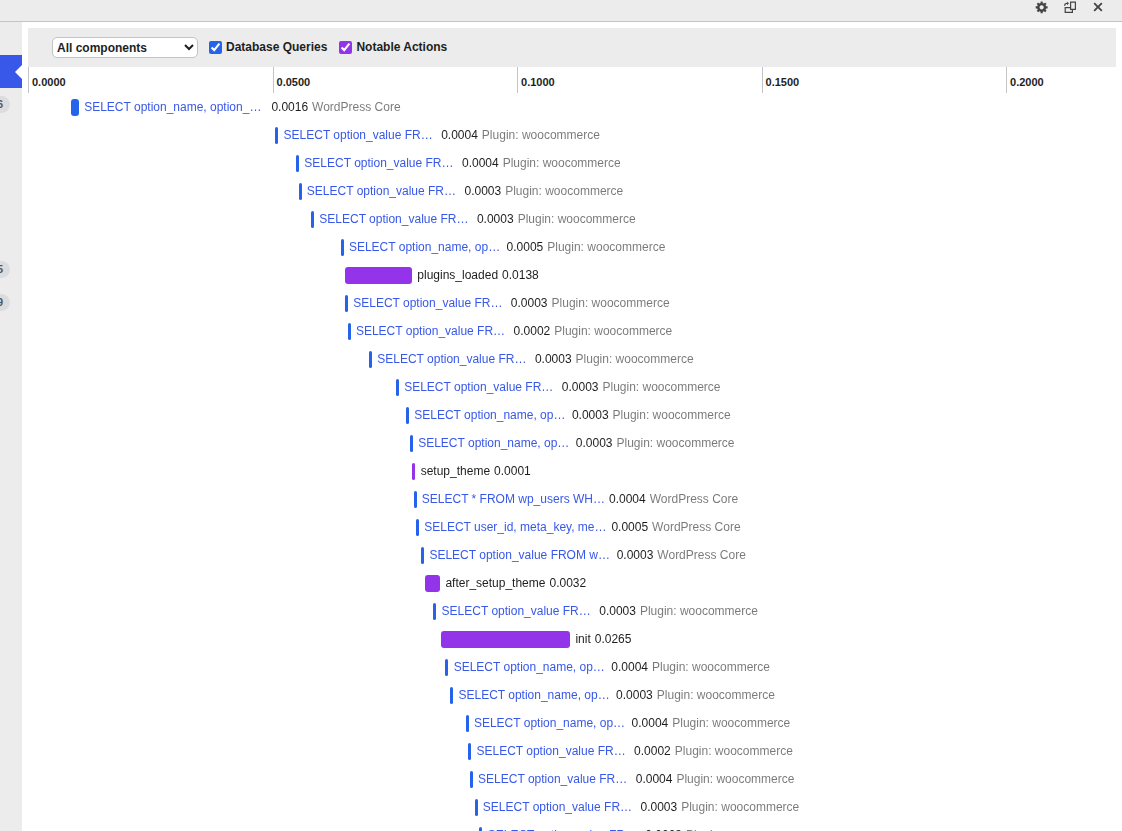
Read the waterfall from left to right. If the page document finishes and the next requests return quickly, the page arrived on time. A request that stays pending or shows an error marks your next stop. Jot down the screen, action, URL, status, timing, and time of day before you change anything, because future you will want that record.
If you have a staging copy, run the same click there too. Fast staging next to a 15 to 25 second live wait is strong evidence about the environment, even though it won’t name the final cause.
📝 Note: A list of plugins only gives you suspects. The expensive query, hook, outside request, or scheduled action is the real proof of what to test next, so let the evidence lead.
Trace the request
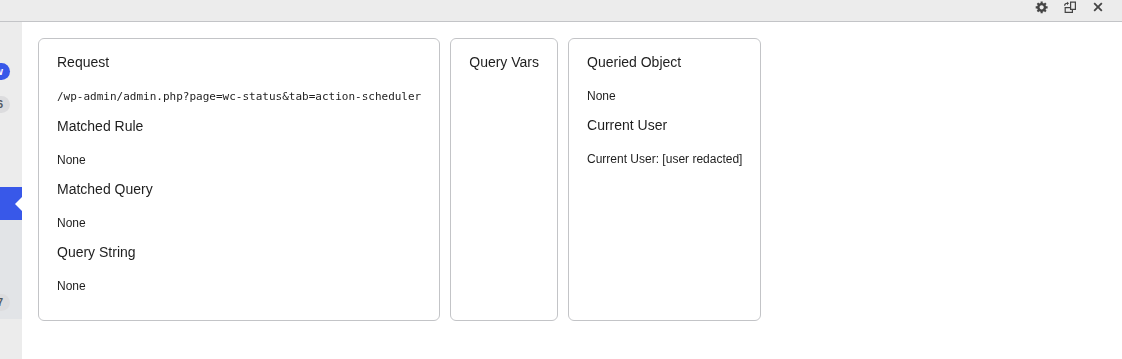
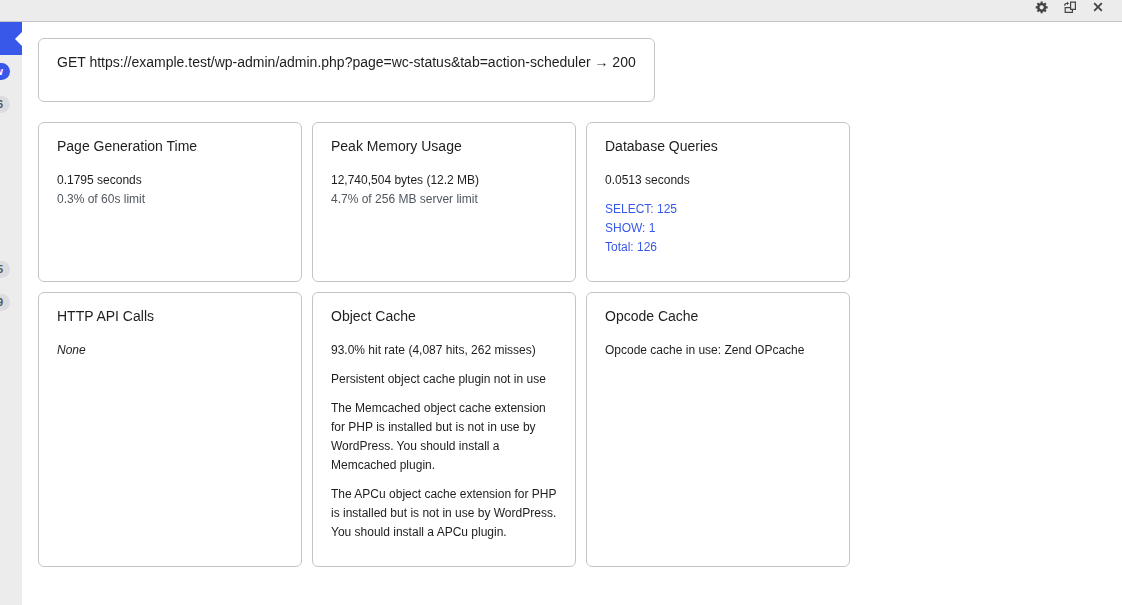
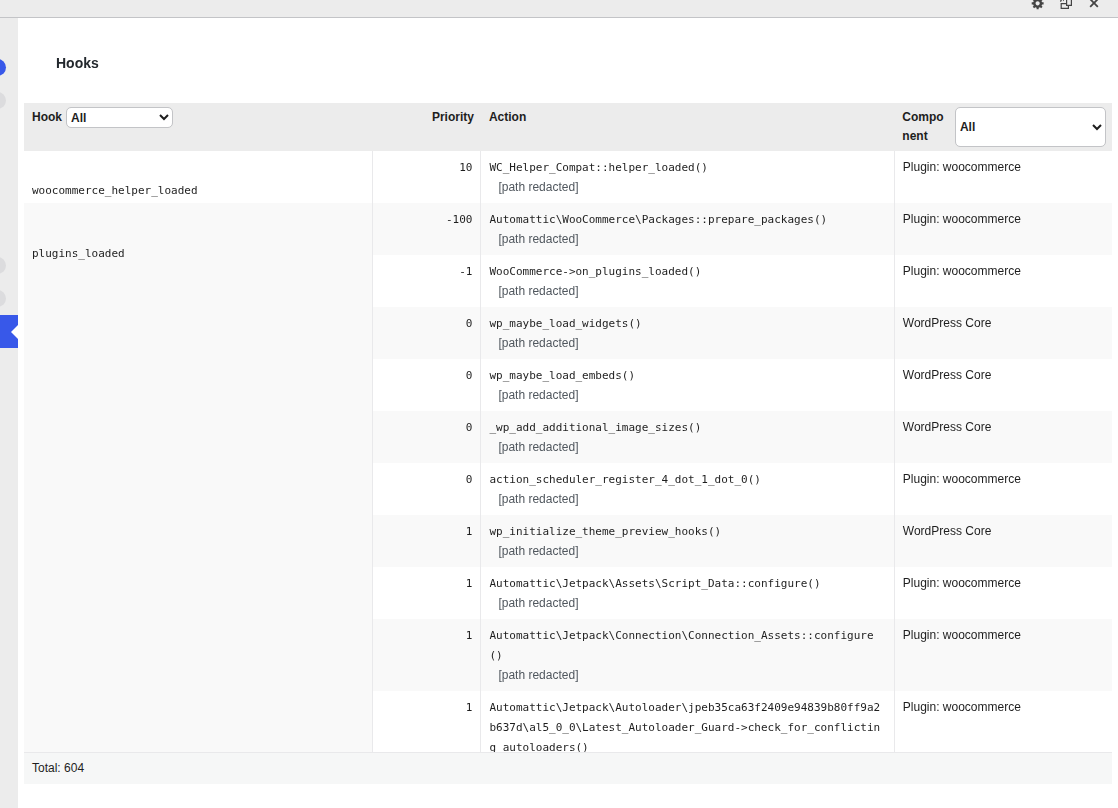
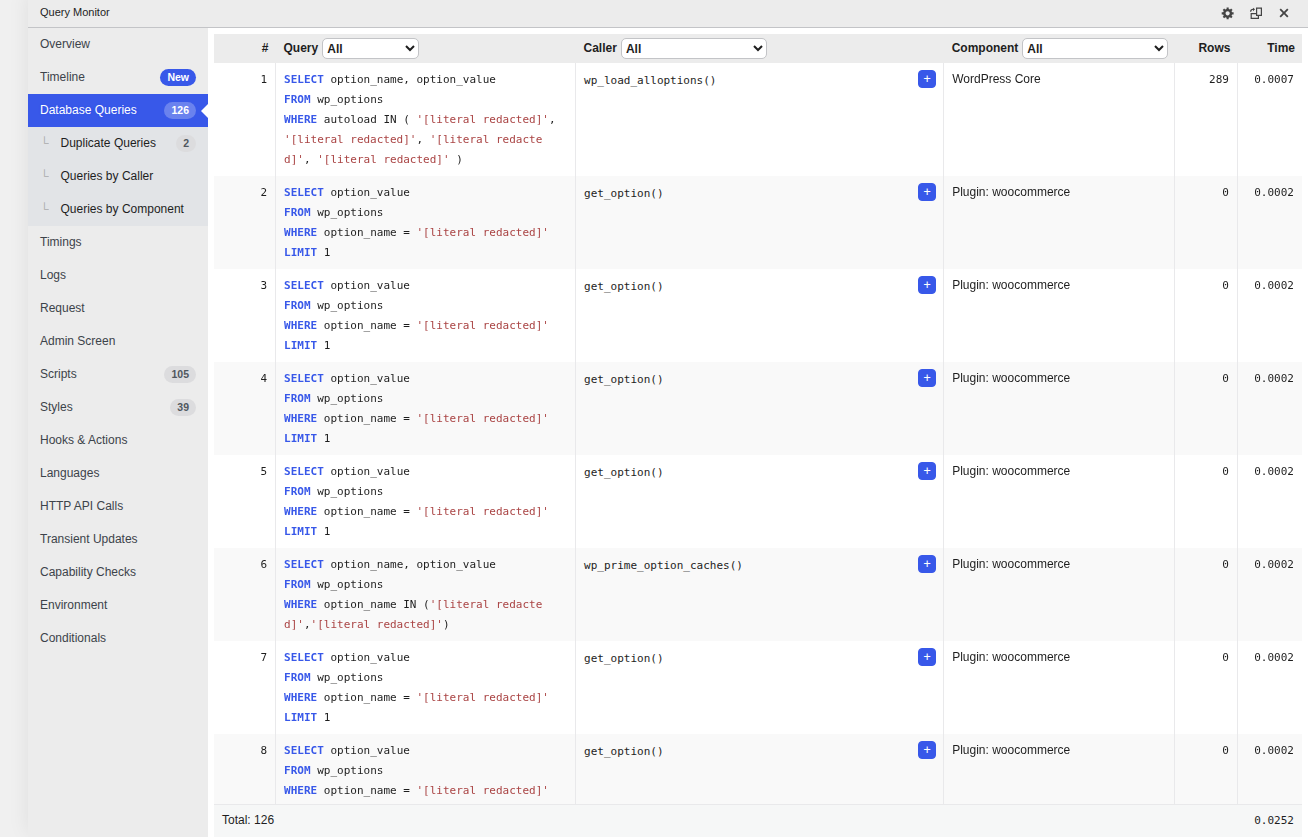
Follow the saved request into its query, remote call, queue, permission check, or shared resource. Start with the page document. If the initial document spends most of its time waiting for a response, investigate slow WordPress TTFB to narrow down the server, PHP, database, or remote-call delay. Query Monitor can show database queries, the component behind them, PHP errors, and outside HTTP calls. Run it on staging or in a protected diagnostic session, and pair it with PHP and web-server logs, slow-query data, and your host’s resource graphs if you can reach them.
Page generation can slow down for several reasons, including PHP work, database queries, object cache behavior, and server capacity. A single heavy query usually points to the component behind it. Exhausted PHP workers or a strained database usually point to the host instead.
The page loads, then the screen waits
Check the later request’s status, response, headers, cookies, permissions, domain, proxy, and sanitized server logs. A WooCommerce Analytics request that returns 401 or 403 is an access problem, not proof that you broke something. The nonce, cookie, user permission, domain, proxy, or firewall could each be the cause, so check them together.
Remote calls
Plugin update checks, license calls, marketplace requests, and security traffic can slow things down when their timing lines up with your wait. Judge each call by its response time, not by the plugin’s name. Match the timestamps you saved against the requests in your waterfall, and the culprit often reveals itself.
Analytics or Dashboard keeps busy
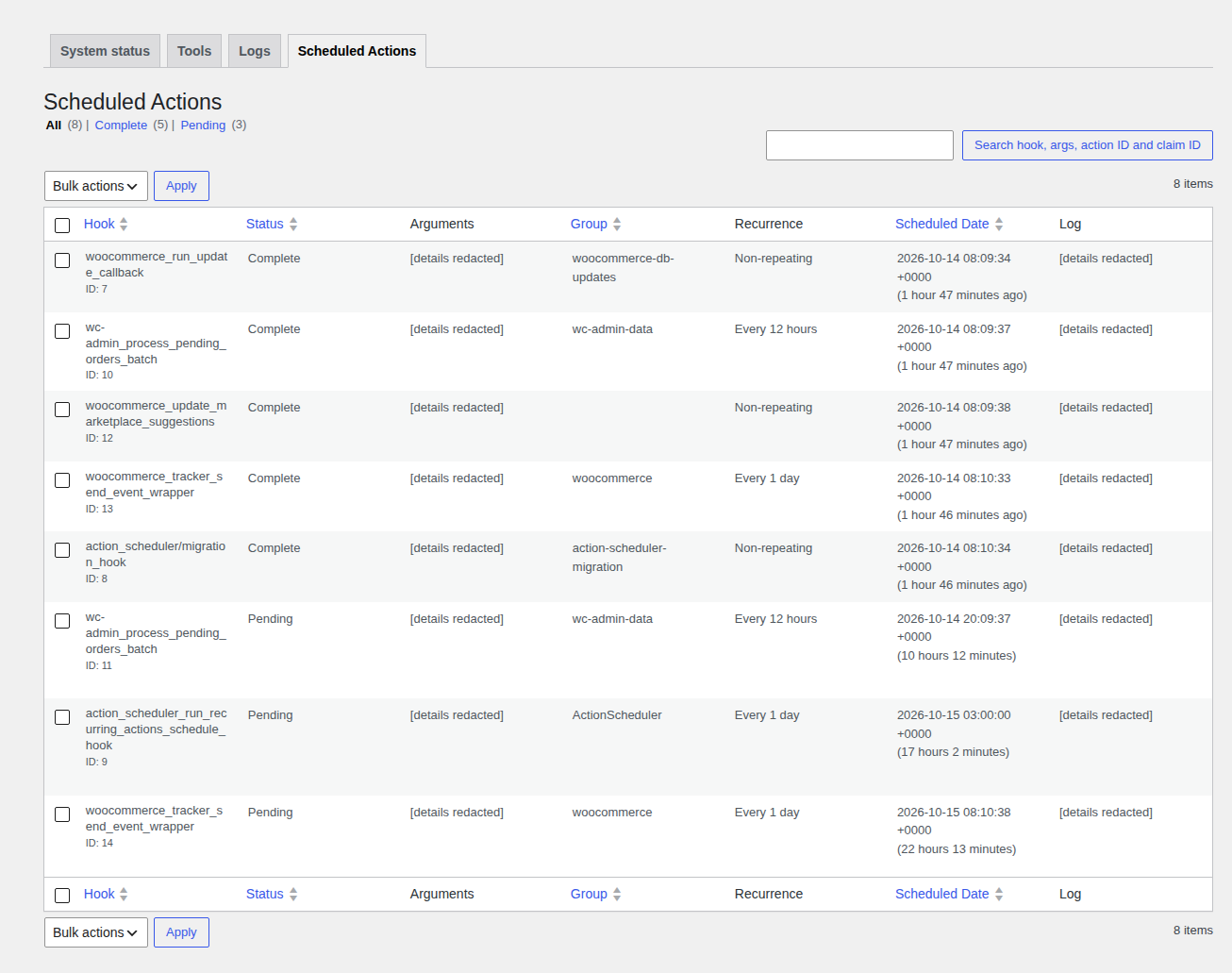
Open Scheduled Actions and look for queues that keep growing, actions that fail again and again, and tasks that run more often than expected. Note the action, the error, and how often it repeats before you change anything. That task might send an email, update stock, handle a payment, or sync an integration, so know what it does first.
Every admin screen slows at once
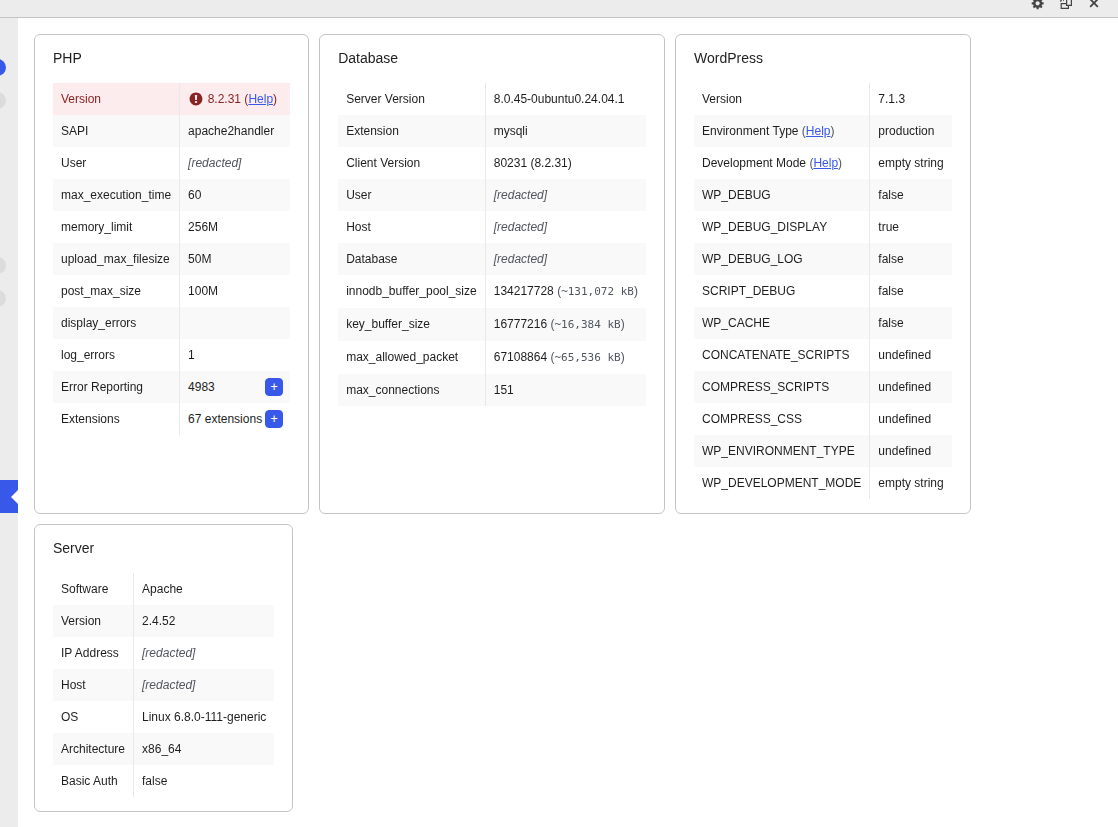
When everything slows together, the cause usually lives in shared resources. Compare PHP worker use, database CPU or disk time, remote activity, login abuse, firewall rules, blocked REST or nonce requests, and heavy security scans. If CPU usage spikes during the same window, follow the checks for high CPU usage in WordPress to identify the work competing with your admin requests. If your host’s graphs aren’t available, ask for timestamped resource data. Most hosts can pull it quickly.
📝 Note: A 401 or 403 points to an access problem worth chasing, but it doesn’t prove WooCommerce or a plugin is at fault. Keep the request details, then check permissions, cookies, domain, proxy, and firewall evidence side by side.
Fix the cause
Change the smallest connected piece on staging, repeat the same request, and keep a rollback ready. Changing one thing at a time ties any improvement to a real workload, not to a lucky click. Compare the matching request with your baseline, then restore the earlier state before testing something else.
Orders search or filters feel slow
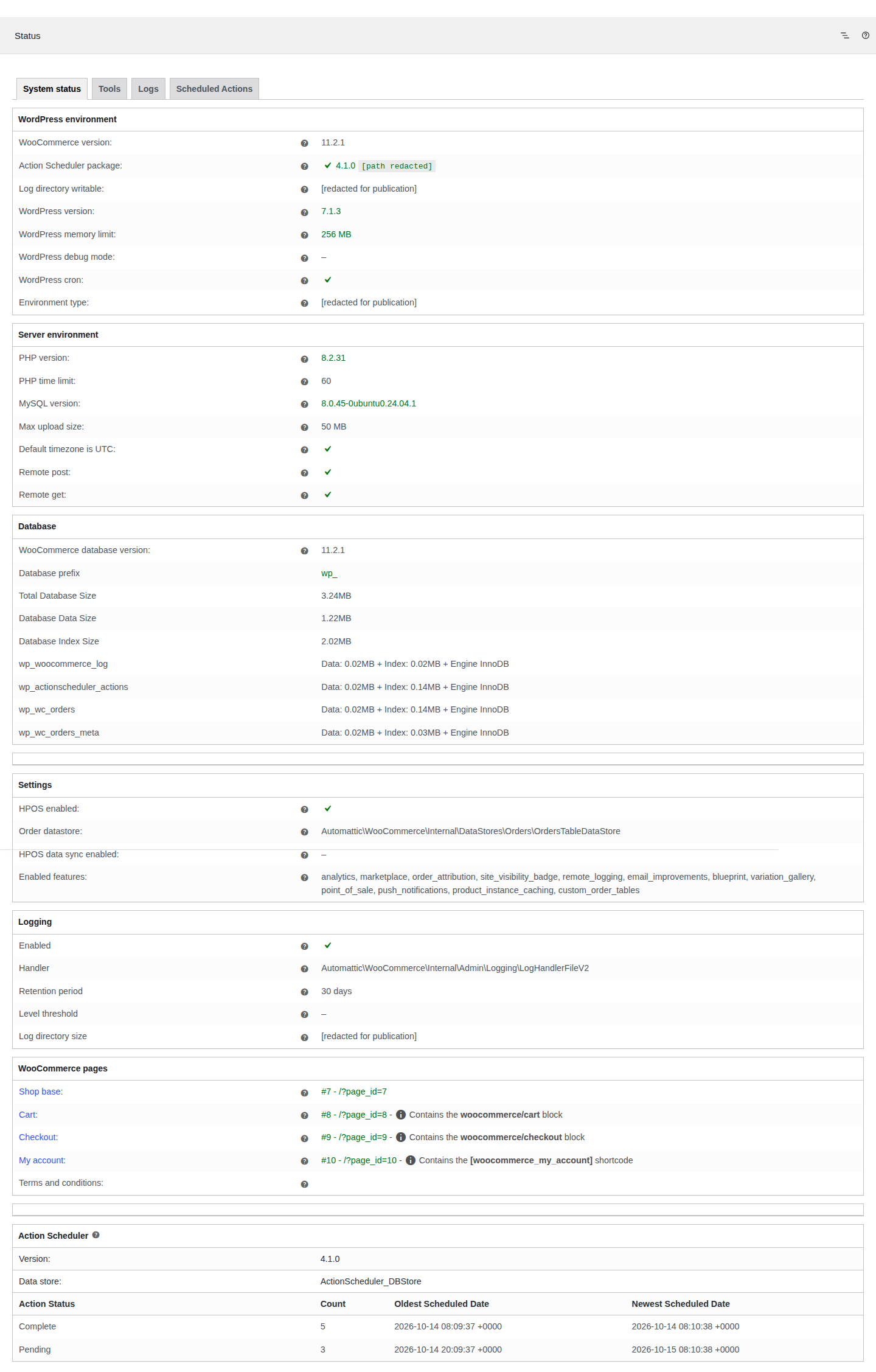
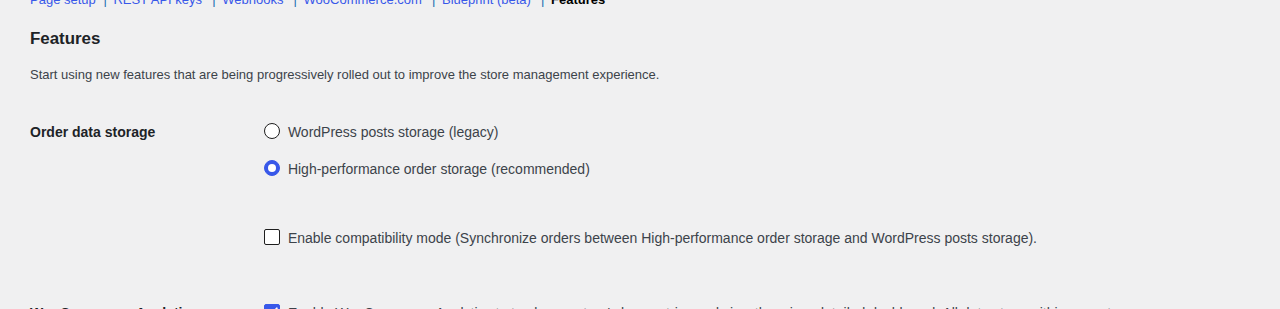
Look at High-Performance Order Storage, or HPOS, which can help eligible order-storage and search workloads. Before you migrate, check every extension that reads or writes orders. Confirm compatibility and synchronization, take a backup, and rehearse both migration and rollback on staging. Check the current menu path and steps in the official WooCommerce documentation first, since menus move around.
If HPOS leaves the request unchanged, restore the previous state and follow the query, hook, or extension evidence from that screen. An order-storage change belongs with an order-storage problem, so keep it there.
One extension owns the slow path
Disable that extension on staging only, repeat the action, then switch it back on. A real improvement is your cue to review that extension’s query, hook, or remote request. Only after that review should you consider a permanent change.
The evidence points to caching
Match each cache layer to the work it does. A full-page cache and a WordPress CDN serve reusable public pages, an object cache trims repeated database work, and OPcache cuts PHP compilation time. Logged-in admin work usually needs request, runtime, database, and server checks instead, so caching alone won’t solve it. If you’re unsure which layer fits the delay, compare page cache versus object cache before changing your settings.
Never cache or proxy wp-admin, the cart, checkout, account pages, or any personalized response. A faster test result can hide stale data or a security hole, so review your WordPress page caching exclusions before you trust a public speed score.
Heartbeat and WP-Cron
Heartbeat handles autosave and edit locking. Test any interval change with at least two administrators, and restore the setting if editing or locking behaves differently. WP-Cron runs WooCommerce processing and other recurring jobs, so change it only after a reliable server-side schedule is installed and monitored.
Hold off on cleanup
Skip destructive cleanup in your first pass. Back up first, check your retention requirements, and understand what the data supports before you delete orders, revisions, transients, plugin tables, or logs. Some of that data can’t be recovered once it’s gone.
Visitor-facing speed
Storefront speed is a separate job. AirLift can help with public-page caching, CDN delivery, and image, CSS, JavaScript, and font optimization, with WooCommerce-aware handling. Save your admin evidence first, then work on public pages. If product pages, cart, or checkout are also slow, follow the WooCommerce speed optimization guide to measure and improve the customer-facing journey separately.
📝 Note: Build rollback into the experiment itself. If the matching request doesn’t improve, or if editing, queues, security, or requests start behaving differently, put the earlier state back..
Confirm the result
A fix counts only when the same request gets faster and nearby admin screens stay healthy. Repeat the original action several times with the same screen, filter, user, and roughly the same data. Compare the timing with your baseline.
Check that the screen shows the right data and that the request finishes with the status you expect. One fast click proves very little, because request timing varies from run to run.
If the slowdown affects the whole site, test a second screen. If public pages are slow too, investigate why your WordPress website is slow to check whether hosting, plugins, or database load are affecting both workloads.
A healthy request on one page can hide shared work that still slows another. If the request stays slow, restore the earlier setting and move to the next branch above.
Who gets your evidence
Send a focused packet to whoever can act on it.
Your host: Timestamped resource data, when workers or database capacity look exhausted.
A developer: The request, query, hook, or extension path, when application code owns the delay.
Your extension’s vendor: The specific code path or remote call, when one plugin is the clear suspect.
A security or CDN provider: Sanitized request and rule details, when protection or routing blocks the request.
📝 Note: Keep the screen, action, request, status, timing, and timestamp together. A short record lets someone else rerun your exact test instead of starting from a guess.
Keep it from coming back
A small baseline turns the next slowdown into a quick comparison instead of a mystery. Record normal timing for Orders, Products, Analytics, and one Dashboard action. Include the user, screen, request type, and expected result, so you know what normal looks like on a good day.
Check Scheduled Actions on a regular schedule. A growing queue, a repeated error, or an action that fires too often deserves attention well before it turns into a visible spinner.
After any CDN or caching change, recheck your exclusions. If those changes introduce stale data or inconsistent cart, checkout, or account behavior, troubleshoot WordPress caching issues before keeping the new configuration. Public pages can speed up while logged-in admin work still waits on its own database, PHP, remote, or security load. Revisit the live versus staging comparison after infrastructure changes, too. If the slowdown began after moving hosts, investigate WordPress performance problems after migration, including changed PHP settings, database resources, and outbound requests.
📝 Note: Keep separate baselines for the storefront and the admin. A faster public site can hide a slowdown in the exact clicks your team makes all day.
FAQs
Why is my WooCommerce admin slow when the storefront is fast?
Yes, it’s common, because the two use different request paths and workloads. Start with the slow screen, save its request timing, and compare the same click on live and staging.
How long does a useful diagnosis take?
A first pass usually takes a few repeated clicks and one saved waterfall. Queue, hosting, permission, and extension problems need longer watching, because one click can’t reveal a pattern that repeats.
Can I diagnose this without a developer?
Yes, you can record the screen, action, status, timing, and timestamp yourself. Bring in a developer or your host when the evidence points to queries, code paths, exhausted workers, database pressure, or server logs.
Is it risky to test a plugin or cache change?
Not much, as long as you test on staging with a backup and a rollback ready. Keep logged-in pages out of public caching, change one thing at a time, and restore the earlier state if editing, queues, security, or requests start behaving differently.
Who should I contact when the cause is outside WordPress?
Your host handles exhausted workers, database pressure, and missing resource history. A developer covers application queries and extension code, and a security or CDN provider covers blocked requests and routing rules.
Conclusion
A slow admin is much easier to fix once you tie the delay to one specific request, and you’re closer than you think. Save that request today, test one reversible change on staging, and hand your evidence to whoever can act on it.