

Browser Caching: What It Is and How It Speeds Up Your Website
You update a logo, reload the page, and still see the old one. PageSpeed says some files need a longer cache lifetime. A plugin promises to fix caching, your host already has…
Read

You’ve just opened a PageSpeed report and found a warning about render-blocking resources, specifically CSS delivery.
The page looks completely fine in your browser, so now you’re staring at a setting that promises a faster score, wondering whether flipping it quietly breaks your header, your menu, or a form somewhere you won’t notice until a customer does.
That hesitation is the right instinct, and you can fix this properly without turning your site into a guessing game.
TL;DR: Find which CSS is delaying the first render, make the above-the-fold styles available early, and load the rest in a controlled way. Use a performance plugin and keep a recent backup before making broad changes, then change one setting at a time, purge every relevant cache, and check the page on mobile, desktop, and its key interactions before keeping anything.
The browser is waiting for styles before it can paint a correctly styled page, so the fix is about priority, not removal. CSS is normally render-blocking because the browser has to download and process it before it can safely show anything, which stops visitors from watching a page’s layout shift under them while rules are still being applied.
The part of that CSS actually worth protecting is called critical CSS, the smaller set of rules needed for whatever’s visible before someone scrolls. It changes by page, template, screen width, and sometimes even device state, which is exactly why there’s no universal fix to copy and paste.
It also helps to separate two problems that get lumped together constantly:
The first calls for better delivery order. The second calls for narrower loading or removal, which carries real maintenance risk.
One thing worth knowing going in: don’t assume this warning always points at external CSS files. On a clean WordPress 7.0 test site running PHP 8.3 and Twenty Twenty-Five with zero plugins, the front page had no external stylesheet links at all, just 21 inline style blocks, the largest at 20,832 bytes for navigation and 18,409 bytes for global styles.
The same page also loaded a 53,590-byte encoded Manrope font. CSS mattered here, but it wasn’t the only thing competing for that first render. If fonts, images, or JavaScript are also delaying the page, address them as part of your WordPress performance optimization rather than expecting CSS changes to solve everything.
Start with the exact URL that triggered the warning, and look past the audit’s resource list. Open the page in your browser’s Network and Coverage tools, and check for inline styles, theme styles, page-builder output, plugin styles, fonts, and any conditionally loaded styles, not just files ending in .css.
This is the mistake I see most often: treating the audit’s resource list as a complete map of the page. The rendered output can include styles that never show up as external files at all, so check the page source and the rendered page side by side as part of a WordPress performance audit. A stylesheet that’s absent on your homepage might be required on a checkout page, a landing page, or a form.
 One important distinction here: moving an enqueued stylesheet to the footer is not the same thing as creating critical CSS. It can leave your first viewport completely unstyled until that late request finishes loading.
Before changing anything, record a baseline using the same URL, device setting, and cache state every time. A fresh private-window run shows the cost of the initial download, while a repeat visit shows whether a change helped or hurt browser-cache reuse.
A PageSpeed score on its own is a signal, not proof the page actually got better for visitors. Check your Core Web Vitals alongside the score to see whether loading, responsiveness, and visual stability improved.
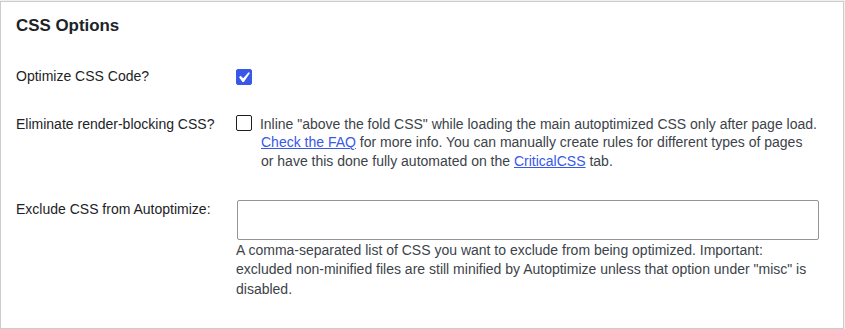
Begin with the lowest-risk options first, and work upward only as needed.
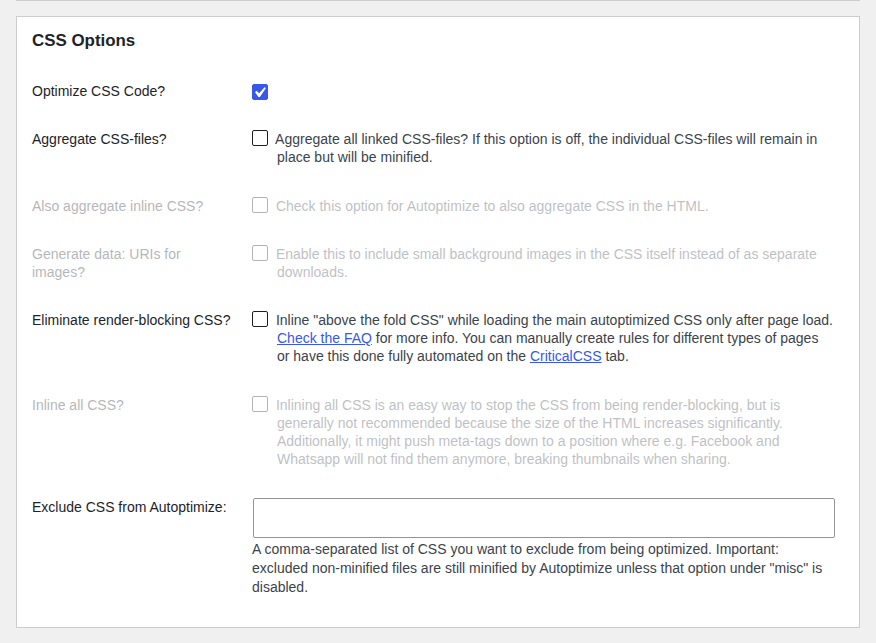
📝 Note: “If a setting changes both delivery and the CSS itself, treat it as more than a file-size tweak. Keep the previous setting available so you can actually tell whether a visual change came from the optimization or from a stale cache.”
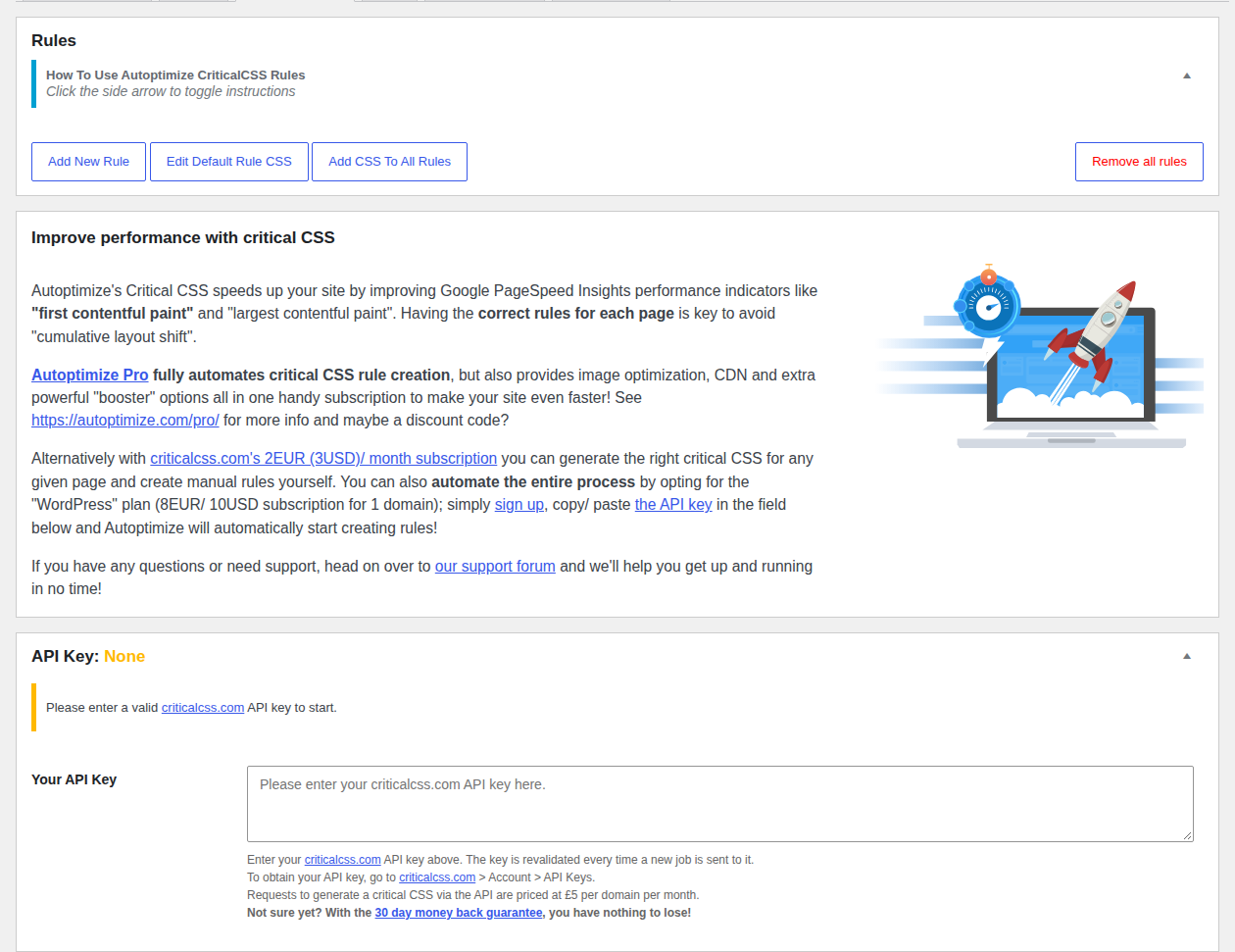
If minification and compression don’t resolve the warning, this is the step that actually affects first paint: get the CSS your initial viewport needs into the first response, and load everything else after that render completes.
There’s no shortcut here worth taking. A mobile navigation state needs different rules than a desktop header. A blog post needs different styles than a checkout page. Page builders, animation-heavy themes, forms, WooCommerce components, and responsive rules all raise the odds that something you thought was safe to exclude actually wasn’t.
Test the viewport your visitors use most, but don’t stop there. Check a narrow mobile view and a full desktop view, and repeat across your actual templates, not just the homepage.
If the page still moves after the styles arrive, check the other causes of cumulative layout shift in WordPress, including font swaps and elements without reserved space.
If you see a flash of unstyled content, layout shifting as CSS arrives, or missing above-the-fold elements, your critical subset is incomplete or the delivery order is wrong.
Keep anything the page needs for its first view or for an immediate visitor action out of the deferred group entirely. That includes vital theme, layout, responsive, form, navigation, and interaction styles.
Test exclusions one at a time, and test the actual interaction, not just a screenshot. A menu that looks fine in a static screenshot can still fail the moment someone taps it, if the styles it depends on haven’t arrived yet. The same risk applies to sliders, animations, form validation states, and product variation selectors.
If your optimization tool offers automatic critical-CSS generation, review the result across multiple templates and breakpoints before trusting it. Automatic generation can easily miss content that only appears after a menu opens, a form shows an error, or a visitor is logged in.
📝 Note: “A page that looks correct once everything has finished loading can still have a broken first interaction. Open the menu, submit the form, and trigger whatever matters, while the deferred styles are still part of the test.”
Treat both of these as site-specific experiments, not default speed settings, and only after controlled delivery is already working.

Combining CSS files isn’t automatically faster. HTTP/2 and HTTP/3 already deliver multiple resources efficiently, and one combined file can actually make cache invalidation broader and ordering bugs harder to track down. It might help your specific site, but that’s something to measure, not assume.
Removing unused CSS in WordPress can shrink the first view, but it tends to create an ongoing maintenance job, since different templates and states often need different rules. If each page ends up with its own set of inlined styles, visitors can lose browser-cache reuse they’d otherwise get for free. The smallest change that improves the first render without breaking a later state is almost always the right one to keep.
Make broad changes on staging, or only after a recoverable backup exists, and change one setting at a time so any regression has an identifiable cause. Purge every relevant cache layer, then retest the same URLs under the same conditions as your baseline.
At minimum, check across desktop and mobile widths:
Watch for a flash of unstyled content, layout movement, missing rules, delayed fonts, horizontal overflow, or interactions that stop working. The clean baseline site used for this testing stayed at 390 pixels wide with no horizontal overflow, which is a useful check to repeat on your own site, though it doesn’t by itself prove any given optimizer is safe for yours.
If a change breaks the page, roll back the last setting and restore the known-good cache state rather than stacking another fix on top of a broken result. Once things are stable, compare first and repeat views, and note which templates you’ve actually checked.
It means delivering the CSS your initial viewport needs early, and loading non-critical CSS afterward. The goal is a correctly styled first render, not removing or deferring every stylesheet on the page.
Identify what’s actually delaying the first render, including inline and theme or plugin output, then start with minification and compression. If that’s not enough, define critical CSS, defer only what’s genuinely non-critical, purge your caches, and check the page visually and interactively across devices and templates.
No. Unused CSS is CSS the page doesn’t actually need. Render-blocking CSS is CSS that delays the first paint, whether or not it’s needed. They can overlap, but they call for different fixes.
No, not by default. HTTP/2 and HTTP/3, caching behavior, stylesheet order, and plugin compatibility all affect whether combining files actually helps, so it’s worth measuring on your own site rather than assuming it will.
A score can improve while the page develops a flash of unstyled content, layout shifting, delayed fonts, weaker repeat-view caching, or broken interactions. Always check the rendered page and a repeat visit, not just the number.
Optimizing CSS delivery safely comes down to prioritizing what the first viewport needs, delaying only the rest, and treating minification and compression as your sensible first checks before touching anything riskier. Critical CSS, deferral, aggregation, and unused-CSS removal all need real testing across templates, breakpoints, and interactions, since a faster audit score means nothing if the page becomes unstable for an actual visitor.
Start with one representative URL, record its baseline, make a single small change, and purge the relevant caches before judging the result. If a tool like AirLift offers to automate part of this, verify its current CSS handling and compatibility with your theme and plugins directly, rather than assuming it matches what’s described here.
You update a logo, reload the page, and still see the old one. PageSpeed says some files need a longer cache lifetime. A plugin promises to fix caching, your host already has…
Read

If you’ve tried to enable caching and visitors are now seeing old CSS, outdated content, or a private page from the wrong cache, the cache control header is a key place to…
Read

You clicked Update, refreshed the page, and the live site still looks old. The image is unchanged. The menu is wrong. In some cases, a slow website can also point to an outdated…
Read
Airlift works out what each page needs and applies it. Free to try on your own site.