
Page Cache vs Object Cache: What WordPress Sites Actually Need
Website caching advice gets messy because everyone talks about the cache they sell, manage, or just discovered in a host dashboard. A plugin says full-page cache. Your host says…
Read

Here is the slightly annoying truth about website speed: the day you optimise a site is probably the easiest day you will ever have.
The images have been cleaned up. The cache is fresh. The pages have been tested. Everything is in the right place, and the performance report looks good.
Then the website goes back to being a website.
Someone builds a campaign page in Elementor. A new hero image is added as the background of a section. A plugin introduces another script. Product photos arrive in three different sizes. The homepage is edited, rebuilt, cached, and edited again.
These are the real-world problems that a WordPress site goes through.
It is also why keeping a site fast is much harder than making it fast once. Performance work has to survive the next content update, the next design change, and the next visitor who taps something before the page has quite finished loading.
That messy middle is the part we care about. AirLift was built for real WordPress sites, so we have just shipped three improvements for the problems that appear after the first speed test. AirLift can now find images that are easy for traditional scans to miss.
It can respond when Elementor rebuilds its styling files, so visitors are not served an old cached page with broken design references. And it can keep recognised mobile menus responsive while their original scripts finish loading.
They sound like three separate updates. In practice, they solve the same problem: helping a fast WordPress site stay fast without becoming fragile.
Imagine you are putting a seasonal offer on the homepage of a store.
You open Elementor, add a large banner to the top section, place the headline over it, and publish. The image is the first thing everyone sees. It is clearly important. Yet an image optimiser may not find it in the same way it finds a normal photo dropped into the WordPress editor.
The reason is simple: what you see as an image is not always stored as an image on the page.
That banner might be saved as the background style of an Elementor section. A gallery may keep its image addresses inside plugin settings. A product block may pull an attachment from somewhere else in WordPress. The finished page may offer the browser several versions of one photo so it can choose the right size for the screen.
There is nothing unusual about any of this. Modern WordPress sites are assembled from themes, builders, plugins, saved content, media records, and styles. The problem is that an optimiser looking in only one or two of those places can miss an image that is sitting in full view of every visitor.
For us, better image optimisation had to start with better discovery. AirLift now looks at the site more like the browser does.
It checks the image information stored across WordPress, including posts, pages, attachments, and related metadata. It also checks the finished page after WordPress and its plugins have assembled it. That broader view helps AirLift find eligible images inside page-builder content, background styles, responsive srcset lists, elements, and plugin-managed attributes.
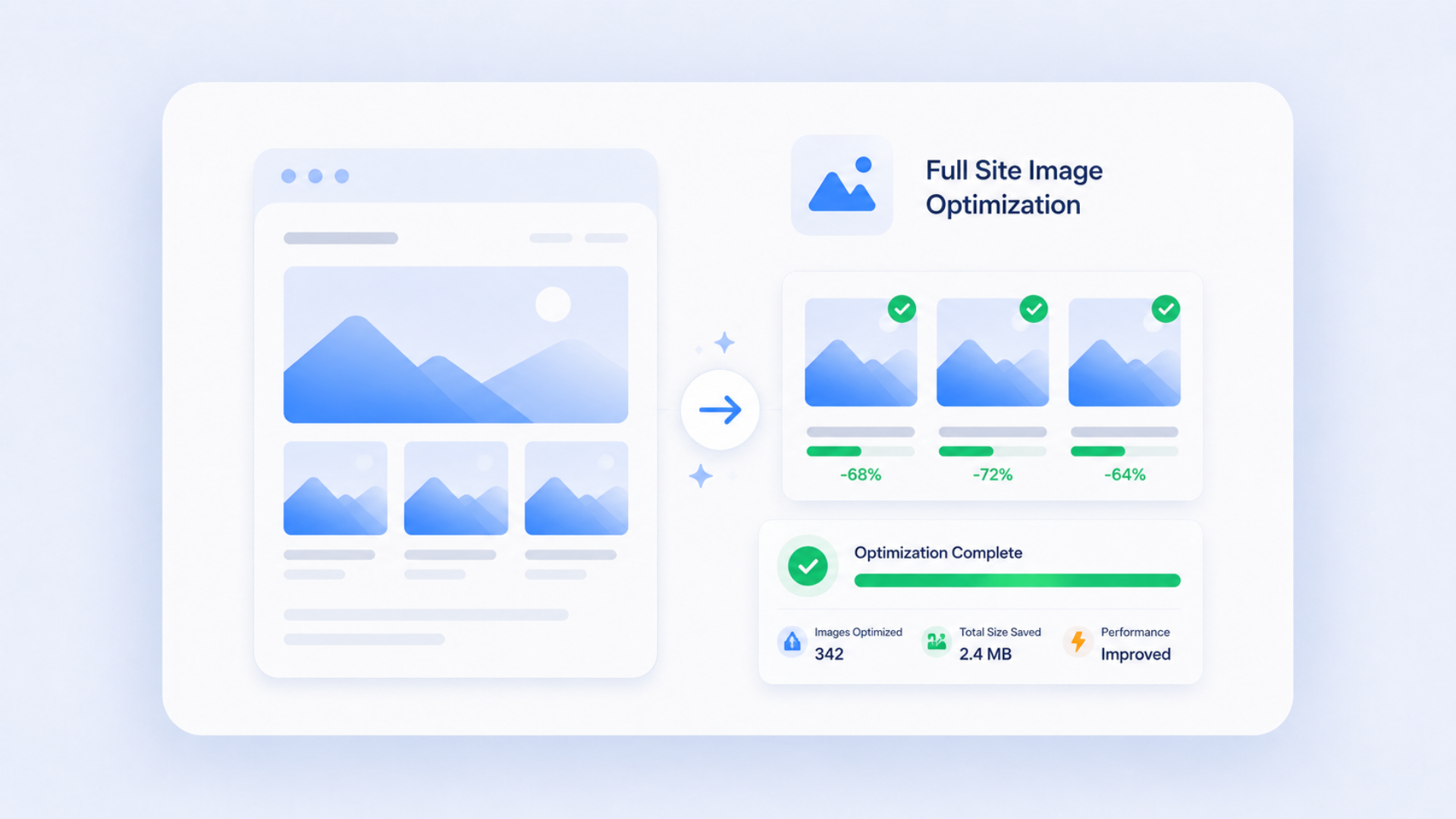
Once AirLift finds an eligible image, it can create optimised and responsive versions of it. That means a visitor on a phone does not have to download a desktop-sized image when a smaller one will look just as good on that screen.
AirLift also considers when the image is needed. The campaign banner at the top of the homepage should start loading early because the visitor is waiting to see it. A product photo several sections lower can wait until the visitor gets closer to it. AirLift can preload important images in the first screen and lazy-load images farther down the page.
This is the part people often miss when they talk about image optimisation. Smaller files help, but timing matters too. A page does not feel fast because every image arrives at once. It feels fast because the images you need now arrive before the ones you may never scroll far enough to see.
And if an optimised version is not available, AirLift falls back to the original image. The site still has something reliable to show instead of treating optimisation as an all-or-nothing switch.
New eligible sites receive this improved image path automatically. Existing sites will move over gradually through re-optimisation, and very large image libraries may be handled in priority order according to plan limits. The practical change is that you should not have to remember every obscure place a builder or plugin can hide an image. AirLift does more of that searching for you.
Now, let us say you make another change to that homepage.
The old campaign is over, so you update the colours, spacing, and layout in Elementor. The editor looks right. You regenerate Elementor’s CSS, check the preview, and move on.
Later, someone opens the public page, and it looks half-finished. The content is present, but the spacing has disappeared. A button has lost its colour. A section that looked fine in Elementor is suddenly out of shape.
This is one of those WordPress problems that feels mysterious until you see the chain behind it.
Elementor keeps many of its design instructions in generated CSS files. Those files tell the browser how wide a section should be, which colour a button uses, how typography should look, and how the layout changes on smaller screens.
When Elementor regenerates that CSS, it can remove the old files and prepare new versions. But a cached page may still contain the address of the old file. So the browser receives the page quickly, follows its styling reference, and asks for a file Elementor has already removed.
The page is fast. It is also wrong.
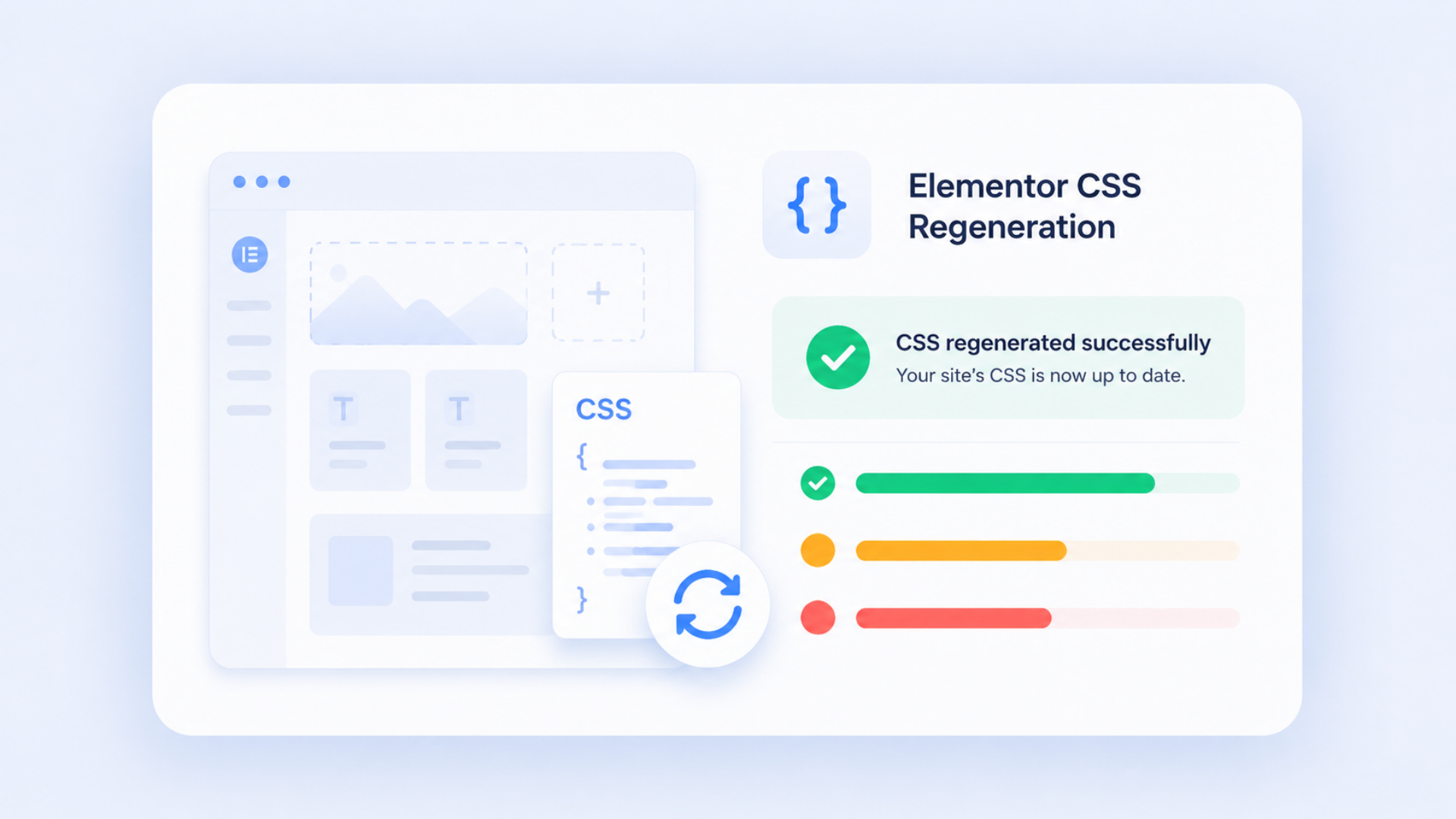
This conflict between Elementor CSS regeneration and page caching has been documented for years. It is especially awkward because each part is behaving reasonably on its own. Elementor is refreshing its design files. The cache is serving the saved page it was told to keep. The mismatch appears only when those two versions meet in a visitor’s browser.
AirLift now listens for the moment Elementor regenerates or purges its CSS. When that happens, AirLift clears cached pages that could still be carrying the old file addresses. It clears the AirLift cache and also coordinates with Varnish and Cloudflare when those layers are present.
That last part matters. Many WordPress sites have more than one cache between WordPress and the visitor. Clearing the copy in one place does not help if another layer is still serving yesterday’s page.
Once the stale copies are gone, the next page can be built with the current Elementor CSS reference. You keep the speed advantage of caching without turning “remember to clear every cache” into part of the publishing routine.
You should not need to know which CSS filename changed or which cache served the old page. You made a design change. The public page should show that design. AirLift now does more of the coordination needed to make that ordinary expectation hold up.
The homepage is updated, the images are handled, and the design looks right. Now open it on a phone.
The page appears quickly. The menu button is already in the corner, so you tap it.
Nothing happens.
Even a short pause here feels longer than it is. Visitors do not know that a script is still loading in the background. They see a button, press it, and assume the site ignored them.
This can happen because many WordPress mobile menus depend on JavaScript from the theme, builder, or menu plugin. AirLift delays non-essential JavaScript to stop the browser from doing too much work before it can show the page. That can make the page load faster, but it also creates a small window where the menu is visible before the code that opens it is ready.
Turning off JavaScript delay across the page would be a heavy-handed answer. It could make the menu ready sooner, but it would also bring back work that AirLift deliberately moved out of the way.
AirLift’s new hamburger rules take a narrower approach.
When AirLift recognises a known mobile-menu setup with high confidence, it adds a small fallback for that menu. The fallback handles an early tap while the original menu JavaScript is still loading. Once the site’s own code is ready, it takes control again.

For the visitor, there is no handoff to understand. The menu simply responds when they tap it.
The high-confidence requirement is important because WordPress menus are not all built alike. One theme may open a simple navigation panel. A builder may use a similar button for an off-screen drawer. Another plugin may add its own open state and animations. A generic fix applied everywhere could easily interfere with the wrong part of the page. So AirLift does not guess. If the menu match is unclear, duplicated, missing required pieces, disabled, or below the confidence threshold, no fallback is added. The feature helps compatible menu systems it understands and leaves uncertain cases to the site’s original code.
That balance matters to us. AirLift can keep delaying JavaScript where it helps performance while protecting one of the first things a mobile visitor may try to use.
There is a version of website performance that ends with a score. Run the test, fix the warnings, take the screenshot, and call the work done.
Real websites do not stay inside that screenshot.
They collect images in strange places. Page builders replace files. Caches hold on to old pages. Visitors tap buttons before every script is ready. The site changes because the business changes, and the optimisation has to keep up.
That is what connects these three AirLift improvements.
The image system looks beyond the obvious page content to find more of what visitors actually download. Elementor CSS handling notices when a fast-saved page has fallen out of step with the current design. Mobile-menu rules protect an early interaction without throwing away JavaScript optimisation across the rest of the page.
You get fewer images left behind, fewer broken-looking pages after routine Elementor work, and fewer moments where a mobile menu feels dead even though the page loaded quickly.
More importantly, you do not have to become the person who remembers where every builder stores an image, which cache needs clearing, or which script makes the menu open. AirLift handles more of that WordPress-specific complexity in the background.
Because making a site fast once is useful. Keeping it fast after the next campaign, redesign, plugin update, and content change is what actually makes the difference.
Website caching advice gets messy because everyone talks about the cache they sell, manage, or just discovered in a host dashboard. A plugin says full-page cache. Your host says…
Read

If a WordPress performance audit has told you to “enable lazy loading,” you may be wondering what to change first, especially if your site already uses a lazy-loading plugin. Lazy…
Read

If you’ve tried to enable caching and visitors are now seeing old CSS, outdated content, or a private page from the wrong cache, the cache control header is a key place to…
Read
Airlift works out what each page needs and applies it. Free to try on your own site.